How to fix
“Sorry, something went wrong and Word was unable to start” error
on Windows
Resolve the "Sorry, something went wrong" error in Word on Windows 10 or 11 quickly and easily. Expert-tested solutions for hassle-free usage!


What causes How to fix “Sorry, something went wrong and Word was unable to start” error in Windows?
- Corrupted Word files
- Corrupted system files
- Bugs within the Microsoft Office suite
- Recent updates that didn’t install properly
- Conflicts with other software
- Inadequate permissions
Repairs Windows system files, removes malware, and restores a clean OS state — without reinstalling.
I can't launch Word at all because of the error "Sorry, something went wrong and Word was unable to start." What can I do to fix this issue?
Microsoft Office is a comprehensive suite of productivity applications that includes Word, Excel, PowerPoint, and others, catering to various documentation, data management, and presentation needs. Microsoft Word, one of the core components of this suite, is widely used for creating and editing documents.
Despite its robustness, users occasionally face issues that prevent the application from launching, one of which is the error message: "Sorry, something went wrong and Word was unable to start."
This error typically appears when attempting to open Word. It signals an interruption in the application's normal startup process, which can be frustrating for users who rely on the program for daily tasks. Several factors might contribute to this issue. Corrupted Word files or system files can prevent the application from loading correctly.
Bugs within the Microsoft Office suite itself can also cause the "Sorry, something went wrong and Word was unable to start", especially if there have been recent updates that didn't install properly or if the application has become outdated.
Additionally, conflicts with other software or inadequate permissions can interfere with Word's operation. To potentially resolve these issues, it might be necessary to repair the Office installation, update the software to the latest version, or check for conflicts with other applications.
In cases where the problem persists, employing a specialized PC repair tool [d1] could prove beneficial. Such tools are designed to diagnose and fix a variety of Windows issues automatically, potentially resolving underlying problems that affect Microsoft Word's functionality.
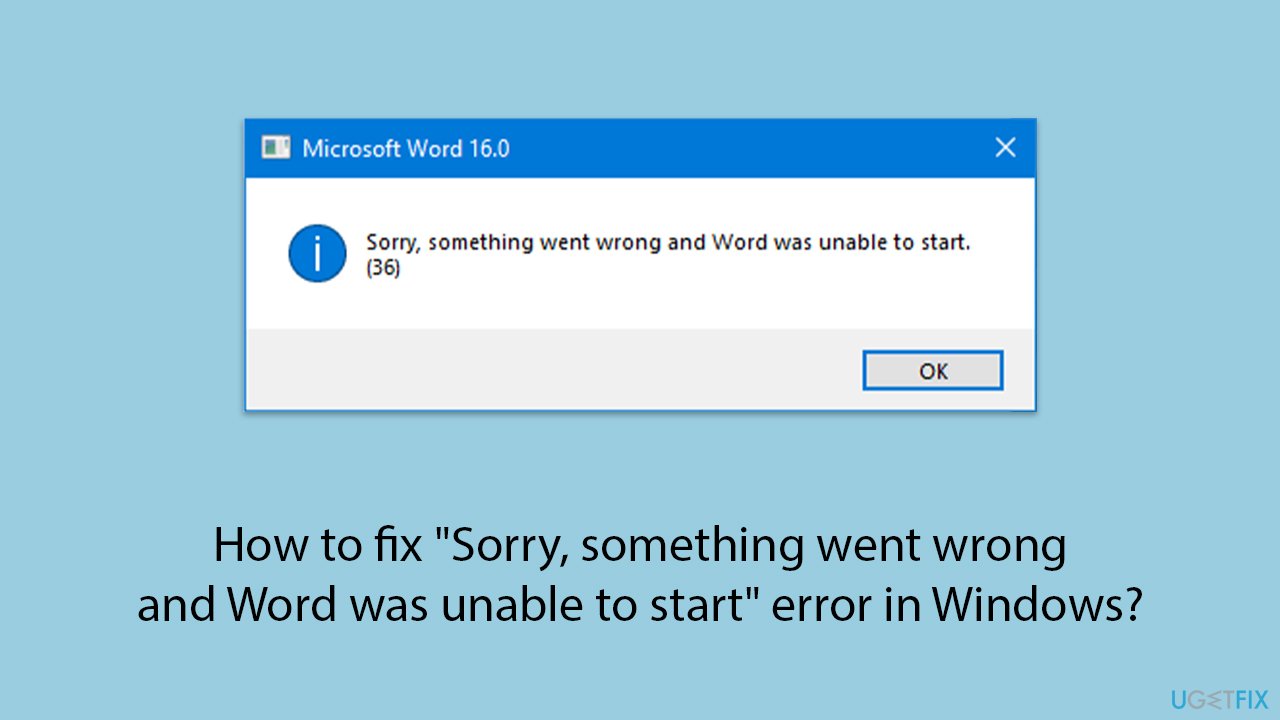
Fix 1. Run Windows Store apps troubleshooter
The Windows Store apps troubleshooter is a built-in utility that helps resolve issues with apps downloaded from the Windows Store, including Microsoft Word if it was installed via the Windows Store. This troubleshooter can automatically detect and fix common problems.
- Type Troubleshoot in Windows search and hit Enter.
- Click Additional troubleshooters/Other troubleshooters.
- Scroll down to find Windows store apps and select it.
- Click Run the troubleshooter/Run.
- Wait till the process is finished and apply the fixes, then try updating again.
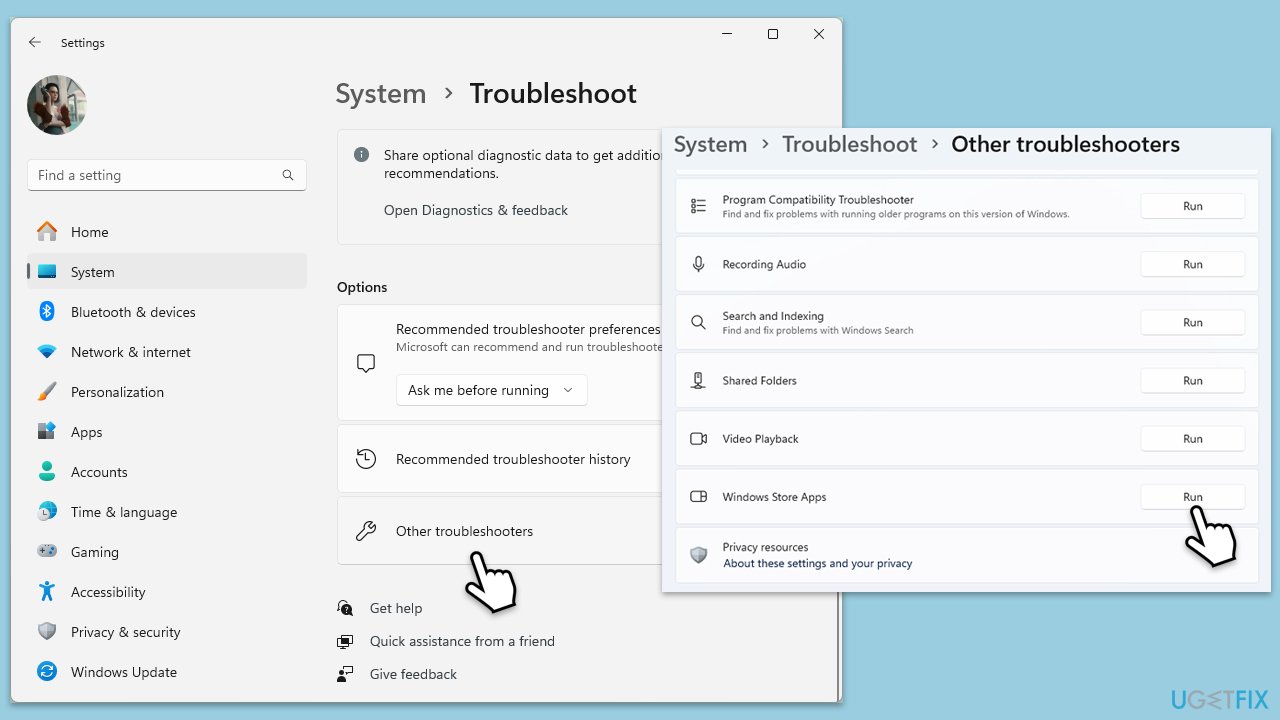
Fix 2. Update MS Word
Updating Microsoft Word can resolve issues caused by bugs or outdated features. Microsoft frequently releases updates to enhance functionality and security.
- Open Word.
- Click on the File tab in the top-left corner.
- Select Account from the menu.
- Under the Product Information section, click on Update Options.
- Choose Update Now to check for and install any available updates.
- Restart the Office application after the update is complete to see if the issue is resolved.
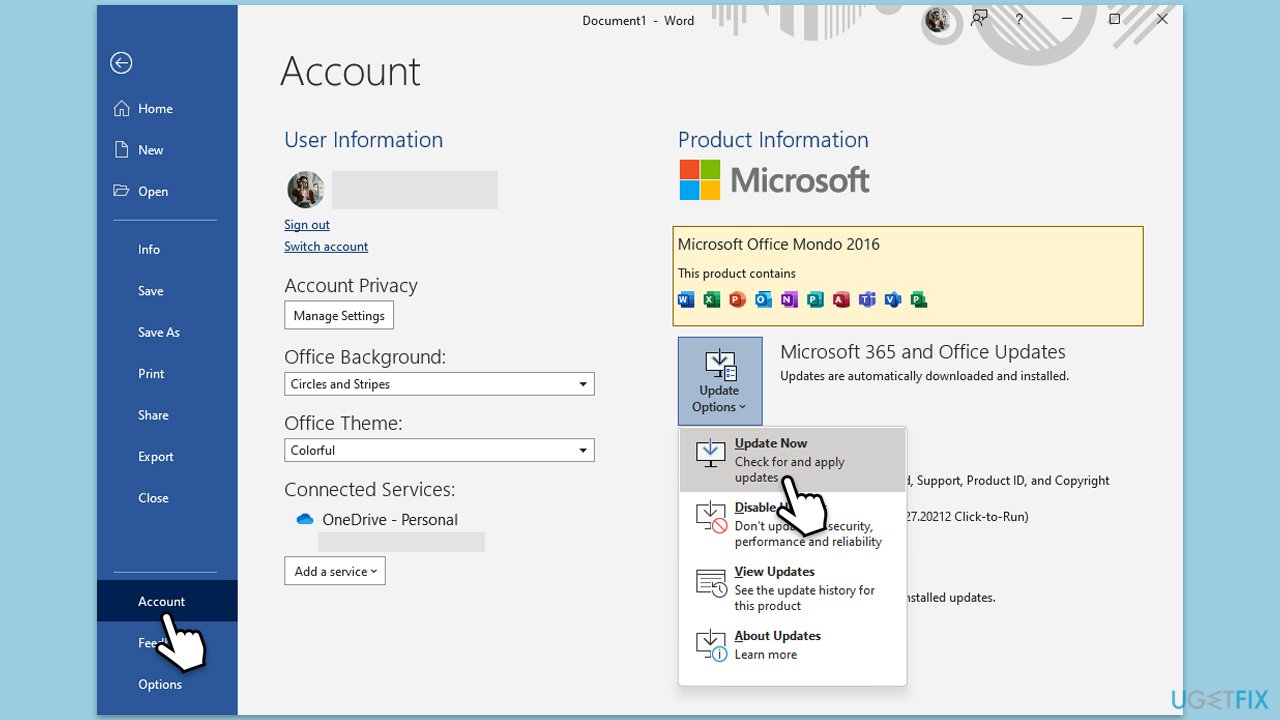
Fix 3. Repair MS Office installation
Repairing the Microsoft Office installation can fix issues with corrupt files and errors that occur due to problematic installations or updates.
- Type Control Panel in Windows search and press Enter.
- Select Programs > Programs and Features.
- Select Microsoft Office and click on Change.
- Choose the option for Online Repair and click Repair.
- Follow the prompts to finish the process.
Fix 4. Use Microsoft Support and Recovery Assistant
The Microsoft Support and Recovery Assistant can help diagnose and fix issues automatically. It's especially useful for resolving complex Office problems without detailed technical knowledge.
- Open your browser and go to the official Microsoft support website.
- Scroll down and click Download under Uninstall and reinstall Office.
- Once downloaded, double-click SetupProd_OffScrub.exe to launch it.
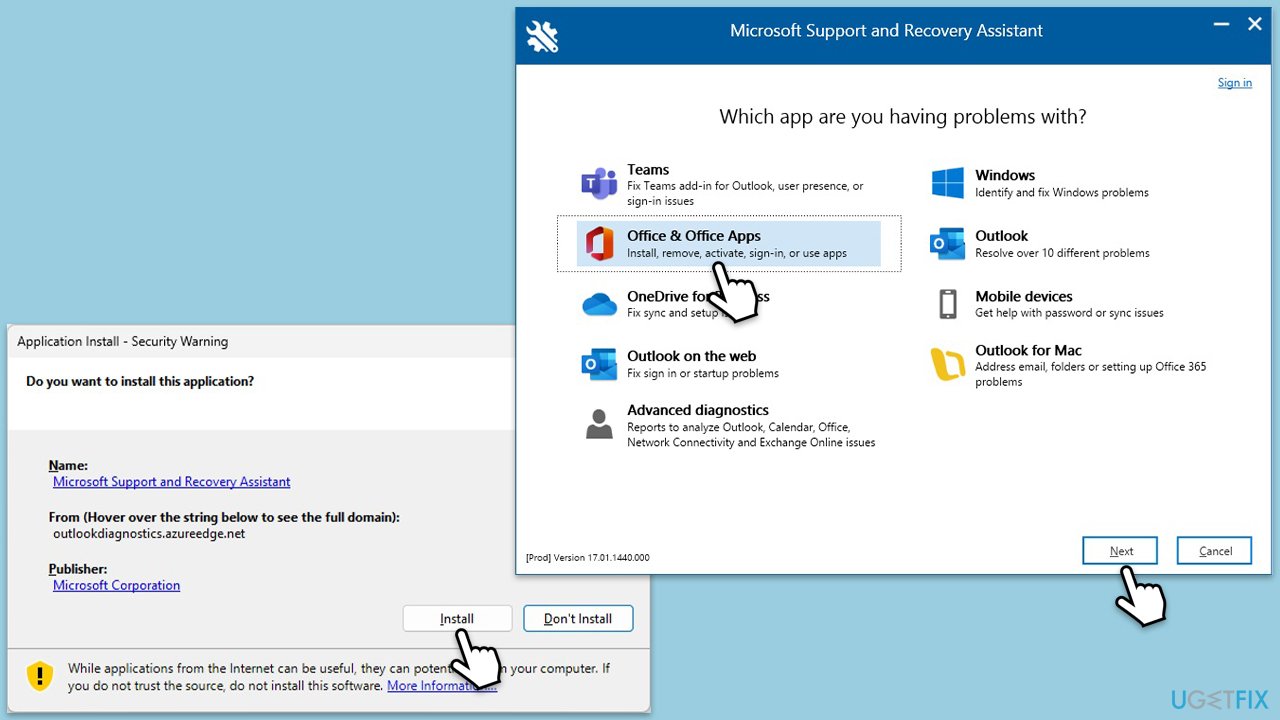
- When prompted, click Install.
- Once installed, launch Microsoft Support and Recovery Assistant.
- Select Office & Office Apps and click Next.
- Pick the issue that applies to you and continue with the prompts.
Fix 5. Start Word in Safe Mode
Starting Word in Safe Mode allows it to run without any add-ons or extensions, which can sometimes cause the application to stop working correctly.
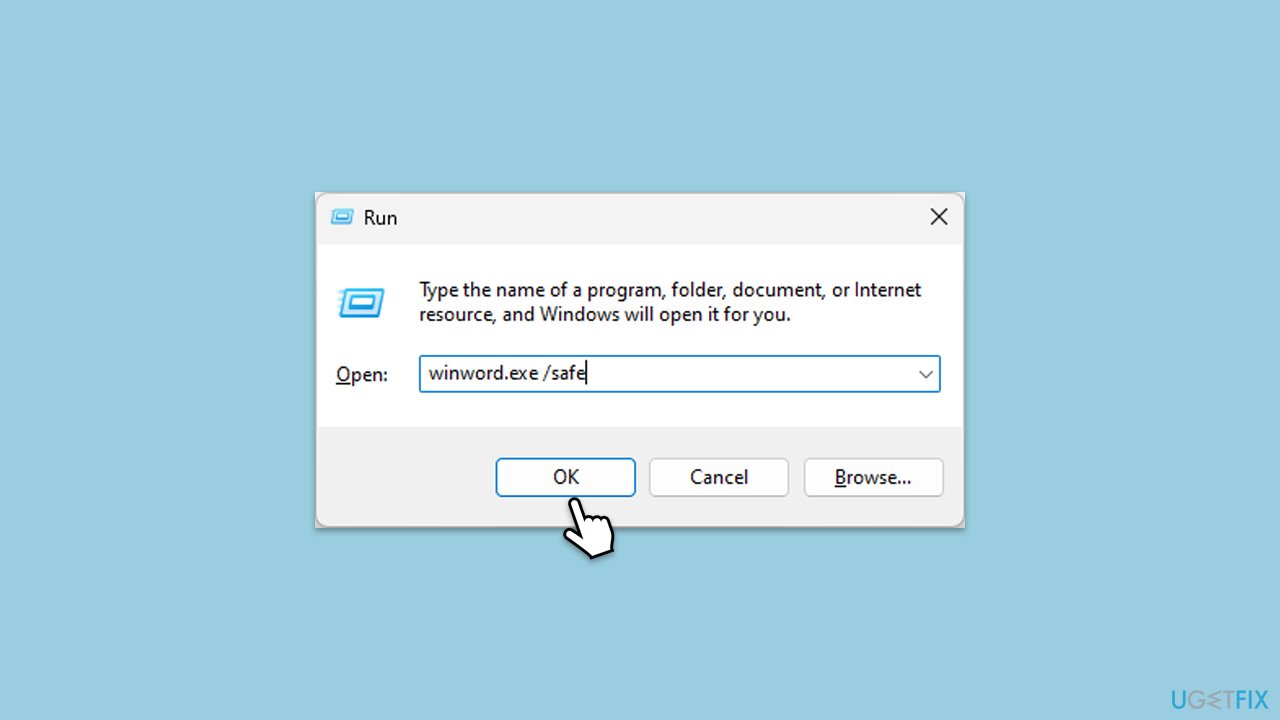
- Press Win + R on your keyboard to open the Run dialog.
- Type in winword.exe /safe and press Enter or click OK.
- See if Word is working in this environment.
Fix 6. Create a new user account
Creating a new user account can resolve issues caused by user profile corruption.
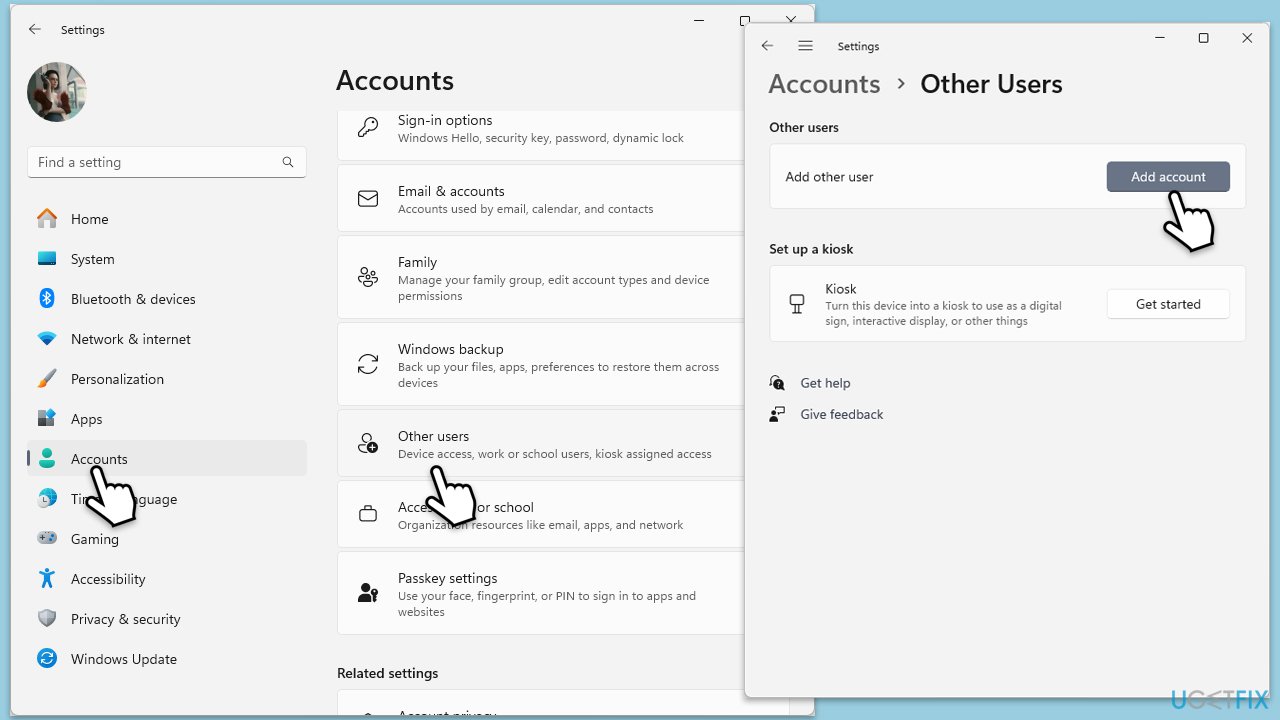
- Open Windows Settings.
- Go to Accounts then Family/Family & other users.
- Under Other users, click Add account/Add someone else to this PC.
- Follow the prompts to create a new user account. If you don't have Microsoft account details, you can choose I don't have this person's sign-in information followed by Add a user without a Microsoft account.
- Assign a username and password for the new account and complete the setup.
- Then go back to the Accounts section. Under Family/Family & other users, select the newly created account and click Change account type.
- Under Account type, pick Administrator and click OK.
Fix 7. Reinstall Office
If all other solutions fail, reinstalling Office can ensure a fresh, clean installation without any underlying issues.
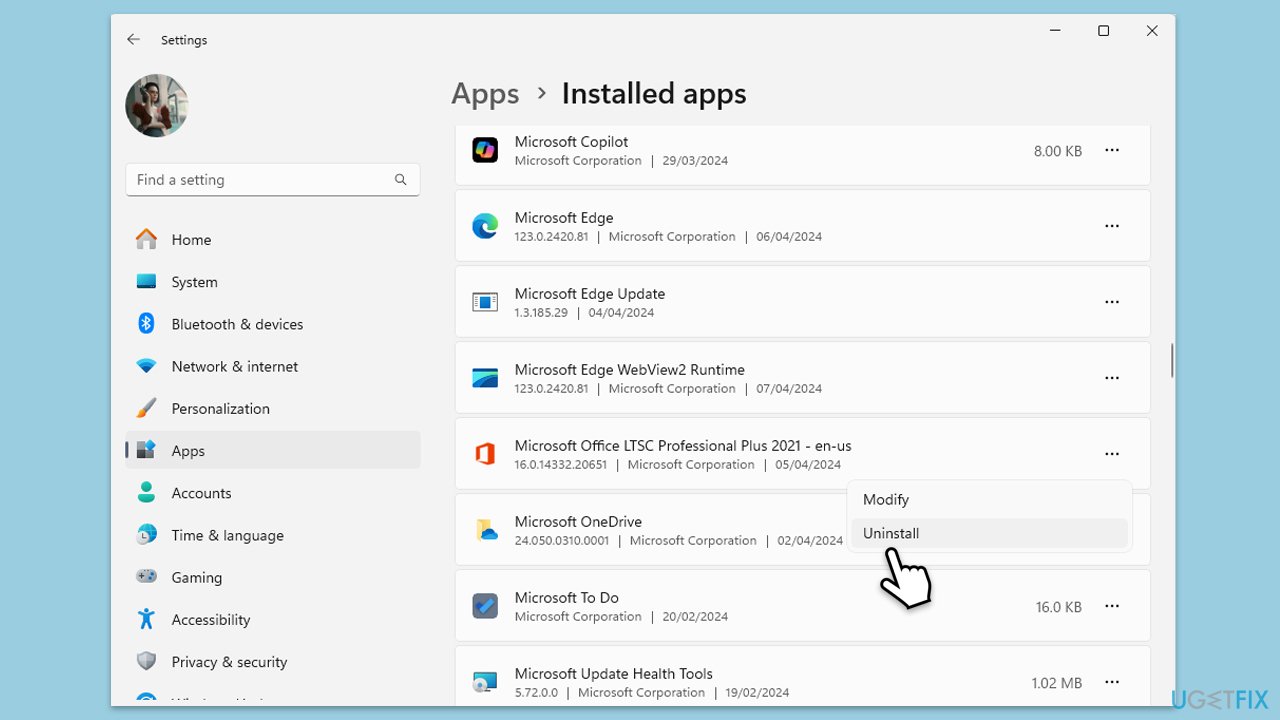
- Right-click on Start and pick Apps and Features/Installed apps.
- Scroll down to find the MS Office installation.
- Click Uninstall and confirm with Uninstall.
- Follow on-screen instructions to remove the app completely.
- Press Win + E to open File Explorer.
- Navigate to the following location and delete its contents:
C:\Program Files\Microsoft Office - Next, type regedit in Windows search and press Enter.
- Go to the following locations in the Registry Editor and delete these items:
Computer\HKEY_LOCAL_MACHINE\SOFTWARE\Microsoft\AppVISV
Computer\HKEY_LOCAL_MACHINE\SOFTWARE\Microsoft\Office\ClickToRun
Computer\HKEY_CURRENT_USER\Software\Microsoft\Office - Reboot the computer and then reinstall Microsoft Office.
Bottom line
To fix the error, you can run the Windows Store apps troubleshooter, repair the Office installation, or update the software to the latest version. If these solutions do not resolve the issue, consider using a specialized PC repair tool to diagnose and fix underlying problems.
Frequently asked questions
This error can be caused by corrupted Office installation files, incompatible add-ins, or issues with user profiles on Windows 10.
You can repair Microsoft Word by going to Settings > Apps > Apps & features, selecting Microsoft Office, and choosing the 'Modify' option to perform a Quick Repair.
Yes, disabling add-ins can help resolve the startup error; you can do this by starting Word in Safe Mode and then disabling the add-ins from the options menu.




Report an issue
What's wrong with this guide? We review every report and update or remove content.
Report received — thank you. We'll review and fix it.
You need a free account to submit a report.
Be the first to comment