How to fix
Cform.exe Application error
on Windows
Resolve the cform.exe Application error in Windows 10 and 11 effortlessly. Get expert-tested solutions and fix issues in minutes, with screenshots.

What causes How to fix cform.exe Application error in Windows?
- Faulty Windows update
- Corrupted system files
- Malware infection
- Software incompatibility
Repairs Windows system files, removes malware, and restores a clean OS state — without reinstalling.
Hello, I keep getting a cform.exe Application error on my laptop. This started a couple of weeks ago and I don't know how to fix it. I am running Windows 10.
Application errors in Windows can significantly disrupt user experience and hinder performance. One such example is the cform.exe application error. The cform.exe file is associated with specific software applications that use forms, typically for entering or managing data. As an executable file, it plays a crucial role in the functioning of these applications, handling various user interactions and data processing tasks.
The cform.exe application error can occur due to several reasons. A faulty Windows update may introduce system instability or software incompatibility, affecting cform.exe’s performance. Additionally, corrupted system files can cause this executable to malfunction, as it relies on these files to execute correctly. Another potential cause is malware infection; malicious software can target executable files, altering their behavior or damaging them to the extent that they cause errors when launched.
A number of steps may be required to resolve a cform.exe application error. It should be very important to make sure that all Windows updates are installed correctly and that there are no corrupted system files. It's also a good idea to run a thorough antivirus scan to rule out the potential that malware is impacting system files. These initial checks can avoid many common issues related to executable files and aid in protecting the integrity of the system.
For a more thorough solution, utilizing a PC repair tool [d1] can be highly beneficial. These tools are designed to improve system stability, repair corrupted files, remove various kinds of system junk, fix registry errors, and perform many other maintenance tasks. By using such a tool, you can ensure that the underlying causes of cform.exe application errors are addressed, potentially restoring your system and application functionality to optimal levels.
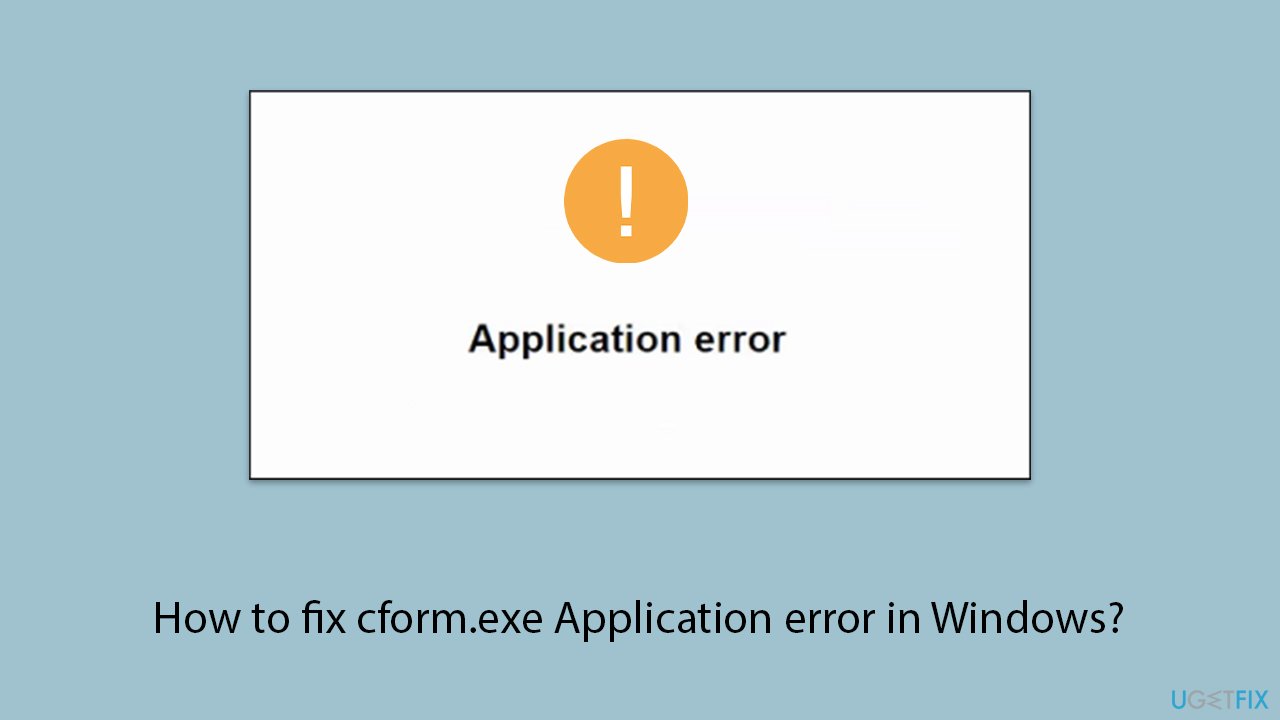
Fix 1. Update Windows to the latest version
Ensuring your Windows is up-to-date can fix many bugs and issues, including application errors. Updates can provide new system files or replace corrupted ones that might be causing the error. If your system is already updated, proceed with the next solution.
- Type Updates in Windows search and hit Enter.
- If updates are available, click Install updates.
- Otherwise, click Check for updates.
- If optional updates are available, install them as well.
- When all the update processes are complete, restart your device.
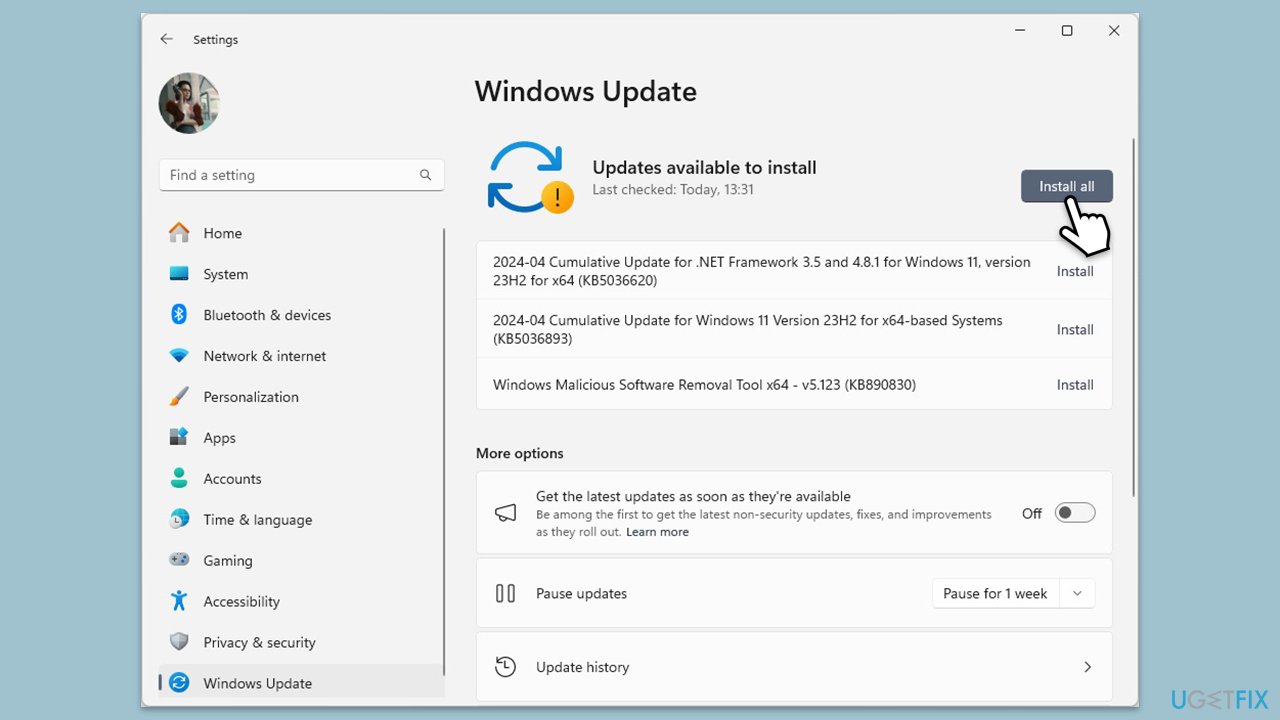
Fix 2. Uninstall the most recent update
If your issues started after the installation of the Windows update, uninstalling it might help.
- Type Control Panel in Windows search and press Enter.
- Select Programs > Uninstall a program.
- Click on View installed updates on the left side of the window.
- Uninstall the most recent update.
- Proceed with on-screen instructions.
- Don't forget to pause the update.
Fix 3. Scan your system for malware
Malware can corrupt or modify system files, including executable files like cform.exe, leading to errors. You can use Microsoft Safety Scanner, employ a third-party software, or run an offline scan with Microsoft Defender as follows:
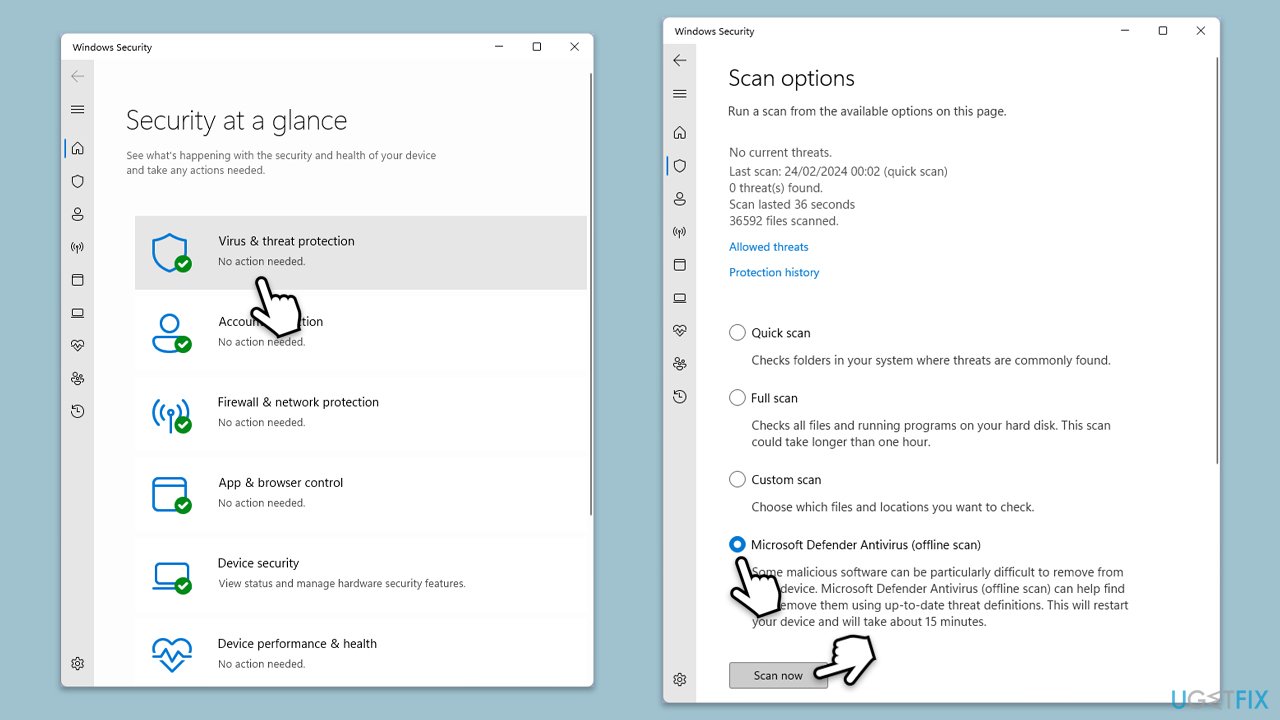
- Type Windows Security in the Windows search bar and hit Enter.
- Select Virus & threat protection.
- Pick Scan options.
- Choose Microsoft Defender Offline scan and click Scan now.
- Your computer will immediately reboot and begin a deep scan.
Fix 4. Check for corrupted system files
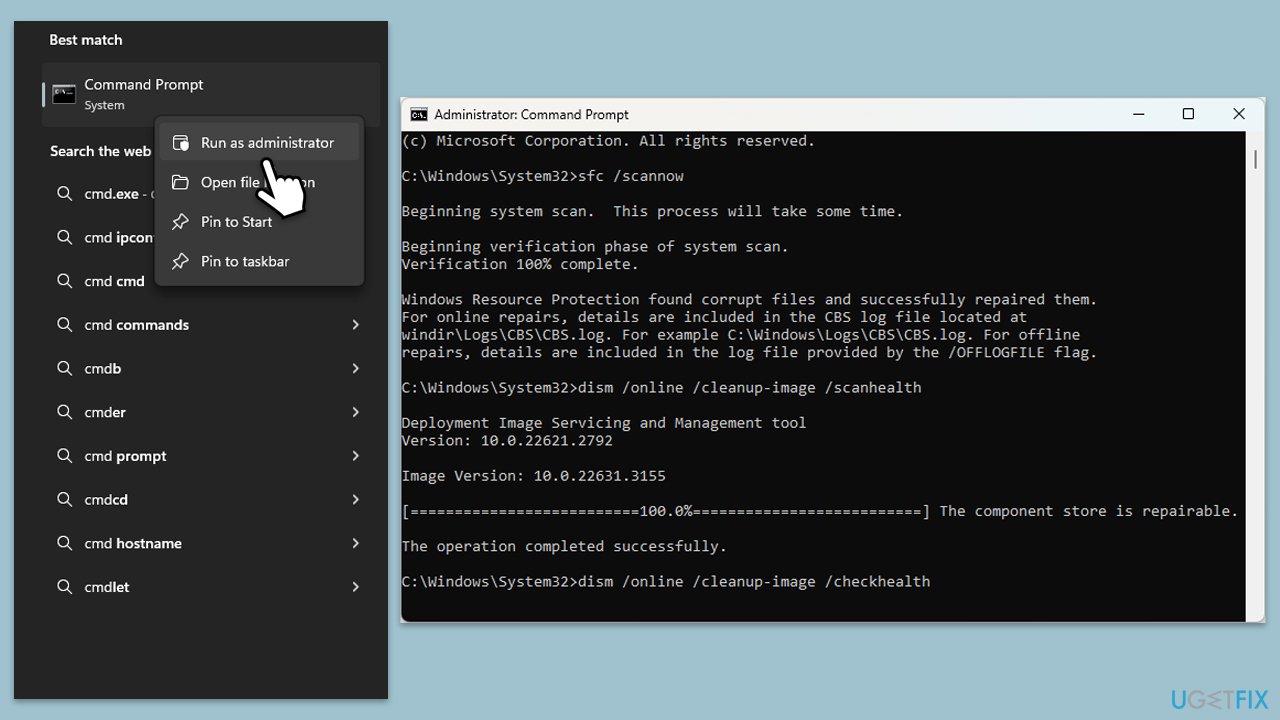
To fix corrupted files, open the elevated Command Prompt and run several commands:
- Type cmd in Windows search.
- Right-click on the Command Prompt result and pick Run as administrator.
- Click Yes when the User Account Control window shows up.
- Copy and paste the following command and press Enter:
sfc /scannow - Next, use the following commands, pressing Enter every time:
Dism /Online /Cleanup-Image /CheckHealth
Dism /Online /Cleanup-Image /ScanHealth
Dism /Online /Cleanup-Image /RestoreHealth
(Note: if you get an error executing this last command, add /Source:C:\RepairSource\Windows /LimitAccess to it and try again). - Reboot your computer.
Fix 5. Reinstall the affected app
Reinstalling the application related to cform.exe can resolve issues caused by errors or corrupted files from the initial installation.
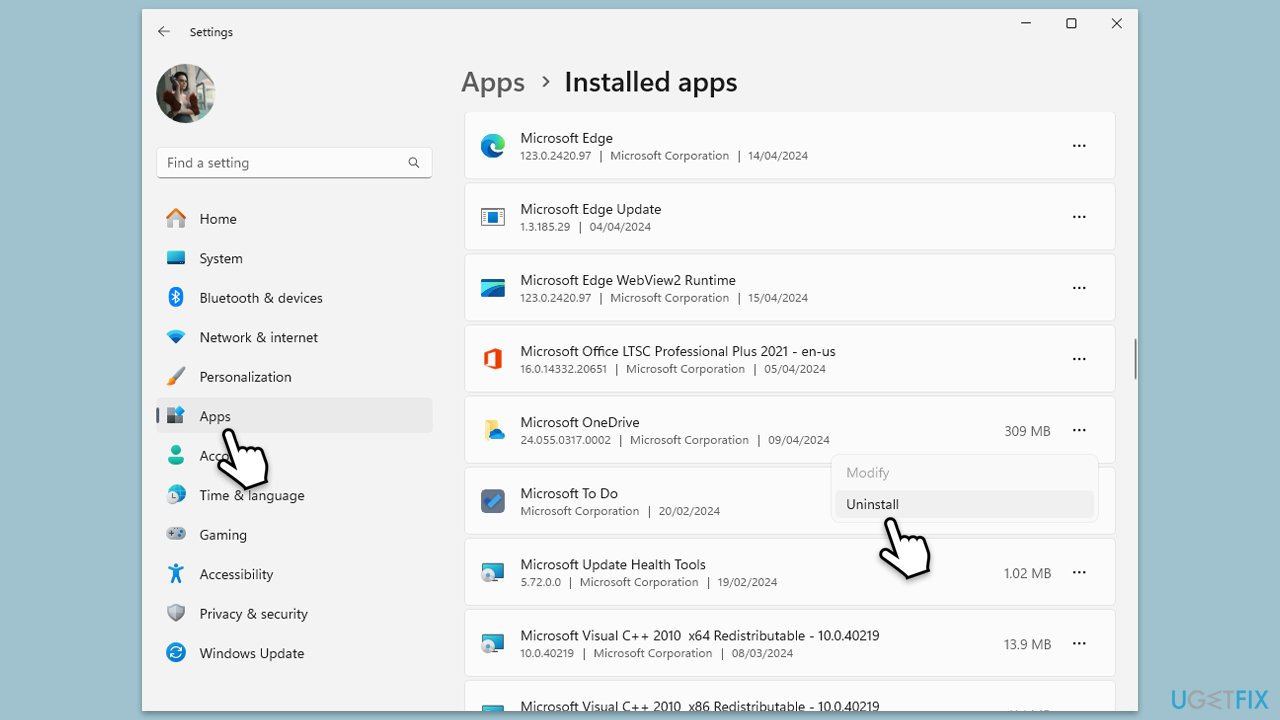
- Open Windows Settings.
- Click on Apps to open app settings (in Windows 11, click on Installed apps).
- Locate the application associated with the Application error in the list and click on it.
- Select Uninstall and follow the prompts to remove the application.
- After uninstallation, reinstall it from the original source or trusted store.
- Launch the application to check if the error persists.
Fix 6. Re-register the mentioned DLL file
If a specific DLL file related to cform.exe is mentioned in the error message, re-registering this file may correct any issues with its registration in Windows.
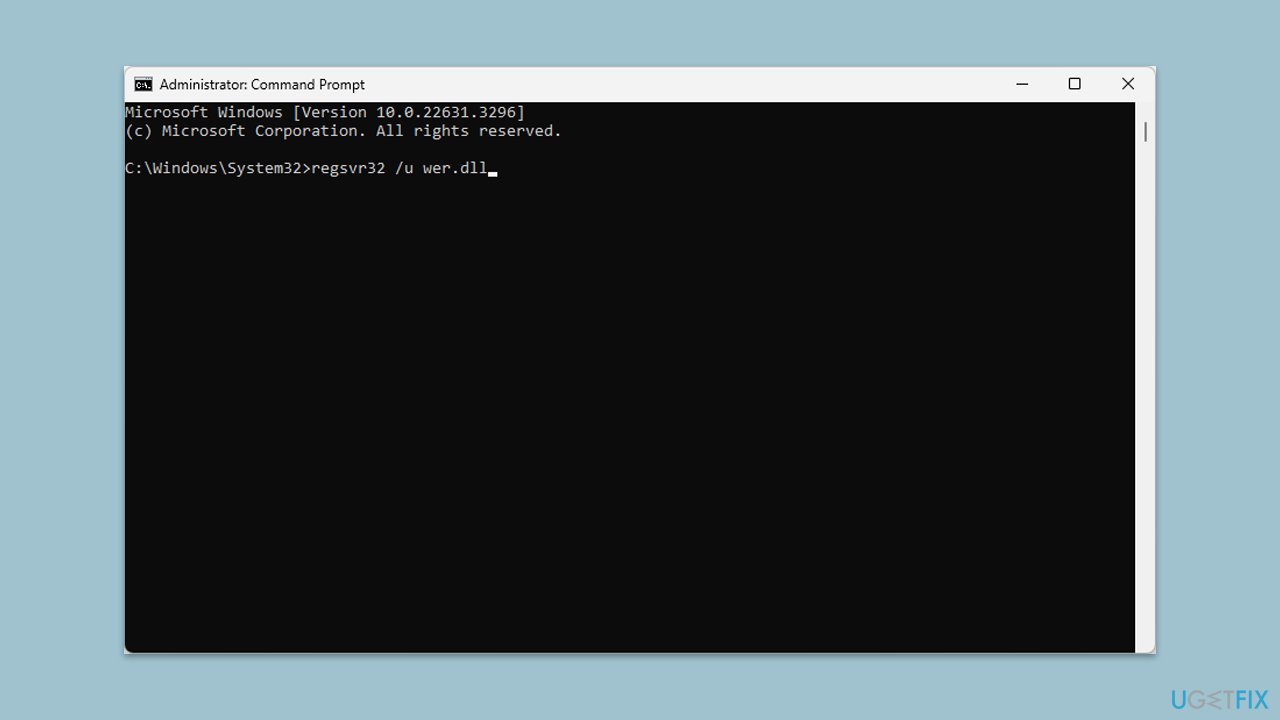
- Open Command Prompt as Administrator.
- Type regsvr32 /u DLL_Name.dll to unregister the faulty DLL (replace DLL_Name with the name of the DLL file).
- Then type regsvr32 DLL_Name.dll to re-register it.
- After executing these commands, restart your computer to apply the changes.
Bottom line
To fix the cform.exe application error, ensure that all Windows updates are installed correctly, run a thorough antivirus scan, and check for corrupted system files. If these steps do not resolve the issue, consider utilizing a PC repair tool for further assistance.
Frequently asked questions
The cform.exe Application error in Windows 10 can be caused by corrupted system files, outdated drivers, or conflicts with third-party software. Running a system file check can help identify and fix these issues.
To resolve the cform.exe Application error in Windows 11, try reinstalling the program associated with cform.exe, or perform a clean boot to eliminate software conflicts. Additionally, ensure that your Windows updates are current.
Disabling cform.exe in Windows can lead to functionality issues if it's linked to essential software, so it's recommended to troubleshoot the error first. If necessary, you can temporarily disable it but make sure to monitor the impact on your system.




Report an issue
What's wrong with this guide? We review every report and update or remove content.
Report received — thank you. We'll review and fix it.
You need a free account to submit a report.
Be the first to comment