How to fix
Windows Photos app stops working after opening too many photos
on Windows
Resolve issues with the Windows Photos app crashing after viewing multiple images. Get expert-tested solutions to fix this in minutes!

![[Fix] Windows Photos app stops working after opening too many photos](https://ugetfix.com/wp-content/uploads/articles/askit/fix-windows-photos-app-stops-working-after-opening-too-many-photos-copy_en-768x432.jpg)
What causes [Fix] Windows Photos app stops working after opening too many photos?
- Inability to handle multiple large files simultaneously
- Strain on system resources
- Corrupted system files affecting app functionality
- App freezing or crashing after opening several photos
Repairs Windows system files, removes malware, and restores a clean OS state — without reinstalling.
Hi. There is something wrong with my Photos app in Windows. Whenever I open many photos using it, it stops working. To be more precise, it stops opening additional photos and I'm not able to use arrow keys to swap between them anymore. Is there anything I can do to fix this?
Windows Photos app is a built-in and free tool that allows you to view photos and other image files on your computer. It is a convenient and widely used feature, providing users with basic photo viewing and editing capabilities. Despite its utility, the Photos app can sometimes encounter issues, particularly when opening multiple photos simultaneously. In some cases, the app may stop working or crash altogether.
This issue is often caused by the app's inability to handle the pressure of processing numerous huge files at once, which can strain system resources and trigger underlying issues. It could also be a sign of corrupted system files that affect the app’s functionality. The issue might manifest as the app freezing, crashing, or closing unexpectedly after attempting to open several photos.
To address the Photos app not working after opening too many photos, you may want to examine several options aimed at repairing or resetting the Windows Photos app's functionality. Running the Store applications troubleshooter may help by finding and resolving issues specific to Windows apps.
Additionally, running system scans such as SFC (System File Checker) or DISM (Deployment Image Servicing and Management) can fix corrupted system files that may be causing the app to fail to open more files.
If these methods do not resolve the problem, you might want to try repairing or resetting the Photos app via the Apps settings. When the app has been substantially degraded, reinstalling it may restore functionality. Alternatively, a Windows repair install can refresh the operating system without harming your personal files, potentially resolving deeper problems with the Photos app.
For a more complete remedy, a PC repair program [d1] could automatically find and resolve underlying Windows errors affecting the Photos app and other system components.
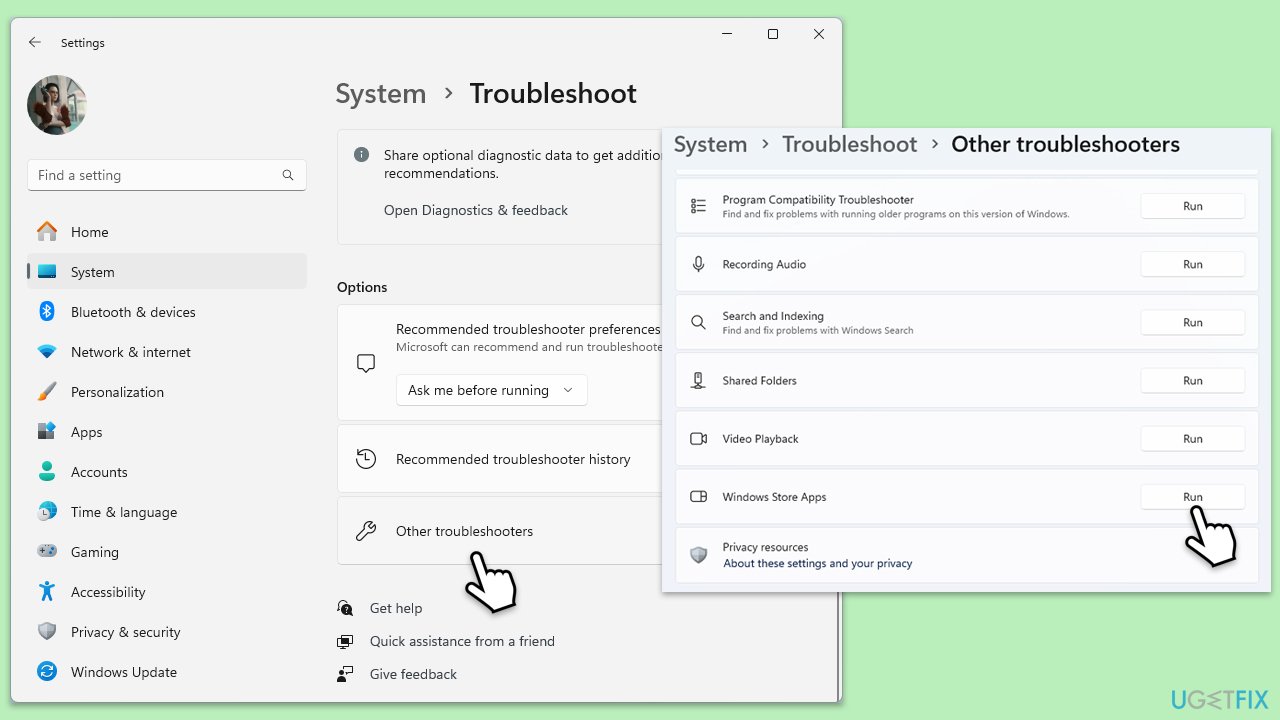
Fix 1. How can running Windows Store apps troubleshooter help?
Running the Windows Store apps troubleshooter can automatically detect and fix issues that prevent Windows apps, like the Photos app, from functioning correctly. It scans for problems such as improper app settings or corrupted app files and tries to resolve them without user intervention.
- Type Troubleshoot in Windows search and hit Enter.
- Click Additional troubleshooters/Other troubleshooters.
- Scroll down to find the Windows Store Apps troubleshooter.
- Select it and click Run the troubleshooter/Run.
- Wait till the scan finishes and apply the suggested fixes, then reboot your device.
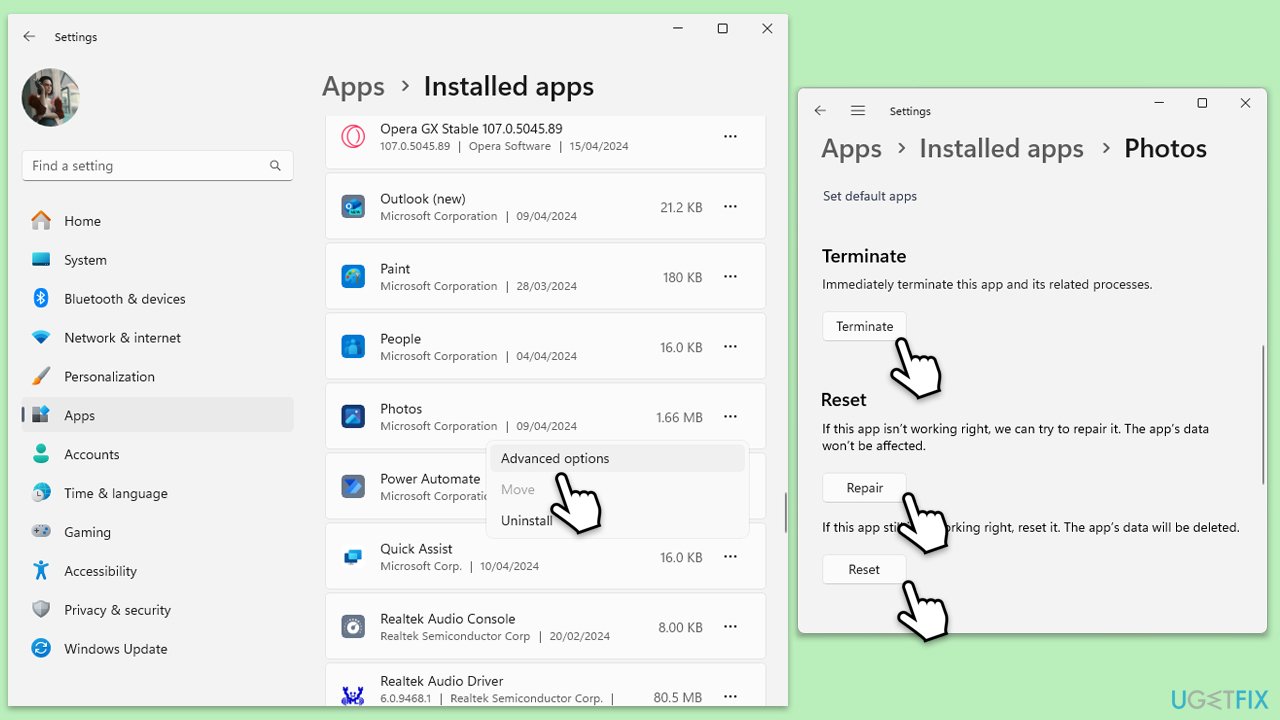
Fix 2. What does repairing or resetting the Photos app do?
Repairing the Photos app can fix minor bugs without affecting your data while resetting it restores the app to its original settings and clears all data, which can resolve more severe issues.
- Right-click on Start and pick Apps and Features/Installed apps.
- Scroll down to find Microsoft Photos and click on it or click on three dots and select Advanced options.
- Click Terminate.
- To repair, click on the Repair button.
- If the issue persists, return to this menu and click the Reset button.
- Restart your device.
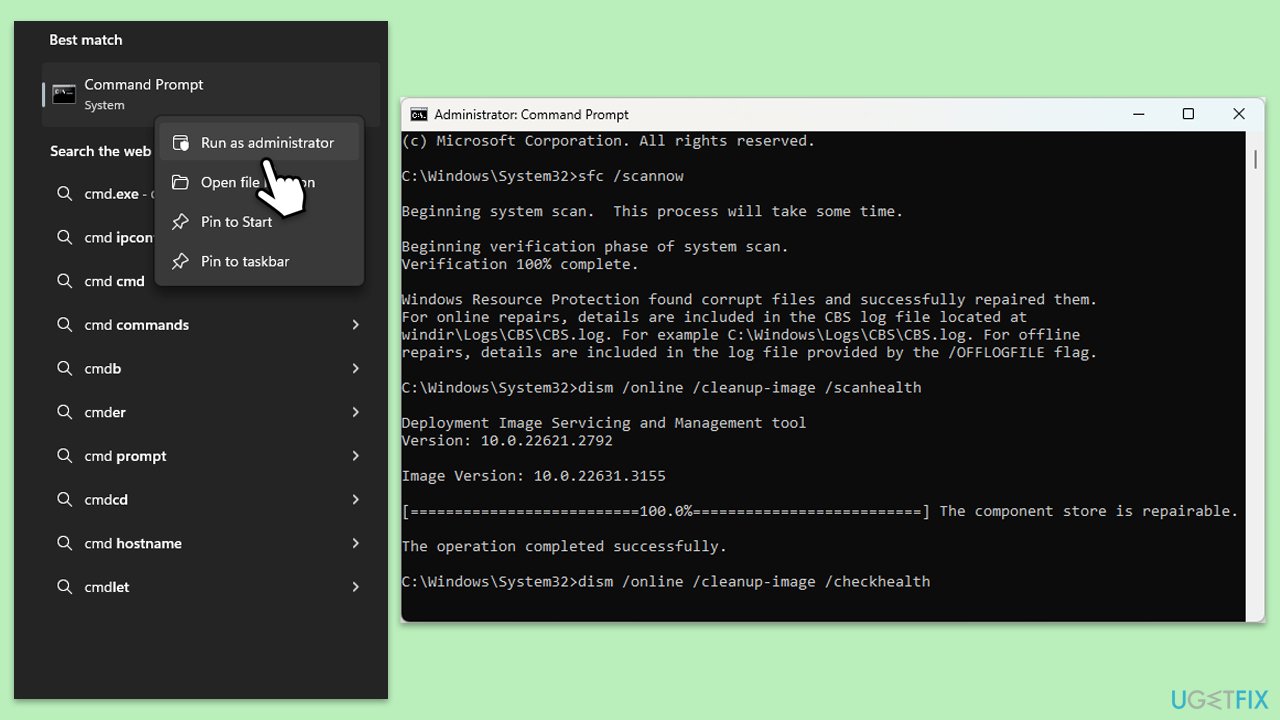
Fix 3. Why should you run SFC and DISM scans?
The System File Checker (SFC) and Deployment Image Servicing and Management (DISM) tools scan for and repair corrupted Windows system files. Running these scans can help fix issues causing the Photos app to crash by restoring system health.
- Type cmd in Windows search.
- Right-click on Command Prompt and pick Run as administrator.
- User Account Control window will show up - click Yes when prompted.
- Then, copy and paste the following command, pressing Enter after:
sfc /scannow - Wait till the scan is finished. If Windows finds system file integrity violations, it will attempt to fix them. After this, use the set of the following commands, pressing Enter each time:
DISM /Online /Cleanup-Image /CheckHealth
DISM /Online /Cleanup-Image /ScanHealth
DISM /Online /Cleanup-Image /RestoreHealth - (Note: if you get an error executing this last command, add /Source:C:\RepairSource\Windows /LimitAccess to it and try again).
- Close down the Command Prompt and restart your computer.
Fix 4. How does re-registering all Windows apps via PowerShell work?
Re-registering Windows apps through PowerShell can refresh app registrations and fix issues caused by corrupted or incomplete app installations.
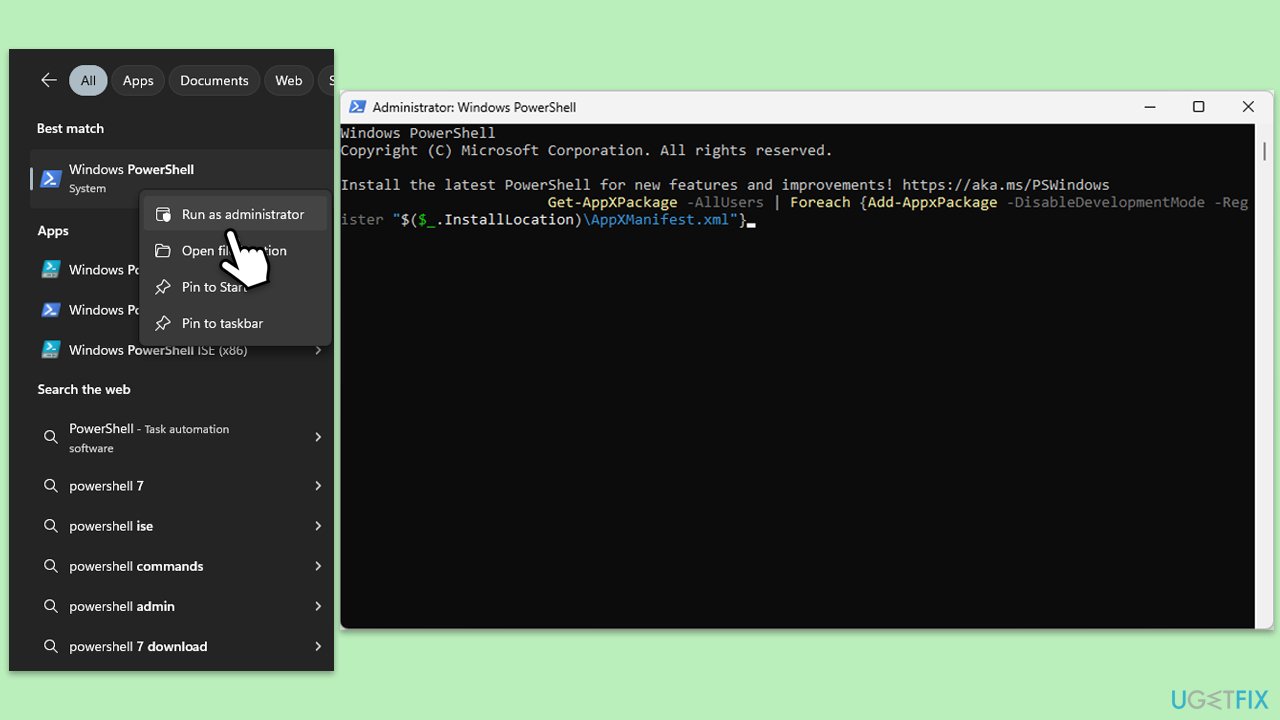
- Open PowerShell as an administrator.
- When the UAC window shows up, click Yes.
- In the new window, copy and paste the following, and then press Enter:
Get-AppXPackage -AllUsers | Foreach {Add-AppxPackage -DisableDevelopmentMode -Register "$($_.InstallLocation)\AppXManifest.xml"} - Wait for the process to complete, then restart your device.
Fix 5. What are the steps to reinstall the Photos app?
Reinstalling the Photos app can be useful if other fixes fail, as it completely replaces the app’s files with fresh copies, potentially resolving issues caused by corrupted or missing app files.
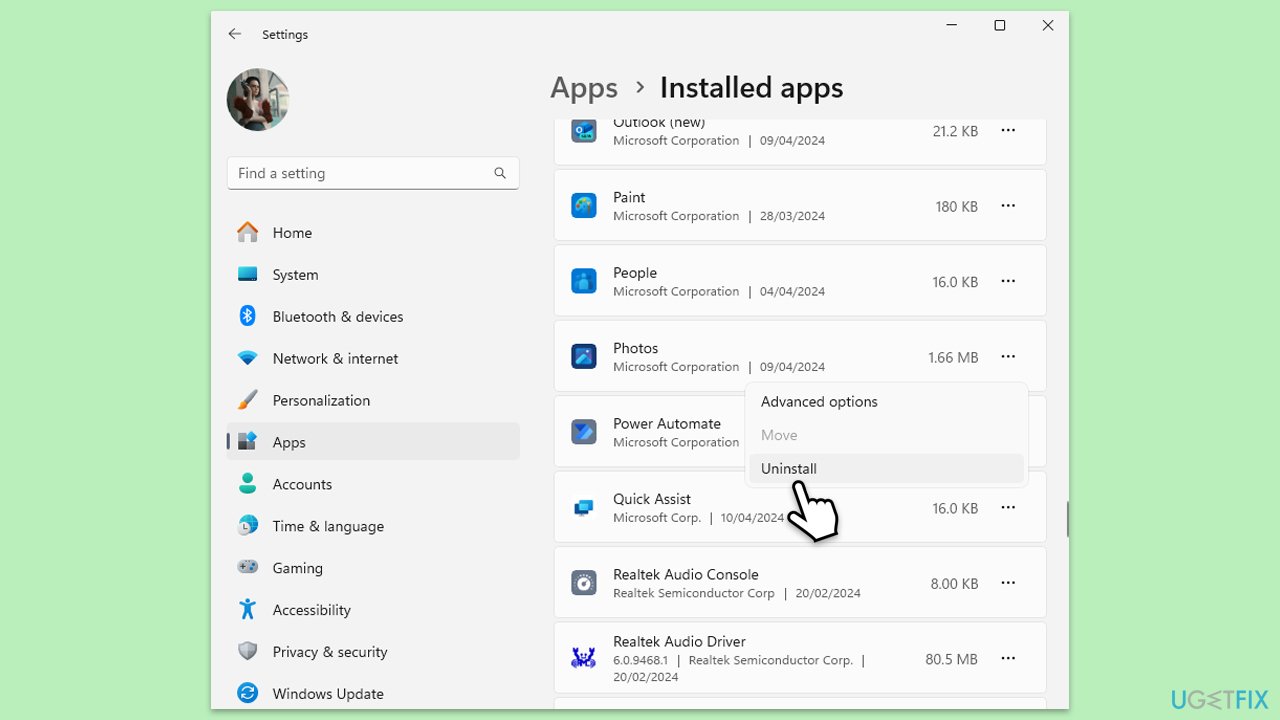
- Right-click on Start and pick Apps & Features/Installed apps.
- Scroll down to Photos, select it (or click three vertical dots), and click Uninstall.
- Confirm any prompts and follow on-screen instructions.
- Restart your computer.
- Reinstall the app from the Microsoft Store.
Alternatively, you can use PowerShell to remove the Photos app:
- Open PowerShell as an administrator.
- To uninstall the Photos app, type the following command and press Enter:
Get-AppxPackage Microsoft.Windows.Photos | Remove-AppxPackage - To reinstall it, type the following and press Enter:
Get-AppxPackage -allusers Microsoft.Windows.Photos | Foreach {Add-AppxPackage -DisableDevelopmentMode -Register "$($_.InstallLocation)\AppXManifest.xml"} - Close down PowerShell.
Fix 6. When should you perform a repair-install of Windows?
Performing a repair-install of Windows reinstalls the operating system while preserving your files, settings, and apps. It can resolve deeper system issues affecting apps like Photos without the drastic step of a clean install.
- Visit the official Microsoft website and download Windows 10 installation media (Windows 11 version).
- Double-click the installer and select Yes when UAC shows up.
- Agree to terms.
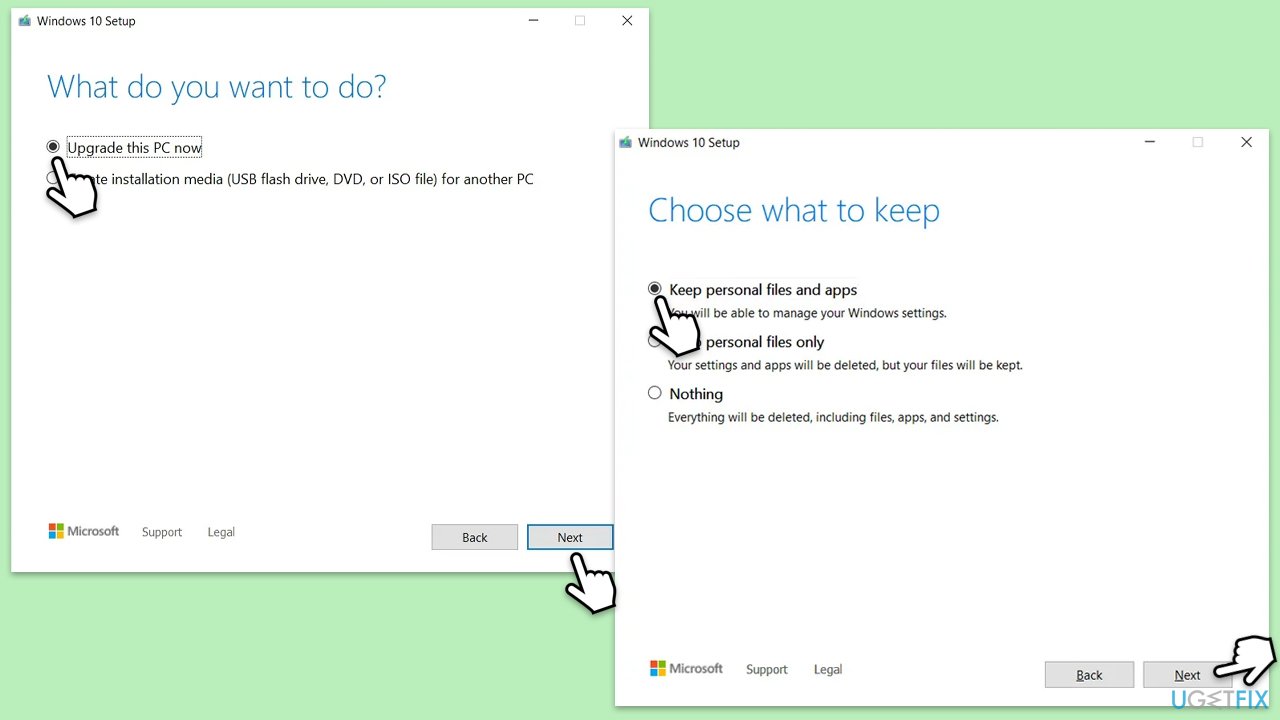
- Select Upgrade this PC now and select Next.
- Windows will now download all the necessary files – it might take a while.
- Agree to terms once again and click Next.
- Before installing, make sure that you are happy with your choices (otherwise, you can click Change what to keep option).
- Click Install to begin the upgrade process.
Bottom line
To fix the Photos app not working after opening too many photos, you can run the Store applications troubleshooter, perform system scans with SFC or DISM, and repair or reset the app via the Apps settings. If these methods do not resolve the issue, consider reinstalling the app or performing a Windows repair install.
Frequently asked questions
The Windows Photos app may become unresponsive due to memory overload or software bugs when too many images are opened simultaneously in Windows 10 or Windows 11.
You can try resetting the Photos app through Settings > Apps > Apps & features, then selecting Photos and clicking 'Advanced options' to reset it.
To prevent freezing, limit the number of images opened at once and ensure your Windows is updated to the latest version for optimal app performance.




Report an issue
What's wrong with this guide? We review every report and update or remove content.
Report received — thank you. We'll review and fix it.
You need a free account to submit a report.
Be the first to comment