How to fix
Error 1068: The dependency service or group failed to start
on Windows
Resolve error 1068 in Windows 10 and 11 with our expert-tested solutions. Get your system running smoothly again—fixed in minutes!


What causes How to fix error 1068: The dependency service or group failed to start in Windows?
- Dependency issue preventing the service from starting
- Problems with service permissions
- Dependencies not being correctly configured
- Required services not set to start automatically
- Bypassing problematic dependencies through the Registry Editor
Repairs Windows system files, removes malware, and restores a clean OS state — without reinstalling.
I can't start some services to make the wireless internet connection work. When I right-click on the Network Location Awareness service and select Start, it results in an error "Error: 1068: The dependency service or group failed to start." Due to this, I can't use my internet which of course is very annoying. Please help me.
In the Windows operating system, services are essential components that manage how different parts of the system operate, often running in the background without direct user interaction. These services can include everything from managing internet connections to controlling how updates are applied. Each service depends on other services to function correctly, forming a network of dependencies.
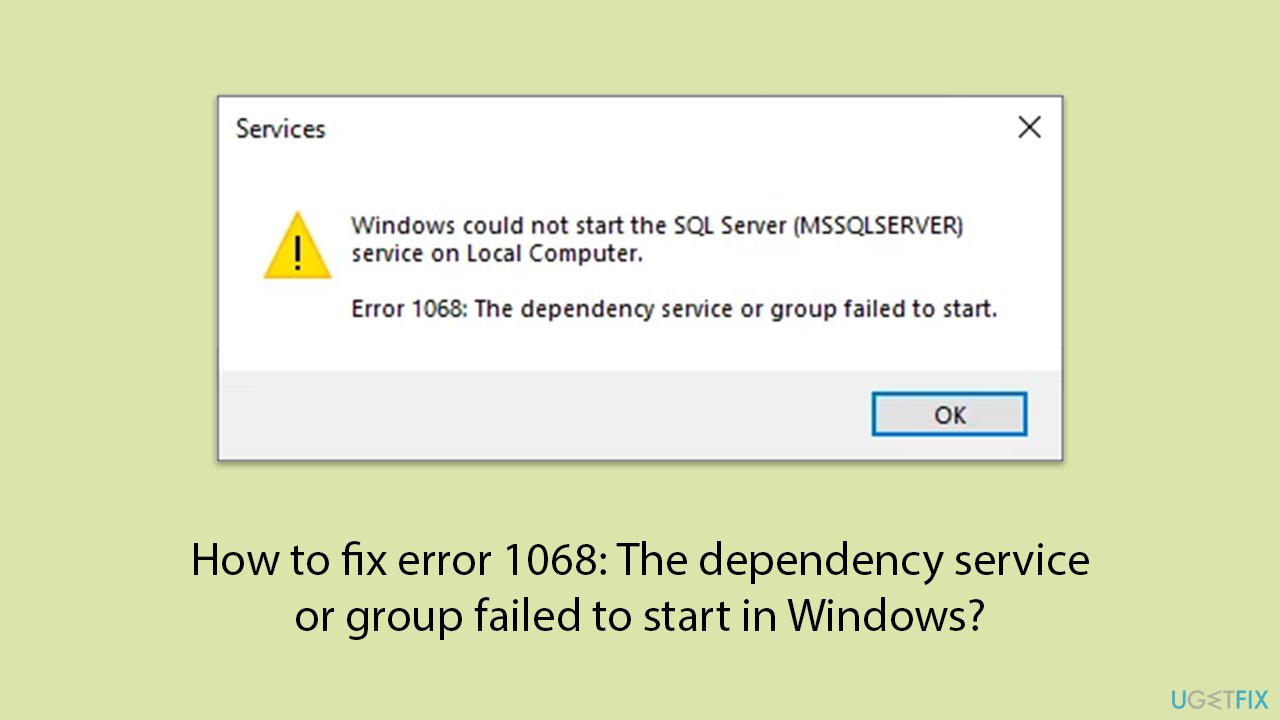
There are instances where trying to start a service can result in receiving an error message like "Error 1068: The dependency service or group failed to start." This error usually appears when there is a dependency issue that prevents the service from starting.
For instance, if you're dealing with network issues, particularly with WiFi, services like the WinHTTP Web Proxy Auto-Discovery Service, Windows Wireless Service, and Network Location Awareness Service might be involved. Furthermore, if any of its dependent services are not functioning correctly, trying to start the Windows Firewall service may also result in "Error 1068: The dependency service or group failed."
The root cause of Error 1068 often relates to problems with service permissions or dependencies not being correctly configured or active. When encountering this error, you might need to check the service dependencies and ensure they are set to start automatically.
Moreover, adding the required services to the Administrator's group can sometimes resolve permission issues. Another method involves bypassing problematic dependencies through the Registry Editor or simply resetting your internet connection settings to ensure all network-related services start smoothly.
If you find these methods difficult or the error doesn't go away, employing a PC repair app [d1] can work wonderfully. With the help of this tool, Windows service problems can be automatically identified and resolved, expediting the process and possibly saving time and effort.
Fix 1. How can adding Local Services and Network Services to the Administrator's group resolve the issue?
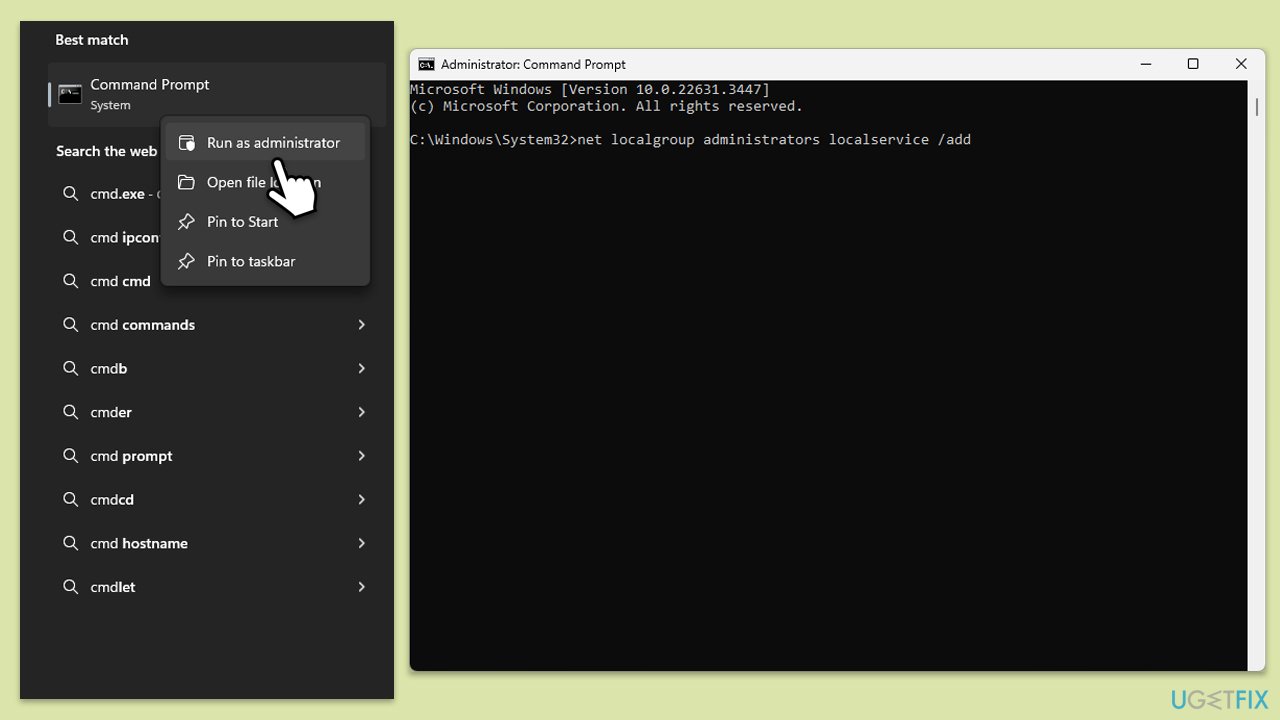
When services are not granted appropriate permissions, they may fail to start, causing Error 1068. Adding them to the Administrator's group can resolve these permission issues, allowing the service to start as expected.
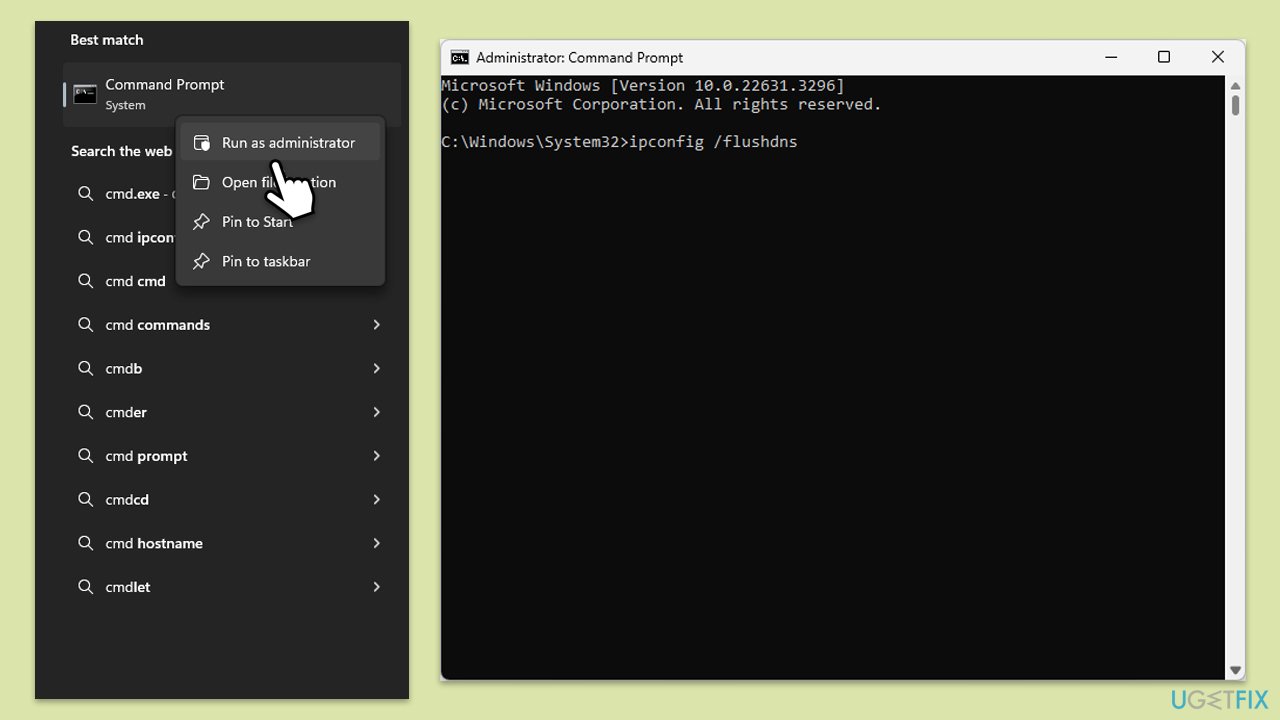
- Type cmd in Windows search.
- Right-click on Command Prompt and select Run as administrator.
- Click Yes when the User Account Control window pops up.
- Type in the following commands and press Enter after each:
net localgroup administrators localservice /add
net localgroup administrators networkservice /add - Close down Command Prompt and restart your computer.
Fix 2. Why does enabling dependency services help in resolving Error 1068?
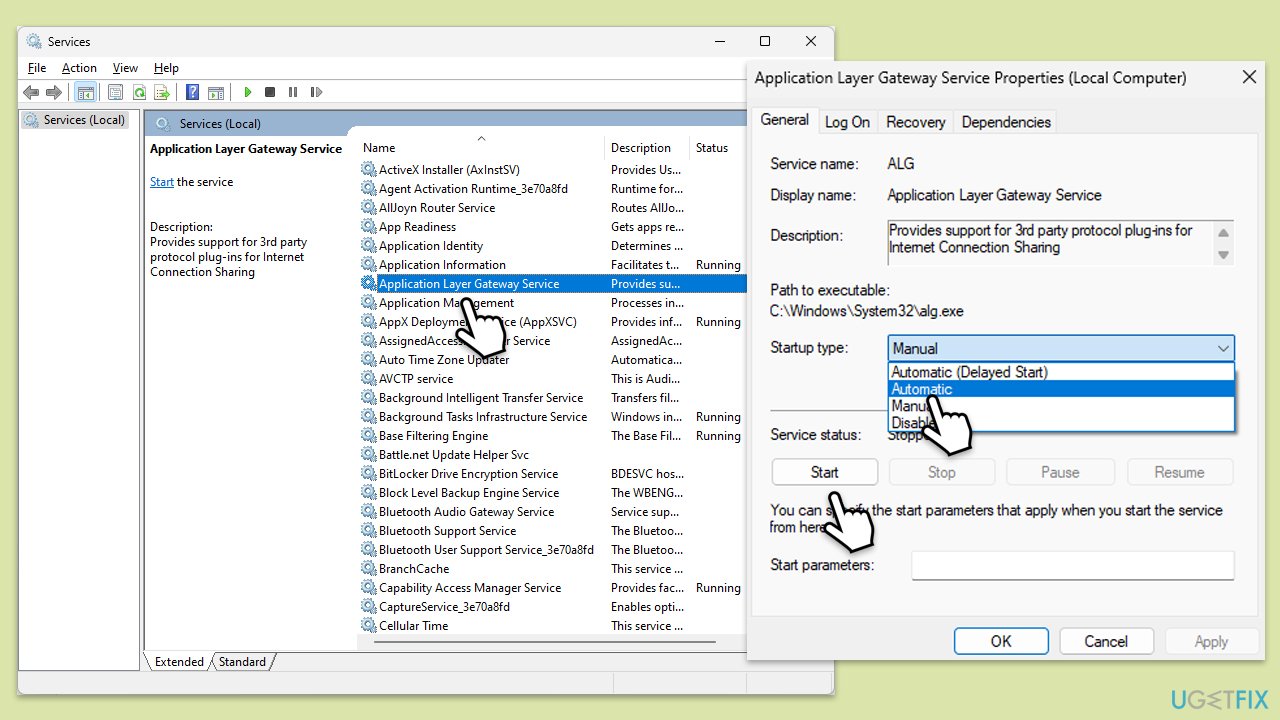
Dependency services must be running for the primary service to start. If they are disabled, the primary service will not be able to start, leading to Error 1068.
- Type in Services in Windows search and press Enter.
- Find Application Layer Gateway Service.
- Double-click it, and select Automatic under the Startup type from the drop-down menu.
- If the Start button is active, click it.
- Finally, click Apply, and OK.
This process should be repeated with the following services:
- COM+ Event System
- Computer browser
- DHCP Client
- DNS Client
- Network Connections
- Network Connections
- Network Location Awareness
- Network Location Awareness (NLA)
- Network Store Interface Service
- Network Store Interface Service
- Plug and Play
- Remote Access Auto Connection Manager
- Remote Access Connection Manager
- Remote Procedure Call
- Remote Procedure Call (RPC)
- Remote Procedure Call (RPC)
- Security Accounts Manager
- Server
- TCP/IP Netbios helper
- Telephony
- WLAN AutoConfig
- Workstation
Fix 3. How can resetting the Internet connection via settings help fix the network-related error?
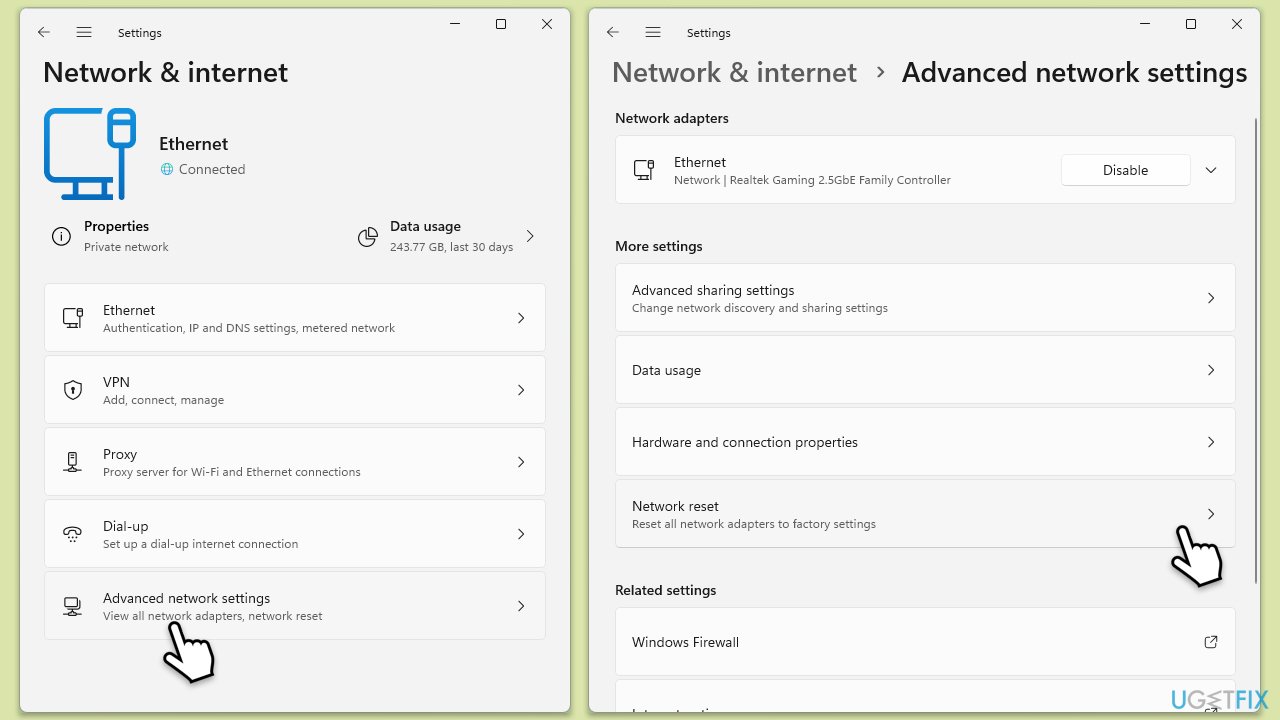
Resetting the Internet connection can refresh the network settings, which might resolve any errors preventing the services related to the network from starting.
- Right-click on Start and pick Settings.
- Go to Network & Internet.
- Under Advanced network settings, click Network reset.
- Click Reset Now.
- Confirm the action and then restart your system.
Fix 4. How does resetting the Internet connection via Command Prompt resolve service issues?
Using Command Prompt to reset Internet settings clears any configurations that might be causing the service errors, thus potentially fixing Error 1068.
- Open Command Prompt administrator.
- Use the following command lines, pressing Enter after each:
- ipconfig /flushdns
ipconfig /registerdns
ipconfig /release
ipconfig /renew
netsh winsock reset - Reboot your device and check if the issue is resolved.
Fix 5. How does bypassing problematic dependencies through the Registry Editor address Error 1068?
Modifying the Registry to bypass certain dependencies can allow a service to start without needing other services, which might be problematic or improperly configured. Note that you should back up your Registry database before proceeding with any modifications.
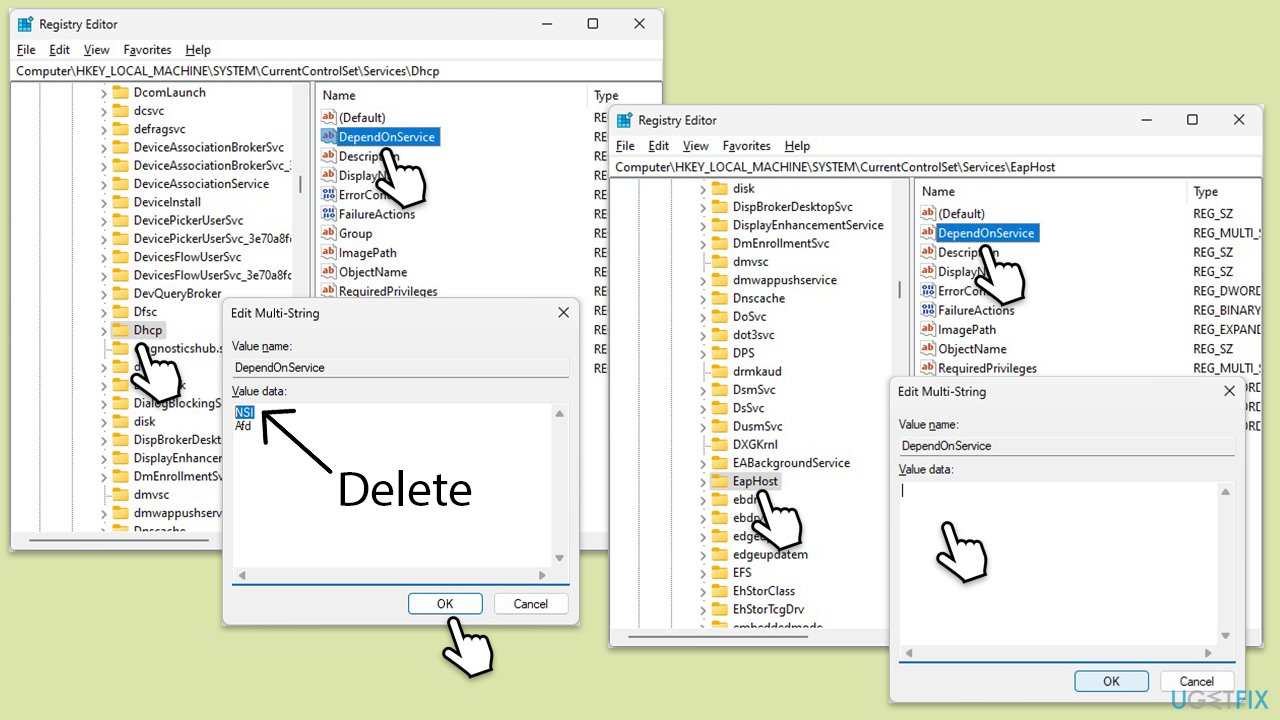
- Type Regedit in Windows search and hit Enter.
- When UAC shows up, click Yes.
- In Registry Editor, navigate to the following location (you can copy-paste this into the address bar at the top):
Computer\HKEY_LOCAL_MACHINE\SYSTEM\CurrentControlSet\Services\Dhcp - Double-click on the DependOnService entry.
- Delete all the entries APART from Afd and click OK.
- Next, navigate to the following location:
Computer\HKEY_LOCAL_MACHINE\SYSTEM\CurrentControlSet\Services\EapHost - Again, double-click on the DependOnService entry but this time delete everything, then click OK.
- When done, restart your computer.
Fix 6. What is the benefit of performing a Clean Boot?
Performing a Clean Boot starts Windows with a minimal set of drivers and startup programs, which can help identify if background programs are interfering with service startup.
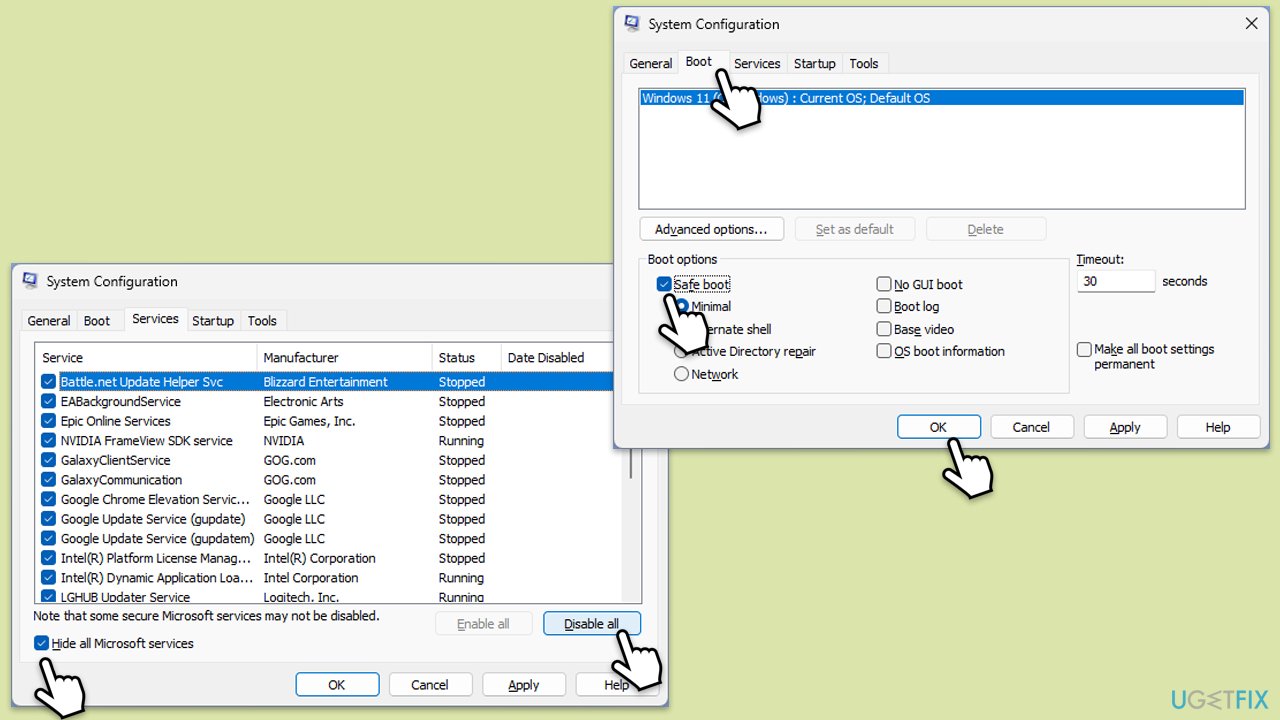
- Type msconfig in the Windows search box and press Enter.
- Pick the Services tab.
- Mark Hide all Microsoft services and select Disable all.
- Select the Startup tab and click Open Task Manager.
- In the Task Manager, right-click on each of the items and select Disable, then close the Task Manager.
- Go to the Boot tab, mark the Safe Boot option, then click Apply and OK.
- On the System Configuration window, click OK.
- Restart your computer.
Fix 7. What is the advantage of repairing Windows installation with the Media Creation Tool?
Using the Media Creation Tool to repair Windows can fix underlying system errors. Make sure you uninstall third-party security software and disable BitLocker if applicable. Also, disconnect any unnecessary peripherals.
- Visit the official Microsoft website and download Windows 10 installation media (Windows 11 version).
- Double-click the installer (MediaCreationTool_WinXX_XX.exe), select Yes when UAC shows up, and agree to the terms.
- Launch the installer.
- Click Yes when UAC shows up.
- Agree to the terms and click Next.
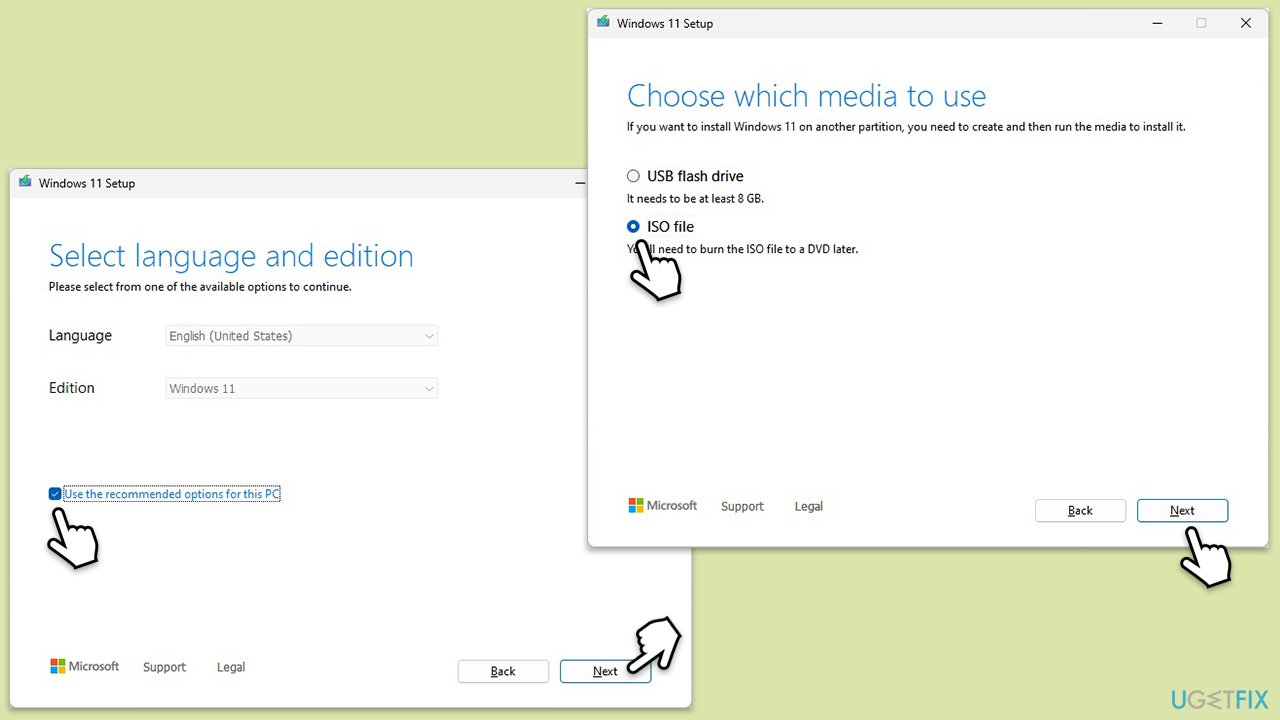
- Select the correct Language and Edition of Windows, or you can simply press Use the recommended options for this PC and press Next.
- Choose the ISO file and click Next.
- Select the location - choose one easy to find, for example, the Downloads folder.
- Wait till all the necessary files are downloaded and Windows Installation Media is created.
- When done, click Finish.
Next, you need to mount the ISO and proceed with the following instructions:
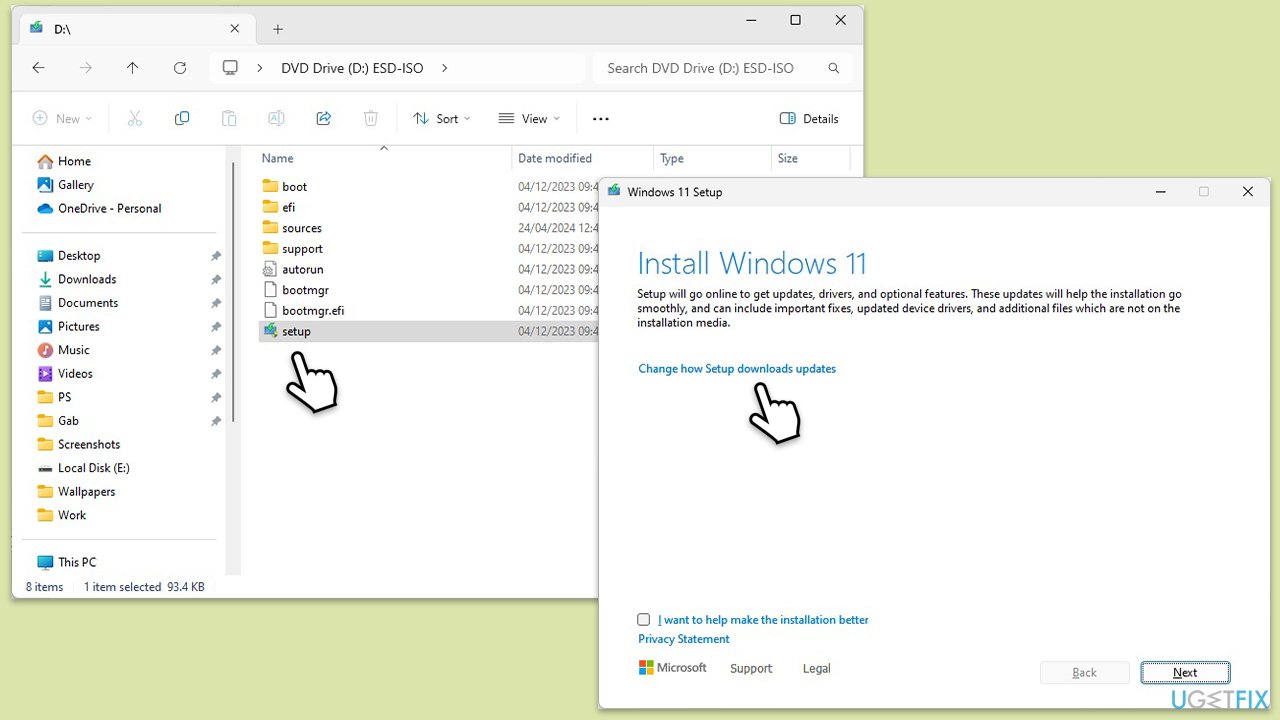
- Go to the location where you previously saved the ISO.
- Right-click on Windows.ISO and select Mount.
- Run the setup.exe file.
- Select Change how setup downloads updates.
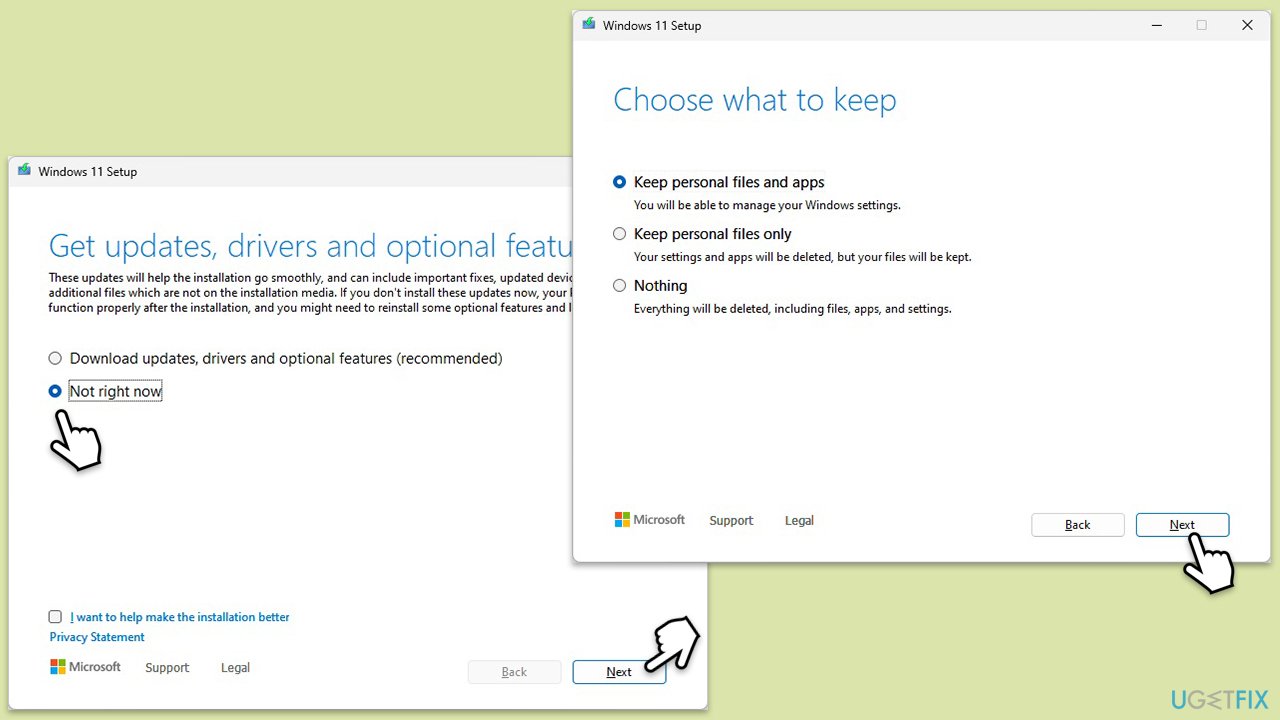
- Pick Not right now and click Next.
- Accept License terms again.
- Click Change what to keep.
- Here, you have several options: Keep your files and apps, Keep files only, or Keep nothing - choose what suits you the best. Click Next.
- Finally, click Install to begin the installation process.
Bottom line
To fix Error 1068, check the service dependencies and ensure they are set to start automatically. Adding required services to the Administrator's group or resetting internet connection settings may also help. If these methods do not resolve the issue, consider using a PC repair app to identify and fix service problems.
Frequently asked questions
Error 1068 typically occurs when a service that another service depends on fails to start, often due to configuration issues or missing dependencies.
You can check the services by typing 'services.msc' in the Run dialog (Win + R) and looking for any services that are marked as stopped or have error messages.
To resolve error 1068, ensure that all dependent services are running, and you may also need to reset the service configurations or reinstall the affected service.




Report an issue
What's wrong with this guide? We review every report and update or remove content.
Report received — thank you. We'll review and fix it.
You need a free account to submit a report.
Be the first to comment