How to fix
File Explorer invisible address and menu bars
on Windows
Resolve invisible address and menu bars in Windows 11 with our expert-tested tips. Fix your File Explorer issues quickly and easily! Fixed in minutes.

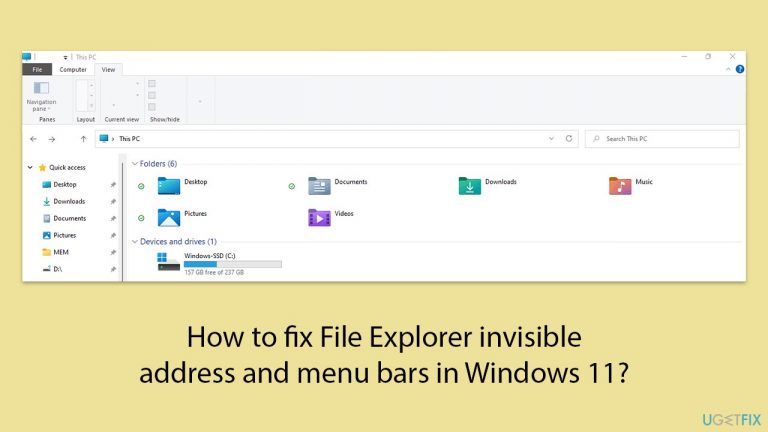
What causes How to fix File Explorer invisible address and menu bars in Windows 11?
- Corrupted system files that affect the display and functionality of Windows components
- Incompatible display drivers that may not properly support the visual elements of Windows 11
- Incorrect settings or configurations within Windows that hide these elements or cause display issues
- Minor display glitches in the user interface
Repairs Windows system files, removes malware, and restores a clean OS state — without reinstalling.
For some reason, the address and menu bars have become invisible in File Explorer. Hovering over the mouse, I could use the buttons but I can't see them at all. The exact same thing happens when I right-click on File Explorer and the menu shows up, only to be blank as well (even though I can click these options). What is happening and how do I fix it?
File Explorer in Windows 11 continues to be an essential tool for managing files and navigating the system, despite the revamped interface and new features introduced with the latest version of the operating system.
However, some users may encounter issues with File Explorer, such as the application crashing when right-clicked or, more perplexingly, the address and menu bars becoming invisible.
In these cases, the buttons are still functional when hovered over with the mouse, but they are not visible on the screen. This problem can extend to context menus, which appear blank despite being clickable.
What could cause invisible address and menu bars in File Explorer?
Several factors could lead to the disappearance of interface elements in File Explorer:
- Corrupted system files that affect the display and functionality of Windows components.
- Incompatible display drivers that may not properly support the visual elements of Windows 11.
- Incorrect settings or configurations within Windows that hide these elements or cause display issues.
How do I fix address and menu bars being invisible in File Explorer?
Fixing the issue of invisible address and menu bars in File Explorer typically involves a few key approaches. One common solution is restarting File Explorer to reset its user interface, which can often clear up minor display glitches.
Another effective method is updating your system's display drivers; outdated or incompatible drivers can frequently cause rendering issues that affect how interface elements are displayed.
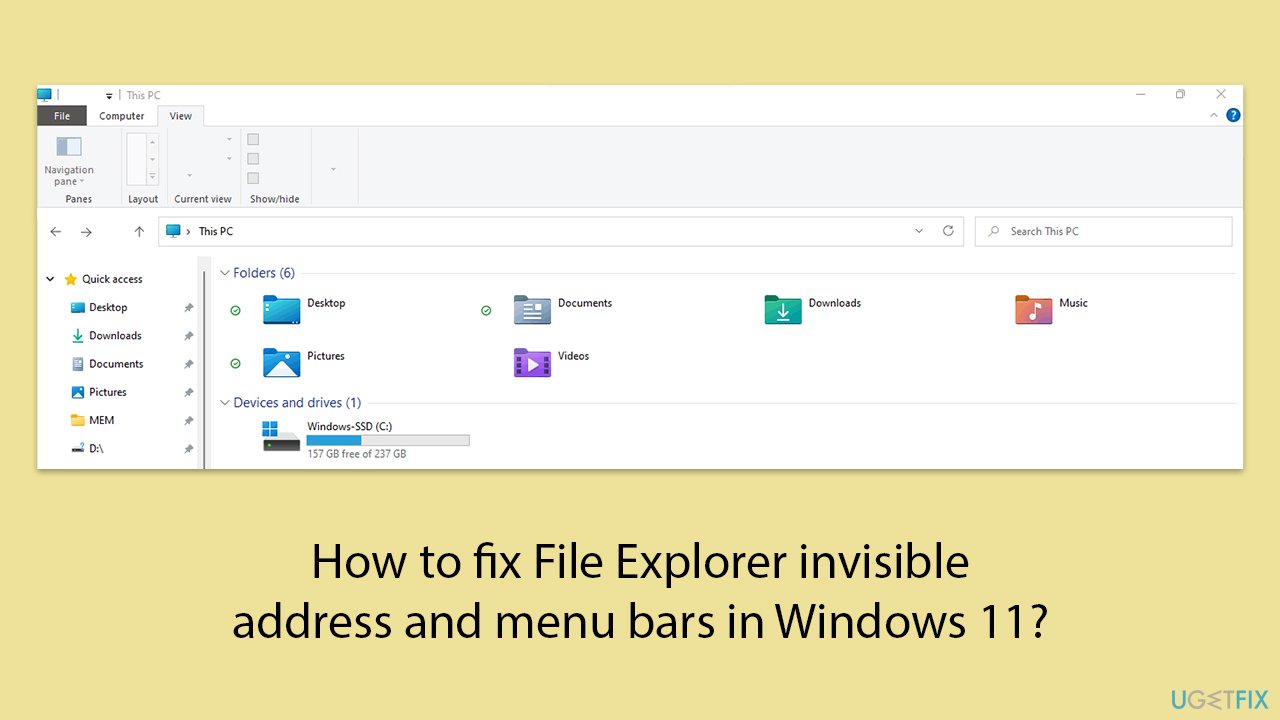
Additionally, adjusting your display settings or reverting recent changes may also help in restoring visibility to the address and menu bars. Sometimes, simply ensuring that no setting that could hide these elements has been accidentally activated is enough to resolve the issue.
If these general approaches do not fix the File Explorer menu and address bars going invisible, try using a PC repair tool [d1]. This app can automatically diagnose and fix underlying Windows issues and remediate damaged or corrupted system files within just mere minutes.
Fix 1. Restart Windows Explorer
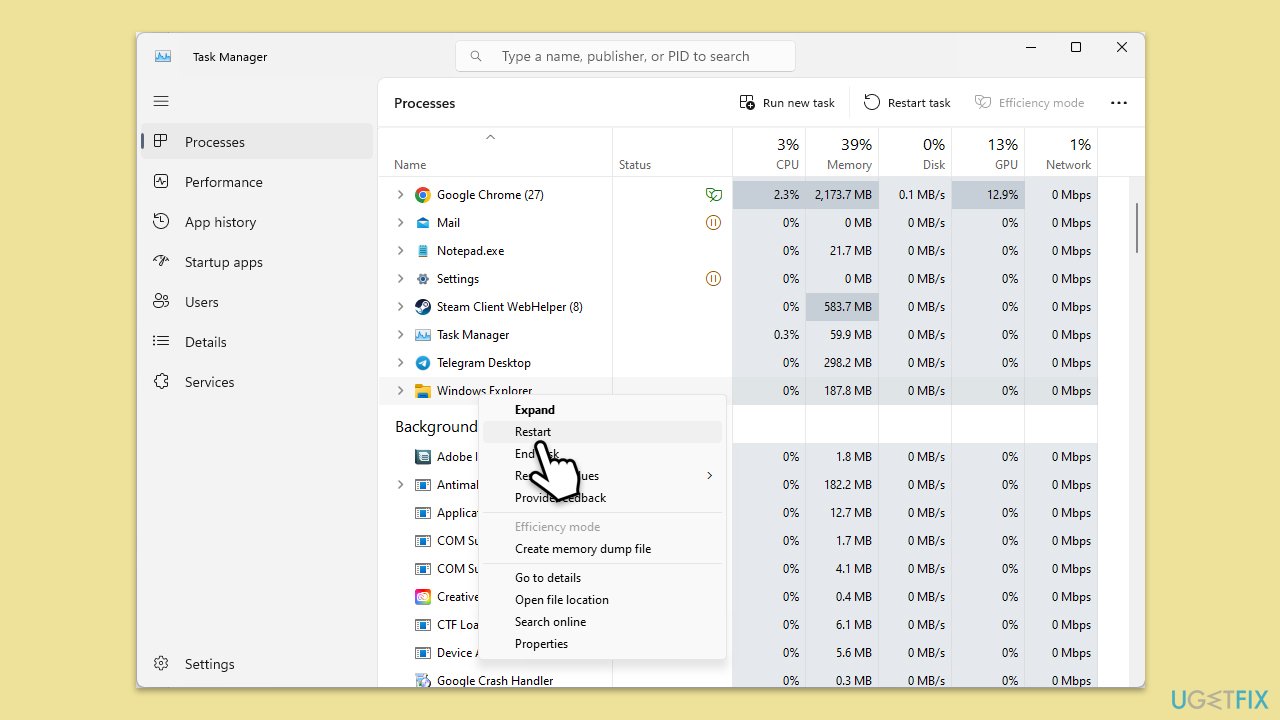
- Press Ctrl + Shift + Esc to open Task Manager.
- Click More details if needed.
- Look for Windows Explorer.
- Right-click and select Restart.
- Several UI elements will disappear for a few moments and reappear soon thereafter.
Fix 2. Clear File Explorer history
- Press Win + E to open File Explorer.
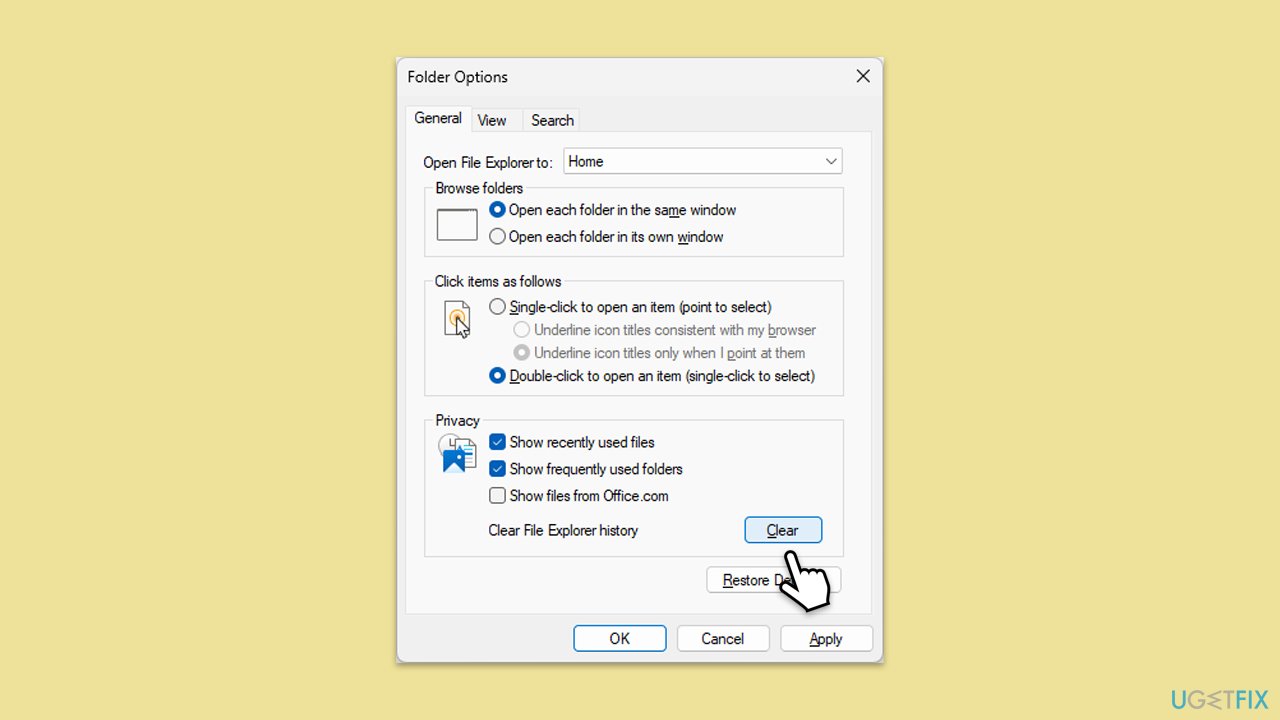
- Click on the View tab, then select Options to open Folder Options.
- In the General tab, under Privacy, click on the Clear button next to Clear File Explorer history.
- Click OK to apply the changes.
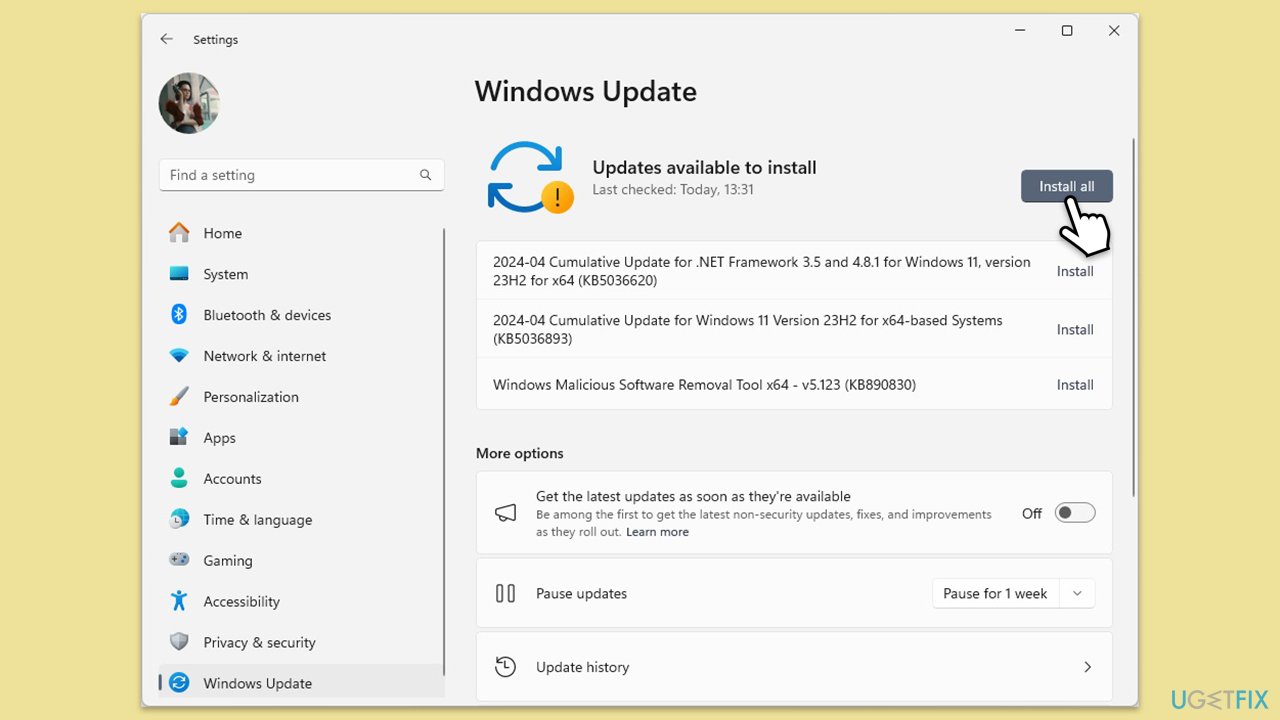
Fix 3. Install all Windows updates
- Type Updates in Windows search and hit Enter.
- In the new window, click Check for updates, then click Install updates.
- If optional updates are available, install them as well.
- When all the update processes are complete, restart your device.
Fix 4. Uninstall the recent Windows update
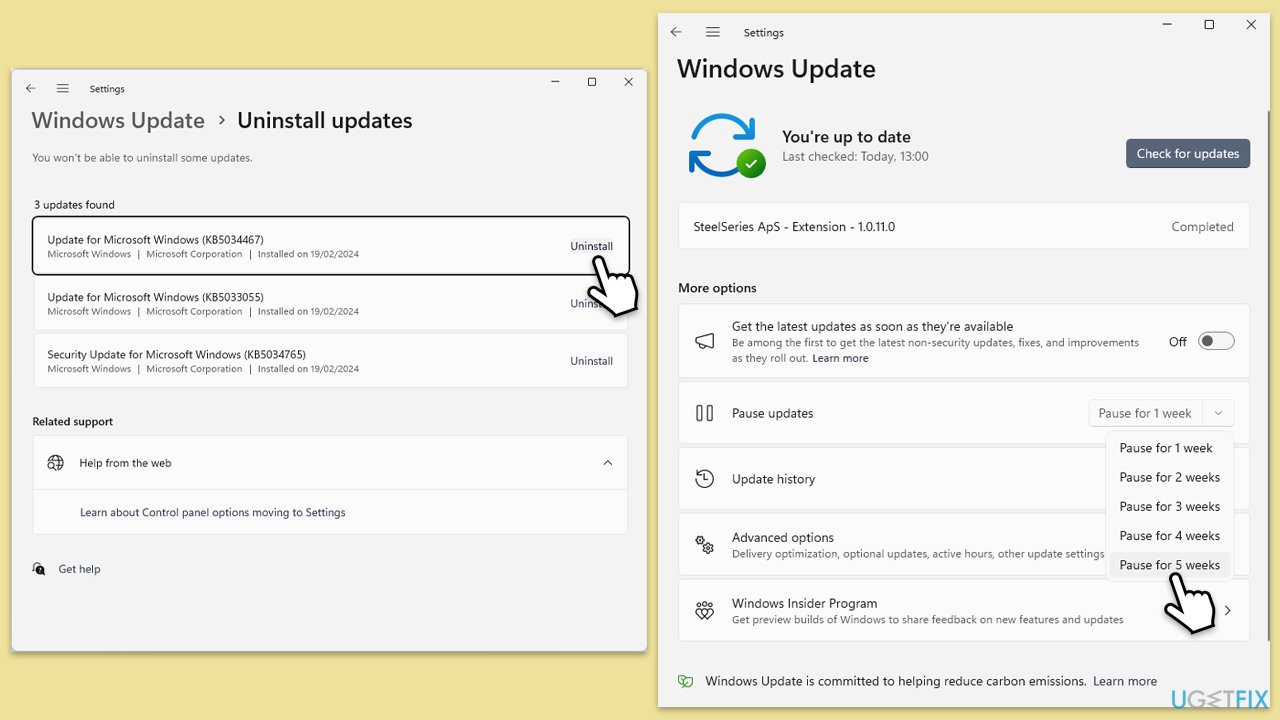
- Type Control Panel in Windows search and press Enter.
- Select Programs > Uninstall a program.
- Click on View installed updates on the left side of the window.
- Uninstall the most recent update.
- Proceed with on-screen instructions.
- Don't forget to pause the update.
Fix 5. Repair corrupted files
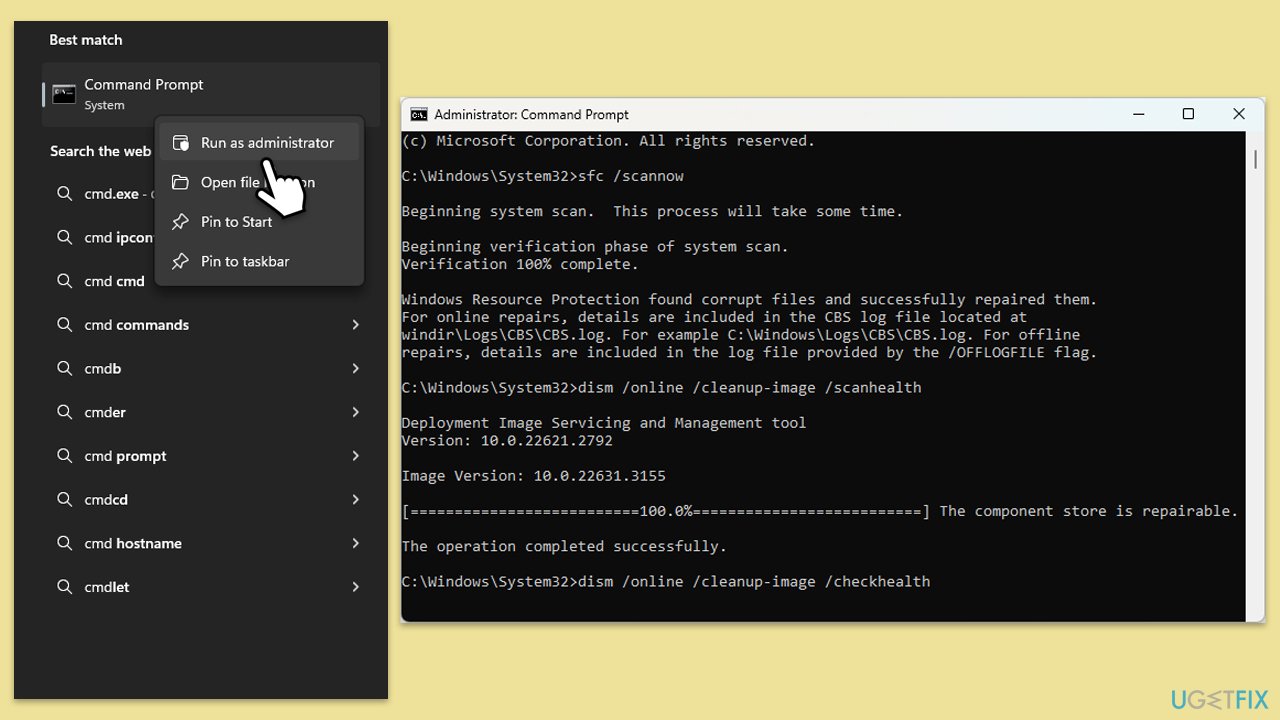
- Type cmd in Windows search.
- Right-click on Command Prompt and pick Run as administrator.
- The User Account Control window will ask whether you want to allow changes - click Yes.
- Copy and paste the following command, pressing Enter after:
sfc /scannow - Wait till the scan is finished. If Windows finds system file integrity violations, it will attempt to fix them. After this, use the set of the following commands, pressing Enter each time:
DISM /Online /Cleanup-Image /CheckHealth
DISM /Online /Cleanup-Image /ScanHealth
DISM /Online /Cleanup-Image /RestoreHealth - (Note: if you get an error executing this last command, add /Source:C:\RepairSource\Windows /LimitAccess to it and try again).
- Close down the Command Prompt and restart your computer.
Fix 6. Update your GPU drivers
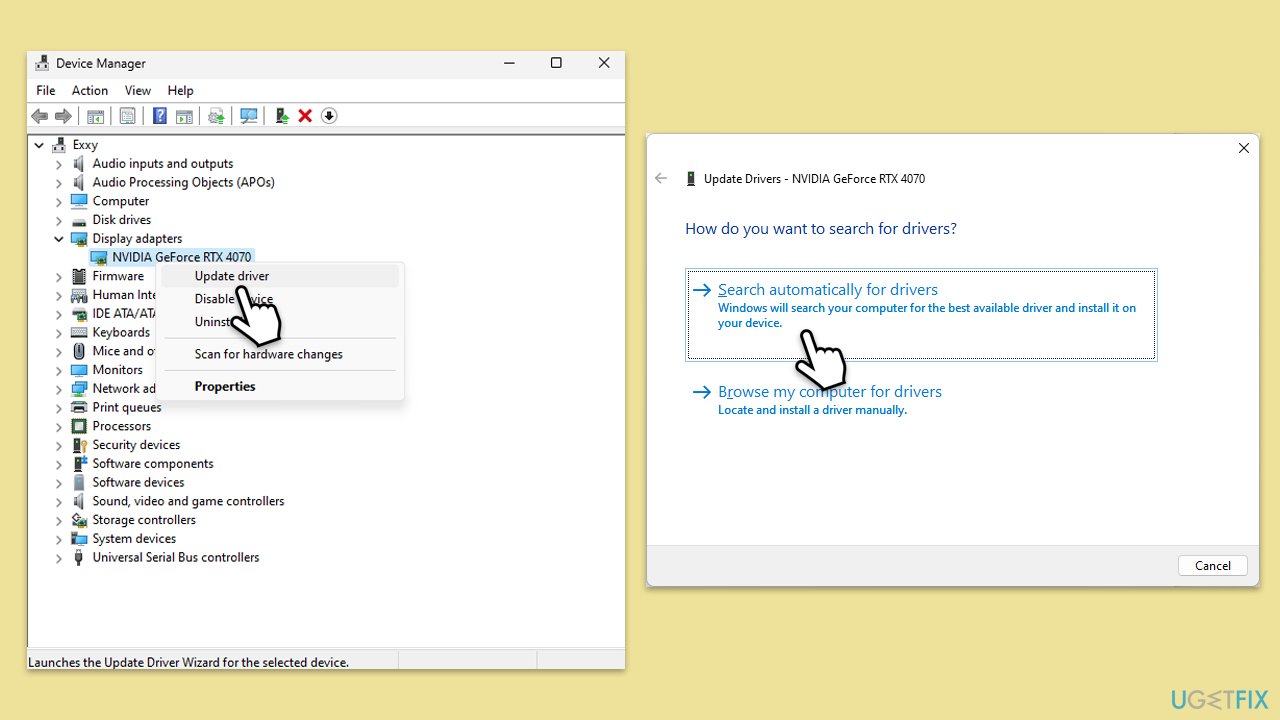
- Right-click on the Start button and select Device Manager from the menu.
- Expand the Display adapters section.
- Right-click on your graphics card and select Update driver.
- Pick Search automatically for drivers.
- If updates are found, allow them to install.
- Restart your computer after updating all necessary drivers.
To deal with all your driver problems using a simpler approach, we recommend using [rev id="DriverFix"].
Fix 7. Run Clean Boot
- Type msconfig in Windows search and press Enter.
- Go to the Services tab.
- Mark Hide all Microsoft services and select Disable all.
- Go to the Startup tab and click Open Task Manager.
- In the Task Manager, right-click on each of the items and select Disable, then close the Task Manager.
- Go to the Boot tab, tick Safe Boot, then click Apply and OK.
- If the problem is gone, re-enable services and startup items one by one to identify the problematic software.
- You can then update or uninstall software causing File Explorer issues.
Fix 8. Repair-install Windows
A repair install reinstalls Windows while preserving your files, settings, and applications, which can fix deeper operating system issues.
- Visit the official Microsoft website and download Windows 10 installation media (Windows 11 version).
- Double-click the installer (MediaCreationTool_WinXX_XX.exe), select Yes when UAC shows up, and agree to the terms.
- Launch the installer.
- Click Yes when UAC shows up.
- Agree to the terms and click Next.
- Select the correct Language and Edition of Windows, or you can simply press Use the recommended options for this PC and press Next.
- Choose the ISO file and click Next.
- Select the location - choose one easy to find, for example, the Downloads folder.
- Wait till all the necessary files are downloaded and Windows Installation Media is created.
- When done, click Finish.
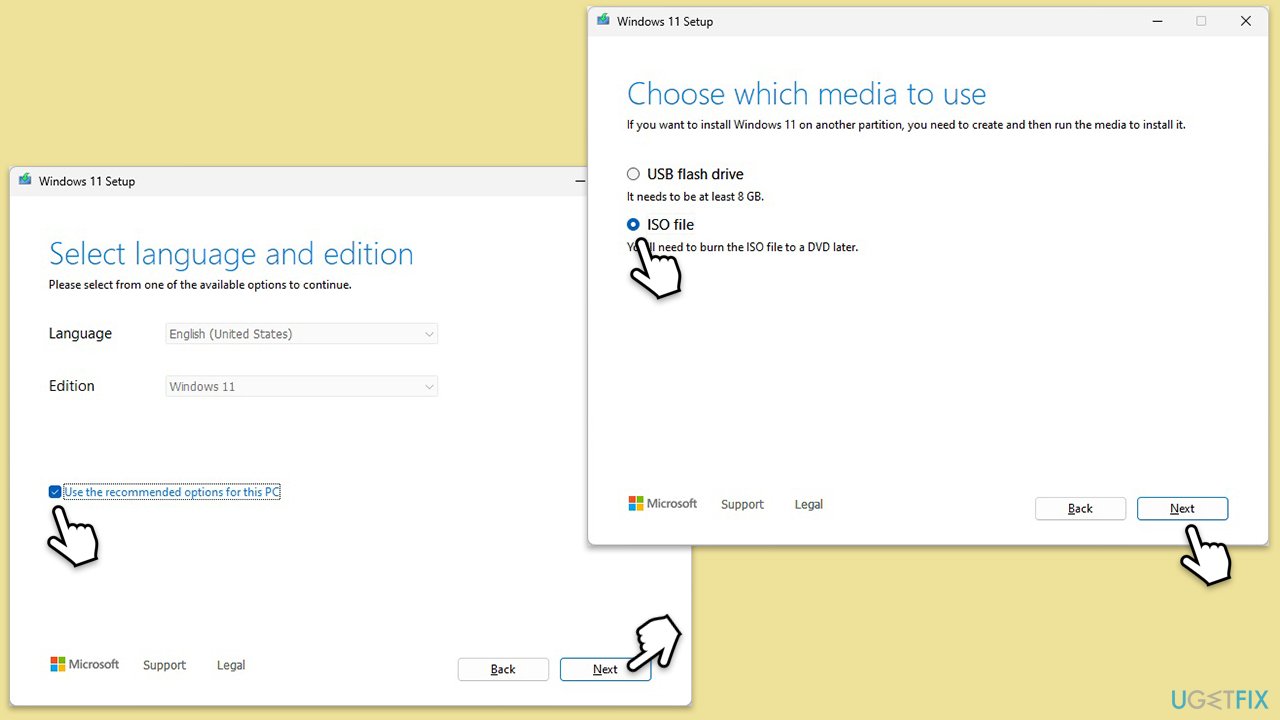
Next, you need to mount the ISO and proceed with the following instructions:
- Go to the location where you previously saved the ISO.
- Right-click on Windows.ISO and select Mount.
- Run the setup.exe file.
- Select Change how setup downloads updates.
- Pick Not right now and click Next.
- Accept License terms again.
- Click Change what to keep.
- Here, you have several options: Keep your files and apps, Keep files only, or Keep nothing - choose what suits you the best. Click Next.
- Finally, click Install to begin the installation process.
Bottom line
To fix the invisible address and menu bars in File Explorer, you can restart File Explorer, update your display drivers, or adjust your display settings. If these solutions do not resolve the issue, consider reverting recent changes or further troubleshooting your system.
Frequently asked questions
The address bar in File Explorer may become invisible due to display settings or a temporary glitch. Restarting File Explorer or adjusting your display settings can often resolve this issue.
If the menu bar is missing, press the 'Alt' key to temporarily show it, or reset File Explorer settings through the folder options. You can also try restarting Windows Explorer from the Task Manager.
If the issue persists, consider running the System File Checker tool or checking for Windows updates, as these can fix underlying system issues affecting File Explorer.




Report an issue
What's wrong with this guide? We review every report and update or remove content.
Report received — thank you. We'll review and fix it.
You need a free account to submit a report.
Be the first to comment