How to fix
Mail app error 0x80070525
on Windows
Resolve Mail app error 0x80070525 in Windows 10 or 11 effortlessly with expert-tested solutions. Fix it fast and get back to seamless emailing.

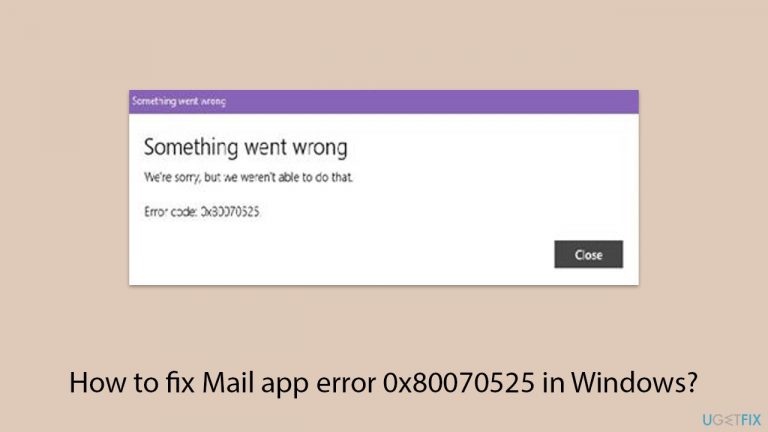
What causes How to fix Mail app error 0x80070525 in Windows?
- Glitches within the app after updates
- Corrupted cache files
- Corrupted crucial files related to the Mail app
- Conflicts or bugs introduced by updates
Repairs Windows system files, removes malware, and restores a clean OS state — without reinstalling.
Hi. When I'm trying to add a new account to the Mail app I receive a message "Something went wrong" with an error code 0x80070525. Is there anything I can do to fix this?
Initially released in Windows 8 and improved upon in later iterations, the Windows Mail application enables users to manage numerous email accounts from various providers such as Yahoo, Gmail, and Outlook. It is a useful tool for regular email correspondence because of this integration.
Nevertheless, consumers occasionally run into a problem involving the error code 0x80070525. This issue can occur when adding a new account, logging in, or during similar activities and affects users across Windows 10 and Windows 11. The error generally prevents the app from functioning correctly, blocking account access or integration.
Why does error 0x80070525 occur?
This error can stem from several sources within the Windows environment. It might be caused by glitches within the app, particularly after updates that introduce conflicts or bugs. Corrupted cache files or other crucial files related to the Mail app's operation can also trigger this error. These problems typically disrupt normal functioning, resulting in the 0x80070525 error.
What can you do about it?
If you're facing the Mail app error 0x80070525, several steps might help resolve the issue. You could start by running the Store App troubleshooter, which is designed to detect and fix common problems with apps downloaded from the Windows Store, including the Mail app.
Using system tools such as the System File Checker to examine and fix corrupted files is another helpful method. The corrupt data that's generating the issue might also be removed by doing a disk cleanup to get rid of temporary and cache files. If these solutions don't work, you should try using your system's Apps & Features settings to fix or reset the Mail app. It may be essential to reinstall the Mail app as a last option.
Try using [d1] PC repair app for a more comprehensive recovery, especially if corrupted files are causing widespread issues. This program automatically finds and fixes issues, possibly resolving error 0x80070525 and enhancing your system's overall performance.
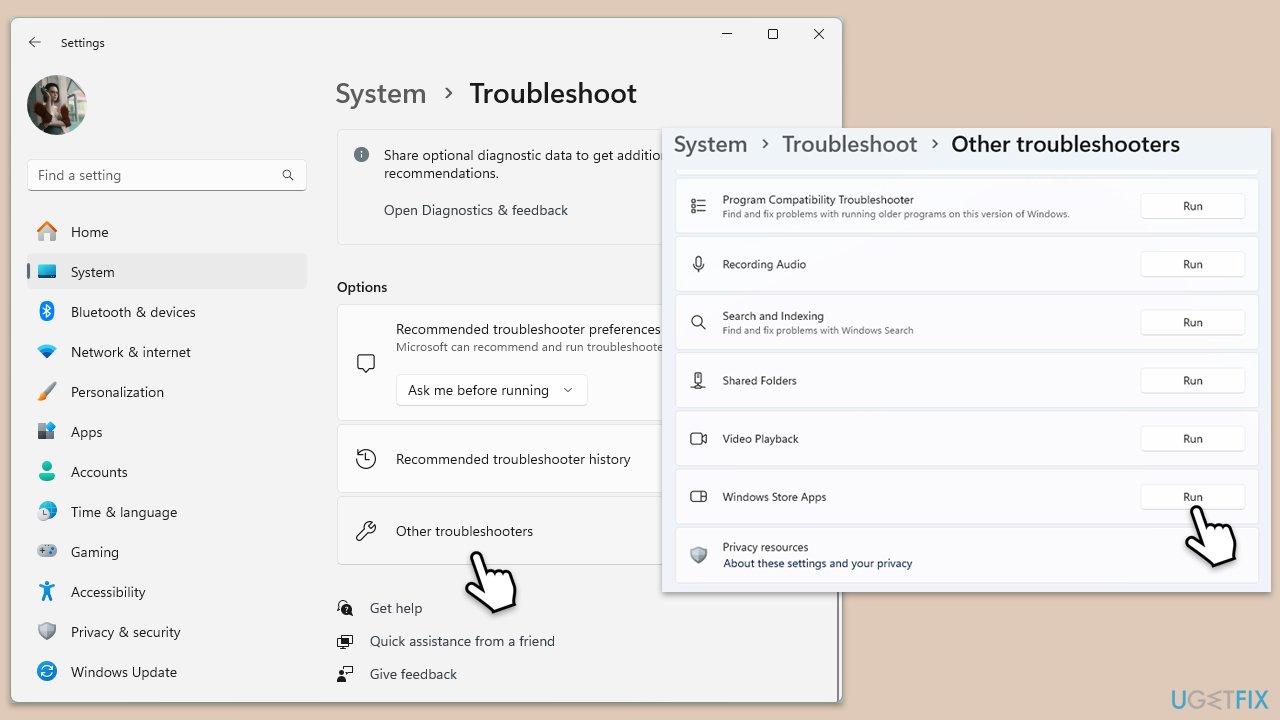
Fix 1. Run Windows Store app troubleshooter
This tool helps identify and automatically fix issues with apps downloaded from the Windows Store, including the Mail app. Running this troubleshooter can resolve conflicts and errors that might be causing the app to malfunction.
- Type Troubleshoot in Windows search and hit Enter.
- Click Additional troubleshooters/Other troubleshooters.
- Scroll down to find Windows store apps and select it.
- Click Run the troubleshooter/Run.
- Wait till the process is finished and apply the fixes.
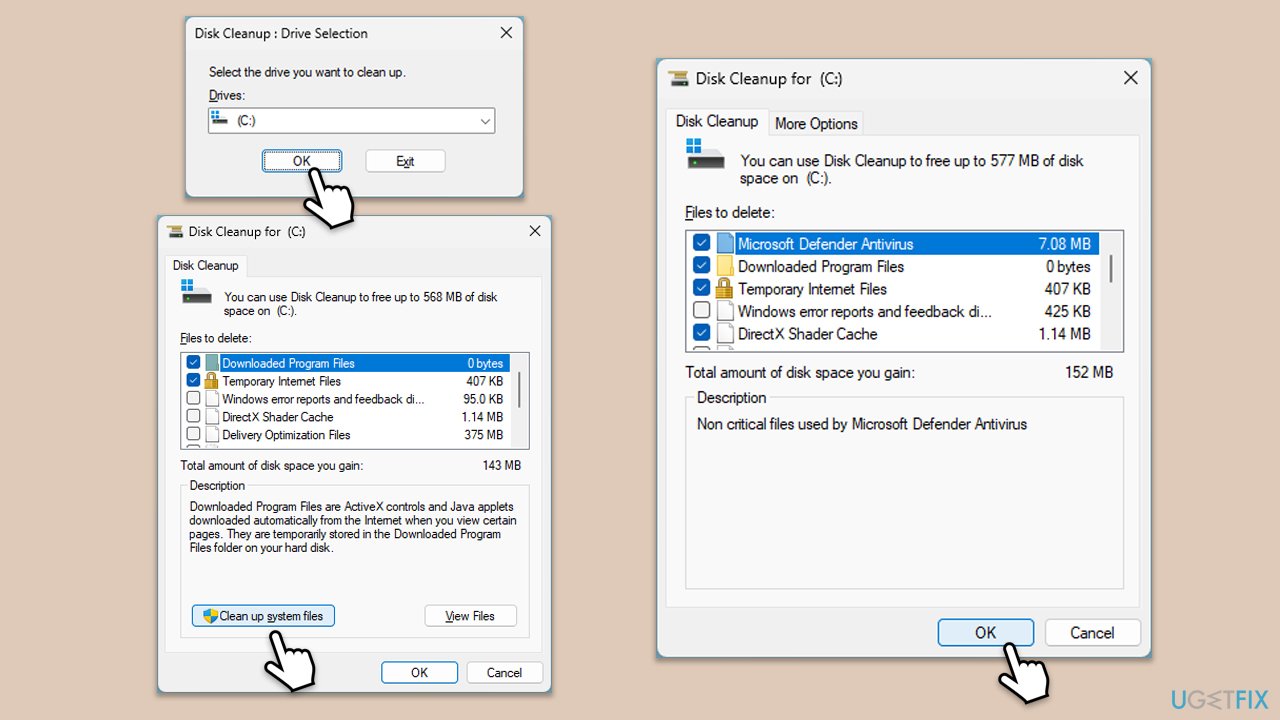
Fix 2. Employ Disk Cleanup
Using the Disk Cleanup utility helps remove temporary files, system files, and other unnecessary data that might be corrupting the Mail app. This can free up disk space and potentially fix the error.
- Type Disk Cleanup in Windows search and hit Enter.
- If your Windows is installed on drive C, pick it from the list (it should be by default) and press OK.
- Click Clean up system files.
- Select your main disk again and click OK.
- Here, select the largest portions of the data used, including Windows Update, Temporary Internet Files, Temporary Files, Recycle Bin, Delivery Optimization Files, and others.
- Click OK - the process should be finished shortly.
Fix 3. Apply all Windows updates
Ensuring that your system is up-to-date can fix bugs and introduce improvements that may resolve existing issues with the Mail app.
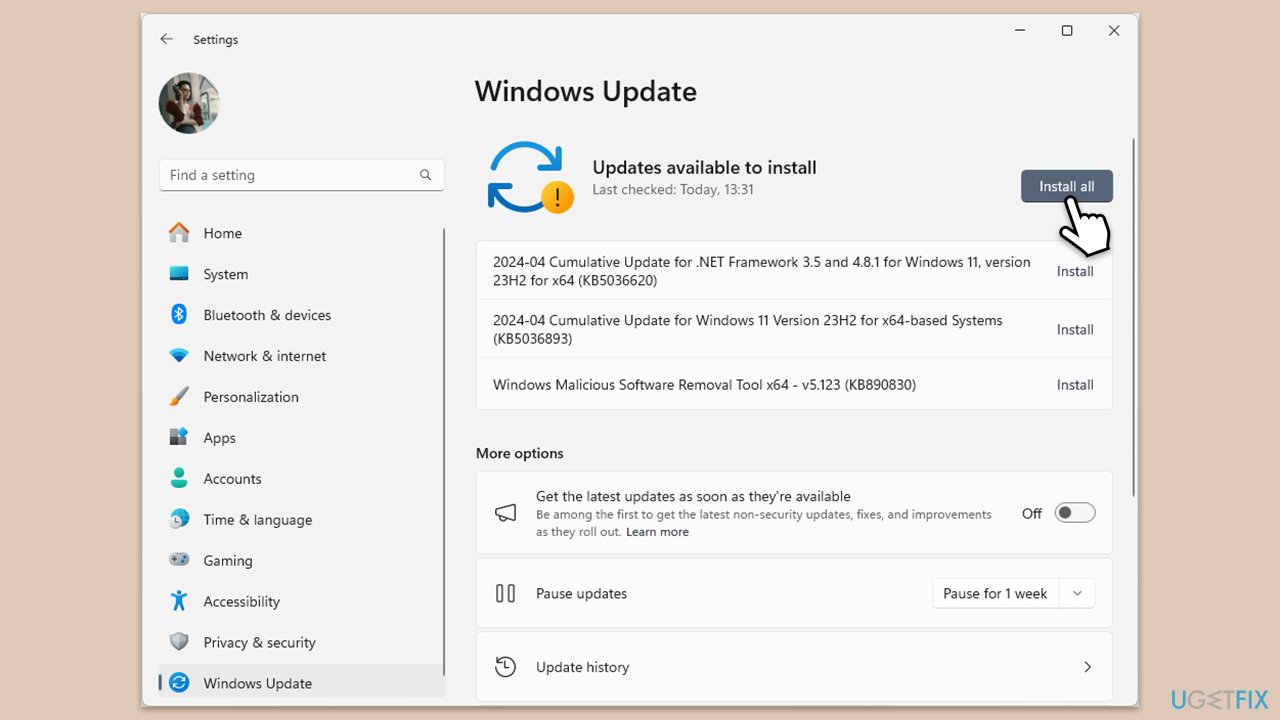
- Type Updates in the Windows search bar and press Enter.
- The new window will open and you should be notified about available updates - click Install all.
- If none are available, click Check for updates, and they should be installed automatically.
- Don't forget to install all the available optional updates.
- When done, restart your computer.
Fix 4. Run SFC and DISM scans
These tools scan for and repair corrupt system files that might be causing the Mail app to display error 0x80070525.
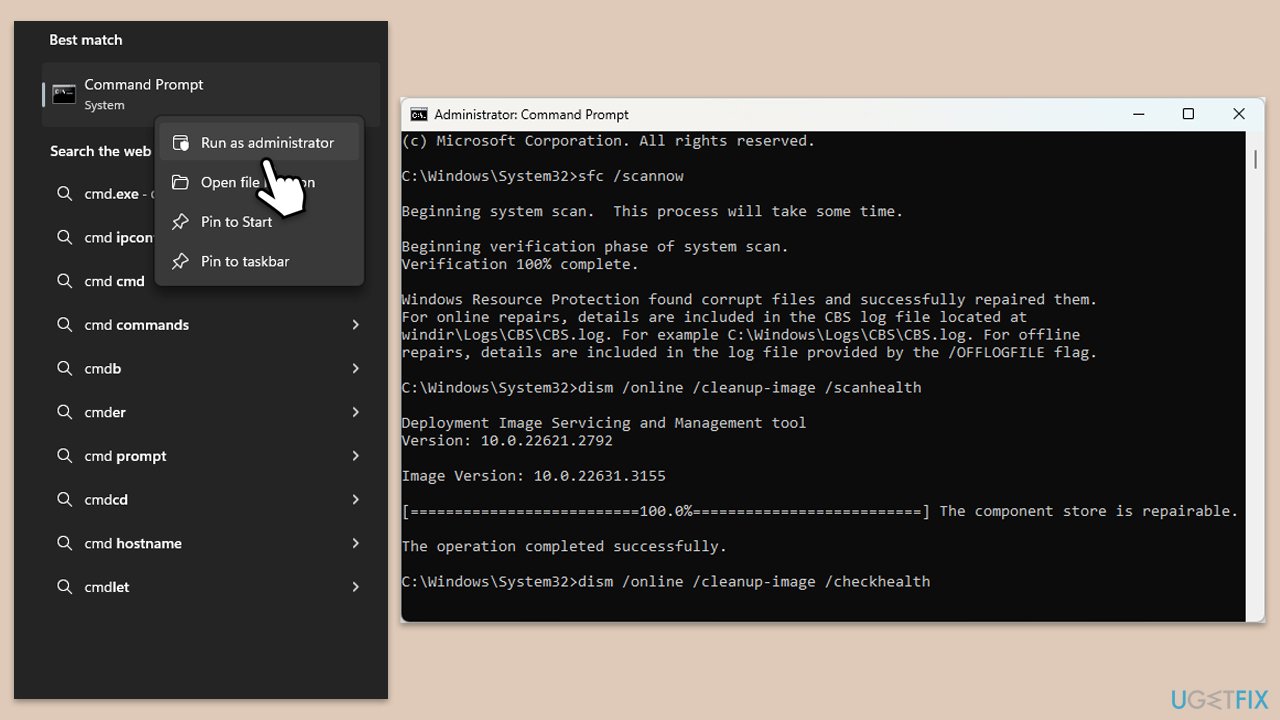
- Type cmd in Windows search.
- Right-click on Command Prompt and pick Run as administrator.
- When User Account Control shows up, click Yes.
- Type this command and press Enter:
sfc /scannow - Wait for the scan to finish.
- As soon as the scan finishes, Windows will report whether integrity violations were found and if they could be fixed. Regardless of the outcome, use these commands next, pressing Enter after each:
Dism /Online /Cleanup-Image /CheckHealth
Dism /Online /Cleanup-Image /ScanHealth
Dism /Online /Cleanup-Image /RestoreHealth - Close down the Command Prompt and restart your computer.
Fix 5. Repair or reset Mail app
Repairing or resetting the app can restore its default settings and fix issues caused by corrupted app data.
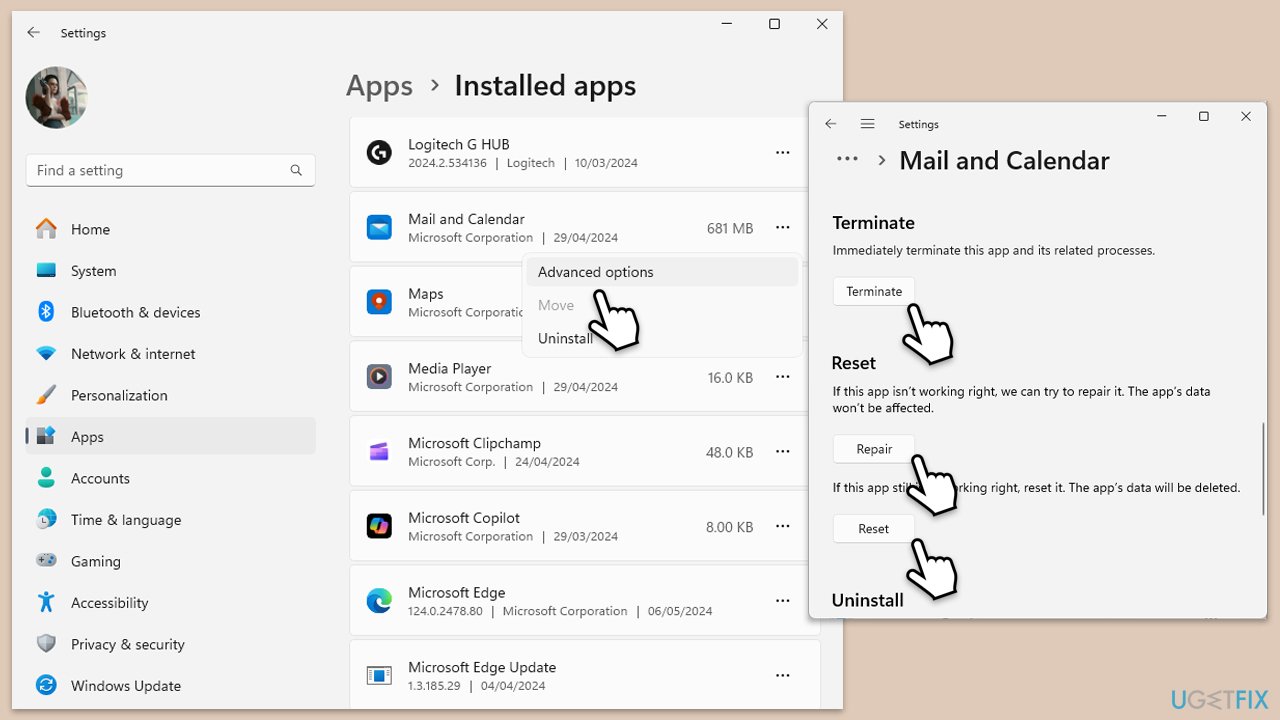
- Right-click on Start and select Apps & Features/Installed apps.
- Scroll down to find Mail and Calendar and click (three dots>) Advanced options.
- Scroll down again, click Terminate and then Repair.
- If that does not help, use Reset.
- Restart your PC.
Fix 6. Create a new user account in Windows
Sometimes creating a new user account can resolve issues caused by user profile corruption affecting apps like Mail.
- Open Windows Settings.
- Go to Accounts then Family/Family & other users.
- Under Other users, click Add account/Add someone else to this PC.
- Follow the prompts to create a new user account. If you don't have Microsoft account details, you can choose I don't have this person's sign-in information followed by Add a user without a Microsoft account.
- Assign a username and password for the new account and complete the setup.
- Then go back to the Accounts section. Under Family/Family & other users, select the newly created account and click Change account type.
- Under Account type, pick Administrator and click OK.
Fix 7. Reinstall the Mail app
If all else fails, uninstalling and then reinstalling the Mail app can provide a fresh start by clearing out any corrupt files and settings.
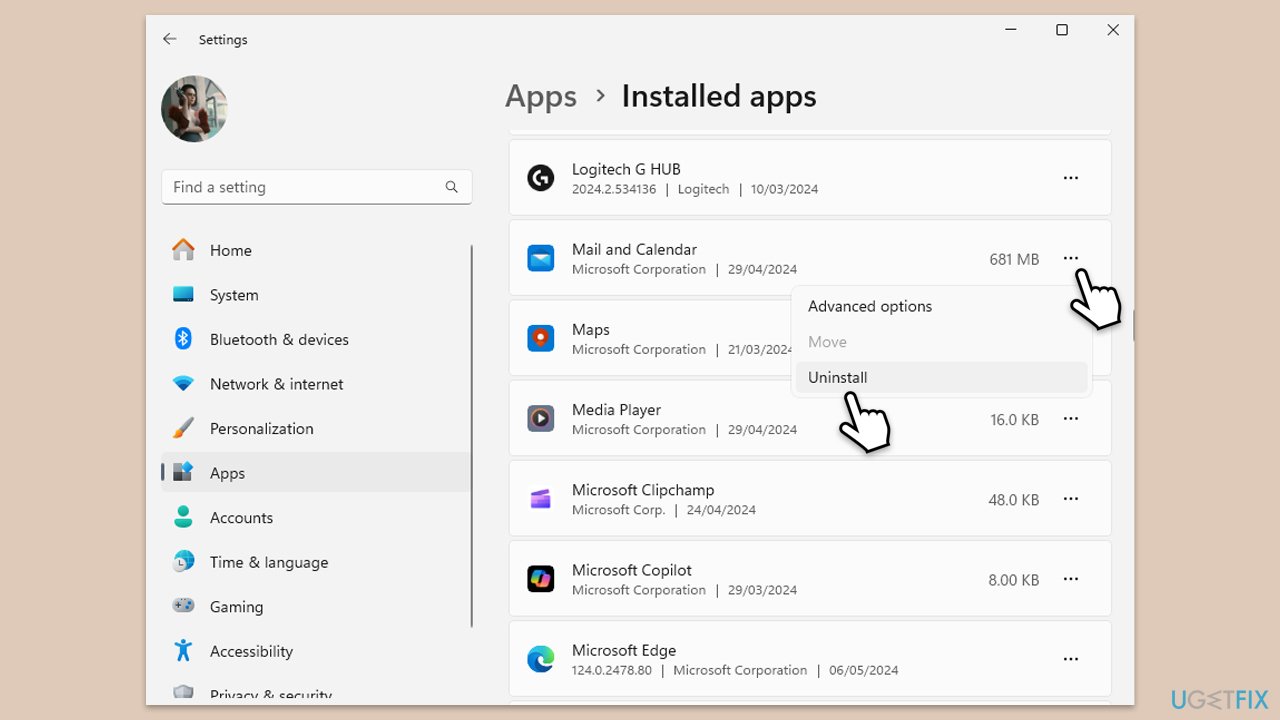
- Right-click on Start and select Apps & Features/Installed apps.
- Scroll down to find Mail and Calendar and click (three dots>) Uninstall.
- Confirm prompts and finish the removal.
- Reinstall the app from the Microsoft Store.
If you can't uninstall the app in a regular way, you can do it via PowerShell:
- Type PowerShell in Windows search.
- Right-click on PowerShell and select Run as administrator.
- UAC will ask you whether you want to allow changes - click Yes.
- Copy and paste the following command line and press Enter:
Get-AppxPackage windowscommunicationsapps | Remove-AppxPackage - Once the apps are uninstalled, go to the Microsoft Store and reinstall them.
Bottom line
To resolve the Mail app error 0x80070525, you can start by running the Store App troubleshooter and using the System File Checker to fix corrupted files. Additionally, performing a disk cleanup and resetting or reinstalling the Mail app may help. If these solutions do not work, consider using a PC repair app for a more comprehensive recovery.
Frequently asked questions
The error 0x80070525 typically indicates a problem with the Mail app's settings or configuration in Windows, which can prevent it from functioning correctly.
To reset the Mail app in Windows 11, go to Settings > Apps > Apps & features, find Mail, click on it, and select 'Advanced options' to choose 'Reset'.
Yes, ensure that your user account has the necessary permissions to access the Mail app and its related files, as lacking permissions can trigger error 0x80070525.




Report an issue
What's wrong with this guide? We review every report and update or remove content.
Report received — thank you. We'll review and fix it.
You need a free account to submit a report.
Be the first to comment