How to fix
Cumulative Update KB4034674 Fails to Install
on Windows
Resolve Cumulative Update KB4034674 installation issues on Windows 10 or 11 effortlessly. Get expert-tested solutions and fix it in minutes!

What causes How to Fix Cumulative Update KB4034674 Fails to Install?
- Corrupted Windows Update components
- Damaged Windows 10 files
- Corrupted third-party software
- Installation process complications
- Issues with AppLocker rules wizard
Repairs Windows system files, removes malware, and restores a clean OS state — without reinstalling.
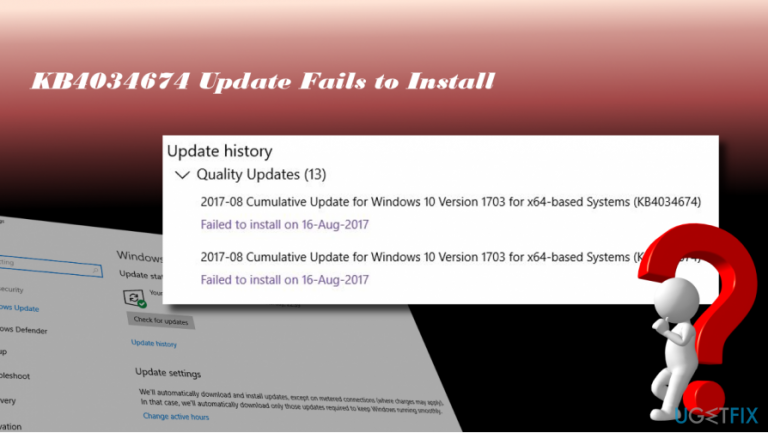
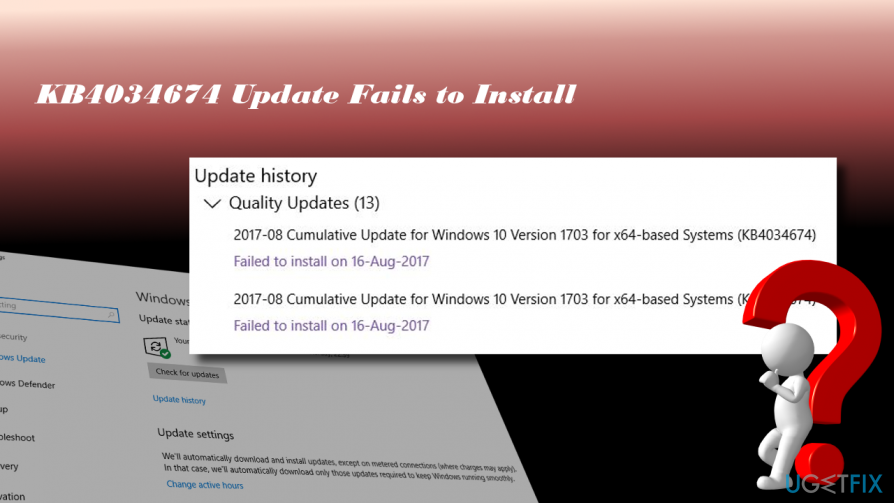
Hello, all. For the last month, I’ve been trying to install cumulative update KB4034674. It keeps failing with an error saying “Your device is out of date, and lack of safety and quality of important updates, there are risks. Let's get you back on track so that Windows can run more safely.” Actually, I did not do much for this issue as I’ve googled on this issue and found out that there are many people who are struggling with the same problem. However, a whole month counted, but the KB4034674 update still fails. Could you please help?
Cumulative Update KB4034674 (OS Build 15063.540) has been released in August 8, 2017. It doesn’t include new operating system features, except a bunch of quality improvements. To name a few, the KB4034674 update addresses the AppLocker rules wizard crashes, stop errors caused by access violation in the Mobile Device Manager Enterprise, Site to Zone Assignment List group policy (GPO) issues, a bunch of security updates (MS Edge, Windows kernel-mode drivers, Windows shell, IE, etc.). Unfortunately, many Windows 10 users can’t install KB4034674 update up-till-now. For some people the update process fails with an error code 0x80d02002, while the others receive a notification saying:
Your device is out of date, and lack of safety and quality of important updates, there are risks. Let's get you back on track so that Windows can run more safely.
OR
Some updates were not installed. Security Update for Windows (KB4034674).
According to certified Microsoft technicians, the culprit may be corrupted Windows Update components. However, resetting them did not fix KB4034674 update fails to install issue. Complicated installation of cumulative updates for Windows 10 OS is a persistent issue, which may be triggered by many factors, including damaged Windows 10 files, corrupted third-party software or corrupted update components. If the latter presumption confirms, the only solution would be to postpone the installation of the KB4034674 update and wait for Microsoft to release the patch.
However, based on people’s reports, it seems that the update itself is fine, so you should check your system for corruption. To do so, you can run a full system scan with [d1]. This utility is capable of recognizing and fixing various Windows errors automatically. In case the scan did not help, try Windows Update diagnostic tool, known as Windows Update Troubleshooter. Click this link to download the utility or navigate to the official Microsoft’s website and search for it. Click Download Troubleshooter for Windows 10 link. When the download window opens, click OK to proceed. The tool should automatically scan and fix issues related to Windows Updates.
A Guide on How to Fix Cumulative Update KB4034674 Fails to Install
If Reimage optimization utility and Windows Update Troubleshooter did not help, you have three fixes to try – install KB4034674 update manually, reset Windows Update Components or perform Windows repair using ISO.
Option 1. Install KB4034674 update manually
- Open the official Microsoft’s website and navigate to the Microsoft Update Catalog. To accelerate the search, you can click this link.
- Download and install the stand-alone KB4034674 update package.
- If the process failed, try again a bit later. Many people reported that the second or third try succeeded.
Option 2. Reset Windows Update Components
- Click Windows key + X and select Command Prompt (Admin).
- Disable BITS, Cryptographic, MSI Installer, and the Windows Update Services by typing the commands given below in the Command Prompt window. Press Enter after each of them:
net stop wuauserv
net stop cryptSvc
net stop bits
net stop msiserver
ren C:\\Windows\\SoftwareDistribution SoftwareDistribution.old
ren C:\\Windows\\System32\\catroot2 Catroot2.old
- The last two commands are used for renaming SoftwareDistribution and Catroot2 folders. When all commands are executed, enable BITS, Cryptographic, MSI Installer and the Windows Update Services by typing these commands in the Command Prompt. Press Enter after each:
net start wuauserv
net start cryptSvc
net start bits
net start msiserver
Finally, close Command Prompt window and reboot your PC.
Option 3. Perform Windows Repair Using ISO
Prepare USB or DVD with the Windows 10 Installation Media. If you don't have the disc yet, you can create it by following the steps given on this page. Once ready, plug in the bootable Windows 10 Installation Media and follow these steps:
- Reboot the PC.
- Press any key to boot from the installation media.
- Select language, time, currency, and keyboard/input method and press Next.
- Click Repair your computer (NOT Install Windows) and select the type of OS you want to repair.
- Click Troubleshoot.
- Select Advanced and click Automatic Repair.
- When the system detects the OS, select the one that is running on your PC.
- Finally, unplug the USB or remove DVD bootable media and reboot the system.
If the bug has reoccured and you cannnot install KB4034674 update anyway, please try these steps
- Click Power button and try to boot your PC.
- Press F8 key repeatedly at boot and select Repair your computer.
- Select Command Prompt and type the following commands.
- Press Enter after each one and DO NOT remove the space before / symbol.
bootrec /fixMBR
bootrec /fixBoot
bootrec /rebuildBCD
Bottom line
To address the installation failure of cumulative update KB4034674, consider resetting Windows Update components, checking for system corruption, and ensuring that third-party software is not interfering. If these fixes do not resolve the issue, it may be necessary to postpone the installation and wait for a Microsoft patch.
Frequently asked questions
Try running the Windows Update Troubleshooter to automatically detect and fix issues related to the update. If that doesn't work, consider resetting the Windows Update components manually.
Yes, you can manually download the update from the Microsoft Update Catalog and install it on Windows 11. Ensure you select the correct version for your system architecture.
Common reasons include corrupted system files, insufficient disk space, or conflicts with third-party software. Running the System File Checker or ensuring enough storage can help resolve these issues.




Report an issue
What's wrong with this guide? We review every report and update or remove content.
Report received — thank you. We'll review and fix it.
You need a free account to submit a report.
Be the first to comment