How to fix
Error 0x80070299: The requested operation could not be completed due to a file system limitation
on Windows
Resolve Error 0x80070299 on Windows 10 or 11 with effective troubleshooting tips. Fix file system limitations quickly and efficiently, expert-tested.

![[Fix] Error 0x80070299: The requested operation could not be completed due to a file system limitation](https://ugetfix.com/wp-content/uploads/articles/askit/fix-error-0x80070299-the-requested-operation-could-not-be-completed-due-to-a-file-system-limitation-copy_en-768x432.jpg)
What causes [Fix] Error 0x80070299: The requested operation could not be completed due to a file system limitation?
- Constraints inside the NTFS file system
- Limitations on the largest file size supported by NTFS
- Excessive metadata fragmentation on the system
- Disk space problems due to severe fragmentation
- Inadequate storage for the operation
Repairs Windows system files, removes malware, and restores a clean OS state — without reinstalling.
Hi, I can't copy a file - I keep getting an error that states "Error 0x80070299: The requested operation could not be completed due to a file system limitation." How can I resolve it?
Error 0x80070299 in Windows typically occurs when you are trying to copy or move large files. The full error message reads, "The requested operation could not be completed due to a file system limitation."
This issue can prevent the successful completion of file operations, particularly affecting users working with large amounts of data or managing large files on their systems.
Causes of the 0x80070299 error
This issue is frequently caused by constraints inside the NTFS file system, which is the basic file system used by Windows operating systems. The largest file size that NTFS can support is limited, particularly for sparse files - files that are usually bigger in information than in actual content.
The 0x80070299 error may occur when NTFS is unable to handle new data due to excessive metadata fragmentation on the system or when the volume approaches a limit on file size. Disk space problems, such as severe fragmentation or inadequate storage for the operation, might potentially cause this error.
What can be done to fix the issue
Resolving Error 0x80070299 involves a few practical measures that you can undertake to manage the underlying issues with your file system. Start by ensuring the target drive where you're attempting to transfer files has adequate space available.
This basic check can prevent many common file system errors. Additionally, consider performing disk defragmentation, which reorganizes the data on your disk more logically, potentially freeing up space and improving your system's ability to manage large files.
Another critical step is to use a disk-checking utility like CHKDSK to scan for and fix any file system errors. This tool can detect and resolve issues related to disk integrity, which are often at the heart of the 0x80070299 error.
If the error is specifically related to handling sparse files, converting these files to a standard format might also mitigate the issue. This conversion reduces the complex metadata associated with sparse files, making it simpler for the NTFS file system to process them.
For a thorough solution, especially when dealing with persistent or complicated system issues, using a PC repair tool [d1] is advisable. This software can automatically diagnose and fix underlying Windows issues, optimizing system performance and stability.

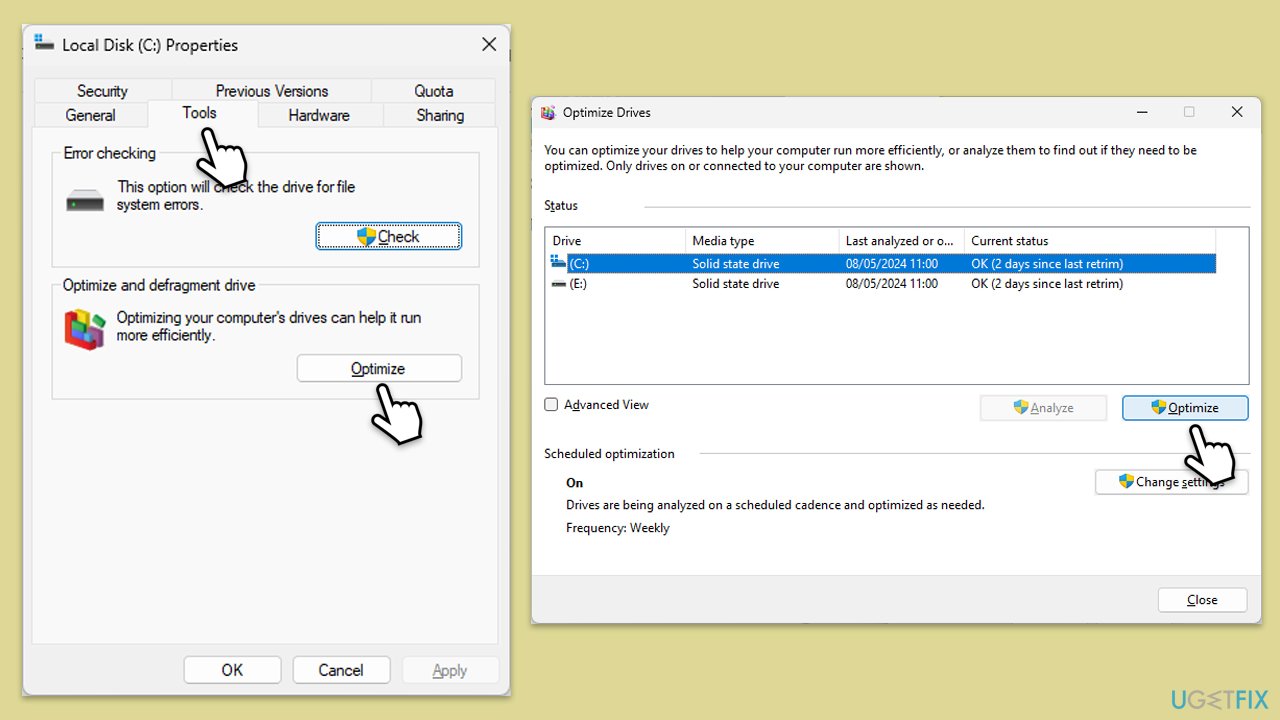
Fix 1. Defragment or optimize your drive
Defragmenting reorganizes the data on your hard disk by consolidating fragmented files, which can enhance the drive's efficiency and potentially alleviate file system limitations.
- Press Win + E to open File Explorer.
- Go to This PC.
- Right-click on your main drive and go to the Tools tab.
- Under Optimize and defragment drive, click Optimize.
- Select the drive you wish to optimize.
- Depending on whether you use HDD or SSD, click either Defragment or Optimize.
- Wait for the process to complete.
Fix 2. Perform Check Disk
Running Check Disk can identify and repair errors on the disk, such as bad sectors or file system errors that might be causing the 0x80070299 error.
- Type in cmd in Windows search.
- Right-click on Command Prompt and select Run as administrator.
- In the User Account Control window, click Yes.
- In the new window, type in the following command and press Enter after:
chkdsk c: /f
(Note: use chkdsk c: /f /r /x command if you are using SSD as your primary partition. Also, replace c: with another drive letter if you are not using default) - If you receive an error, type in Y, close down Command Prompt, and restart your system.
- Wait till the scan is finished.

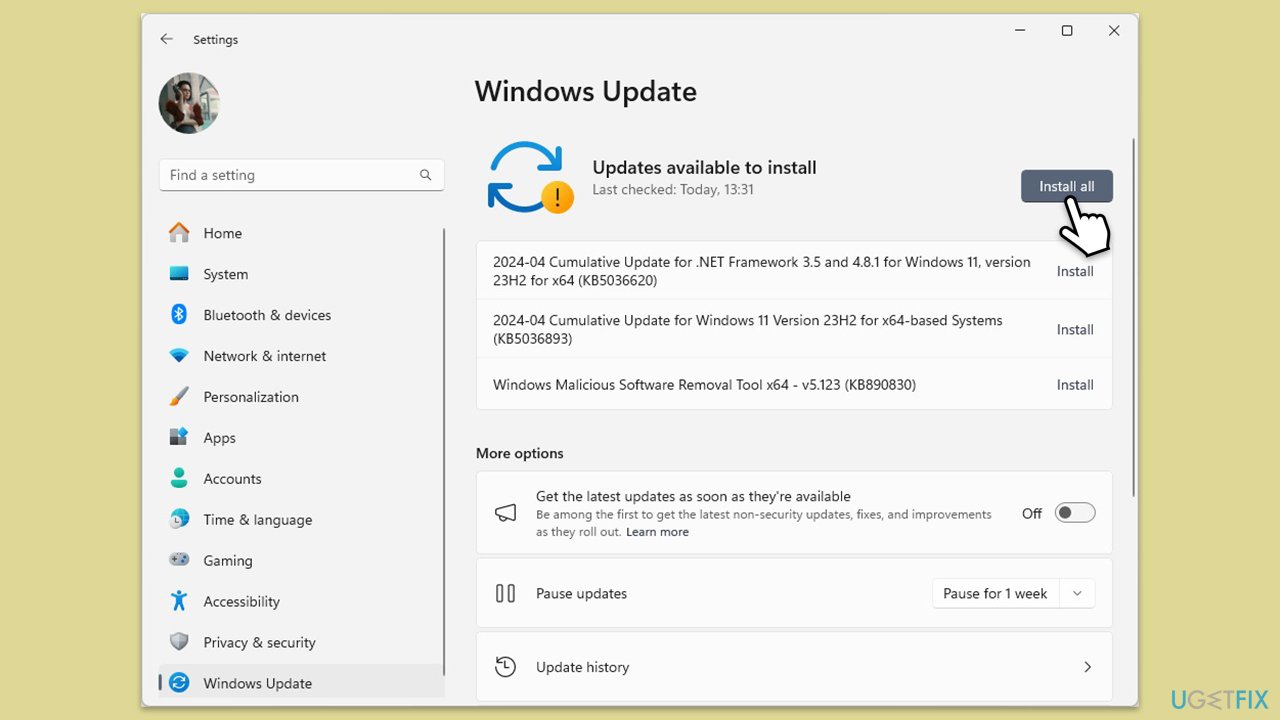
Fix 3. Install all Windows updates
Keeping your system up to date with the latest Windows updates can provide important improvements and bug fixes that might resolve file system issues.
- Type Updates in Windows search and hit Enter.
- In the new window, click Check for updates.
- If optional updates are available, install them as well.
- When all the update processes are complete, restart your device.
Fix 4. Increase the size of Volume Shadow Copy
Increasing the allocated space for Volume Shadow Copy can prevent errors related to insufficient storage space for shadow copies when using NTFS.
Setting the maximum size of the Volume Shadow Copy storage area to "No limit" can help avoid errors related to space limitations when creating shadow copies, which are essential for NTFS operations.
- Open Command Prompt as an administrator.
- Type the following:
vssadmin Resize ShadowStorage followed by /For=C: /On=C: /MaxSize=UNBOUNDED - Replace C: with the appropriate drive letter.
- Press Enter to apply the change, effectively removing any limit on the shadow copy storage size.

Fix 5. Format the drive with /L parameter
Formatting the drive with the /L parameter can help by setting a larger cluster size, which might mitigate file system limitations with large files on NTFS volumes.
- Open Command Prompt as an administrator.
- In the new window, type in the following command:
format [drive letter]: /L - Replace [drive letter] with the appropriate letter and press Enter.
- Follow the on-screen prompts to complete the format.
- Restart your PC.

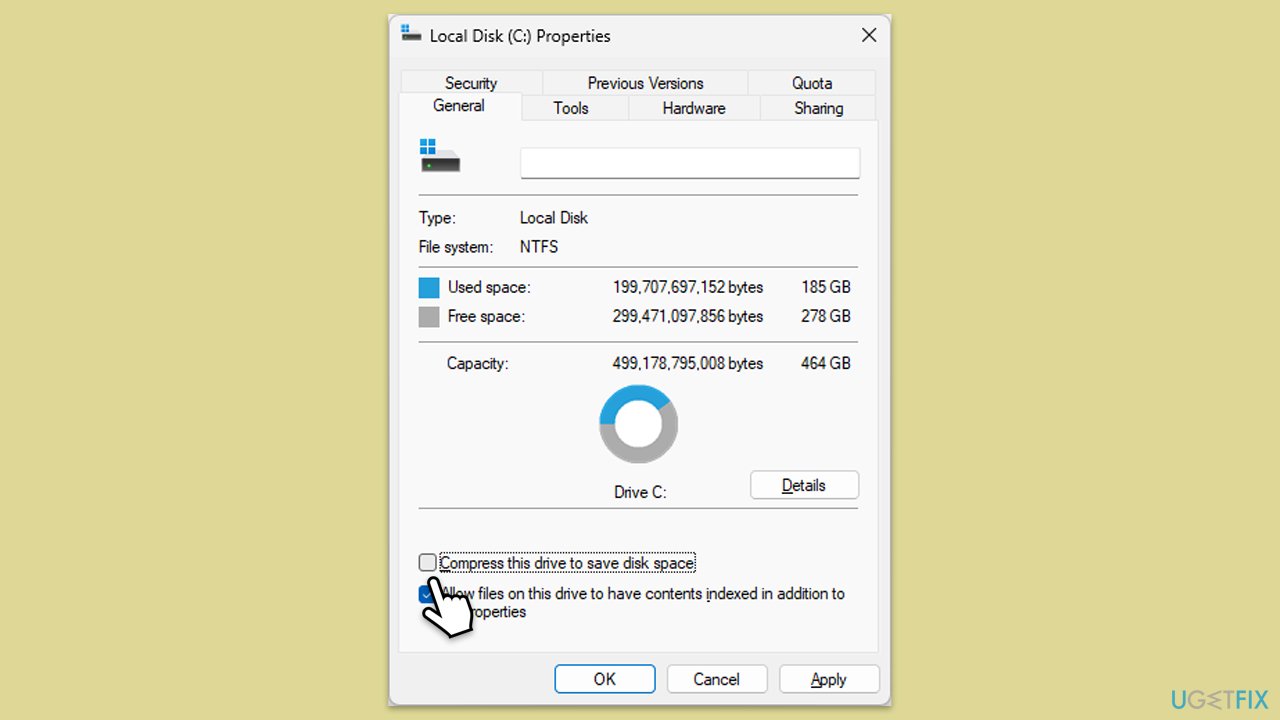
Fix 6. Disable NTFS compression
Disabling NTFS compression can reduce the metadata overhead that can contribute to the 0x80070299 error, especially on volumes with many compressed files.
- Right-click on the drive in File Explorer and select Properties.
- Uncheck the option to Compress this drive to save disk space under the General tab.
- Click Apply and then OK to make the changes.
Bottom line
To resolve Error 0x80070299, ensure the target drive has adequate space, perform disk defragmentation, and use the CHKDSK utility to fix file system errors. If the issue persists, consider converting sparse files to a standard format to reduce metadata complexity.
Frequently asked questions
The 0x80070299 error usually occurs due to file system limitations, which can arise from corrupted files or issues with the storage device's formatting.
To fix the 0x80070299 error in Windows 11, try running the Check Disk utility to scan for and repair file system errors.
To prevent the 0x80070299 error on Windows 10, ensure that your system and drivers are up to date, and regularly check the health of your storage devices.




Report an issue
What's wrong with this guide? We review every report and update or remove content.
Report received — thank you. We'll review and fix it.
You need a free account to submit a report.
Be the first to comment