How to fix
Function Keys Not Working
on Windows
Troubleshoot and resolve function key issues on Windows 10 easily. Get your shortcuts back in action with expert-tested solutions.


What causes How to Fix Function Keys Not Working on Windows 10?
- Incompatible system drivers
- Outdated system drivers
- Conflict with Synaptics Pointing Device driver
- Issues after upgrading Windows
- Installation of the latest updates
Repairs Windows system files, removes malware, and restores a clean OS state — without reinstalling.
I’ve upgraded Windows from 8 to 10 and approximately a month after that found Fn key not working. Is it just a coincidence or update triggered the failure of FN key? Could someone please help?
Personal computers (PCs) do not have the so-called Function (FN). Thus, if you are a PC owner and have nothing in common with the FN key, please bypass this post. Otherwise, you may found useful information on how to fix Function keys not working issue on Windows 10.[ref en-1]
Fn keys have been designed to perform specific actions on laptops, for example, turn Wi-Fi[ref en-3] off or on, change screen’s brightness, turn the sounds on or off, get the screen to sleep, and so on. The Fn key always goes in combination with the other keys, usually F(1-12).
Unfortunately, quite frequently the Fn key stops working and this typically happens after upgrading Windows from earlier versions or installing the latest updates. According to the latest reports, people using ASUS, HP, Acer, and Lenovo[ref en-2] laptops most frequently encounter issues related to Fn keys.
How to Fix Function Keys Not Working on Windows 10?
#1. Update device drivers
Usually, Function keys stop working after upgrading the system to Windows after the earlier versions or installing the latest updates. The reason may be incompatible or outdated system drivers. Therefore, you should navigate to Device Manager[ref en-4] and check if there are any malfunctioning drivers. For this purpose, do the following:
- Right-click Windows key and select Device Manager.
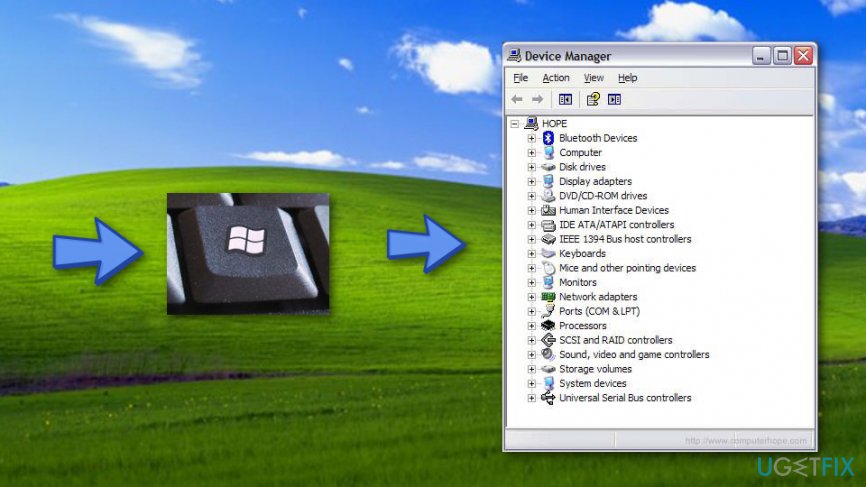
Nr1 - Expand each category one-by-one and check if any of the device drivers are marked with a yellow exclamation mark.
- If you detected some of the outdated drivers, right-click them and select Update Driver Software.
- After the update, reboot the system.
#2. Uninstall Synaptics Pointing Device driver
Synaptics Pointing Device driver has been found to be conflicting with the Windows 10 OS. Such a conflict may trigger Fn key error, so try to uninstall the driver. For this purpose, please follow these steps:
- Right-click Windows key and select Device Manager.
- Expand the Mice and other pointing devices section and click Synaptics driver.
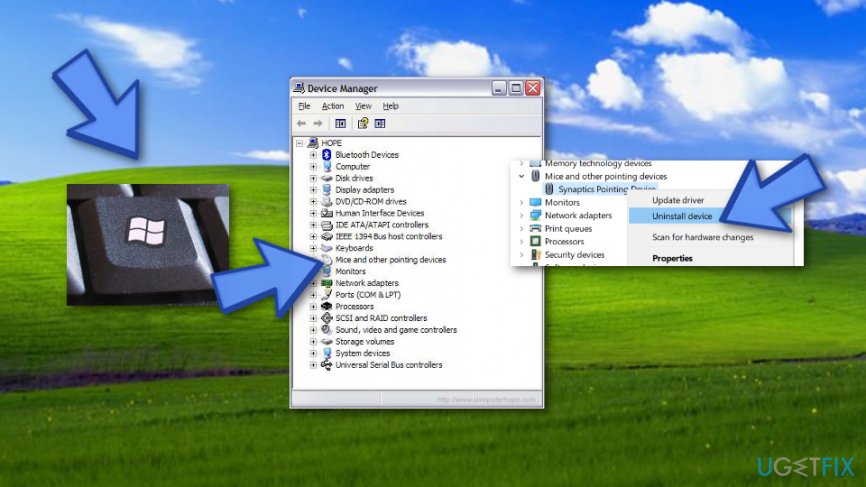
Nr2 - Select Uninstall driver and click OK on the confirmation window.
- If the driver is not given in Device Manager, you can either look for it in Control Panel or search for it using Windows search.
- Anyway, after the removal, reboot the system.
#3. Uninstall hotkey drivers
- Right-click Windows key and select Device Manager.
- Locate the Hotkey driver for your device and right-click it.
- Select Uninstall.
- Now locate the HID Compliant Keyboard and HID Compliant Mouse drivers, right-click them, and opt for Uninstall option.
- After all, reboot the system.
#4. Enable VAIO Event Service
- Press Windows key + R, type services.msc, and press Enter.
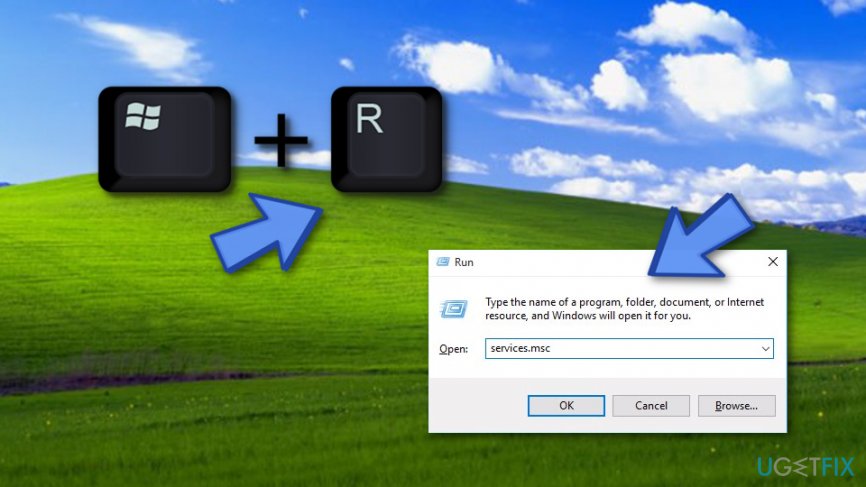
Nr4 - Locate the VAIO Event Service and double-click it.
- Check the section of the Startup type and make sure to set it to Automatic.
- Then Click Service Status and make sure that it’s started. Otherwise, start it.
- Click OK and Apply to save the changes.
#5. Try running Windows hardware troubleshooter
- Go to the Windows search bar and type in Settings.
- Click on the Update & Security option.
- Look for Troubleshoot and select it.

Nr5 - After that, click Hardware and Devices ---> Run the troubleshooter
#6. Disable the filter keys
- Go to the Windows search section and find the Control Panel.
- Open Ease of Access Center.
- Find the Make the keyboard easier to use variant and click on it.
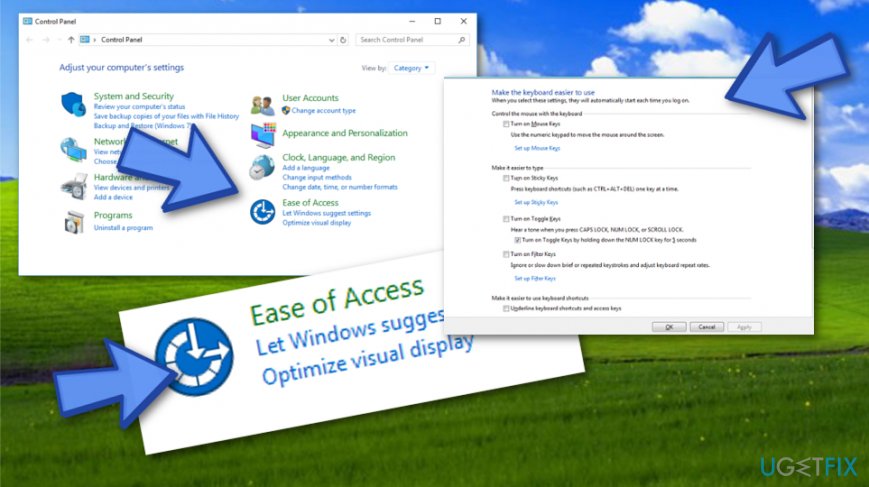
Nr6 - After that, find the Filter Keys option.
- Then, click Apply ---> OK.
If you have any other questions regarding Fn key not working, please let us know, so that we could further assist you.
Bottom line
To fix the Function keys not working issue on Windows 10, you can update your device drivers and uninstall the Synaptics Pointing Device driver if it is causing conflicts. If these solutions do not resolve the problem, further troubleshooting may be necessary.
Frequently asked questions
First, ensure that the Fn key is not locked by pressing the Fn lock key. If that doesn’t work, check your keyboard settings in Windows 10 to make sure the function keys are enabled.
To update your keyboard driver, go to Device Manager, locate the keyboard section, right-click on your keyboard device, and select 'Update driver.' Follow the prompts to search for updated drivers automatically.
Yes, you can check the keyboard settings by going to Settings > Devices > Typing and ensure that the options related to function keys are correctly configured.




Report an issue
What's wrong with this guide? We review every report and update or remove content.
Report received — thank you. We'll review and fix it.
You need a free account to submit a report.
Be the first to comment