How to fix
Xbox app error 0x0000042B
on Windows
Resolve Xbox app error 0x0000042B on Windows 10 and Windows 11 effortlessly. Get back to gaming with expert-tested solutions and tips!

What causes How to fix Xbox app error 0x0000042B in Windows?
- Network connectivity problems
- Corrupted app files
- Issues with Xbox Live services
- Problems with Microsoft account
- Outdated software
- Conflicts with other applications
Repairs Windows system files, removes malware, and restores a clean OS state — without reinstalling.
Hello. Recently I have not been able to log into the Xbox app on Windows 11 due to an error code 0x0000042B. What does that mean and how can I get rid of it?
Encountering error 0x0000042B on the Xbox app in Windows can be frustrating, especially when the message reads, "We couldn't sign you in." This error typically arises when there are issues related to the app’s authentication process, affecting your ability to access Xbox services and play games.
Error 0x0000042B can stem from several factors, including network connectivity problems, corrupted app files, issues with the Xbox Live services, or problems with your Microsoft account. Ensuring that these components are functioning correctly is essential for resolving the issue. This error can also be triggered by outdated software or conflicts with other applications running on your system.
Effectively addressing the Xbox app error 0x0000042B involves various troubleshooting steps. These solutions range from basic checks, like ensuring a stable internet connection, to more advanced fixes, such as resetting the app or updating your system. Keeping your software updated and ensuring there are no conflicts with other applications is vital.
For comprehensive system maintenance, the [d1] maintenance and repair utility is particularly useful. It can help fix broken registries or DLLs, corrupted system files, BSODs, and more.
Fix 1. Run network and app troubleshooter
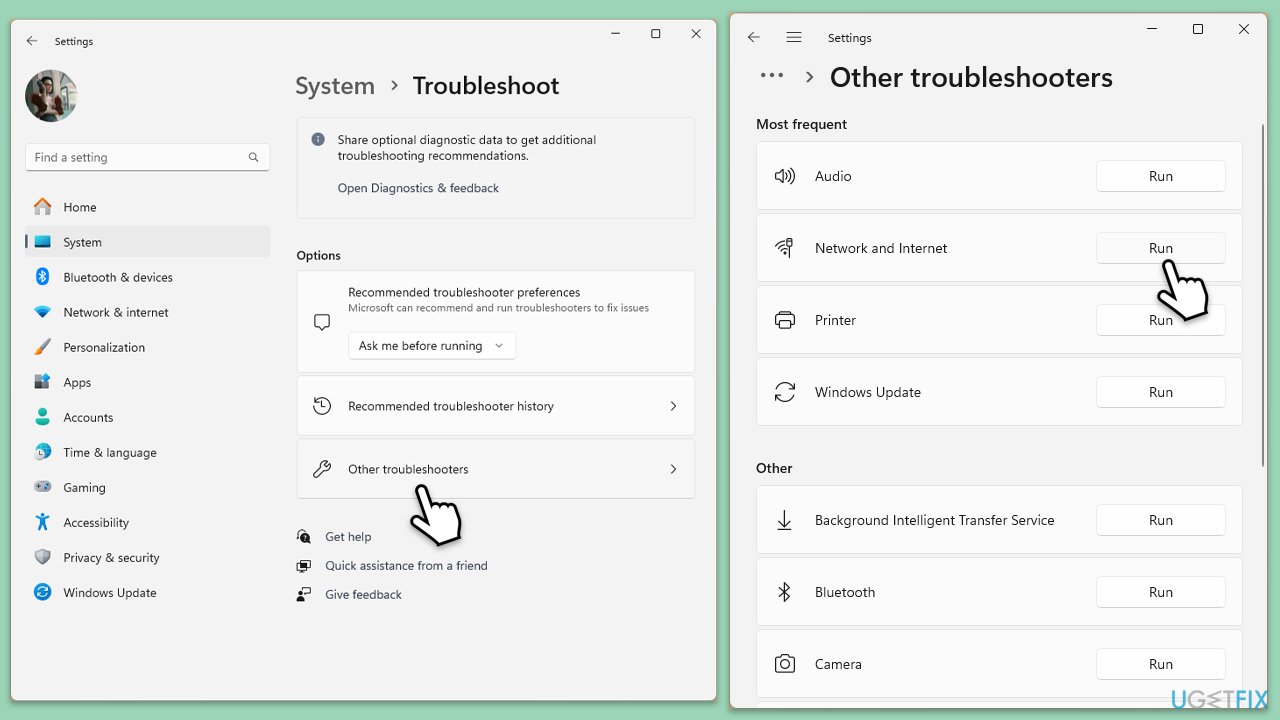
The built-in troubleshooters in Windows can automatically detect and fix common network and app-related problems.
- Type Troubleshoot in Windows search and hit Enter.
- Select Additional troubleshooters/Other troubleshooters.
- Find Windows Update from the list and click Run the troubleshooter/Run.
- The troubleshooter will automatically scan your system for potential problems and display any issues it finds.
- If the troubleshooter finds any issues, it will provide recommended solutions - apply them.
- Repeat this with Network & Internet troubleshooter.
Fix 2. Reset Microsoft Store cache
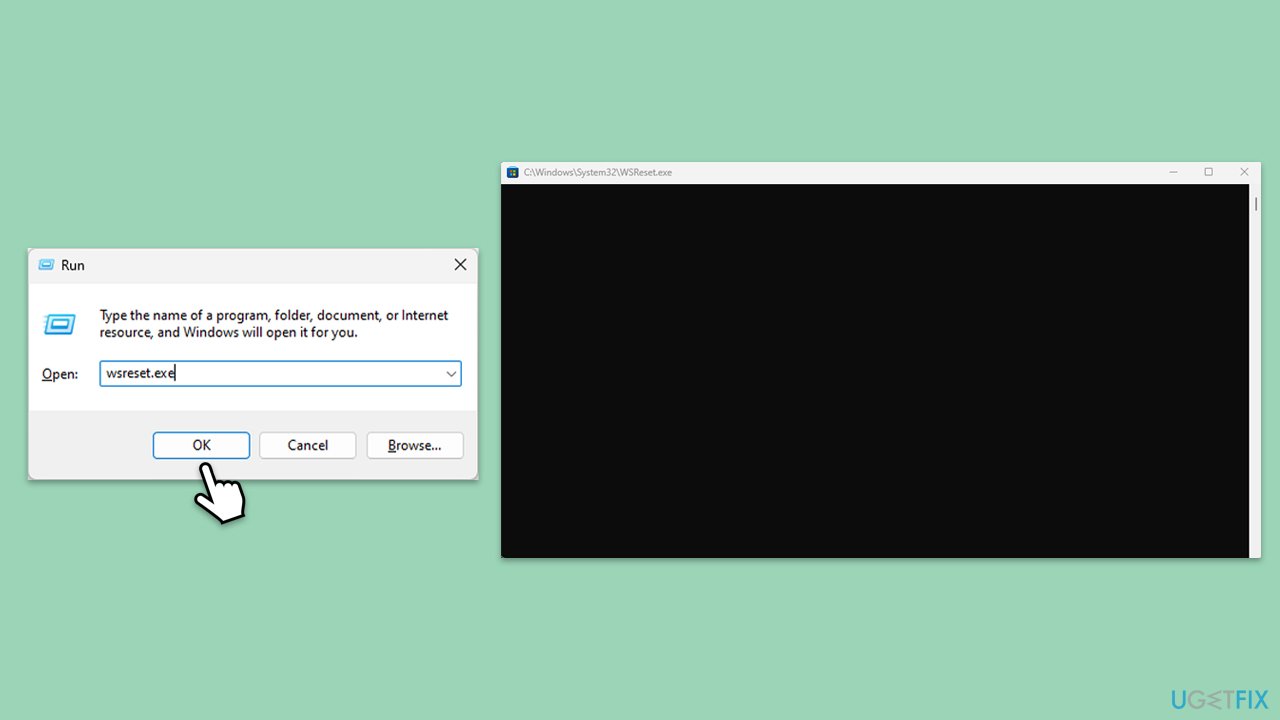
Resetting the Microsoft Store cache can resolve issues with app downloads and updates by clearing any corrupted cache files.
- Press Win + R to open the Run dialog box.
- Type wsreset.exe and press Enter.
- Wait for the command to complete and for the Microsoft Store to open automatically.
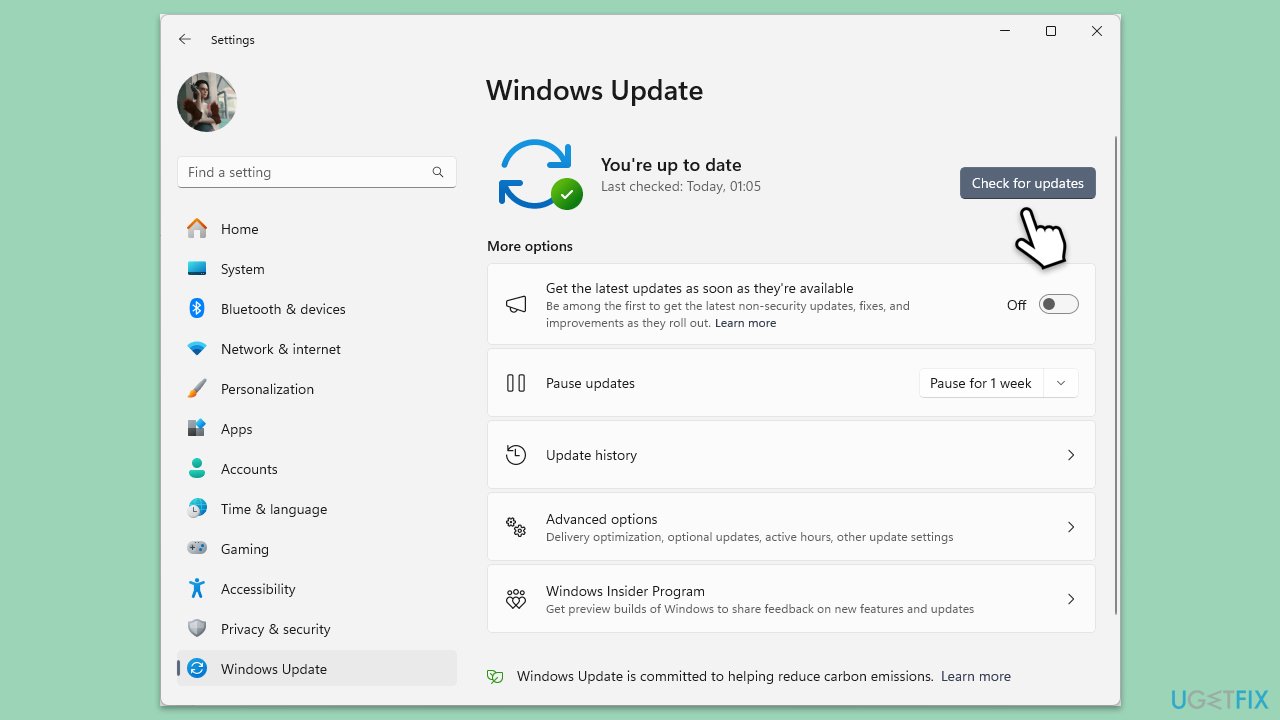
Fix 3. Install all Windows updates
Keeping your operating system updated can resolve compatibility issues and ensure that all components are working correctly.
- Type Updates in the Windows search bar and press Enter.
- The new window will open and you should be notified about available updates - click Install all.
- If none are available, click Check for updates, and they should be installed automatically.
- Don't forget to install all the available optional updates.
- When done, restart your computer.
Fix 4. Set related services to automatic
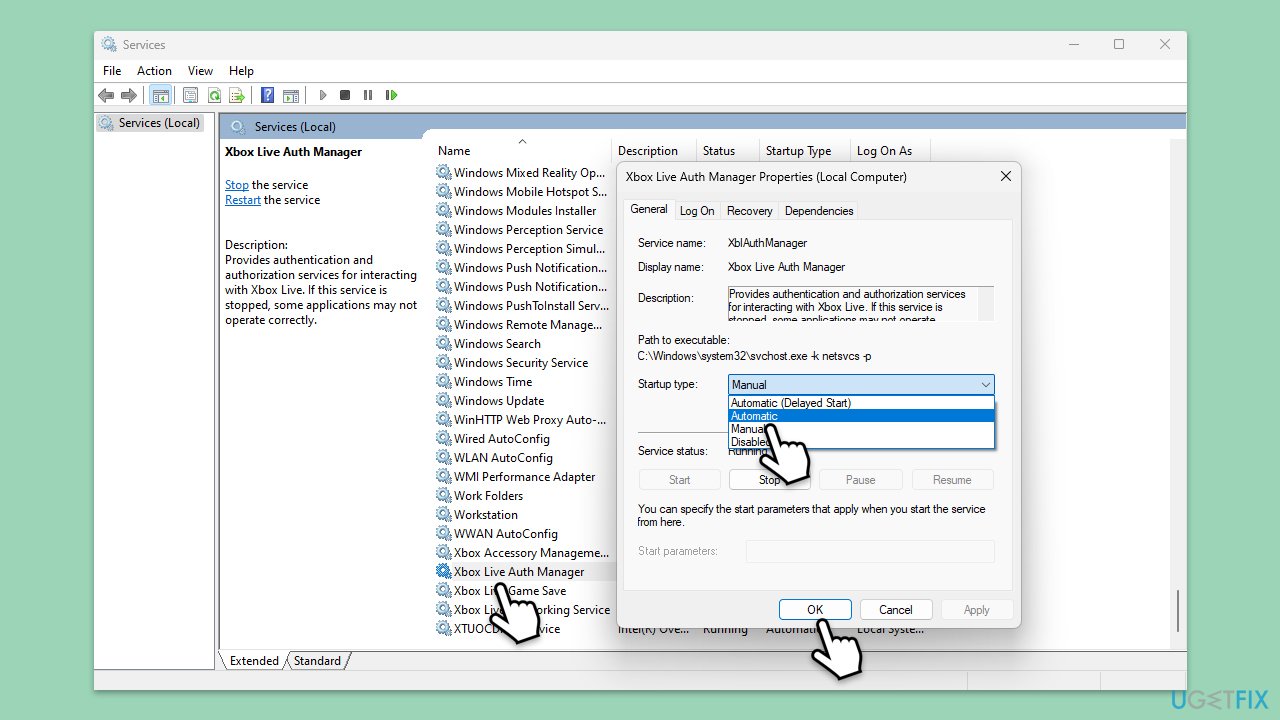
Ensuring that necessary services are set to start automatically can help prevent sign-in issues with the Xbox app.
- Type Services in Windows search and press Enter.
- Locate the following services:
IP Helper
Xbox Live Auth Manager
Xbox Live Game Save
Xbox Live Networking Service
Gaming Services - Right-click each service, select Properties, and set the Startup type to Automatic.
- Click Apply and OK.
Fix 5. Repair or/and reset Microsoft Store, Xbox app, and Gaming Services
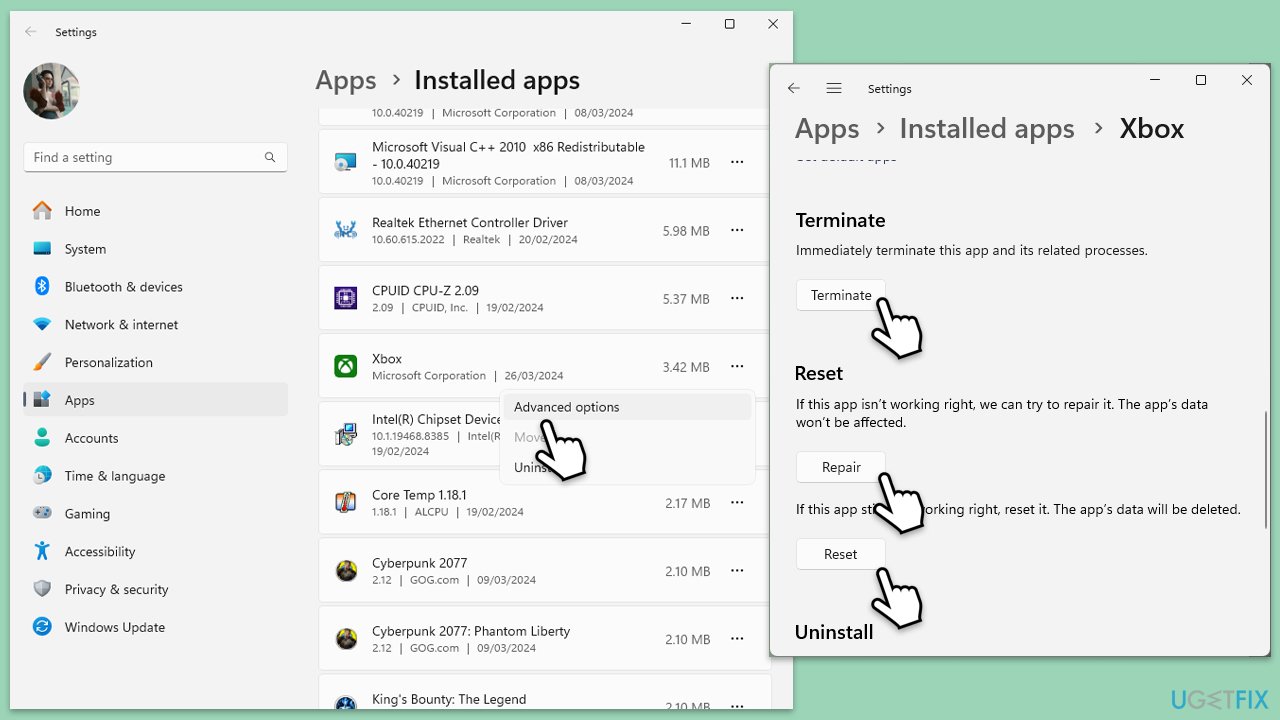
Repairing or resetting these apps can fix corrupted files and settings that might be causing the error.
- Right-click on Start and select Apps & Features/Installed apps.
- Scroll down to find Microsoft Store and click Advanced options.
- Scroll down again and click Terminate and Repair.
- If that does not work, try using Reset.
- Repeat this process with the Xbox app and Gaming Services if necessary.
Fix 6. Make sure you are using same Microsoft account to log in
Using the same Microsoft account for both Windows and the Xbox app ensures proper synchronization and authentication.
- Open the Start menu and go to Settings.
- Click on Accounts.
- Ensure that the account listed under Your info is the same one you use for the Xbox app.
- Open the Xbox app and ensure you are signed in with the same Microsoft account.
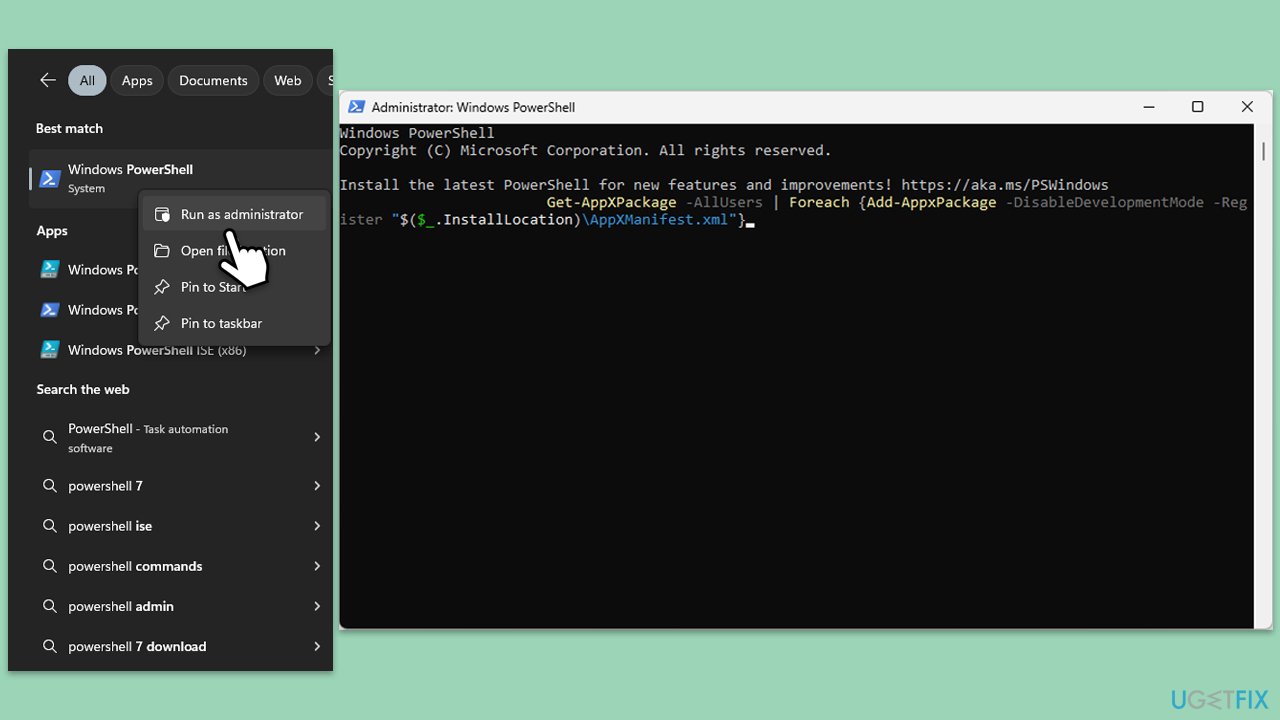
Fix 7. Reregister all Microsoft apps via PowerShell
Reregistering Microsoft apps can resolve registration issues that might be causing the sign-in error.
- Type PowerShell in Windows search.
- Right-click on the result and select Run as administrator.
- When User Account Control shows up, click Yes.
- Copy and paste the following command, pressing Enter after each:
Get-AppXPackage | Foreach {Add-AppxPackage -DisableDevelopmentMode -Register "$($_.InstallLocation)\AppXManifest.xml"} - Close down PowerShell and restart your computer.
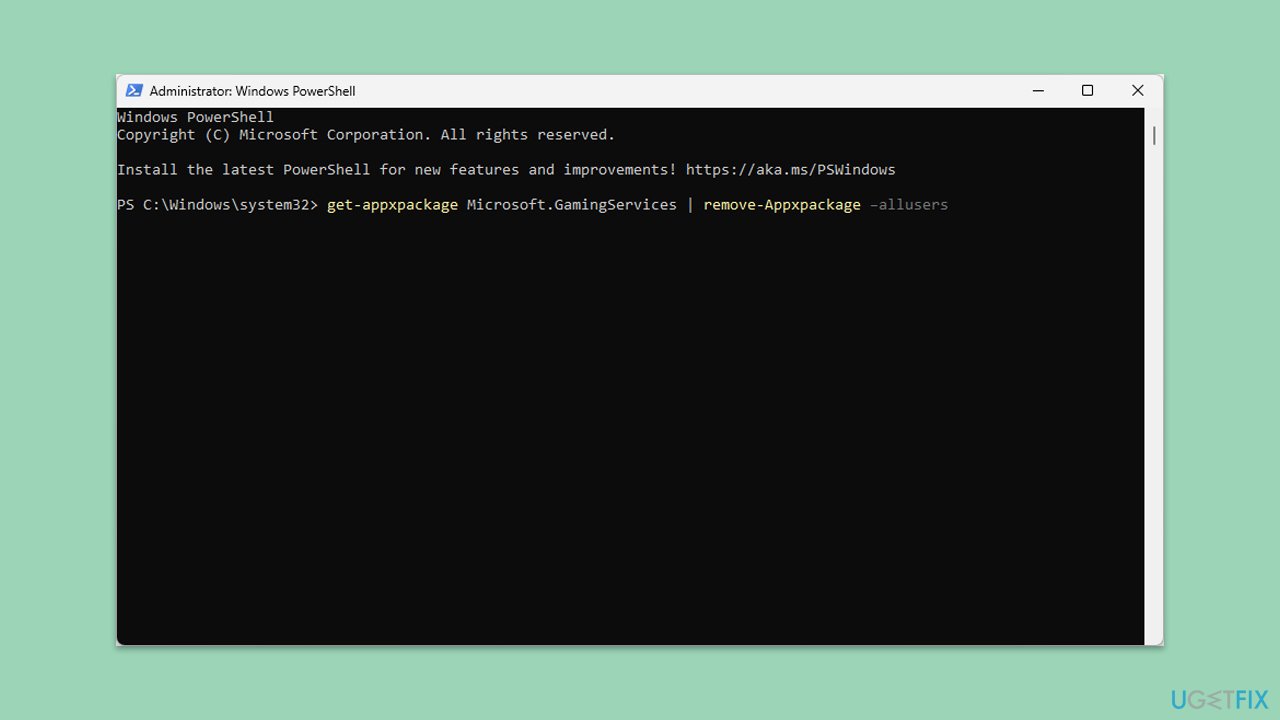
Fix 8. Reinstall Gaming Services
Reinstalling the Gaming Services can resolve issues related to the services required by the Xbox app.
- Open PowerShell as administrator.
- In the new window, copy and paste the following commands and hit Enter:
get-appxpackage Microsoft.GamingServices | remove-Appxpackage –allusers
Remove-Item -Path "HKLM:\System\CurrentControlSet\Services\GamingServices" -recurse
Remove-Item -Path "HKLM:\System\CurrentControlSet\Services\GamingServicesNet" -recurse - Close down PowerShell and restart your system.
- Next, install Gaming Services from the Microsoft Store.
Fix 9. Reinstall Xbox app
Reinstalling the Xbox app can fix any corrupted files or settings causing the sign-in error.
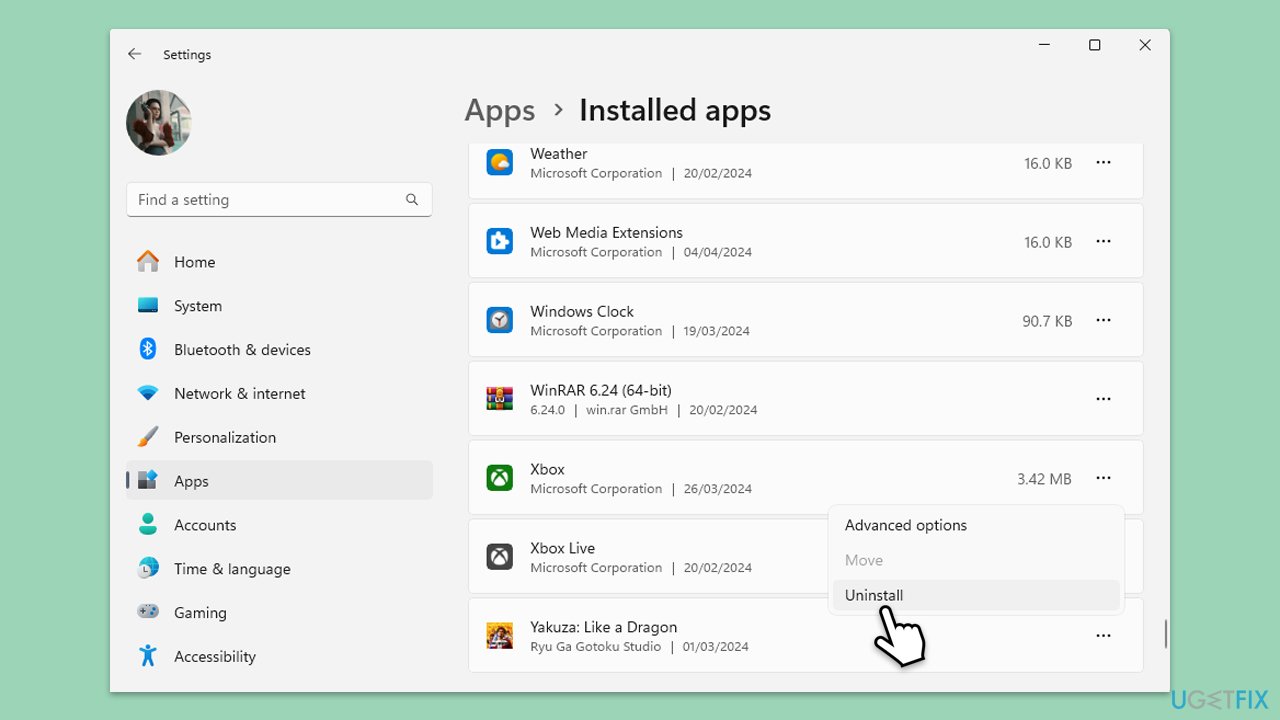
- Right-click on Start and pick Apps & Features/Installed apps.
- Scroll down to the Xbox app, select it (or click three vertical dots), and click Uninstall.
- Confirm any prompts and follow on-screen instructions.
- Restart your PC.
- Reinstall the app from the Microsoft Store.
Bottom line
To fix the Xbox app error 0x0000042B, you can run the network and app troubleshooters, reset the Microsoft Store cache, and ensure your software is up to date. If these solutions do not resolve the issue, consider checking for conflicts with other applications or using a maintenance and repair utility.
Frequently asked questions
This error is typically caused by issues with the Xbox app installation or problems with Windows services related to gaming, such as the Gaming Services app.
To reset the Xbox app, go to Settings > Apps > Apps & features, find the Xbox app, click on it, and select 'Advanced options' to find the 'Reset' button.
Yes, ensuring that your Windows 10 or Windows 11 system is up to date can help resolve compatibility issues that may cause this error.




Report an issue
What's wrong with this guide? We review every report and update or remove content.
Report received — thank you. We'll review and fix it.
You need a free account to submit a report.
Be the first to comment