How to fix
Plugging in USB crashes Windows PC
on Windows
Resolve USB crashes on Windows 10 and 11 effortlessly. Follow expert-tested solutions to stabilize your PC and enjoy seamless connectivity, fixed in min…

![[Fix] Plugging in USB crashes Windows PC](https://ugetfix.com/wp-content/uploads/articles/askit/fix-plugging-in-usb-crashes-windows-pc-copy_en-768x432.jpg)
What causes [Fix] Plugging in USB crashes Windows PC?
- Corrupted USB drivers
- Outdated USB drivers
- Incompatible USB devices
- Faulty USB devices
- Malware infections
- Damaged USB ports
Repairs Windows system files, removes malware, and restores a clean OS state — without reinstalling.
Whenever I plug in a USB stick into my PC, it always crashes. I thought an issue could be related to the USB stick itself, but this also happens with another one I have. What is going on?
USB devices are essential peripherals used for data transfer, storage, and connecting various external hardware to your computer. However, a concerning issue arises when plugging in a USB device causes your Windows PC to crash. This problem disrupts your workflow and can potentially lead to data loss and hardware damage.
Why plugging in a USB might crash your PC
Several factors can cause your Windows PC to crash when a USB device is plugged in. Corrupted or outdated USB drivers are a common culprit, leading to system instability. Incompatible or faulty USB devices can also trigger crashes, especially if the device draws more power than your PC can supply.
Additionally, malware infections can interfere with USB functionality, causing system crashes. Hardware issues, such as damaged USB ports or internal components, can also be to blame. Furthermore, conflicts between USB devices and other hardware or software on your system can lead to crashes when a USB is inserted.
Addressing the USB crashing issue
Several troubleshooting steps can be undertaken to address the issue of your Windows PC crashing when a USB device is plugged in. Updating or reinstalling USB drivers can help resolve driver-related problems. Checking the USB device for compatibility and functionality can identify whether the device itself is causing the crash.
Running a thorough malware scan can eliminate any malicious software that might be interfering with USB operations. Inspecting and repairing any hardware issues, including USB ports, can ensure they are not the source of the problem. Lastly, reviewing recent changes to system configurations and hardware can help isolate and resolve conflicts that lead to crashes.
All the instructions for these solutions will be provided below the article, although we do recommend trying to scan the PC with a powerful repair tool [d1] to ensure there aren't any underlying issues causing these crashes.
Fix 1. Update USB drivers
Outdated or corrupted USB drivers can cause system crashes. Updating these drivers can resolve compatibility and stability issues.
- Right-click on the Start button and select Device Manager.
- Expand the Universal Serial Bus controllers section.
- Right-click each USB device and select Update driver.
- Choose Search automatically for drivers.
- Follow the on-screen instructions to complete the update.
- Restart your PC.

Fix 2. Reinstall USB drivers
Reinstalling USB drivers can fix corrupted driver files causing crashes.
- Open Device Manager.
- Expand the Universal Serial Bus controllers section.
- Right-click each USB device and select Uninstall device.
- Restart your computer to automatically reinstall the drivers.
- If the drivers do not install, either download it from an official website or employ automatic tools such as [rev id="DriverFix"].

Fix 3. Scan for malware
Malware can interfere with USB functionality and cause system crashes. Running a malware scan can detect and remove threats.
You can use any reliable third-party security software, employ Microsoft Security Scanner, or simply Windows Defender:
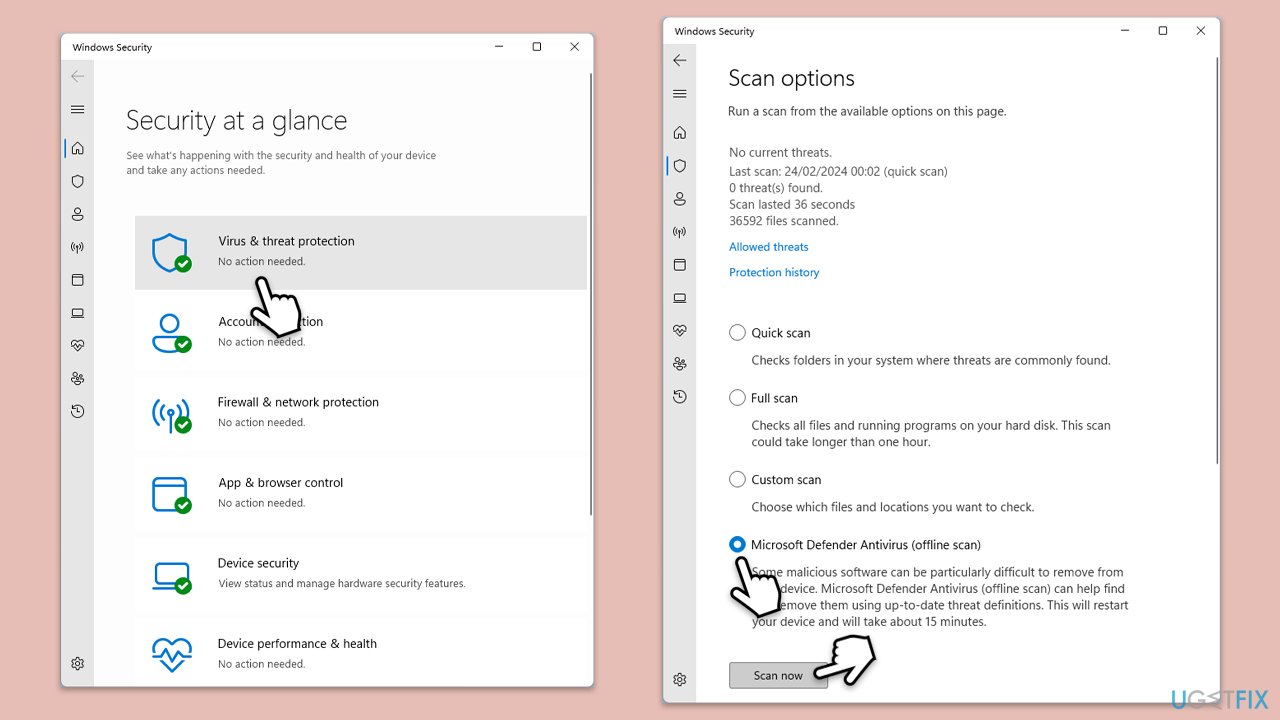
- Type Windows Security in the Windows search bar and hit Enter.
- Select Virus & threat protection.
- Pick Scan options.
- Choose Microsoft Defender Offline scan and click Scan now.
- Your computer will immediately restart and begin a deep scan.
Fix 4. Inspect and repair hardware issues
Damaged USB ports or internal components can cause crashes. Inspecting and repairing these issues can restore system stability.
- Inspect your USB ports for any visible damage.
- Test the USB device on all available ports.
- If a port is damaged, consider having it repaired or replaced.
Fix 5. Use a different USB port
Sometimes, a specific USB port may be faulty. Using a different port can help determine if the port is the problem.
- Plug the USB device into a different USB port on your computer.
- Observe if the crash still occurs.
Fix 6. Disable USB selective suspend
USB selective suspend can sometimes cause instability. Disabling this feature can help.
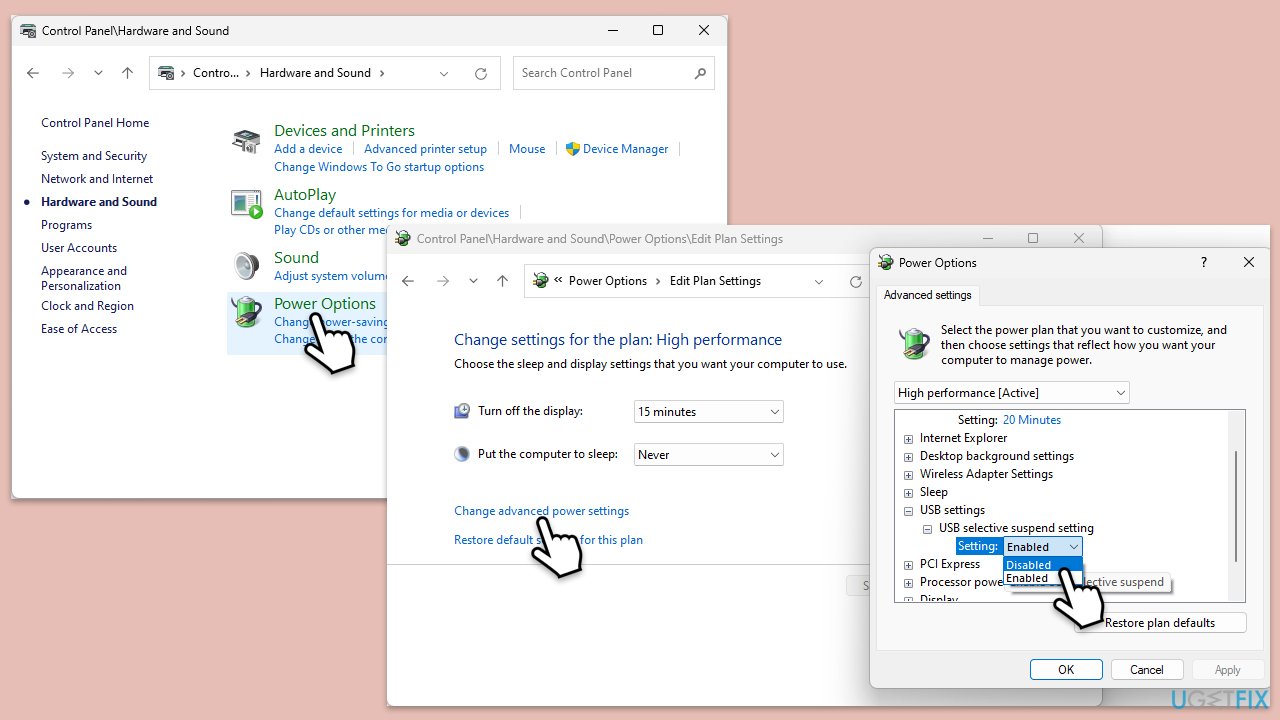
- Open Control Panel.
- Select Hardware and Sound, then Power Options.
- Click Change plan settings next to your selected power plan.
- Choose Change advanced power settings.
- Expand the USB settings section, then USB selective suspend setting.
- Set it to Disabled and click Apply, then OK.
Fix 7. Check for system and hardware conflicts
Conflicts between USB devices and other hardware or software can cause crashes. Identifying and resolving these conflicts can stabilize your system.
- Open Device Manager.
- Look for any devices with a yellow exclamation mark.
- Right-click and select Properties to view the error details.
- Resolve any conflicts by updating, disabling, or uninstalling the problematic device or software
Bottom line
To address the issue of your Windows PC crashing when a USB device is plugged in, consider updating or reinstalling USB drivers, checking device compatibility, running a malware scan, and inspecting hardware for damage. If these solutions do not resolve the problem, further investigation into system configurations and potential conflicts may be necessary.
Frequently asked questions
This issue may be caused by outdated USB drivers, a corrupted USB device, or conflicts with system settings. Ensure your drivers are up to date and try using a different USB port or device.
Start by booting your PC in Safe Mode and check if the issue persists; if not, it may be a software conflict. You can also run the Hardware and Devices troubleshooter to identify and fix problems.
Test the USB device on another computer to confirm if it’s faulty, and if it works fine, consider updating or reinstalling the USB drivers on your Windows system.




Report an issue
What's wrong with this guide? We review every report and update or remove content.
Report received — thank you. We'll review and fix it.
You need a free account to submit a report.
Be the first to comment