How to fix
KB5037853 fails to install
on Windows
Resolve KB5037853 installation issues in Windows 11 effortlessly with our expert-tested solutions. Fix errors in minutes and get your system running smo…

What causes How to fix KB5037853 fails to install in Windows 11?
- Corrupted system files
- Insufficient disk space
- Conflicts with existing software
- Problems with the Windows Update service
- Outdated drivers
- Internet connectivity issues
Repairs Windows system files, removes malware, and restores a clean OS state — without reinstalling.
Today I noticed that there's a KB5037853 update available for Windows, but as soon as I tried to install it, it failed, telling me to try again later. I've been trying the whole day, and it still does not install.
Released on Patch Tuesday, Microsoft's monthly updates are designed to enhance the security and functionality of Windows operating systems. However, some updates might fail to install, such as the KB5037853 Cumulative Update Preview released on May 30, 2024.
This particular update addresses numerous issues, including File Explorer crashes, and introduces several new features that users might find beneficial, such as new backup settings, improved File Explorer functionality, and a feature preventing the accidental closure of the Windows share window.
Why does KB5037853 fails to install?
The installation failure of KB5037853 can stem from various underlying issues. Common causes include corrupted system files, insufficient disk space, conflicts with existing software, or problems with the Windows Update service itself.
In some instances, outdated drivers or software incompatibilities can also hinder the installation process. Additionally, internet connectivity issues or interruptions during the download phase might prevent the update from being successfully applied.
Potential solutions for KB5037853 failing to install
To fix the problem of KB5037853 failing to install, you can explore several potential solutions, such as ensuring that your system has sufficient disk space and that all essential drivers are up to date is a crucial first step. Additionally, checking for and resolving any system file corruption, which can be achieved through built-in Windows tools, may help.
You might also consider temporarily disabling any third-party antivirus software, as these programs can sometimes interfere with the installation process. Finally, restarting the Windows Update service or manually downloading and installing the update from the Microsoft Update Catalog can also prove effective in resolving installation issues.
For automated assistance with various Windows issues related to system file corruption and DLL errors, consider using a repair and maintenance tool like [d1].
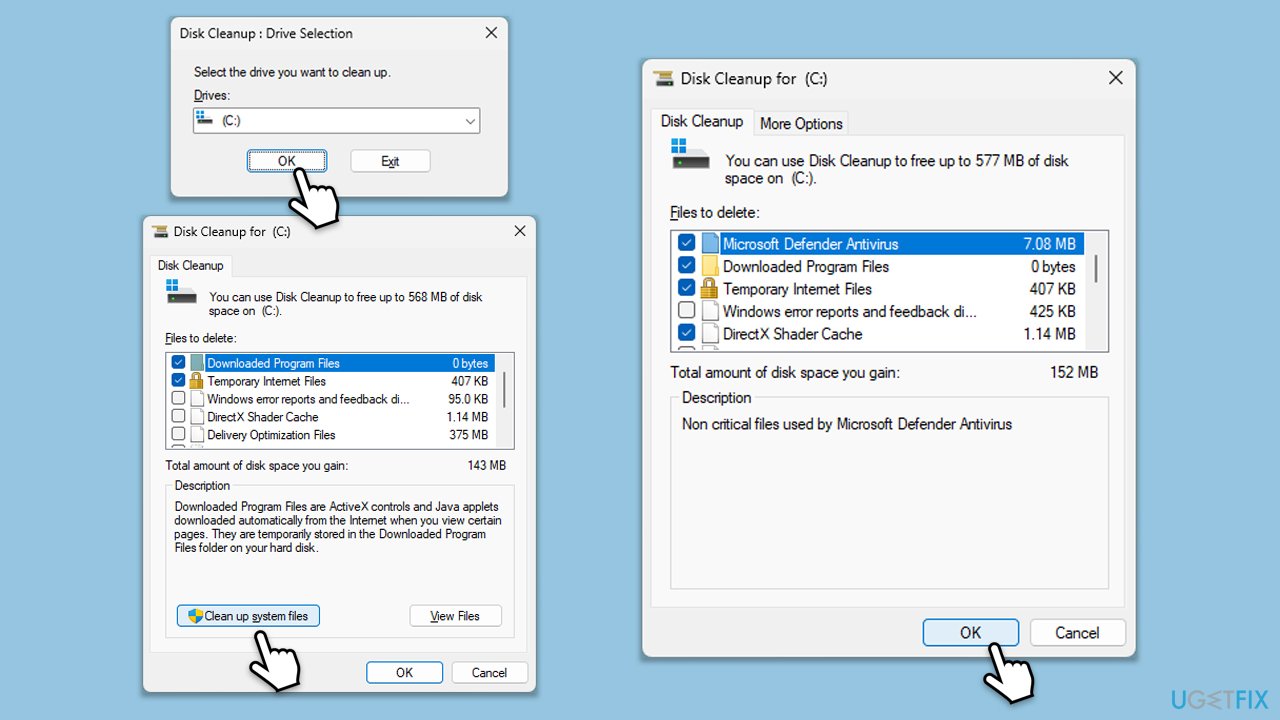
Fix 1. Check Disk space
Insufficient disk space can prevent updates from installing, as there is not enough room for the necessary files.
- Open the Windows search bar and type Disk Cleanup to open the Disk Cleanup.
- In the Disk Cleanup window, select the drive where your Windows operating system is installed (usually drive C:) and click OK.
- Click Clean up system files.
- Select the drive again and click OK.
- In the list of files that can be cleaned up, select the largest portions of data, such as Temporary Internet Files, Windows Update, Temporary Files, and others.
- Click OK to begin the cleanup process.
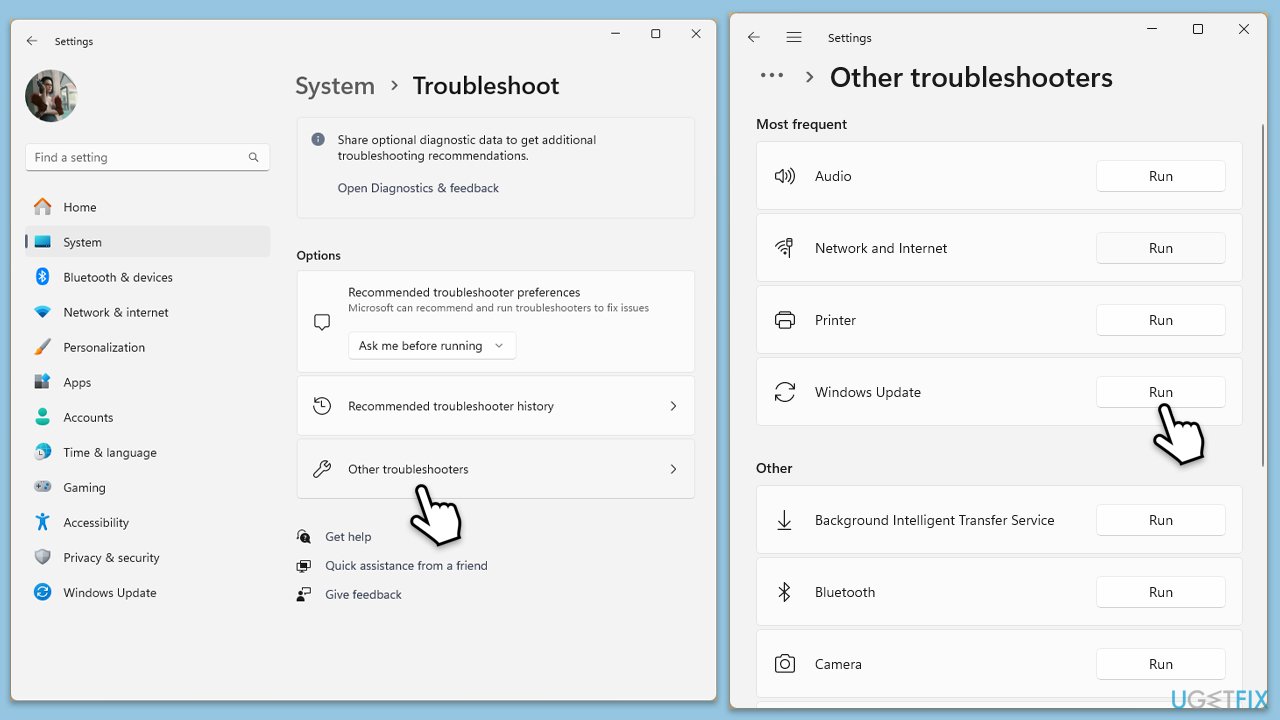
Fix 2. Run Windows Update troubleshooter
The Windows Update troubleshooter can detect and fix common issues that prevent updates from installing.
- Type troubleshoot in Windows search and hit Enter.
- Click Other troubleshooters.
- Find Windows Update.
- Click Run to begin the scan.
- Wait for the scan to be completed and apply the suggested fixes.
- We also recommend running Network and Internet troubleshooter.
Fix 3. Disable antivirus software
Third-party antivirus software can sometimes interfere with the installation of updates.
- Right-click the antivirus software icon in the system tray.
- Select Exit.
- Try installing the update again.
Fix 4. Check relevant services
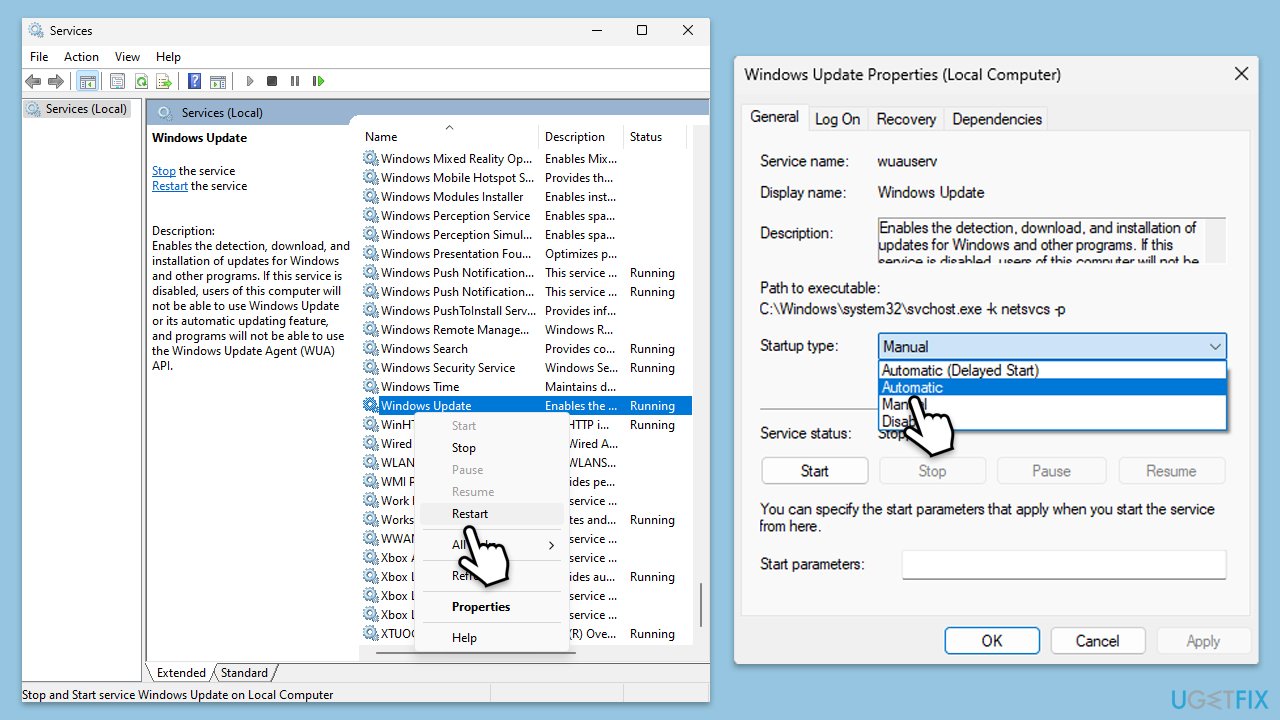
Some Windows services are mandatory for a Windows update process to through successfully. You can restart them or/and ensure they are set to Automatic startup.
- Type Services in Windows search and hit Enter.
- Scroll down to locate Windows Update.
- If it is already running, right-click and pick Restart.
- If the service is not running, double-click it, and select Automatic under the Startup type from the drop-down menu.
- Click Start, Apply, and OK.
- Repeat this process for Background Intelligent Transfer Service (BITS) and Cryptographic services.
Fix 5. Manually download and install the update
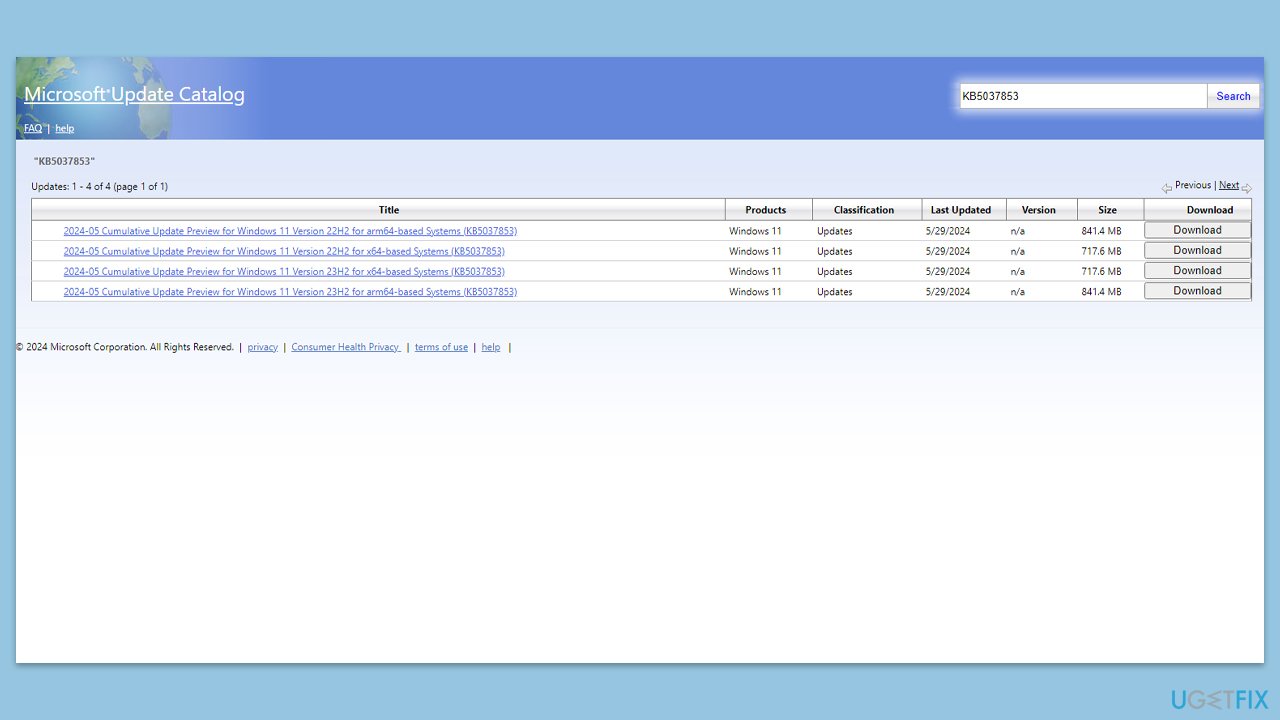
Manually installing the update can bypass issues with the automatic update process.
- Open your browser and go to Microsoft Update Catalog.
- In the search box, type in KB5037853 and press Search or hit Enter.
- Find the correct version of the update for your operating system (to check this, right-click on Start and pick System. Under Windows specifications, check the Version) and click Download.
- Follow on-screen guidelines to finish the installation process and restart your computer.
Fix 6. Run SFC and DISM tools
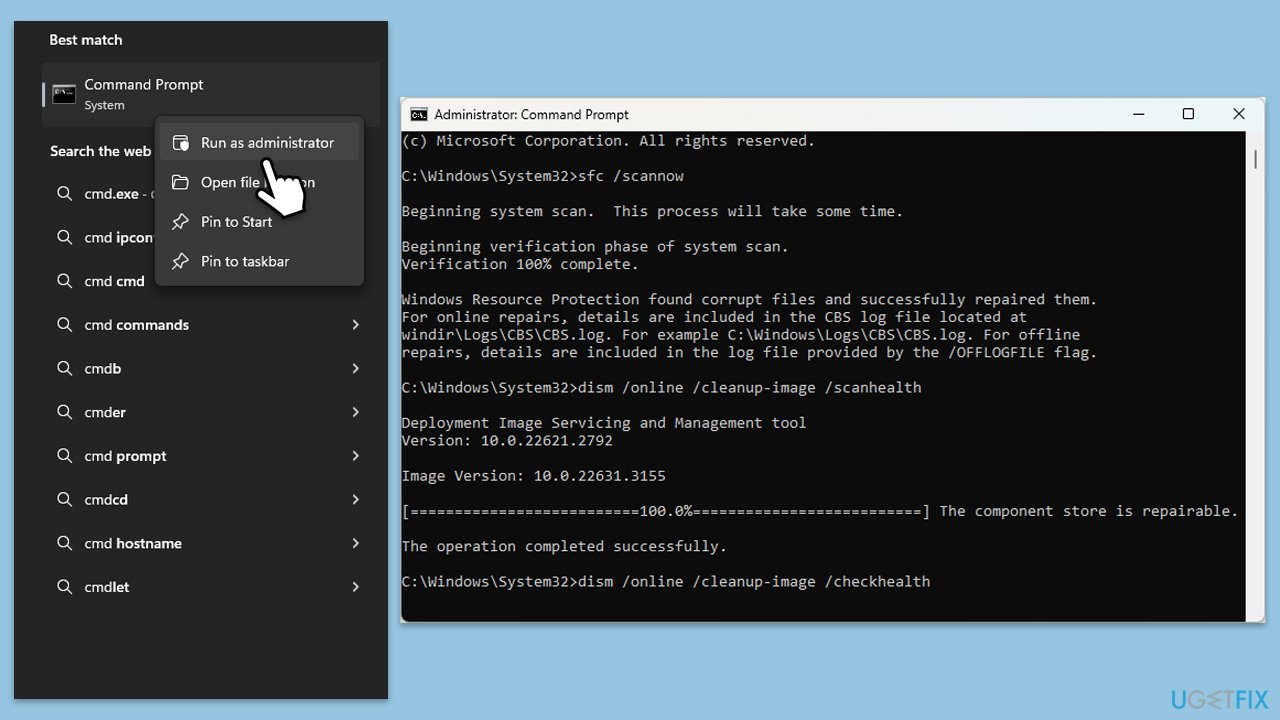
System File Checker (SFC) and Deployment Imaging Service and Management Tool (DISM) can repair corrupted system files that might be causing the update to fail.
- Type cmd in Windows search.
- Right-click on Command Prompt and pick Run as administrator.
- User Account Control (UAC) will ask whether you want to allow changes - click Yes.
- Type this command and press Enter:
sfc /scannow - Wait for the scan to finish.
- As soon as the scan finishes, Windows will report whether integrity violations were found and if they could be fixed. Regardless of the outcome, use these commands next, pressing Enter after each:
Dism /Online /Cleanup-Image /CheckHealth
Dism /Online /Cleanup-Image /ScanHealth
Dism /Online /Cleanup-Image /RestoreHealth
(Note: if you get an error executing this last command, add /Source:C:\RepairSource\Windows /LimitAccess to it and try again). - Close down the Command Prompt and restart your computer.
Fix 7. Update drivers
Outdated drivers can cause conflicts with new updates, preventing them from installing properly.
- Right-click on Start and pick Device Manager.
- Locate the devices with outdated drivers.
- Right-click each device and select Update driver.
- Follow the on-screen instructions to update the drivers.
- For a much faster way to install drivers, try employing [ref id="DriverFix"].
Fix 8. Reset Windows Update components
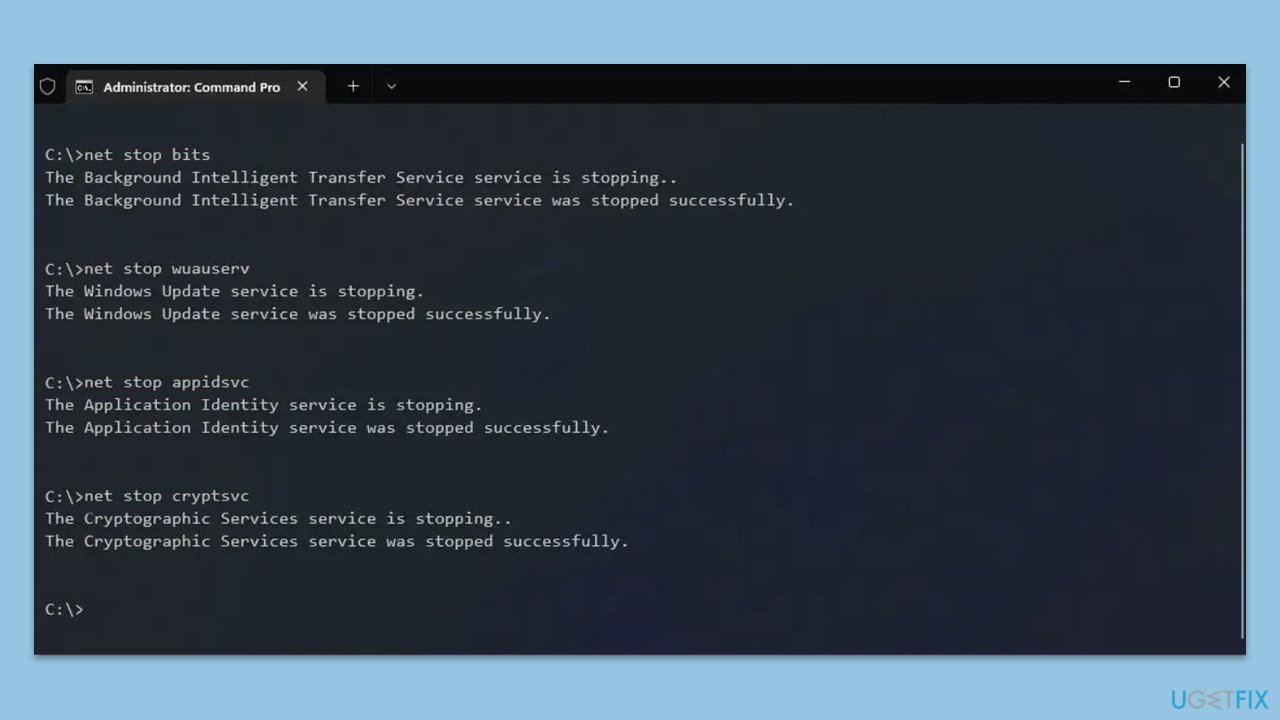
Resetting Windows Update components can fix various update-related issues.
- Open Command Prompt as administrator.
- Type the following commands, pressing Enter after each:
- net stop bits
- net stop wuauserv
- net stop appidsvc
- net stop cryptsvc
- Del “%ALLUSERSPROFILE%\Application Data\Microsoft\Network\Downloader\*.*”
- rmdir %systemroot%\SoftwareDistribution /S /Q
- rmdir %systemroot%\system32\catroot2 /S /Q
- regsvr32.exe /s atl.dll
- regsvr32.exe /s urlmon.dll
- regsvr32.exe /s mshtml.dll
- netsh winsock reset
- netsh winsock reset proxy
- net start bits
- net start wuauserv
- net start appidsvc
- net start cryptsvc
- Close the Command Prompt and restart your device.
Bottom line
To resolve the installation failure of KB5037853, ensure you have sufficient disk space and that all essential drivers are updated. Additionally, check for system file corruption and consider disabling third-party antivirus software. If these solutions do not work, try restarting the Windows Update service or manually downloading the update from the Microsoft Update Catalog.
Frequently asked questions
Try running the Windows Update Troubleshooter to automatically detect and fix issues related to updates. If the problem persists, consider clearing the SoftwareDistribution folder and then attempting the installation again.
Yes, you can manually download the KB5037853 update from the Microsoft Update Catalog and install it directly. Make sure to select the version that matches your system architecture.
Common reasons include corrupted system files, insufficient disk space, or conflicts with third-party software. Ensure your system is up to date and free from conflicts before retrying the update.




Report an issue
What's wrong with this guide? We review every report and update or remove content.
Report received — thank you. We'll review and fix it.
You need a free account to submit a report.
Be the first to comment