How to fix
Logilda.dll not found or missing error
on Windows
Resolve the Logilda.dll missing error on Windows 10 or 11 quickly and easily. Enjoy a smooth experience with expert-tested solutions!


What causes How to fix Logilda.dll not found or missing error in Windows?
- File accidentally deleted
- File corrupted
- File misplaced during update or uninstallation
- Malware infections
- Conflicts with other software
Repairs Windows system files, removes malware, and restores a clean OS state — without reinstalling.
Whenever I boot up my PC, I get an error that says that Logilda.dll is missing. What is this file and how can I resolve this?
DLL files, or Dynamic Link Libraries, are essential components in the Windows operating system, facilitating the sharing of code and resources among multiple applications simultaneously. These files are crucial for ensuring that programs run efficiently and can utilize common functionalities without redundancy.
However, despite their importance, DLL files can sometimes lead to errors, which may affect the performance of your PC. One such common issue is the Logilda.dll not found or missing error, which typically appears when you start your computer.
Logilda.dll is a file associated with the Logitech Download Assistant, a program that helps manage updates for Logitech devices such as keyboards, mice, and other peripherals.
The error indicating that Logilda.dll is missing usually arises due to several reasons: it could be that the file has been accidentally deleted, corrupted, or misplaced during an update or uninstallation process. Additionally, malware infections or conflicts with other software can lead to the Logilda.dll file becoming inaccessible or unrecognized by the system.
When encountering the Logilda.dll error, there are several actions you can take to resolve it. These may include reinstalling the associated Logitech software, performing a system file check, or updating your device drivers to ensure compatibility.
Additionally, ensuring your operating system is up-to-date can often prevent such issues from recurring, as updates frequently contain fixes for known problems and enhance overall system stability.
For a more automated solution, you may consider using a PC repair utility like [d1], which can address a wide range of underlying Windows issues, including missing or corrupted DLL files, thereby maintaining your system's optimal performance.

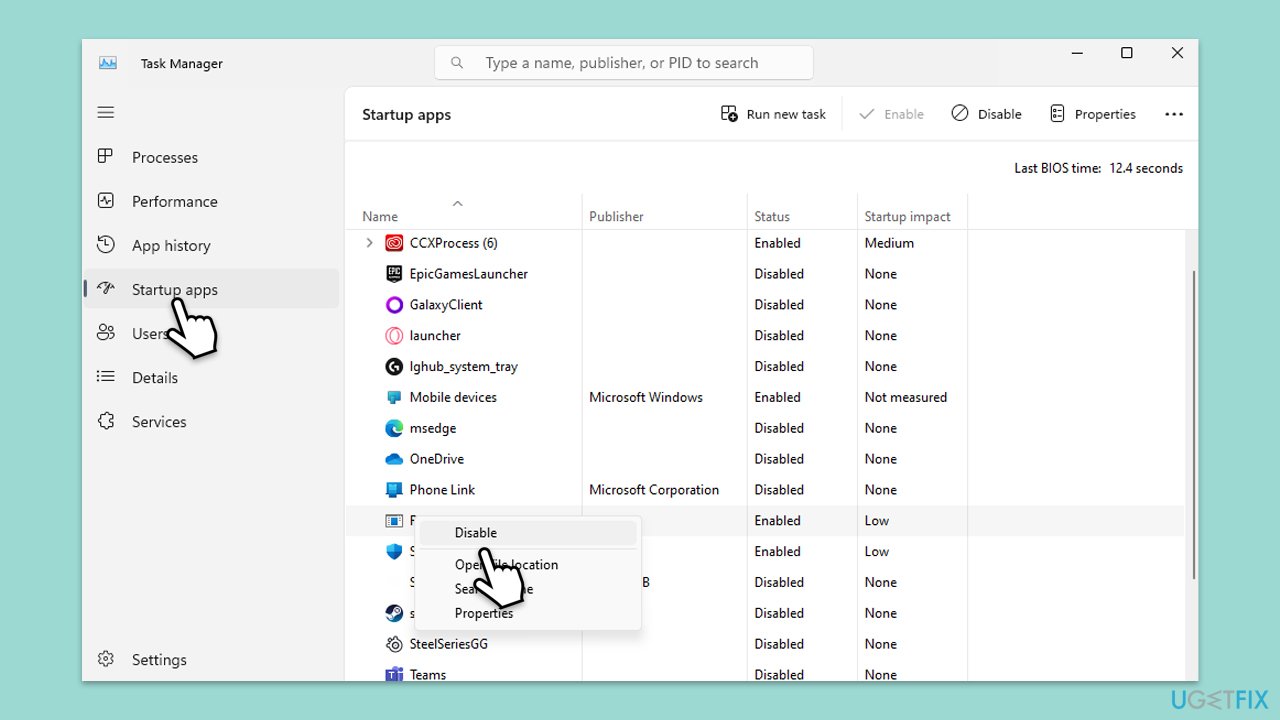
Fix 1. Disable Logitech Download Assistant from Startup [workaround]
This solution prevents the Logitech Download Assistant from starting up automatically, which can help if the Logilda.dll error is due to a conflict or corruption in the startup process.
- Press Ctrl + Shift + Esc to open Task Manager.
- Go to the Startup/Startup apps tab.
- Find Logitech Download Assistant in the list.
- Right-click on it and select Disable.
Fix 2. Run SFC and DISM
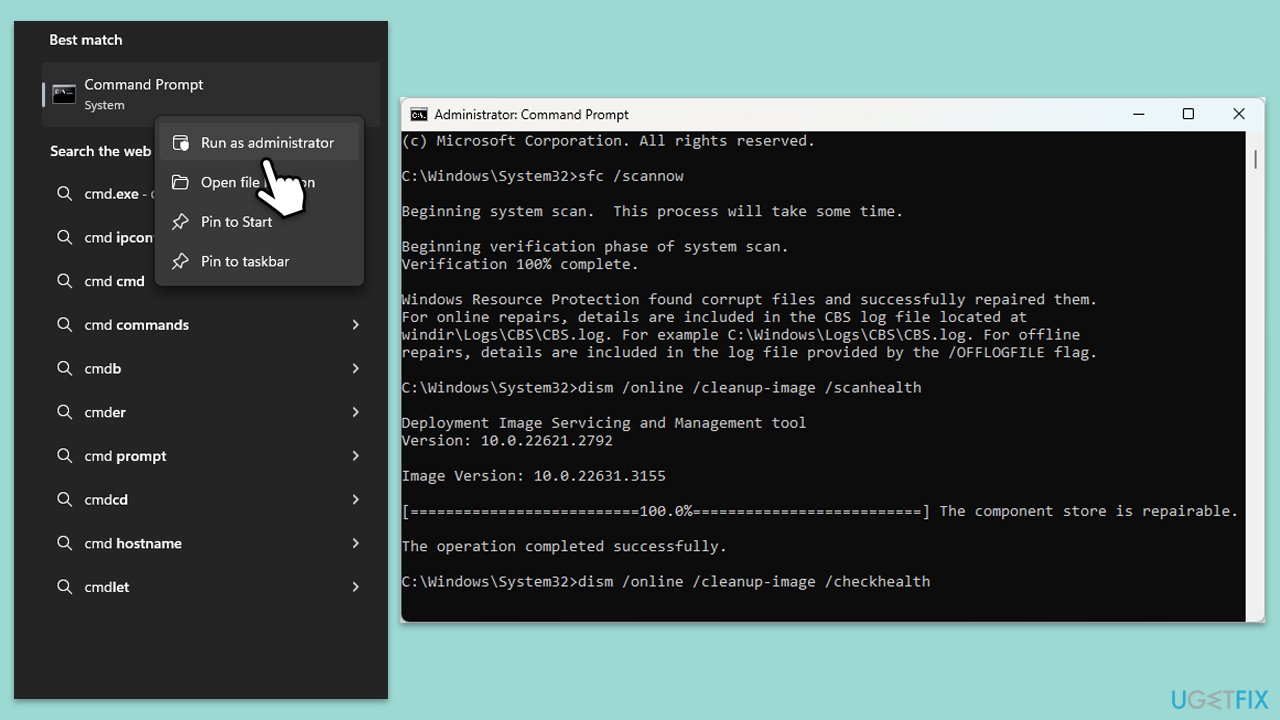
System File Checker (SFC) and Deployment Imaging Service and Management Tool (DISM) are built-in utilities that scan and repair corrupted system files, including DLLs.
- Type cmd in Windows search.
- Right-click on Command Prompt and select Run as administrator.
- When User Account Control window shows up, click Yes.
- Paste the following command into the new window:
sfc /scannow - Press Enter and wait till the scan is executed.
- As soon as the scan finishes, Windows will report whether integrity violations were found and if they could be fixed. Regardless of the outcome, use these commands next, pressing Enter after each:
DISM /Online /Cleanup-Image /CheckHealth
DISM /Online /Cleanup-Image /ScanHealth
DISM /Online /Cleanup-Image /RestoreHealth
(Note: if you get an error executing this last command, add /Source:C:\RepairSource\Windows /LimitAccess to it and try again). - Restart your computer.
Fix 3. Reinstall Logitech Software
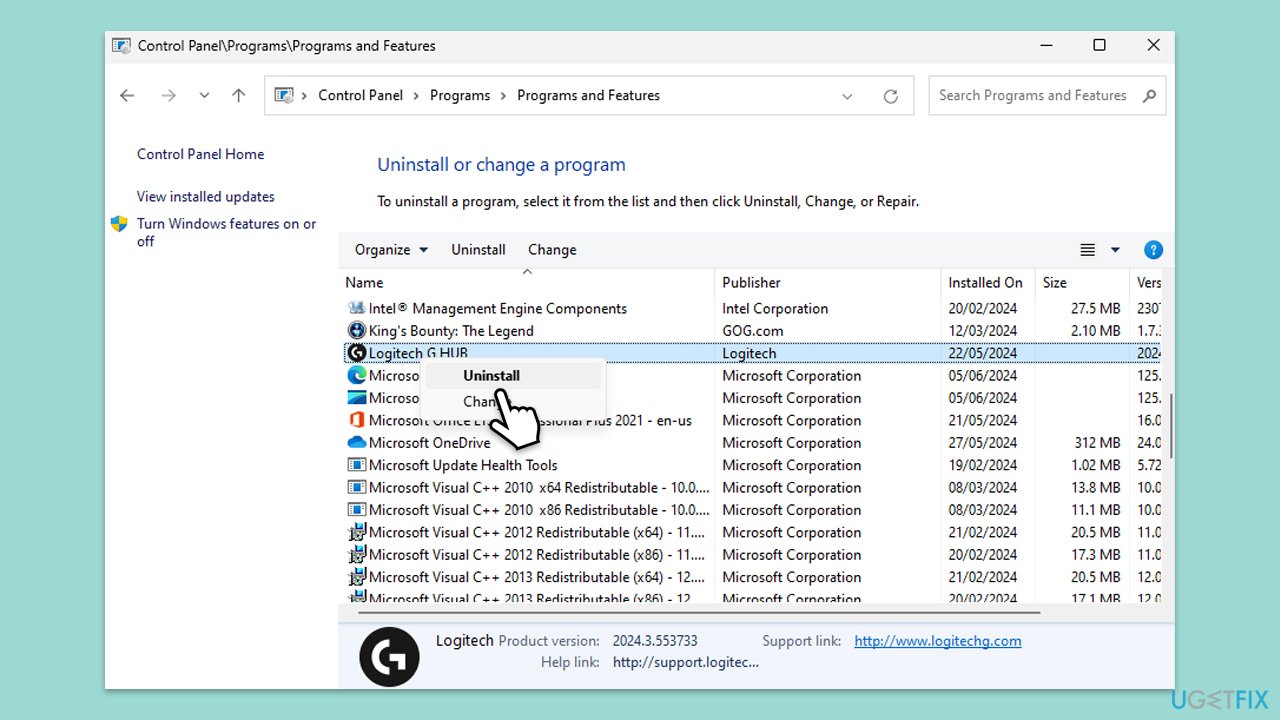
Reinstalling the Logitech software can replace any missing or corrupted files, potentially resolving the Logilda.dll error.
- Type Control Panel in Windows search and press Enter.
- Find Logitech software (Logitech Download Assistant) in the list.
- Right-click on it and select Uninstall, then follow the prompts.
- Restart your computer.
- Download the latest Logitech software from the official website and install it.
Fix 4. Update Device Drivers
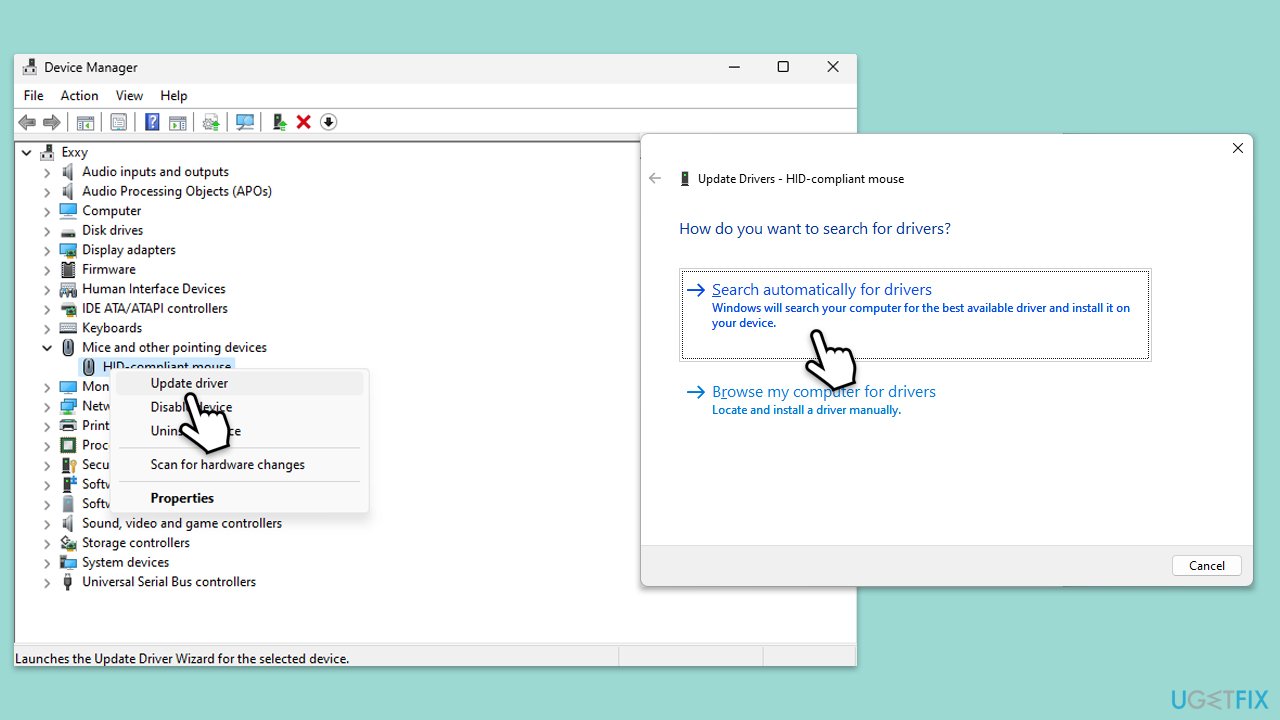
Outdated or incompatible device drivers can cause DLL errors. Updating them ensures compatibility and proper functioning.
- Open Device Manager.
- Expand the section you want to update drivers for, for example, Mice and other pointing devices.
- Find the Logitech device in the list.
- Right-click on your device and choose Update driver.
- Select Search automatically for drivers.
- Follow the on-screen instructions to complete the process.
Fix 5. Perform a System Restore
A System Restore can revert your computer to a previous state where the DLL error was not present.
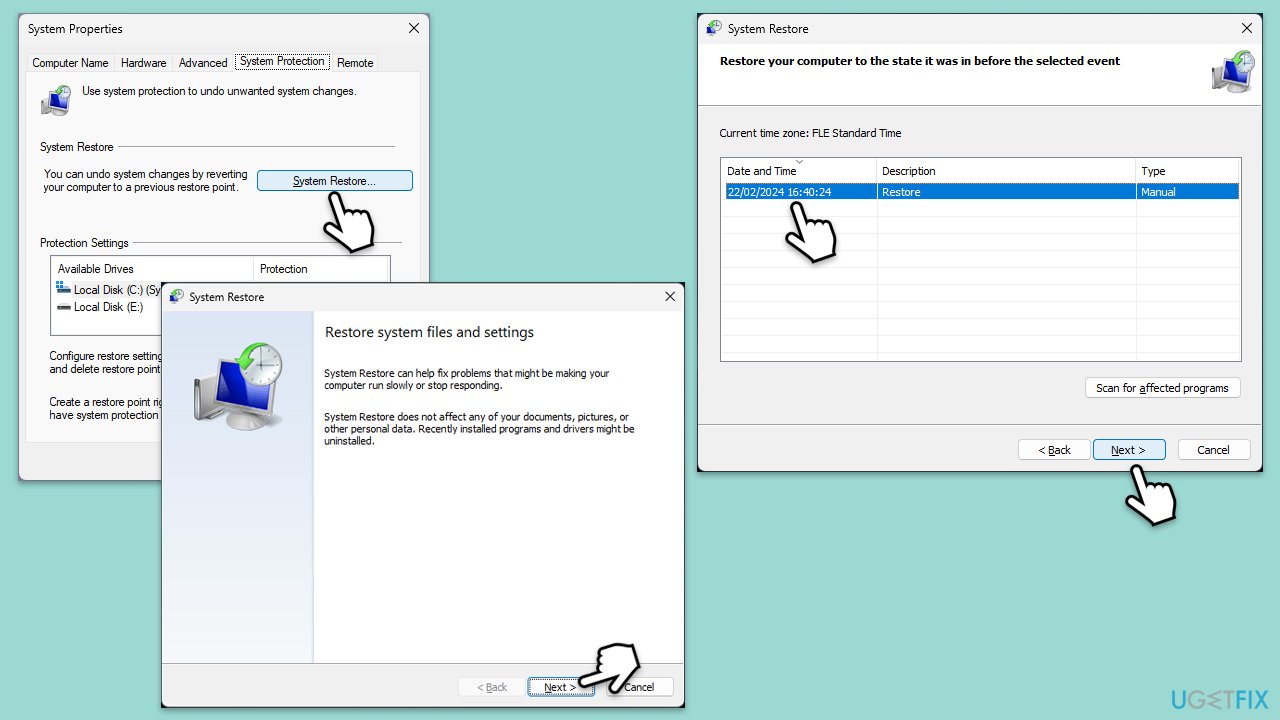
- Type System Restore in the search box and click Create a restore point.
- In the System Properties window, click System Restore.
- Click Next, choose a restore point from before the issues began, and click Next again.
- Follow the on-screen instructions to complete the restoration.
- Restart your computer after the process is completed.
Fix 6. Scan for malware
Malware infections can corrupt or delete DLL files, causing errors. Scanning for malware can identify and remove these threats. You can use any reliable third-party security software, employ Microsoft Security Scanner, or simply Windows Defender:
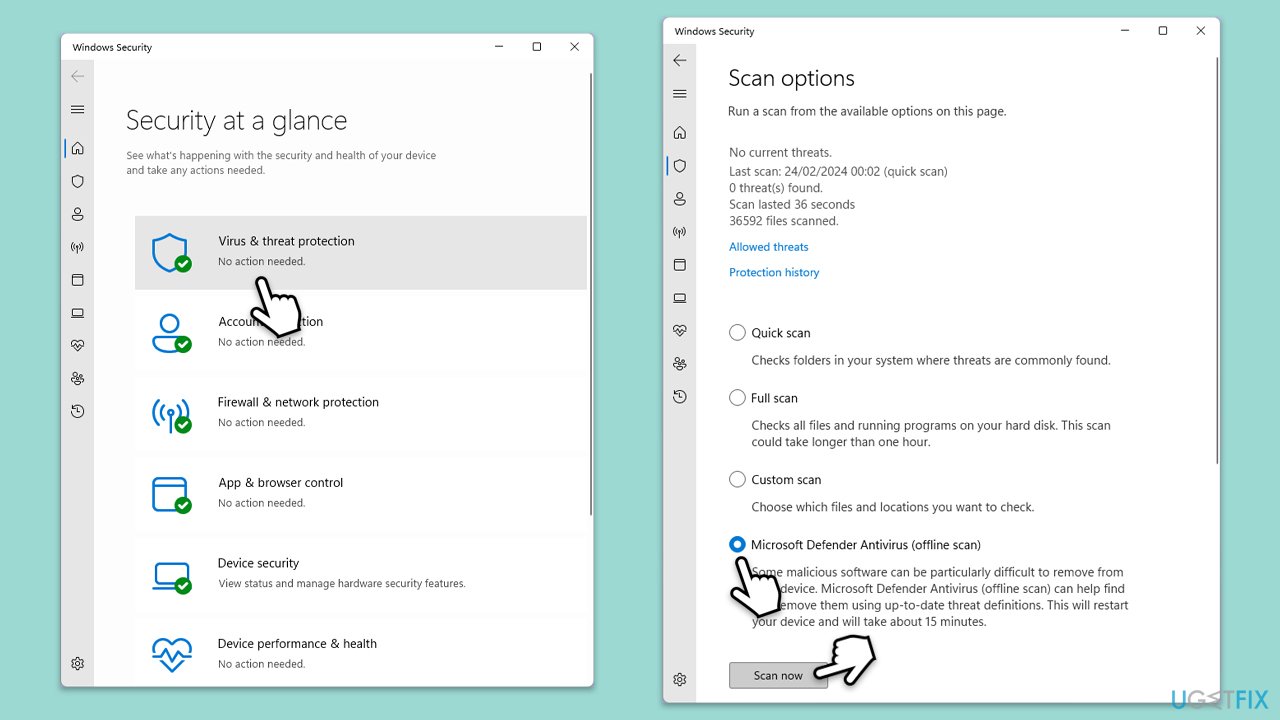
- Type Windows Security in the Windows search bar and hit Enter.
- Select Virus & threat protection.
- Pick Scan options.
- Choose Microsoft Defender Offline scan and click Scan now.
- Your computer will immediately restart to begin a deep scan.
Fix 7. Check for Windows updates
Windows updates often include fixes for system errors and can replace missing or corrupted DLL files.
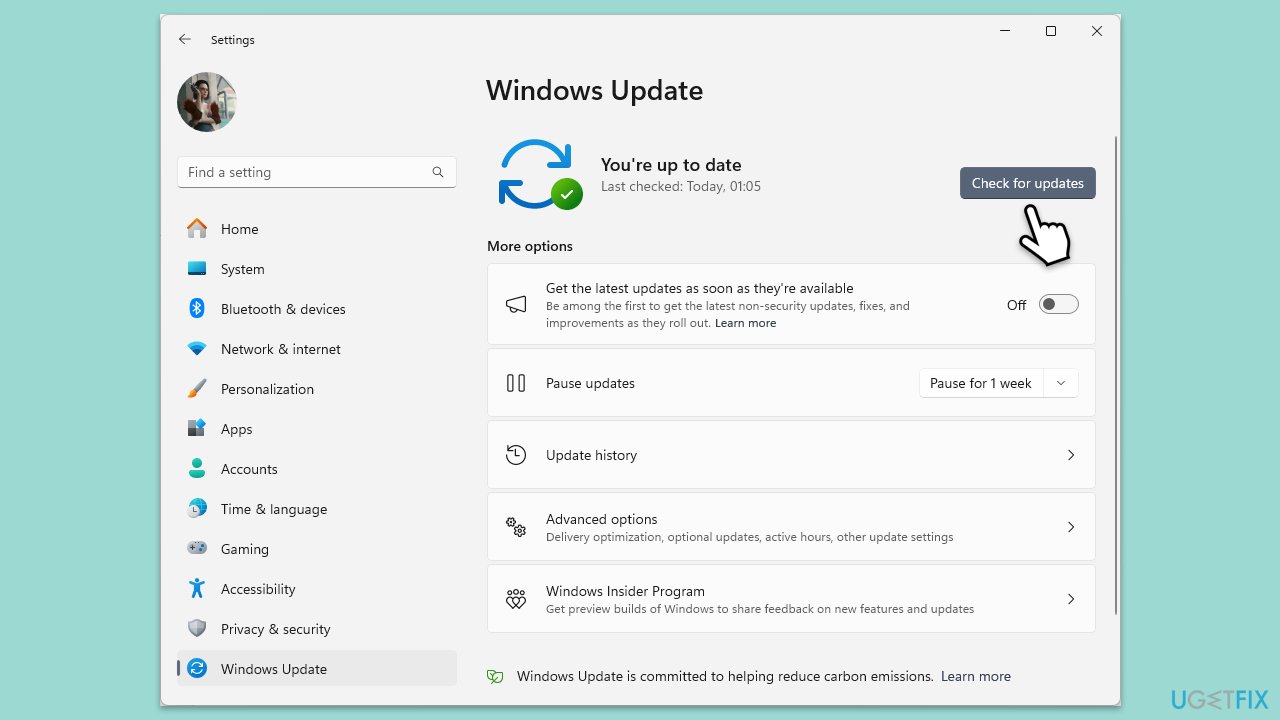
- Type Updates in Windows search and hit Enter.
- If updates are available, click Install updates.
- Otherwise, click Check for updates.
- If optional updates are available, install them as well.
- When all the update processes are complete, restart your computer.
Fix 8. Manually Register the Logilda.dll File
Manually registering the DLL file can resolve issues if the file is present but not properly registered in the system.
- Open Command Prompt as administrator.
- Type regsvr32 logilda.dll and press Enter.
- Follow any prompts and restart your computer.
Bottom line
To resolve the Logilda.dll not found or missing error, you can try reinstalling the associated Logitech software, performing a system file check, or updating your device drivers. Additionally, ensure your operating system is up-to-date. If none of these solutions work, consider using a PC repair utility to address underlying Windows issues.
Frequently asked questions
The Logilda.dll not found error in Windows 10 is typically caused by a corrupted or missing Logitech driver, often related to devices such as webcams or gaming peripherals.
To manually restore the Logilda.dll file in Windows 11, you can download the DLL file from a reliable source and place it in the C:\Windows\System32 directory, then restart your computer.
Yes, you can use the System File Checker tool by running 'sfc /scannow' in the Command Prompt to scan for and repair missing or corrupted system files, including Logilda.dll.




Report an issue
What's wrong with this guide? We review every report and update or remove content.
Report received — thank you. We'll review and fix it.
You need a free account to submit a report.
Be the first to comment