How to fix
Brightness slider missing
on Windows
Resolve the brightness slider issue on Windows 10 and Windows 11 effortlessly. Follow our expert-tested guide for quick and effective solutions. Fixed i…

What causes How to fix brightness slider missing in Windows?
- Outdated display drivers
- Incompatible display drivers
- Power settings not supporting brightness adjustment
- Updates or system modifications removing the slider
Repairs Windows system files, removes malware, and restores a clean OS state — without reinstalling.
Hi, I have a problem where I can't change the brightness on my laptop, as the setting is entirely missing. I am using Windows 11 and as far as I know, I haven't changed anything before the problem started.
Brightness control in Windows is an essential feature that allows users to adjust the screen's brightness to their preference, enhancing visibility and reducing eye strain. This function is especially useful when switching between different lighting environments, such as moving from a brightly lit room to a dimly lit one. However, sometimes users might encounter an issue where the brightness slider is missing from the Windows, making it challenging to adjust the screen's brightness.
The brightness slider can be found in Windows Display settings, typically under the "Brightness and color" section. When it is missing, this usually indicates an underlying problem with the system. This issue is commonly reported after updates, system changes, or driver installations, and it can occur on both laptops and desktop computers with built-in displays.
Several factors can lead to the brightness slider missing in Windows. One primary cause is outdated or incompatible display drivers. If the driver for your display adapter is not correctly installed or updated, the system might fail to recognize the display settings, leading to the absence of the brightness control.
Another possible reason could be issues with the power settings, especially if the computer is using a power plan that does not support brightness adjustment. Additionally, certain updates or system modifications might inadvertently remove or disable the slider, causing it to disappear from the settings.
Several actions can be taken to resolve the missing brightness slider issue. Updating or reinstalling the display drivers is often a crucial step, as this ensures that the system correctly recognizes the display hardware and its capabilities.
Checking and adjusting the power settings can also help, particularly by selecting a power plan that includes brightness control. Furthermore, running the Windows Troubleshooter or performing a system restore to a point before the issue occurred can also effectively address this problem.
For an automated solution, using a PC repair tool like [d1] can help identify and fix various system issues, including those related to display settings and drivers, ensuring that the brightness slider is restored and functional.
Fix 1. Update display drivers
Outdated or incompatible display drivers can cause the brightness slider to disappear. Updating the drivers ensures the system correctly recognizes the display hardware and its capabilities.
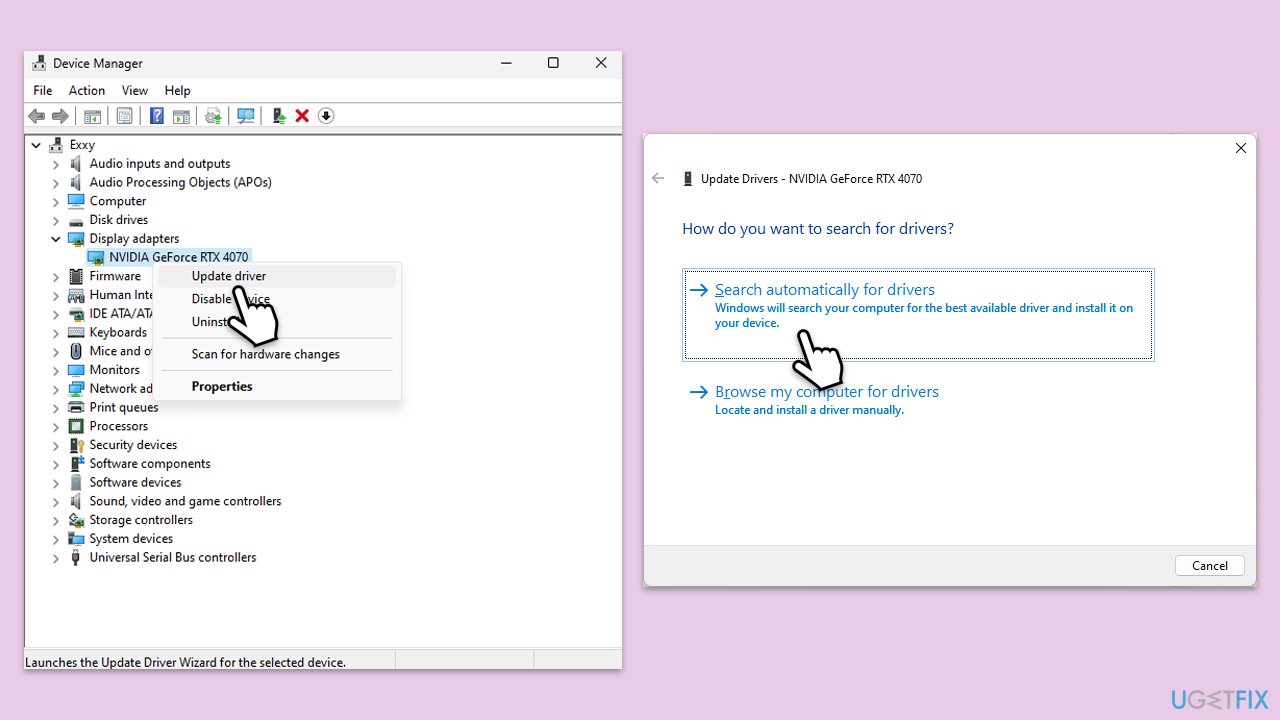
- Right-click on the Start menu and select Device Manager.
- Expand the Display adapters section.
- Right-click on your network adapter and choose Update driver.
- Select Search automatically driver.
- Follow the prompts to complete the driver update and restart your computer.
For a quicker solution, use an automatic tool [rev id="DriverFix"].
Fix 2. Reinstall display drivers
Reinstalling the display drivers can resolve issues caused by corrupted or improperly installed drivers, restoring the brightness slider.
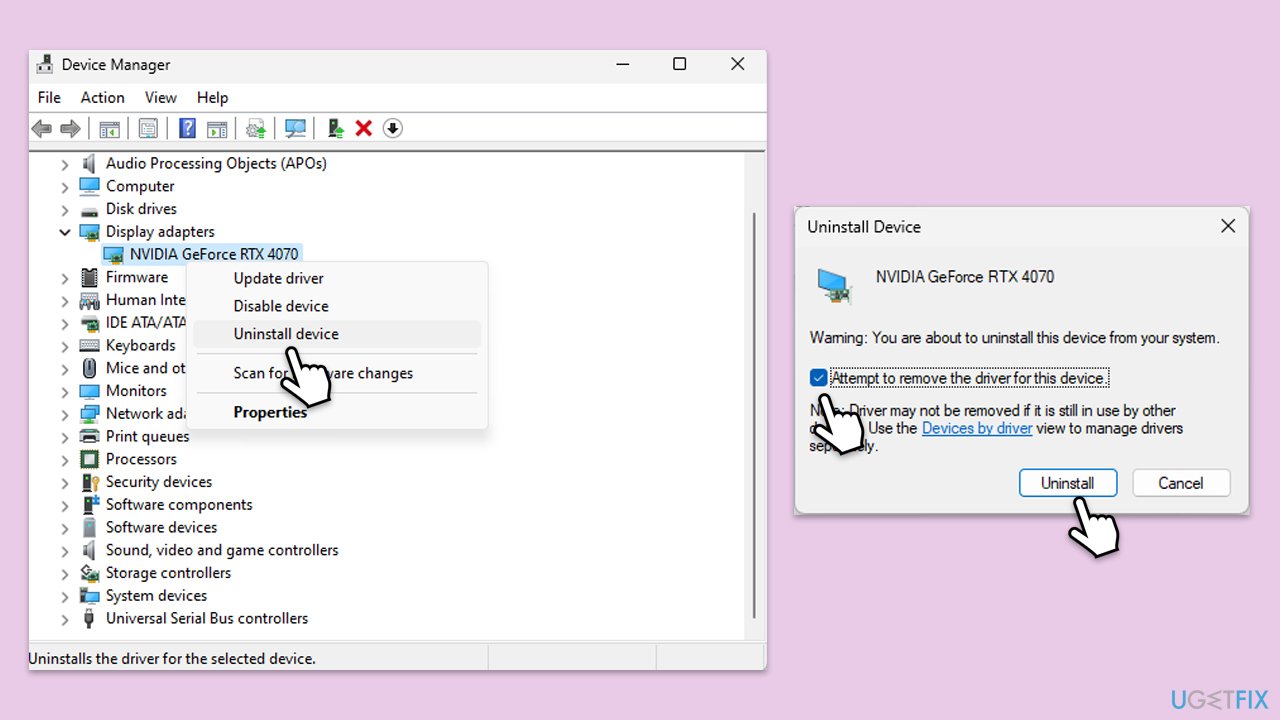
- Open Device Manager again.
- Expand the Display adapter section.
- Right-click on your GPU and choose Uninstall device.
- Tick the Delete the driver software for this device option if available, then click Uninstall.
- Restart your computer.
Fix 3. Adjust power settings
Certain power settings might not support brightness adjustment. Changing the power plan can restore the brightness slider.
- Type Control Panel in Windows search and press Enter.
- Go to System and Security > Power Options.
- Click on Change plan settings next to your current power plan.
- Click on Change advanced power settings.
- Expand Display and then Enable adaptive brightness.
- Set both On battery and Plugged in to Off.
Fix 4. Run Power troubleshooter
The Windows Troubleshooter can detect and fix issues with the display settings, potentially restoring the missing brightness slider.
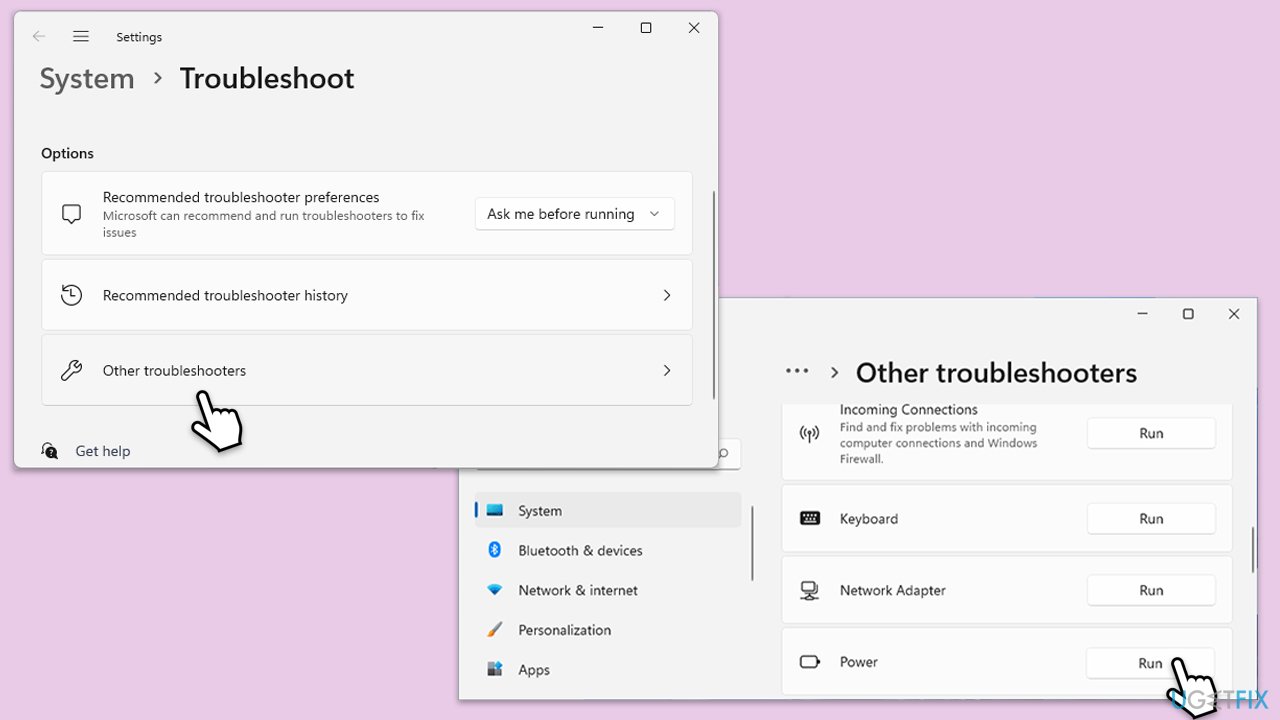
- Type troubleshoot in Windows search and hit Enter.
- Click Additional troubleshooters/Other troubleshooters.
- Find Power.
- Click on it, and select Run the troubleshooter/Run.
- Wait for the scan to be completed and apply the suggested fixes.
Fix 5. Check for Windows updates
Installing the latest Windows updates can fix known issues and restore the missing brightness slider.
- In Windows search, type Updates and press Enter.
- Click Check for updates and wait till Windows installs update.
- Make sure you also install all optional updates if such are available.
- To implement the changes, reboot your computer.
Fix 6. Try Clean Boot
If third-party software is causing brightness slider to go missing, this method will confirm it.
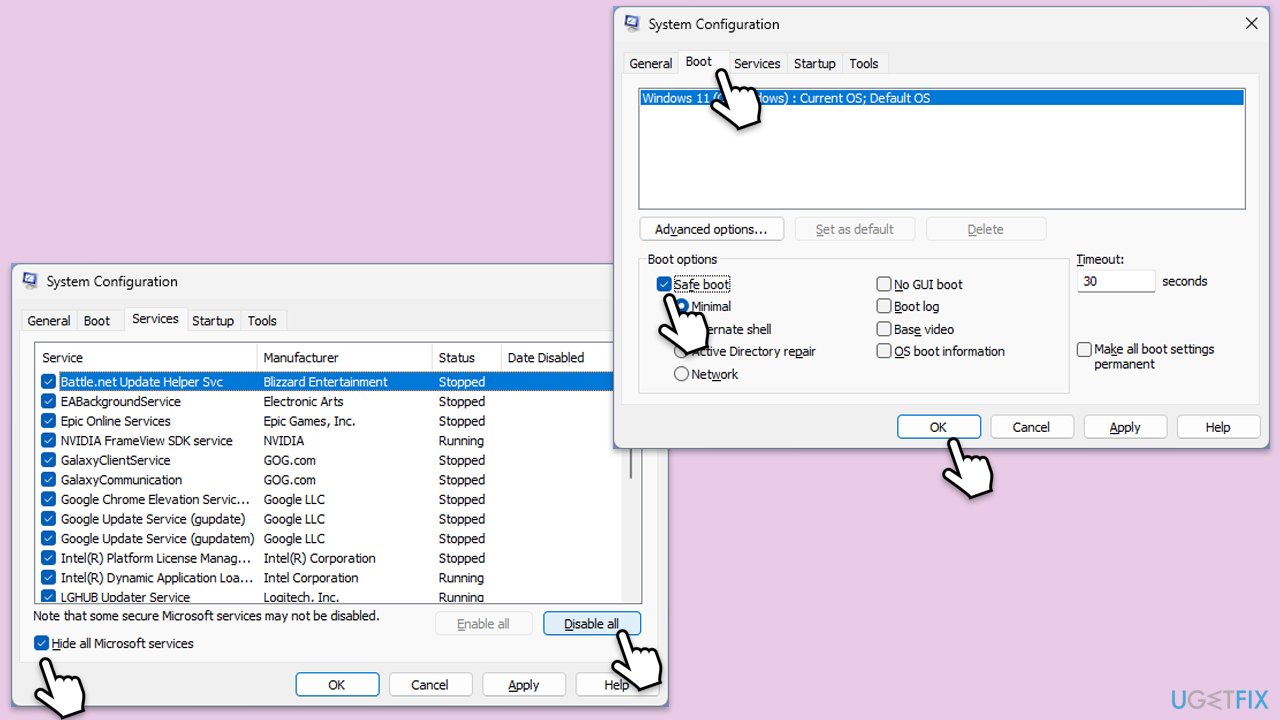
- Type msconfig in Windows search and press Enter.
- In the System Configuration window, go to the Services tab and check the box next to Hide all Microsoft services.
- Click Disable all to disable all non-Microsoft services.
- Go to the Startup tab and click Open Task Manager.
- In Task Manager, disable all startup items.
- Close Task Manager and click OK in the System Configuration window.
- Go to the Boot tab and select Safe Boot.
- Click OK, and restart your computer.
- To find out which app(s) is causing conflicts, enable each of the processes (or you can do it in groups), restart, and see if the problem persists. Repeat until you find the faulty app, then either update or uninstall it.
Fix 7. Use NVIDIA Control Panel [workaround]
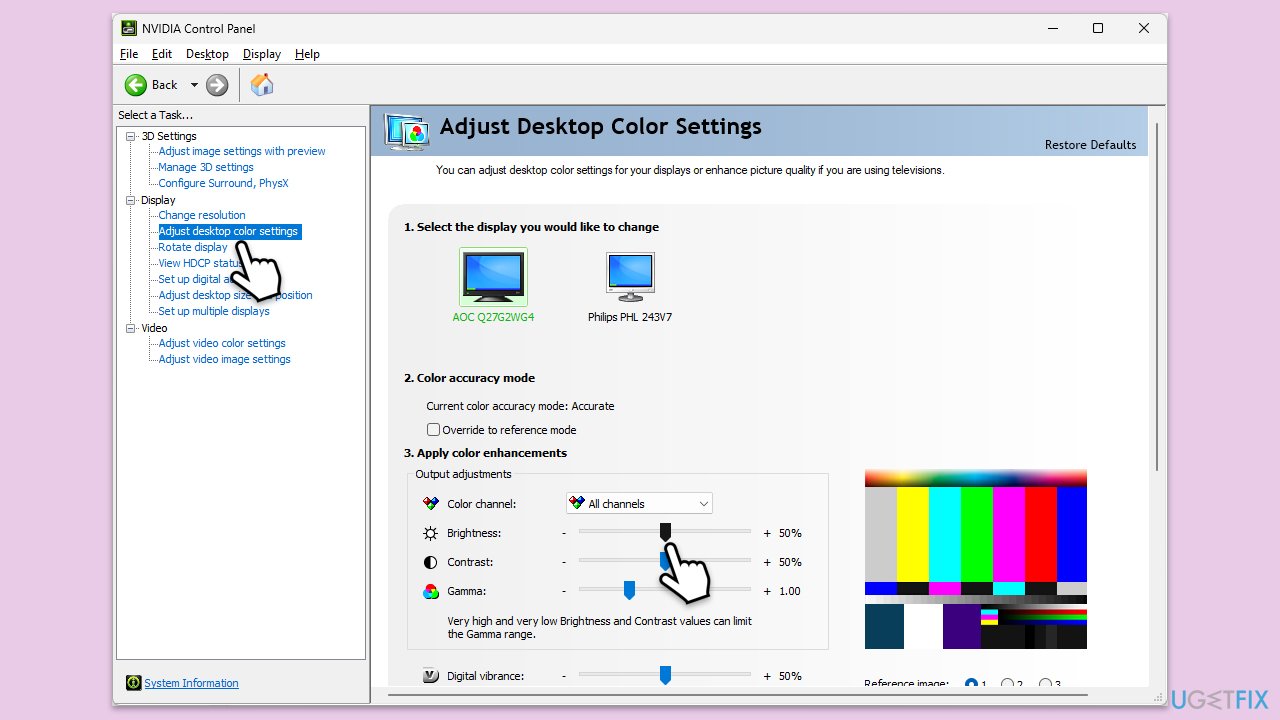
The NVIDIA Control Panel allows you to adjust display settings, including brightness, which can be useful if the Windows slider is missing.
- Right-click on the desktop and select NVIDIA Control Panel.
- Under Display, select Adjust desktop color settings.
- Use the Brightness slider to adjust the brightness to your preference.
- Click Apply to save the changes.
Fix 8. Use monitor brightness controls [workaround]
Most monitors have physical buttons or touch controls that allow you to adjust the brightness directly, bypassing the need for software controls.
- Locate the brightness control buttons on your monitor.
- Press the Menu button to access the on-screen display (OSD) menu.
- Navigate to the Brightness setting.
- Use the adjustment buttons to increase or decrease the brightness.
- Exit the OSD menu to save the settings.
Fix 9. Create a new user account [workaround]
Another workaround is to create a new user account, as, sometimes, user accounts might get corrupted for various reasons.
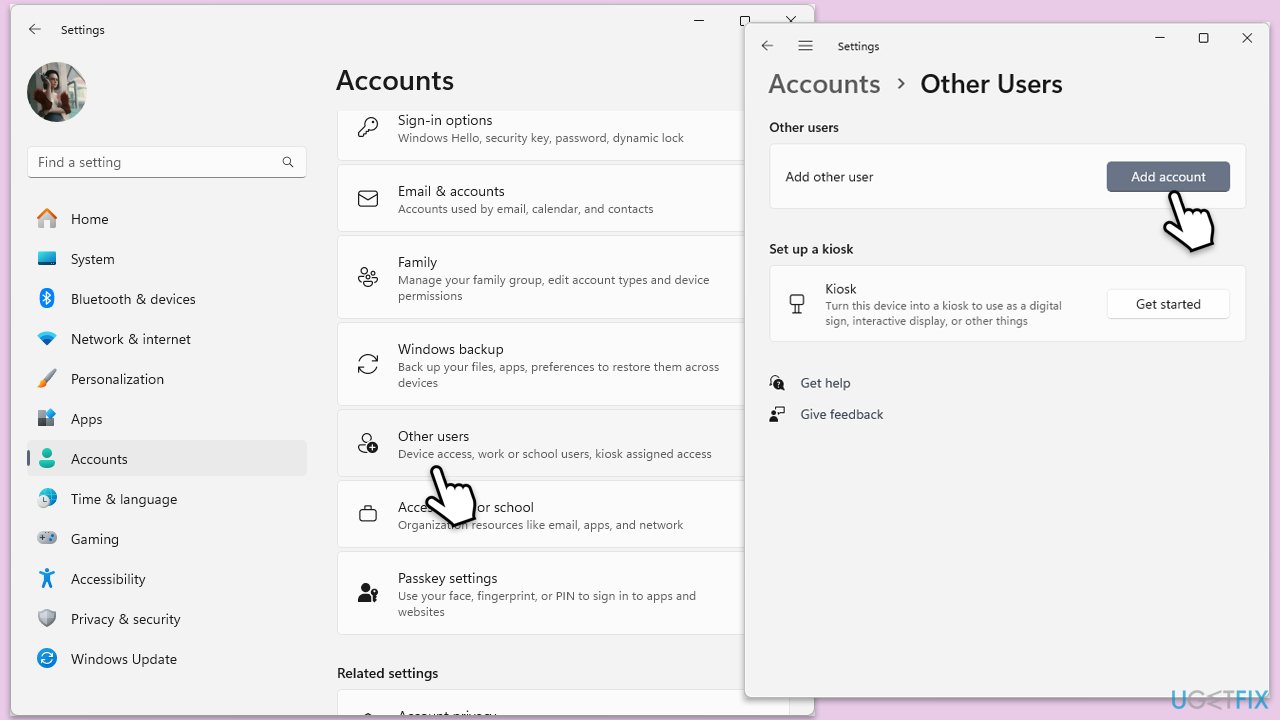
- Open Windows Settings.
- Go to Accounts then Family/Family & other users.
- Under Other users, click Add account/Add someone else to this PC.
- Follow the prompts to create a new user account. If you don't have Microsoft account details, you can choose I don't have this person's sign-in information followed by Add a user without a Microsoft account.
- Assign a username and password for the new account and complete the setup.
- Then go back to the Accounts section. Under Family/Family & other users, select the newly created account and click Change account type.
- Under Account type, pick Administrator and click OK.
Bottom line
To resolve the missing brightness slider issue, you can update or reinstall the display drivers, check and adjust the power settings, or run the Windows Troubleshooter. If these steps do not work, consider performing a system restore to a point before the issue occurred.
Frequently asked questions
The brightness slider may be missing due to outdated or incompatible display drivers, or incorrect power settings. Ensuring your graphics drivers are updated and checking your power options can help restore the slider.
To restore the brightness slider, go to Device Manager, expand the Display adapters section, right-click your display driver, and select 'Update driver.' Restart your computer after the update to see if the slider reappears.
If the brightness slider remains missing after driver updates, try running the Windows Troubleshooter for Hardware and Devices, which can identify and fix issues automatically.




Report an issue
What's wrong with this guide? We review every report and update or remove content.
Report received — thank you. We'll review and fix it.
You need a free account to submit a report.
Be the first to comment