How to fix
V Rising FPS drops or stuttering
on Windows
Resolve FPS drops or stuttering in V Rising on Windows 10 and 11 with our expert-tested solutions. Get back to smooth gameplay in minutes!

What causes How to fix V Rising FPS drops or stuttering in Windows?
- Outdated GPU drivers
- Game process not set to high priority
- Windows full-screen optimizations enabled
- Corrupted or missing game files
- Persistent performance issues requiring a fresh install
Repairs Windows system files, removes malware, and restores a clean OS state — without reinstalling.
I got V Rising a couple of days ago and no matter which settings in-game I try, the game doesn't stop stuttering with occasional FPS drops. Any tips?
V Rising, developed by Stunlock Studios and published by Level Infinite, has quickly become a popular action role-playing survival game. Initially released in early access for Windows in May 2022, the game officially launched two years later, with a PlayStation 5 version currently being developed. Remarkably, it achieved over one million sales within its first week. Despite its success, some players experience FPS drops and stuttering while playing V Rising on Windows.
While many attribute these performance issues to poor optimization, it is important to note that millions of players enjoy the game without any problems. If you're encountering FPS drops or stuttering, there are several steps you can take to improve your gaming experience:
- Update GPU drivers. Ensure that your graphics card drivers are up-to-date. Outdated drivers can often cause performance issues in games.
- Set the game to high priority. Changing the priority of the game process in the Task Manager can allocate more system resources to V Rising, potentially reducing stuttering.
- Disable Windows full-screen optimizations. Disabling this feature can sometimes resolve performance issues in games.
- Verify game giles. Corrupted or missing game files can cause performance problems. Use the game's launcher or platform to verify and repair any issues.
- Reinstall the game. If all else fails, reinstalling V Rising can often resolve persistent performance issues by providing a fresh start.
By following these steps, you can address the FPS drops and stuttering issues in V Rising, enhancing your overall gameplay experience. For a more comprehensive solution, consider using [d1] PC repair tool, which can automatically fix underlying Windows issues that may be affecting your gaming performance.
Fix 1. Update GPU drivers
Keeping your graphics card drivers up-to-date ensures that your hardware can effectively run the latest games without performance issues.
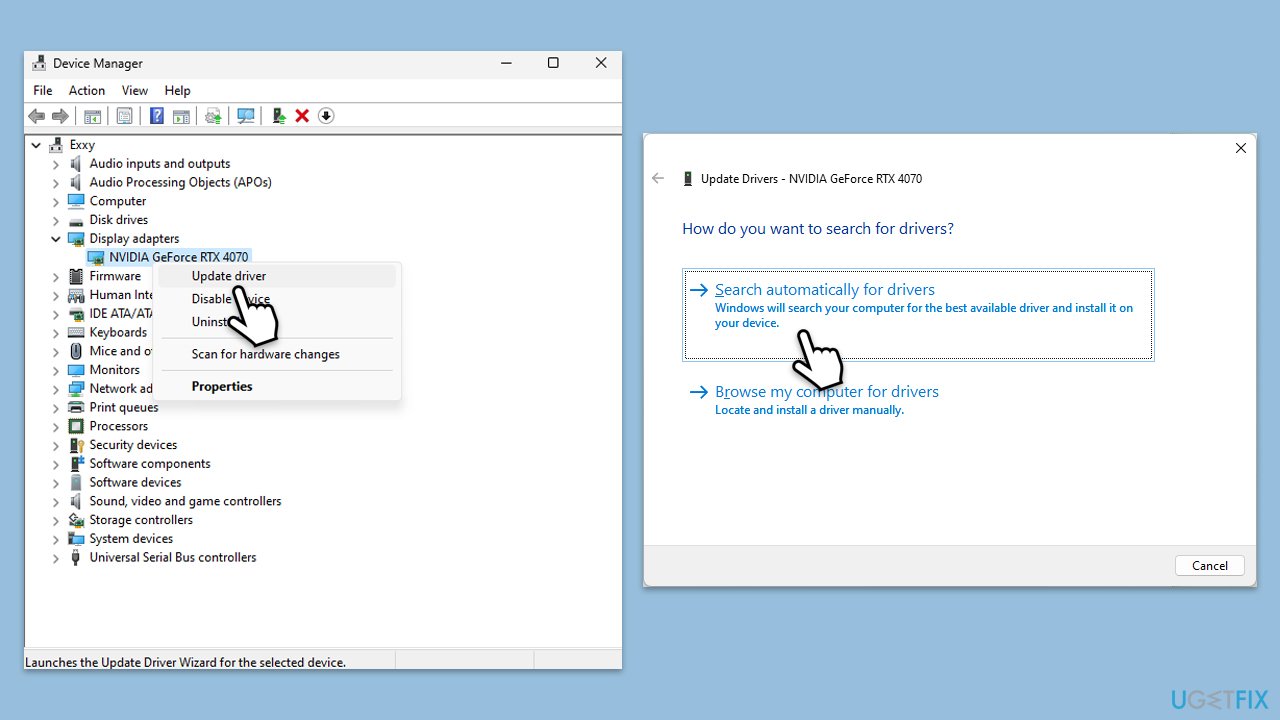
- Open Device Manager by right-clicking the Start button and selecting Device Manager.
- Expand the Display adapters category.
- Right-click your graphics card and select Update driver.
- Choose Search automatically drivers.
- Follow the on-screen instructions to complete the update.
- Restart your computer.
Alternatively, you can download and install driver updates manually from NVIDIA or AMD website, or employ an automatic tool such as [rev id="DriverFix"].
Fix 2. Set the game to high priority
Changing the priority of V Rising in the Task Manager allows Windows to allocate more resources to the game, which can help reduce stuttering and FPS drops.
- Make sure the game is running.
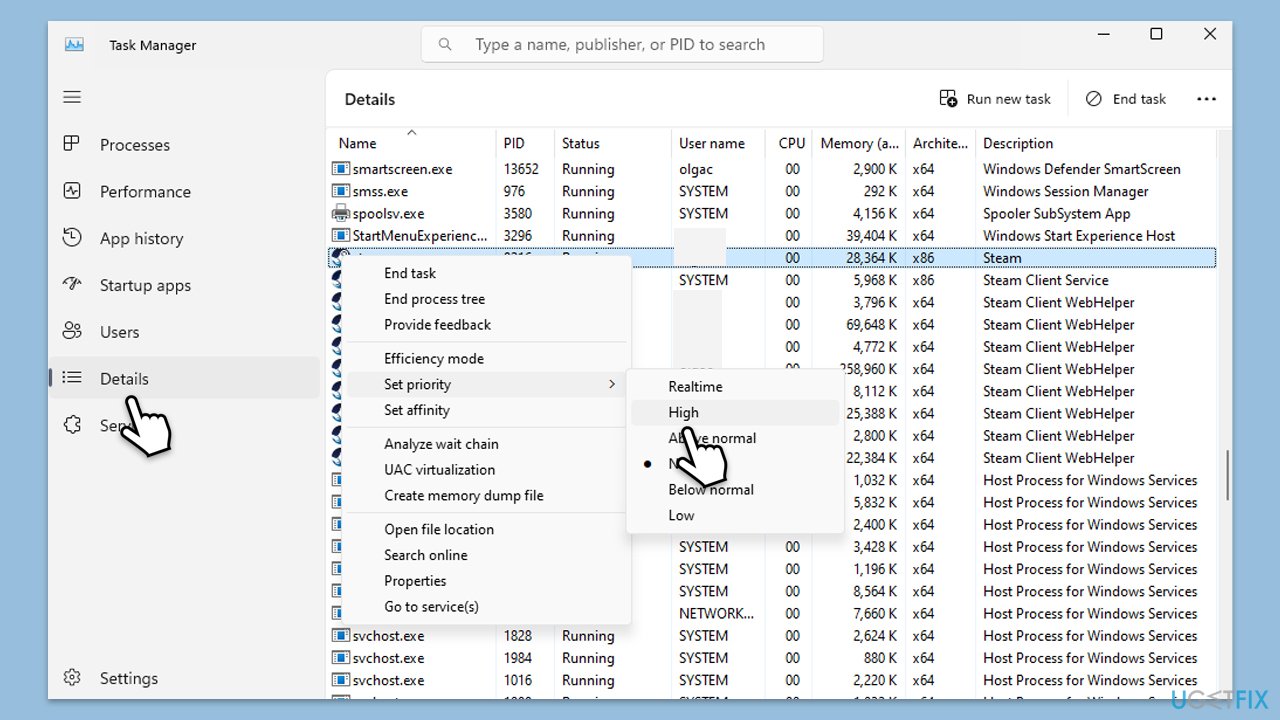
- Press Ctrl + Shift + Esc to open Task Manager.
- Go to the Details tab.
- Right-click V Rising in the list.
- Hover over Set priority and select High.
- Close Task Manager and launch the game again.
Fix 3. Disable Windows full-screen optimizations
Disabling full-screen optimizations can sometimes improve game performance by reducing system overhead.
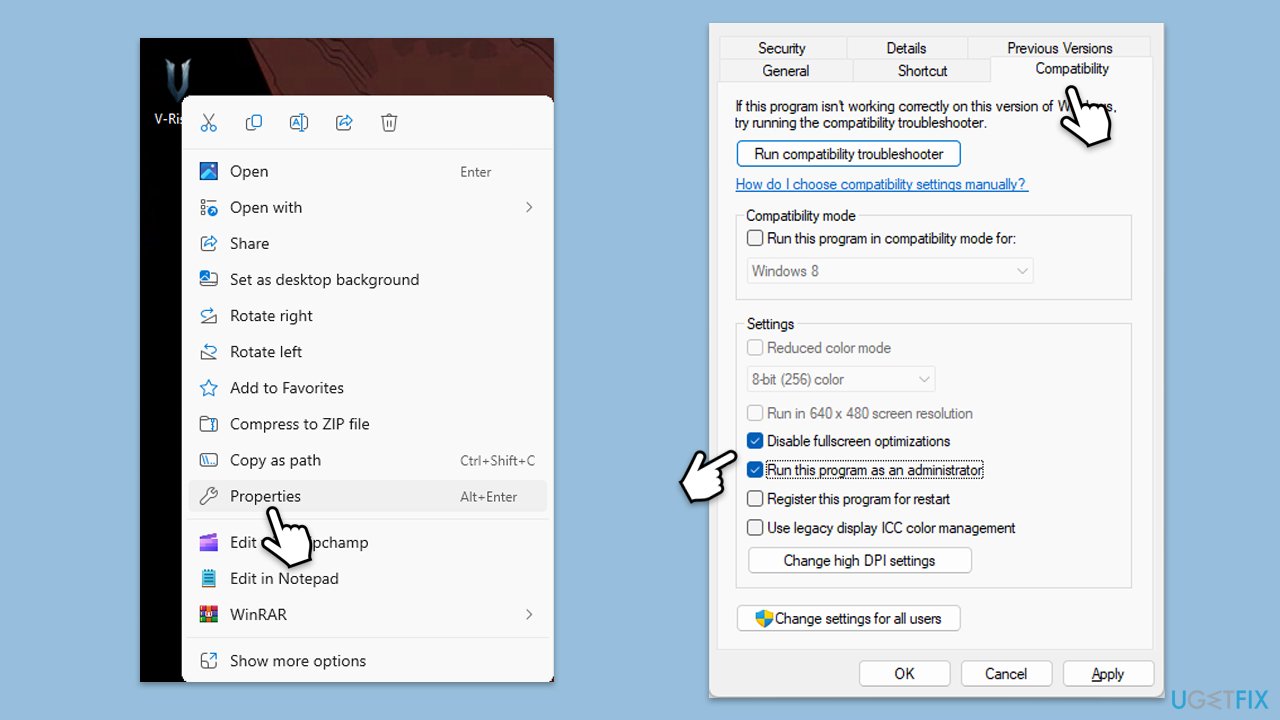
- Right-click the V Rising shortcut or executable file.
- Select Properties.
- Go to the Compatibility tab.
- Check the box next to Disable fullscreen optimizations.
- Also, mark the Run this program as an administrator checkbox.
- Click Apply, then OK.
- Try playing the game again.
Fix 4. Verify game files
Checking and repairing the game files can resolve issues caused by missing or corrupted files.
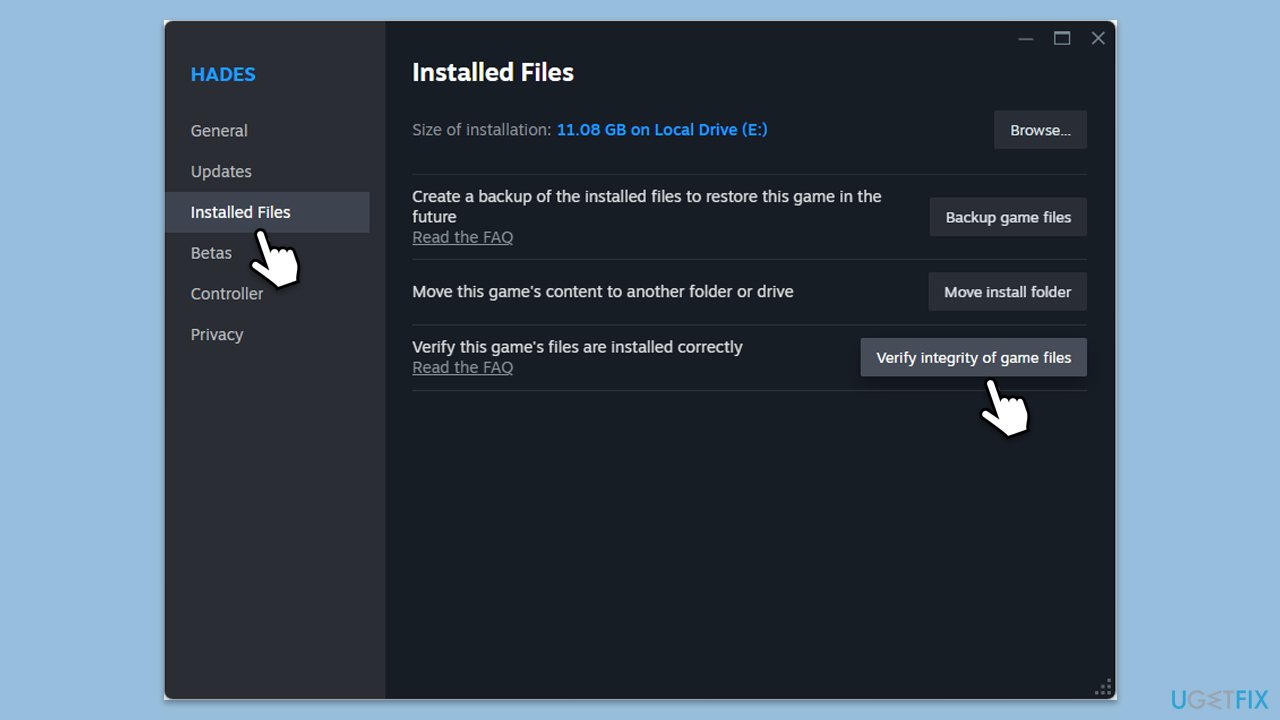
- Open Steam and go to your Library.
- Right-click on V Rising and pick Properties.
- Go to Installed Files and click Verify integrity of game files.
- Wait till the scan is finished and attempt to launch the game again.
Fix 5. Alter game settings
Sometimes, incorrect settings can mess up the stability of the game. Try the following:
- Try locking your FPS - 60 FPS if you have a standard 60Hz monitor, 144 FPS if you have a 144Hz monitor, etc.
- Disable V-Sync. Alternatively, try enabling it.
- Set the game to Fullscreen.
Fix 6. Reinstall the game
Reinstalling V Rising can provide a fresh setup, potentially fixing persistent performance issues by replacing any corrupted files.
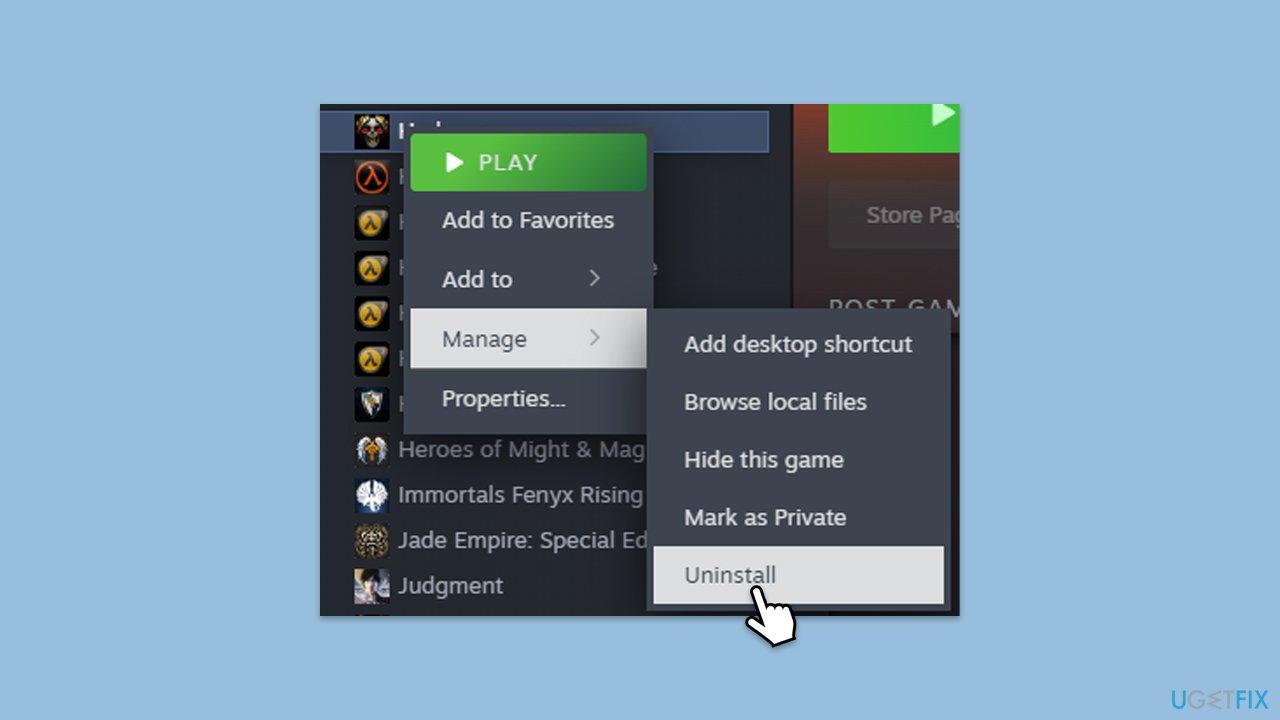
- Open your game launcher.
- Navigate to your library and find V Rising.
- Right-click the game and select Uninstall.
- Follow the prompts to remove the game from your system.
- Restart your computer.
- Reinstall V Rising from your game library.
Bottom line
To address FPS drops and stuttering in V Rising, ensure your GPU drivers are updated, set the game to high priority, disable full-screen optimizations, verify game files, and consider reinstalling the game. If these steps do not resolve the issues, using a PC repair tool may help fix underlying Windows problems affecting performance.
Frequently asked questions
You can lower the in-game graphics settings, disable background applications, and ensure that Windows Game Mode is enabled to optimize performance.
Visit the manufacturer's website for your graphics card, download the latest drivers, and install them on your Windows 10 or Windows 11 system.
Disabling Windows 10 or Windows 11's Full-Screen Optimization feature for V Rising can help reduce stuttering and improve FPS.




Report an issue
What's wrong with this guide? We review every report and update or remove content.
Report received — thank you. We'll review and fix it.
You need a free account to submit a report.
Be the first to comment