How to fix
“dxcore.dll is either not designed to run
on Windows
Resolve the "dxcore.dll is either not designed to run on Windows or it contains an error" issue quickly on Windows 10 or 11. Expert-tested solutions await!

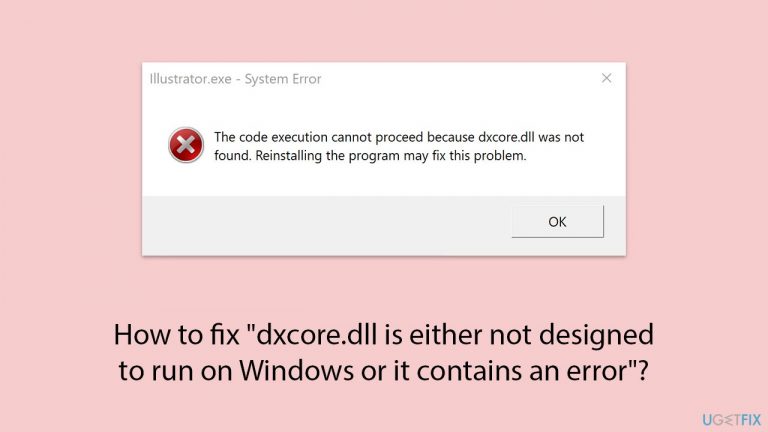
What causes How to fix “dxcore.dll is either not designed to run on Windows or it contains an error”?
- Corruption due to malware or other malicious software
- Issues with Windows updates
- Conflicts with other installed software
- Problems with the dxcore.dll file itself
- Incompatibility with the operating system
Repairs Windows system files, removes malware, and restores a clean OS state — without reinstalling.
When I start Windows on my laptop, I receive the following error every time: "C:\Windows\system32\dxcore.dll is either not designed to run on Windows or it contains an error." How can I fix it?
Understanding DLL files and their errors in Windows
DLL (Dynamic Link Library) files are essential components in the Windows operating system, enabling multiple programs to share the same functionality and resources without redundancy. These files, which contain code and data used by various applications, are integral to the smooth operation of many Windows functions.
By allowing programs to use shared libraries of instructions, DLL files contribute to more efficient memory usage and overall system performance. However, despite their importance, DLL files can sometimes cause problems for various reasons, and one such problematic file is dxcore.dll.
Occasionally, when you start your PC, you might encounter the following error message:
C:\Windows\system32\dxcore.dll is either not designed to run on Windows or it contains an error. Try installing the program again using the original installation media or contact your system administrator or the software vendor for support.
This message indicates that the dxcore.dll file, which plays a crucial role in the Windows operating system, is either corrupted or incompatible with your system.
What is dxcore.dll?
Dxcore.dll is a component associated with DXCore, an adapter enumeration API for graphics and compute devices, used by Direct3D 12. This API supports various tasks related to multimedia, particularly in handling graphics and compute devices, thereby overlapping with some facilities of DXGI (DirectX Graphics Infrastructure).
The primary function of dxcore.dll is to facilitate these multimedia tasks, ensuring that your system can handle complex graphical and computational processes efficiently. When this file is faulty, it can disrupt the normal operation of programs relying on Direct3D 12, leading to performance issues or preventing certain applications from running.
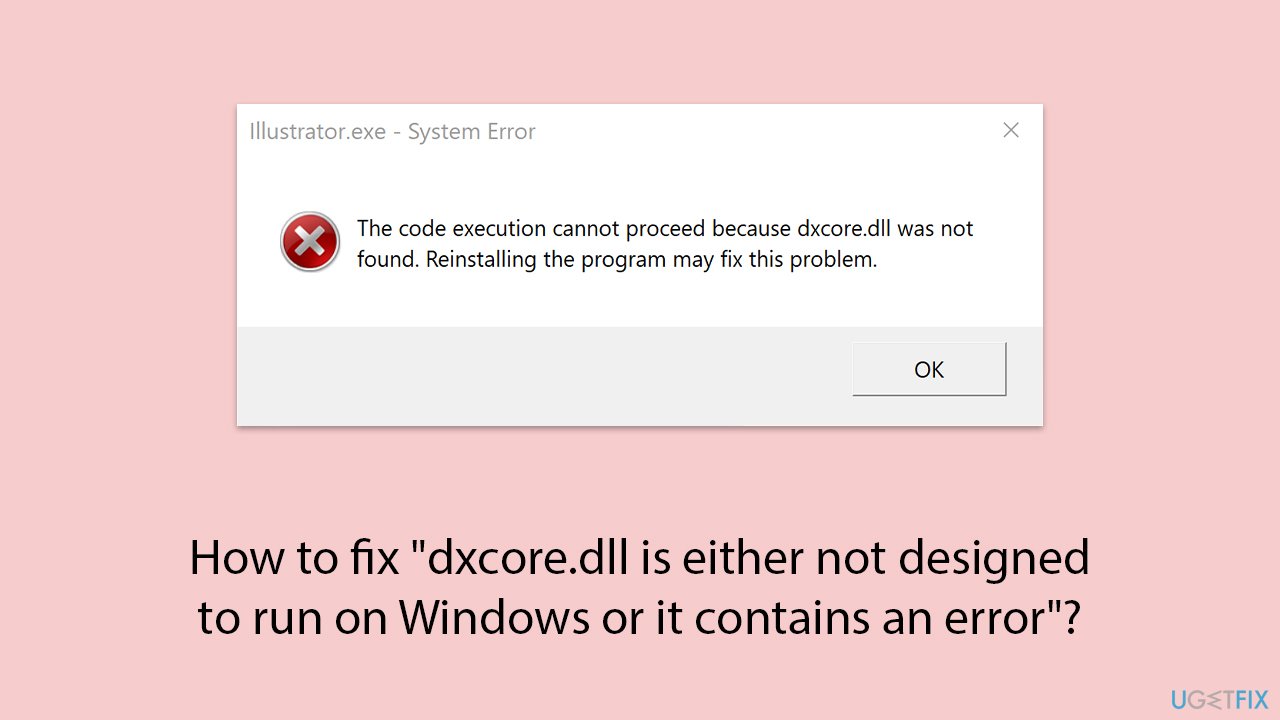
Reasons for dxcore.dll errors
Several factors can contribute to the dxcore.dll error, including corruption due to malware or other malicious software, issues with Windows updates, conflicts with other installed software, or problems arising from improper system shutdowns. Corrupted system files or incomplete software installations can also lead to this error, causing significant inconvenience and hindering your ability to use your PC effectively.
Resolving dxcore.dll errors
To fix the "dxcore.dll is either not designed to run on Windows or it contains an error" issue, various troubleshooting steps can be undertaken. You can find detailed instructions on how to resolve this problem below. These steps may involve running system scans, reinstalling the affected software, or restoring your system to a previous state to undo any changes that might have caused the error.
To address fundamental Windows problems, such as dxcore.dll issues, in a more automatic manner, you may want to use the [d1] PC repair tool. This application is capable of accurately diagnosing and repairing many different system issues.
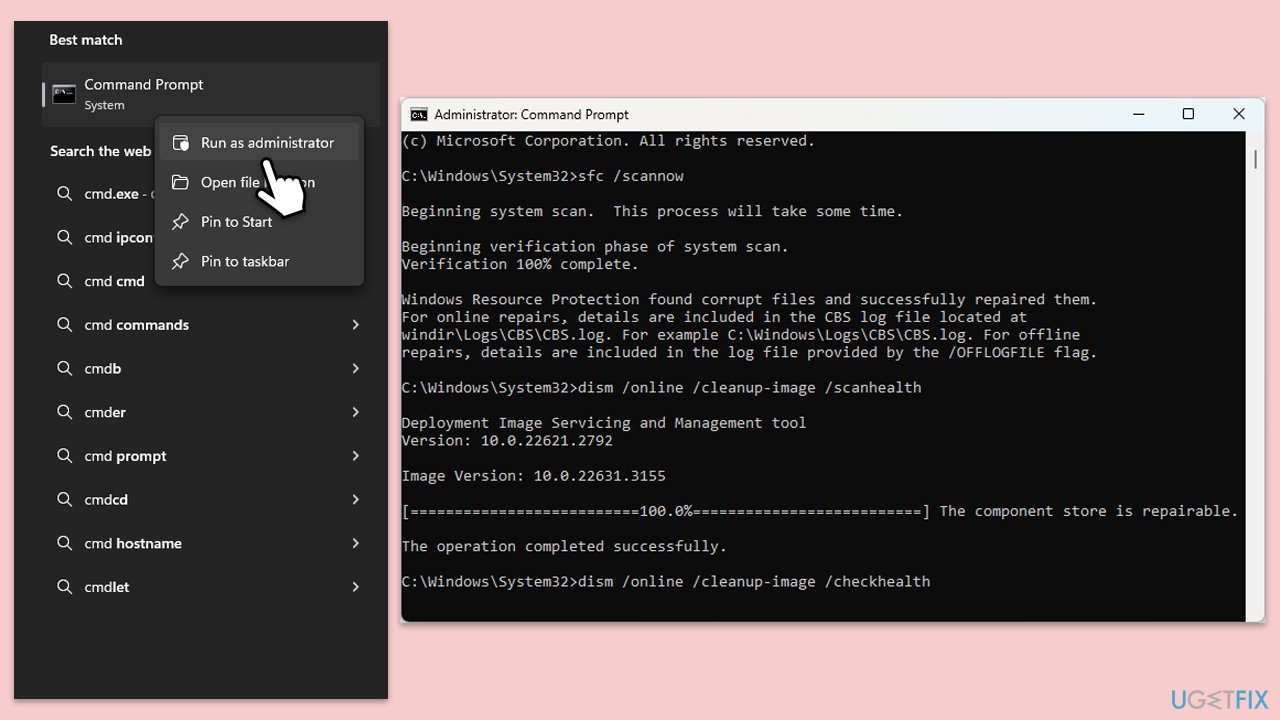
Fix 1. Check the system for corrupted files
- Type cmd in Windows search.
- Right-click on Command Prompt and pick Run as administrator.
- User Account Control window will show up - click Yes when prompted.
- Then, copy and paste the following command, pressing Enter after:
sfc /scannow - Wait till the scan is finished. If Windows finds system file integrity violations, it will attempt to fix them. After this, use the set of the following commands, pressing Enter each time:
DISM /Online /Cleanup-Image /CheckHealth
DISM /Online /Cleanup-Image /ScanHealth
DISM /Online /Cleanup-Image /RestoreHealth - Close down the Command Prompt and restart your device.
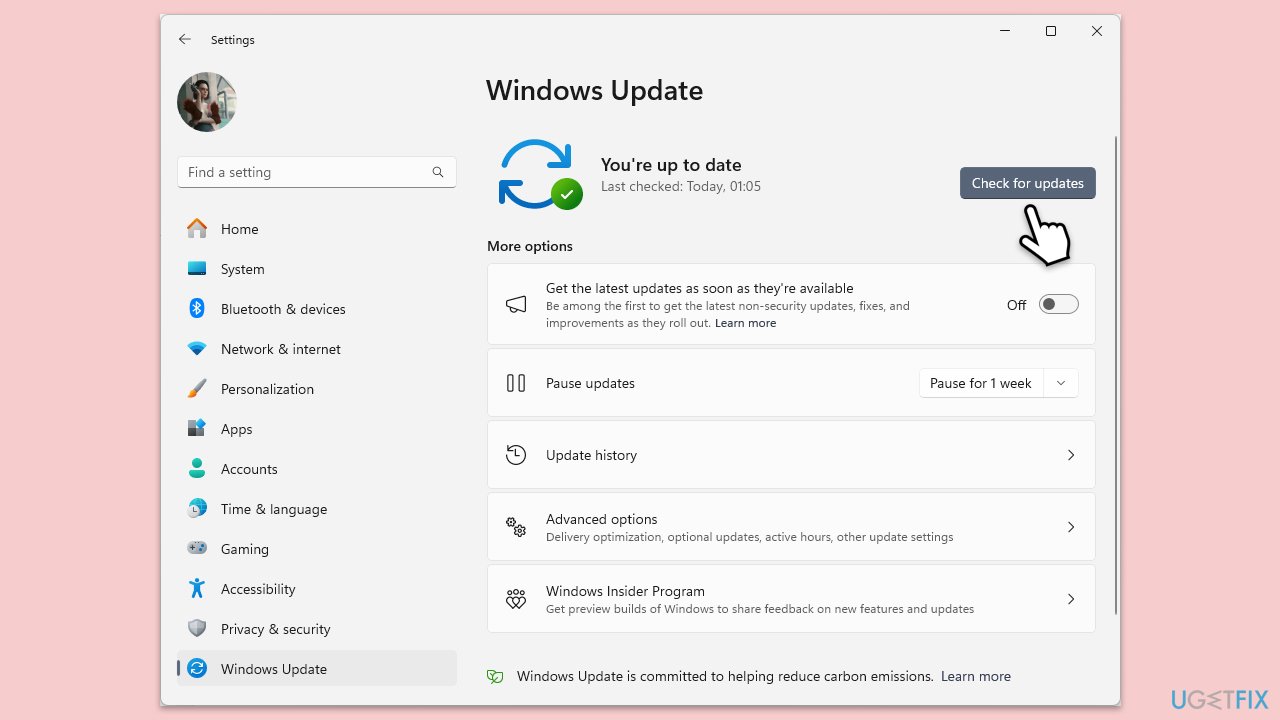
Fix 2. Update Windows
- Type Updates in Windows search and press Enter.
- In the new window, click Check for updates.
- Wait till all the necessary files are downloaded and installed.
- If optional updates are available, install them as well.
- When done, reboot your system to apply updates.
Fix 3. Reinstall the affected software
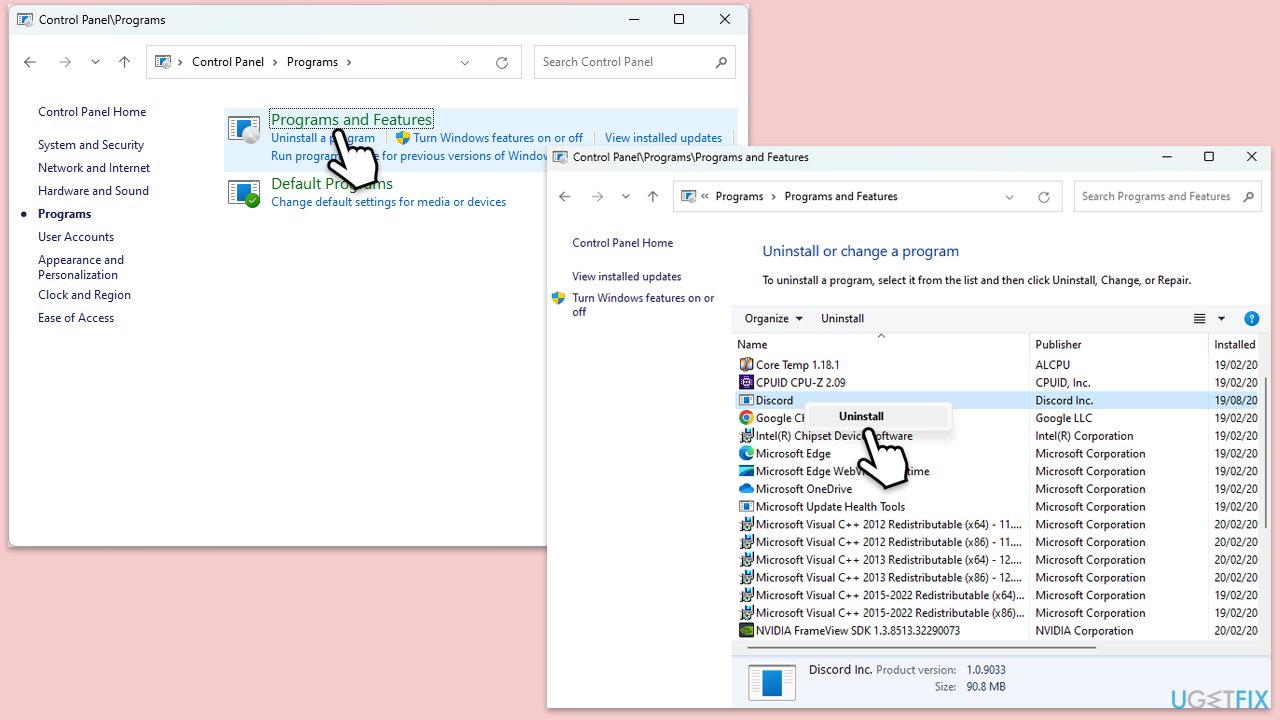
- Open the Control Panel and go to Programs > Uninstall a program.
- Find the program causing the issue in the list and select Uninstall.
- Follow the prompts to remove the program.
- Restart your computer.
- Reinstall the program from its original installation source.
Fix 4. Run a malware scan
Malware can corrupt system files, including dxcore.dll. Running a full system malware scan can help detect and remove malicious software. You can employ Microsoft Safety Scanner, a third-party security app, or rely on Windows Defender:
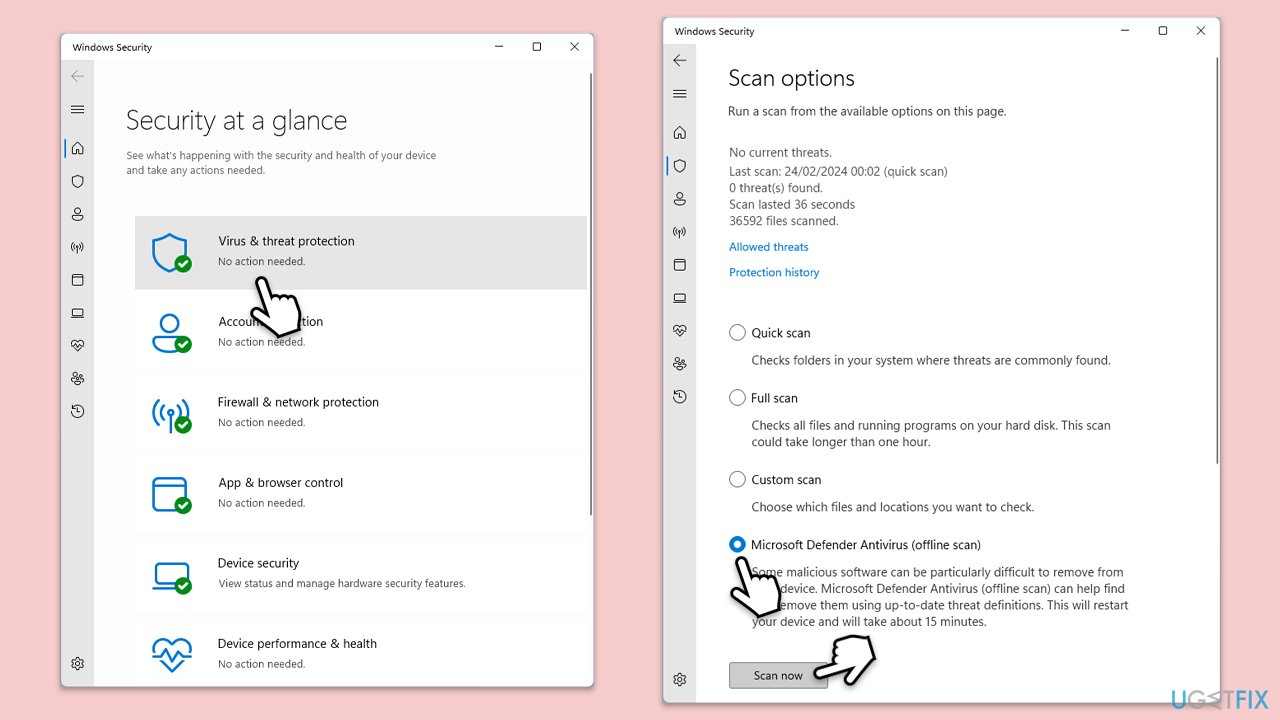
- Type Windows Security in the Windows search bar and hit Enter.
- Select Virus & threat protection.
- Pick Scan options.
- Choose Microsoft Defender Offline scan and click Scan now.
- Your computer will immediately restart and begin a deep scan.
Fix 5. Use System Restore
System Restore can revert your computer's system files to a previous state where the dxcore.dll error did not occur. This can help undo any recent changes that caused the problem.
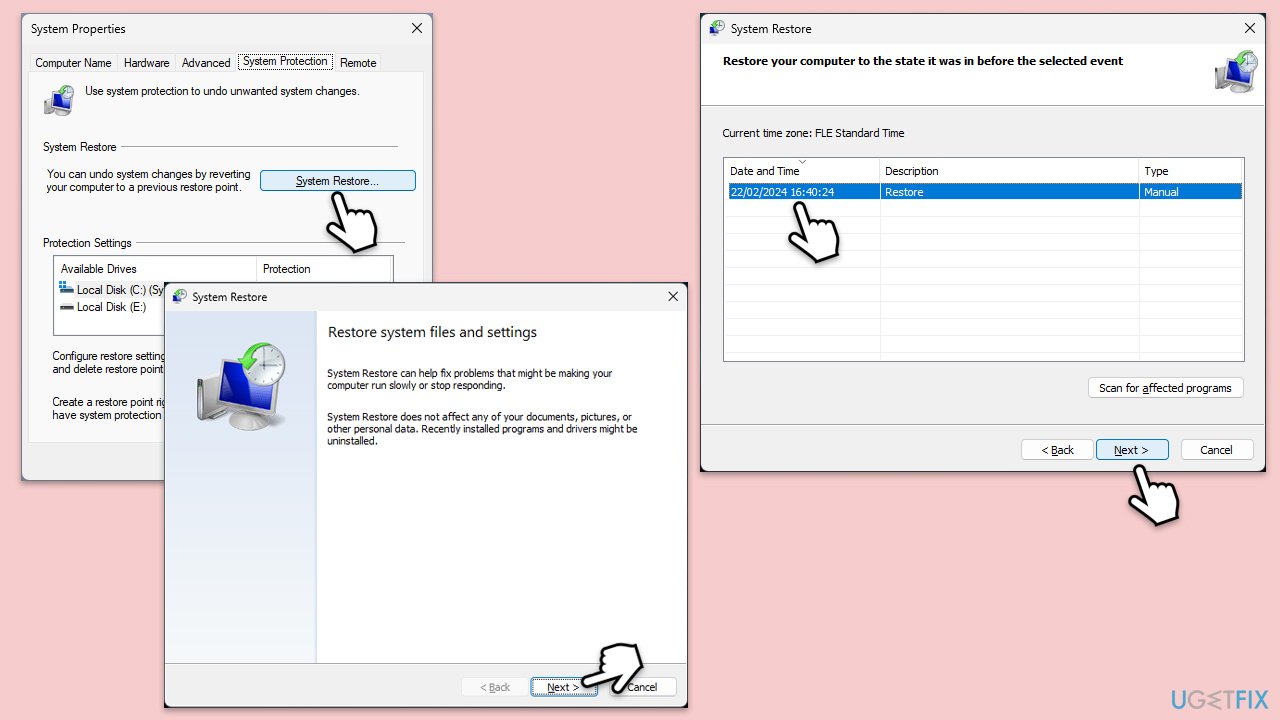
- Type in Create a Restore point in Windows search and hit Enter.
- Go to the System Protection tab and pick System Restore.
- Click Next.
- Click Show more restore points (if available).
- Pick the time before the problem occurred and click Next.
- Follow the prompts to finish the process.
Fix 6. Update graphics drivers
If you want to update your drivers without any hassle, you can always rely on automated tools such as [rev id="DriverFix"]. Alternatively, you can download drivers from the official manufacturer's website or use Windows Device Manager:
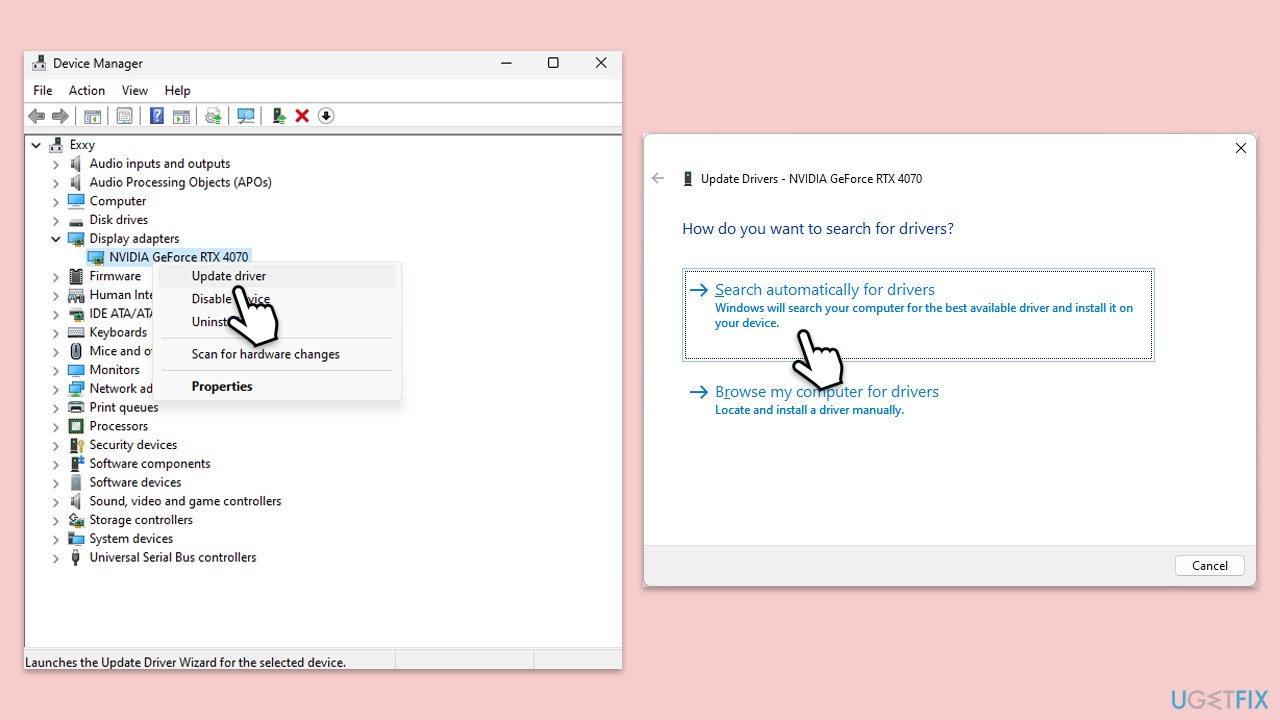
- Right-click on the Start menu and select Device Manager.
- Expand the Display adapters section.
- Right-click on your network adapter and choose Update driver.
- Select Search automatically for drivers.
- Follow the prompts to complete the driver update and restart your computer.
Fix 7. Re-register dxcore.dll
- Open Command Prompt as administrator.
- In the prompt, type in the following command and press Enter:
regsvr32 /u dxcore.dll - After that, type the next command and hit Enter:
regsvr32 /i dxcore.dll - Restart your computer to apply the changes.
Fix 8. Perform a clean boot
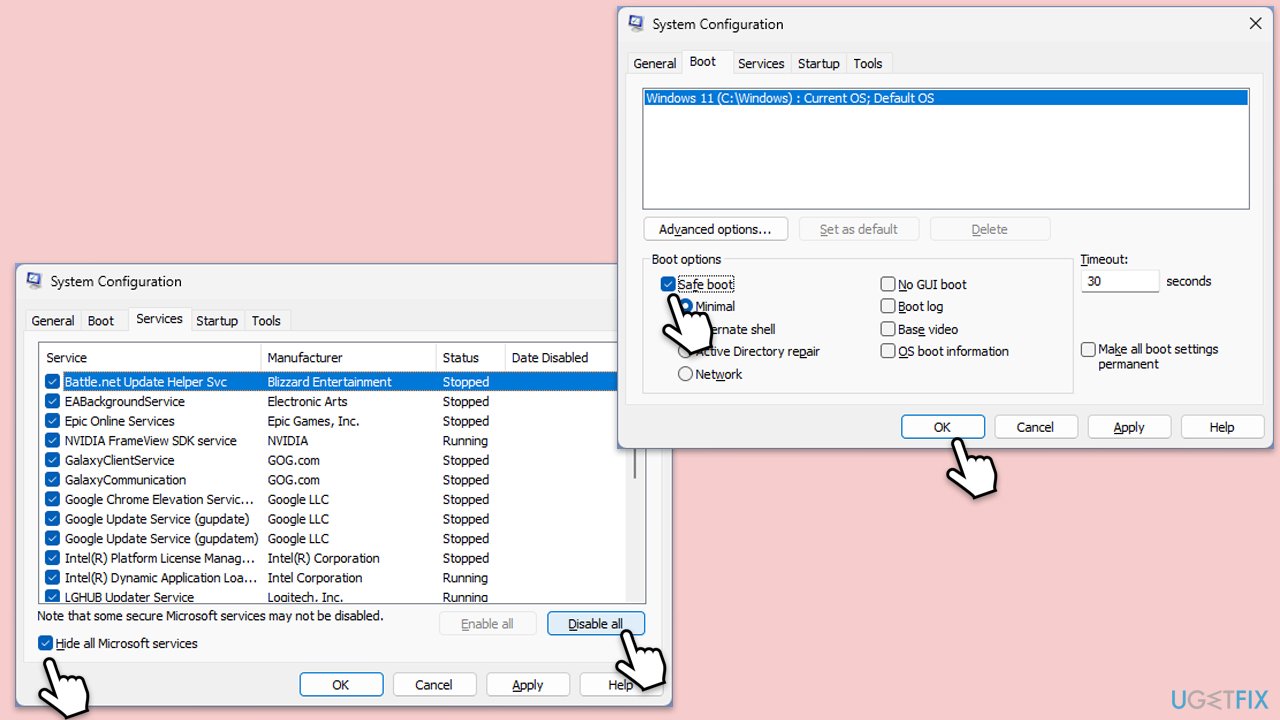
- Type msconfig in Windows search and press Enter.
- Pick the Services tab.
- Mark Hide all Microsoft services and select Disable all.
- Select the Startup tab and click Open Task Manager.
- In the Task Manager, right-click on each of the items and select Disable, then close the Task Manager.
- Go to the Boot tab, mark the Safe Boot option, then click Apply and OK.
- Restart your PC.
- To find out which app(s) is causing conflicts, enable each of the processes (or you can do it in groups), restart, and see if the problem persists. Repeat until you find the faulty app, then either update or uninstall it.
Fix 9. Use Media Creation Tool
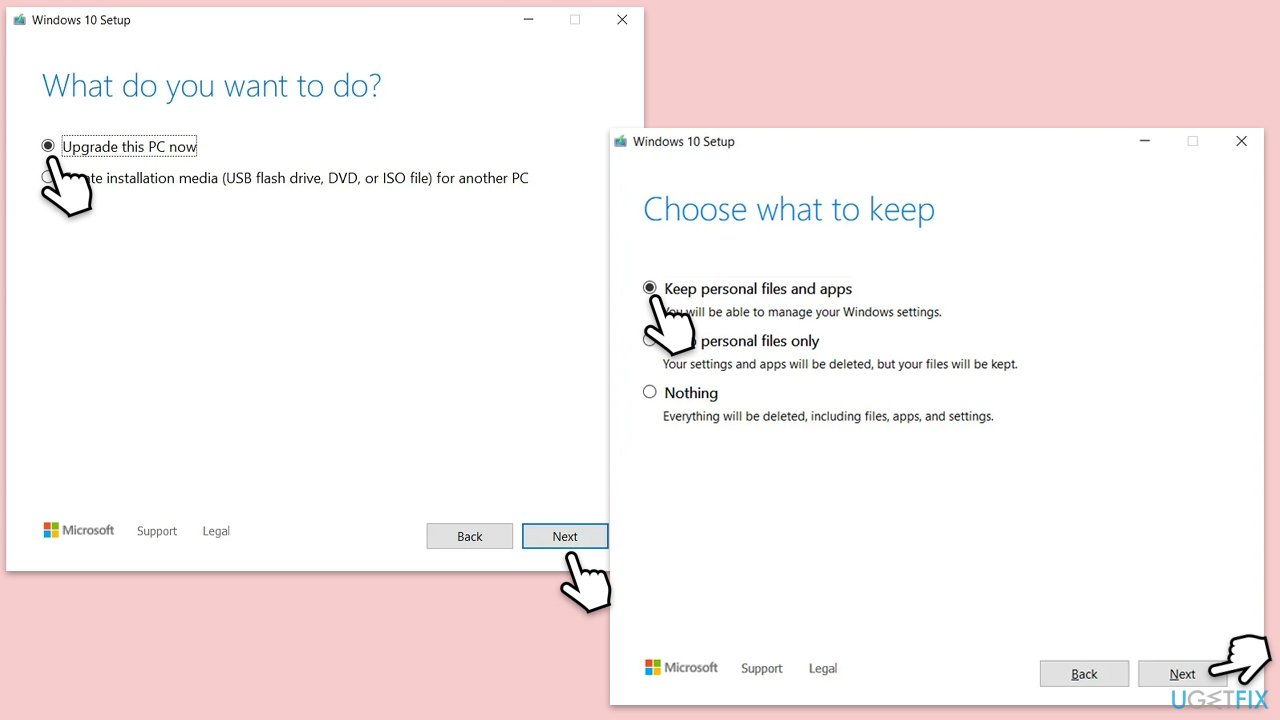
- Visit the official Microsoft website and download Windows 10 installation media (Windows 11 version).
- Double-click the installer, select Yes when UAC shows up, and agree to the terms.
- Select Upgrade this PC now and click Next.
- Windows will start downloading the needed files.
- Agree to the terms once again and click Next.
- Before installing, ensure you are happy with your choices (otherwise, you can click the Change what to keep option).
- Finally, click Install to begin the upgrade process.
Bottom line
To fix the dxcore.dll error, you can try reinstalling the program that is causing the issue, using the original installation media. Additionally, checking for Windows updates and scanning for malware may help resolve the problem. If none of these solutions work, consider contacting your system administrator or the software vendor for further support.
Frequently asked questions
This error typically occurs due to a corrupted or outdated dxcore.dll file, which is essential for running certain applications and games on Windows 10.
You can repair a corrupted dxcore.dll file on Windows 11 by running the System File Checker tool, which scans for and restores corrupted system files.
Downloading a new dxcore.dll file from the internet is not recommended, as it may introduce malware or further issues; it's safer to use Windows tools to resolve the error.




Report an issue
What's wrong with this guide? We review every report and update or remove content.
Report received — thank you. We'll review and fix it.
You need a free account to submit a report.
Be the first to comment