How to fix
Outlook error “Cannot display the folder”
on Windows
Resolve the "Cannot display the folder" error in Outlook on Windows 10 or 11 easily with our expert-tested guide. Fixed in minutes!


What causes How to fix Outlook error “Cannot display the folder” in Windows?
- Network connection instability
- Insufficient permissions to access the folder
- Corrupted Outlook data files
- Cache mode enabled
- Issues with Office apps
Repairs Windows system files, removes malware, and restores a clean OS state — without reinstalling.
I tried to use a shared Outlook email account and I got a message "Cannot display the folder." Why is this happening and how can I fix it?
Widely used for both personal and business email correspondence, Microsoft Outlook is known for its extensive feature range and easy integration. Like any software, though, users may periodically run into a variety of problems that impair the program's functionality. The "Cannot display the folder" error is one such issue that many run into, which may be especially annoying since it prevents access to important emails and folders.
The "Cannot display the folder" error in Outlook typically occurs when attempting to access a specific folder within the application. This error might present itself in several scenarios, such as when trying to open a shared mailbox, accessing a folder synchronized with a server, or even while navigating through personal folders. The symptoms of this issue include an error message stating, "Cannot display the folder," and an inability to open or view the contents of the desired folder.
There are several ways you can go about the "Cannot display the folder" error, such as ensuring that your network connection is stable and that you have the proper permissions to access the folder.
If that does not help, try repairing Outlook data files, which often resolve issues related to file corruption. For most users, however, turning off cache mode, or automatically repairing Office apps helped to fix the "Cannot display the folder" error. Detailed, step-by-step instructions for each of these solutions will be provided below the article to guide you through the process.
Additionally, using a reliable PC repair tool like [d1] can help automatically resolve any underlying Windows issues that might be contributing to the Outlook error, ensuring a smoother and more efficient user experience.

Fix 1. Run Windows Store apps and network troubleshooters
Running these troubleshooters can identify and resolve common issues with network connectivity and app performance, which might be causing the "Cannot display the folder" error in Outlook.
- Type troubleshoot into the Windows search bar, then press Enter.
- In the options that appear, select Additional troubleshooters or Other troubleshooters (depending on your Windows version).
- Scroll through the list until you locate Windows Store Apps, then click on Run the troubleshooter/Run.
- Repeat this process for Network and internet.
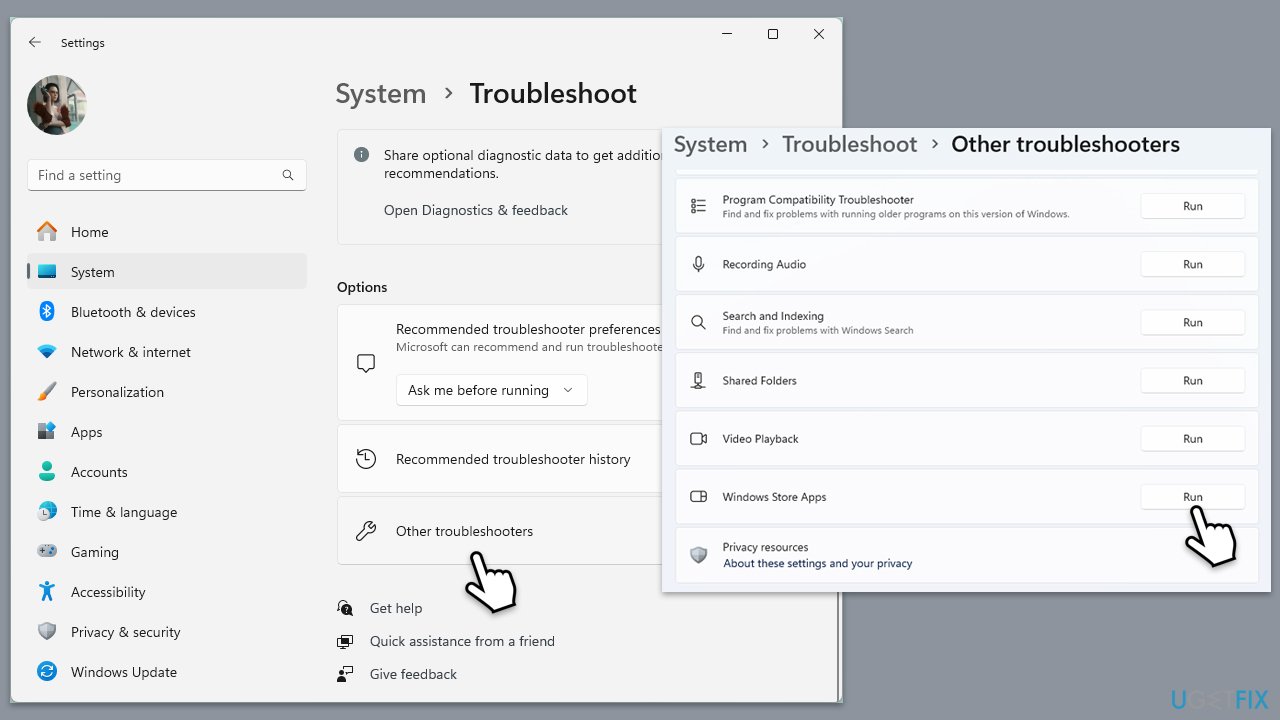
If you are using Windows 10, use the following steps to run Network troubleshooter:
- Right-click on Start and pick Settings.
- Go to Network & Internet section.
- On the right side, find the Advanced network settings section.
- Click Network troubleshooter, specify the problem, and wait till the scan is finished.
- When done, apply all the recommendations.
Fix 2. Repair Outlook data files
Repairing Outlook data files can fix issues caused by corruption in the files that store your emails and other data.
- Close Outlook.
- Navigate to the search bar and type Control Panel, then open it.
- Under View by, select Small icons from the drop-down menu.
- Go to Mail and then click on Data Files.
- In the Account Settings window, you’ll see the Data Files tab; here, you will find the location of your PST files listed.
- Take note of the location.
- Press Win + E to open File Explorer.
- Navigate to one of these locations (depending on your Office version):
C:\Program Files\Microsoft Office\Office[version]\
C:\Program Files\Microsoft Office\root\Office16 - Open the Inbox Repair Tool (scanpst.exe)
- Click Browse and select the PST file/OST file.
- Click Start and follow the prompts to repair the file.

Fix 3. Update Outlook
Make sure that your app is patched with the latest updates, which can often fix bugs and resolve other issues.
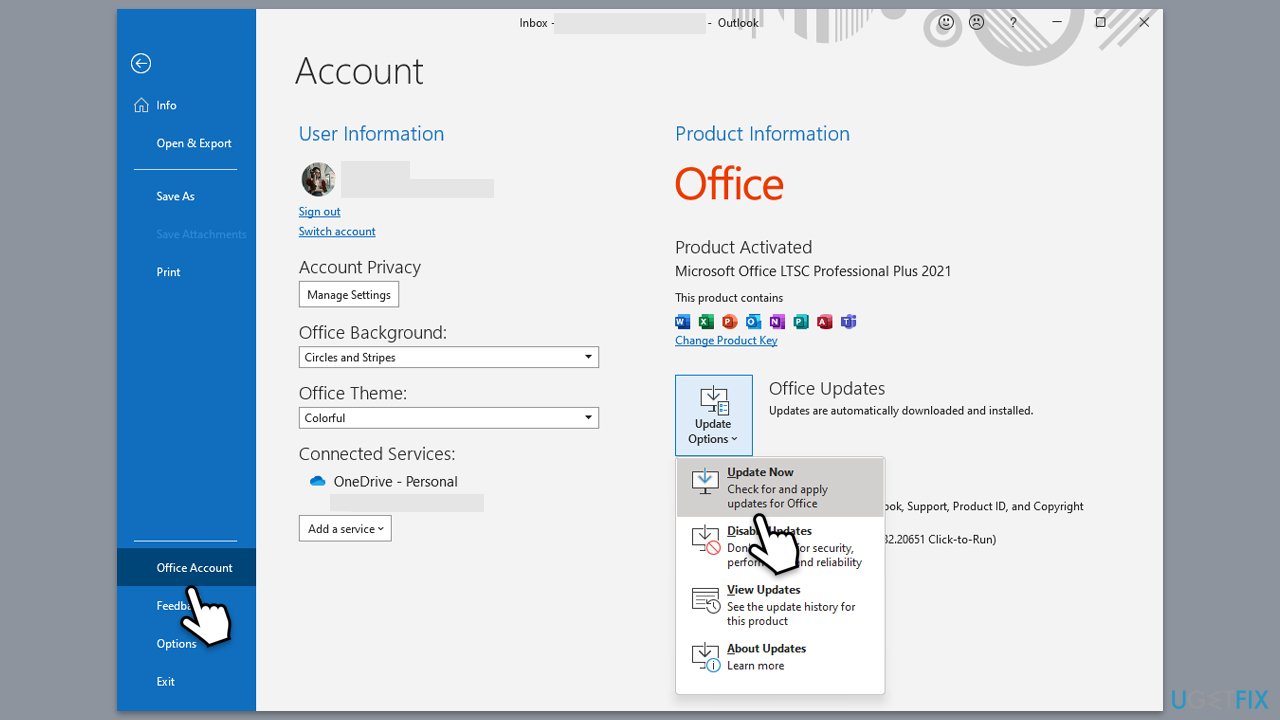
- Open Outlook and click on the File menu.
- Choose Office Account or Account (the option may vary depending on your version of Outlook).
- Under the Product Information section, you will find an Update Options button. Click it and select Update Now.
- Outlook will check for and install any available updates.
- Once the update is complete, restart Outlook for the changes to take effect.
Fix 4. Recreate the OST file
- Close Outlook and other Office apps.
- Type Control Panel in Windows search and then press Enter.
- Under the View by section, select Small icons from the drop-down menu.
- Click on Mail (Microsoft Outlook).
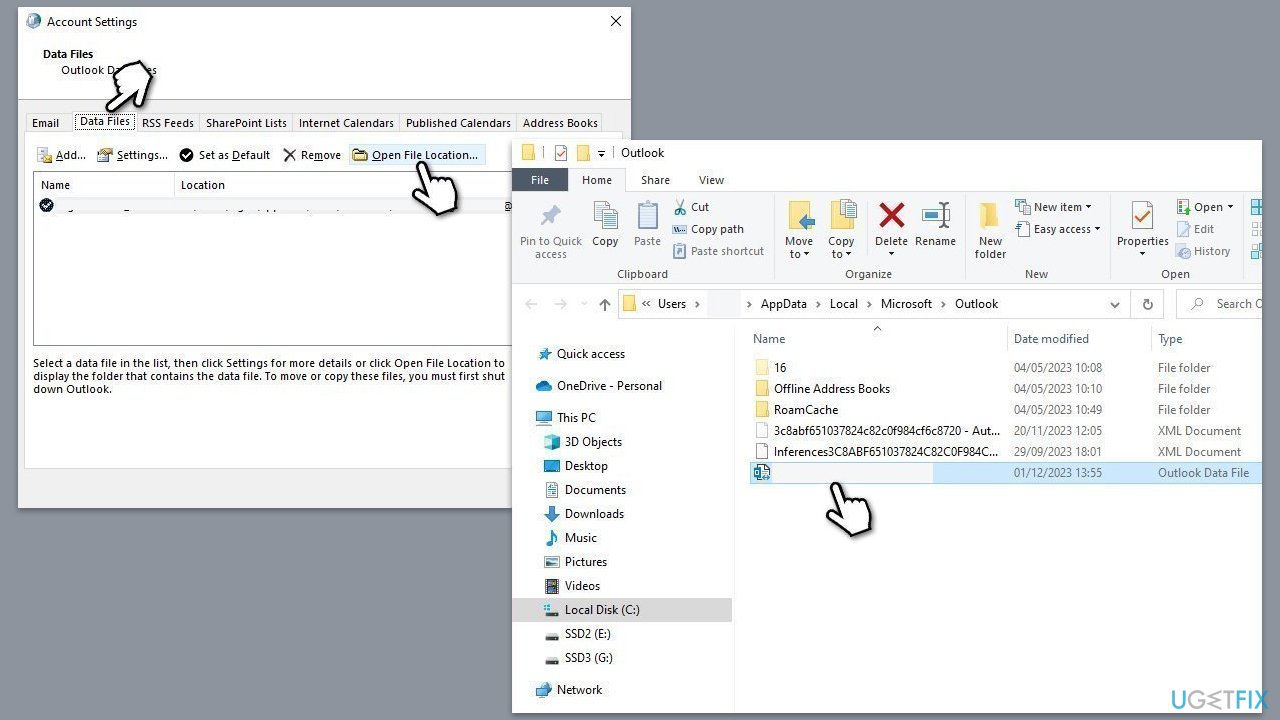
- Select Email accounts.
- Then, navigate to the Data Files tab.
- Pick your account and click on Open File Location.
- Delete the OST file by pressing Shift + Del.
- Now reboot Outlook.
Fix 5. Turn off cache mode
Synchronization issues between the local data and the server can be resolved by disabling Cache mode.
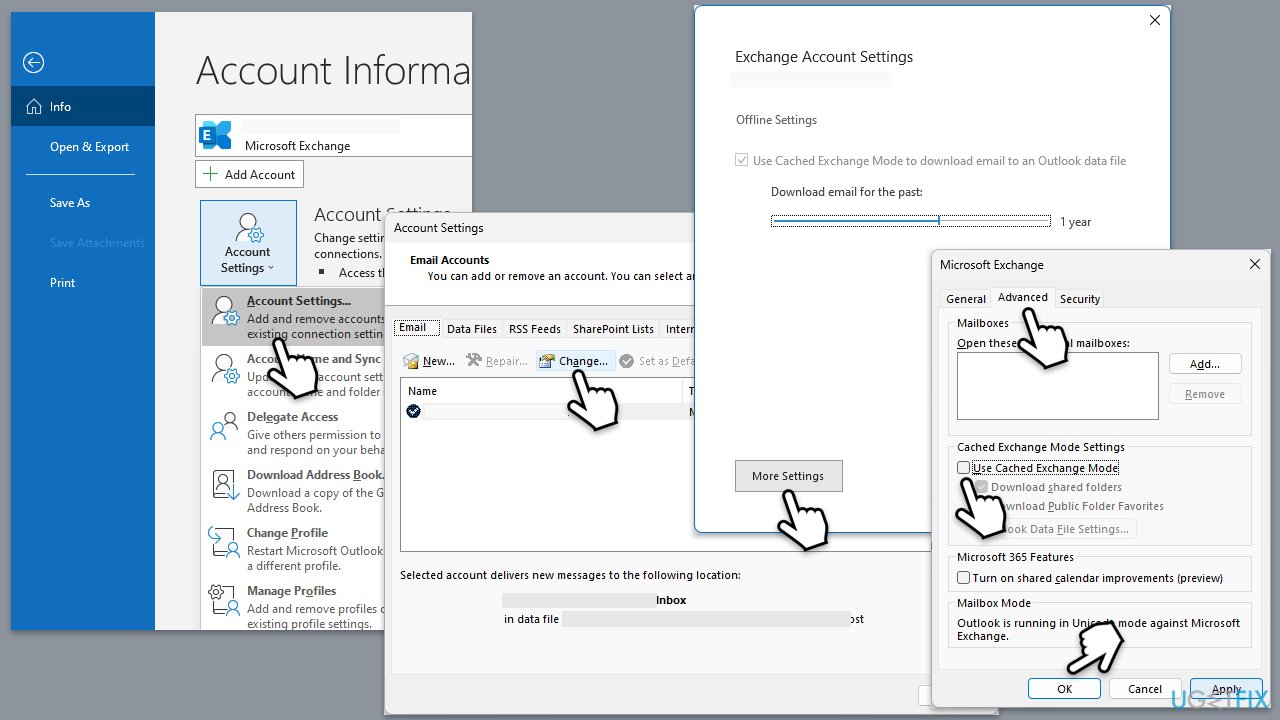
- Open Outlook and go to File.
- Under Info tab, click on Account settings > Account settings.
- Click on Change.
- Under Offline settings, uncheck the Use Cached Exchange Mode box.
- If you can't, click on More Settings.
- Select the Advanced tab and untick the Use Cached Exchange Mode box.
- Click on OK.
- Restart Outlook.
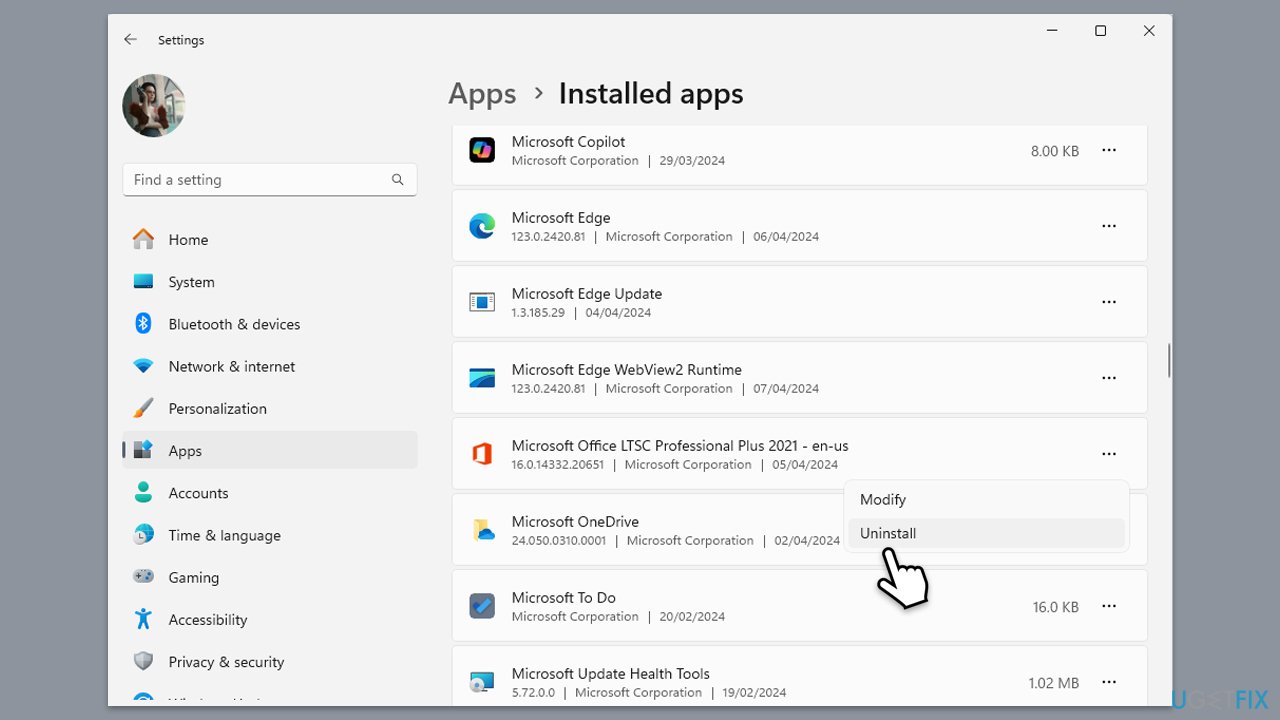
Fix 6. Reinstall Office suite
If none of the above helped, you can reinstall the whole Office package and see if that helps you fix the "Cannot display the folder" error.
- Right-click on Start and pick Apps and Features.
- Scroll down to find the MS Office installation.
- Click Uninstall and confirm with Uninstall.
- Follow on-screen instructions to remove the app completely.
- Press Win + E to open File Explorer.
- Navigate to the following location and delete its contents:
C:\Program Files\Microsoft Office - Next, type regedit in Windows search and press Enter.
- Go to the following locations in the Registry Editor and delete these items:
Computer\HKEY_LOCAL_MACHINE\SOFTWARE\Microsoft\AppVISV
Computer\HKEY_LOCAL_MACHINE\SOFTWARE\Microsoft\Office\ClickToRun
Computer\HKEY_CURRENT_USER\Software\Microsoft\Office - Restart your system and then reinstall Microsoft Office.
Bottom line
To fix the 'Cannot display the folder' error in Outlook, you can try ensuring a stable network connection, checking your permissions, repairing Outlook data files, turning off cache mode, or using the automatic repair feature for Office apps. If these solutions do not resolve the issue, consider using a reliable PC repair tool to address any underlying Windows problems.
Frequently asked questions
You can try restarting Outlook, repairing your Outlook data file via the 'Account Settings', or creating a new Outlook profile to fix the issue.
Yes, you can use the 'ScanPST.exe' tool to repair your PST file or ensure that your Windows 11 is fully updated with the latest patches.
If the error continues, consider disabling any third-party add-ins or reinstalling Outlook to resolve deeper underlying issues.




Report an issue
What's wrong with this guide? We review every report and update or remove content.
Report received — thank you. We'll review and fix it.
You need a free account to submit a report.
Be the first to comment