How to fix
Windows update error 0x80073B01
on Windows
Resolve Windows update error 0x80073B01 quickly with expert solutions. Get your Windows 10 or 11 back on track. Fixed in minutes!

What causes How to fix Windows update error 0x80073B01?
- Corrupted system files
- Bugged Windows update caches
- Appropriate services not running
- Insufficient space
- Malware presence
Repairs Windows system files, removes malware, and restores a clean OS state — without reinstalling.
I keep getting a 0x80073B01 error when trying to update Windows. Can you help me?
To keep your Windows operating system well-functioning and secure, you should install Windows updates as soon as they become available. They offer important bug fixes, added features, and general system improvements. However, some people might encounter errors during this process, often marked with a code such as 0x80073B01.
Understanding the 0x80073B01 error
0x80073B01 error can show up at various times during the download or installation process of the update. Typically, Windows delivers a general "Updates failed" message that does not provide much information apart from the error code. There are thousands of error codes out there, so it is not surprising that users are confused about what to do when Windows updates do not install.
Causes for the 0x80073B01 error
While a particular code should specify the reason for the error, this is not usually the case. Windows systems are rather complex, often compiled from hardware components of different makers; software installed on the system can also affect various factors of the device.
As a result, the reasons for the 0x80073B01 error could be many - from corrupted system files, bugged Windows update caches, appropriate services not running, insufficient space, etc. Due to all these facts, there is no way that there's only one solution that would work for all - which brings us to the solutions.
Resolving the 0x80073B01 error
Just as there is no one reason that causes the 0x80073B01 error, the solutions to solve are also different, and more extensive troubleshooting is required in many cases. For example, some users might be able to resolve the issue automatically by simply running the troubleshooter, while others will have to reset Windows update components, tweak relevant service settings, or repair corrupted files.
If automatic update simply does not work, there are a few ways about it, as the failed update
To address Windows update error 0x80073B01, several approaches can be taken. These include running system file checks to identify and repair corrupted files, ensuring that the system is free from malware, and checking the configuration and status of the Windows Update service. Additionally, clearing the Windows Update cache and resetting the update components can help resolve any underlying issues that might be causing the error. Detailed, step-by-step instructions for each of these solutions will be provided below the article to guide you through the process.
Using a reliable PC repair tool like [d1] can also help automatically resolve any underlying Windows issues that might be contributing to the 0x80073B01 error, ensuring a smoother and more efficient user experience.
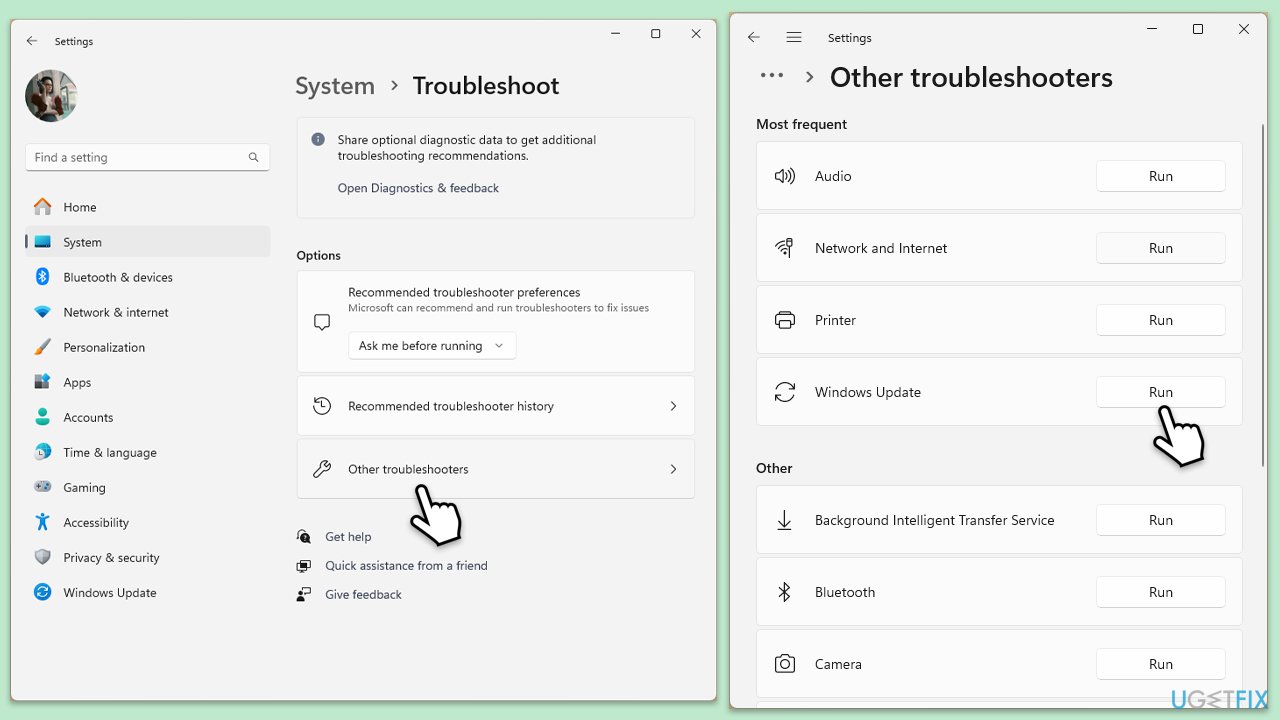
Fix 1. Run Windows update troubleshooter
Using the Windows update troubleshooter can automatically detect and fix common issues that might be preventing updates from installing correctly.
- Type Troubleshoot in Windows search and press Enter.
- Select Additional troubleshooters/Other troubleshooters.
- Find Windows Update from the list.
- Click it and select Run the troubleshooter/Run.
- Restart your PC when the update process finishes.
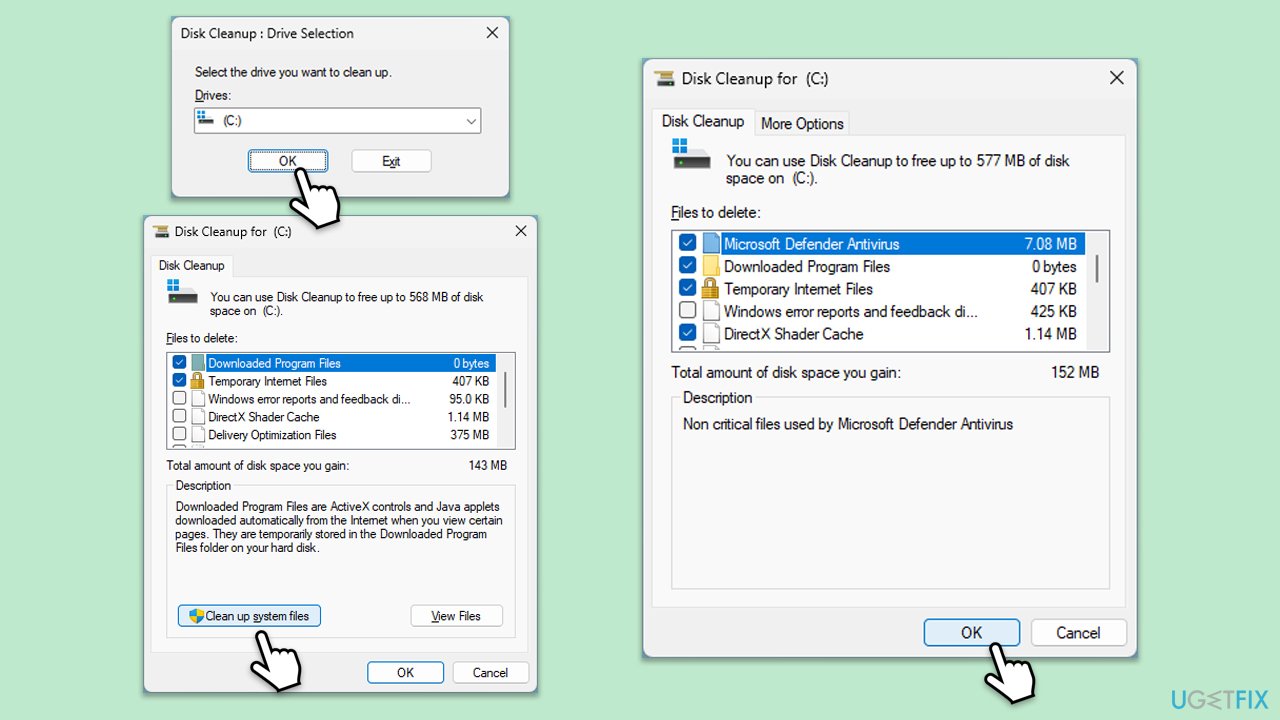
Fix 2. Perform Disk Cleanup
Performing Disk Cleanup can free up space and remove temporary files that might be causing conflicts with Windows updates.
- Type Disk Cleanup in Windows search and hit Enter.
- If your Windows is installed on drive C, pick it from the list (it should be by default) and press OK.
- Click Clean up system files.
- Select your main disk again and click OK.
- Here, select the largest portions of the data used - these typically include Temporary Internet Files, Windows Update, Temporary Files, Recycle Bin, Delivery Optimization Files, and others.
- Click OK - the process should be finished shortly.
Fix 3. Check relevant services
Ensuring that essential Windows services are running can help in the smooth installation of updates.
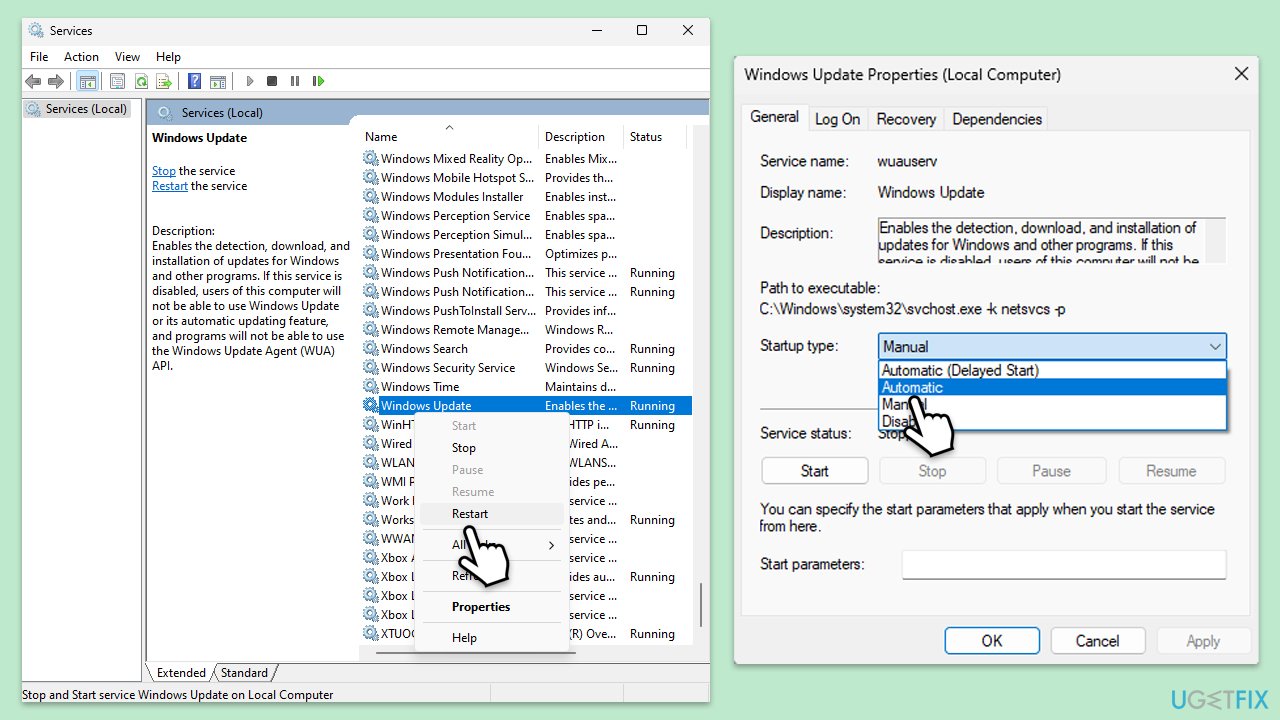
- Type in Services in Windows search and press Enter.
- Locate Background Intelligent Transfer Service (BITS).
- If it is already running, right-click and select Restart.
- If the service is not running, double-click it, select Automatic under the Startup type from the drop-down menu.
- Click Start, Apply, and OK.
- Repeat the process with the Windows Update, Cryptographic, and Windows Installer services.
Fix 4. Run SFC and DISM
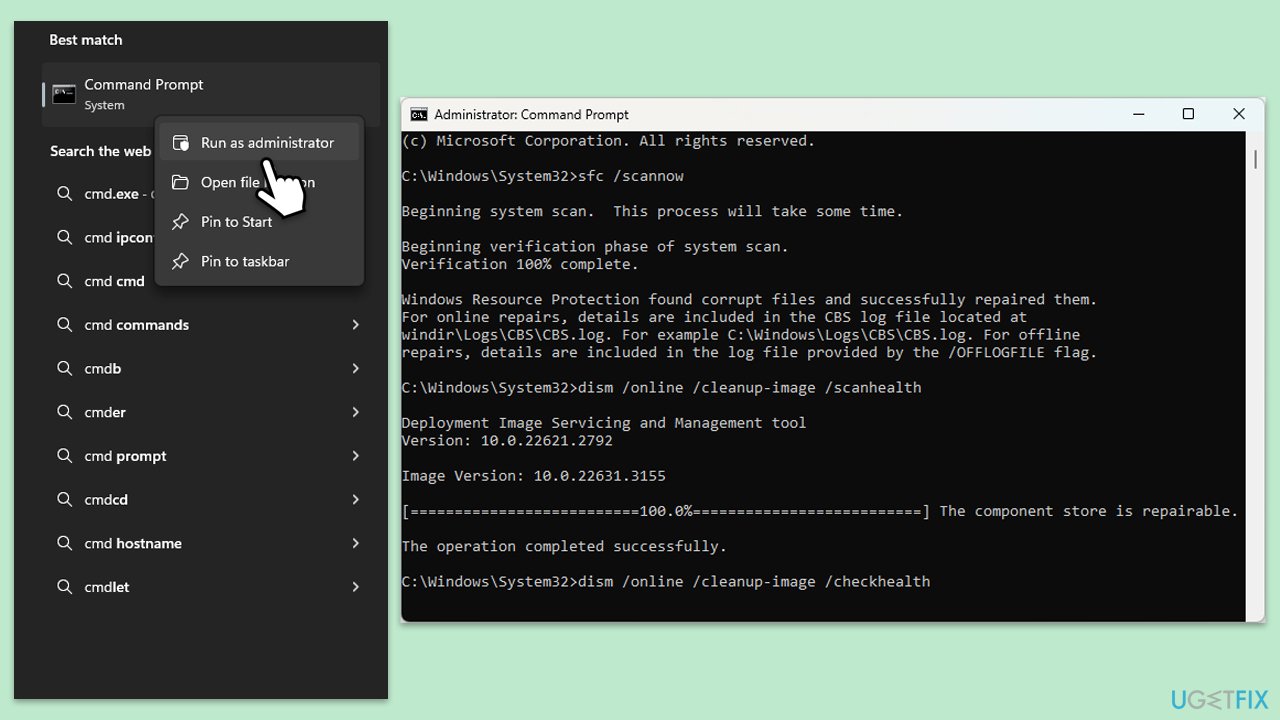
- Type cmd in Windows search.
- Right-click on Command Prompt and pick Run as administrator.
- User Account Control will ask whether you want to allow changes – click Yes.
- Copy and paste this command and hit Enter:
sfc /scannow - Wait for the scan to finish.
- As soon as it finishes, Windows will report whether integrity violations were found and if they could be fixed. Regardless of the outcome, use these commands next, pressing Enter after each:
Dism /Online /Cleanup-Image /CheckHealth
Dism /Online /Cleanup-Image /ScanHealth
Dism /Online /Cleanup-Image /RestoreHealth - Close down the Command Prompt and restart your device.
Fix 5. Reset Windows update components
- Open Command Prompt as administrator.
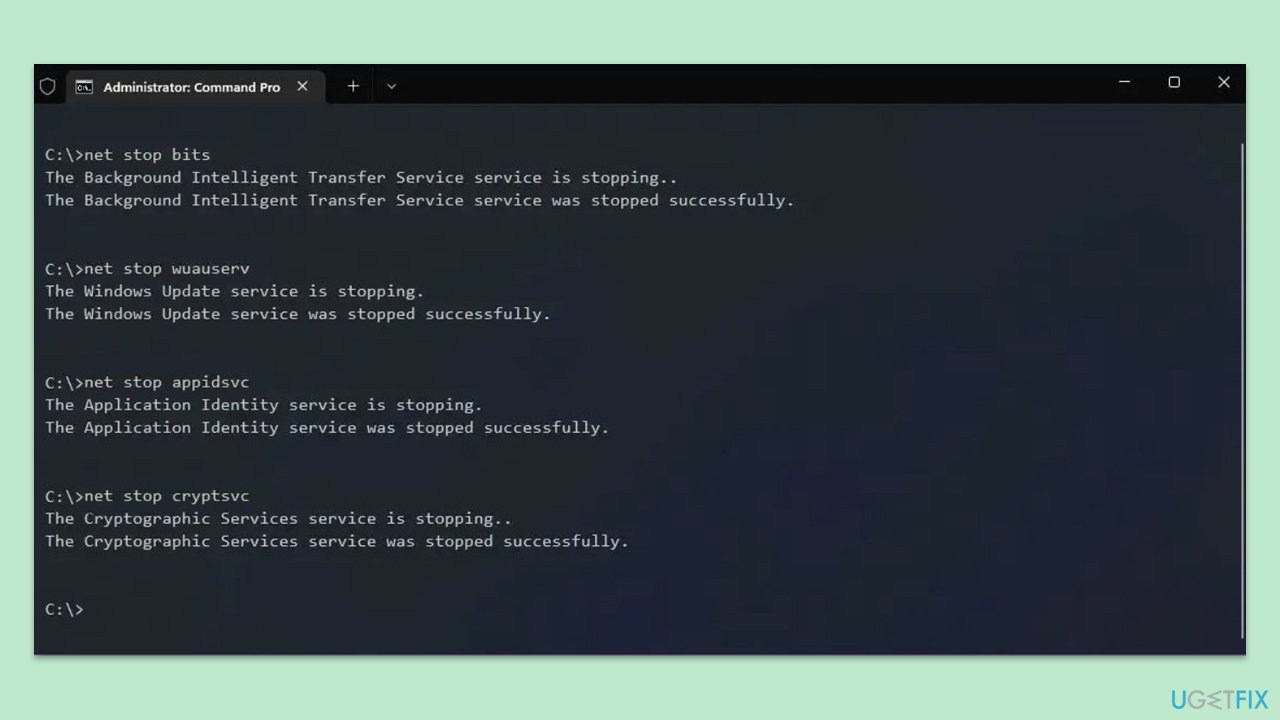
- Stop the Windows Update-related services by running the following commands one at a time, pressing Enter after each one:
net stop wuauserv
net stop cryptSvc
net stop bits
net stop msiserver - Rename the SoftwareDistribution and Catroot2 folders by running the following commands:
ren C:\Windows\SoftwareDistribution SoftwareDistribution.old
ren C:\Windows\System32\catroot2 Catroot2.old
Note: If your Windows installation is not on the C drive, replace "C" with the appropriate drive letter. - Restart the Windows Update-related services by running the following commands:
net start wuauserv
net start cryptSvc
net start bits
net start msiserver - Reboot your device.
Fix 6. Install the update manually
As mentioned, if you can't install updates automatically, you can try the manual method instead.
- Type in Updates in Windows search and press Enter.
- Select View update history.
- Find the update that failed with the 0x80073B01 error and copy its KB number.
- Open your browser and go to Microsoft Update Catalog.
- Within the search bar, type in the KB number and click Search.
- Find the correct version of the update for your operating system (to check this, right-click on Start and pick System. Under Device specifications and check the System type) and click Download.
- Use on-screen guidelines to finish the installation process and restart your computer.
Fix 7. Use Media Creation Tool
Before proceeding, make sure you disconnect any unneeded peripherals and uninstall your third-party security software (if applicable) to avoid issues during the upgrade.
- Visit the official Microsoft website and download Windows 10 installation media (Windows 11 version).
- Double-click the installer and select Yes when UAC shows up.
- Agree to terms.
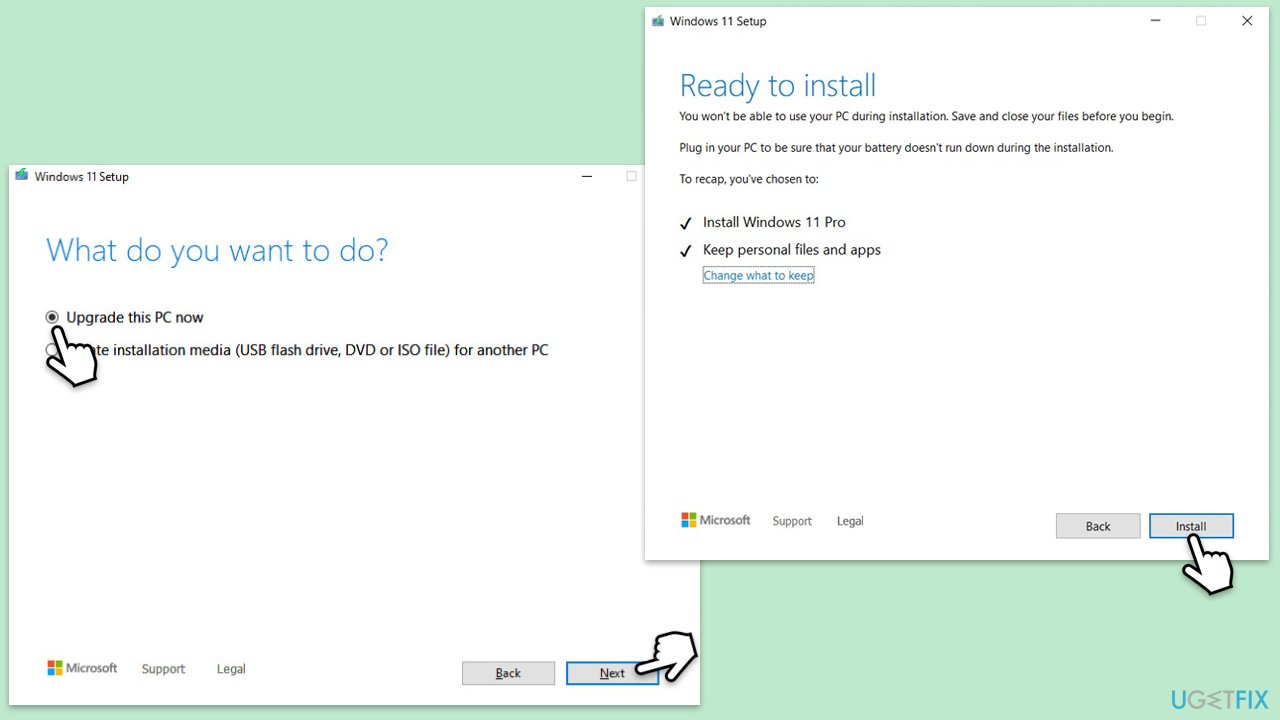
- Select Upgrade this PC now and click Next.
- Windows will start downloading the needed files.
- Agree to the terms once again and click Next.
- Before installing, make sure that you are happy with your choices (otherwise, you can click Change what to keep option).
- Finally, click Install to begin the upgrade process.
Bottom line
To fix the Windows update error 0x80073B01, you can run the troubleshooter, reset Windows update components, or repair corrupted files. Additionally, ensure your system is free from malware. If none of these solutions work, further troubleshooting may be necessary.
Frequently asked questions
The error 0x80073B01 typically occurs due to corrupted system files or issues with the Windows Update components. It may also arise from conflicts with third-party applications or insufficient disk space.
To fix error 0x80073B01 on Windows 11, you can try running the Windows Update Troubleshooter and resetting the Windows Update components. Additionally, performing a system file check using the Command Prompt may help.
To prevent the error 0x80073B01 in Windows 10, ensure your system is updated regularly and run regular maintenance checks using tools like DISM and SFC. Keeping your drivers and software up to date can also help minimize conflicts.




Report an issue
What's wrong with this guide? We review every report and update or remove content.
Report received — thank you. We'll review and fix it.
You need a free account to submit a report.
Be the first to comment