Something’s wrong with the language bar. Its icon from the taskbar disappeared. Tried changing language bar settings, but it did not solve anything. Any ideas?
The cause of missing language bar from the taskbar or alternatively known as input indicator icon usually links to the misconfigured language settings. However, there are alternative reasons. Note that taskbar is displayed only when more than two languages are added to the bar.
Some users reported having the blank language bar. In other words, it is present on the taskbar but does not display chosen language or malfunctions in another way.
The reason behind such phenomenon might be a missing or unsuccessfully installed Windows update. One should check system settings as well. Besides configuring the settings properly, make sure that system files are not corrupted and there is no malware present on the system. In the latter case, scan the device with [d1]. Therefore, let us discuss solutions.
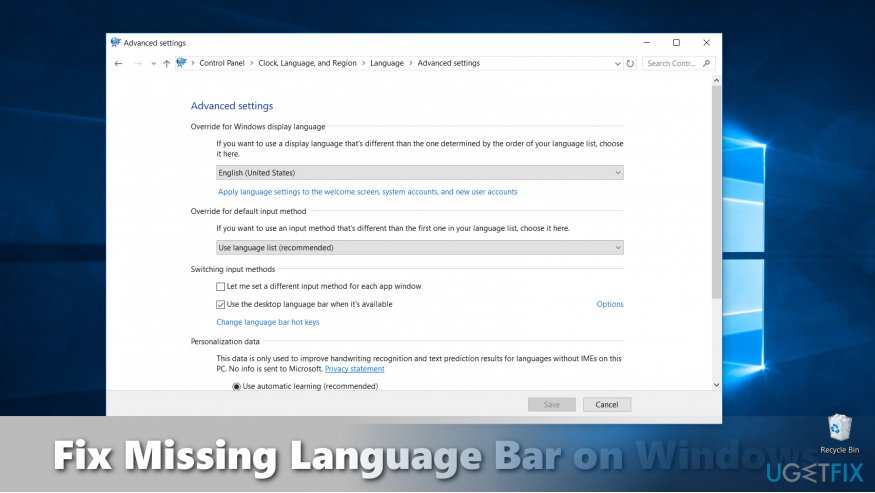
Option 1. Check Language Bar SettingsFix missing language bar
Users who made crucial changes to the system or upgraded to the latest Windows version might have been dissatisfied with the missing language bar. Usually, all they have to do is to change the display settings.
Click on the Start button and enter Region and Language settings (Language and Region on Windows 7)
Click on Additional date, time & regional settings (Advanced settings on Windows 7).
Click on Change input methods and under Language section.
Finally, navigate to Advanced settings. Check whether the bar Use the language bar when it’s available.
Windows 7 users should navigate to Control Panel -> Regional and Language Option -> Keyboards and Languages -> press Change Keyboards. Enter Language Bar and make sure Docked in Taskbar is marked.
If that does not solve the problem, Windows 10 users should also check alternative settings.
Click on the Start button and type Turn systems icons on or off.
Locate Input Indicator and make sure the bar is On.
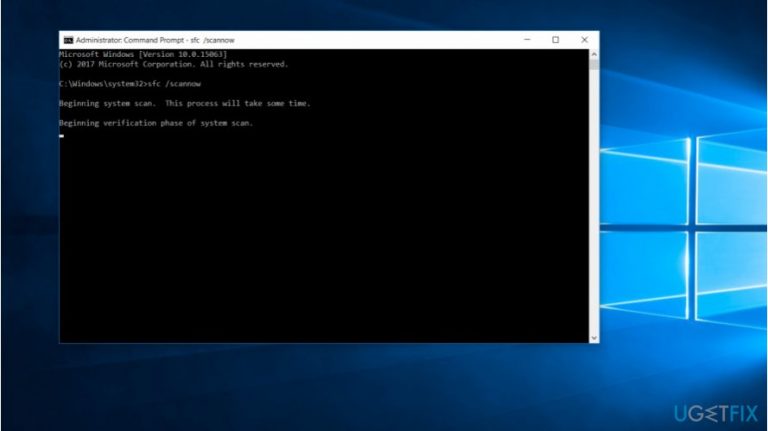
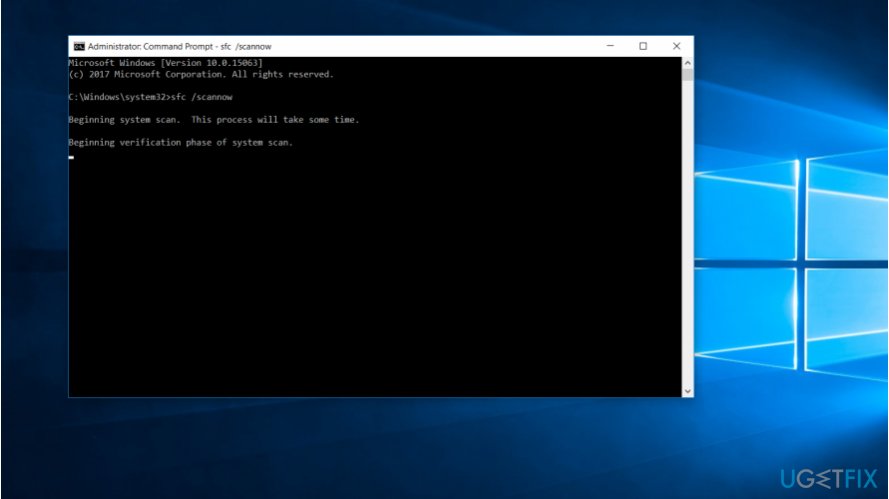
Option 2. Check for Corrupted System FilesSfc
Perhaps few users are aware that integrated System File Checker may indeed assist them in locating corrupted files and fix them.
Click on the Start button, type cmd. Right-click and chose Run as administrator.
Once Command Prompt launches, enter sfc /scannow and hit the Enter button.
If the issue is not of malicious origin, it should detect and solve the problem.
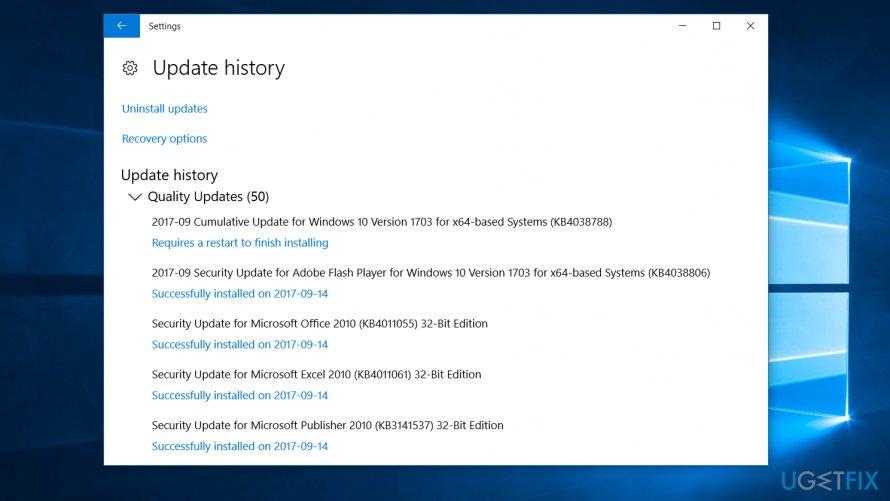
Option 3. Make Sure Recent Updates are Installed ProperlyUpdate history
Users reported that installing KB3152599 and KB3163207 updates solved the issue. If they are already installed, reinstall them. You can do so by choosing Update history and, later on, Uninstall updates.
Option 4. Use Alternative OptionsCtfmon
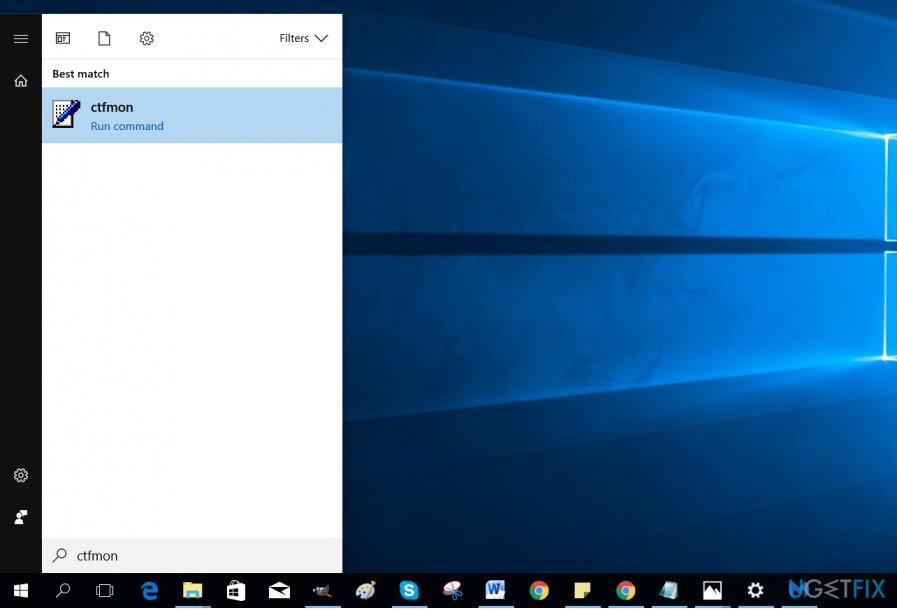
There is also an alternative solution, unfortunately, it is only temporal. Click on the Start button and type ctfmon. Choose Run command.
If these methods do not help, then the last option is to make use of Media Creation Tool. You should be able to update the system without having to reinstall the operating system.
Bottom line
To fix the missing language bar, check the language bar settings and ensure the option to use the language bar is enabled. Additionally, verify for corrupted system files using the System File Checker. If these solutions do not resolve the issue, further investigation may be needed.
Frequently asked questions
You can restore the language bar in Windows 10 by going to Settings > Time & Language > Language, then clicking on 'Keyboard' options and ensuring the 'Use the desktop language bar when it's available' option is checked.
If the language bar is still missing in Windows 11, try restarting your computer or checking the Taskbar settings to ensure the language bar is not hidden.
Yes, you can use the Alt + Shift shortcut to switch between input languages, which may also help in triggering the appearance of the language bar.
Browser troubleshootingExtension conflictsWeb app errorsBrowser performanceCache and cookie issues
Daniel Quinn specialises in browser troubleshooting and web application errors across Chrome, Firefox, Edge, and other major browsers on Windows. He covers browser crashes, extension conflicts, rendering failures, performance degradation, and compatibility errors with web-based tools. Daniel's guides help readers distinguish between a browser-level issue and an underlying Windows problem — narrowing down the cause before recommending a targeted fix. His writing is known for testing fixes across multiple browser versions and Windows editions, ensuring the steps work in real conditions.





Report an issue
What's wrong with this guide? We review every report and update or remove content.
Report received — thank you. We'll review and fix it.
You need a free account to submit a report.
Be the first to comment