How to fix
Teams error c0292007
on Windows
Resolve Teams error c0292007 on Windows 10 or Windows 11 quickly and efficiently with expert-tested solutions. Fix it in minutes!

What causes How to fix Teams error c0292007 in Windows?
- Corrupted application files
- Outdated software versions
- Conflicts with other applications
- Network connectivity problems
- Improper installation or unexpected shutdowns
Repairs Windows system files, removes malware, and restores a clean OS state — without reinstalling.
I keep getting error c0292007 in Teams when I'm trying to log in to the app. I had no problems before at all and this is the first time something like that happened with Teams. Please help me.
Microsoft Teams is a collaboration platform that combines chat, video meetings, file storage, and application integration. It is widely used by organizations for its robust features and ease of use, facilitating effective communication and teamwork. However, like any software, Teams is not immune to issues, and users may encounter various errors that can disrupt their workflow. One such error is error code c0292007, which can prevent users from accessing the application.
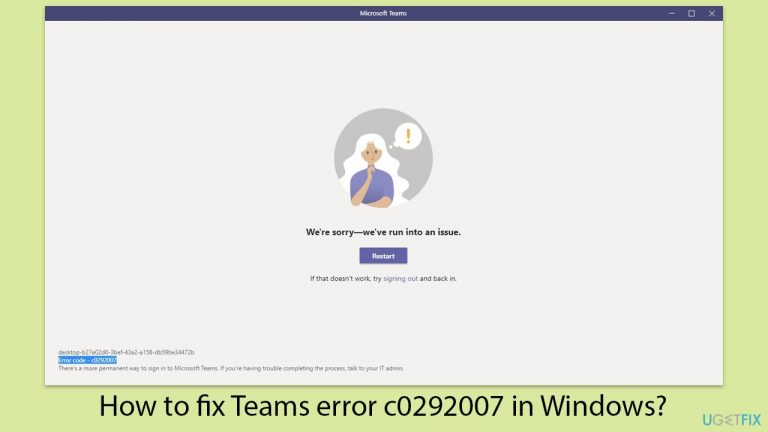
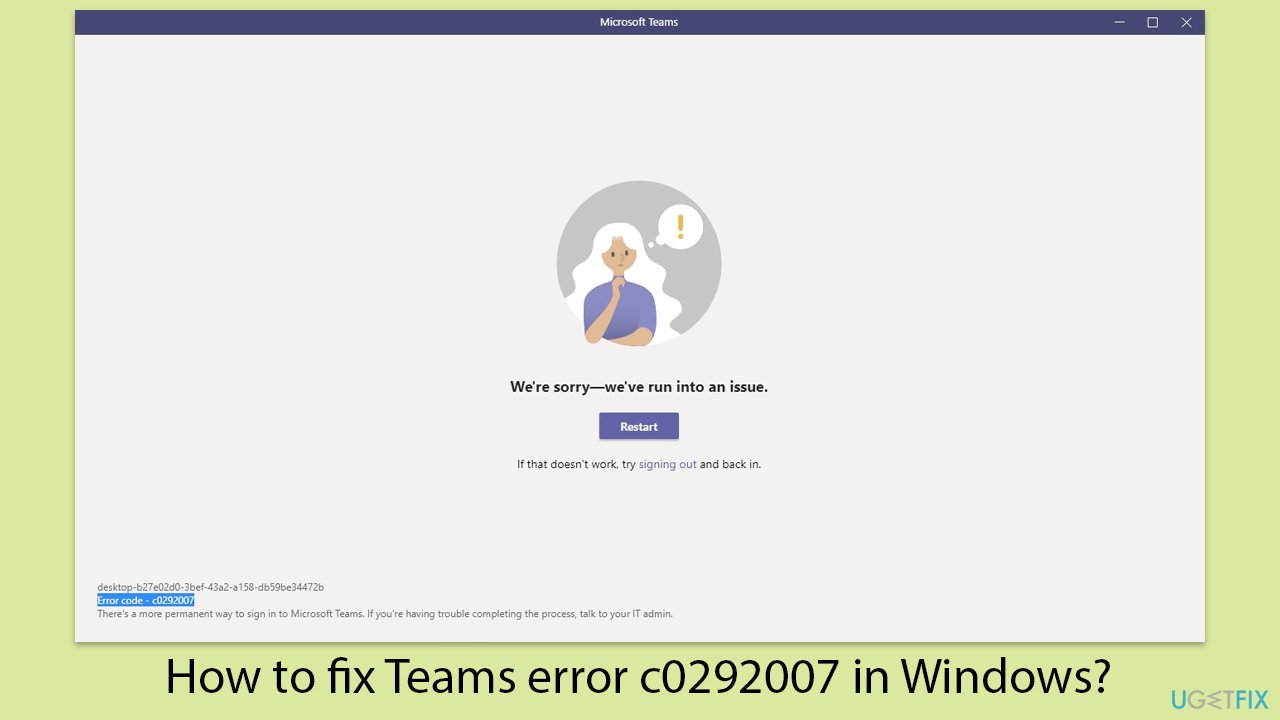
Microsoft Teams error code c0292007
Teams error c0292007 is a specific issue that some users experience when trying to launch or use Microsoft Teams. This error can be frustrating as it stops the application from functioning correctly, making it difficult to stay connected with colleagues and manage collaborative tasks.
Typically, the error message appears with a notification that Teams has encountered a problem and needs to restart. This issue can arise due to several reasons, including corrupted application files, outdated software, or conflicts with other applications.
Why Teams error c0292007 occurs
There are various reasons why you might encounter Teams error c0292007 on your Windows system. One common cause is corrupted application files, which can occur due to improper installation or unexpected shutdowns. Outdated software versions can also lead to compatibility issues, resulting in errors when trying to run Teams.
Additionally, conflicts with other installed applications or system settings can interfere with Teams' normal operations, triggering this specific error code. Network connectivity problems can also contribute to the occurrence of this error, especially if there are issues with the internet connection or firewall settings.
Possible solutions for Teams error c0292007
To resolve the Teams error c0292007, there are several potential solutions you can try. These solutions aim to address the underlying causes and restore the proper functionality of Microsoft Teams, ensuring a seamless communication experience. For detailed instructions on these solutions, please refer to the sections below this article.
Additionally, using a PC repair tool like [d1] can automatically address underlying Windows issues, ensuring a smoother and more reliable experience with Microsoft Teams.
Fix 1. Reconnect your account
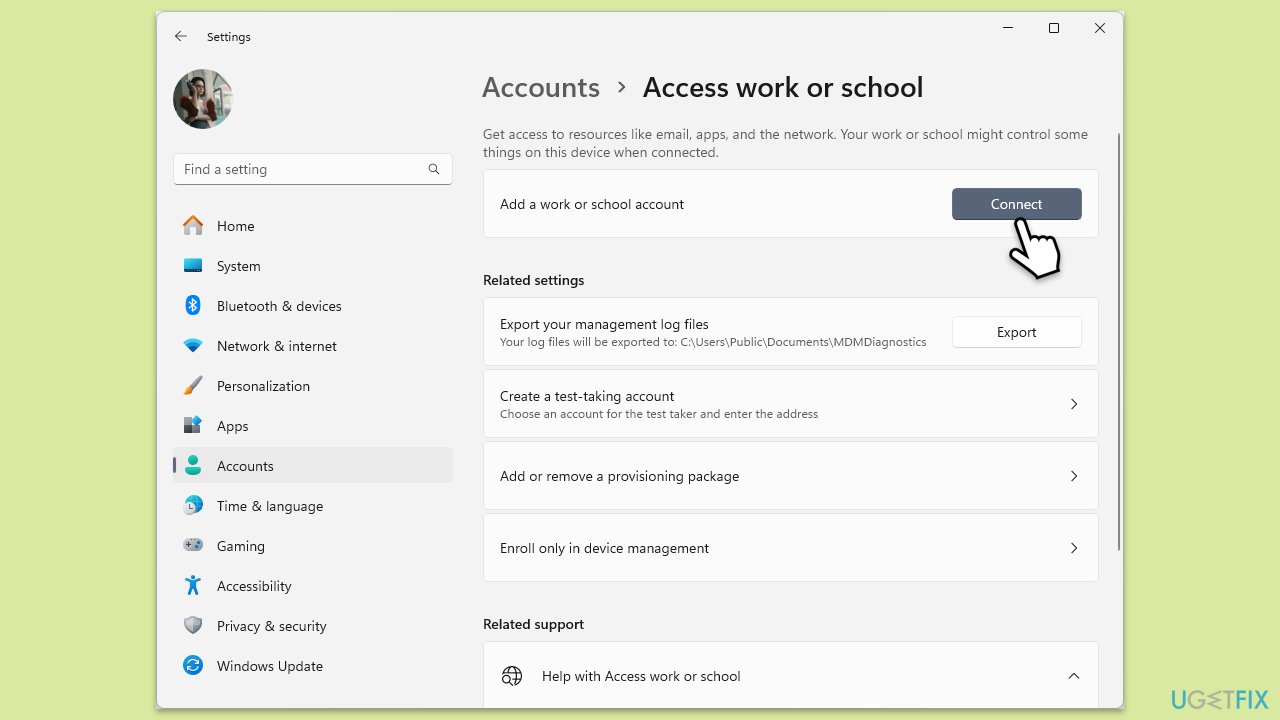
First, try to reconnect your school or work account (or another account), as it helped quite few people to fix the c0292007 error.
- Right-click on Start and pick Settings.
- Click on Accounts.
- Select Access work or school.
- Click on your account and then Disconnect.
- Navigate to C:\users\USERNAME\AppData\Local\Packages (replace USERNAME with your actual username).
- Delete the contents of the folder.
- Restart your computer.
- Return to Access work or school and connect the relevant account.
Fix 2. Update Microsoft Teams
Ensuring you have the latest version of Teams can resolve compatibility issues and fix bugs.
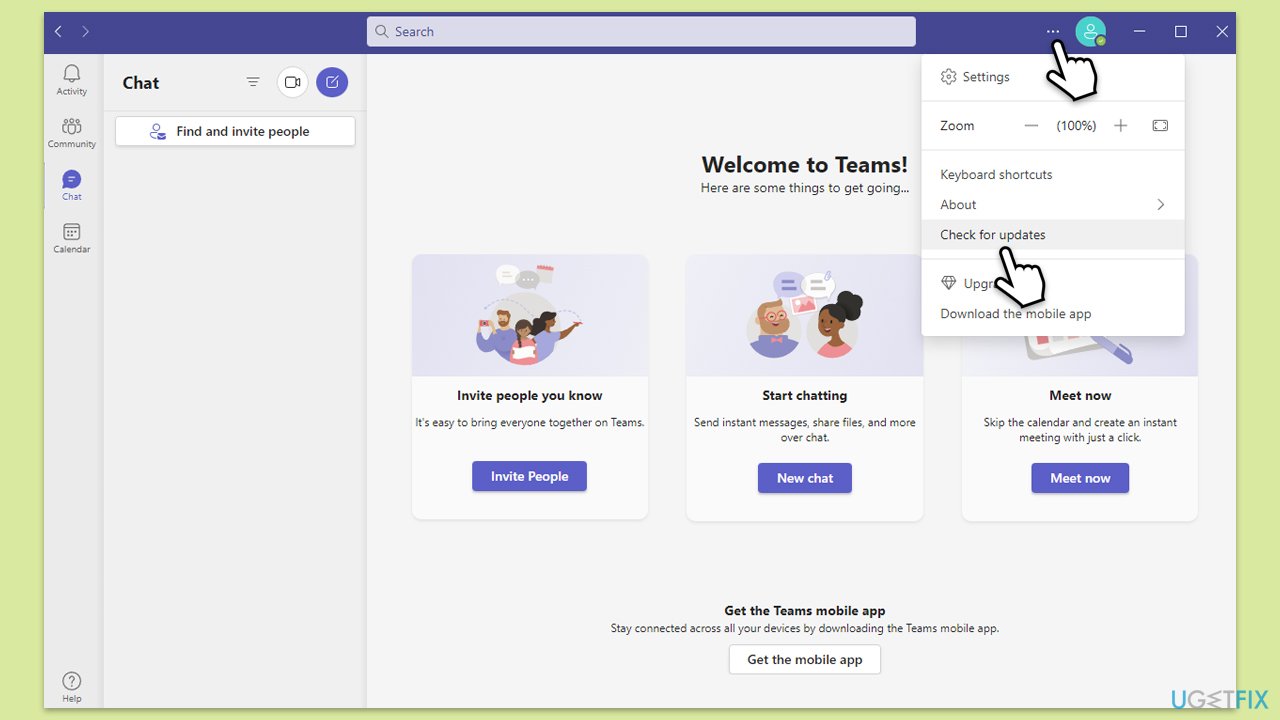
- Open Microsoft Teams.
- Click on the Settings and more button at the top-right corner.
- Select Check for updates.
- Teams will automatically download and install any available updates.
- Restart Teams after the update is completed.
Fix 3. Clear Teams cache
Clearing the cache can resolve issues caused by corrupted temporary files.
- Close Microsoft Teams.
- Press Win + R on your keyboard to open the Run dialog.
- Type %AppData% and press Enter or click OK.
- Delete the contents of the following locations:
%AppData%\Microsoft\teams\application cache\cache
%AppData%\Microsoft\teams\blob_storage
%AppData%\Microsoft\teams\databases
%AppData%\Microsoft\teams\cache
%AppData%\Microsoft\teams\gpucache
%AppData%\Microsoft\teams\Indexeddb
%AppData%\Microsoft\teams\Local Storage
%AppData%\Microsoft\teams\tmp - Try launching Teams again.
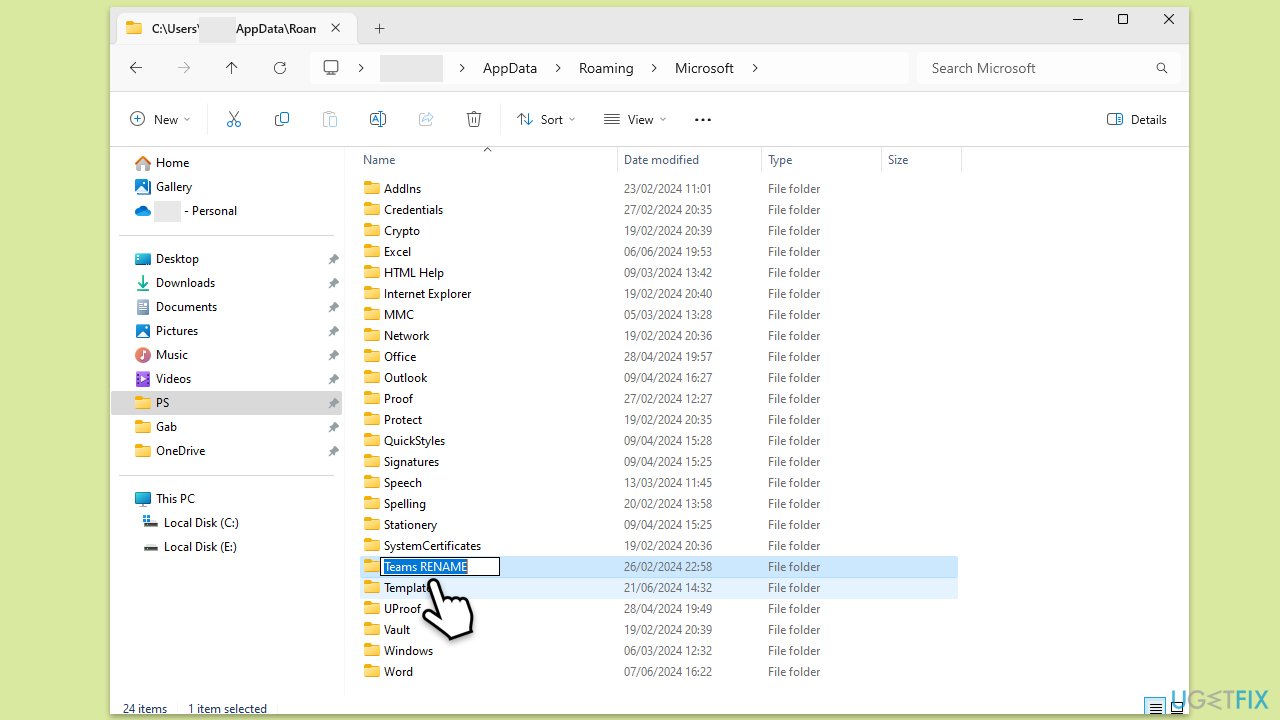
For some users, this solution was not sufficient. If that's the case for you, follow these steps instead:
- Close Teams.
- Open File Explorer and navigate to the following location:
C:\Users\USERNAME\AppData\Roaming\Microsoft - Rename the Teams folder to something else.
- Try launching Teams again and using your login information.
Fix 4. Reinstall Microsoft Teams
Reinstalling the application can fix issues related to corrupted installation files.
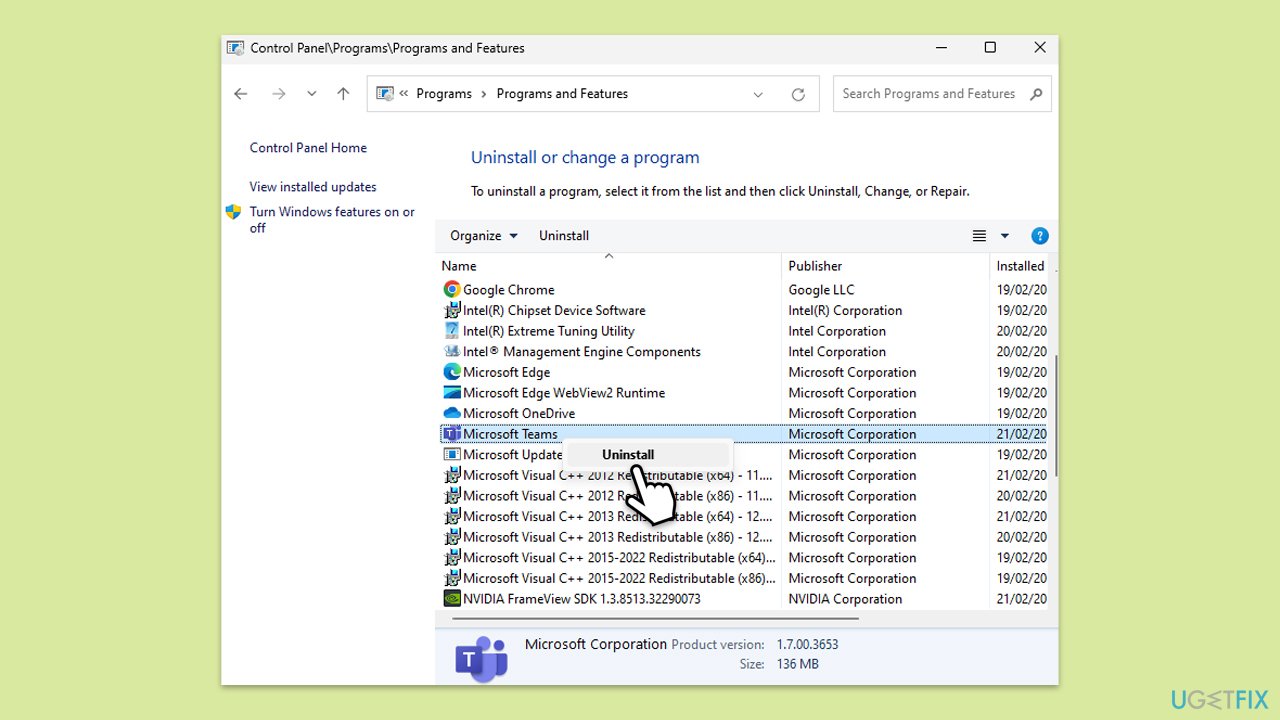
- Type Control Panel in Windows search and press Enter.
- Go to Programs > Uninstall a program.
- Find Microsoft Teams, right-click, and select Uninstall.
- Follow the prompts to remove the app.
- Once done, press Win + E to open File Explorer.
- In the View tab at the top of the window, enable Hidden Files.
- Go to C:\Program Files\WindowsApps location.
- Scroll down to find the Microsoft Teams folder and delete it (alternatively, you can rename it).
- Now type %AppData% in Windows search and press Enter.
- Delete the Teams folder here.
- Finally, restart your system and reinstall the app.
Fix 5. Check Network and Firewall settings
Ensuring proper network configuration and firewall settings can help resolve connectivity-related errors.
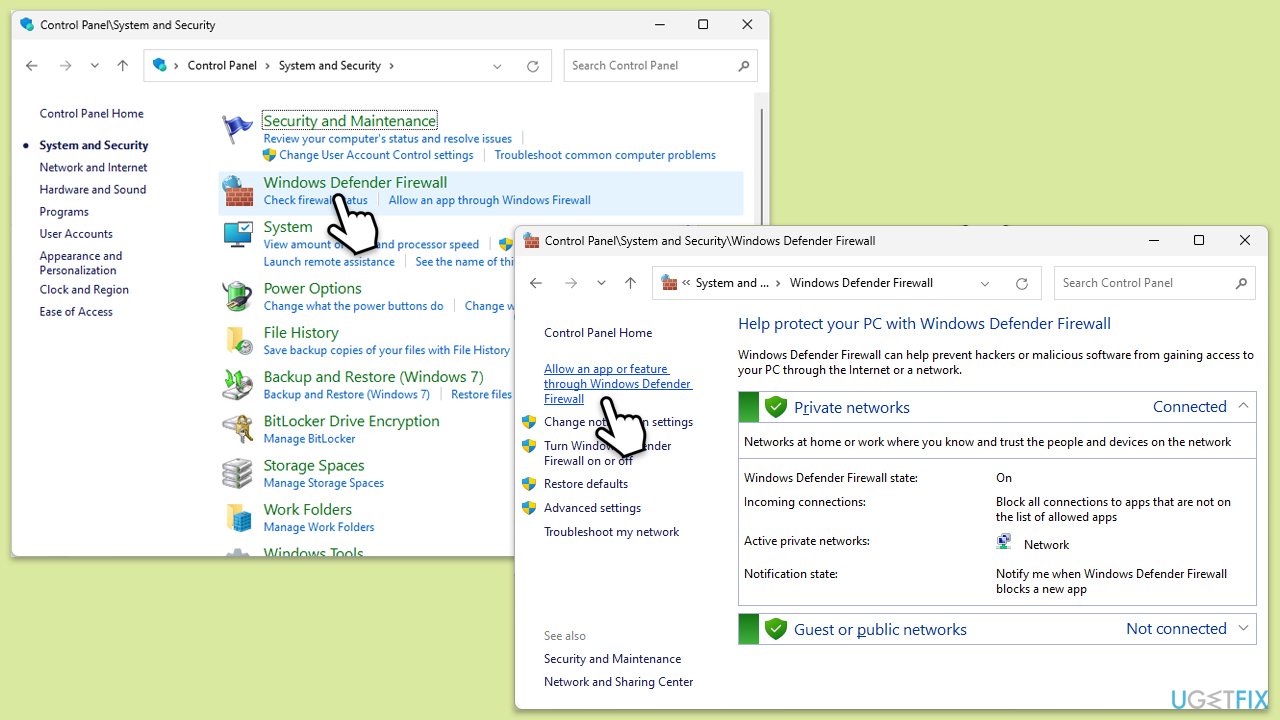
- Open the Control Panel and navigate to System and Security > Windows Defender Firewall.
- Select Allow an app or feature through Windows Defender Firewall.
- Click Change settings and enter your administrator password if prompted.
- Find Microsoft Teams in the list and check both the Private and Public boxes.
- Click OK to save your changes.
Fix 6. Run Windows Update
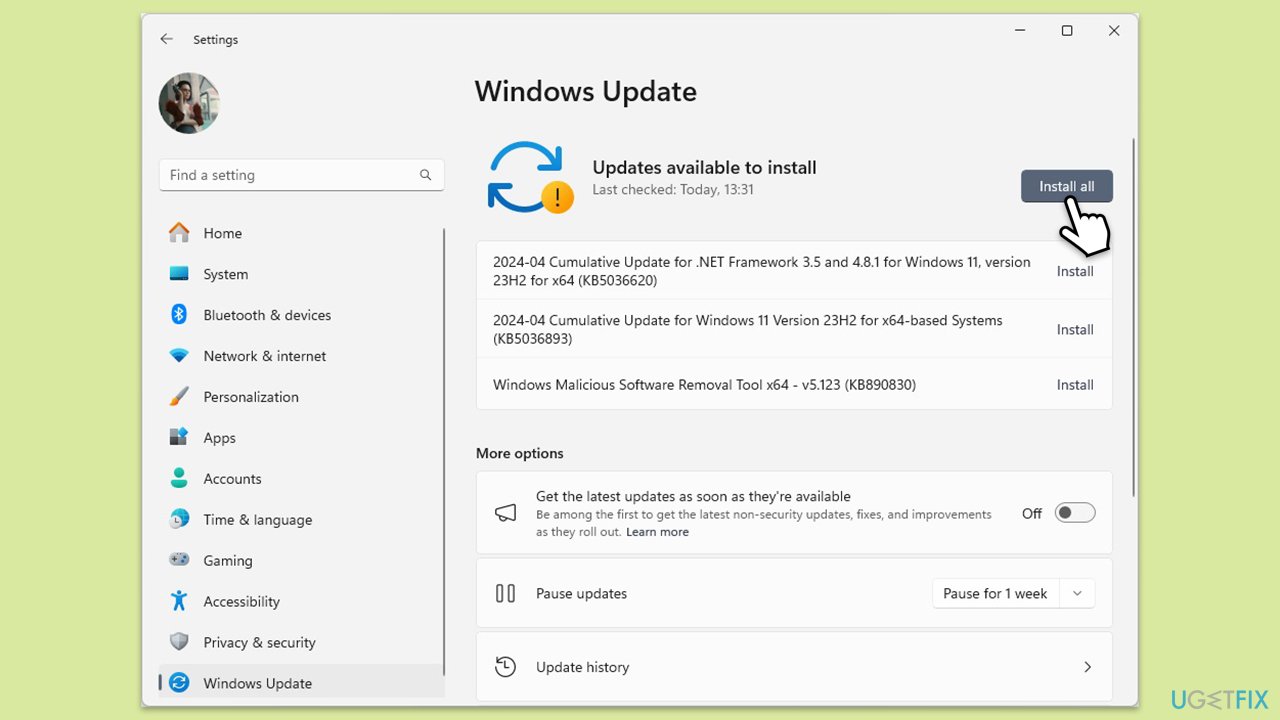
- Type Updates in the Windows search box and press Enter.
- Click Check for Updates or Install all.
- Ensure optional and pending updates are installed as well.
- Wait till the process is finished.
- Restart your device.
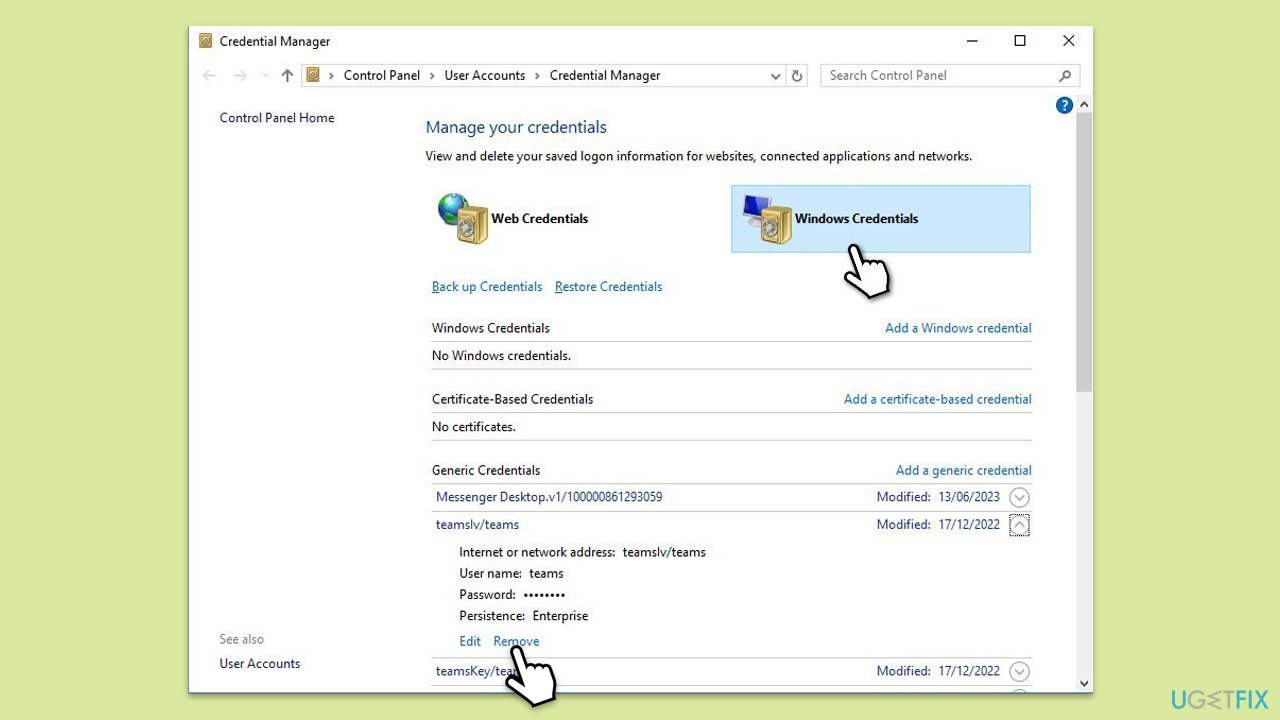
Fix 7. Clear credentials in Credential Manager
- Type Credential Manager in Windows search and press Enter.
- Select Windows Credentials.
- Locate and remove any stored credentials related to Microsoft Teams or Office 365.
- Restart your PC.
- Attempt to log in again.
Bottom line
To resolve the Teams error c0292007, you can try several potential solutions such as repairing the application, updating software, or checking network settings. If these fixes do not work, consider reaching out to Microsoft support for further assistance.
Frequently asked questions
The Teams error c0292007 typically indicates issues with the Teams application settings or corrupted installation files in Windows 10 or Windows 11.
To fix the c0292007 error, try clearing the Teams cache, repairing the application via the Settings menu, or reinstalling Teams on your Windows 10 or Windows 11 device.
Yes, ensuring that your Windows 10 or Windows 11 is up-to-date can help prevent Teams errors, including c0292007, as updates may include important compatibility fixes.




Report an issue
What's wrong with this guide? We review every report and update or remove content.
Report received — thank you. We'll review and fix it.
You need a free account to submit a report.
Be the first to comment