How to fix
Xbox Live login error 0x89235107
on Windows
Resolve the Xbox Live login error 0x89235107 on Windows 10 or 11 effortlessly. Quick fixes and expert-tested solutions inside for seamless gaming!

What causes How to fix Xbox Live login error 0x89235107 in Windows?
- Outdated software
- Outdated Gaming Services
- Network connectivity issues
- Corrupted Xbox Live account
- Issues with Windows updates
Repairs Windows system files, removes malware, and restores a clean OS state — without reinstalling.
I am getting the following error when I'm trying to log in to Xbox Live on Windows and keep getting the following error: 0x89235107. This was happening before the Windows update, and now when I thought it would get fixed - it still remains. Other apps work fine.
0x89235107 is a login error related to Xbox Live service and always occurs on Windows PCs exclusively. Xbox Live is an online gaming and digital media service created by Microsoft for its Xbox console series. Launched in 2002, it allows players to connect with each other for multiplayer gaming, access digital content, and download games and updates. Xbox Live provides a range of services, including online multiplayer gaming, voice chat, and access to entertainment apps.
As such, the 0x89235107 error prevents people from accessing games related to the Xbox Live service. This can be any game purchased through Microsoft Store, Game Pass, or other methods. Many Minecraft players were also affected by it.
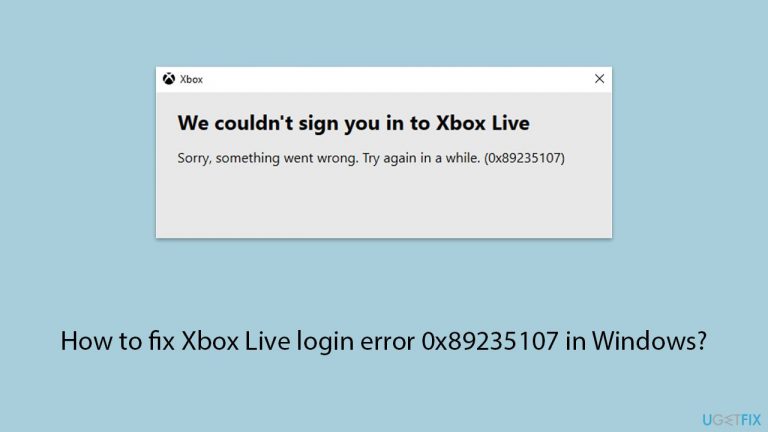
When this issue occurs, users are presented with the following message:
We couldn't sign you in to Xbox Live.
Sorry, something went wrong. Try again in a while (0x89235107).
The message does not provide a lot or even enough information for people to go on in order to fix the 0x89235107 error, which can be problematic, especially for those who are not as savvy in the IT field.
Luckily, resolving the issue is usually not that difficult - all you need to do is follow the instructions below, and at least one of the provided solutions should work for you. The main problem usually lies within outdated software or Gaming Services.
Before proceeding with manual steps, we highly recommend you employ a PC repair and maintenance tool [d1], which can easily fix your Windows issues almost instantly without you having to troubleshoot yourself.
Fix 1. Update Windows
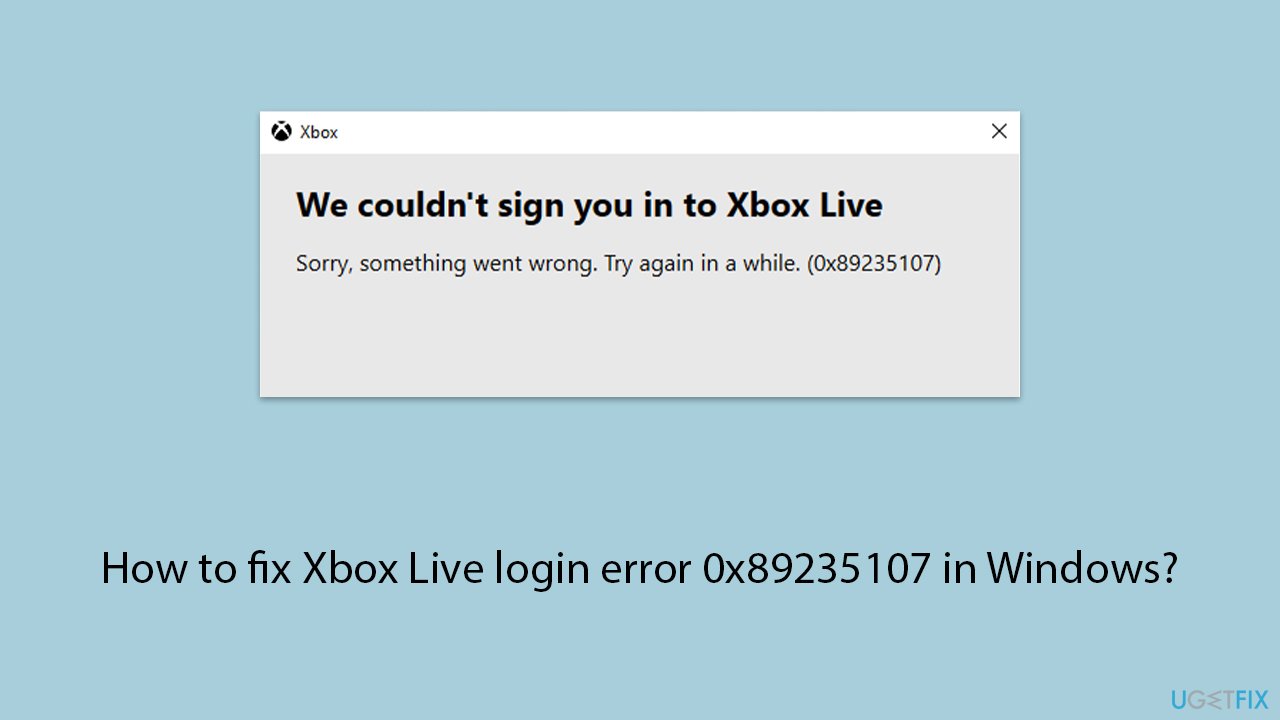
- Type Updates in Windows search and hit Enter.
- If updates are available, click Install updates.
- Otherwise, click Check for updates.
- If optional updates are available, install them as well.
- When all the update processes are complete, restart your computer.
Fix 2. Update all Windows apps in the Microsoft Store
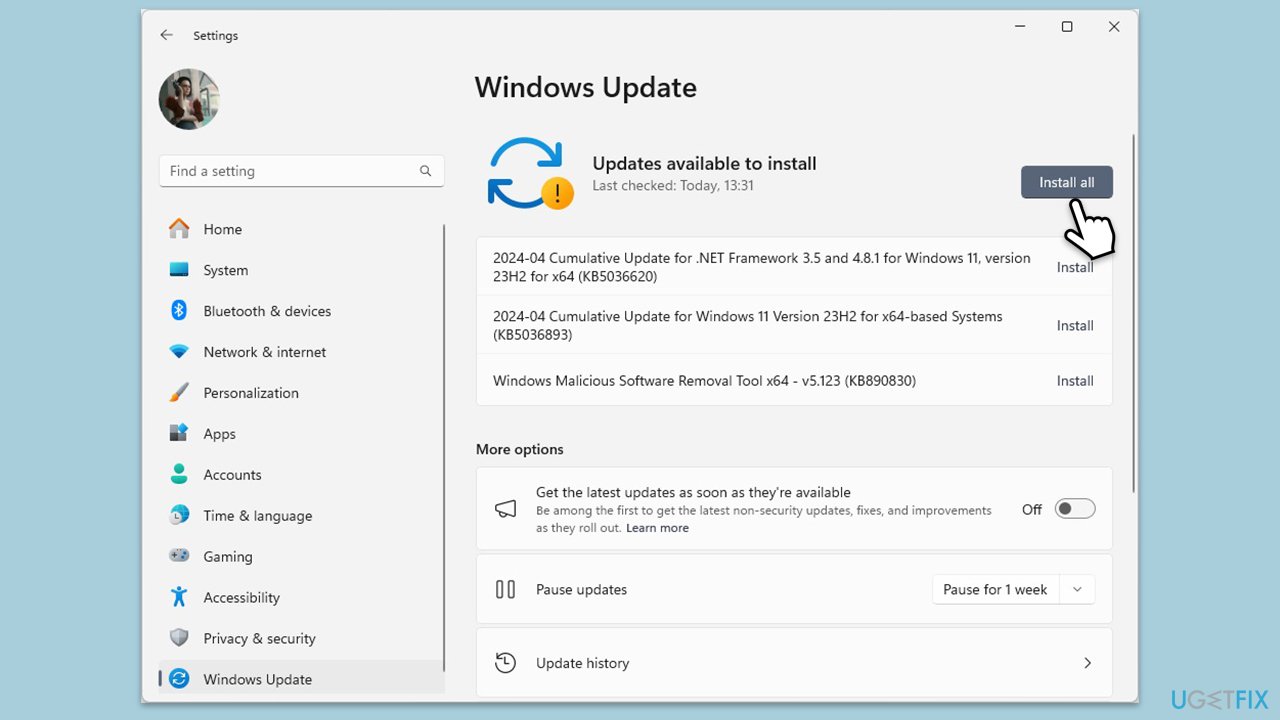
- Open Microsoft Store.
- Click on Library.
- If updates are pending, click Update all.
- Otherwise, click Get updates.
- You can also update the app individually.
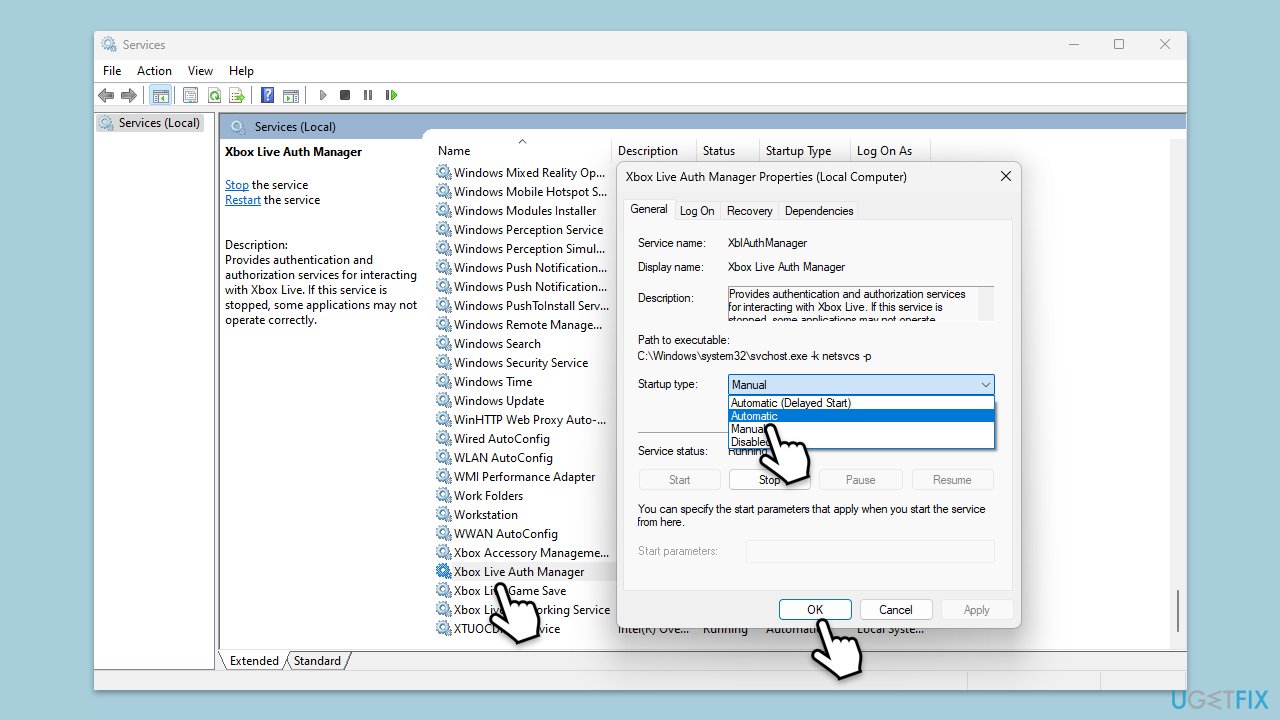
Fix 3. Ensure all relevant services are running
- Type Services in Windows search and press Enter.
- Locate Microsoft Store Install Service.
- If it is already running, right-click and select Restart.
- if the service is not running, double-click it, and pick Automatic under the Startup type from the drop-down menu.
- Click Start, Apply, and OK.
- Repeat this process with the following services:
Xbox Live Network Service
Xbox Live Saved Games
Xbox Live Authentication Manager - Restart your PC.
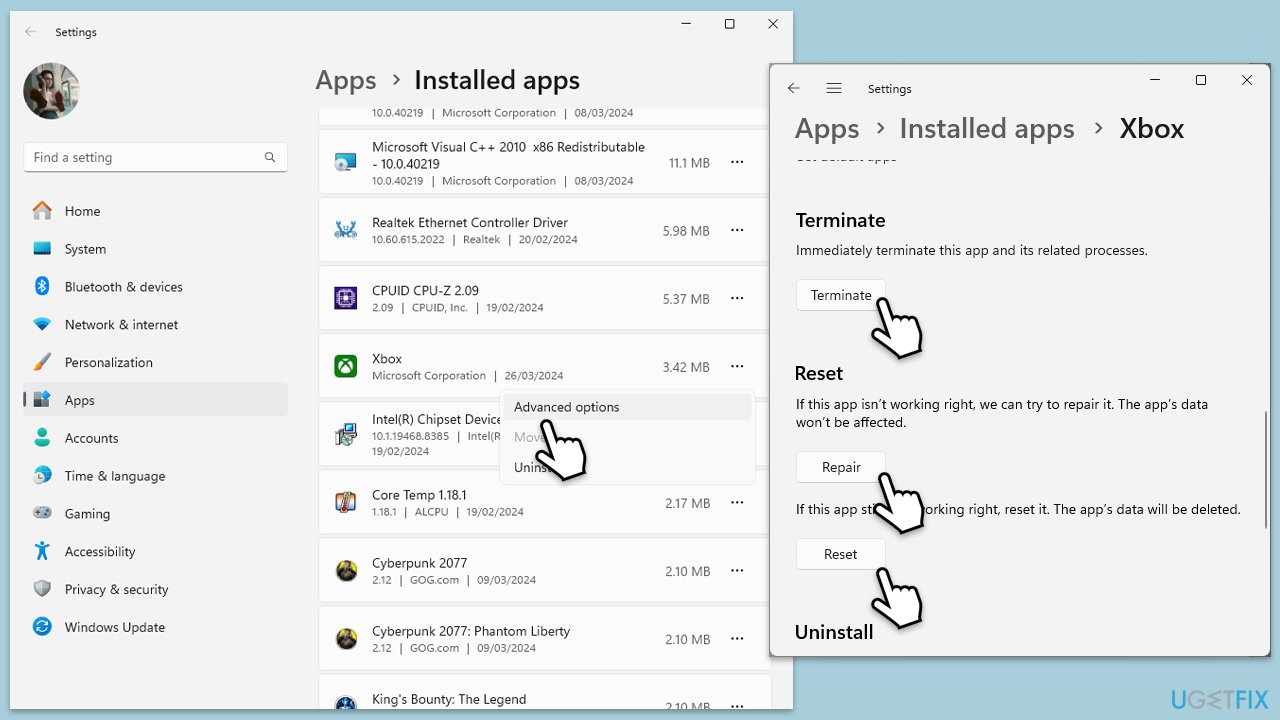
Fix 4. Repair or reset the Xbox app, Microsoft Store and Gaming Services
- Right-click on Start and select Apps & Features/Installed apps.
- Scroll down to find the Xbox app and click Advanced options.
- Scroll down again and click Terminate and Repair.
- If that does not work, try using Reset.
- Repeat this process with the Microsoft Store and Gaming Services as necessary.
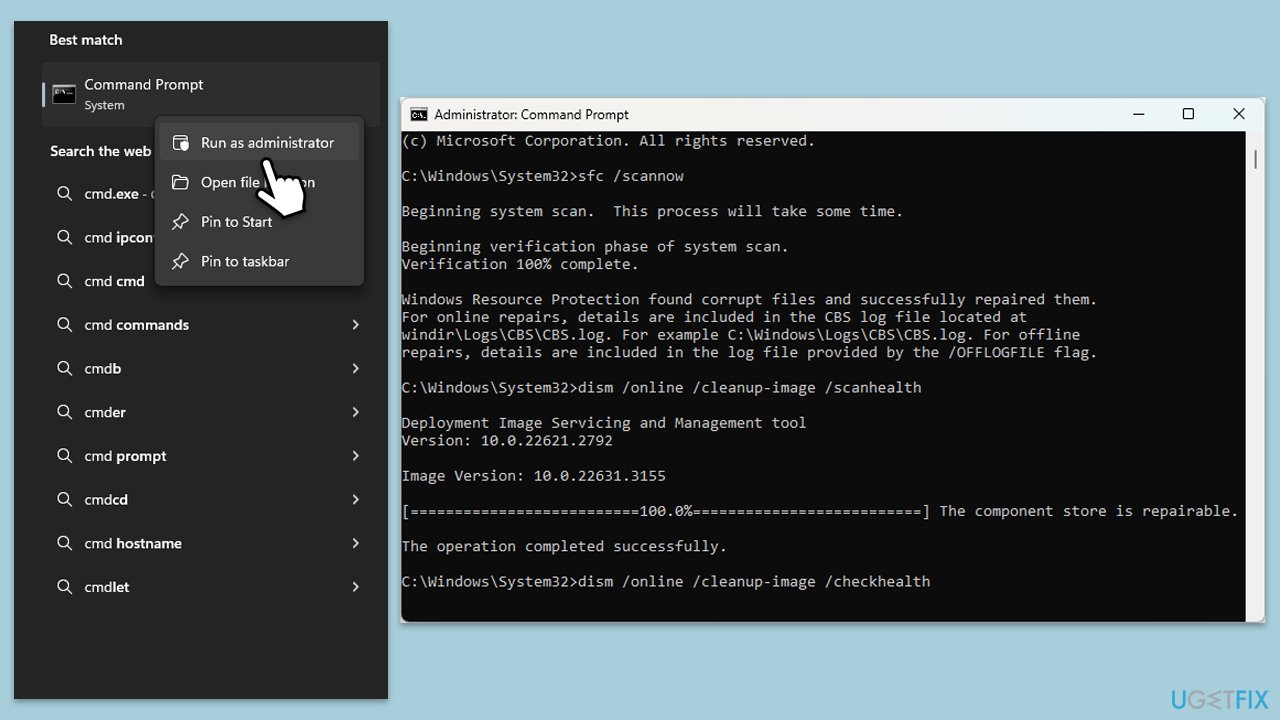
Fix 5. Repair system file corruption
- Type in cmd in Windows search.
- Right-click on Command Prompt and select Run as administrator.
- When User Account Control shows up, click Yes.
- In the Command Prompt window, paste the following command and hit Enter:
sfc /scannow - Next, use the following commands, pressing Enter each time:
Dism /Online /Cleanup-Image /CheckHealth
Dism /Online /Cleanup-Image /ScanHealth
Dism /Online /Cleanup-Image /RestoreHealth
(Note: if you get an error executing this last command, add /Source:C:\RepairSource\Windows /LimitAccess to it and try again). - Reboot your computer.
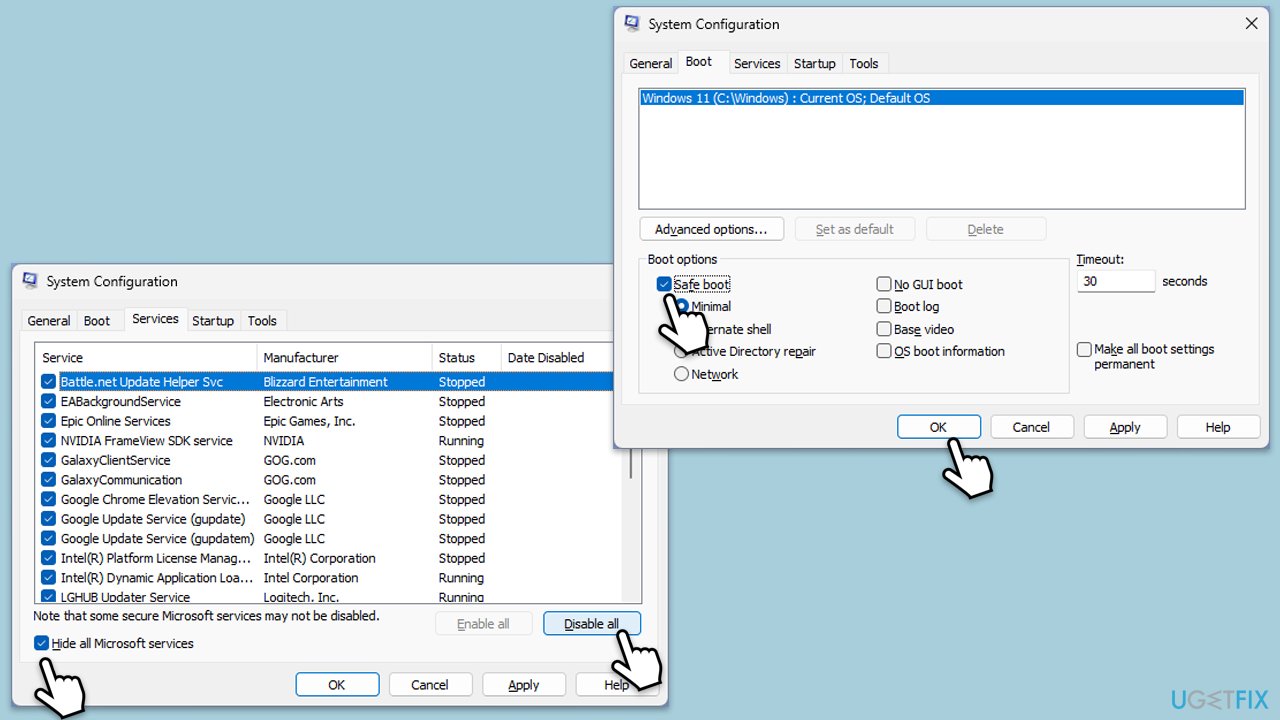
Fix 6. Try Clean Boot
- Type msconfig inWindows Search and press Enter to open the System Configuration window.
- Click on the Services tab and check the Hide all Microsoft Services box.
- Click Disable all to disable non-Microsoft services, then click the Startup tab.
- Open the Task Manager, disable all startup items, and close the Task Manager.
- Go to the Boot tab and mark the Safe boot option.
- Click OK on the System Configuration window and restart your computer.
- If the problem does not exist, third-party software is at fault. To determine which app is causing it try enabling half of the available programs, restarting, and checking if the the problem is still absent. Continue till you find the offending software and either update or uninstall it.
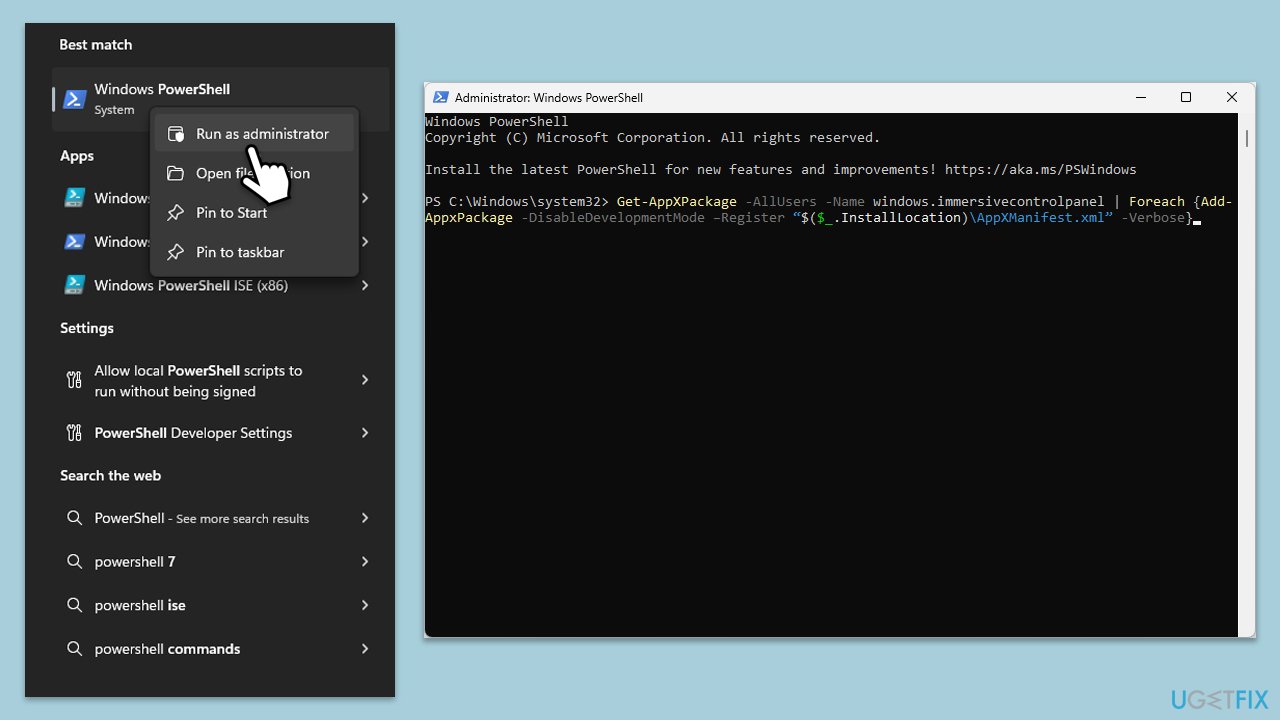
Fix 7. Re-register all Windows apps
- Ensure the Microsoft Store and Xbox App are closed.
- Type PowerShell in Windows search.
- Right-click on the result and select Run as administrator.
- When User Account Control shows up, click Yes.
- Copy and paste the following command, pressing Enter after each:
Get-AppXPackage | Foreach {Add-AppxPackage -DisableDevelopmentMode -Register "$($_.InstallLocation)\AppXManifest.xml"} - Close down PowerShell and restart your computer.
Fix 8. Remove Gaming Services
Some users said that the only way to fix the 0x89235107 error was by removing Gaming Services from their systems.
- Open PowerShell as administrator.
- In the new window, copy and paste the following commands and hit Enter:
get-appxpackage Microsoft.GamingServices | remove-Appxpackage –allusers
Remove-Item -Path "HKLM:\System\CurrentControlSet\Services\GamingServices" -recurse
Remove-Item -Path "HKLM:\System\CurrentControlSet\Services\GamingServicesNet" -recurse - Close down PowerShell and restart your system.
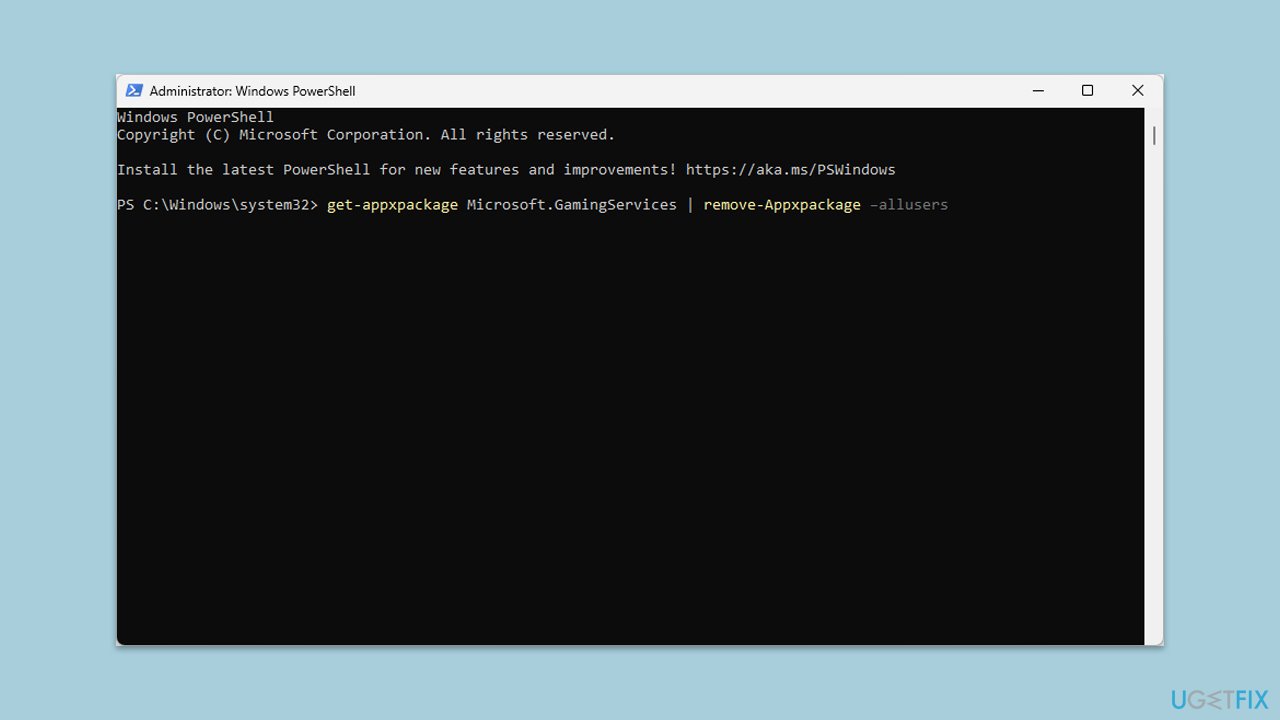
If you want to keep Gaming Services off your system (they are likely to be reinstalled with a new game installation or an update), you should repeat this process to remove them.
Bottom line
To fix the Xbox Live login error 0x89235107, you can update Windows, install optional updates, and ensure your Gaming Services are up to date. If these steps do not resolve the issue, consider using a PC repair and maintenance tool or further troubleshooting methods.
Frequently asked questions
The error 0x89235107 typically indicates a connectivity issue or a problem with your Xbox Live account settings on Windows 10 or Windows 11.
To fix this error, try resetting your network settings, ensuring that your Windows 10 or Windows 11 is updated, and checking your Xbox Live service status.
Yes, you can troubleshoot the 0x89235107 error by clearing the Xbox app cache, signing out and back into your account, or using the Windows troubleshooter.




Report an issue
What's wrong with this guide? We review every report and update or remove content.
Report received — thank you. We'll review and fix it.
You need a free account to submit a report.
Be the first to comment