How to fix
Office installation error 30094
on Windows
Resolve Office installation error 30094 on Windows 10 or 11 quickly and easily. Follow our expert-tested guide for efficient fixes that work every time.


What causes How to fix Office installation error 30094 in Windows?
- Corrupted installation files
- Unstable internet connection
- Conflicts with another version of Office
- Interference from other software or system processes
- Accumulated cache and temporary files
Repairs Windows system files, removes malware, and restores a clean OS state — without reinstalling.
Could you please inform me of what I need to do to get Microsoft Office installed? I'm getting the same error all the time - Error Code 30094-2023.
When attempting to install Microsoft Office on Windows machines, some users encounter the 30094 error, which abruptly halts the installation process. This error disrupts the seamless installation of Office, creating a significant inconvenience for users eager to utilize the software.
Understanding the issue
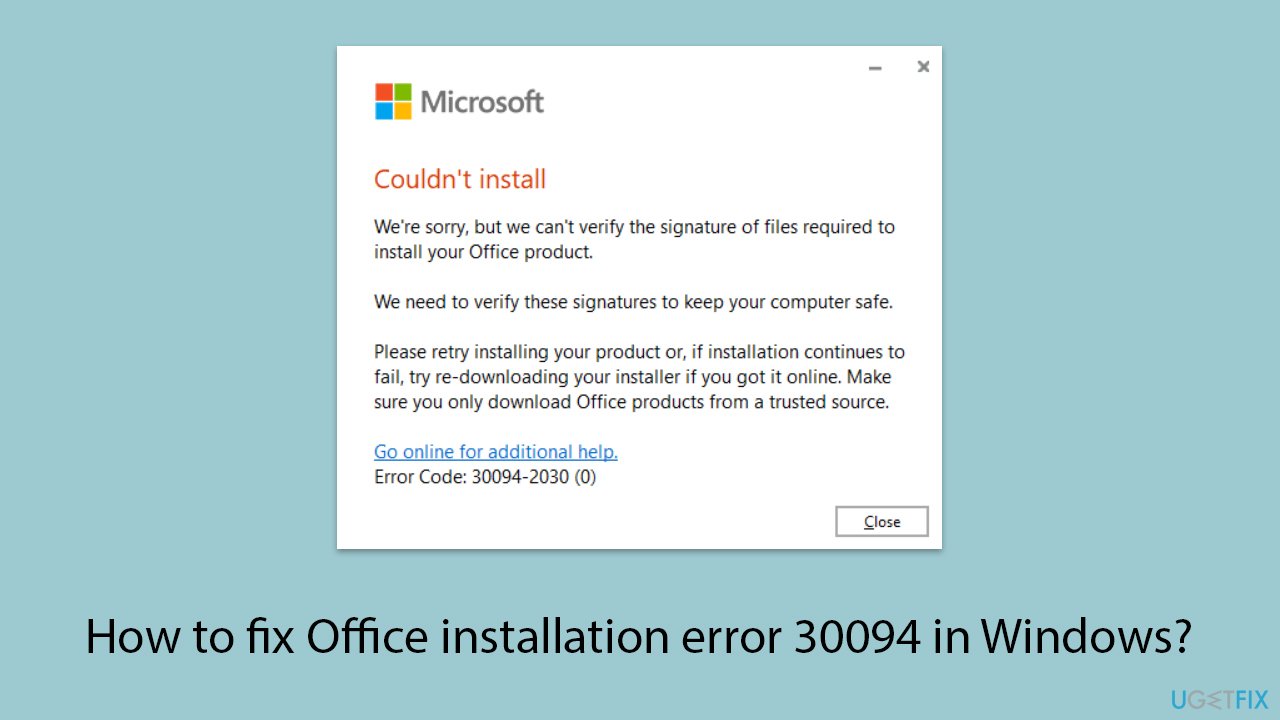
The occurrence of the 30094 error stems from a verification problem. The full error message states:
Couldn't install. We're sorry, but we can't verify the signature of files required to install your Office product. We need to verify these signatures to keep your computer safe. Please retry installing your product or, if installation continues to fail, try re-downloading your installer if you got it online. Make sure you only download Office products from a trusted source. Error Code: 30094-2030.
The message tells us that the digital signatures of the installation files can't be checked, and that's really important for keeping our system secure and reliable. The verification might fail because the installation files are corrupted, the internet connection is not stable, or other software or system processes are causing interference.
Resolving Office error code: 30094
Dealing with the Office error code 30094? Well, there are a couple of ways to tackle it. One suggestion is to clear out the cache and temporary files on your system, as all that built-up data could be causing issues with the installation.
Additionally, if another version of Office is already installed on your system, uninstalling it might prevent conflicts during the new installation. Utilizing the Recovery and Support Assistant can help diagnose and fix common issues related to Office installations. Running a Clean Boot can also be effective, as it minimizes software conflicts by starting Windows with a minimal set of drivers and startup programs.
Lastly, checking for network issues and ensuring a stable internet connection is crucial, as an unstable connection can hinder the verification process of installation files. Detailed instructions on these solutions will be provided below the article. In some cases, using a PC repair tool like [d1] can automatically fix any underlying Windows issues, ensuring a smoother installation process.
Fix 1. Clear cache and temporary files
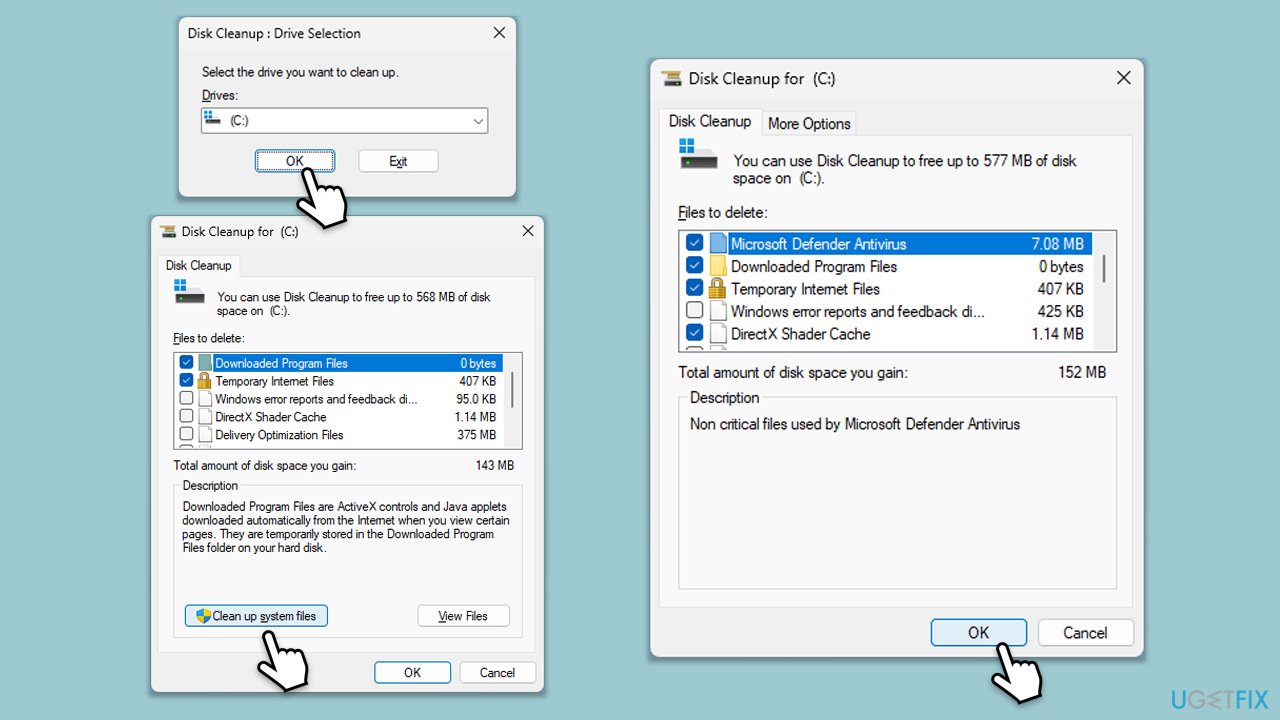
Deleting cache and temporary files can remove any corrupted data that might be causing problems with setting up Office.
- Type Disk Cleanup in Windows search and hit Enter.
- If your Windows is installed on drive C, pick it from the list (it should be by default) and press OK.
- Click Clean up system files.
- Select your main disk again and click OK.
- Here, select the largest portions of the data used - these typically include Temporary Internet Files, Windows Update, Temporary Files, Recycle Bin, Delivery Optimization Files, and others.
- Click OK - the process should be finished shortly.
Fix 2. Uninstall previous Office versions
Having multiple versions of Office installed can cause conflicts and prevent successful installation of the new version.
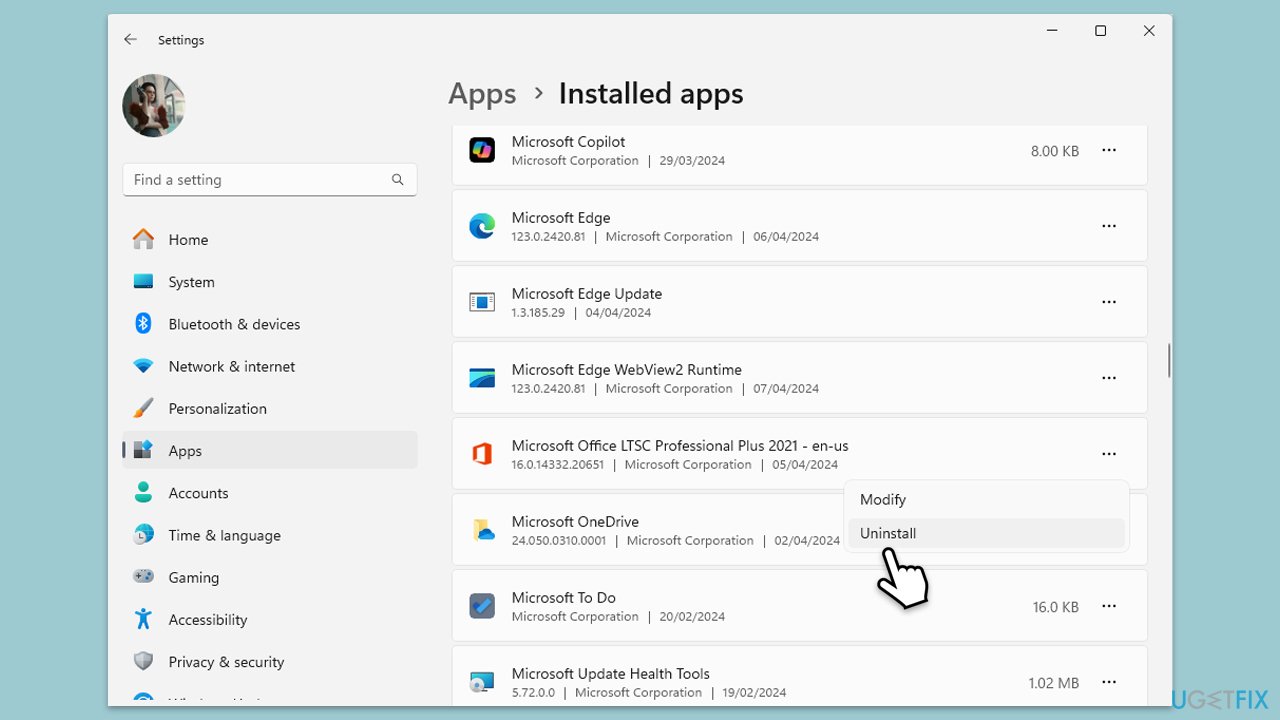
- Right-click on Start and pick Apps and Features/Installed apps.
- Scroll down to find the MS Office installation.
- Click Uninstall and confirm with Uninstall.
- Follow the on-screen instructions to delete the app.
- Press Win + E to open File Explorer.
- Navigate to the following location and delete its contents:
C:\Program Files\Microsoft Office - Next, type regedit in Windows search and press Enter.
- Go to the following locations in the Registry Editor and delete these items:
Computer\HKEY_LOCAL_MACHINE\SOFTWARE\Microsoft\AppVISV
Computer\HKEY_LOCAL_MACHINE\SOFTWARE\Microsoft\Office\ClickToRun
Computer\HKEY_CURRENT_USER\Software\Microsoft\Office - Restart your computer.
Fix 3. Use the Recovery and Support Assistant
Recovery and Support Assistant can diagnose and fix common issues related to Office installations.
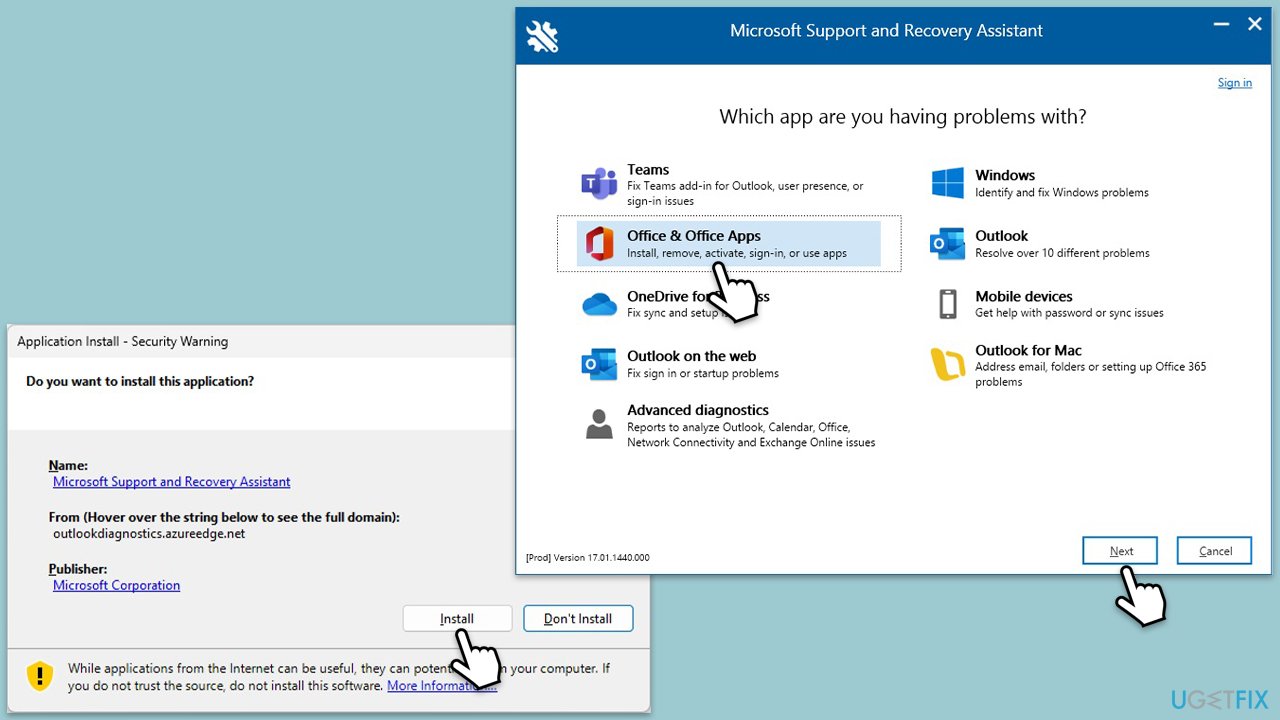
- Open your browser and go to the official Microsoft support website.
- Scroll down and click Download under Uninstall and reinstall Office.
- Once downloaded, double-click SetupProd_OffScrub.exe to launch it.
- When prompted, click Install.
- Once installed, launch Microsoft Support and Recovery Assistant.
- Select Office & Office Apps and click Next.
- Next, choose I have Office 365 subscription, but I'm having trouble installing it option and click Next.
- Click Yes to begin a scan.
- Follow instructions after the scan is finished.
Fix 4. Run a Clean Boot
Running a Clean Boot means that Windows will start with just the basic drivers and startup programs, helping to avoid any clashes between software.
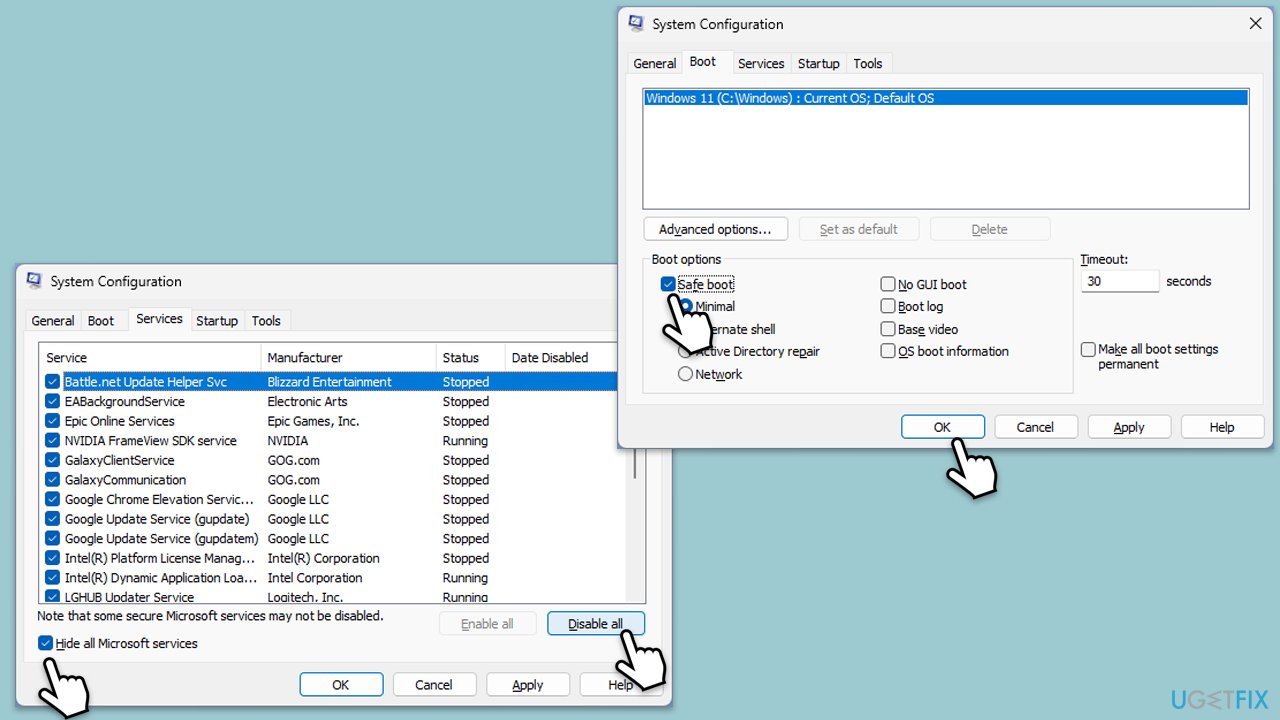
- Type msconfig in the Windows search box and press Enter.
- Pick the Services tab.
- Mark Hide all Microsoft services and select Disable all.
- Select the Startup tab and click Open Task Manager.
- In the Task Manager, right-click on each of the items and select Disable, then close the Task Manager.
- Go to the Boot tab, mark the Safe Boot option, then click Apply and OK.
- On the System Configuration window, click OK.
- Restart your computer and attempt to install/update Office.
Fix 5. Check network connection
A stable internet connection is essential for verifying the digital signatures of installation files.
- Check your internet connection and restart your router if necessary.
- Temporarily disable any VPN connections.
- Temporarily disable your antivirus software.
- Turn off your firewall through the Control Panel under System and Security > Windows Defender Firewall > Turn Windows Defender Firewall on or off.
- Try connecting to a different network if possible.
Fix 6. Re-download the installer
Downloading a fresh copy of an offline Office installer can resolve issues related to corrupted installation files.
- Go to office.com and sign in with your account (ensure it's the same account used for subscription purchases).
- Select Install Office, then choose Install Office again on the Installs page.
- In the Download and Install window, click on Other options.
- Check the box to download the offline installer and select your preferred language. Click Download.
- Save the installation file to a drive with sufficient storage space; it will create a virtual drive.
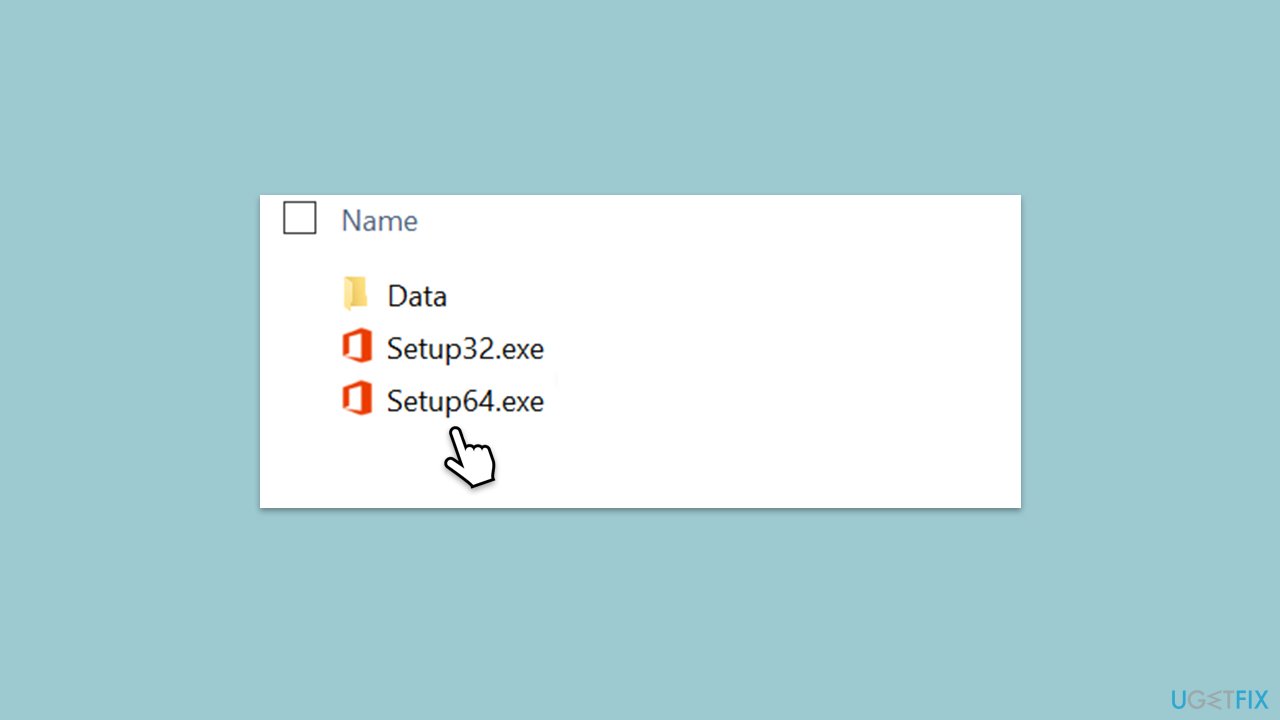
- Double-click the downloaded file, which will appear in File Explorer.
- Click on the virtual disk, then double-click either Setup32.exe or Setup64.exe to initiate the installation.
Fix 7. Update Windows
Keeping Windows up to date ensures compatibility with the latest software and can resolve installation issues.
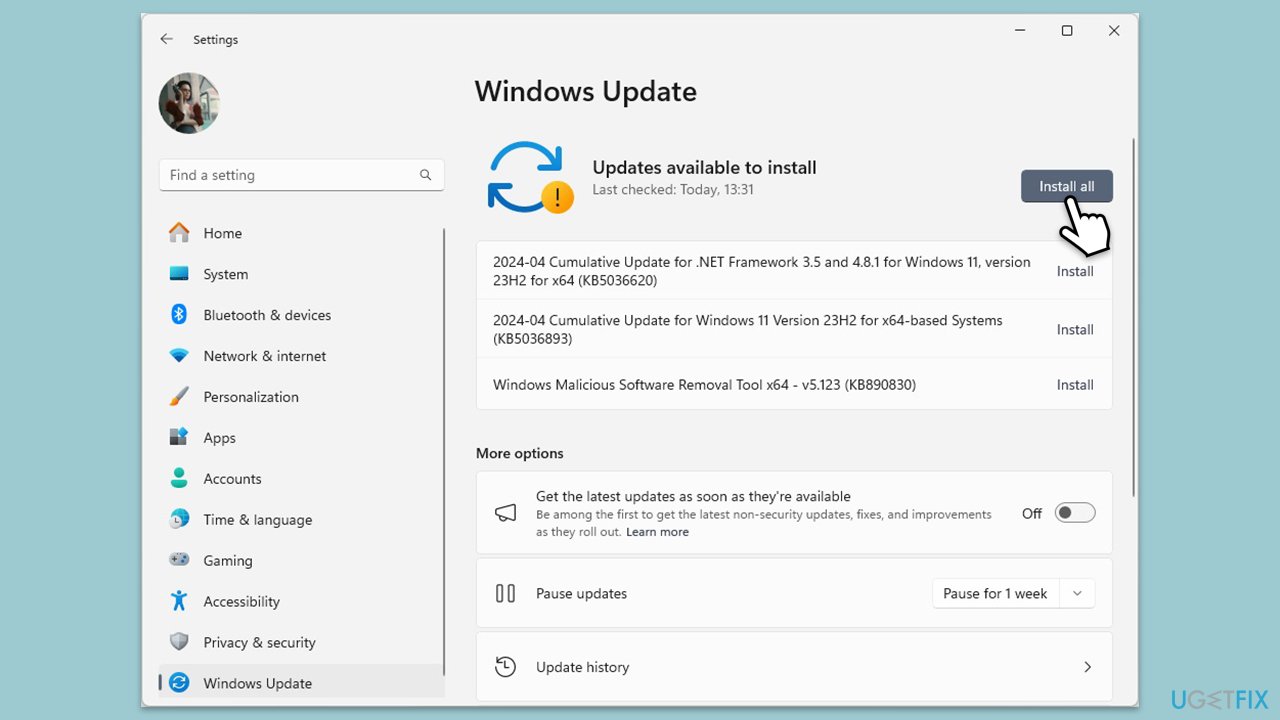
- Type Updates in the Windows search box and press Enter.
- Click Check for Updates.
- Wait till all the required files are installed.
- Install all the optional and pending updates as well.
- Restart your device.
Bottom line
To resolve the Office installation error 30094, you can clear cache and temporary files, uninstall any existing Office versions, use the Recovery and Support Assistant, and perform a Clean Boot to minimize software conflicts. Additionally, ensure that your internet connection is stable. If these solutions do not work, consider re-downloading the installer from a trusted source.
Frequently asked questions
To fix Office installation error 30094 on Windows 10, you can try running the Office Repair tool from the Settings app or reinstalling Office completely after removing it from the Control Panel.
Yes, you can use the Command Prompt to run the 'sfc /scannow' command, which will check for and repair any corrupted system files that may be causing the Office installation error 30094 in Windows 11.
Disabling your antivirus software temporarily may help resolve Office installation error 30094 on Windows, as some security programs can interfere with the installation process.




Report an issue
What's wrong with this guide? We review every report and update or remove content.
Report received — thank you. We'll review and fix it.
You need a free account to submit a report.
Be the first to comment