How to fix
Microsoft Office installation error 0-1018
on Windows
Resolve the Microsoft Office installation error 0-1018 on Windows 10 or 11 quickly and effectively. Expert-tested solutions available now!


What causes How to fix Microsoft Office installation error 0-1018 in Windows?
- Previous Office versions not fully removed
- Corrupted installation files
- Network troubles
- Insufficient rights to install software
Repairs Windows system files, removes malware, and restores a clean OS state — without reinstalling.
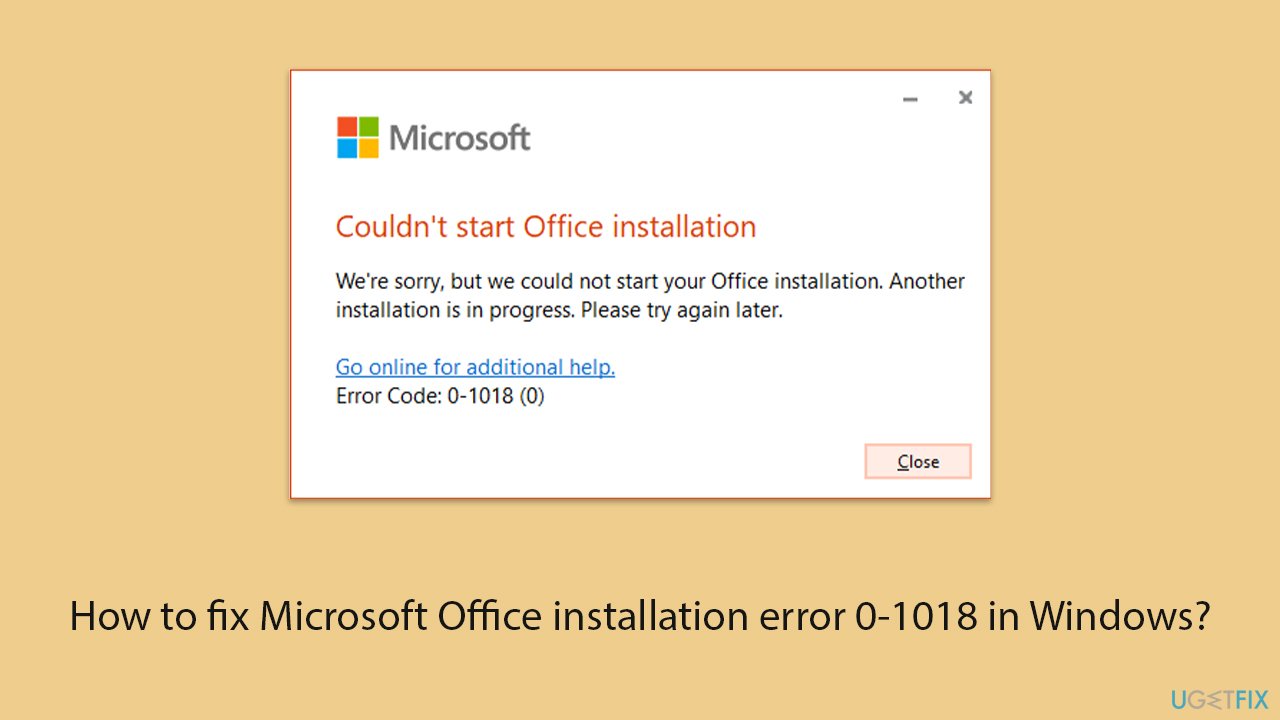
I can't install Office on my Windows 11 machine, and I don't know why. The error code I'm facing every time is 0-1018. How do I fix this error?
Microsoft Office is a set-up of efficiency applications that incorporates notable apps like Word, Excel, and PowerPoint. It is generally utilized in both expert and individual settings for making reports, spreadsheets, presentations, and more. Despite its usefulness and broad use, installing Microsoft Office can sometimes present difficulties, as errors are common.
The Microsoft Office installation error 0-1018 is one frequent problem that you may run into during the installation process - and there could be numerous underlying causes for this specific problem. It might be because earlier Office versions weren't fully removed from the system, leaving behind files and preferences that the current installation can have trouble with.
Another possible cause is corrupted installation files, which can occur if the download was interrupted or the contents were not correctly extracted. Additionally, network troubles or insufficient rights to install software on your computer can cause this error, causing the installation process to stop unexpectedly.
To address the Microsoft Office installation error 0-1018, several steps can be taken to resolve the underlying problems:
- Ensure that all previous versions of Office are completely removed from your system. This can involve using dedicated uninstall tools or manually deleting leftover files and registry entries.
- Verify the integrity of the installation files. This might involve re-downloading the Office installer from the official Microsoft website to ensure there are no corruptions.
- Check your network connection to make sure it is stable and reliable during the installation process.
- To avoid permission issues, make sure you have the necessary administrative privileges to install software on your computer.
Although these are just a few potential solutions, each case might require a specific approach depending on the exact cause of the error. For detailed instructions, please refer to the section below.
If you don't want to perform troubleshooting steps manually because they seem confusing, you can always employ a powerful PC repair app [d1], which can repair Windows system in case it had corrupted files, registry errors, or similar issues.
Fix 1. Run Windows Store apps and network troubleshooters
- Type troubleshoot in Windows search and press Enter.
- Click on Troubleshoot settings from the search results.
- Go to Additional troubleshooters/Other troubleshooters.
- Scroll down and click on Windows Store Apps.
- Click on Run the troubleshooter/Run and wait for the process to complete.
- Repeat with Network and Internet troubleshooter.
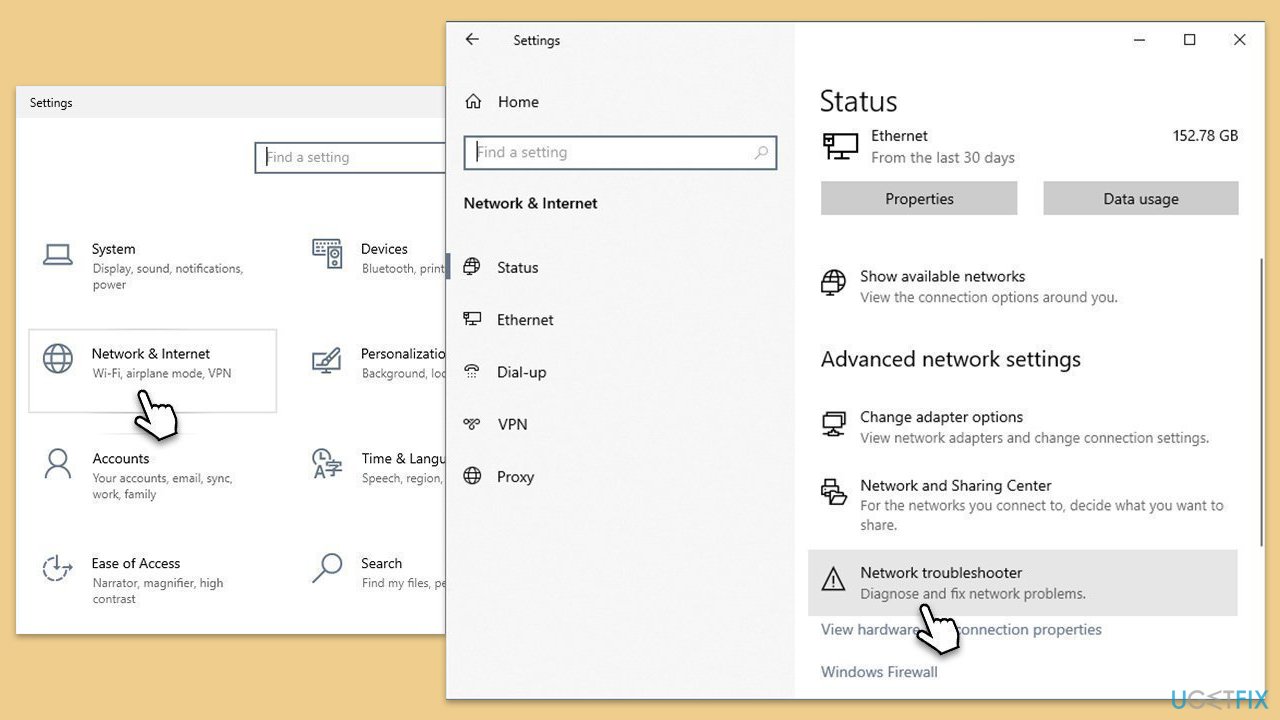
To run Network troubleshooter in Windows 10, proceed with the following steps:
- Right-click on Start and pick Settings.
- Go to the Network & Internet section.
- On the right side, find the Advanced network settings section.
- Click Network troubleshooter, specify the problem, and wait till the scan is finished.
- When done, apply all the recommendations.
Fix 2. Install Windows updates
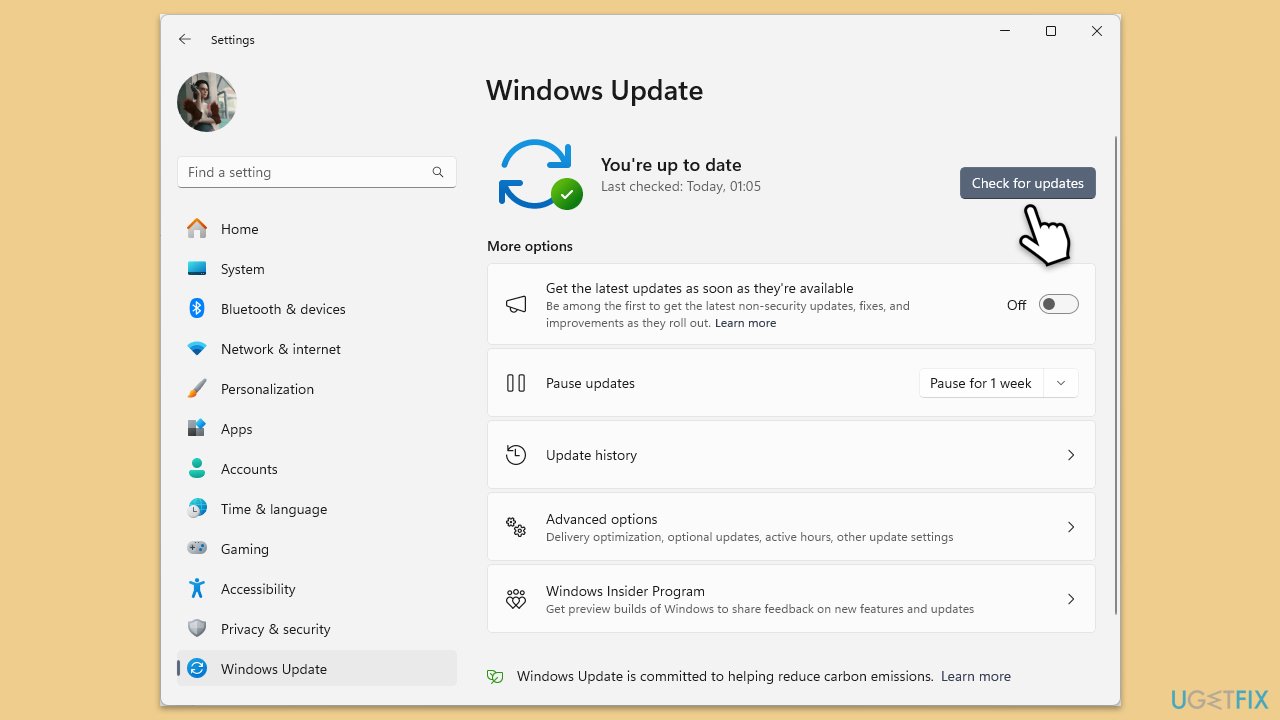
- Type Updates in Windows search and hit Enter.
- If updates are available, click Install updates.
- Otherwise, click Check for updates.
- If optional updates are available, install them as well.
- When all the update processes are complete, restart your computer.
Fix 3. Uninstall the present Office version
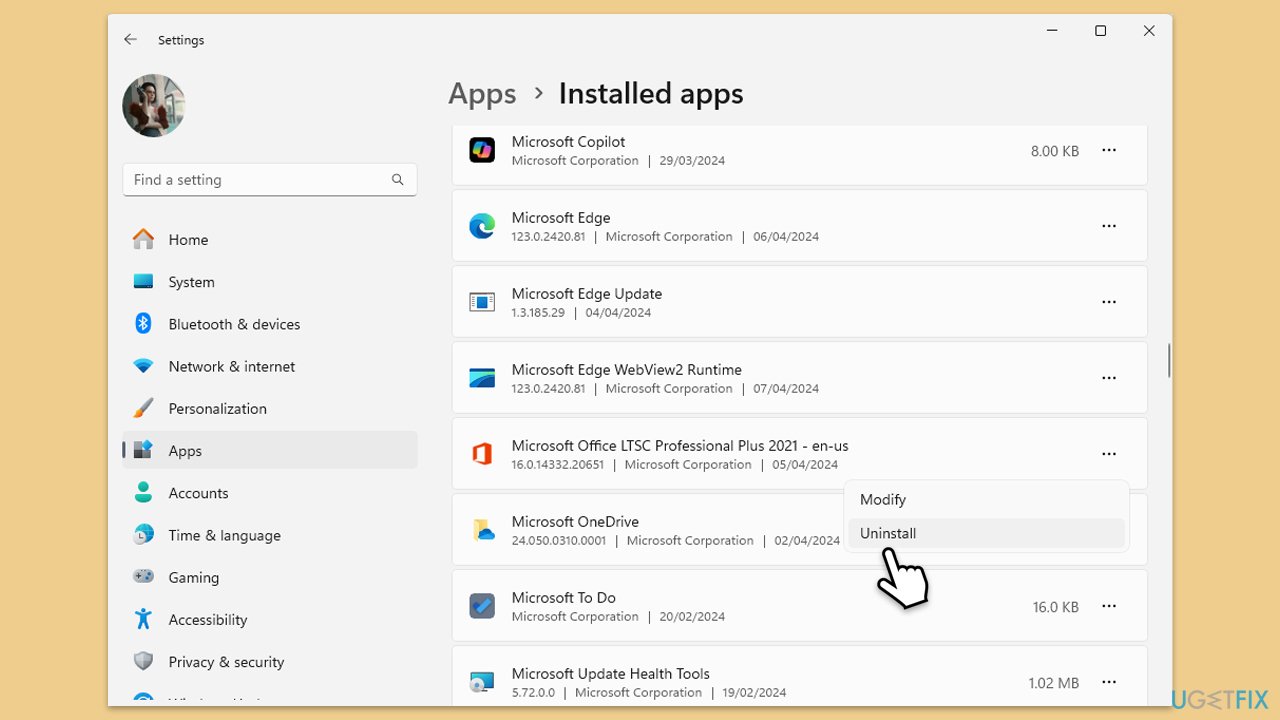
- Right-click on Start and pick Apps and Features/Installed apps.
- Scroll down to find the MS Office installation.
- Click Uninstall and confirm with Uninstall.
- Follow on-screen instructions to remove the app completely.
- Restart your PC.
Fix 4. Uninstall Office using Command Prompt
- Type PowerShell in Windows search.
- Right-click on the result and pick Run as administrator.
- When UAC shows up, click Yes.
- In the new window copy and paste the following command, pressing Enter after:
Get-AppxPackage -name “Microsoft.Office.Desktop” | Remove-AppxPackage - Restart your system.
- Download the adequate version of MS Office and install it.

Fix 5. Use Microsoft Support and Recovery Assistant
- Open your browser and go to the official Microsoft support website.
- Scroll down and click Download under Uninstall and reinstall Office.
- Once downloaded, double-click SetupProd_OffScrub.exe to launch it.
- When prompted, click Install.
- Once installed, launch Microsoft Support and Recovery Assistant.
- Select Office & Office Apps and click Next.
- Next, pick I have Office 365 subscription, but I'm having trouble installing it and click Next.
- Click Yes to begin a scan.
- Follow instructions after the scan is finished.

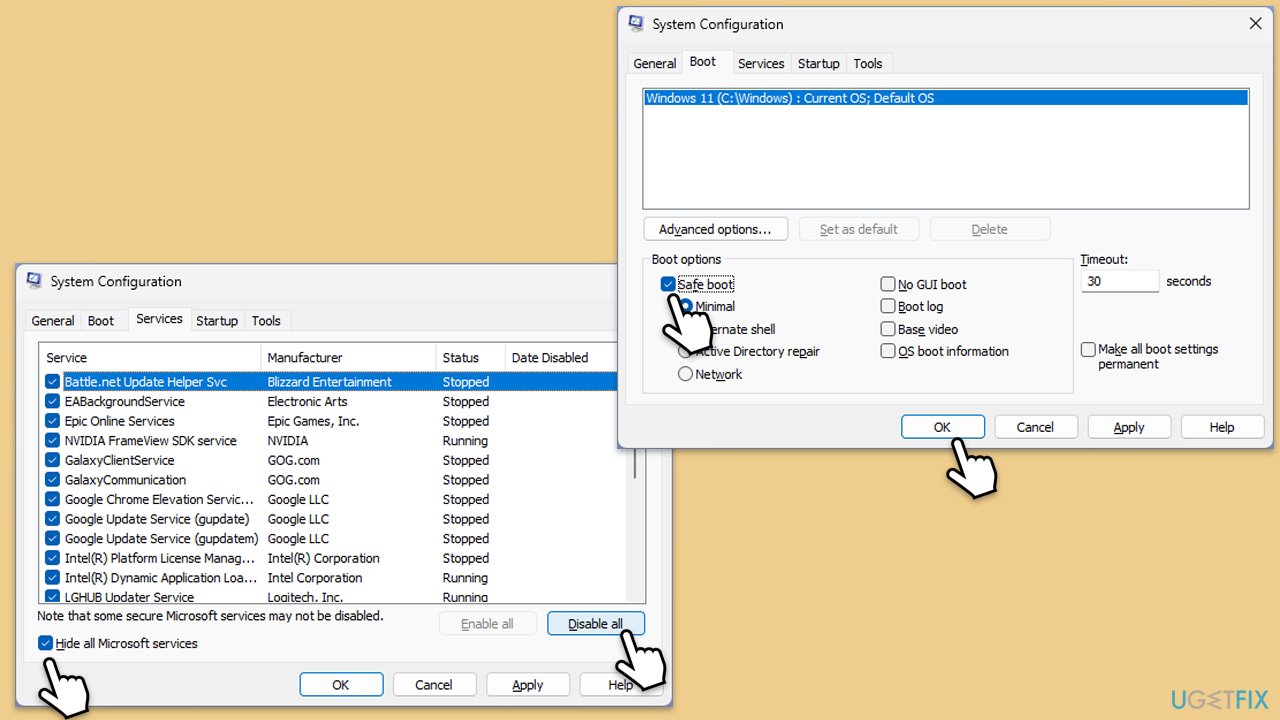
Fix 6. Use Clean Boot
- Type msconfig in Windows search and press Enter.
- In the System Configuration window, go to the Services tab and check the box next to Hide all Microsoft services.
- Click Disable all to disable all non-Microsoft services.
- Go to the Startup tab and click Open Task Manager.
- In Task Manager, disable all startup items.
- Close Task Manager and click OK in the System Configuration window.
- Go to the Boot tab and select Safe Boot.
- Click OK, restart your computer, and try updating Office again.
- Alternatively, to find out which app(s) is causing conflicts, enable each of the processes (or you can do it in groups), restart, and see if the problem persists. Repeat until you find the faulty app, then either update or uninstall it.
Bottom line
To fix the Microsoft Office installation error 0-1018, ensure all previous versions of Office are completely removed, verify the integrity of the installation files, check your network connection, and confirm you have the necessary administrative privileges. If these steps do not resolve the issue, consider using a powerful PC repair app.
Frequently asked questions
The error 0-1018 typically occurs due to corrupted installation files or issues with the Windows Installer service. Ensuring that all previous Office installations are completely removed can also help resolve this error.
To fix the 0-1018 error on Windows 11, try running the Microsoft Office Repair tool from the Control Panel or Settings. Additionally, ensure that your Windows is up to date and that there are no conflicting software programs running.
Yes, you can try using the 'sfc /scannow' command in Command Prompt to repair system files, which may resolve the 0-1018 error without needing to reinstall Office. Additionally, resetting the Windows Installer service can also be effective.




Report an issue
What's wrong with this guide? We review every report and update or remove content.
Report received — thank you. We'll review and fix it.
You need a free account to submit a report.
Be the first to comment