How to fix
HRESULT: 0x8002802B error in Microsoft Word or Excel
on Windows
Resolve the HRESULT: 0x8002802B error in Microsoft Word or Excel effortlessly on Windows 10 or 11. Quick fixes, expert-tested solutions, zero traces left.


What causes How to fix HRESULT: 0x8002802B error in Microsoft Word or Excel?
- Incomplete installation
- Software conflicts
- Registry errors
- Malware or system crashes
Repairs Windows system files, removes malware, and restores a clean OS state — without reinstalling.
Can you help me with the following error please: "Element not found. (Exception from HRESULT: 0x8002802B (TYPE_E_ELEMENTNOTFOUND)." This happens when I try to open an Excel workbook with an automated command on it.
Microsoft Word and Excel are popular tools for writing documents and handling data. However, sometimes, you might encounter the HRESULT: 0x8002802B error when using these applications. This error can be frustrating and usually means there’s an issue with your Office installation.
The HRESULT: 0x8002802B error often happens because of problems with the installation files or because some parts of Office are damaged. This can be due to an incomplete installation, conflicts with other software, or corrupted registry entries. In some cases, malware or system crashes might also cause this error.
Here’s why you might encounter the error:
- Incomplete installation. If the Office installation was interrupted, some files might be missing or corrupted.
- Software conflicts. Other programs on your computer might interfere with Office.
- Registry errors. Problems in the system’s registry can affect how Office works.
- Malware or system crashes. These can damage important Office files.
To fix the HRESULT: 0x8002802B error, you can try repairing your Office installation. If the error persists, you might need to use additional tools like the System File Checker (SFC) to fix deeper issues. Keeping your Office and Windows up to date with the latest updates can also help prevent these errors.
For ongoing problems, a PC repair tool like [d1] can automatically find and fix underlying Windows issues, making your experience with Office smoother and more reliable.
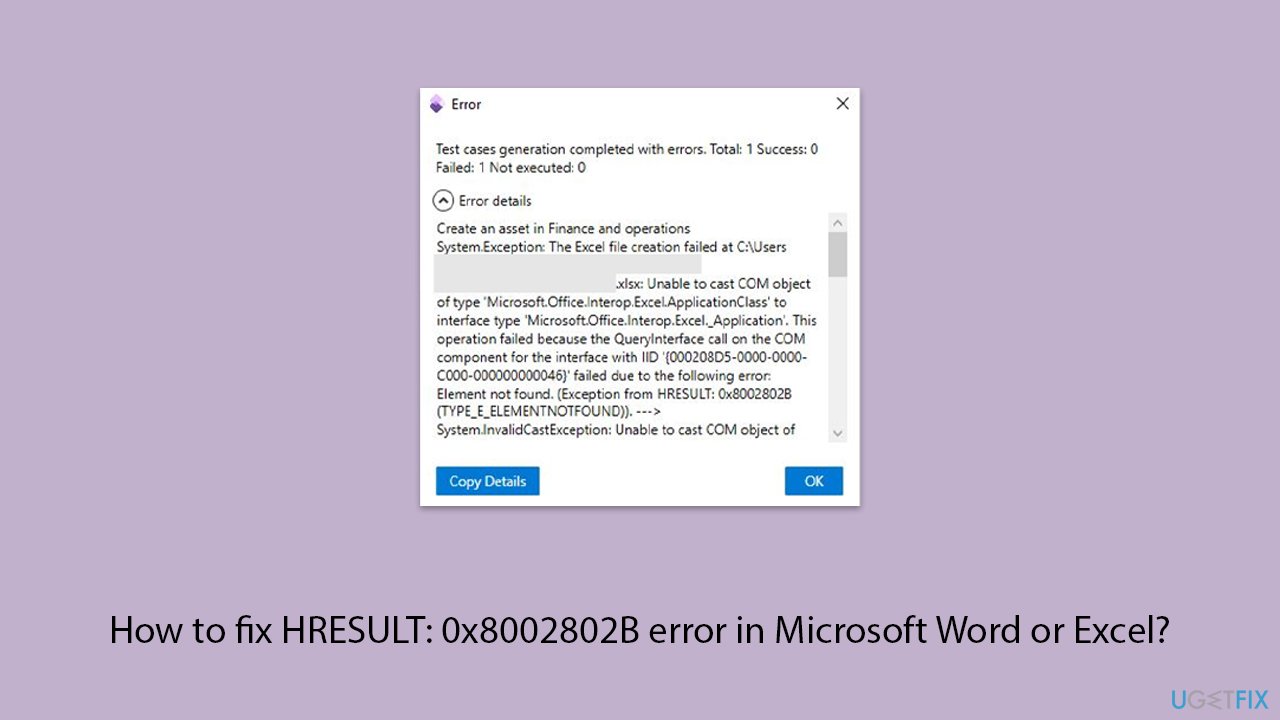
Fix 1. Repair Office installation
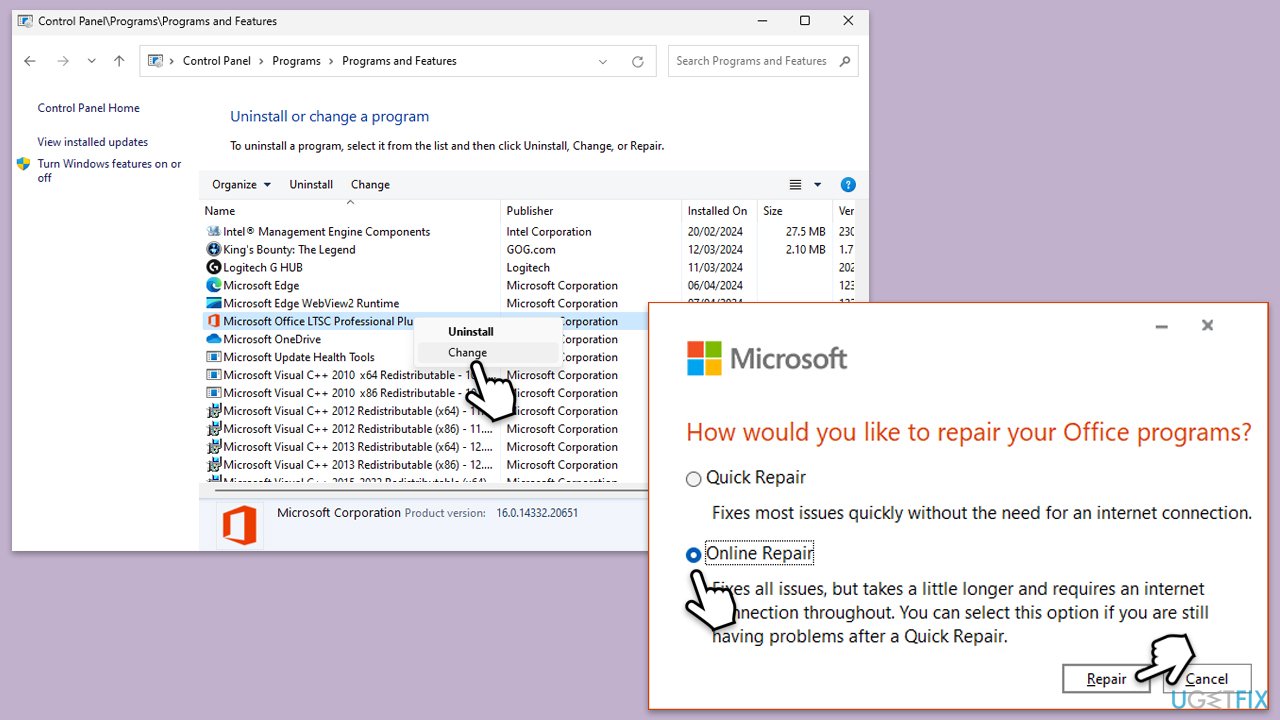
You can do this either through the Control Panel or via the Apps section in Settings. Let's go with the Control Panel option:
- Type Control Panel in Windows search and press Enter.
- Select Programs > Programs and Features.
- Select Microsoft Office and click on Change.
- Choose the option for Online Repair and click Repair (you can also pick Quick Repair first).
- Follow on-screen instructions to complete the repair process.
Fix 2. Repair corrupted files
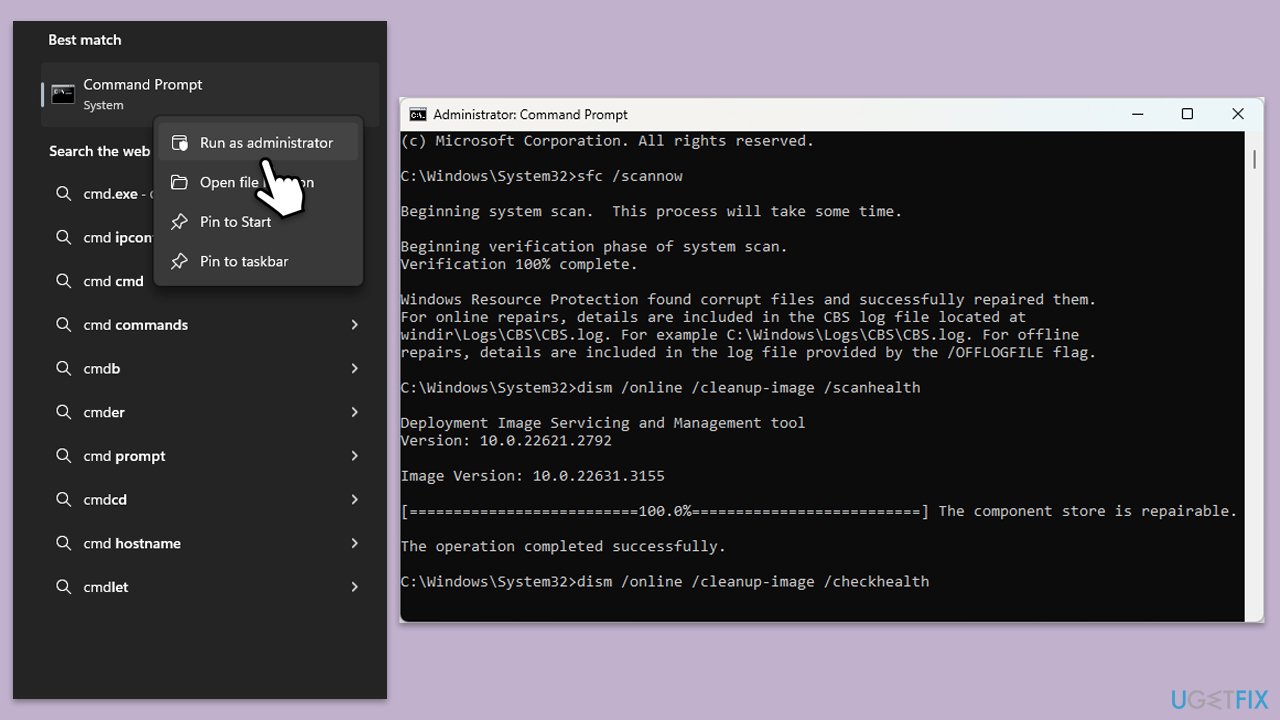
Damaged system files are often the reason for many issues, even those related to MS Office apps. To repair these files, run an elevated Command Prompt and run the following commands:
- Type cmd in Windows search.
- Right-click on the Command Prompt result and select Run as administrator.
- When the UAC window pops up, click Yes.
- In the Command Prompt window, paste the following command and press Enter:
sfc /scannow - Wait for the scan to complete.
- Once the SFC scan is finished, run the following set of DISM commands, pressing Enter after each one:
DISM /Online /Cleanup-Image /CheckHealth
DISM /Online /Cleanup-Image /ScanHealth
DISM /Online /Cleanup-Image /RestoreHealth - After completing the DISM commands, restart your device.
Fix 3. Run malware scan
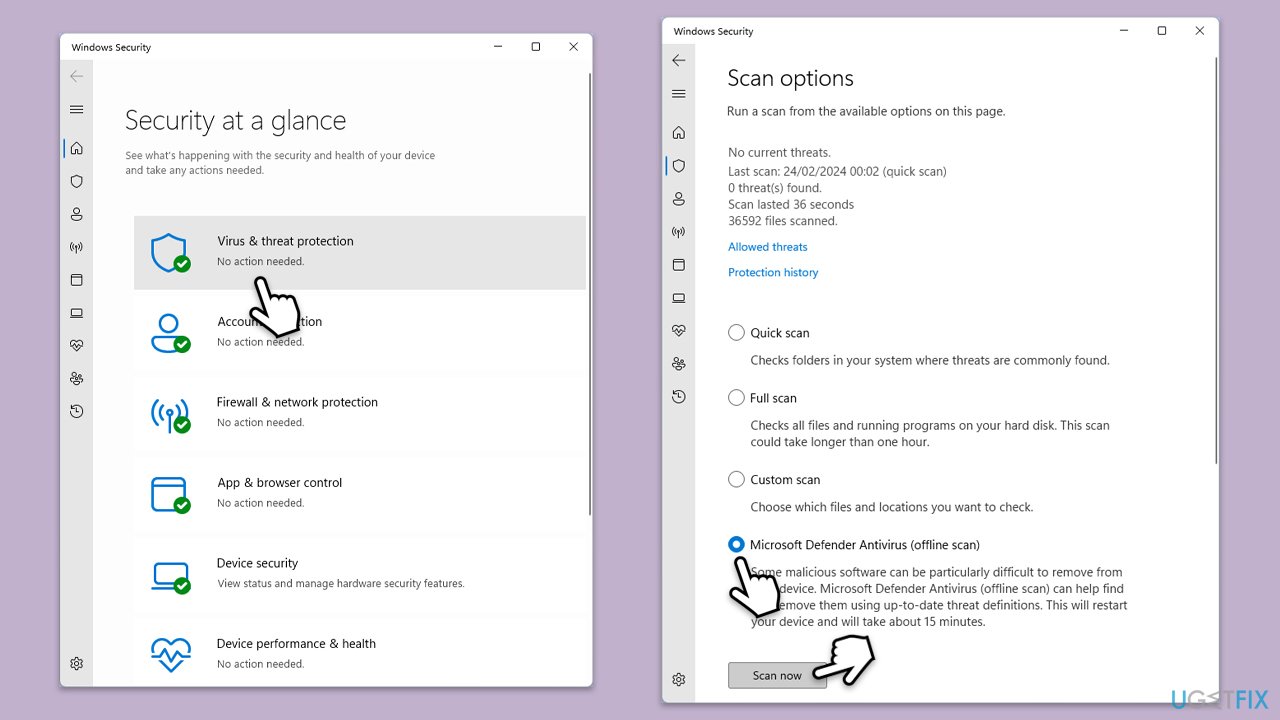
You can use any reliable third-party security software, employ Microsoft Security Scanner, or simply Windows Defender:
- Type Windows Security in the Windows search bar and hit Enter.
- Select Virus & threat protection.
- Pick Scan options.
- Choose Microsoft Defender Offline scan and click Scan now.
- Your computer will immediately restart to begin a deep scan.
Fix 4. Install the most recent Windows update
If your system is outdated, it might be prone to bugs. If you already have the latest updates, go to the next method instead.
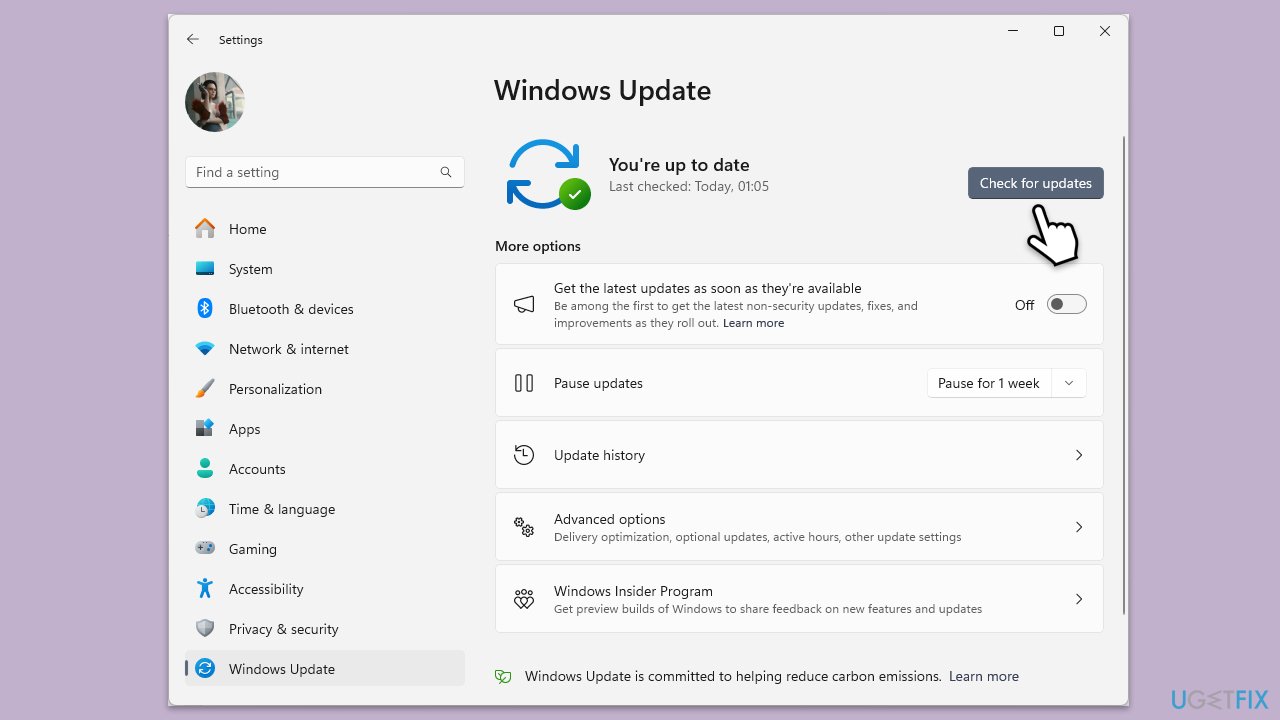
- Type Updates and press Enter.
- In the new window, click Check for updates.
- Wait till all the files are downloaded and installed.
- If optional updates are available, install them as well.
- Restart your device when done.
Fix 5. Uninstall the most recent Windows update
- Type Control Panel in Windows search and press Enter.
- Select Programs > Uninstall a program.
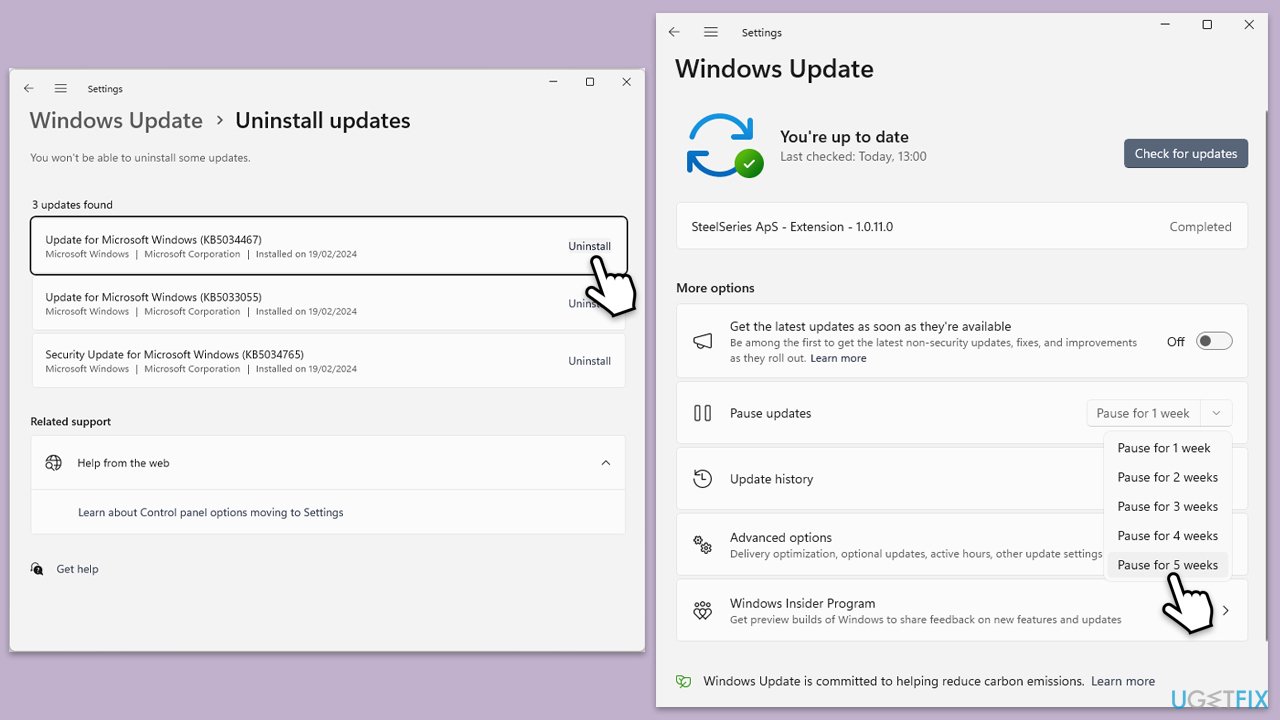
- Click on View installed updates on the left side of the window.
- Uninstall the most recent update.
- Proceed with on-screen instructions.
- Don't forget to pause the update.
Fix 6. Rollback Group Policy change
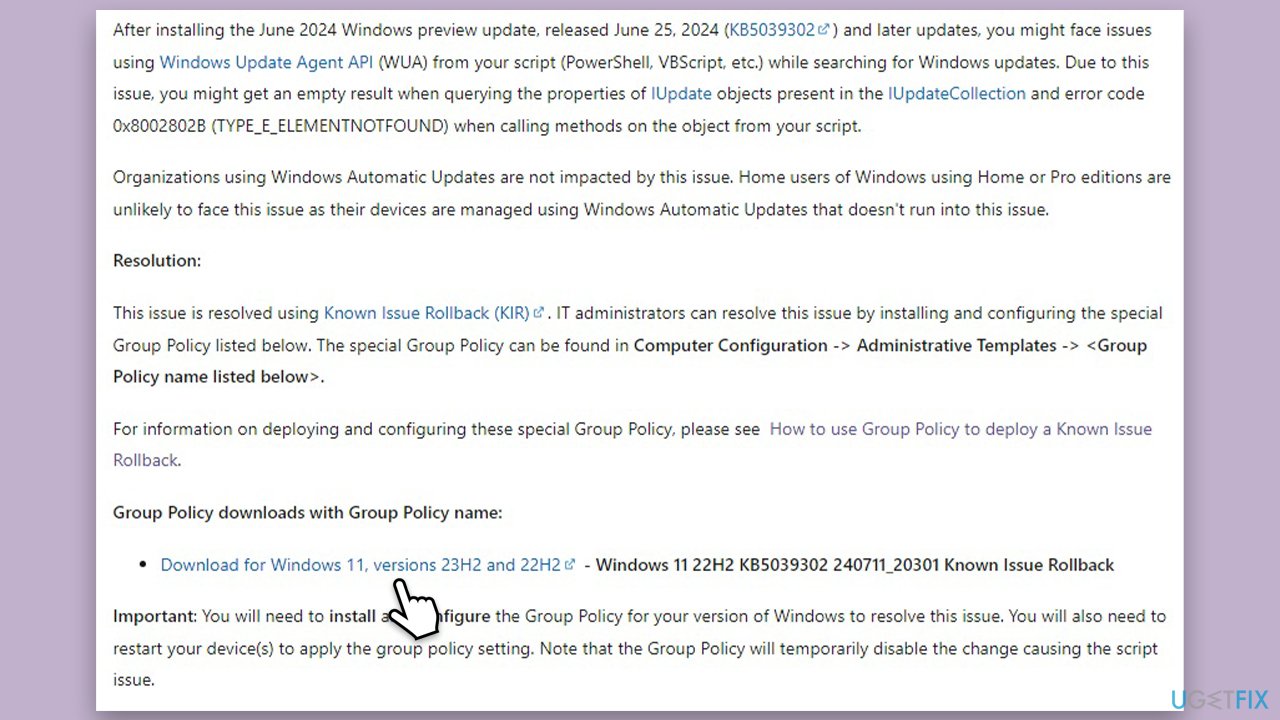
KB5039302 introduced a bug within Group Policy that resulted in a 0x8002802B error when using Windows Update automation scripts on Windows 11. If you are in this situation, you should roll back the Group Policy. Here's how:
- Open your browser and download Windows 11 22H2 KB5039302 240711_20301 Known Issue Rollback from the Microsoft website (or you can use a direct link).
- Open the Local Group Policy Editor by selecting Start and entering gpedit.msc.
- Navigate to the following location:
Local Computer Policy > Computer Configuration > Administrative Templates > KB ####### Issue XXX Rollback > Windows version YYMM.- Note: ####### is the KB article number of the problematic update, XXX is the issue number, and YYMM is the Windows version number.
- Right-click the policy, select Edit, then choose Disabled, and click OK.
- Restart the device.
Bottom line
To fix the HRESULT: 0x8002802B error, you can try repairing your Office installation through the Control Panel or Settings. If the error persists, consider using the System File Checker (SFC) for deeper issues. If none of these solutions work, a PC repair tool may help resolve underlying Windows issues.
Frequently asked questions
The HRESULT: 0x8002802B error typically indicates a problem with the registry entries associated with Microsoft Office applications, which can prevent them from launching correctly on Windows 10.
To fix this error in Windows 11, try repairing your Office installation through the Settings app or using the Microsoft Support and Recovery Assistant tool.
Yes, you can manually edit the registry to correct permissions or entries related to Microsoft Office, but ensure to back up the registry before making any changes on Windows 10 or Windows 11.




Report an issue
What's wrong with this guide? We review every report and update or remove content.
Report received — thank you. We'll review and fix it.
You need a free account to submit a report.
Be the first to comment