How to fix
“This app has been blocked due company policy” Error
on Windows
Resolve the "This app has been blocked due to company policy" error on Windows 10 and 11 effortlessly. Get expert-tested solutions for quick fixes!

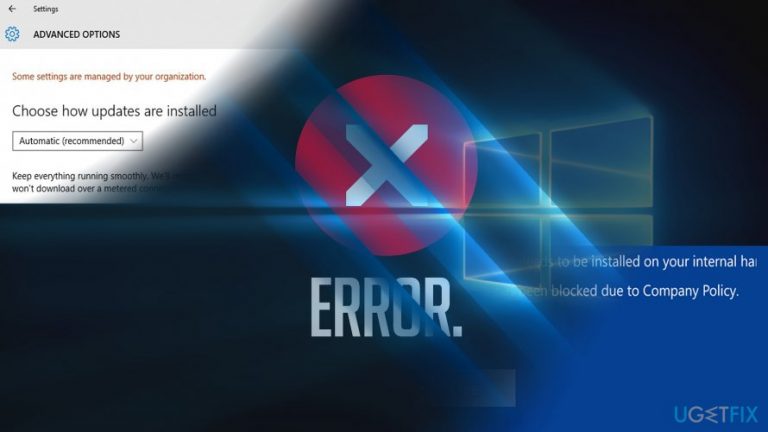
What causes How to Fix “This app has been blocked due company policy” Error on Windows?
- Corruption or bug in the operating system
- Corruption or bug in a standalone device
- Missed recent Windows updates
- Presence of malware or suspicious programs
- Corrupted files or system problems
- Compromised settings
Repairs Windows system files, removes malware, and restores a clean OS state — without reinstalling.
I am having difficulties installing Lumia Cinemagraph app from the App store. When I attempt to download it, the message informing “This app has been blocked due company policy” appears. How I can fix this error?
“This app has been blocked due company policy” is an error code that can appear for any user that has a computer running the Windows operating system. Most commonly, there is some type of corruption or bug in the operating system itself or in some standalone device that might be causing the problem to appear. Some Windows users have reported that this particular issue has been appearing while trying to install Instagram on Windows 10.[ref en-1]
First, you need to identify the cause of the problem. Try logging in to the admin account or other accounts and check if you can download the applications that you are likely to see on your Windows computer system but have been throwing you the “This app has been blocked due company policy” error message. Secondly, check whether recent Windows updates are installed as some missed updates can also trigger the appearance of such an error.
If you encounter this issue on a phone, rebooting the device might solve the issue. Finally, make sure your operating system is free from malware and various suspicious programs. Some types of viruses might prevent users from downloading specific applications and running them properly. Complete a full system check with antimalware software[ref en-2] and check the scan results. If there is some system damage or compromisation found, try fixing it with a tool such as rev id="Reimage"].
If this is the case, the “This app has been blocked due company policy” error should no longer show up while downloading your programs. However, if the problem hides somewhere else, you should try restarting your entire machine first. If that does not help, there might be some corrupted file, system problem, or compromised settings that are causing you the issue. For this purpose, check the below-provided fixes that we hope will help you to solve the problem with the error code.
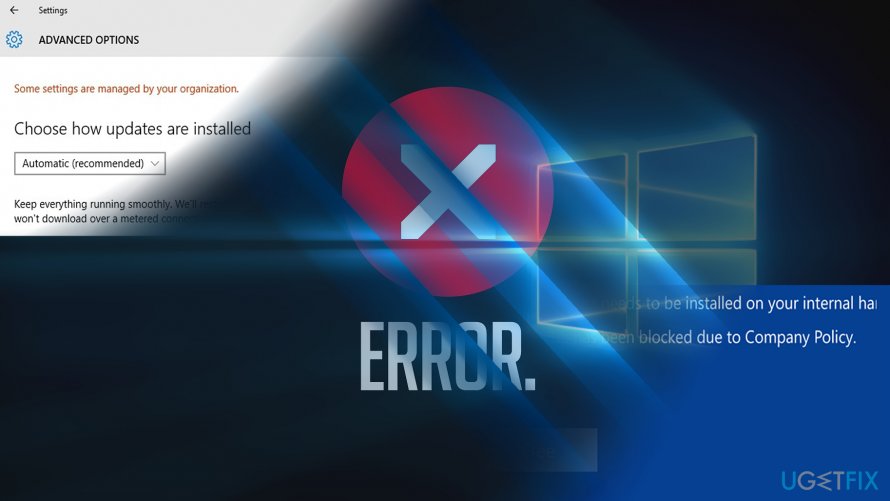
How to Fix “This app has been blocked due company policy” Error on Windows?
Option 1. Switch to another Windows user account
If you have access to other accounts, log in and see if the problem is tied only to one account. Some users report that deleting the account from the Mail app and then adding it again solves the problem.
Option 2. Check if there are no system errors
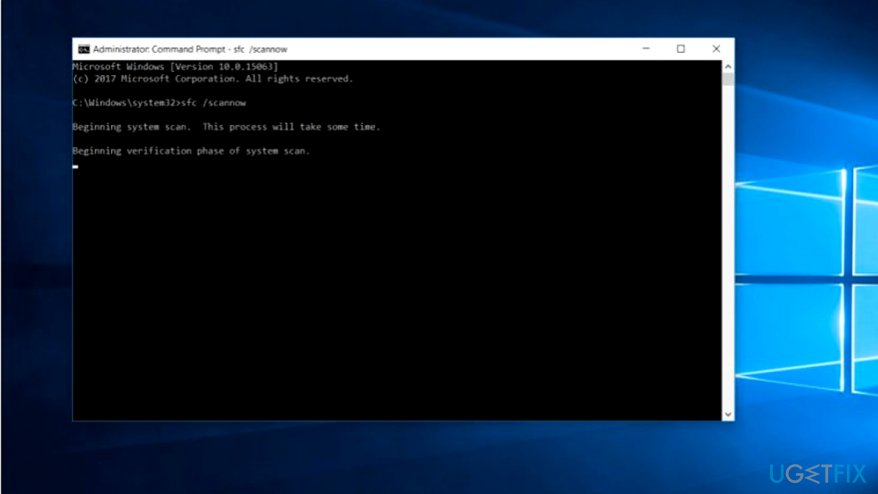
Windows contains a System File Checker.[ref en-3] If the problem is not external, i.e. if it is not caused by malware, then it might identify issues and solve them. Also, there might be some issue with a corrupted file in your Windows computer system. Perform the SFC scan and see what the scan results will show you:
1. Click on the Windows key + R and type cmd.
2. When Command Prompt launches, type sfc /scannow and hit the Enter key.
Option 3. Make sure your Region and Language settings are set correctly
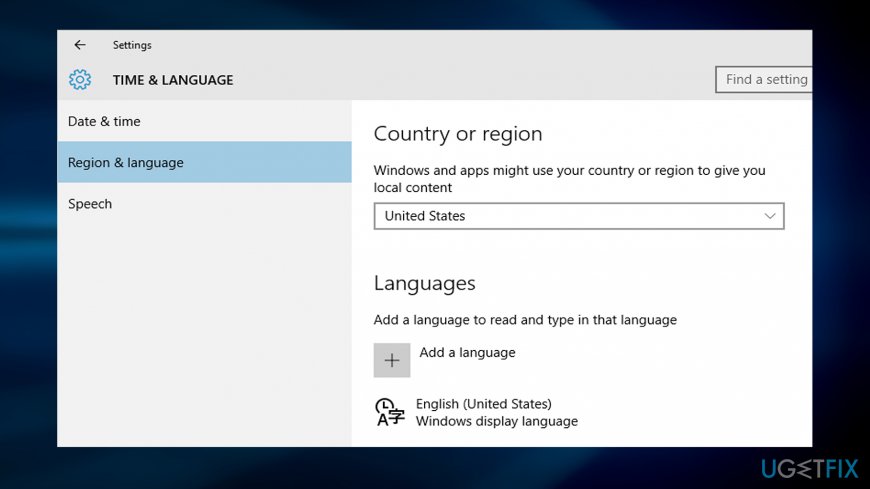
In some cases, this error occurs due to misconfigured region settings. Once you enter them, check whether the country/ region box indicates the right country. Set it correctly. Reboot the system and try to install the application again. If the issue stems from a bug, update your mobile or PC. Do not exclude the possibility that “This app has been blocked due company policy” error might appear if the very application is faulty.
Option 4. Reset the Window Store
There might be some type of problem directly with the Windows Store that is provoking the “This app has been blocked due company policy” error code to appear while downloading a particular app from it. Check this possibility by completing the following steps:
- Hold the Windows key and R button until a small run box pops out.
- Type wsreset.exe.
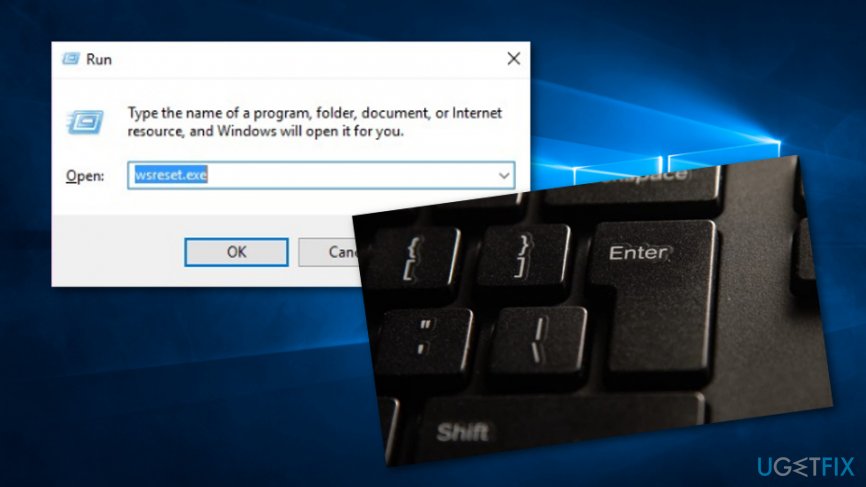
Reset windows store - Hit the Enter key.
- Reboot your computer.
- Perform the installation of your wanted app and look if it works.
Option 5. Run the DISM check process via Command Prompt
- Go to Window Search and type "cmd".
- Open the Command Prompt and choose to run as an Administrator.
- Afterward, type DISM /Online /Cleanup-Image /RestoreHealth after the blinking cursor.
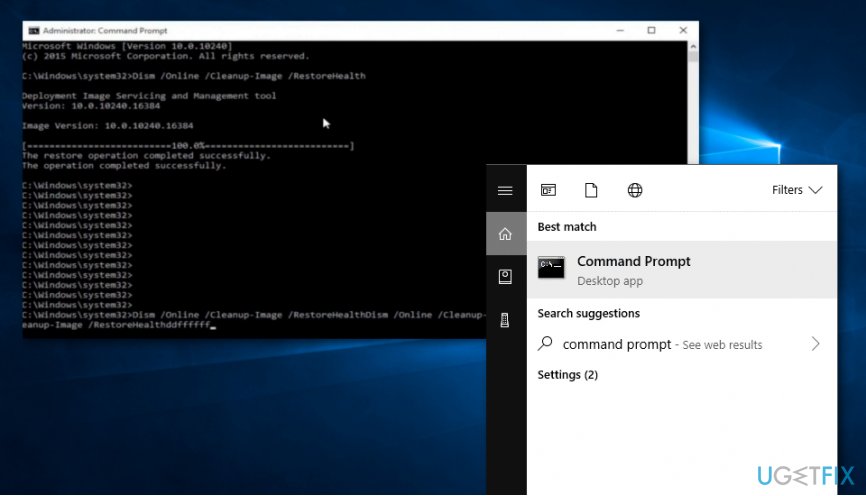
Run a dism checkup process - Hit the Enter key and wait for the command to finish.
- Restart your Windows computer.
Option 6. Run the troubleshooter for Windows Store apps
- Go to Windows Search and open the Control Panel.
- In the search area, write troubleshooting.
- Then, hit the Enter key.
- Choose the Troubleshooting option.
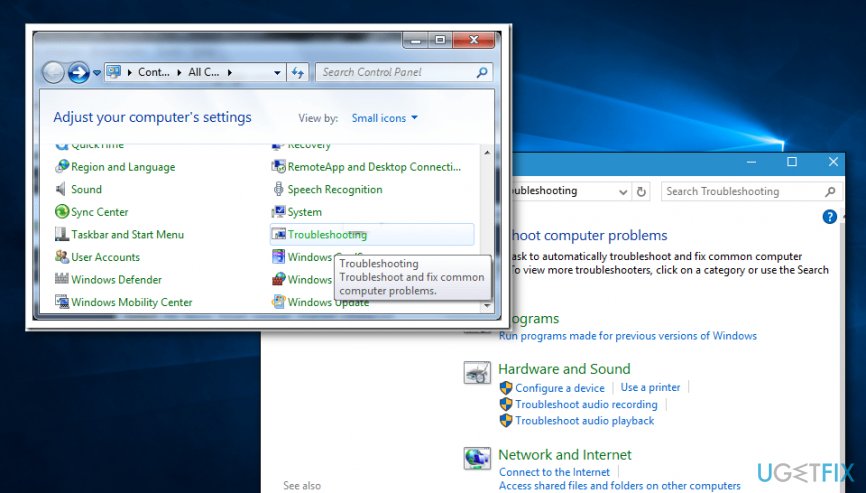
Launch troubleshooting via control panel - Opt for Hardware and Sound.
- Choose Windows Store Apps to activate the troubleshooter.
- Opt for the Advanced option and ensure that the Apply repair automatically settings are also chosen.
- Run the troubleshooter by pressing on Next.
If the troubleshooter provides you with a message that the Windows Store cache may be damaged, try completing the following steps to solve this problem:
- Go to Windows Search and find File Explorer.
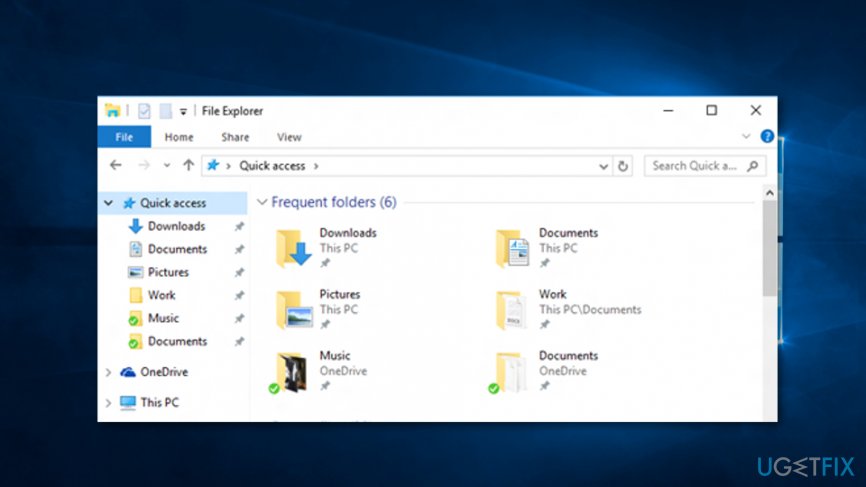
Repair windows store cache - Locate the File Explorer address bar and write this: C:\\Users\\<username>\\AppData\\Local\\Packages\\Microsoft.WindowsStore_8wekyb3d8bbwe\\LocalState. (instead of Users and username, type in the real name of your account).
- Then, continue to the LocalState folder and see if the Cache folder is there.
- If it remains put, rename the folder to Cache.old and include a new empty folder named Cache. (if there is no Cache folder to begin with, just create a new one with the same name).
- Afterward, close the File Explorer service and restart your machine.
- Run the Windows Store Apps troubleshooter once again to see if the problem is gone.
Option 7. Recover your Windows system by using a previous restore point
- Go to Windows Search and open the Control Panel.
- Go to the search area and type "recovery".
- Opt for Recovery -> Open System Restore.
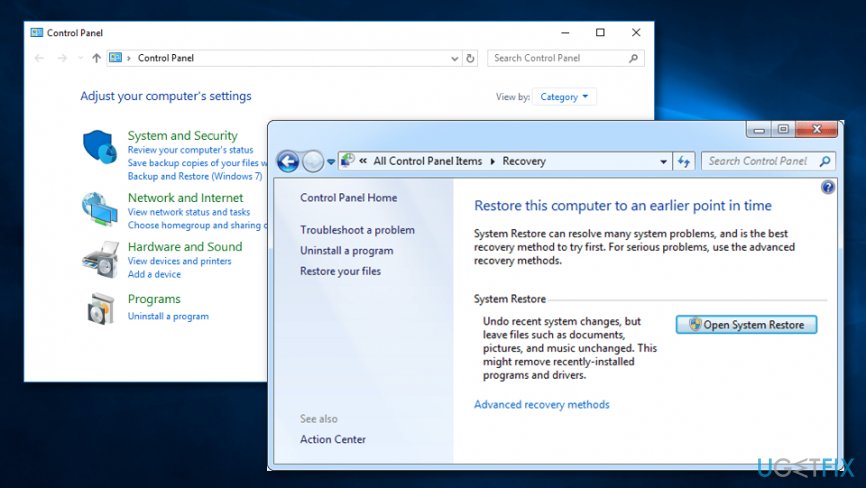
Opt for a restore point - Then, in the Restore system files and settings box, continue with Next.
- Choose your wanted restore point and then opt for Scan for affected programs.
- After that, you will be provided with an entire list of apps that will be deleted during the restoring process. If you agree with all of the uninstallations, click Close -> Next -> Finish.
Bottom line
To fix the error, try logging into the admin account, checking for recent Windows updates, and performing a full system check with antimalware software. If the issue persists, consider restarting your machine or using a tool to repair system damage. If none of these solutions work, further investigation into the system settings may be necessary.
Frequently asked questions
This error usually occurs due to Group Policy settings that restrict certain applications from running on Windows 10, especially in corporate environments.
To fix this error on Windows 11, you can adjust the Group Policy settings or modify the registry to allow the application to run.
While you can attempt to change settings in Windows 10 or Windows 11, it's important to consult your IT department first, as bypassing company policies may violate your organization's regulations.




Report an issue
What's wrong with this guide? We review every report and update or remove content.
Report received — thank you. We'll review and fix it.
You need a free account to submit a report.
Be the first to comment