How to fix
Microsoft Store or Xbox app error 0x80131501
on Windows
Resolve the Microsoft Store or Xbox app error 0x80131501 on Windows 10 and 11 quickly and easily. Expert-tested solutions await you!

What causes How to fix Microsoft Store or Xbox app error 0x80131501 in Windows?
- Corrupted system files
- Network connectivity problems
- Outdated software
- Corrupted cached data
- Compatibility issues
Repairs Windows system files, removes malware, and restores a clean OS state — without reinstalling.
Hello. When I try to open the Xbox app on Windows 11, I always get an error 0x80131501. I also have the same problem with Microsoft Store. Any ideas on how to fix the error? This has been happening for several days now and is not going away on its own it seems.
Encountering error 0x80131501 on the Microsoft Store or Xbox app in Windows can be quite frustrating, as it prevents users from accessing their desired apps and games. This error typically signifies problems with the app's functionality, which may arise from various underlying issues, such as corrupted system files, network connectivity problems, or outdated software.
A stable and robust internet connection is crucial for the proper functioning of the Microsoft Store and Xbox app. Any interruptions or weak connections can lead to errors, affecting the user experience. Clearing the cache of the Microsoft Store or Xbox app can also be an effective way to resolve this issue. Cached data can sometimes become corrupted, leading to errors and hindering the app's performance.
Ensuring that both the Windows operating system and the Microsoft Store or Xbox app are up to date is another critical aspect. Outdated software can cause compatibility issues, resulting in errors and malfunctioning apps. Regular updates help maintain the smooth operation of these applications, preventing potential problems.
The Windows Store Apps troubleshooter is a built-in tool designed to automatically detect and fix common issues with the Microsoft Store and Xbox app. It is a helpful resource for identifying and resolving errors, contributing to a seamless user experience.
In some instances, corrupted system files may be the underlying cause of error 0x80131501. Running the System File Checker (SFC) can help identify and repair these files, ensuring the integrity of the operating system and its applications.
Using the [d1] repair tool can provide comprehensive repairs and optimizations, addressing persistent issues and enhancing the overall functionality of the Microsoft Store and Xbox app. This tool ensures that users can access their favorite apps and games without encountering frustrating errors.
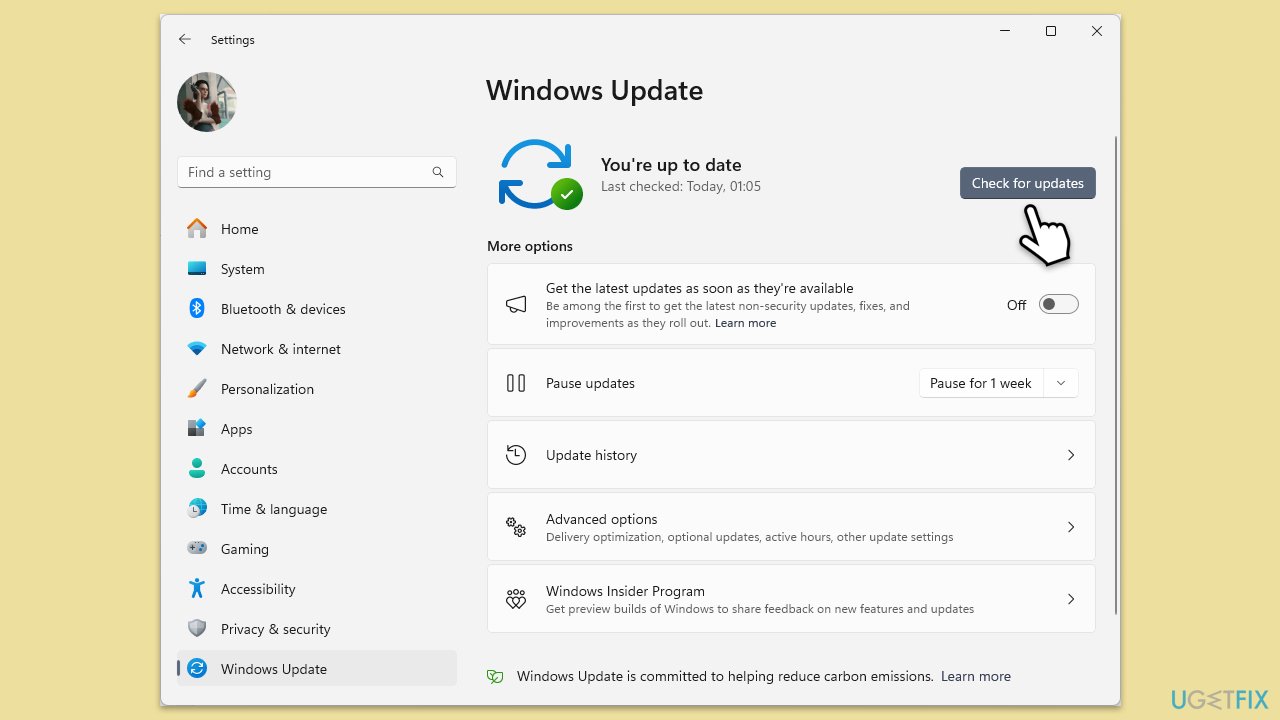
Fix 1. Install all Windows updates
- Type Updates in the Windows search bar and press Enter.
- The new window will open and you should be notified about available updates - click Install all.
- If none are available, click Check for updates, and they should be installed automatically.
- Don't forget to install all the available optional updates.
- When done, restart your computer.
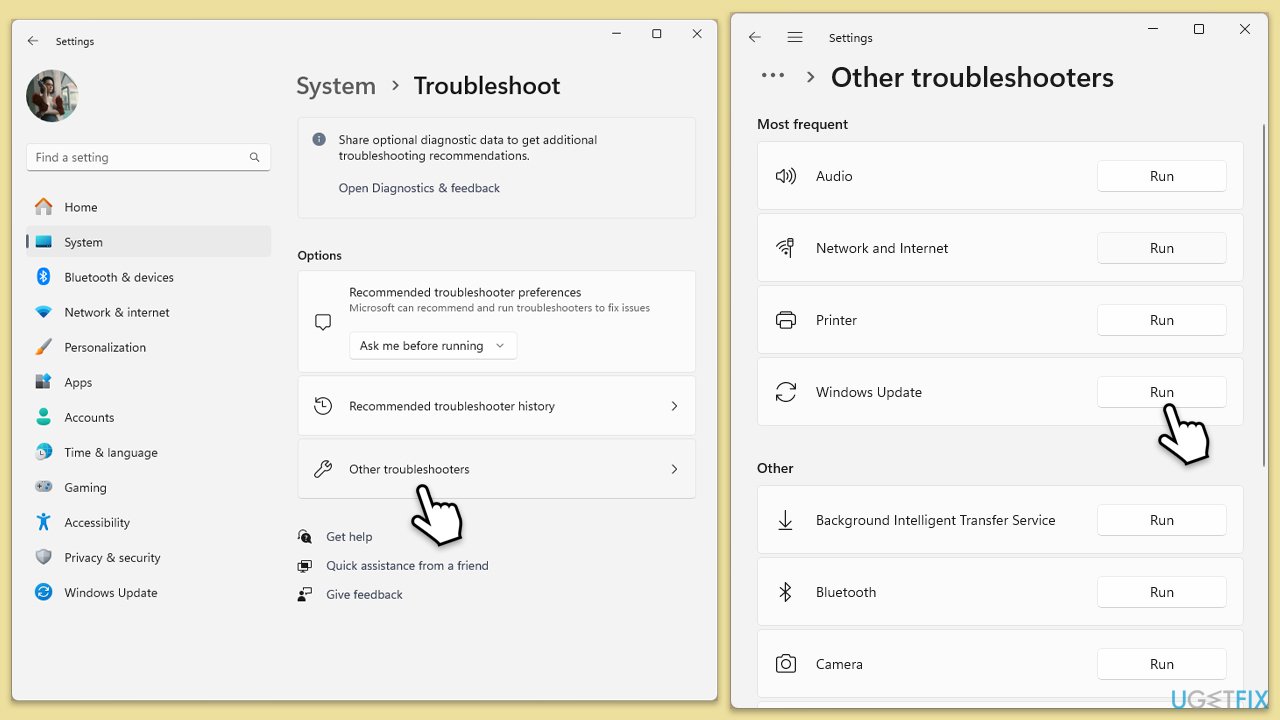
Fix 2. Run Windows Store apps and Windows update troubleshooter
- Type Troubleshoot in Windows search and hit Enter.
- Select Additional troubleshooters/Other troubleshooters.
- Find Windows Update from the list and click Run the troubleshooter/Run.
- The troubleshooter will automatically scan your system for potential problems and display any issues it finds.
- If the troubleshooter finds any issues, it will provide recommended solutions - apply them.
- Repeat this with Windows Store apps troubleshooter.
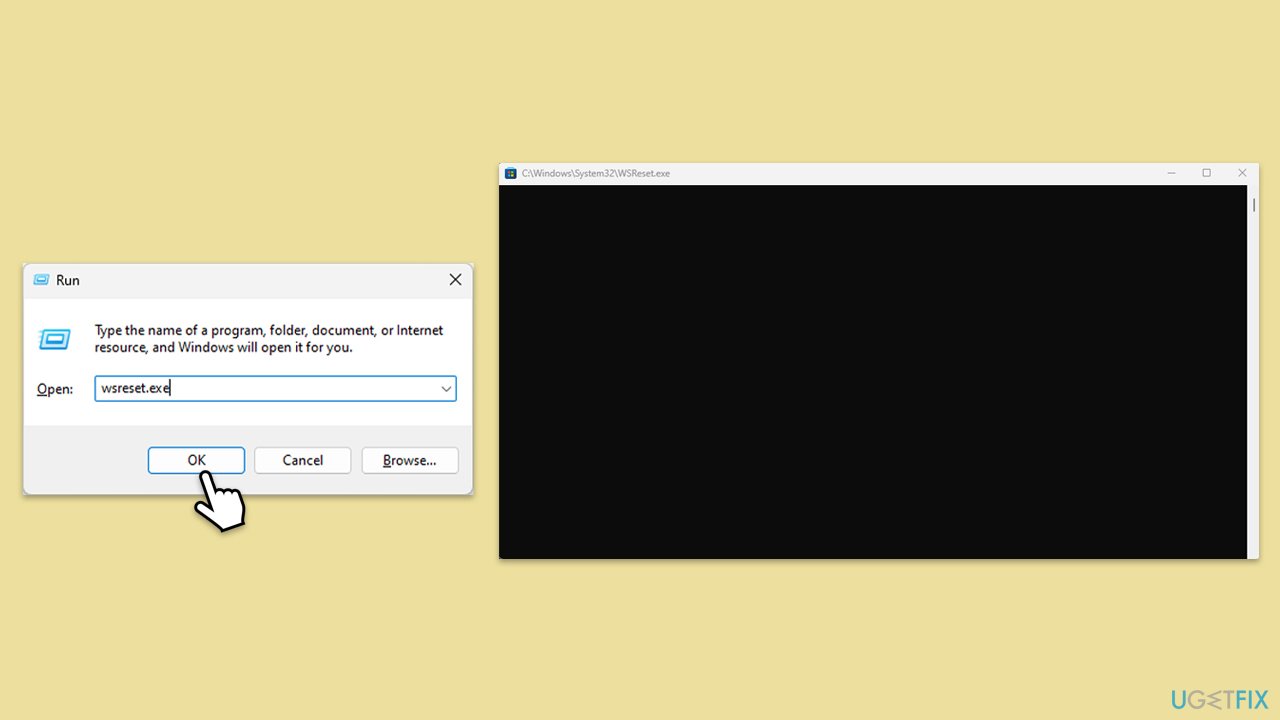
Fix 3. Reset Windows Store cache
- Press Win + R to open the Run dialog box.
- Type wsreset.exe and press Enter.
- A blank Command Prompt window will open. Wait for it to close automatically.
- Once closed, the Microsoft Store will open automatically, indicating the cache has been reset.
Fix 4. Repair corrupted files
- Type cmd in Windows search.
- Right-click on the Command Prompt result and select Run as administrator.
- When the UAC window pops up, click Yes.
- In the Command Prompt window, paste the following command and press Enter:
sfc /scannow - Wait for the scan to complete.
- Once the SFC scan is finished, run the following set of DISM commands, pressing Enter after each one:
DISM /Online /Cleanup-Image /CheckHealth
DISM /Online /Cleanup-Image /ScanHealth
DISM /Online /Cleanup-Image /RestoreHealth - After completing the DISM commands, restart your computer.

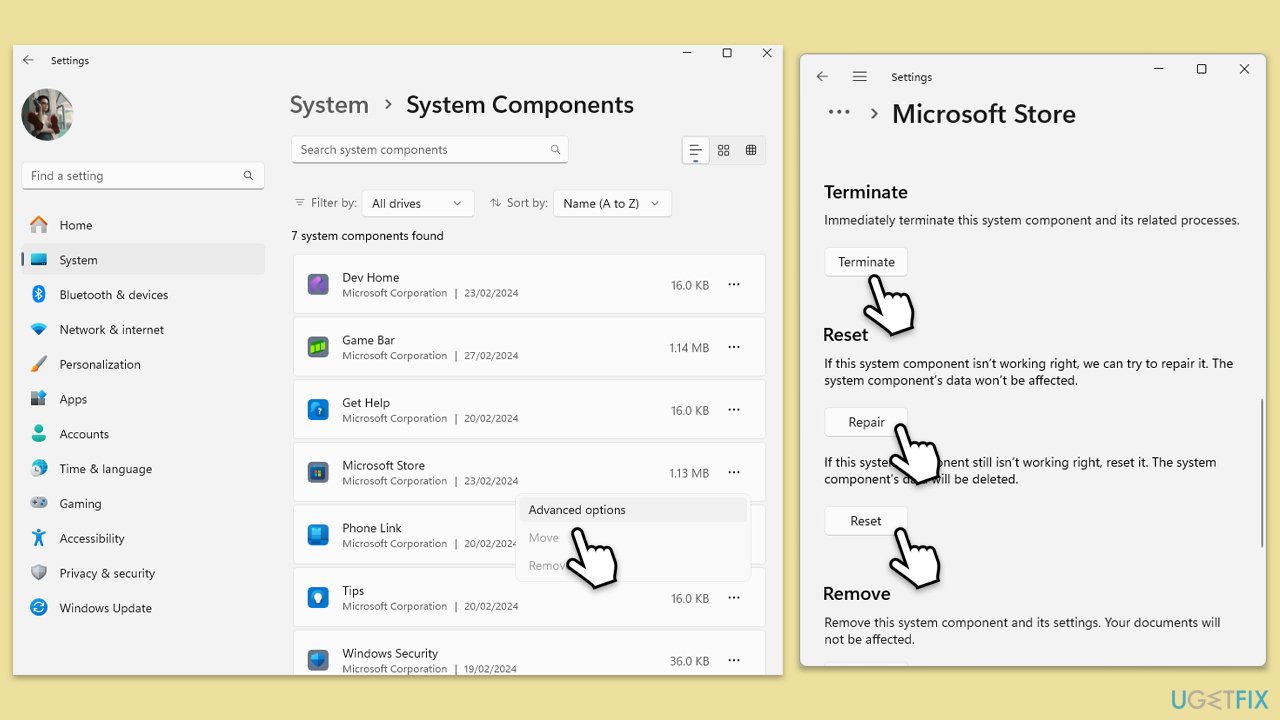
Fix 5. Repair or reset Microsoft Store, Xbox app, and Gaming Services
- Right-click on Start and select Apps & Features/Installed apps.
- Scroll down to find Microsoft Store and click Advanced options.
- Scroll down again and click Terminate and Repair.
- If that does not work, try using Reset.
- Repeat this process with the Xbox app and Gaming Services.
Fix 6. Ensure relevant services are running
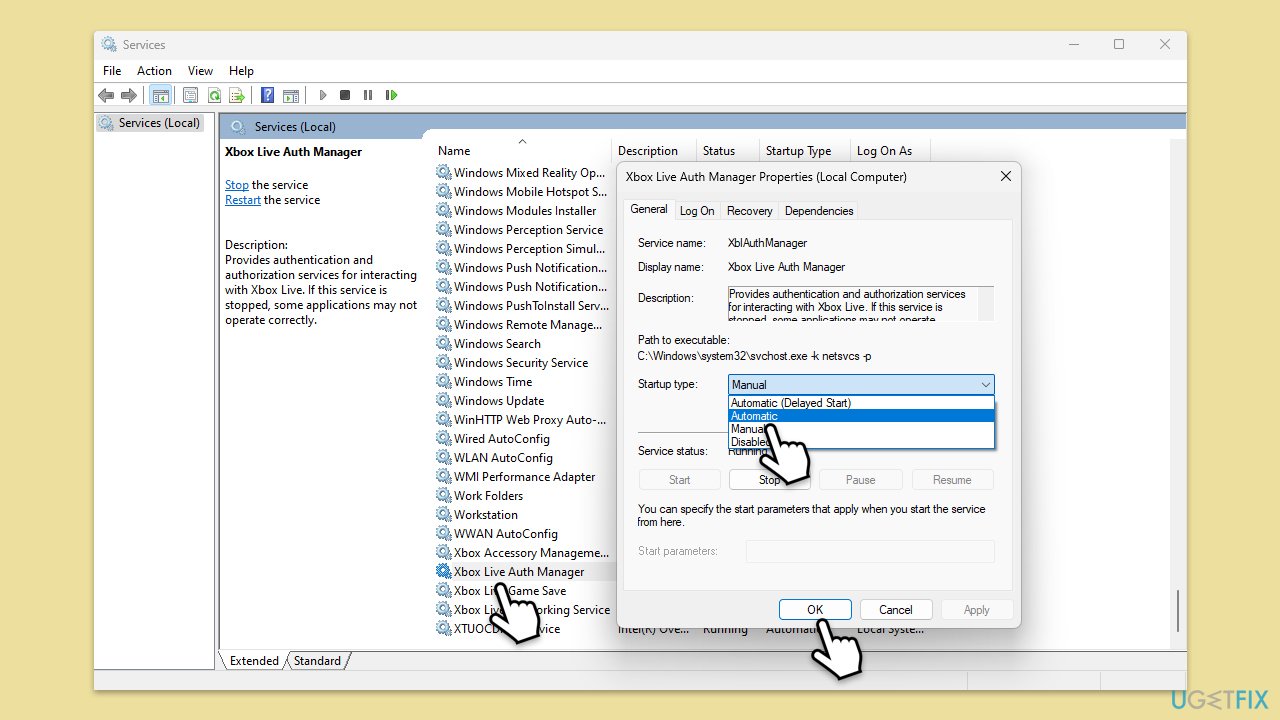
- Type Services in Windows search and hit Enter.
- Scroll down to find Gaming Services.
- Right-click on it and select Restart.
- If it is grayed out, double-click the service to open its Properties.
- Under Startup type, select Automatic from the drop-down menu.
- Click Start, Apply, and OK.
- Repeat this process with the following services:
Windows Update
Microsoft Store Install Service
Xbox Live Auth Manager
Xbox Live Game Save
Xbox Live Networking Service.
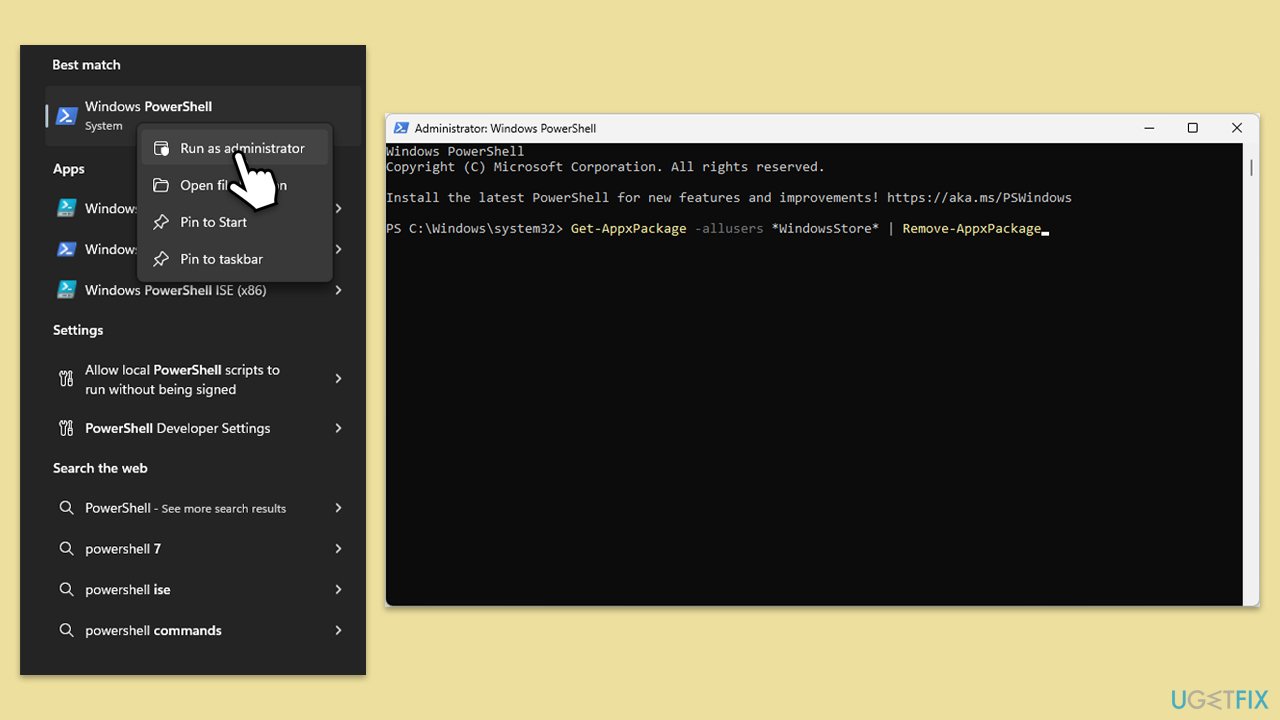
Fix 7. Re-register Windows Store apps
- Type PowerShell in Windows search.
- Right-click on PowerShell and select Run as administrator.
- When UAC shows up, click Yes.
- Type the following command and press Enter:
Get-AppxPackage WindowsStore | Remove-AppxPackage - Then use the following command to reinstall the Store:
Get-AppxPackage -allusers WindowsStore | Foreach {Add-AppxPackage -DisableDevelopmentMode -Register "$($_.InstallLocation)\AppXManifest.xml"} - Restart your PC.

Fix 8. Reinstall Microsoft Store, Xbox app, and Gaming Services
Xbox app
- Right-click on Start and pick Apps and Features/Installed apps.
- Scroll down and find the Xbox app.
- Pick Uninstall and confirm the prompt.
- Follow the instructions to remove the app.
- Restart your computer and reinstall the app.
Microsoft Store
- Open PowerShell as administrator.
- In the new window, copy and paste the following command, pressing Enter after:
Get-AppxPackage Microsoft.WindowsStore | Remove-AppxPackage - With the next command, you will install the Store:
Add-AppxPackage -register "C:\Program Files\WindowsApps\Microsoft.WindowsStore*\AppxManifest.xml" -DisableDevelopmentMode - Press Enter and close down PowerShell.
Gaming Services
- Open PowerShell as administrator.
- In the new window, copy and paste the following commands and hit Enter:
get-appxpackage Microsoft.GamingServices | remove-Appxpackage –allusers
Remove-Item -Path "HKLM:\System\CurrentControlSet\Services\GamingServices" -recurse
Remove-Item -Path "HKLM:\System\CurrentControlSet\Services\GamingServicesNet" -recurse - Close down PowerShell and restart your system.
- Next, install Gaming Services from the Microsoft Store.

Bottom line
To fix error 0x80131501, you can clear the cache of the Microsoft Store or Xbox app, ensure your software is up to date, and run the Windows Store Apps troubleshooter. Additionally, using the System File Checker (SFC) can help repair corrupted files. If none of these solutions work, consider using a repair tool for further assistance.
Frequently asked questions
Error code 0x80131501 typically indicates a problem with your internet connection or account settings, preventing the Microsoft Store or Xbox app from functioning properly.
To reset the Microsoft Store in Windows 11, go to Settings > Apps > Apps & features, find Microsoft Store, click on it, and select 'Advanced options' to then choose 'Reset'.
Yes, ensure that your network connection is stable, and consider resetting your network settings by going to Settings > Network & Internet > Status > Network reset in Windows 10 or 11.




Report an issue
What's wrong with this guide? We review every report and update or remove content.
Report received — thank you. We'll review and fix it.
You need a free account to submit a report.
Be the first to comment