How to fix
Windows update error 0x800f0983
on Windows
Resolve the Windows update error 0x800f0983 quickly and easily with expert-tested solutions. Get your system running smoothly again—fixed in minutes!


What causes How to fix Windows update error 0x800f0983?
- Failed patch installation
- Missing updates due to error
- Underlying system issues
- Intricate system configurations
- Driver version conflicts
Repairs Windows system files, removes malware, and restores a clean OS state — without reinstalling.
I have recently installed updates with no problems and soon after I received a notification that there are more available (updates for .NET Framework, etc.). However, I was unable to install any of these updates due to the 0x800f0983 error. Do you have an idea what this error is and how to fix it?
It's really important for users to keep their Windows updated whenever new patches are released. These updates help fix bugs, close security gaps, boost stability and performance, and even add new features.
Microsoft treats Windows like a service, so users can look forward to updates every Patch Tuesday, which is usually the second or fourth Tuesday of the month. Sometimes, there might be extra updates outside of this schedule too.
Some users might be unlucky enough to come across errors like 0x800f0983 when they try to update their operating systems to the newest build. This issue could also affect those attempting to upgrade to the next major Windows version, like 23H2. No matter the circumstances, it's really important to find a fix quickly because there might be some underlying issues causing the error initially.
Most of the time, users realize that a patch has failed after their system goes through a regular automatic update. If that doesn’t happen, they might get a notification that their system is missing updates due to the 0x800f0983 error, which tells them to try again later.
Unfortunately, trying again - even several times - rarely helps, and users often end up in the same situation. Just like with other update problems, the 0x800f0983 error can be caused by many different factors.
Windows systems are intricate, containing thousands of files, various applications, different settings, and multiple driver versions. Because of this, the solution to a Windows update error can change from one computer to another.
Thus, below you will find information on how to fix the 0x800f0983 error and hopefully get rid of it for good. You can also try taking a more hands-off approach with automatic repair tools such as [d1].

Fix 1. Perform Disk Cleanup
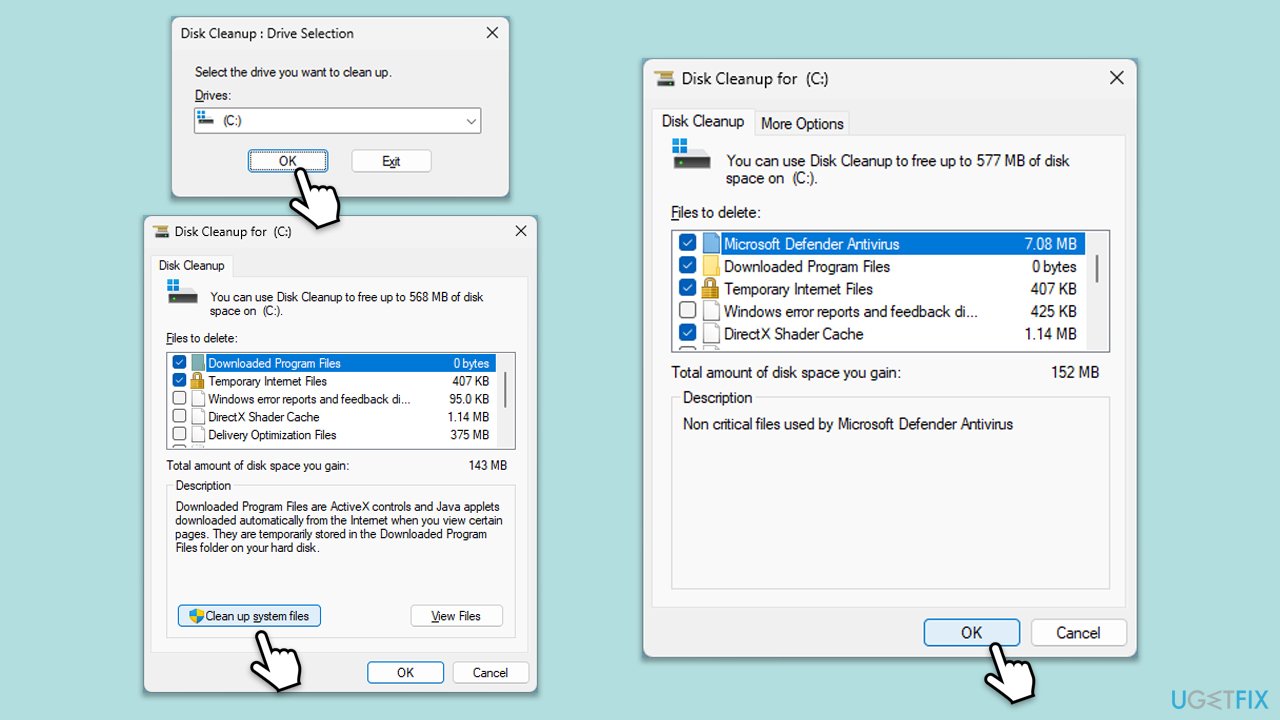
- Type Disk Cleanup in Windows search and hit Enter.
- If your Windows is installed on drive C, pick it from the list (it should be by default) and press OK.
- Click Clean up system files.
- Select your main disk again and click OK.
- Here, select the largest portions of the data used - these typically include Temporary Internet Files, Windows Update, Temporary Files, Recycle Bin, Delivery Optimization Files, and others.
- Click OK - the process should be finished shortly.
Fix 2. Check relevant services
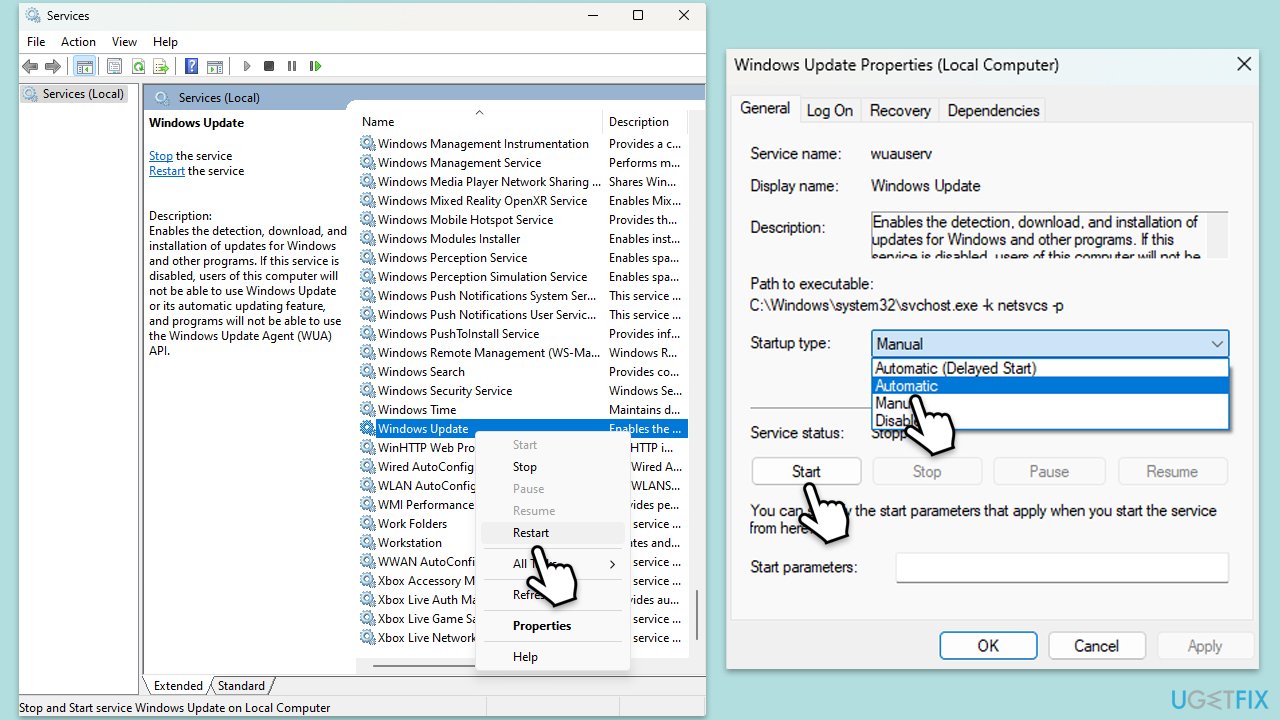
- Type in Services in Windows search and press Enter.
- Locate Background Intelligent Transfer Service (BITS).
- If it is already running, right-click and select Restart.
- if the service is not running, double-click it, select Automatic under the Startup type from the drop-down menu
- Click Start, Apply, and OK.
- Repeat the process with the Windows Update, Cryptographic, and Windows Installer services.
Fix 3. Repair corrupted system files
- Type in cmd in Windows search.
- Right-click on Command Prompt and select Run as administrator.
- In the User Account Control window, click Yes.
- Then, copy and paste the following command, pressing Enter after:
sfc /scannow - Wait till the scan is finished. If Windows finds system file integrity violations, it will attempt to fix them. After this, use the set of the following commands, pressing Enter each time:
DISM /Online /Cleanup-Image /CheckHealth
DISM /Online /Cleanup-Image /ScanHealth
DISM /Online /Cleanup-Image /RestoreHealth - (Note: if you get an error executing this last command, add /Source:C:\RepairSource\Windows /LimitAccess to it and try again).
- Close down the Command Prompt and restart your device.

Fix 4. Reset Windows update components
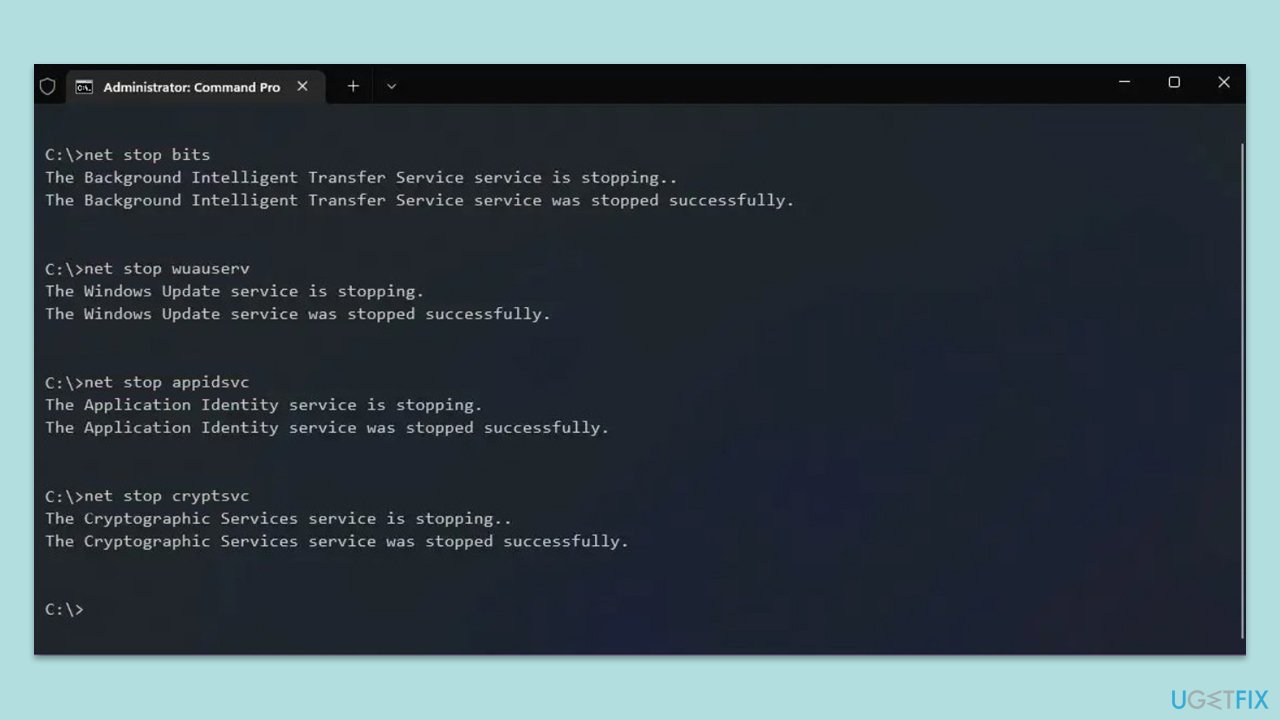
- Open Command Prompt as administrator.
- Copy and paste the following commands one by one in Command Prompt and press Enter after each:
net stop wuauserv
net stop cryptSvc
net stop bits
net stop msiserver
Ren C:\Windows\SoftwareDistribution SoftwareDistribution.old
Ren C:\Windows\System32\catroot2 Catroot2.old - When these commands are executed, the last thing to do is to re-enable relevant services:
net start wuauserv
net start cryptSvc
net start bits
net start msiserver - Reboot your device.
Fix 5. Run Windows Update troubleshooter
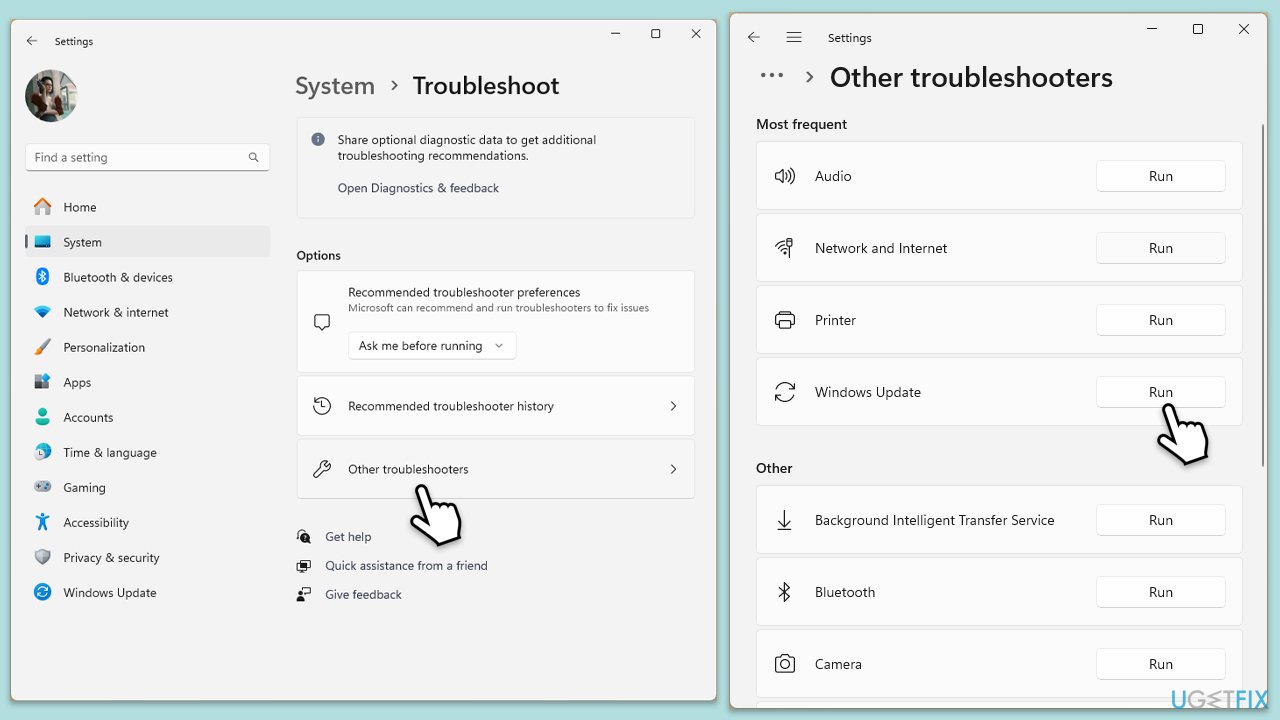
- Type Troubleshoot in Windows search and hit Enter.
- Select Additional troubleshooters/Other troubleshooters.
- Find Windows Update from the list and select Run the troubleshooter/Run.
- Wait till the scan is finished - you will be provided with potential causes so you can proceed with fixes.
- If no suggestions were given, proceed with the solutions below.
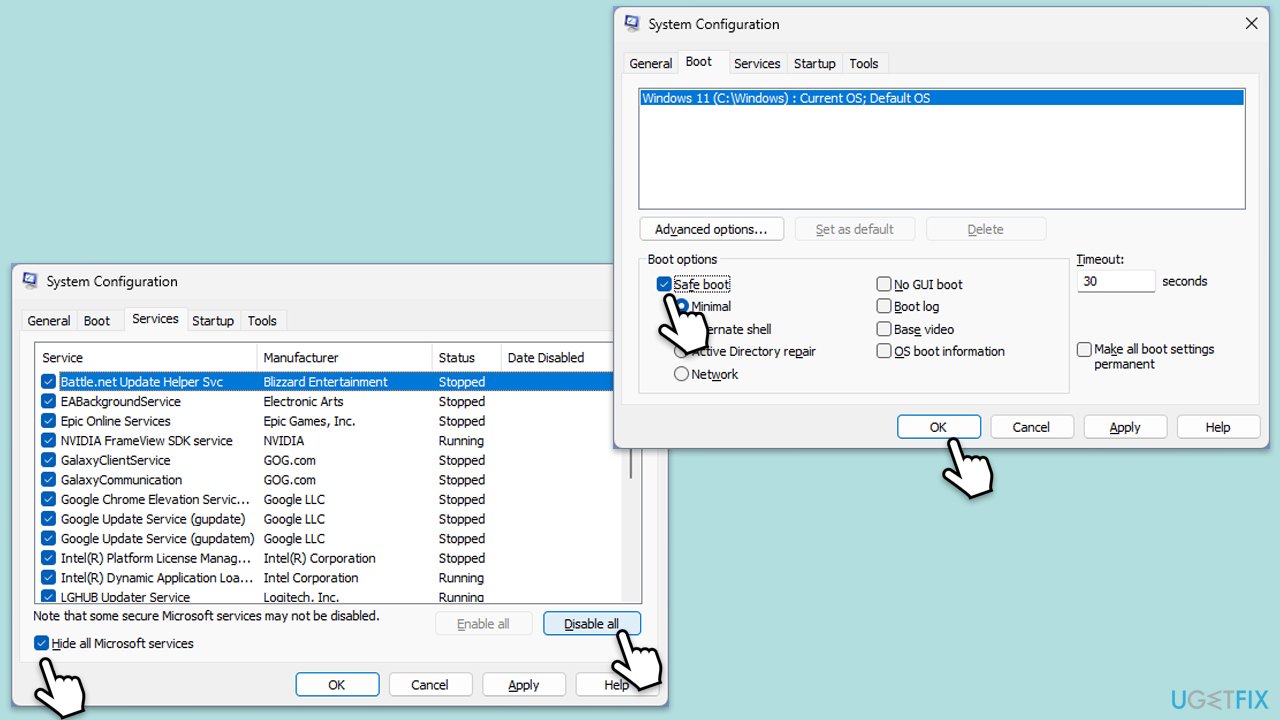
Fix 6. Run Clean Boot
- Press Win + R, type msconfig, and hit Enter.
- Go to the Services tab and tick the Hide all Microsoft services checkbox.
- Select Disable all.
- Go to the Startup tab and click Open Task Manager.
- Here, right-click on each of the non-Windows entries and select Disable.
- Close down the Task Manager.
- Go to the Boot tab and tick the Safe boot option.
- Click OK.
- Restart your computer to initiate the Clean Boot.
- Try running Windows Update again to check if error 0x800f0983 persists.
Fix 7. Use Media Creation Tool
- Visit the official Microsoft website and download Windows 10 installation media (Windows 11 version).
- Double-click the installer, select Yes when UAC shows up, and agree to the terms.
- Select the ISO file and click Next, then follow the instructions to finish the process.
- Right-click on ISO and click Mount.
- Open the location of the ISO, right-click on it, and select Mount.
- Launch the installer.
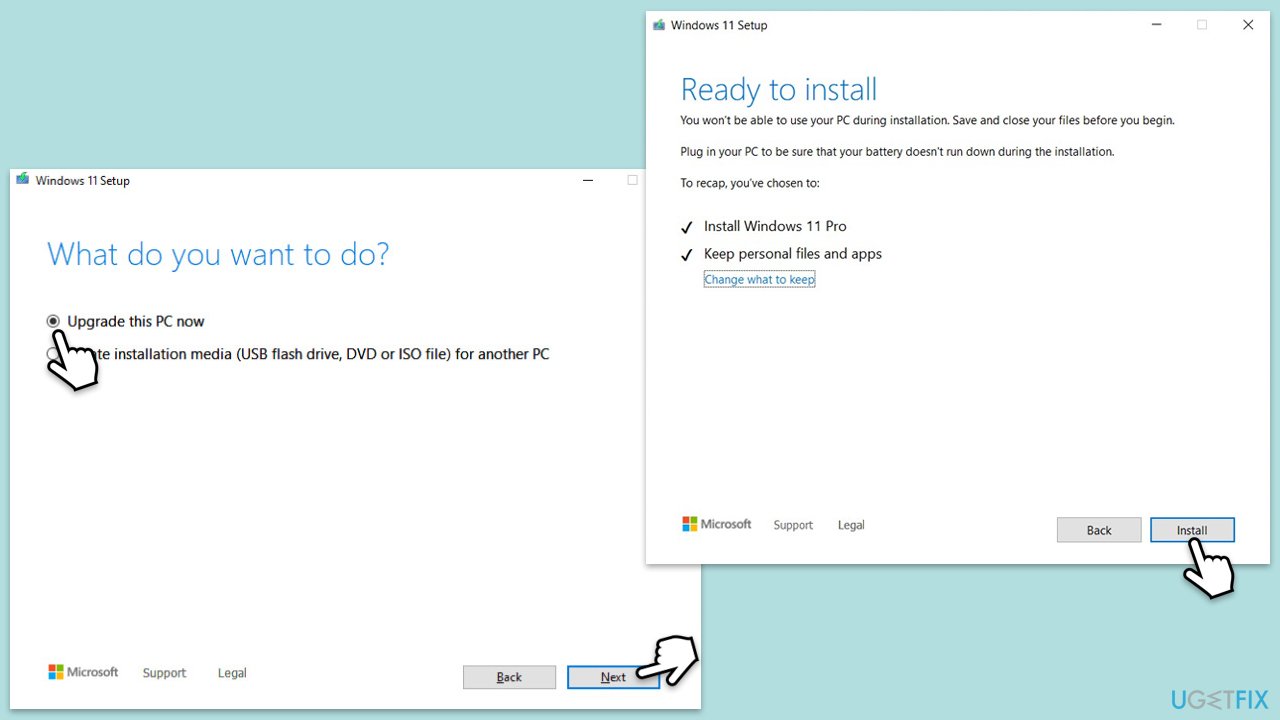
- Select Upgrade this PC now and click Next.
- Windows will start downloading the needed files.
- Agree to the terms once again and click Next.
- Before installing, ensure you are happy with your choices (otherwise, you can click the Change what to keep option).
- Finally, click Install to begin the upgrade process.
Bottom line
To fix the 0x800f0983 error, users can try various methods including using automatic repair tools and addressing specific underlying issues. If these solutions do not resolve the problem, further investigation into system settings and configurations may be necessary.
Frequently asked questions
The error 0x800f0983 typically occurs due to missing or corrupted system files, which can prevent the Windows update process from completing successfully.
To resolve this error, you can run the Windows Update Troubleshooter and also ensure that you have the latest cumulative updates installed.
Yes, you can manually fix this error by using the DISM and SFC tools to repair system files and ensure that your Windows 10 installation is healthy.




Report an issue
What's wrong with this guide? We review every report and update or remove content.
Report received — thank you. We'll review and fix it.
You need a free account to submit a report.
Be the first to comment