How to fix
Msteams_autostarter.exe error
on Windows
Resolve the msteams_autostarter.exe error on Windows 10 or 11 effortlessly. Get back to smooth performance with expert-tested solutions today!

What causes How to fix msteams_autostarter.exe error in Windows?
- Corrupted installation
- Registry issues
- Malware or virus infection
- File corruption
- Conflicts with other software
Repairs Windows system files, removes malware, and restores a clean OS state — without reinstalling.
I came across the following error which says that msteams_autostarter.exe "Parameter is incorrect." What is the solution to this? Help would be appreciated.
Understanding the msteams_autostarter.exe error in Windows
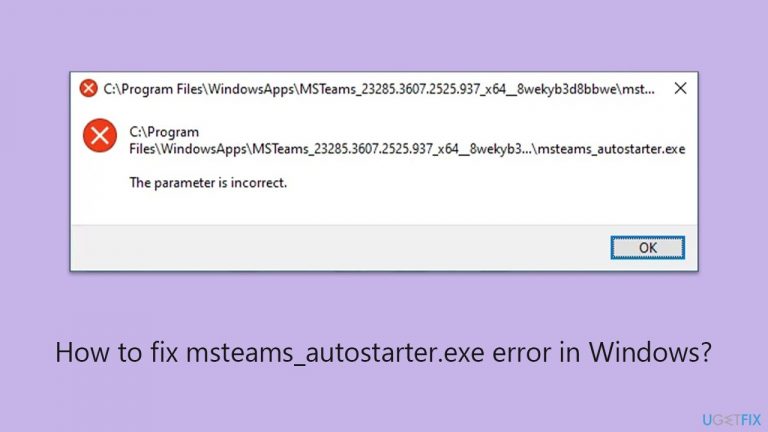
The msteams_autostarter.exe error is a common issue faced by Windows users, particularly those who use Microsoft Teams. This error is typically accompanied by the message: "The parameter is incorrect." This problem can prevent users from launching or using Microsoft Teams effectively, causing disruptions in their workflow.
What is msteams_autostarter.exe?
The msteams_autostarter.exe file is associated with Microsoft Teams, a popular collaboration and communication tool used by businesses and educational institutions worldwide. This executable file is responsible for starting Microsoft Teams automatically when Windows boots up, ensuring that users can access their Teams environment quickly and efficiently. By default, this file is located in the startup folder of Windows, allowing it to launch whenever the system is turned on.
The problem: "The parameter is incorrect" error
When the msteams_autostarter.exe file encounters an error, users may see a message stating "The parameter is incorrect." This error can occur due to several reasons:
- Corrupted installation.
- Registry issues.
- Malware or virus infection.
- File corruption.
- Conflicts with other software.
Potential fixes for the msteams_autostarter.exe error
When users encounter the "The parameter is incorrect" error with msteams_autostarter.exe, it can lead to several issues:
- Microsoft Teams may not start automatically with Windows.
- Users may need to manually start Teams, which can be inconvenient and time-consuming.
- The error message can be disruptive and annoying, appearing every time the system starts.
To fix the msteams_autostarter.exe error, you need to address the underlying problems that are causing it (corrupted files, registry issues, malware, or software conflicts). Below you will find detailed manual instructions on how to perform several of the troubleshooting steps, although we recommend you try using the automatic repair utility [d1] if you would like to save some time or are not that PC-savvy.
Fix 1. Reinstall Microsoft Teams
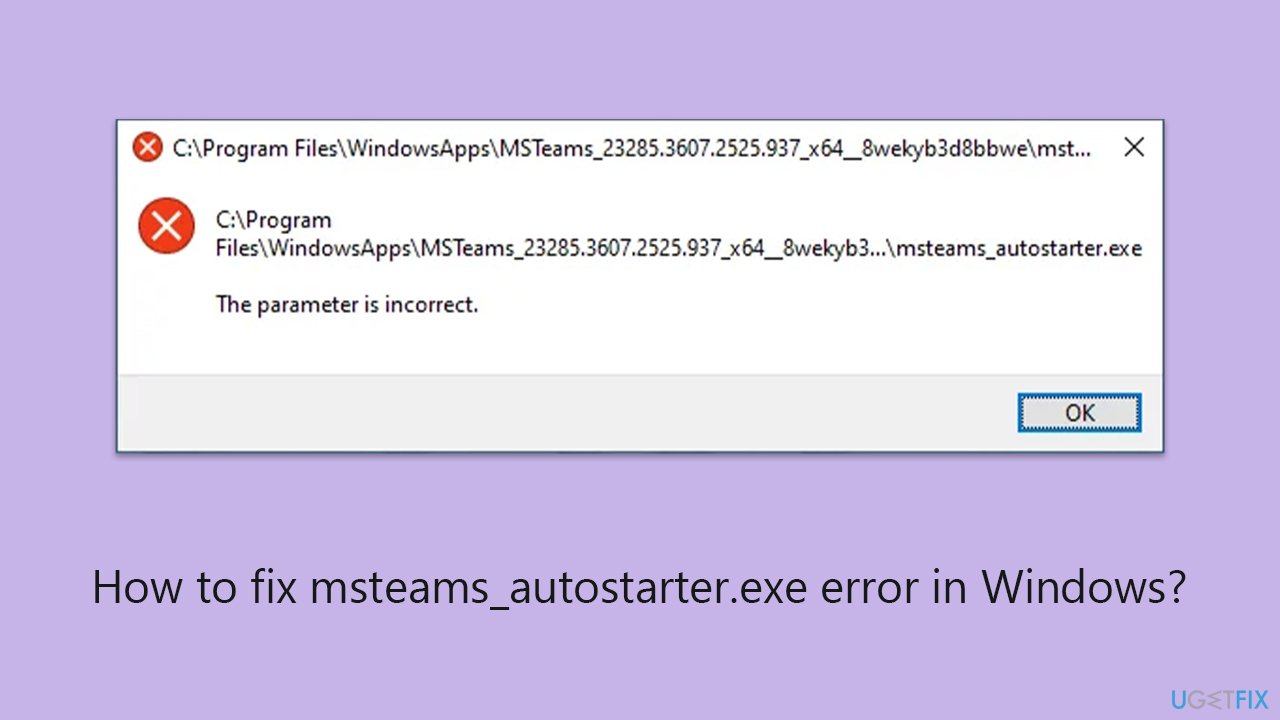
Reinstalling Microsoft Teams can fix the error by replacing corrupted or missing files and ensuring the software is correctly installed. This is also especially true if you have two versions of Teams installed. Remove both of them and then install a clean one.
- Type Control Panel in Windows search and press Enter.
- Go to Programs > Uninstall a program.
- Find Microsoft Teams, right-click, and select Uninstall.
- Follow the prompts to remove the app.
- Once done, press Win + E to open File Explorer.
- In the View tab at the top of the window, enable Hidden Files.
- Go to C:\Program Files\WindowsApps location.
- Scroll down to find the Microsoft Teams folder and delete it (alternatively, you can rename it).
- Now type %AppData% in Windows search and press Enter.
- Delete the Teams folder here.
- Finally, restart your system and reinstall the app.
Fix 2. Update Teams
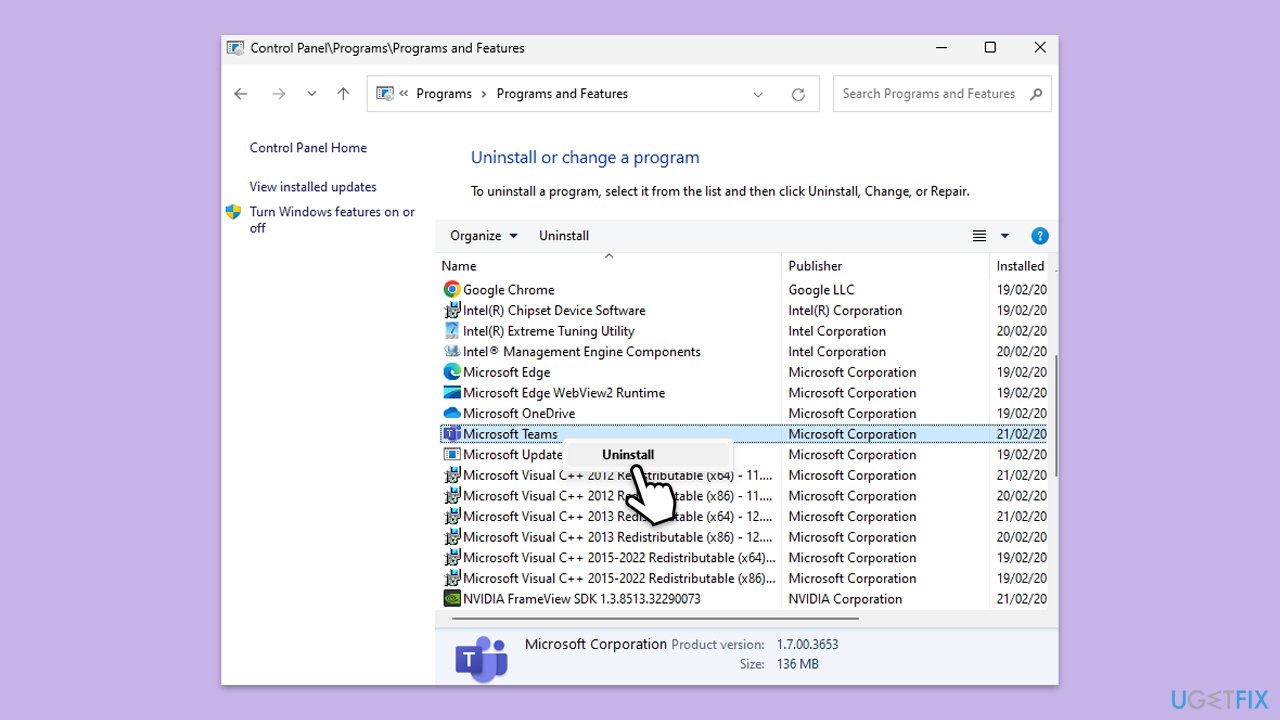
Updating Microsoft Teams ensures you have the latest features and bug fixes. This can resolve compatibility issues and errors caused by outdated software.
- Open Microsoft Teams.
- Click on the Settings and more button at the top-right corner.
- Select Check for updates.
- Teams will automatically download and install any available updates.
- Restart Teams after the update is completed.
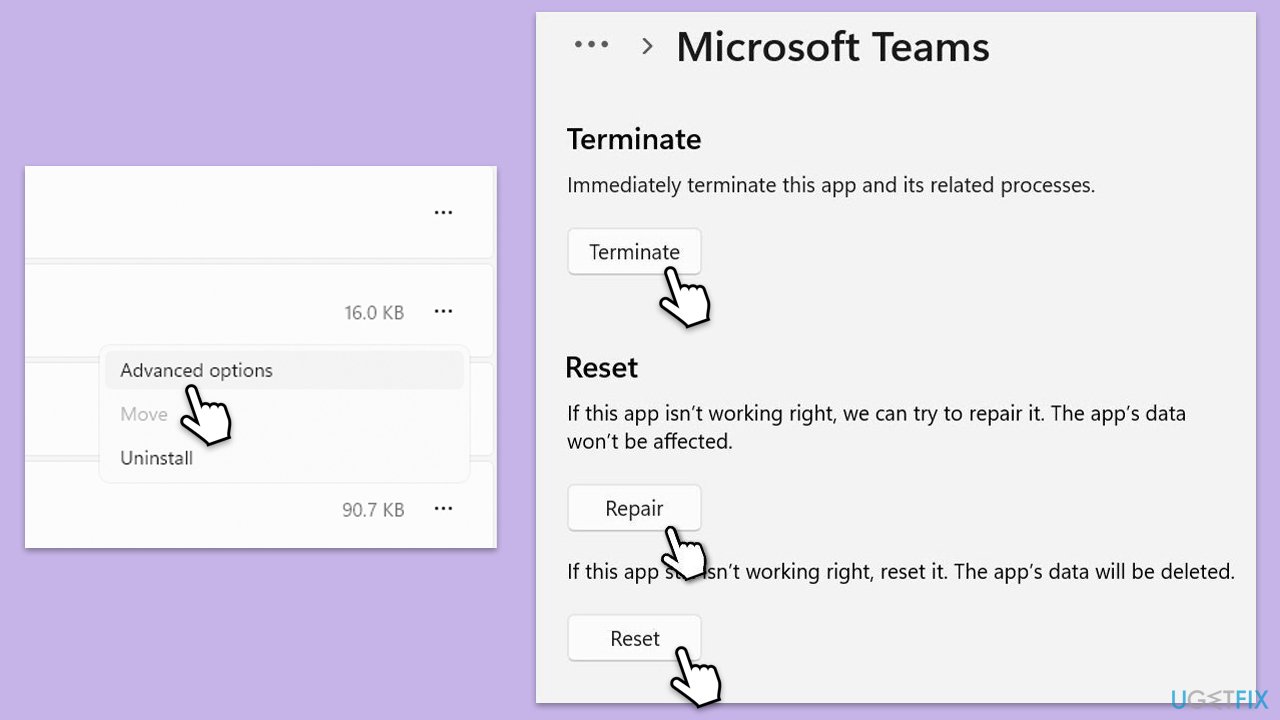
Fix 3. Repair or reset Microsoft Teams
Repairing the installation can fix issues related to corrupted files without uninstalling the software.
- Click on Start and pick Settings.
- Go to the Apps section.
- Locate Microsoft Teams from the list.
- Click on the three vertical dots and pick Advanced options.
- Click Terminate to ensure that the app is not running.
- Under the Reset section, click Repair and see if that solved your issue.
- If not, then try the Reset option.
Fix 4. Run SFC and DISM
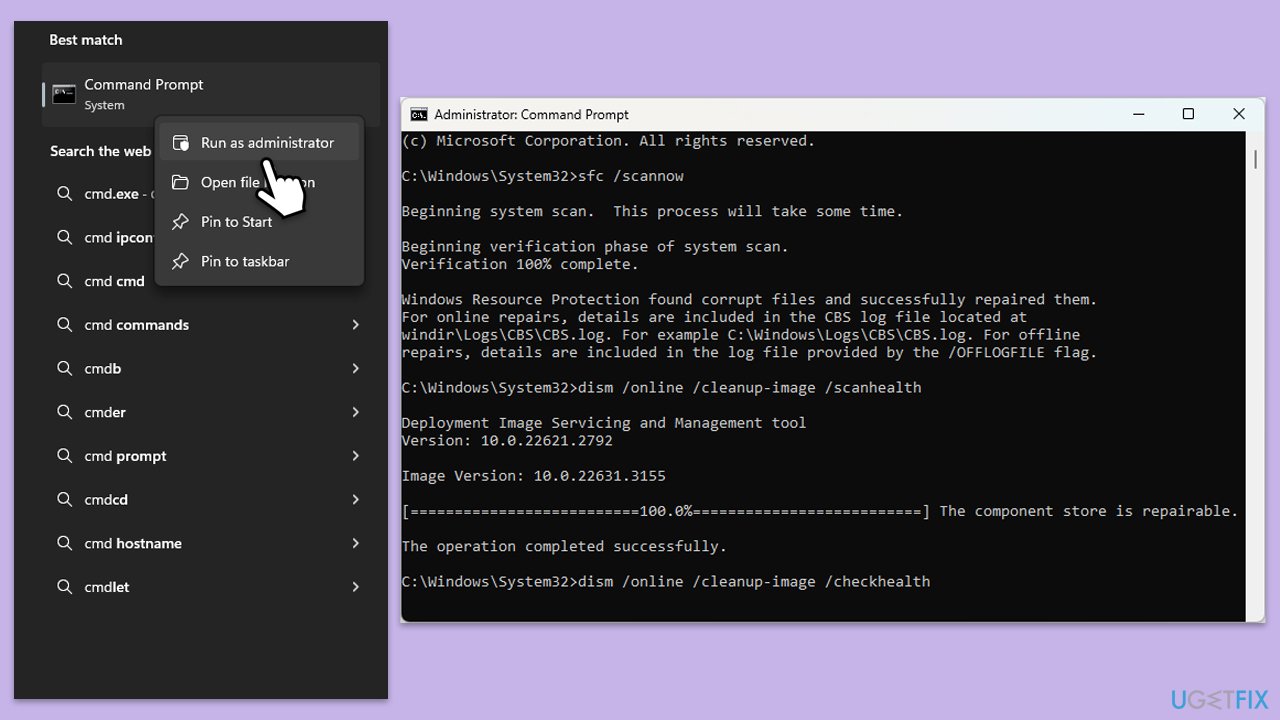
Running System File Checker (SFC) and Deployment Imaging Service and Management Tool (DISM) scans can repair corrupted system files, which might be causing the error.
- Type cmd in Windows search.
- Right-click on Command Prompt and pick Run as administrator.
- User Account Control window will show up - click Yes when prompted.
- Type this command and press Enter:
sfc /scannow - Wait for the scan to finish.
- As soon as the scan finishes, Windows will report whether integrity violations were found and if they could be fixed. Regardless of the outcome, use these commands next, pressing Enter after each:
Dism /Online /Cleanup-Image /CheckHealth
Dism /Online /Cleanup-Image /ScanHealth
Dism /Online /Cleanup-Image /RestoreHealth
(Note: if you get an error executing this last command, add /Source:C:\RepairSource\Windows /LimitAccess to it and try again). - Close down the Command Prompt and restart your computer.
Fix 5. Check for Windows updates
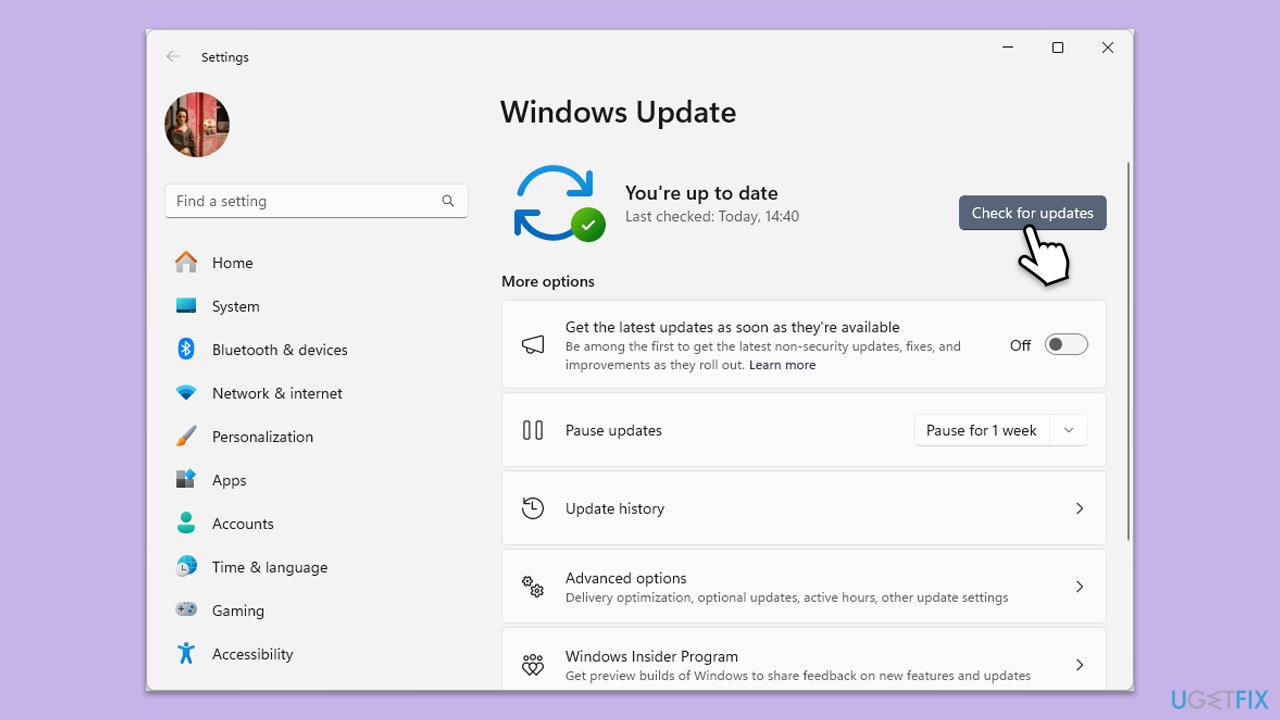
Keeping your operating system up-to-date can resolve compatibility issues and errors. Regular updates often include patches for known issues.
- Type Updates in Windows search and press Enter.
- In this window, click Check for updates.
- If optional updates are available, install them too.
- When everything is installed, restart your system.
Fix 6. Clean boot Windows
Performing a clean boot can help identify and eliminate conflicts caused by third-party software. This can isolate the cause of the error.
- Type msconfig in the Windows search box and press Enter.
- Pick the Services tab.
- Mark Hide all Microsoft services and select Disable all.
- Select the Startup tab and click Open Task Manager.
- In the Task Manager, right-click on each of the items and select Disable, then close the Task Manager.
- Go to the Boot tab, mark the Safe Boot option, then click Apply and OK.
- On the System Configuration window, click OK.

Fix 7. Re-register msteams_autostarter.exe
Re-registering the executable file can fix issues related to file registration in Windows. This ensures the system recognizes and correctly runs the file.
- Open Command Prompt as administrator.
- Type the following command and press Enter:
regsvr32 /u msteams_autostarter.exe - Then type the following and press Enter:
regsvr32 msteams_autostarter.exe - Close the Command Prompt and restart your computer.
Bottom line
To fix the msteams_autostarter.exe error, users can try reinstalling Microsoft Teams to replace corrupted files, or use the automatic repair utility for a quicker solution. If these methods do not resolve the issue, further troubleshooting may be necessary.
Frequently asked questions
The msteams_autostarter.exe error can be caused by corrupted Microsoft Teams files, incorrect settings, or conflicts with other applications running on your system.
You can fix the error by repairing or resetting Microsoft Teams through the Apps & Features settings, or by reinstalling the application completely.
To prevent the error, ensure that Microsoft Teams is regularly updated and check for any conflicting applications that may interfere with its startup.




Report an issue
What's wrong with this guide? We review every report and update or remove content.
Report received — thank you. We'll review and fix it.
You need a free account to submit a report.
Be the first to comment