How to fix
Discord stream stuck on loading
on Windows
Resolve the Discord stream loading issue on Windows 10 or 11 effortlessly. Expert-tested solutions await you for smooth streaming, fixed in minutes.


What causes How to fix Discord stream stuck on loading in Windows?
- Software conflicts
- Outdated graphics drivers
- Network connectivity issues
- Corrupted Discord cache
Repairs Windows system files, removes malware, and restores a clean OS state — without reinstalling.
Hello, I have a problem where when I try to stream in Discord, it doesn't work and all I'm getting is a loading screen. Do you have any advice for me or how could I fix it? I am using Windows 11.
Users of Discord on Windows may occasionally encounter a problem where the stream is unable to progress beyond the loading stage. This issue can prove to be particularly frustrating, especially when attempting to share or view content in real-time. Several factors may be responsible for this occurrence, including software conflicts, outdated drivers, or network difficulties.
One common cause for Discord streams getting stuck on loading is software conflicts. Applications running in the background, especially those related to screen recording or video rendering, can interfere with Discord's streaming functionality. Ensuring that no other heavy applications are running simultaneously might help alleviate this problem.
Another potential issue could be outdated graphics drivers. The performance of Discord is largely contingent upon the GPU of your system for the encoding and streaming of video. If your drivers are not current, you may experience various performance issues, including streams that freeze while loading. To promote seamless operation, it is essential to keep your graphics drivers updated.
While it might be obvious, your network connectivity can prevent you from streaming on Discord, and it's an easy thing to overlook. There are plenty of troubleshooting steps you can perform in order to diagnose if there are any issues with it.
Clearing Discord's cache could be another way out of the streaming problems. Deleting these files forces Discord to recreate them, potentially resolving the issue.
Should you still encounter difficulties, utilizing a PC repair tool such as [d1] can help automatically detect and resolve any hidden Windows problems, leading to a more seamless experience with applications like Discord.

Fix 1. Restart Discord
- Close the Discord app completely. On the desktop, ensure it's not running in the system tray. If so, Right-click on the icon and select Quit Discord. Also, press Ctrl + Shift + Esc, find any Discord-related processes, and shut them all down.
- On mobile, remove it from your recent apps list to ensure it's fully closed.
- Reopen Discord and try sending the friend request again.

Fix 2. Update graphics drivers
Outdated graphics drivers can make your Discord stream such on loading. You can use an automatic driver updater such as [rev id="DriverFix"] or employ the manual method:
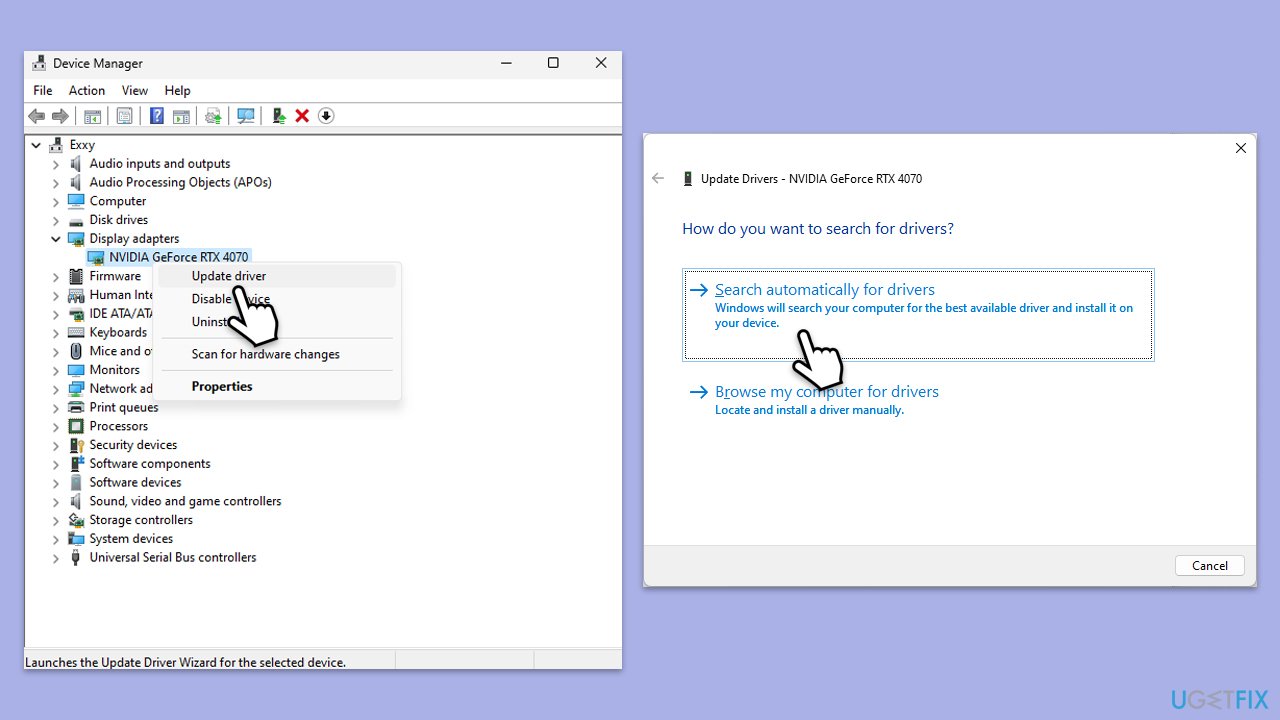
- Right-click on Start and pick Device Manager.
- Expand Display Adapters section.
- Right-click on your GPU and select Update driver.
- Select Search automatically for drivers.
- After the installation is complete, restart your system.
Fix 3. Check network connection
The easiest way to check your network is to run a dedicated troubleshooter.
Windows 11
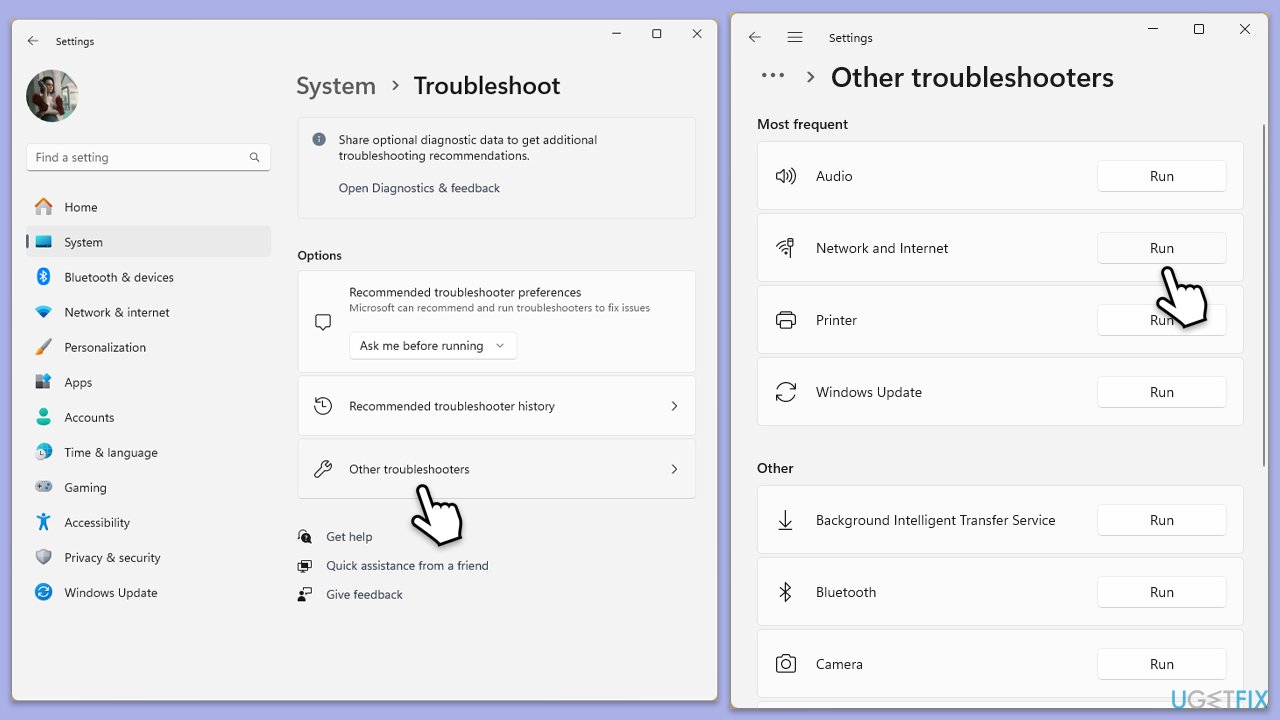
- Type Troubleshoot in Windows search and press Enter.
- Select Other troubleshooters.
- Find Network & Internet troubleshooter from the list and select Run.
- Wait till the process is finished and apply the offered fixes.
- Restart your device.
Windows 10
- Right-click on Start and pick Settings.
- Go to the Network & Internet section.
- On the right side, find the Advanced network settings section.
- Click Network troubleshooter and wait.
- The fixes will be automatically applied.
Fix 4. Clear Discord cache
Clearing Discord’s cache can resolve issues caused by corrupted files.
- Press Ctrl + Shift + Esc on your keyboard.
- Click More details if necessary.
- Locate Discord under Apps section.
- Right-click the app and select End Task.
- Scroll down and do the same with any other Discord background processes still running.
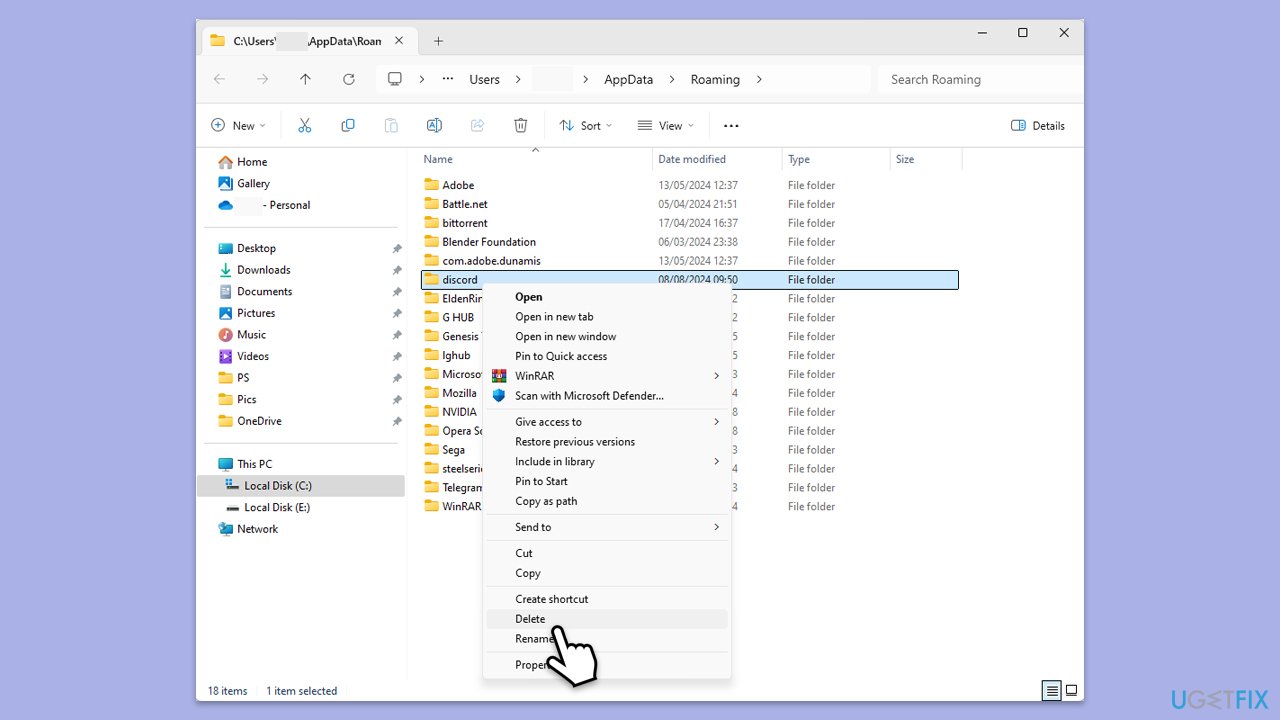
- Type %AppData% in Windows search and press Enter.
- Find the Discord folder, mark it, and press Shift + Del on your keyboard to delete it.
- Next, type in %LocalAppData% in Windows search and press Enter.
- Delete the Discord folder the same way
- Start the app and see if that helped.
Fix 5. Enable or disable hardware acceleration
Changing certain settings in Discord can improve streaming performance.
- Open Discord.
- Go to User Settings (the gear icon near your profile picture).
- Under App settings, scroll down and select Advanced.
- Find the Hardware Acceleration option.
- Toggle it off or on, depending on your circumstances.

Fix 6. Run Discord as an administrator
Running Discord with administrative privileges can sometimes bypass restrictions causing the issue.
- Right-click the Discord shortcut on your desktop.
- Select Run as administrator.
- Confirm any prompts that appear.
Fix 7. Reinstall Discord
Reinstalling Discord can fix issues caused by corrupted installation files.
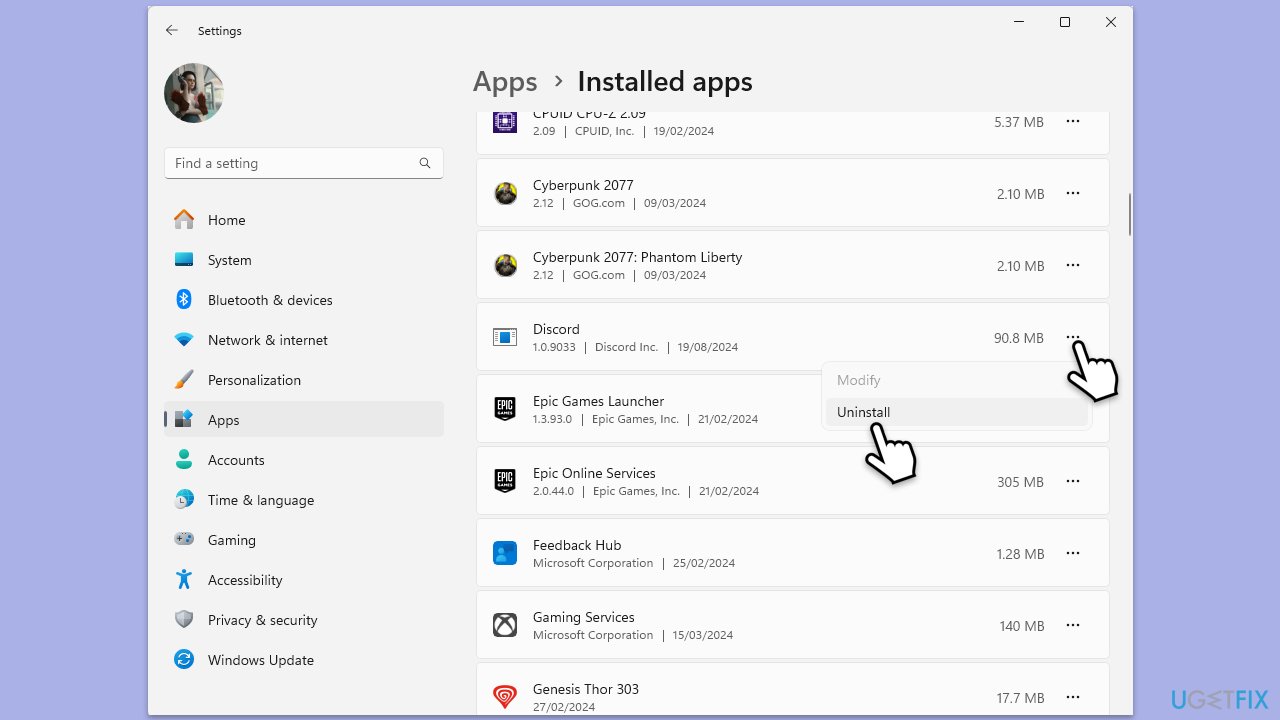
- Right-click on Start and pick Apps and Features/Installed apps.
- Scroll down to find Discord.
- Click Uninstall and follow up with Uninstall again to confirm it.
- Follow on-screen instructions to remove the app.
- Download it from the official website and install it anew.
- Install Discord and log in to your account.
Fix 8. Try Clean Boot
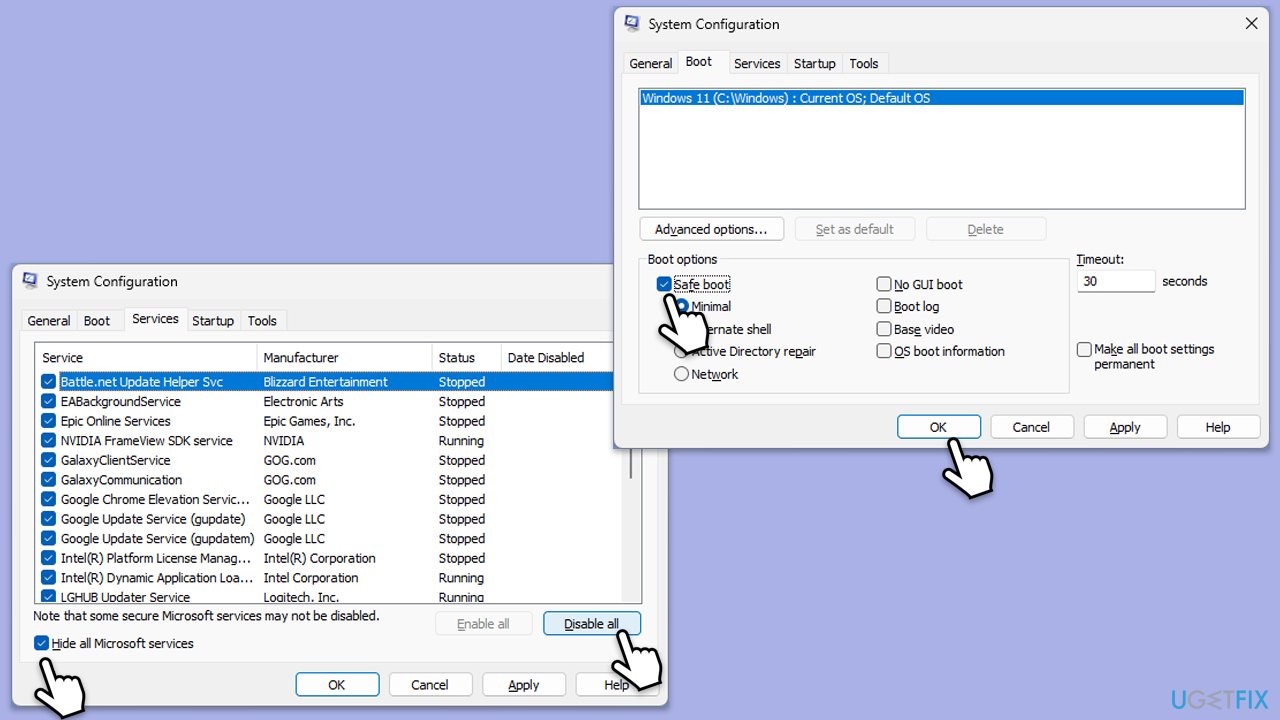
If there's another app on your system conflicting with Discord or streaming in general, booting your PC in Clean Boot state will help you determine which one is the problem.
- Type msconfig in Windows search and press Enter.
- In the System Configuration window, go to the Services tab and check the box next to Hide all Microsoft services.
- Click Disable all to disable all non-Microsoft services.
- Go to the Startup tab and click Open Task Manager.
- In Task Manager, disable all startup items.
- Close Task Manager and click OK in the System Configuration window.
- Go to the Boot tab and select Safe Boot.
- Click OK, and restart your computer.
- To find out which app(s) is causing conflicts, enable each of the processes (or you can do it in groups), restart, and see if the problem persists. Repeat until you find the faulty app, then either update or uninstall it.
Bottom line
To resolve the issue of Discord streams getting stuck on loading, you can restart Discord, update your graphics drivers, check your network connectivity, and clear Discord's cache. If these steps do not resolve the problem, consider using a PC repair tool to detect and fix any hidden Windows issues.
Frequently asked questions
Try clearing the Discord cache by closing the app, navigating to %appdata%/Discord, and deleting the Cache folder. Restart Discord to see if the issue is resolved.
Ensure that your graphics drivers are up to date and consider disabling hardware acceleration in Discord settings under Appearance. This can help improve streaming performance.
Yes, test your internet speed using a speed test website and ensure that your connection meets the minimum requirements for streaming on Discord.




Report an issue
What's wrong with this guide? We review every report and update or remove content.
Report received — thank you. We'll review and fix it.
You need a free account to submit a report.
Be the first to comment