How to fix
Microsoft Store error 0x803F800B
on Windows
Resolve Microsoft Store error 0x803F800B on Windows 10 or 11 easily. Get quick fixes and troubleshooting tips for a seamless experience, expert-tested.


What causes How to fix Microsoft Store error 0x803F800B?
- Corrupted store files
- Unreliable internet connection
- Expired subscription service
- Issues with third-party security software
- Malware presence
Repairs Windows system files, removes malware, and restores a clean OS state — without reinstalling.
Hey, when I try to install Minecraft from Microsoft Store I keep getting the 0x803F800B error. Could you please help me with this? I am using Windows 11 Home edition.
The Microsoft Store is an integrated application that simplifies the process of managing software on your device. It offers a platform for downloading new software and updating existing applications directly, which helps avoid the security risks associated with downloading programs from third-party sites.
However, users often encounter errors while using the Microsoft Store, with error 0x803F800B being one of the issues that can arise during the download or update of applications, such as Minecraft, for example. The error message provided by Windows is vague and simply states:
Something went wrong. We're aware of the issue and working to fix it. Try refreshing or come back later.
Code: 0x803F800B
Following the recommendation, many users restart their device and attempt to download the app again, but this often fails to resolve the problem, leading users to search for effective fixes for error 0x803F800B in the Microsoft Store.
This error can impact various applications, from essential office tools to popular gaming applications, making it a significant inconvenience, especially for those who rely on these applications for day-to-day tasks or remote work.
The causes of this error can vary, including corrupted store files or an unreliable internet connection, and as such, several troubleshooting methods might be necessary. Below, we offer a range of potential solutions to try sequentially to find the one that resolves the issue.
Additionally, consider our automated tool [d1] for a quicker fix. This tool can run diagnostics and repairs that may speed up the resolution process, potentially clearing out existing malware, removing unnecessary files, and addressing common Windows issues, regardless of their underlying cause.

Preliminary checks to make
- Restart your system.
- Scan Windows for malware.
- Temporarily disable third-party security software.
- Check your subscription service. For example, if you are using Game Pass, ensure it has not expired.
- Make sure you are logged in with the correct account on both the Microsoft Store and the Xbox app.
- Restart your router to exclude any connection issues.
- Check Microsoft server status.
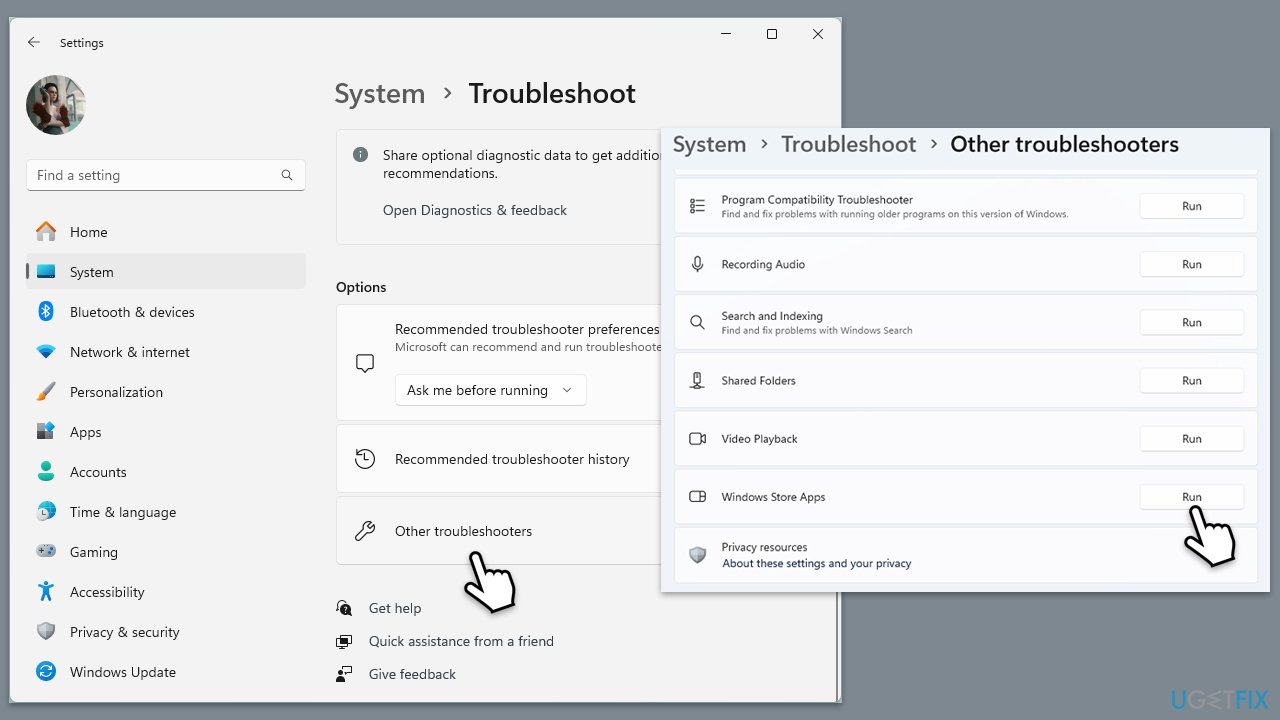
Fix 1. Run Windows Store apps troubleshooter
- Type Troubleshoot in Windows search and hit Enter.
- Click Additional troubleshooters/Other troubleshooters.
- Scroll down to find Windows store apps and select it.
- Click Run the troubleshooter/Run.
- Wait till the process is finished and apply the fixes, then try using Store again.
Fix 2. Reset Store cache
Corrupted cache files right prevent the Store from working correctly. You can reset them as follows:
- In Windows search, type wsreset.exe and press Enter.
- Wait till a black window shows up – do not close it.
- Once it's gone, Microsoft Store should restart.
- Try using the Store again.

Fix 3. Repair corrupted system files
To repair corrupted files on your device, use the elevated Command Prompt.
- Type in cmd in Windows search.
- Right-click the Command Prompt result and pick Run as administrator.
- User Account Control will ask whether you want to allow changes - click Yes.
- Type this command and press Enter:
sfc /scannow - Wait for the scan to finish.
- Then, use the following commands, pressing Enter after each:
Dism /Online /Cleanup-Image /CheckHealth
Dism /Online /Cleanup-Image /ScanHealth
Dism /Online /Cleanup-Image /RestoreHealth
(Note: if you get an error executing the last command, add /Source:C:\RepairSource\Windows /LimitAccess to it and try again.) - Restart your computer.

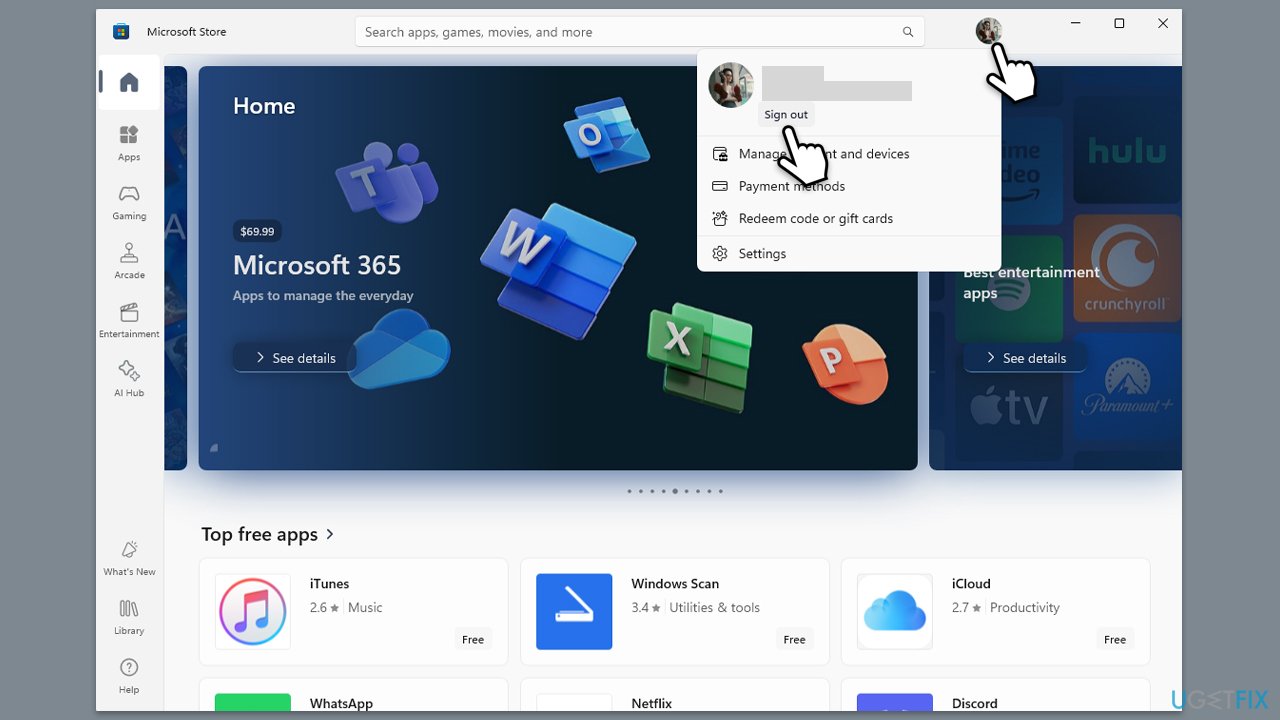
Fix 4. Sign out and in
Sometimes, the 0x803F800B error can occur due to the Microsoft Store receiving your account incorrectly, so signing out and in might resolve this.
- Launch Microsoft Store.
- Click on your Profile picture and click Sign out.
- Restart your computer.
- Sign back in again with your account credentials.
Fix 5. Update Windows
- Type Updates in Windows search and press Enter.
- Here, click Check for updates or Install updates (if available).
- Wait till Windows downloads and installs all the nescessary files.
- If optional updates are available, install them as well.
- Reboot your device.

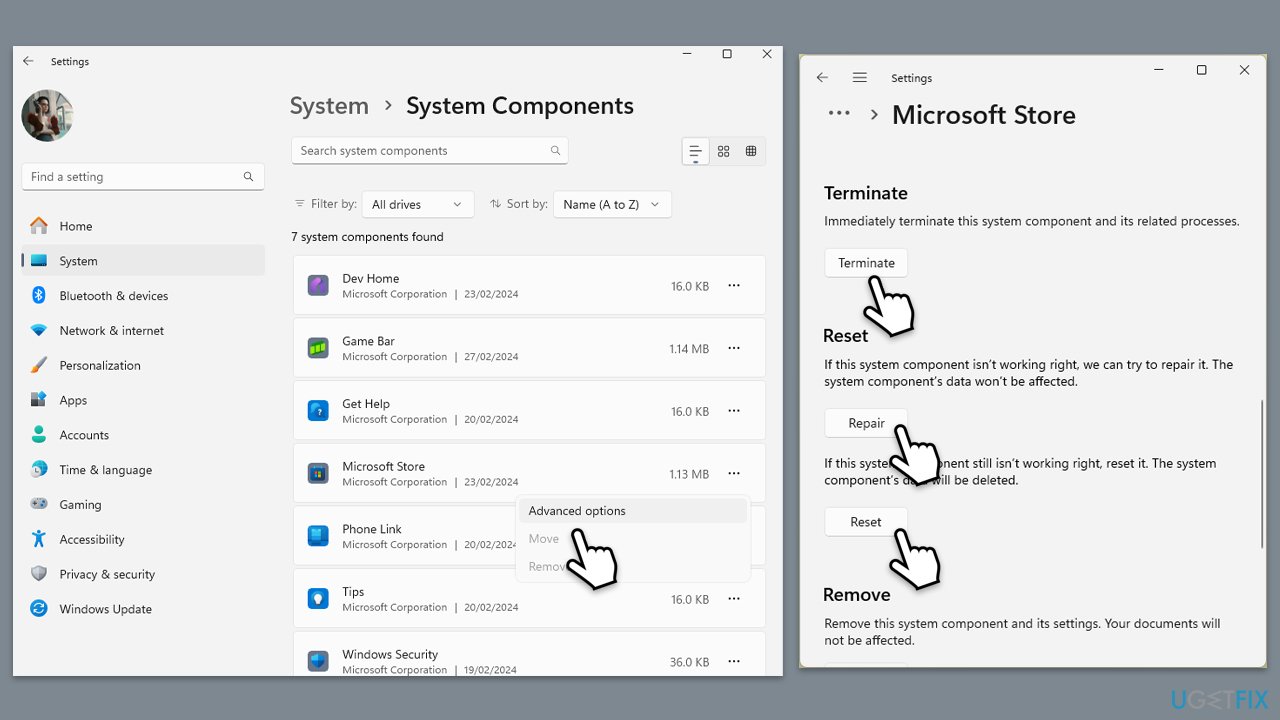
Fix 6. Repair or reset Microsoft Store
- Right-click on Start and select Apps & Features/Installed apps.
- Scroll down to find Microsoft Store and click Advanced options or go to Settings > System > System Components > Advanced options.
- Scroll down again and click Terminate and Repair.
- If that does not work, try using Reset.
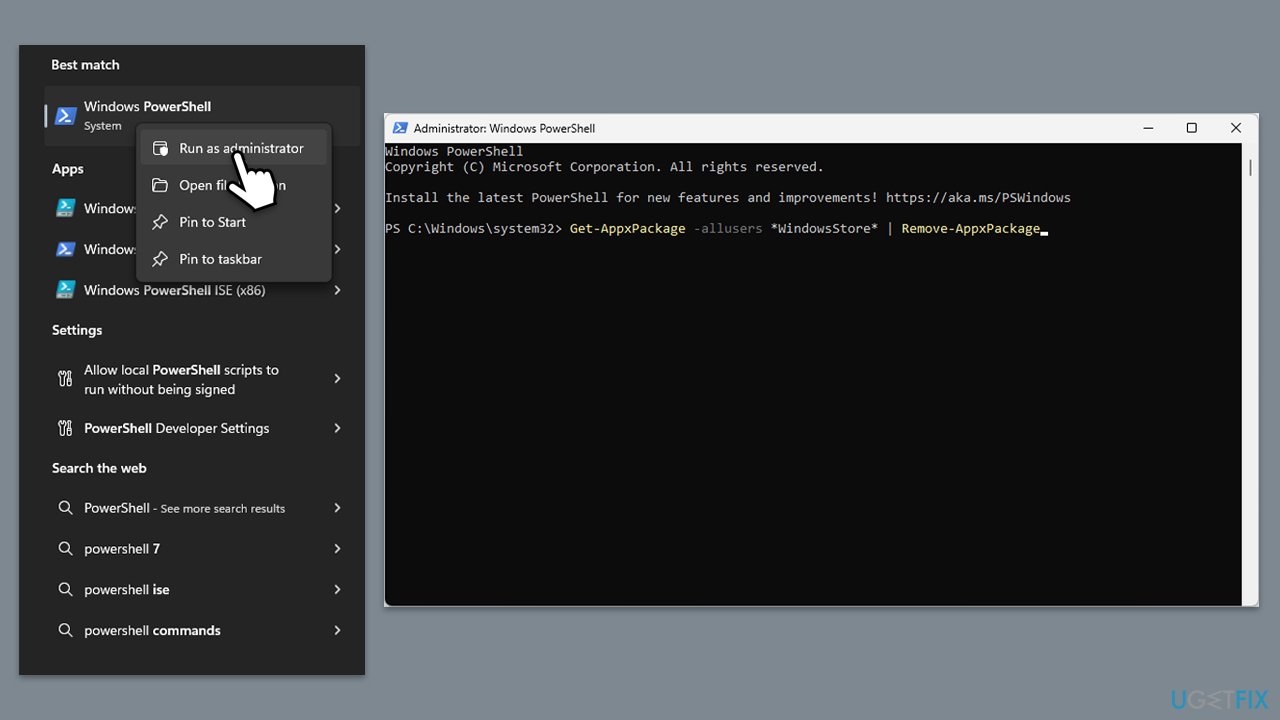
Fix 7. Reinstall Microsoft Store via PowerShell
- Type PowerShell in Windows search.
- Right-click on PowerShell and select Run as administrator.
- When UAC shows up, click Yes.
- In the PowerShell window, copy and paste the following command, pressing Enter after:
Get-AppxPackage Microsoft.WindowsStore | Remove-AppxPackage - With the next command, you can install the Store:
Add-AppxPackage -register "C:\Program Files\WindowsApps\Microsoft.WindowsStore*\AppxManifest.xml" -DisableDevelopmentMode - Press Enter and close down PowerShell.
Bottom line
To fix Microsoft Store error 0x803F800B, try restarting your system, scanning for malware, temporarily disabling third-party security software, and checking your subscription service. If these steps do not resolve the issue, consider using an automated tool for further diagnostics and repairs.
Frequently asked questions
The error 0x803F800B typically indicates that the Microsoft Store cannot access the necessary files or services needed to function correctly, often due to a network issue or corrupted cache.
To clear the Microsoft Store cache, press Win + R, type 'wsreset.exe', and hit Enter; this will reset the Store without changing your account settings.
You can reset the Microsoft Store by going to Settings > Apps > Apps & features, locating Microsoft Store, selecting it, and clicking on 'Advanced options' followed by 'Reset'.




Report an issue
What's wrong with this guide? We review every report and update or remove content.
Report received — thank you. We'll review and fix it.
You need a free account to submit a report.
Be the first to comment