How to fix
“Application error: a client-side exception has occurred” on Chrome
on Windows
Resolve the "Application error: a client-side exception has occurred" on Chrome in Windows 10 or 11 with expert-tested solutions for quick fixes.


What causes How to fix “Application error: a client-side exception has occurred” on Chrome?
- Buggy JavaScript code
- Incompatible JavaScript code
- Conflicts between web app and browser extensions
- Corrupted browser cache
- Corrupted cookies
Repairs Windows system files, removes malware, and restores a clean OS state — without reinstalling.
How can I fix this error: "Application error: a client-side exception has occurred (see the browser console for more information)"? I get this on some pages. They seem to be loading at first, but then they become black with the message at the middle. What can I do here?
Sometimes, users of Google Chrome may get the error message "Application error: a client-side exception has occurred." It usually shows up when there is an issue with a web application that is operating within the browser. It can happen in a number of situations, including when a webpage loads, when using web-based interfaces, or when in-browser applications that heavily rely on client-side scripts like JavaScript are being executed.
The root causes of the "Application error: a client-side exception has occurred" are often related to issues within the web application itself, such as buggy or incompatible JavaScript code, conflicts between the web app and browser extensions, or corrupted browser cache and cookies that disrupt normal app behavior. In addition, corrupted cache files or cookies may also result in you not being able to reach certain websites.
Users who encounter this problem may notice that it affects their browsing experience, resulting in web pages that fail to load properly or interactive functions that do not respond as intended. It can be especially bothersome when it happens frequently or when attempting to do important things online.
For those not comfortable with manually tinkering with browser settings or code, using a [d1] repair tool might be a practical solution. These tools are designed to automate the troubleshooting process, efficiently identifying and fixing common browser issues without the need for in-depth technical knowledge.

Fix 1. Clear browser cache and cookies
Sometimes, corrupted cache and cookies can cause problems with web applications.
- Open Chrome.
- Click on Menu and select Settings.
- Under Privacy and security, pick Clear browsing data.
- Select All time under the time range.
- Select Browsing history, Cookies and other site data, as well as Cached images and files.
- Click Clear data.

Fix 2. Disable browser extensions
An extension might be interfering with the web application.
- Open Settings and go to More tools.
- Select Extensions.
- Here, you will find the list of the installed extensions.
- You can either delete them by pressing Remove or toggling the switch to disable them.

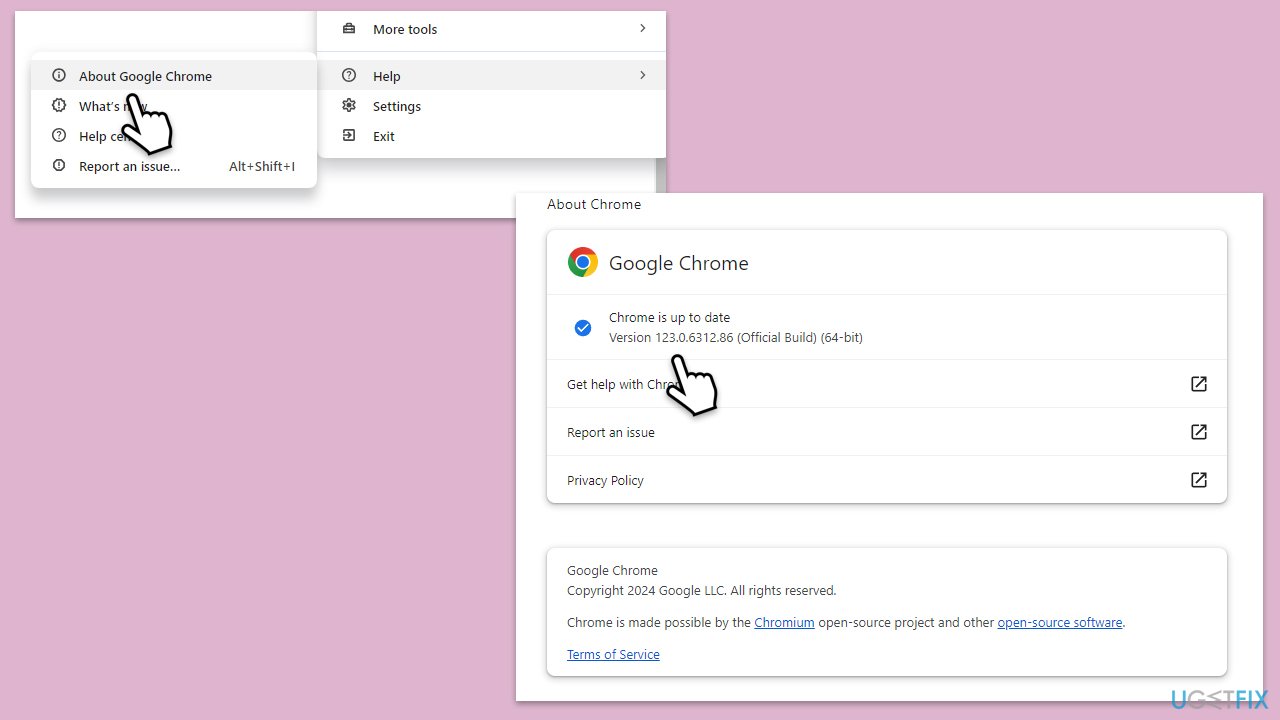
Fix 3. Update Google Chrome
Running an outdated version of Chrome can lead to compatibility issues with newer web applications.
- Click on the three vertical dots in the top-right corner of the browser.
- Select Help > About Google Chrome.
- Wait till the browser is updated and click Relaunch.
Fix 4. Try Incognito Mode
This can help determine if something in the normal browsing mode, like extensions or cached data, is causing the issue.
- Open your browser.
- Click on the menu icon (three dots).
- Select New incognito window.
- Try the verification process again in the new window.

Fix 5. Check internet connection
Sometimes, a poor or unstable internet connection can cause issues with loading web applications. The easiest way to do this is by running network and internet troubleshooter:
Windows 11
- In the Windows search bar, type Troubleshoot and press Enter.
- Select Other troubleshooters.
- Locate Network & internet, and then click Run.
- Follow the on-screen instructions to diagnose and fix issues.

Windows 10
- Right-click on Start and pick Settings.
- Go to Network & Internet section.
- On the right side, find the Advanced network settings section.
- Click Network troubleshooter, specify the problem, and wait till the scan is finished.
- When done, apply all the recommendations.
Fix 6. Reset Google Chrome settings
This can help resolve issues by returning Chrome to its original state without affecting your bookmarks, history, and saved passwords.
- Click on Menu and go to Settings.
- On the left side, click Reset settings.
- Under Reset settings, click Restore settings to their original defaults.
- Confirm by clicking Reset settings.
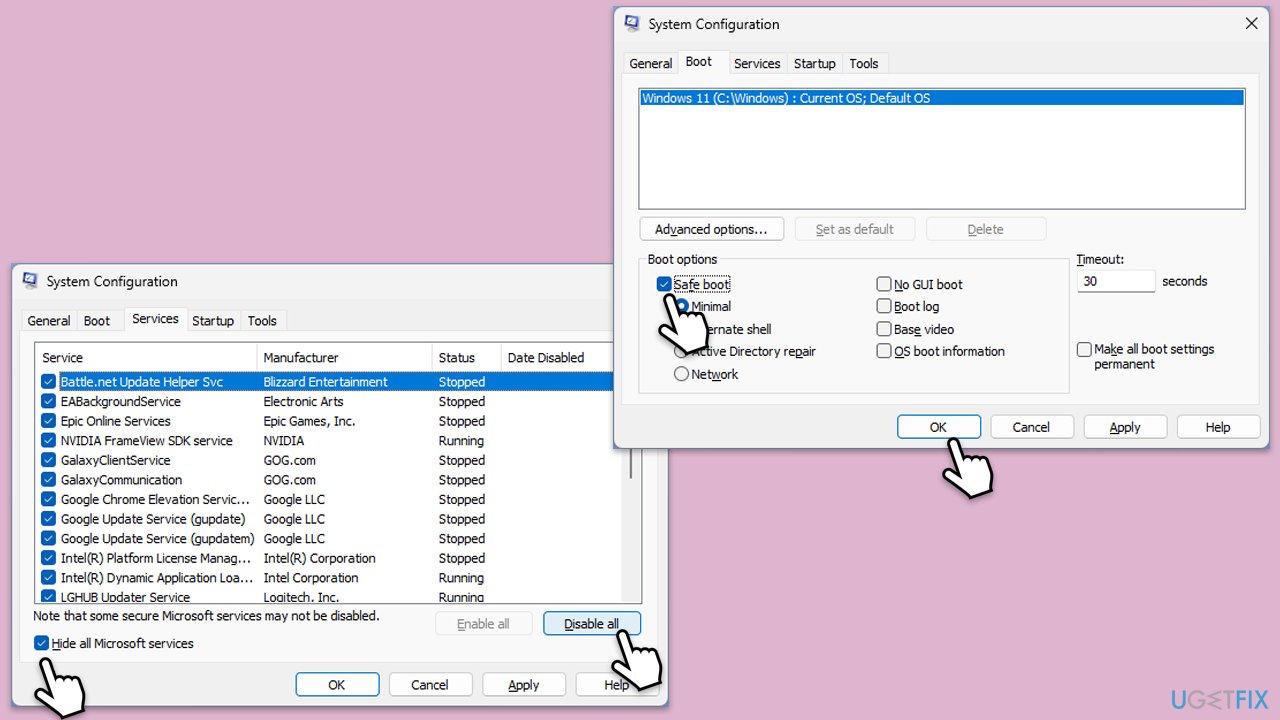
Fix 7. Try Clean Boot
- Type msconfig in Windows search and press Enter.
- In the System Configuration window, go to the Services tab and check the box next to Hide all Microsoft services.
- Click Disable all to disable all non-Microsoft services.
- Go to the Startup tab and click Open Task Manager.
- In Task Manager, disable all startup items.
- Close Task Manager and click OK in the System Configuration window.
- Go to the Boot tab and select Safe Boot.
- Click OK, and restart your computer.
- To find out which app(s) is causing conflicts, enable each of the processes (or you can do it in groups), restart, and see if the problem persists. Repeat until you find the faulty app, then either update or uninstall it.
Bottom line
To fix the 'Application error: a client-side exception has occurred' on Chrome, you can clear your browser cache and cookies. If the issue persists after trying this fix, consider using a repair tool to automate the troubleshooting process.
Frequently asked questions
You can try clearing the browser cache and cookies by going to Chrome settings, selecting 'Privacy and security', and then 'Clear browsing data'. Additionally, disabling any problematic extensions may help fix the error.
To update Chrome, click on the three dots in the upper right corner, go to 'Help', and then 'About Google Chrome'; it will automatically check for updates and install them if available.
Yes, resetting Chrome settings can help resolve various issues, including client-side exceptions; you can do this by going to 'Settings', scrolling down to 'Advanced', and selecting 'Restore settings to their original defaults'.




Report an issue
What's wrong with this guide? We review every report and update or remove content.
Report received — thank you. We'll review and fix it.
You need a free account to submit a report.
Be the first to comment