How to fix
0x00000119 BSOD error
on Windows
Resolve the frustrating 0x00000119 BSOD error on Windows 10 or 11 effortlessly. Get expert-tested solutions to fix crashes in minutes!


What causes How to fix 0x00000119 BSOD error in Windows?
- Outdated video drivers
- Corrupt video drivers
- Overheating graphics cards
- Incompatible system updates
- Faulty video hardware
Repairs Windows system files, removes malware, and restores a clean OS state — without reinstalling.
My PC has frozen and restarted with the BSOD. The mentioned stop code was 0x00000119. After a restart, Windows booted normally and I thought this was all behind me - and I was wrong. Today, it happened again and I think something's wrong. What can I do to fix this?
Encountering a Blue Screen of Death (BSOD) is never a welcome experience for Windows users, and the 0x00000119 error code is particularly associated with video scheduling problems. This error, often referred to as "VIDEO_SCHEDULER_INTERNAL_ERROR," points to issues within the system's video hardware or driver conflicts.
Understanding the 0x00000119 BSOD error
The 0x00000119 BSOD typically occurs when there's a discrepancy between what the video scheduler expects to happen and what actually occurs in the video hardware. It is most commonly encountered during video-intensive activities such as gaming, streaming, or running graphic design software, but it can also occur during regular use if there's an underlying issue with the system's video drivers or hardware.
What does it mean?
When this error appears, it suggests a serious conflict within the system that prevents the video scheduler from operating correctly. Causes can range from outdated or corrupt video drivers and overheating graphics cards to incompatible system updates or even faulty video hardware.
The error is a sign that the operating system halted to prevent damage, making it critical to address to avoid potential data loss or further damage to the system.
For those who are not tech-savvy, troubleshooting a BSOD can be daunting. If the problem persists after attempting basic fixes such as updating drivers or cooling your system, using a [d1] repair tool might be a helpful solution. These tools can diagnose and resolve many common system errors automatically, saving time and potentially complex manual troubleshooting steps.

Fix 1. Update graphics drivers
Updating your graphics drivers can resolve compatibility issues and bugs that might be causing the BSOD. Note that the manual method below might not always be effective, so you can either download the driver from the official website or use tools such as [rev id="DriverFix"].
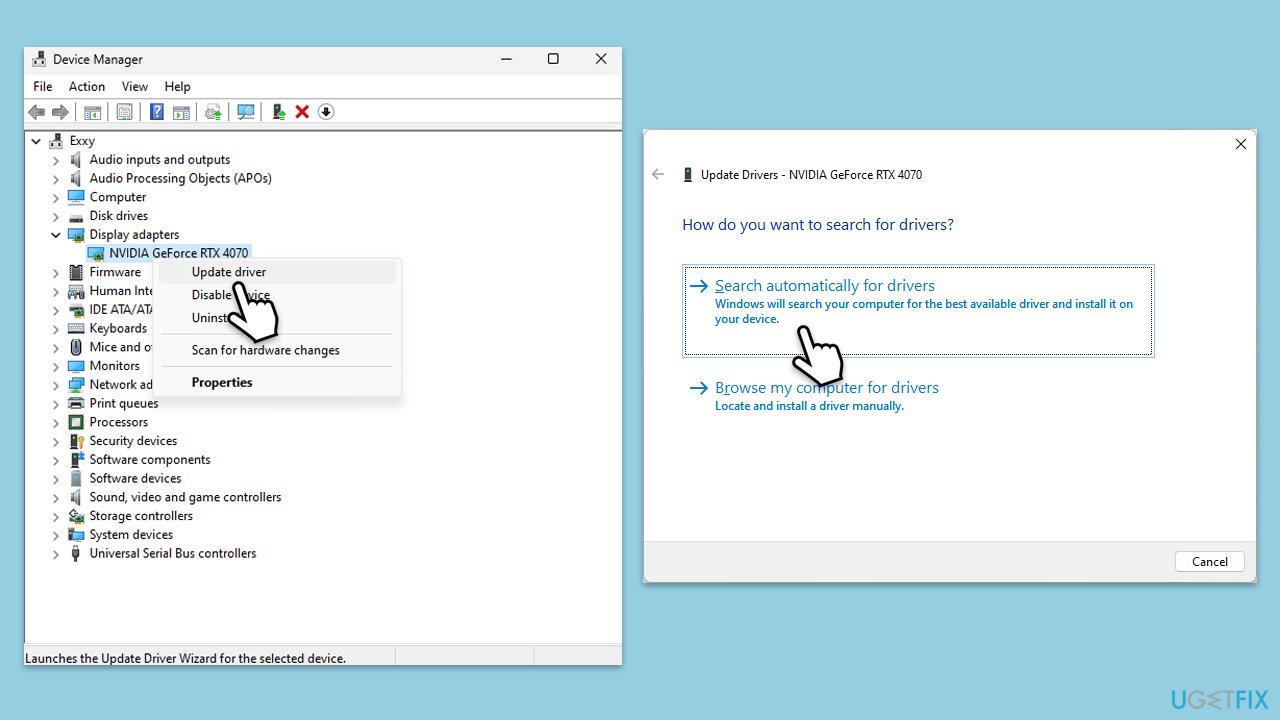
- Right-click on the Start button and select Device Manager from the menu.
- Expand the Display adapters section.
- Right-click on your graphics card and select Update driver.
- Pick Search automatically for drivers.
- If updates are found, allow them to install.
- Restart your computer after updating all necessary drivers.
Fix 2. Reinstall graphic drivers
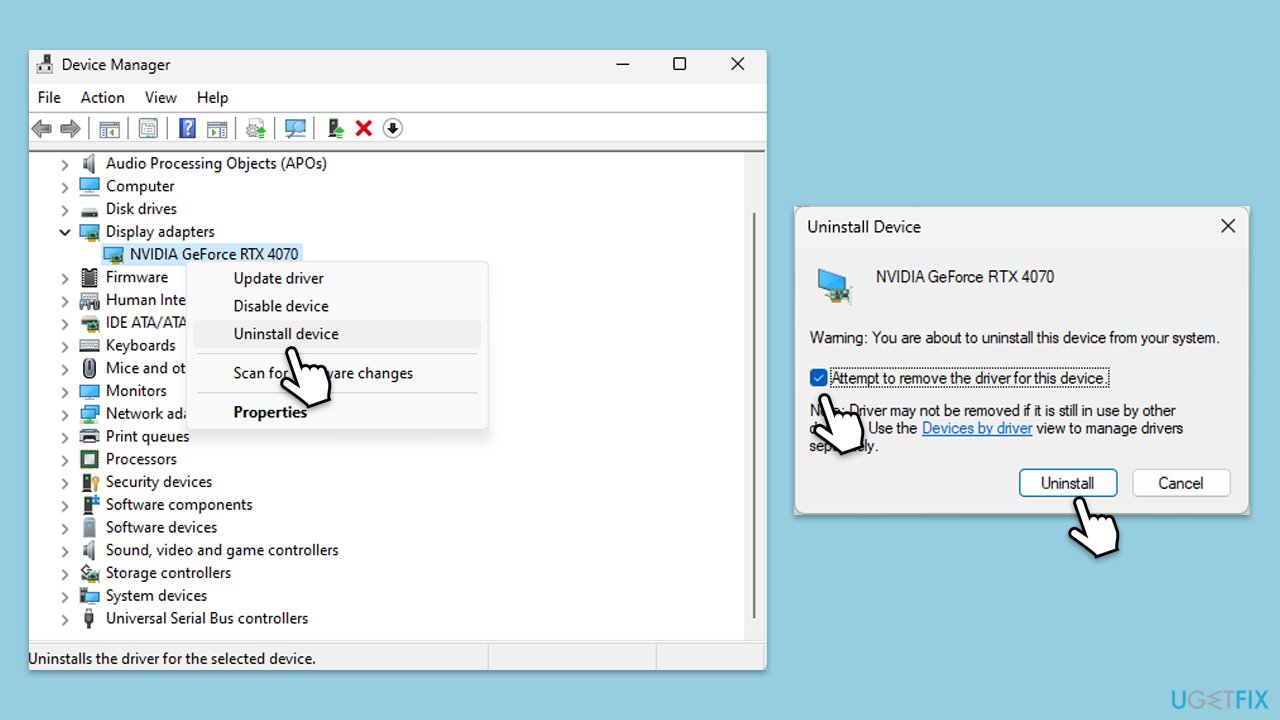
Sometimes you might have to reinstall your GPU drivers.
- Download DDU from the official website.
- Extract the compressed file, you should find the installer inside.
- Next, while holding the Shift button, click on Start > Restart.
- After a reboot, go to Troubleshooter > Advanced options > Startup settings > Restart.
- Press 4 or F4 to access Safe Mode.
- After a restart, go to the location where you downloaded DDU.
- Click on Display Driver Uninstaller.exe to open the program.
- Close the Options window.
- Under Device type, pick GPU from the drop-down menu.
- Click Clean and restart.
- Your PC will reboot.
- Once done, use one of the methods described above to install GPU drivers.
Fix 3. Run Windows Update
Ensure your system is updated to the latest version.
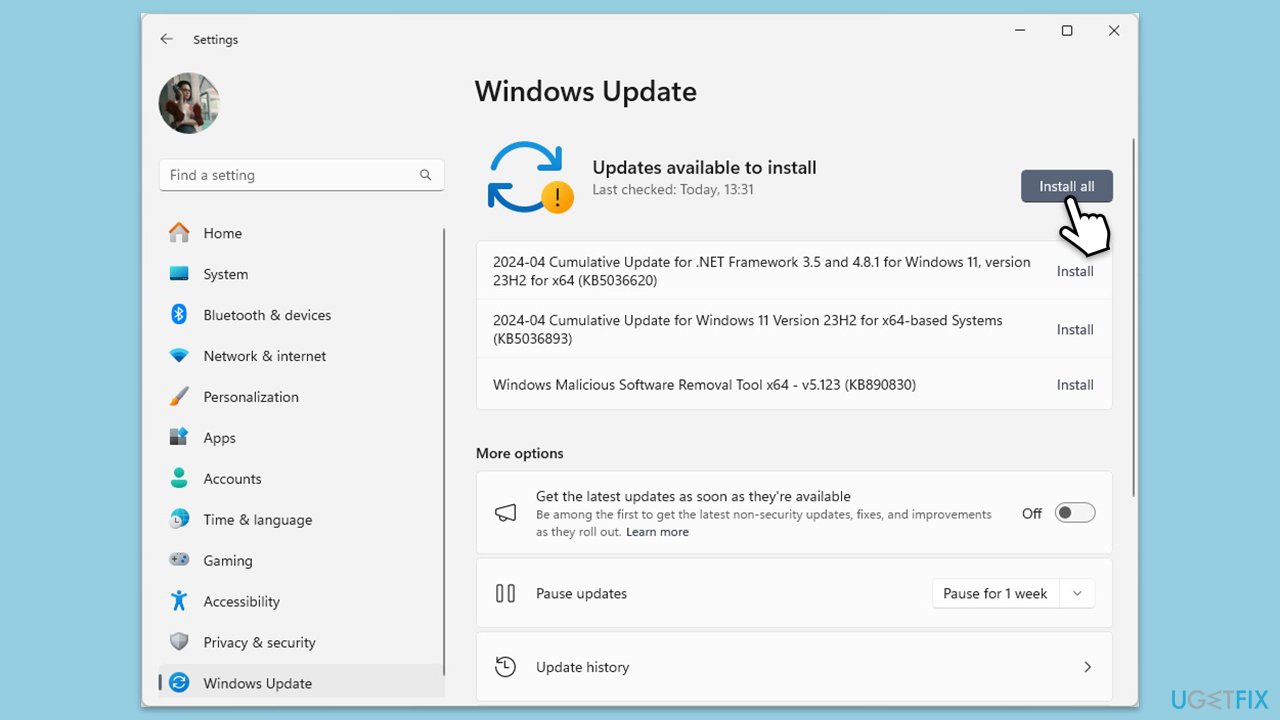
- Type Updates in Windows search and hit Enter.
- If updates are available, click Install updates.
- Otherwise, click Check for updates.
- If optional updates are available, install them as well.
- When all the update processes are complete, restart your computer.
Fix 4. Perform SFC and DISM
Corrupted system files can lead to BSOD errors; running a system file check can find and repair these files.
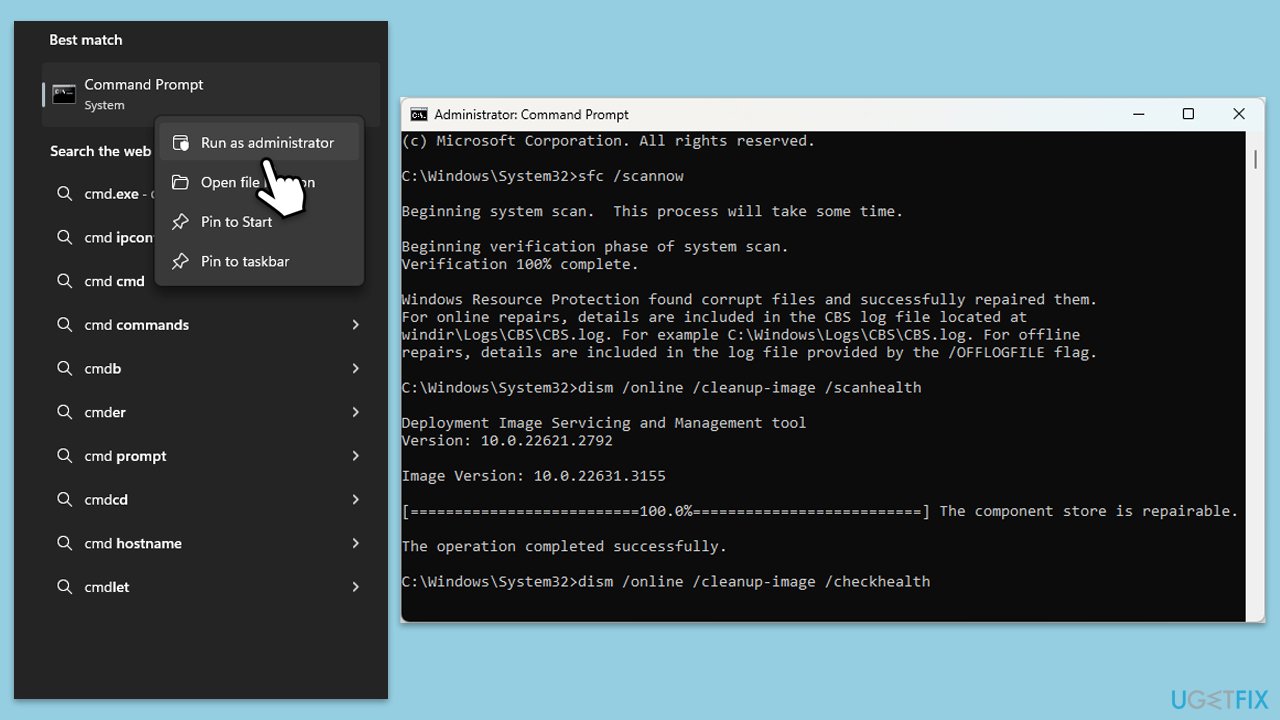
- Type cmd in Windows search.
- Right-click on Command Prompt and pick Run as administrator.
- The User Account Control window will ask whether you want to allow changes - click Yes.
- In the Command Prompt window, paste the following command and hit Enter:
sfc /scannow - Once the scan is complete, use the following commands and press Enter after each:
Dism /Online /Cleanup-Image /CheckHealth
Dism /Online /Cleanup-Image /ScanHealth
Dism /Online /Cleanup-Image /RestoreHealth - (Note: if you get an error executing this last command, add /Source:C:\RepairSource\Windows /LimitAccess to it and try again).
- Restart your computer.
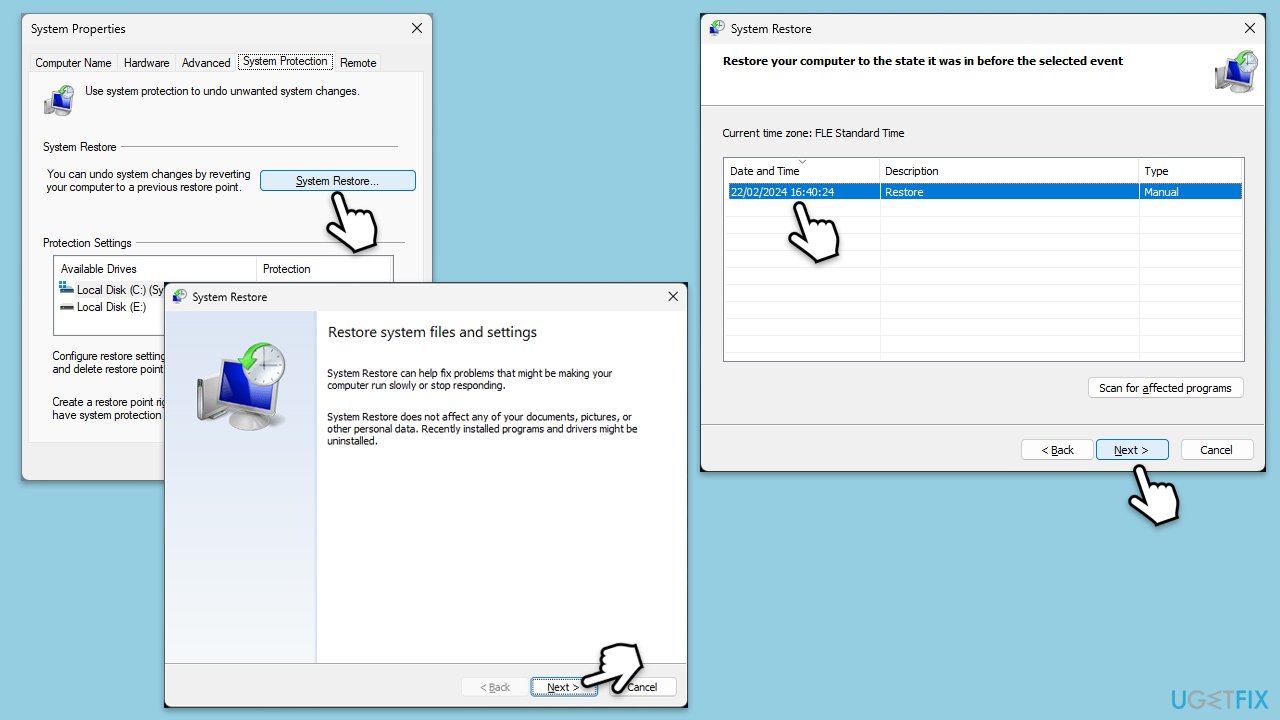
Fix 5. Try System Restore
- Type Create a restore point in the Windows search bar and press Enter.
- In the System Properties window, click System Restore.
- Choose a restore point from before the utility.exe error started occurring.
- Click Next and follow the on-screen instructions to complete the system restore.
- Restart your computer after the process is finished.
Fix 6. Reset PC
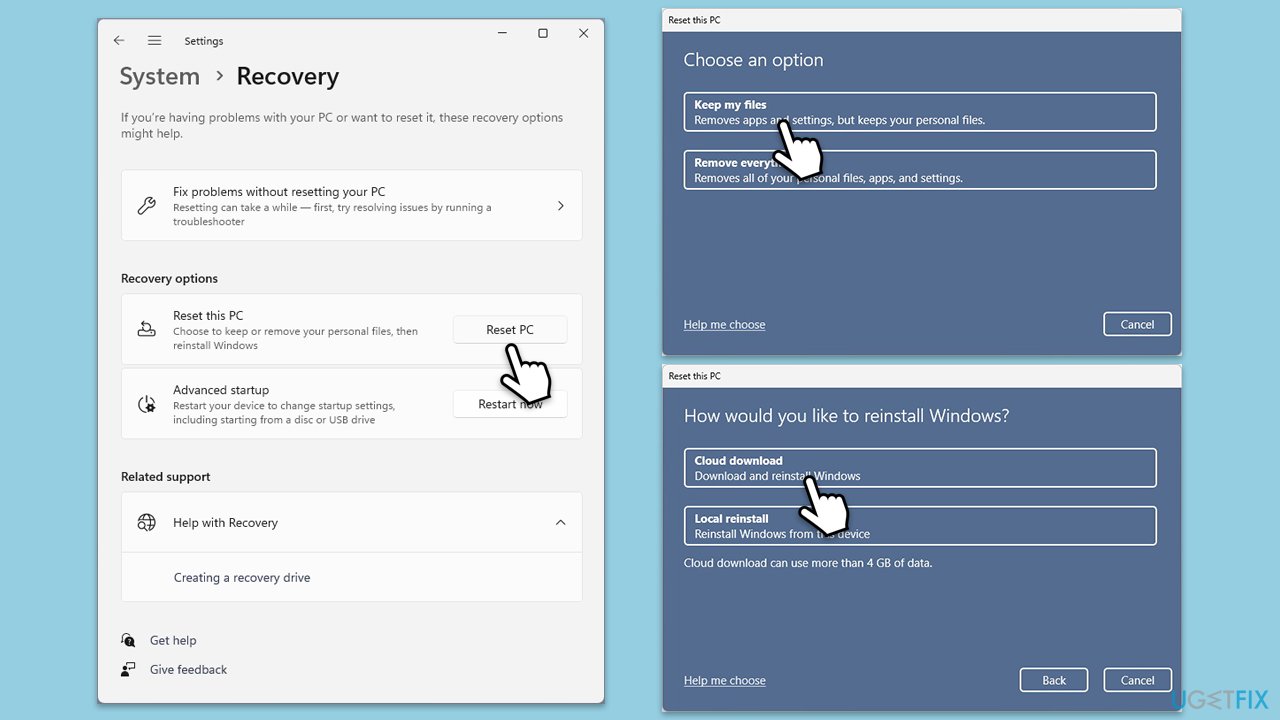
Resetting your PC can fix underlying issues by reinstalling Windows while keeping your files.
- Right-click on Start and pick Settings.
- Go to Windows Update/Update & Security.
- Select Advanced options.
- Under Additional options, select Recovery.
- Under Recovery options, click Reset PC.
- Select the option to Keep your files and then press Cloud download.
- Follow on-screen instructions to finish the process.
Fix 7. Use Windows Memory Diagnostic
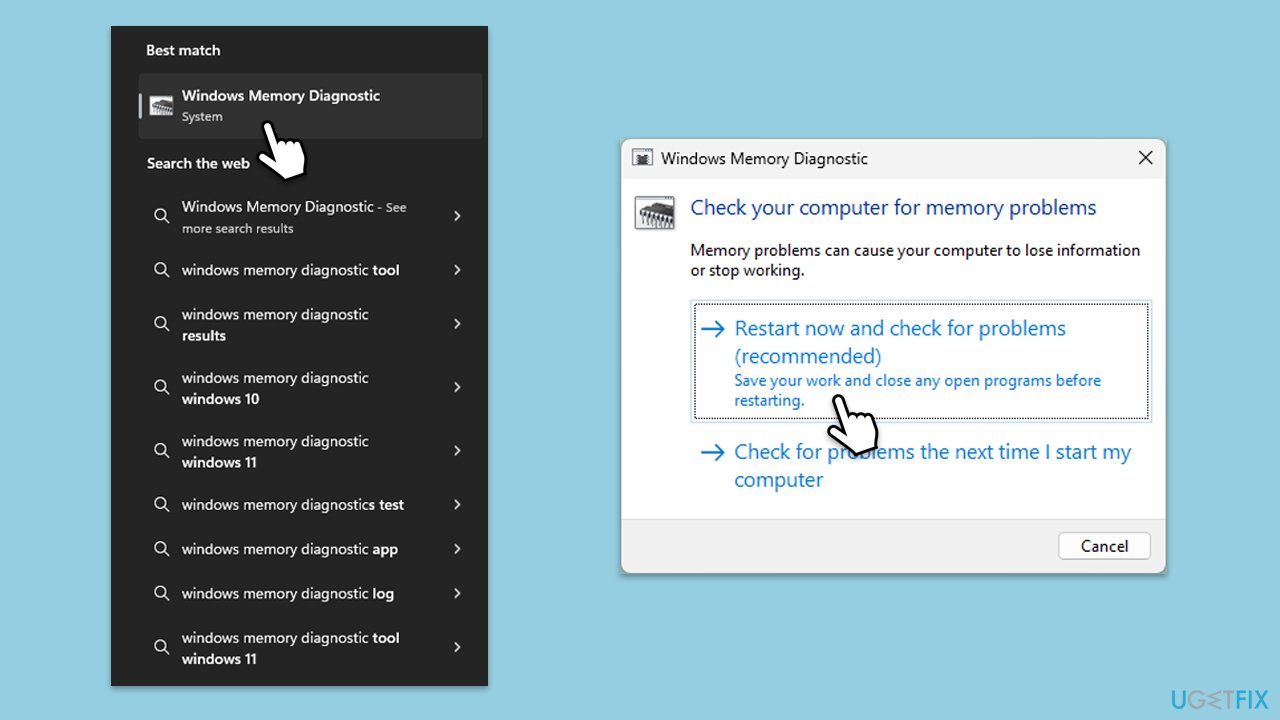
Faulty memory can often cause BSODs. Testing your RAM can identify if it's the source of the problem.
- Type Windows Memory Diagnostic into the Windows search bar and select it.
- Choose Restart now and check for problems. Your computer will restart, and the memory diagnostic will run.
- After completion, the computer will restart again, and the test results will be displayed after logging in.
Bottom line
To fix the 0x00000119 BSOD error, you can start by updating your graphics drivers, which may resolve compatibility issues. If the problem persists, consider using a repair tool to diagnose and fix common system errors. If none of these solutions work, further investigation into hardware issues may be necessary.
Frequently asked questions
The 0x00000119 BSOD error is often caused by hardware compatibility issues, faulty drivers, or corrupted system files in Windows 10 or Windows 11.
To troubleshoot the 0x00000119 error on Windows 11, try updating your graphics drivers, running a memory diagnostic, or performing a system restore to a point before the error occurred.
To prevent the 0x00000119 BSOD error in Windows 10, ensure that your system drivers are up to date and regularly check for Windows updates to maintain system stability.




Report an issue
What's wrong with this guide? We review every report and update or remove content.
Report received — thank you. We'll review and fix it.
You need a free account to submit a report.
Be the first to comment