How to fix
Frozen Taskbar
on Windows
Unfreeze your Windows 10 taskbar with simple troubleshooting tips. Get your system running smoothly again—expert-tested solutions await!


What causes How to Fix Frozen Taskbar on Windows 10?
- Windows System UI components stop working
- Application clash
- Damaged Windows Update components installed
- Failure of ShellExperienceHost
- Failure of Cortana
Repairs Windows system files, removes malware, and restores a clean OS state — without reinstalling.
All taskbar icons are unresponsive. I can’t open search, sound settings, battery, calendar, and all other stuff that is normally accessible on taskbar. Did not install any updates lately. Could you please help me?
Taskbar on Windows OS enables people to access apps and features like Search, Apps, Battery, Speakers, Language, Calendar, and so on. The content of the taskbar depends on the version of OS and on its customization. In terms of Windows 10, Microsoft put much effort to improve aesthetic and functional traits of the Taskbar, resulting in the emergence of Cortana, Task View feature, Norification Center, and so on.
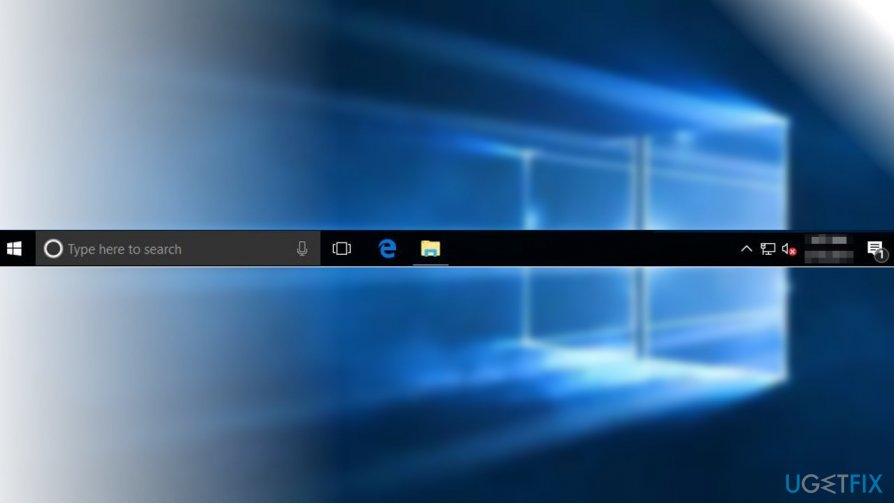
Despite many improvements, Taskbar often runs into bugs and causes people many problems by simply going idle and unresponsive. There are many reasons why Windows 10 taskbar stops functioning properly. To name a few, here’s a list:
Windows System UI components stop working;
- Application clash;
- Damaged Windows Update components installed;
- The failure of ShellExperienceHost;
- The failure of Cortana, etc.
This list is endless, but we will provide several methods that helped many people to fix frozen taskbar on Windows 10.
Instructions on How to Fix Not Working Taskbar on Windows 10
Before performing more complex fixes using Windows PowerShell or Command Prompt, we would like you to try these methods:
- Try Clean Boot. This will let you find out if the culprit of the malfunctioning taskbar is not third-party software, for example, anti-virus, VPN tools or some malware.
- Install the latest Windows Updates. If the problem has started right after the update, you should roll the update back.
- Run Windows Store Apps Troubleshooter. Some experts say that taskbar may stop working due to the confrontation with Windows apps. To find the troubleshooter open Settings -> Updates & Security -> Troubleshoot
If none of these steps helped to fix taskbar issues, please try these methods:
Restart Windows Explorer
1. Press Ctrl + Alt + Del and select Task Manager.
2. Open Processes tab and locate Windows Explorer.
3. Right-click on it and select End Task. The process should re-load itself automatically.
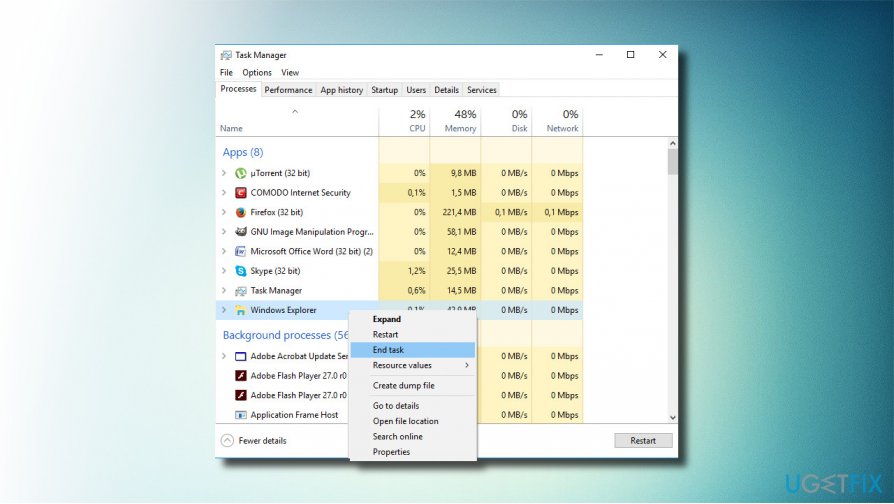
Check if that fixed the problem with the frozen taskbar.
Use Windows PowerShell
1. Right-click on Windows key and select Command Prompt (Admin).
2. Click Yes on the UAC prompt to proceed.
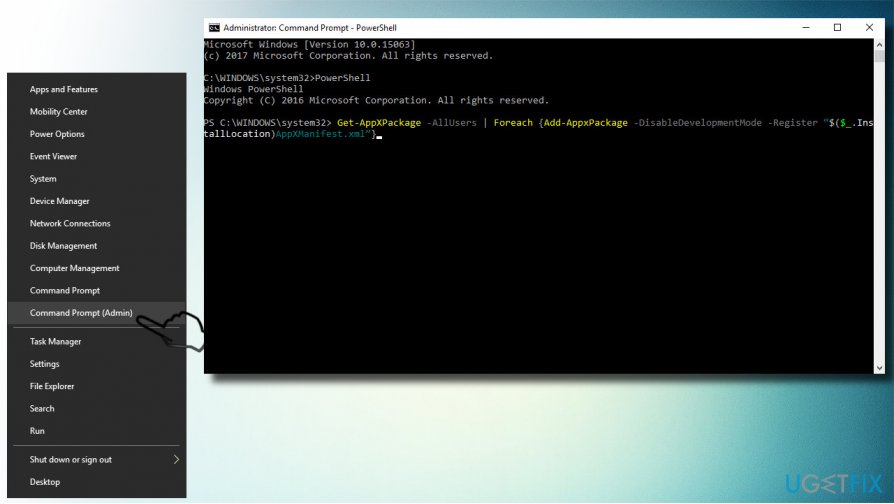
3. Now copy and paste the following commands in the Command Prompt window. Press Enter after each of them:PowerShell
PowerShell
Get-AppXPackage -AllUsers | Foreach {Add-AppxPackage -DisableDevelopmentMode -Register “$($_.InstallLocation)AppXManifest.xml”}
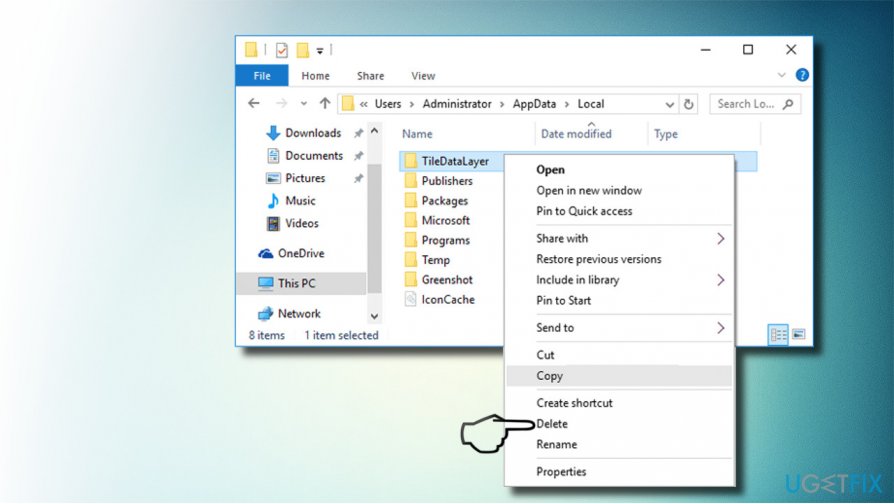
4. After that, navigate to the C:/Users/name/AppData/Local/ and delete the TileDataLayer folder.
Re-register Cortana and ShellExperienceHost
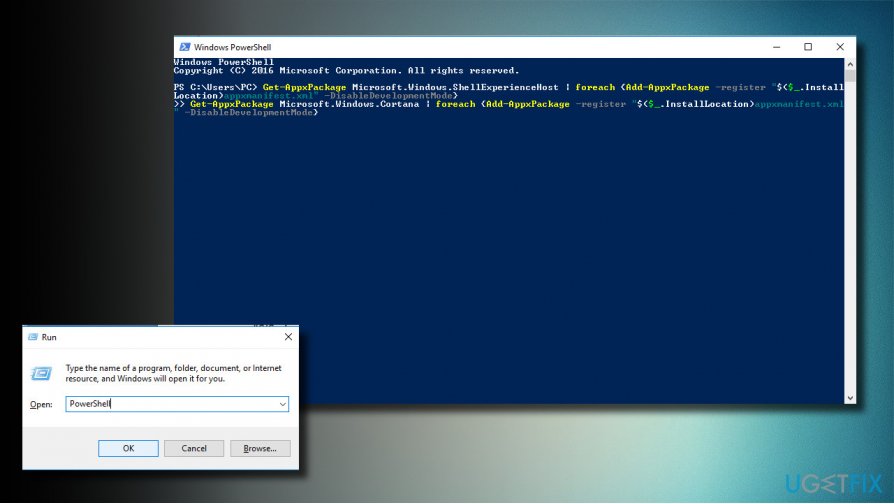
1. Press Windows key + R, type PowerShell, and hit Enter.
2. Copy and paste the following commands into the PowerShell window and press Enter after each of them:
Get-AppxPackage Microsoft.Windows.ShellExperienceHost | foreach {Add-AppxPackage -register “$($_.InstallLocation)appxmanifest.xml” -DisableDevelopmentMode}
Get-AppxPackage Microsoft.Windows.Cortana | foreach {Add-AppxPackage -register “$($_.InstallLocation)appxmanifest.xml” -DisableDevelopmentMode}
3. Once the process is finished, close PowerShell and reboot the PC.
Use DISM utility
1. Right-click on Windows key and select Command Prompt (Admin).
2. Copy and paste the DISM.exe /Online /Cleanup-image /Restorehealth command and his Enter. The process should finish in about 5 minutes.
Bottom line
To fix a frozen taskbar on Windows 10, you can try performing a clean boot, installing the latest Windows updates, or running the Windows Store Apps Troubleshooter. If these methods do not resolve the issue, consider restarting Windows Explorer as a potential solution.
Frequently asked questions
You can try restarting Windows Explorer through the Task Manager, as this often resolves taskbar issues without needing a full reboot.
In Windows 11, you can use the 'Settings' app to check for updates, as installing the latest patches may fix bugs related to the taskbar.
Yes, you can use the built-in Windows Troubleshooter for system issues, which can help identify and fix problems affecting the taskbar.




Report an issue
What's wrong with this guide? We review every report and update or remove content.
Report received — thank you. We'll review and fix it.
You need a free account to submit a report.
Be the first to comment