How to fix
C:WindowsSystem32cmd.exe window popping up
on Windows
Resolve the annoying C:\Windows\System32\cmd.exe pop-up issue on Windows 10 and 11 quickly with our expert-tested solutions. Fixed in minutes!


What causes How to fix C:WindowsSystem32cmd.exe window popping up in Windows?
- Scheduled tasks
- Startup programs
- Scripts running in the background
- Conflicts between installed applications
- Driver issues
Repairs Windows system files, removes malware, and restores a clean OS state — without reinstalling.
Randomly, I get a pop-up every 10 minutes or so which is titled "C:\Windows\System32\cmd.exe" and it's just empty. I close it and then it comes back later. What is this and how can I remove it?
"C:\Windows\System32\cmd.exe" pop-up appearing unexpectedly is something that you might have noticed sometimes while using your Windows computer, where a window of the command prompt opens up randomly. This can be worrisome because if this starts happening a lot, it will interrupt your workflow and make you think, "Is my system stable or secure?" The key to fixing this is understanding why it happens.
The presence of the "C:\Windows\System32\cmd.exe" window, which is usually for background tasks or with command line execution requirements, can be due to scheduled tasks, startup programs, or scripts set up via system maintenance and software updates.
Additionally, some software in general (system utilities or antivirus programs) may initiate the command prompt to run commands as part of their routine operations. However, in some cases, this window will also appear due to conflicts between installed applications, or because a driver is not functioning properly with another software application that has been installed (an old version of a program that remains), causing an automatic script to run.
Fixing the problem with the unexpected appearance of the "C:\Windows\System32\cmd.exe" window is something you should look into, and [d1] PC repair could be one of the easiest ways to do so. Alternatively, you can jump into a manual solution, such as checking your list of scheduled tasks, startup programs, and scripts running quietly in the background.
It is also advisable to ensure that all installed software packages are updated and that there are no conflicting programs. In certain situations, diving deeper into the system logs or utilizing diagnostic tools may be required to find out exactly where it is coming from and what needs to be done to remove the "C:\Windows\System32\cmd.exe" window popping up out of nowhere.

Fix 1. Run SFC and DISM
Start with ensuring that it's not the system file corruption that's causing problems.
- Type cmd in Windows search.
- Right-click on Command Prompt and pick Run as administrator.
- User Account Control window will show up - click Yes when prompted.
- Then, copy and paste the following command, pressing Enter after:
sfc /scannow - Wait till the scan is finished. If Windows finds system file integrity violations, it will attempt to fix them. After this, use the set of the following commands, pressing Enter each time:
DISM /Online /Cleanup-Image /CheckHealth
DISM /Online /Cleanup-Image /ScanHealth
DISM /Online /Cleanup-Image /RestoreHealth - (Note: if you get an error executing this last command, add /Source:C:\RepairSource\Windows /LimitAccess to it and try again).
- Close down the Command Prompt and restart your system.

Fix 2. Scan for malware
You can use Microsoft Safety Scanner, employ a reputable third-party app, or use the built-in Defender offline scan:
- Type Windows Security in the Windows search bar and hit Enter.
- Select Virus & threat protection.
- Pick Scan options.
- Choose Microsoft Defender Offline scan and click Scan now.
- Your computer will immediately restart and begin a deep scan.

Fix 3. Run a Clean Boot
- Type msconfig in Windows search and press Enter.
- Go to the Services tab.
- Mark Hide all Microsoft services and select Disable all.
- Go to the Startup tab and click Open Task Manager.
- In the Task Manager, right-click on each of the items and select Disable, then close the Task Manager.
- Go to the Boot tab, and tick Safe Boot.
- Click Apply and OK, and restart your PC.
- To find out which app(s) is causing conflicts, enable each of the processes (or you can do it in groups), restart, and see if the problem persists. Repeat until you find the faulty app, then either update or uninstall it.

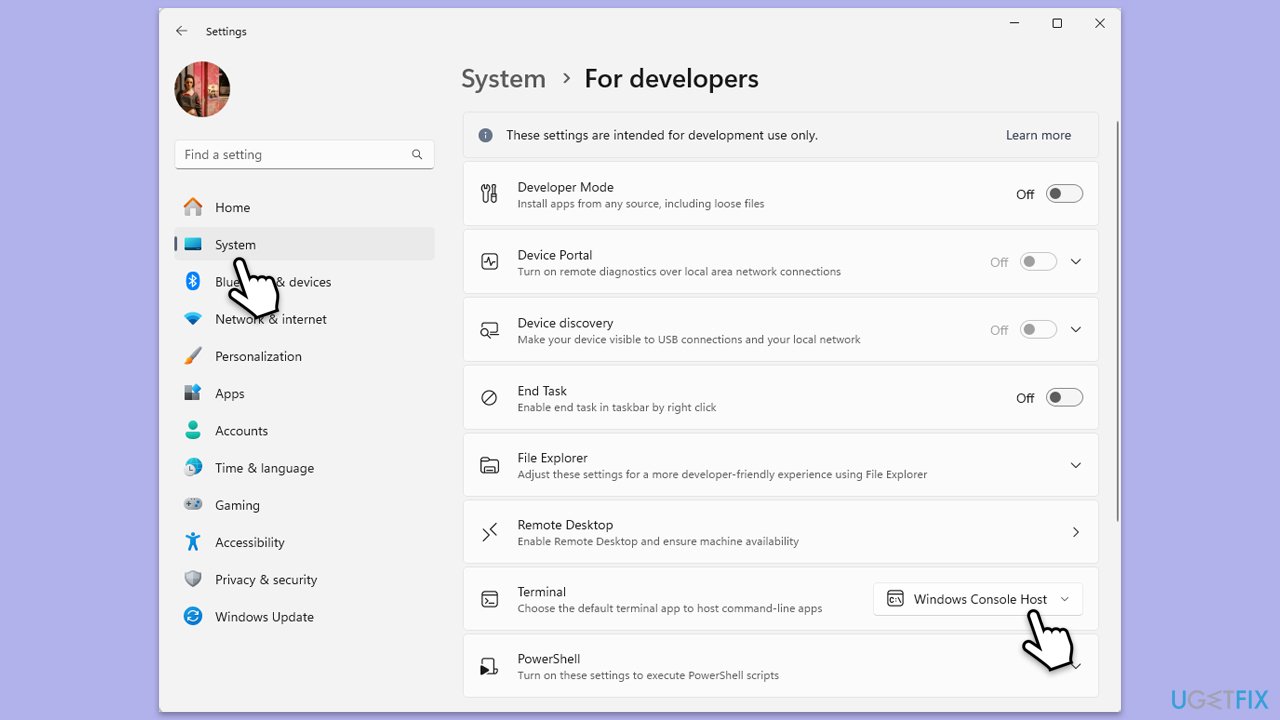
Fix 4. Change the Default Terminal app
In 2022, the default terminal environment has been changed from "Windows Console Host" to "Windows Terminal." This results in certain apps opening a C:\Windows\System32\cmd.exe window by some apps. To resolve this, follow these steps:
- Right-click on Start and pick Settings.
- Select System on the left.
- On the right side, click For Developers.
- Look for Terminal from the list.
- From the drop-down menu next to it, select Windows Console Host.
- Restart your computer.
Fix 5. Check Task Scheduler
Verifying tasks in Task Scheduler ensures that no problematic or unwanted tasks are running, which could be causing system issues.
- Press Win+R, type taskschd.msc, and press Enter.
- Expand Task Scheduler Library on the left panel.
- Review scheduled tasks for any that look unfamiliar or unnecessary.
- Right-click on any suspicious tasks and select Disable.
- Close Task Scheduler and restart your computer.
Fix 6. Repair-install Windows with Media Creation Tool
- Visit the official Microsoft website and download Windows 10 installation media (Windows 11 version).
- Double-click the installer, select Yes when UAC shows up, and agree to the terms.
- Select the ISO file and click Next, then follow the instructions to finish the process.
- Right-click on ISO and click Mount.
- Open the location of the ISO, right-click on it, and select Mount.
- Launch the installer.
- Select Upgrade this PC now and click Next.
- Windows will start downloading the needed files.
- Agree to the terms once again and click Next.
- Before installing, ensure you are happy with your choices (otherwise, you can click the Change what to keep option).
- Finally, click Install to begin the upgrade process.

Bottom line
To fix the unexpected appearance of the 'C:\Windows\System32\cmd.exe' window, you can start by checking your scheduled tasks and startup programs. Additionally, ensure all installed software is updated and look for any conflicting programs. If these steps do not resolve the issue, consider running SFC and DISM to check for system file corruption.
Frequently asked questions
The cmd.exe window may pop up due to a scheduled task, startup program, or malware. Check Task Scheduler and your startup items to identify the cause.
You can stop the cmd.exe window by disabling the offending startup application or scheduled task that triggers it. Use the Task Manager or Task Scheduler for this purpose.
It's not recommended to ignore it, as it could indicate a system issue or malware. Investigate the source to ensure your Windows 10 or Windows 11 system is secure.




Report an issue
What's wrong with this guide? We review every report and update or remove content.
Report received — thank you. We'll review and fix it.
You need a free account to submit a report.
Be the first to comment