How to fix
KB5041587 fails to install
on Windows
Resolve KB5041587 installation issues in Windows 11 quickly and effectively. Follow expert-tested solutions for a seamless update experience. Fixed in m…

What causes How to fix KB5041587 fails to install in Windows 11?
- Corrupted system files
- Insufficient disk space
- Software conflicts
- Network errors
Repairs Windows system files, removes malware, and restores a clean OS state — without reinstalling.
Hey, I was wondering if you could help me with KB5041587 failing to install. It has been failing for several days now, so I think I should do something about it.
On August 27, Microsoft started the rollout of this cumulative preview update under KB5041587 for Windows 11. This update is meant for OS Builds 22621.4112 and 22631.4112, addressing a collection of improvements and fixes based on feedback from people worldwide using the Windows Insiders program.
Although the KB5041587 update is supposed to enhance the Windows 11 experience, many users have encountered issues when installing software updates, leading to frustration and the need for troubleshooting.
Most common reasons for KB5041587 failing to install
KB5041587 might not have installed on your system due to the following reasons:
- Corrupted system files: An incomplete or corrupt update usually arises due to missing essential files responsible for the execution of a software function. This is a common problem users face when dealing with Windows updates.
- Insufficient disk space: Windows updates require a certain amount of free disk space to download and install. If your system lacks the necessary space, the update won't install.
- Software conflicts: Sometimes, the update blocking issue could be due to third-party software or even other Windows components conflicting with the installation process.
- Network errors: A stable internet connection is crucial for the download and installation. Any interruptions or slow connection could cause the update to fail.
For users who are facing KB5041587 installation failures, a guide with potential fixes is provided below. However, if the solutions fail to resolve your installation problem, consider using this repair and maintenance tool. It is a powerful utility that can resolve many Windows issues like system file corruption, DLL errors, and update-related problems. This tool helps tackle the root causes of update failure, so your system stays current and operational.
Fix 1. Disable security or similar software
Sometimes, security software can interfere with the installation of Windows updates. Disabling it temporarily can help avoid conflicts that might prevent the update from installing.
- Open the security software installed on your computer.
- Open Settings.
- Disable the software temporarily.
- Try installing the update again.
- Re-enable the software once the update is complete.
Fix 2. Perform Disk Cleanup
Insufficient disk space can prevent updates from installing. Disk Cleanup removes unnecessary files, freeing up space needed for the update.
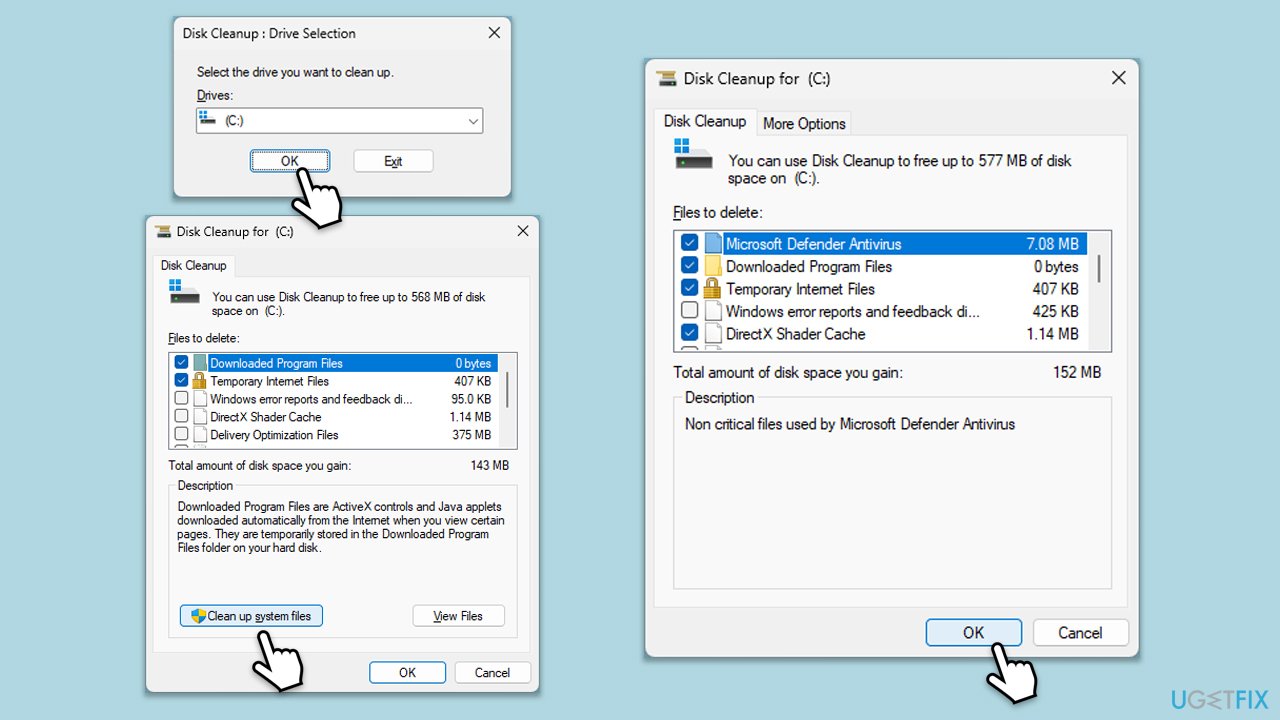
- Type Disk Cleanup in Windows search and hit Enter.
- If your Windows is installed on drive C, pick it from the list (it should be by default) and press OK.
- Click Clean up system files.
- Select your main disk again and click OK.
- Here, select the largest portions of the data used - these typically include Temporary Internet Files, Windows Update, Temporary Files, Recycle Bin, Delivery Optimization Files, and others.
- Click OK - the process should be finished shortly.
Fix 3. Run Windows update troubleshooter
The Windows Update Troubleshooter can detect and resolve issues preventing the update from installing.
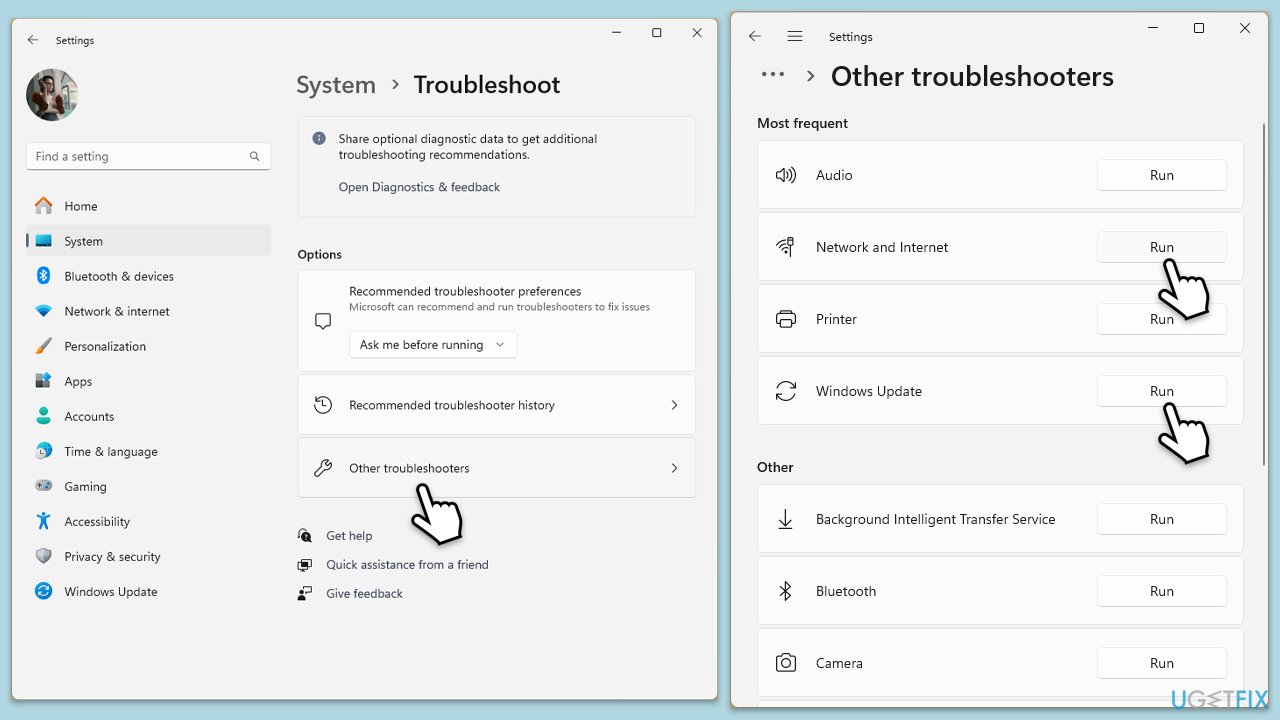
- Type Troubleshoot in Windows search and hit Enter.
- Select Other troubleshooters.
- Find Windows Update from the list and click Run.
- The troubleshooter will automatically scan your system for potential problems and display any issues it finds.
- Repeat the process with Network & Internet troubleshooter.
- If the troubleshooter finds any issues, it will provide recommended solutions.
- Follow the on-screen instructions and restart your computer.
Fix 4. Repair corrupted system files
Corrupted system files can block updates. Repairing them ensures that Windows has the necessary components to complete the update.
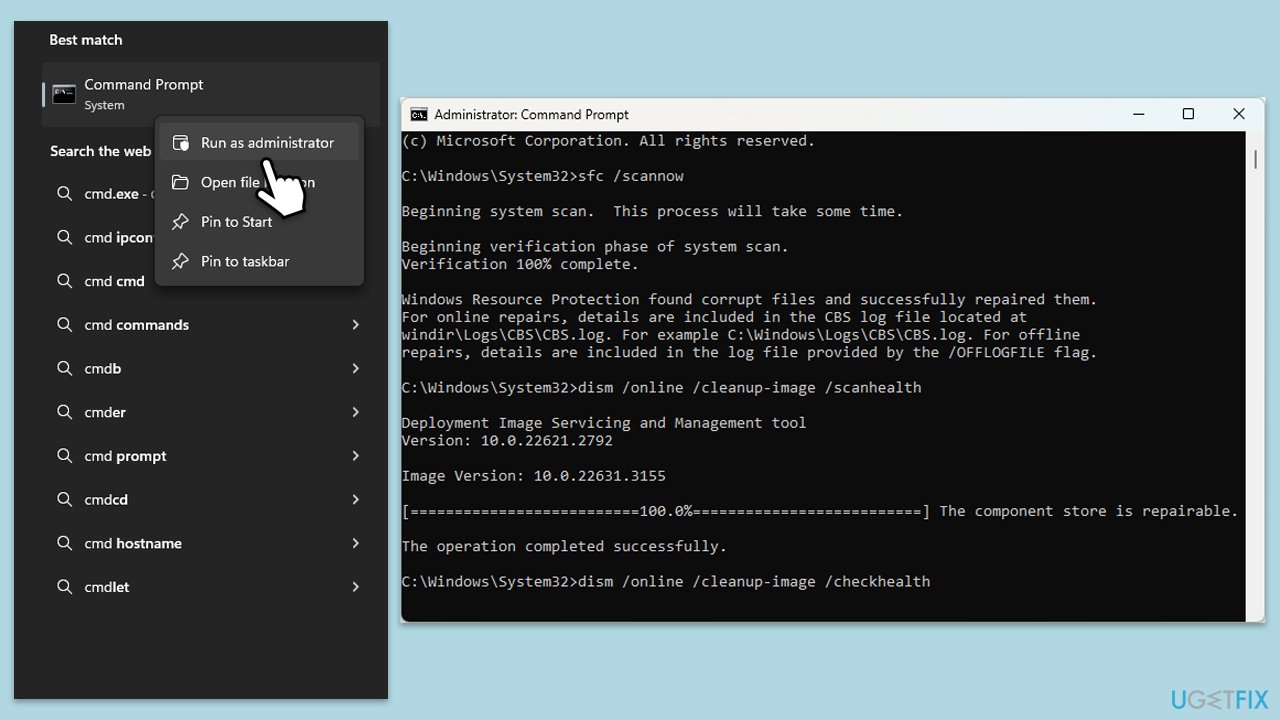
- ype cmd in Windows search.
- Right-click on the Command Prompt result and select Run as administrator.
- The User Account Control (UAC) window will ask whether you want to allow changes to your computer - click Yes.
- Then, copy and paste the following command, pressing Enter after:
sfc /scannow - Wait till the scan is finished. If Windows finds system file integrity violations, it will attempt to fix them. After this, use the set of the following commands, pressing Enter each time:
DISM /Online /Cleanup-Image /CheckHealth
DISM /Online /Cleanup-Image /ScanHealth
DISM /Online /Cleanup-Image /RestoreHealth - (Note: if you get an error executing this last command, add /Source:C:\RepairSource\Windows /LimitAccess to it and try again).
- Close down the Command Prompt and restart your computer.
Fix 5. Reset Windows update components
Resetting Windows Update components can resolve persistent issues by restoring the system’s ability to download and install updates.
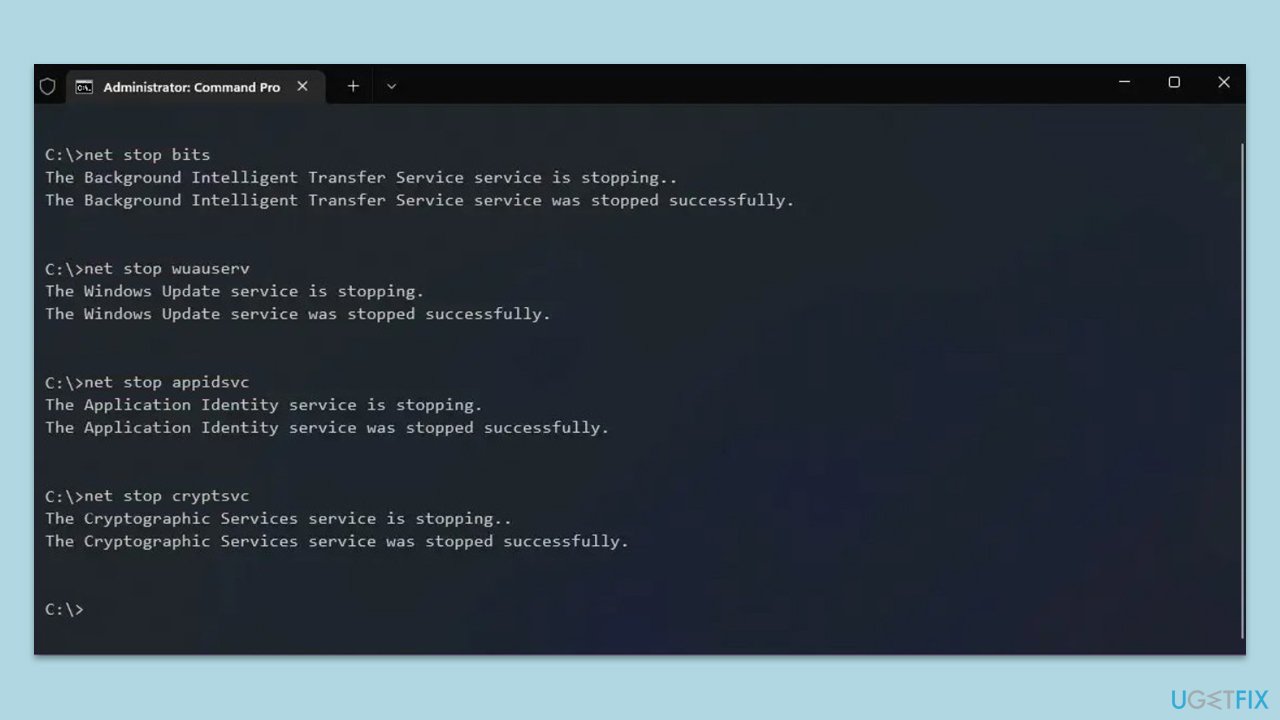
- Open Command Prompt as administrator.
- Stop the Windows Update-related services by running the following commands one at a time, pressing Enter after each one:
net stop wuauserv
net stop cryptSvc
net stop bits
net stop msiserver - Rename the SoftwareDistribution and Catroot2 folders by running the following commands:
ren C:\Windows\SoftwareDistribution SoftwareDistribution.old
ren C:\Windows\System32\catroot2 Catroot2.old
Note: If your Windows installation is not on the C drive, replace "C" with the appropriate drive letter. - Restart the Windows Update-related services by running the following commands:
net start wuauserv
net start cryptSvc
net start bits
net start msiserver - Restart your PC.
Fix 6. Check relevant services
Certain services need to be running for updates to install. Ensuring they are active can fix update issues.
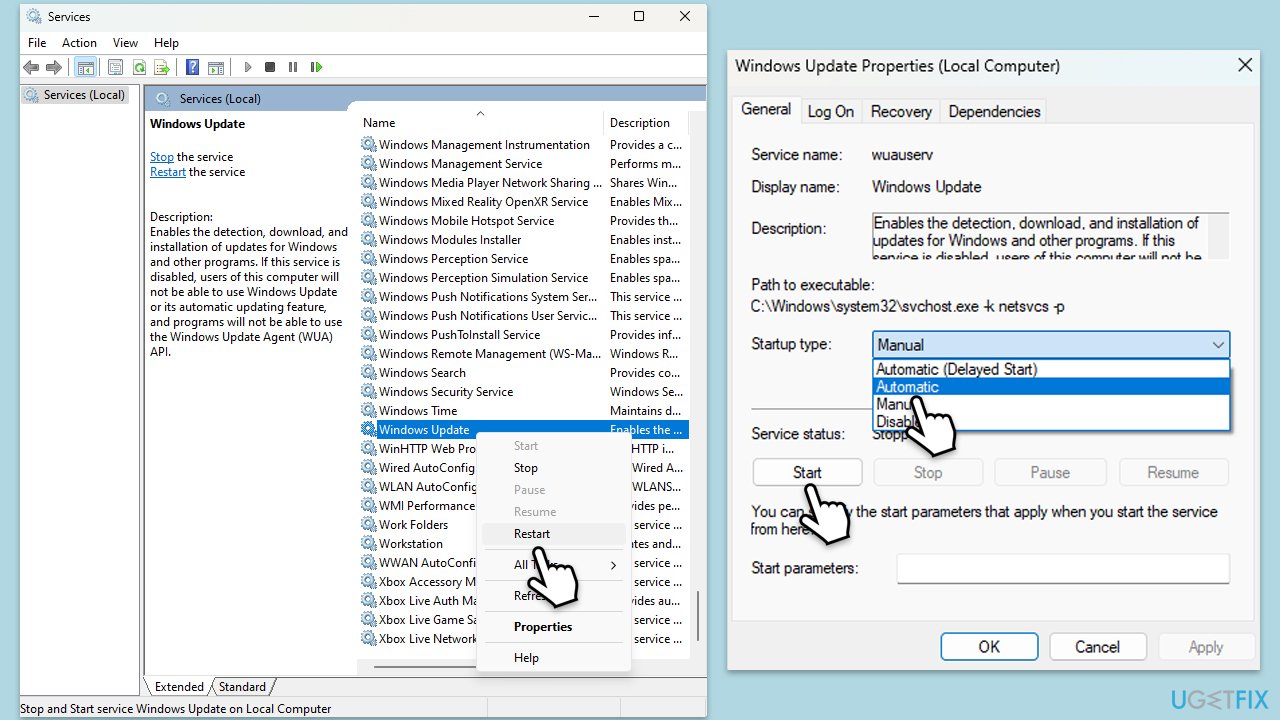
- Type in Services in Windows search and hit Enter.
- In the Services window, locate and double-click on the following services one by one (if these are already running, right-click and hit Restart):
- Windows Update
- Background Intelligent Transfer Service (BITS)
- Cryptographic Services
- For each service, ensure that the Startup type is set to Automatic. If it's not, select Automatic from the drop-down menu.
- Check the Service status. If the service is not running, click the Start button to start it.
- Click Apply and then OK for each service.
- Close the Services window and restart your computer.
Fix 7. Install the update manually
Manually installing the update can bypass issues with Windows Update, allowing the update to be applied directly.
- Go to the official Microsoft Update Catalog website.
- Type the KB5041587 into the search bar, and click Search.
- You will find many different versions on the update – you need to find the one that matches your PC specs and Windows version (as a home user, ignore Windows server versions).
- After picking the correct version, click the Download button and proceed with the on-screen instructions.
- Restart your computer to implement the new updates.
Bottom line
To fix the KB5041587 installation failure, you can disable security software, ensure you have enough disk space, and check for any software conflicts. If these solutions do not resolve the issue, consider using a repair and maintenance tool to address underlying problems.
Frequently asked questions
Try running the Windows Update Troubleshooter to automatically detect and fix issues related to updates. If that doesn't work, consider resetting the Windows Update components manually.
Yes, third-party antivirus programs can interfere with the installation of updates like KB5041587. Temporarily disabling your antivirus might help resolve the installation failure.
You can find the error code by navigating to Settings > Update & Security > Windows Update, and then clicking on 'View update history' to see the specific error associated with the failed update.




Report an issue
What's wrong with this guide? We review every report and update or remove content.
Report received — thank you. We'll review and fix it.
You need a free account to submit a report.
Be the first to comment