How to fix
0xc0000023 BSOD error
on Windows
Resolve the 0xc0000023 BSOD error on Windows 10 and 11 effortlessly. Our expert-tested guide ensures quick fixes with zero traces left.


What causes How to fix 0xc0000023 BSOD error in Windows?
- Corrupted system files
- Faulty or incompatible drivers
- Corrupted registry entries
- Hardware issues
Repairs Windows system files, removes malware, and restores a clean OS state — without reinstalling.
I have built my PC a few weeks ago and everything was fine but since yesterday my computer started crashing with a 0xc0000023 BSOD error. Can you advise please because I tried updating my GPU drivers with no success in regard to these crashes. I run Windows 11.
The 0xc0000023 error represents an iconic Blue Screen of Death (BSOD) crash that affects Windows computers and is generally referred to as the Blue Screen of Death. The Blue Screen of Death, or BSOD, happens when Windows crashes to protect your hardware or data from further damage. The 0xc0000023 error is often caused by problems with a missing system file, corrupted dynamic link libraries (DLLs), or registry errors.
The 0xc0000023 error may occur when powering on the computer or when performing a resource-heavy task, and that is a problem for you, asks your computer crashes, and all you may need to resort to is reset your computer. All your unsaved work may be lost in doing a reset.
The 0xc0000023 error can be triggered by several factors:
- Corrupted system files
If any of the important system files get corrupted or missing, the system may fail to load correctly, causing the PC to crash. - Faulty or incompatible drivers
0xc0000023 error, just like many other similar BSODs, can be caused by driver issues (in fact, it's one of the more common reasons for system crashes). - Corrupted registry entries
Windows registry stores configuration settings and options for your operating system and installed programs. Some programs, malware infections, or similar issues might corrupt this crucial database. - Hardware issues
Occasionally, the error may be triggered by failing hardware components, such as hard drives or RAM. These hardware issues can cause your system to become unstable.
The 0xc0000023 error can be addressed through system file repairs, driver updates, registry fixes, or hardware diagnostics. Detailed instructions on how to apply these solutions will be provided below. For ongoing system maintenance, a good PC repair app [d1] can help prevent issues like file corruption and registry errors.

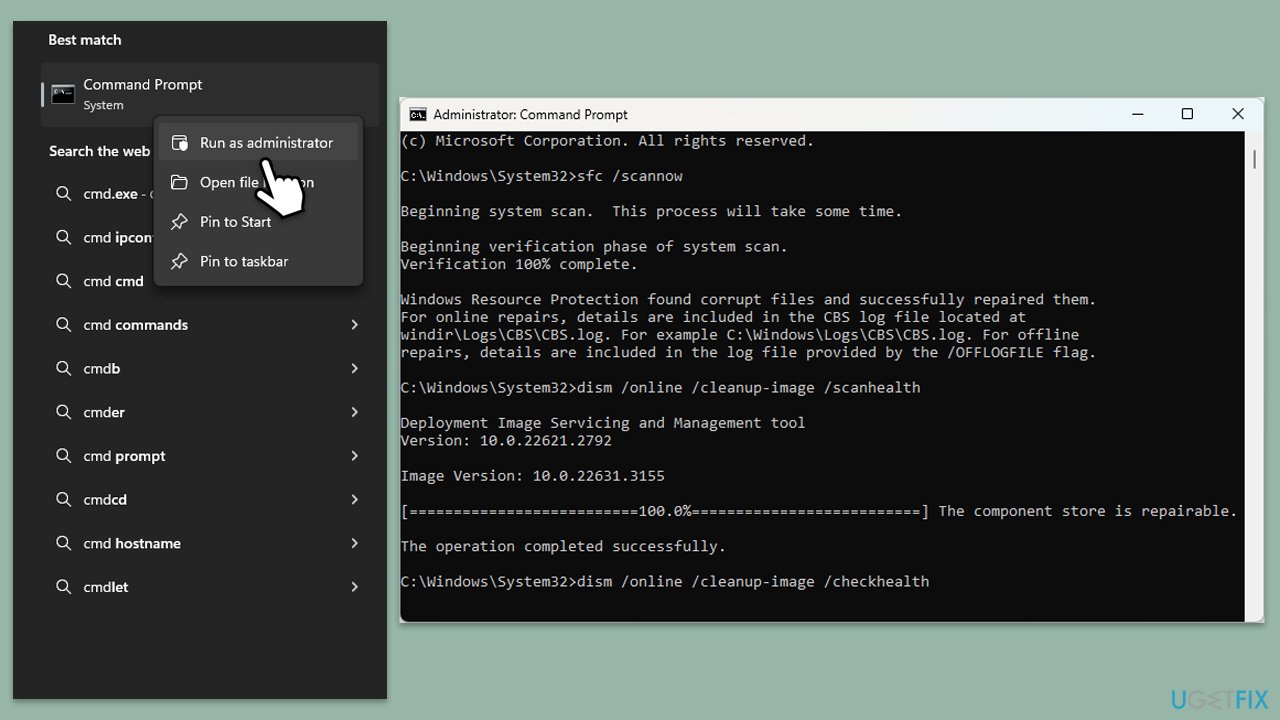
Fix 1. Run SFC and DISM tools
Corrupted system files often cause the 0xc0000023 error. Running both the SFC and DISM tools can scan for and repair these corrupted files, ensuring system stability.
- Type cmd in Windows search.
- Right-click on Command Prompt and pick Run as administrator.
- User Account Control window will show up - click Yes when prompted.
- Then, copy and paste the following command, pressing Enter after:
sfc /scannow - Wait till the scan is finished. If Windows finds system file integrity violations, it will attempt to fix them. After this, use the set of the following commands, pressing Enter each time:
DISM /Online /Cleanup-Image /CheckHealth
DISM /Online /Cleanup-Image /ScanHealth
DISM /Online /Cleanup-Image /RestoreHealth - (Note: if you get an error executing this last command, add /Source:C:\RepairSource\Windows /LimitAccess to it and try again).
- Close down the Command Prompt and restart your system.
Fix 2. Update device drivers
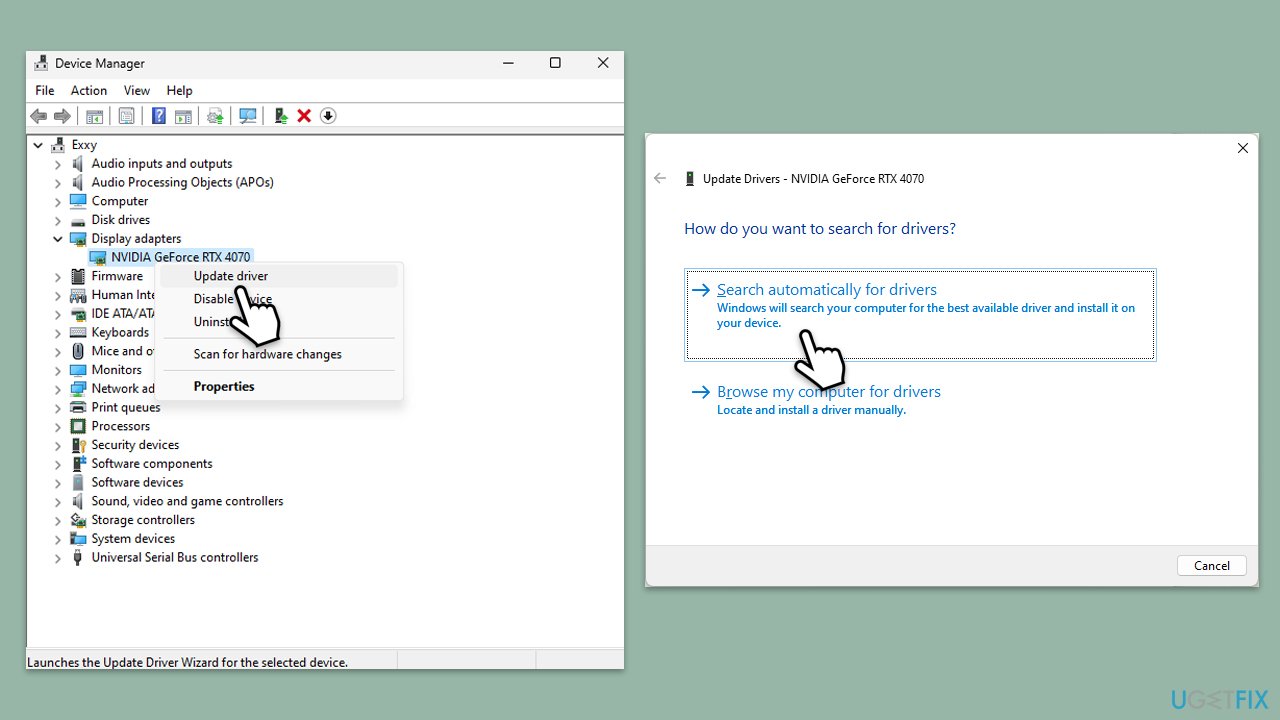
Faulty or outdated drivers can cause conflicts that lead to BSOD errors. Keeping drivers up-to-date ensures proper communication between hardware and Windows.
- Right-click on Start and select Device Manager.
- Expand the section for the device you want to update (e.g., Display adapters).
- Right-click the device and select Update driver.
- Choose Search automatically for drivers.
- Follow the prompts to install the driver, then restart your computer.
For a more efficient way of updating drivers, you could try using [rev id="DriverFix"].
Fix 3. Check for Windows updates
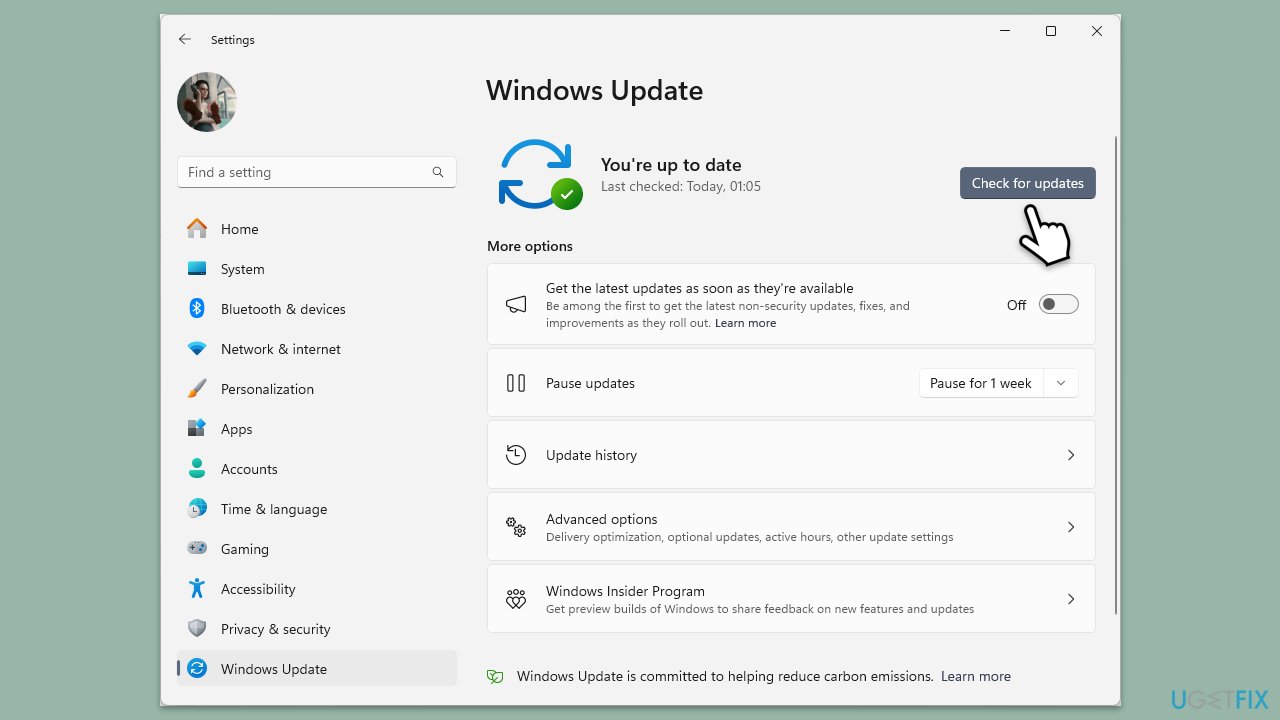
Windows updates include patches that address bugs and compatibility issues. Installing the latest updates can fix the 0xc0000023 error.
- Type Updates and press Enter.
- In the new window, click Check for updates.
- Wait till all the files are downloaded and installed.
- If optional updates are available, install them as well.
- After the updates are installed, restart your computer.
Fix 4. Run memory diagnostics
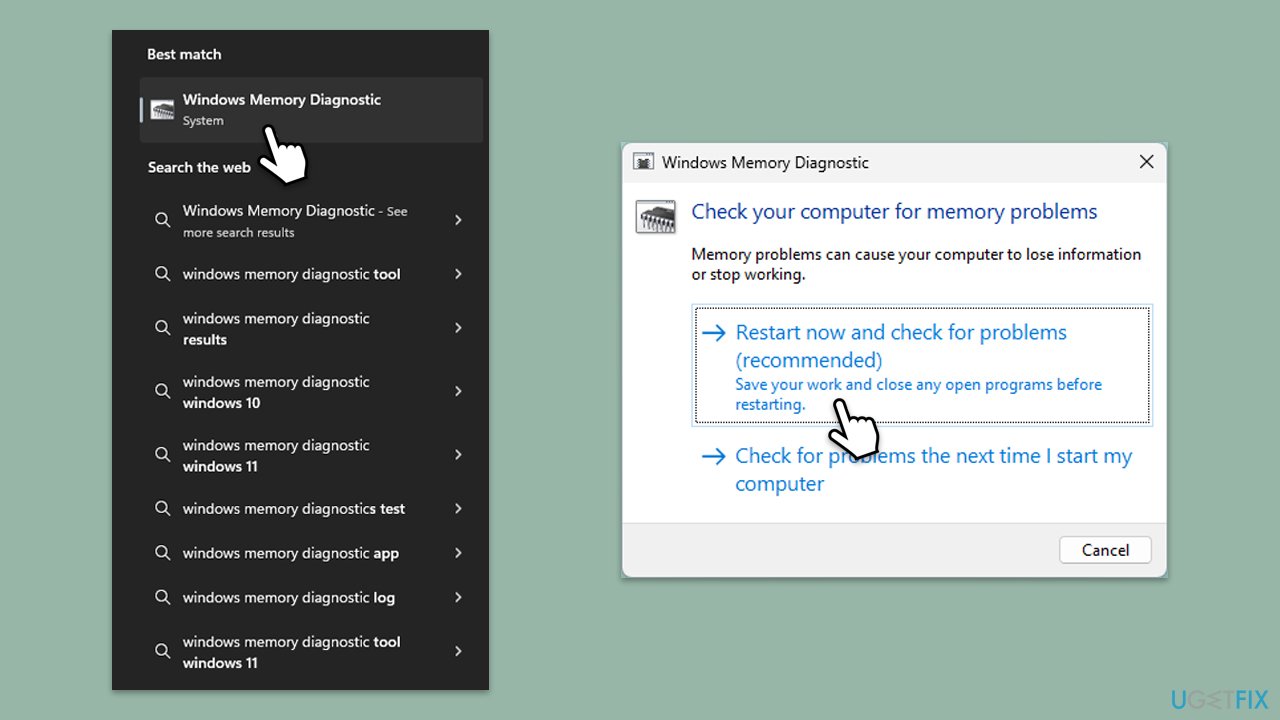
Running a diagnostic test on your RAM can detect faults and help resolve the problem.
- Type Memory in Windows search and select Windows Memory Diagnostic result.
- Choose Restart now and check for problems (recommended).
- Let the tool run and complete the memory check.
- Review the results for any errors.
Fix 5. Check your hard drive for errors
A failing or corrupted hard drive can trigger the 0xc0000023 error. Running a disk check can help identify and repair issues with the drive.
- Open Command Prompt as administrator.
- Type in the following command and press Enter after:
chkdsk c: /f
(Note: use chkdsk c: /f /r /x command if you use SSD as your primary partition). - If you receive an error, type in Y, close down Command Prompt, and restart your computer.
- After a restart, Windows will begin to scan your disk. After your system boots back up, you can find the results in the Event Viewer.
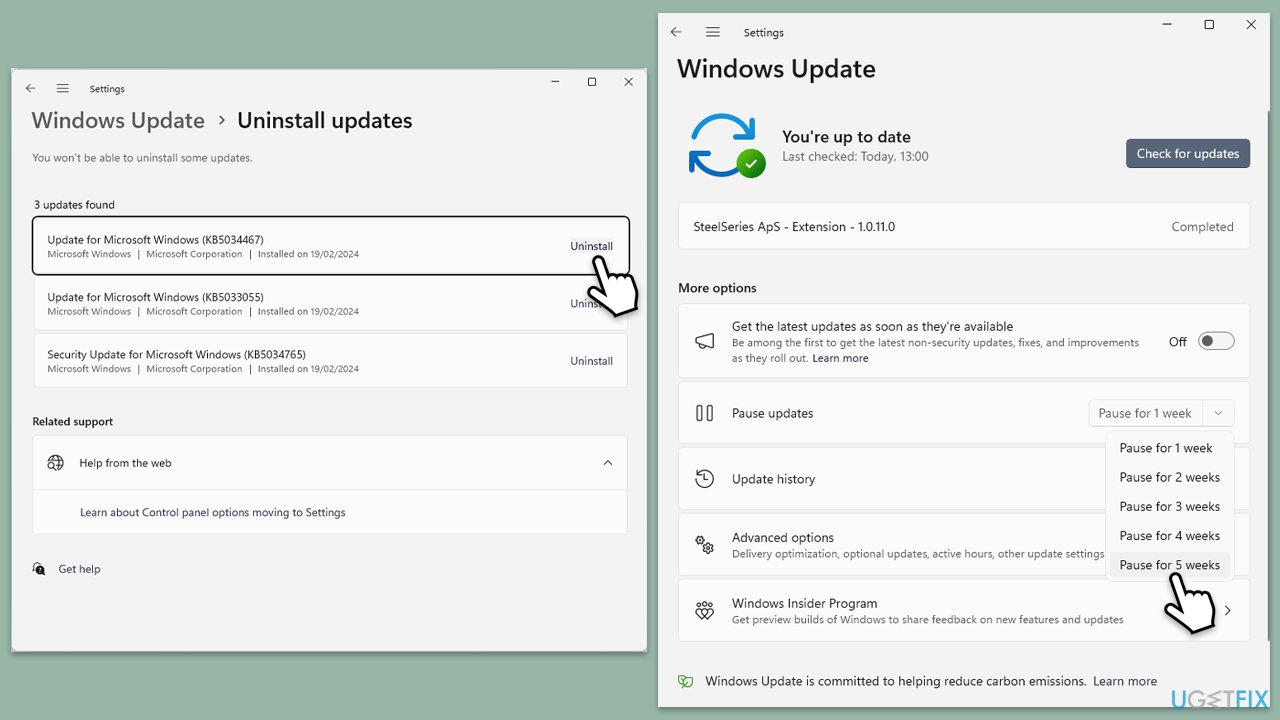
Fix 6. Uninstall recent update
Newly installed updates may conflict with your system and cause a BSOD. This solution makes sense if problems started after you installed the Windows update.
- Type Control Panel in Windows search and press Enter.
- Select Programs > Uninstall a program.
- Click on View installed updates on the left side of the window.
- Uninstall the most recent update.
- Proceed with on-screen instructions.
- Don't forget to pause the update.
Fix 7. Run a Clean Boot
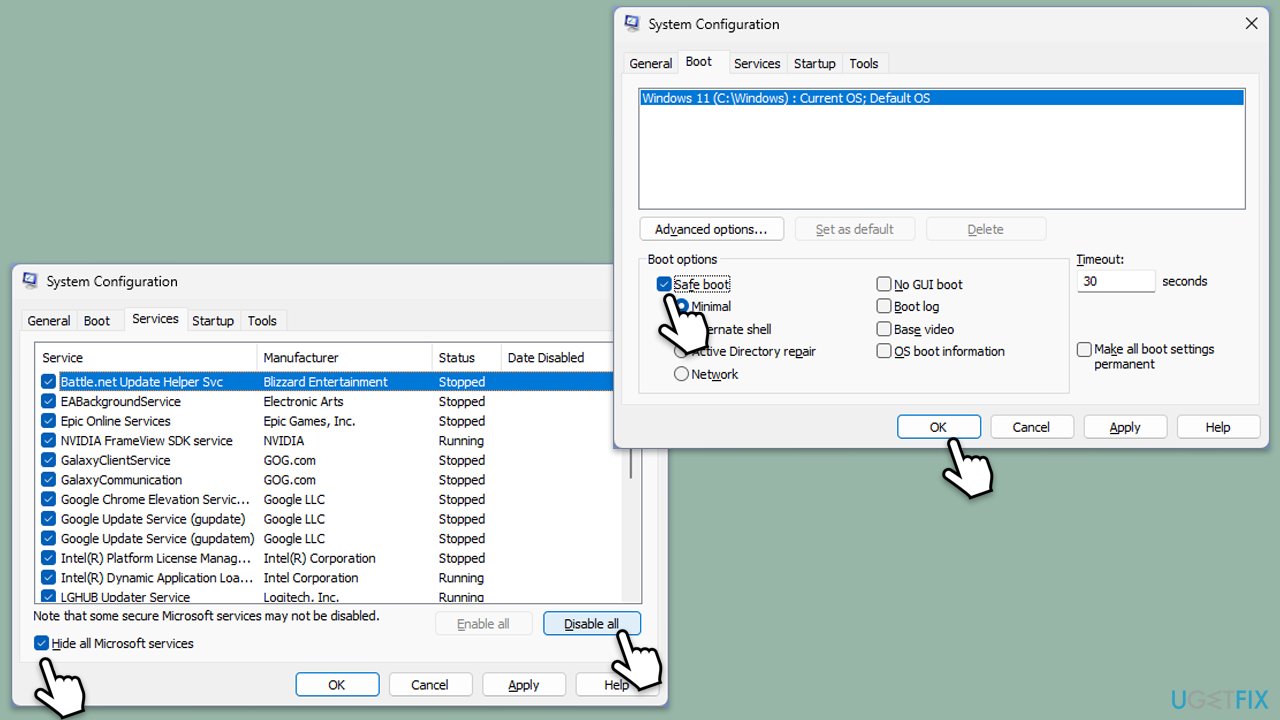
A Clean Boot helps eliminate conflicts with third-party software that may cause the BSOD. This method starts Windows with minimal services and drivers.
- Type msconfig in the Windows search box and press Enter.
- Pick the Services tab.
- Mark Hide all Microsoft services and select Disable all.
- Select the Startup tab and click Open Task Manager.
- In the Task Manager, right-click on each of the items and select Disable, then close the Task Manager.
- Go to the Boot tab, mark the Safe Boot option, then click Apply and OK.
- On the System Configuration window, click OK.
- If the problem is resolved, it means that the software is causing this. Disable each of the entries (or do that in groups) and reboot the system in normal mode; i.e., use the method of elimination.
Bottom line
The 0xc0000023 BSOD error can be addressed through system file repairs, driver updates, registry fixes, or hardware diagnostics. If these solutions do not resolve the issue, consider seeking professional assistance or using a PC repair app for ongoing maintenance.
Frequently asked questions
The 0xc0000023 BSOD error typically indicates a problem with the boot configuration data, which can prevent Windows from starting properly.
You can repair the boot configuration data by using the Windows Recovery Environment and executing the 'bootrec /rebuildbcd' command in the Command Prompt.
Yes, performing a system restore can help revert your system to a previous state before the error occurred, potentially resolving the 0xc0000023 BSOD.




Report an issue
What's wrong with this guide? We review every report and update or remove content.
Report received — thank you. We'll review and fix it.
You need a free account to submit a report.
Be the first to comment