How to fix
“A connection to the Steam VAC servers could not be made” error
on Windows
Resolve the "A connection to the Steam VAC servers could not be made" error on Windows 10 or 11 with our expert-tested solutions. Fixed in minutes!

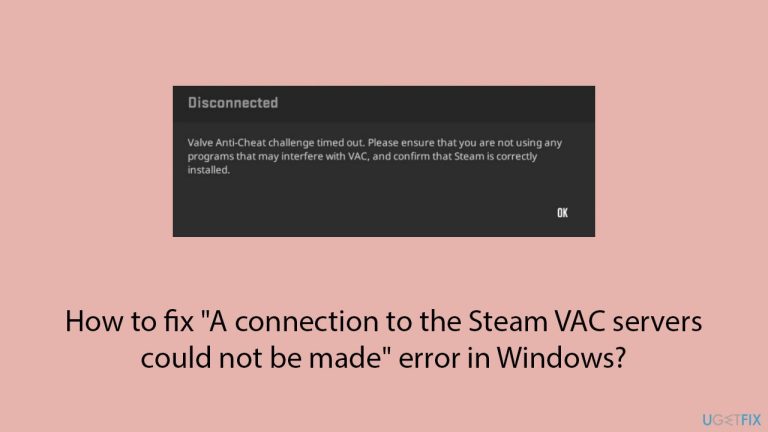
What causes How to fix “A connection to the Steam VAC servers could not be made” error in Windows?
- Weak internet signals
- Problems with firewalls or antivirus software
- Broken Steam files
- Outdated or wrongly set network drivers
- Conflicts with other applications like VPNs or anti-cheat programs
Repairs Windows system files, removes malware, and restores a clean OS state — without reinstalling.
So yesterday I was trying to join Team Fortress 2 game and it took several minutes before I got a black pop-up box saying "A connection to the Steam VAC servers could not be made." This continues today and I was wondering if there's something on my end I could do to fix this.
Players frequently run into the error "A connection to the Steam VAC servers could not be made" when attempting to connect to VAC-secured servers on Steam, especially in titles like Team Fortress 2 and Counter-Strike: Global Offensive. This issue, which frequently occurs following a Steam or system update, can occur for a number of network or software configuration-related reasons and prevent users from joining specific multiplayer games.
"A connection to the Steam VAC servers could not be made" error occurs when Steam fails to connect securely with the VAC (Valve Anti-Cheat) servers. Common causes include weak internet signals, problems with other programs like firewalls or antivirus, broken Steam files, or issues with Steam’s background tasks. Outdated or wrongly set network drivers may also prevent VAC server connections.
Often, this error shows up after system or Steam client changes. These changes might lead to conflicts between the system's security settings and Steam. Sometimes, other applications like VPNs or anti-cheat programs disrupt Steam’s connection, causing this error.
Fixing the "A connection to the Steam VAC servers could not be made" error involves different steps. Restarting the computer and router, or resetting network settings may solve it. In tougher cases, reinstalling Steam or updating network drivers might work. Checking that antivirus or firewall software isn’t blocking Steam is also very important.
To tackle possible deeper system problems, using a trusted PC repair tool [d1] might help fix Windows-related issues linked to this error.

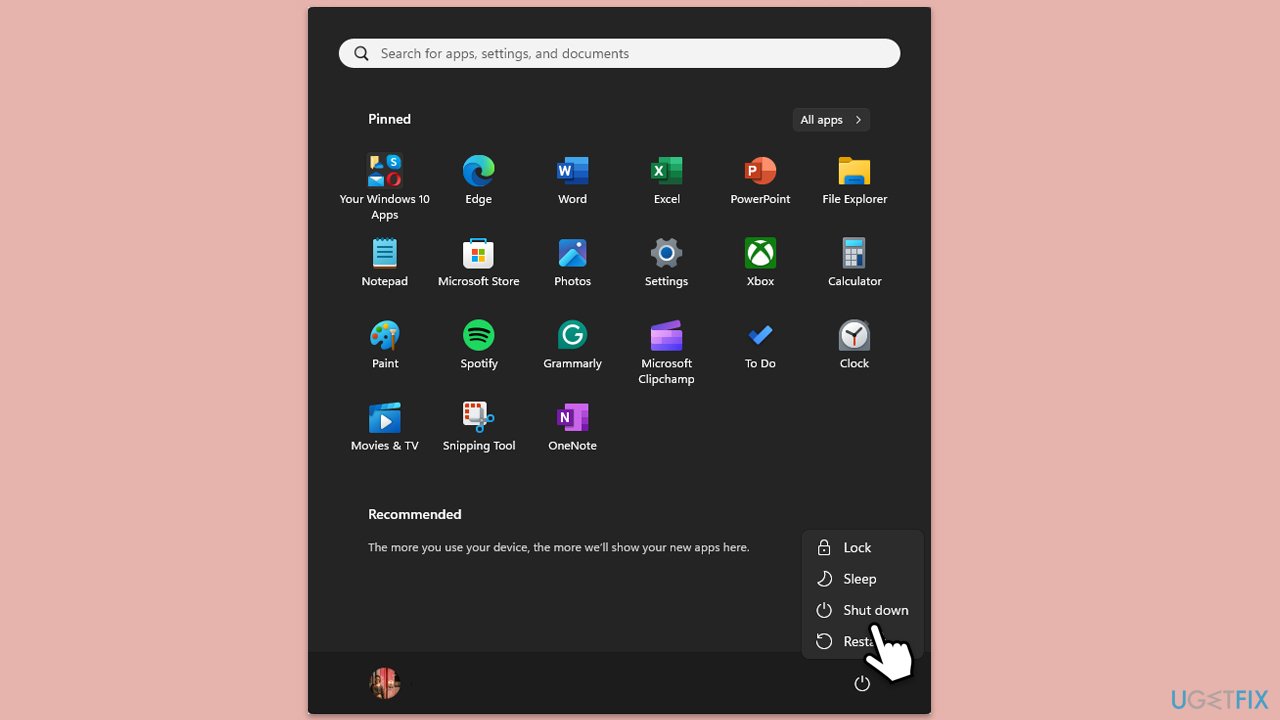
Fix 1. Restart your router and computer
If you're having trouble connecting Steam to the VAC servers, this step helps fix network-related problems. It fixes any potential hiccups by refreshing both your system and local network.
- Turn off your computer.
- Power off your router and wait for 30 seconds.
- Turn the router back on.
- Once the router is fully rebooted, turn your computer back on.
- Launch Steam and check if the issue persists.
Fix 2. Check your internet connection
Unstable internet connections or low bandwidth can cause Steam to lose access to the VAC servers. Verifying your connection stability can often resolve the problem.
Windows 11
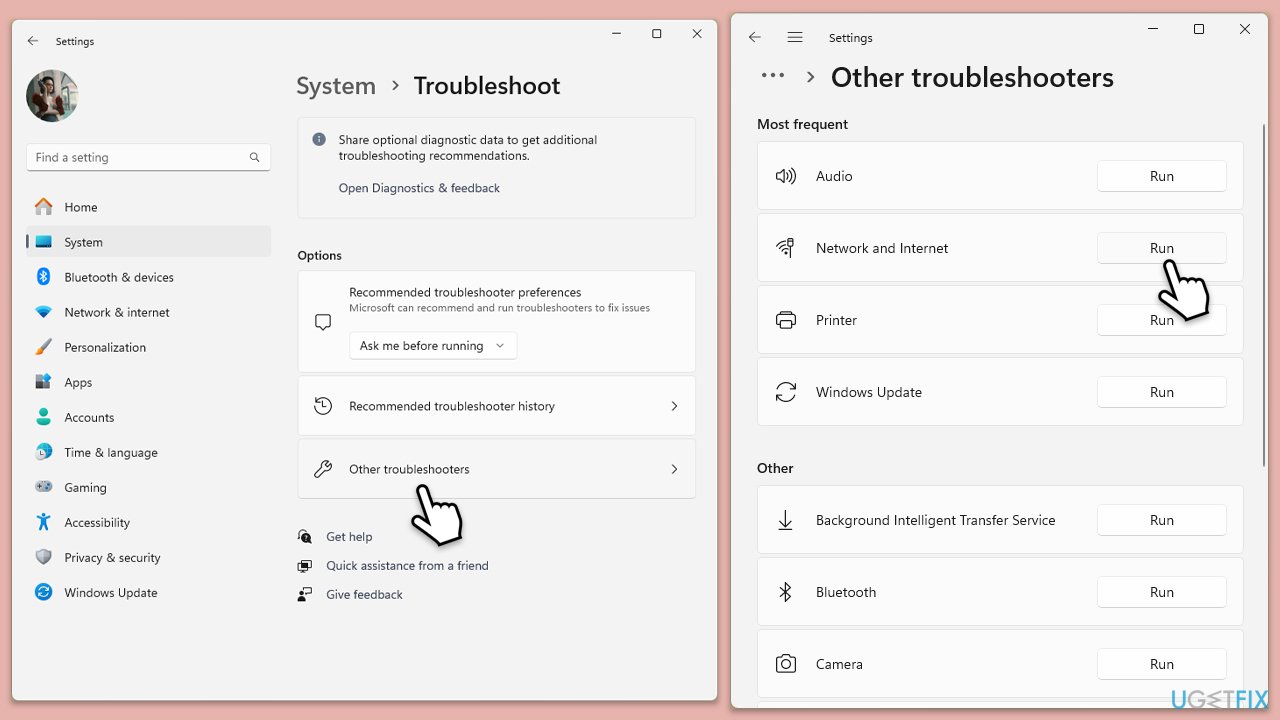
- Type Troubleshoot in Windows search and hit Enter.
- Select Other troubleshooters.
- Locate Network & Internet troubleshooter from the list and click Run.
- Wait till the process is finished and apply the recommended fixes.
- Restart your computer.
Windows 10
- Right-click on Start and pick Settings.
- Go to the Network & Internet section.
- On the right side, find the Advanced network settings section.
- Click Network troubleshooter and wait.
- The fixes will be automatically applied.
Fix 3. Disable antivirus or firewall temporarily
Occasionally, security software may prevent Steam from interacting with VAC servers because it believes it to be a possible danger. If these programs are the source of the problem, they can be temporarily disabled to help identify it.
- Disable your antivirus software from its main dashboard, usually accessible via the system tray icon.
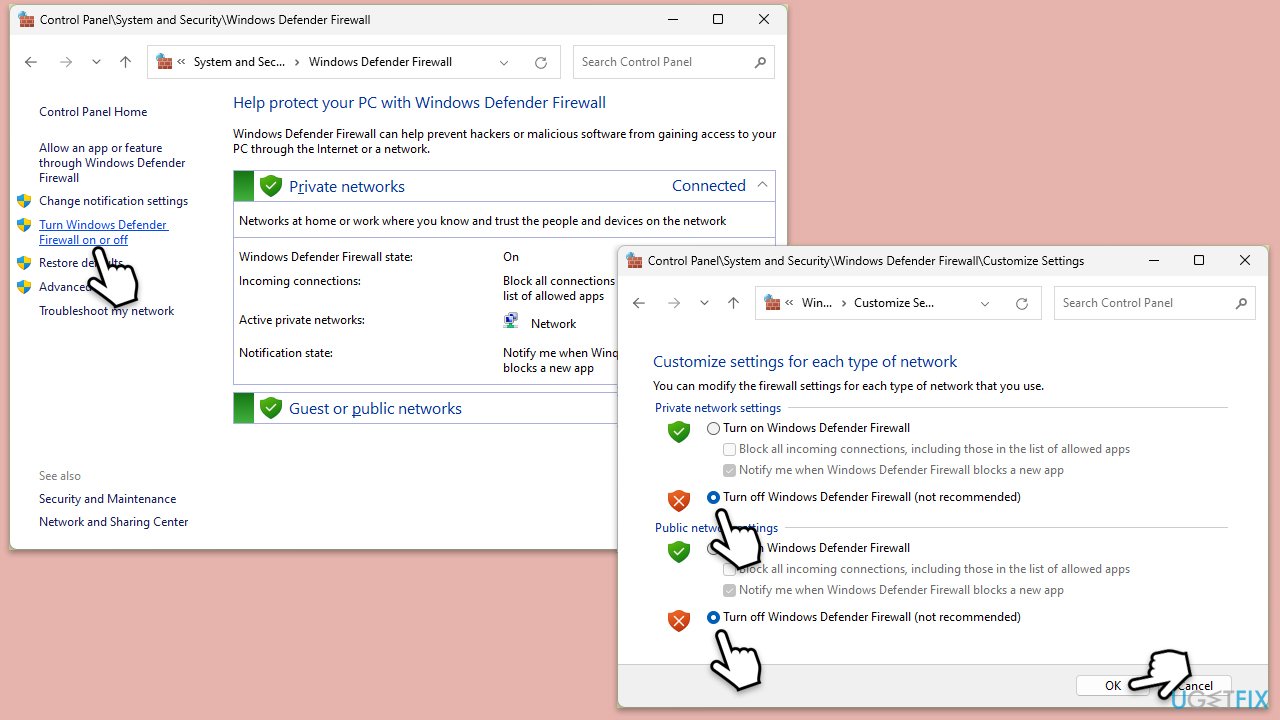
- Press Win + S and type "firewall." Select Windows Defender Firewall.
- Click on Turn Windows Defender Firewall on or off.
- Select Turn off Windows Defender Firewall for both private and public network settings. Remember to turn these back on after testing.
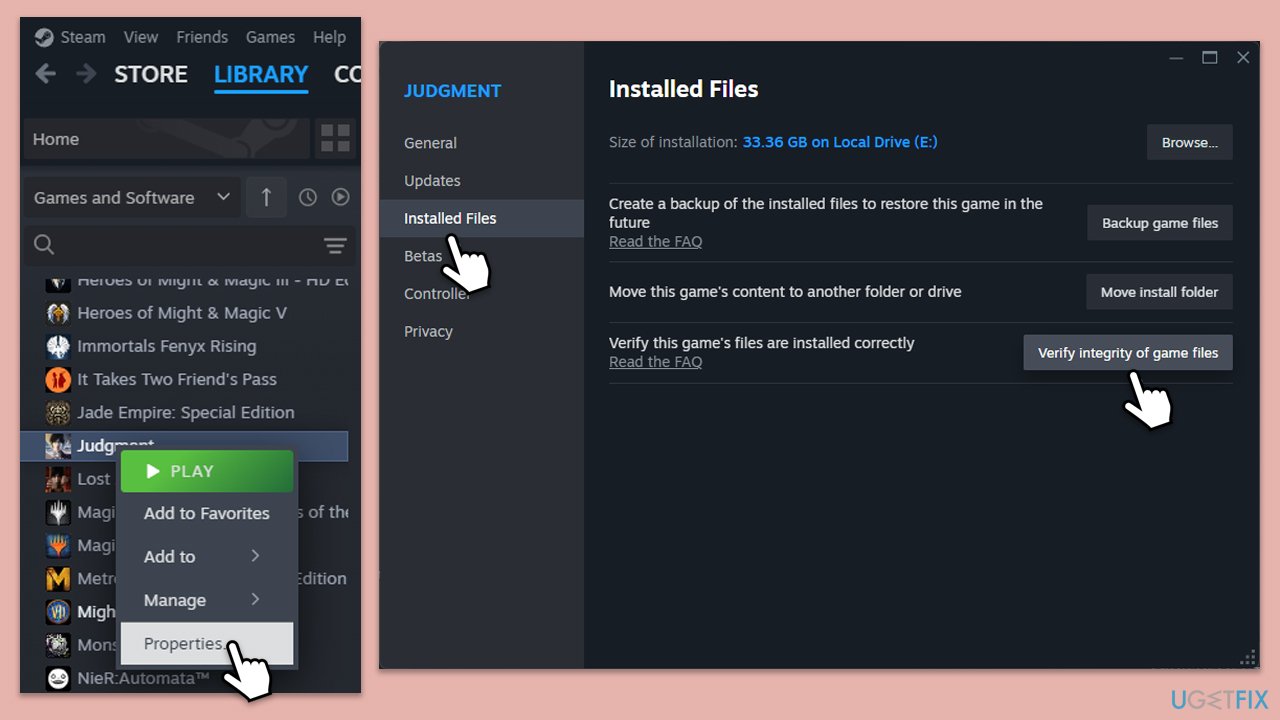
Fix 4. Verify integrity of game files
Corrupted game files can cause Steam to fail in establishing a secure connection with VAC servers. Verifying the integrity of the game files helps repair any missing or damaged files.
- Open Steam and go to your Library.
- Right-click on the problematic game and pick Properties.
- Go to Installed Files and click Verify integrity of game files.
- Wait till the scan is finished and attempt to launch the game again.
Fix 5. Repair the Steam service
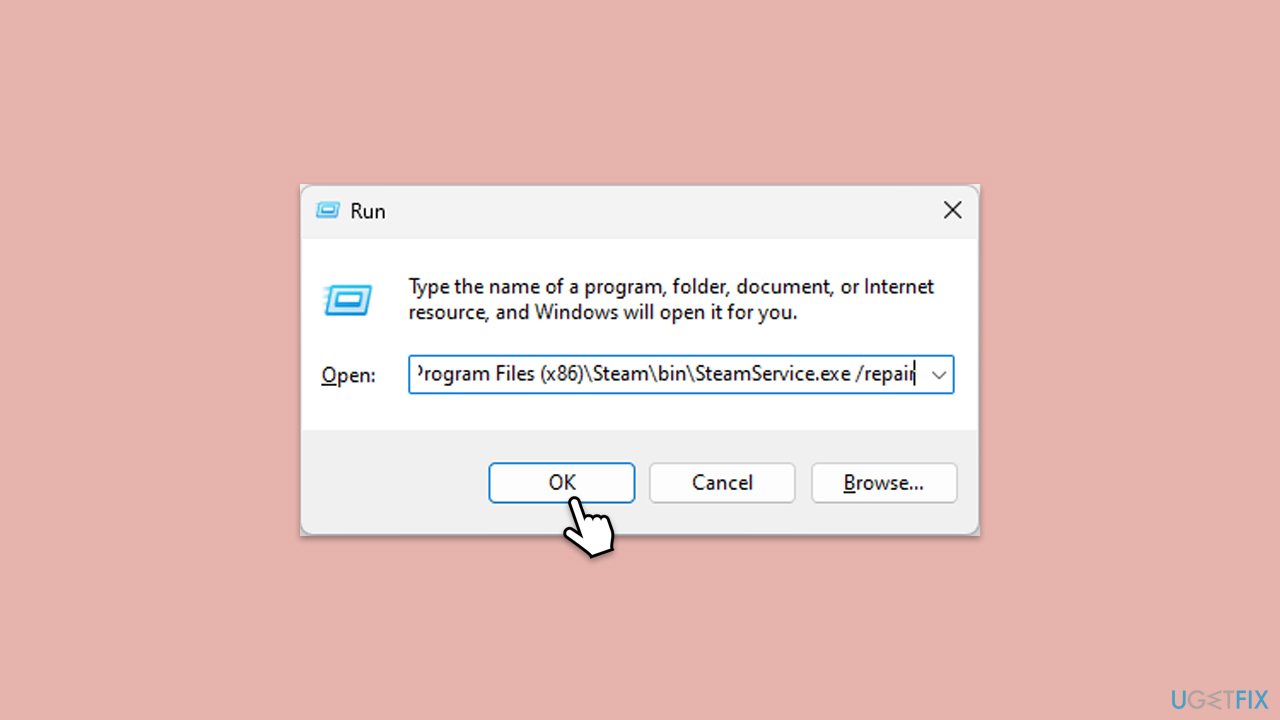
Steam services might become corrupted or malfunction, preventing a connection to VAC servers. Repairing the Steam service restores these essential functions.
- Press Win + R to open the Run dialog box.
- Type the following and press Enter:
C:\Program Files (x86)\Steam\bin\SteamService.exe /repair - Wait for the repair process to complete.
- Restart Steam and check if the issue is resolved.
Fix 6. Update or rollback network drivers
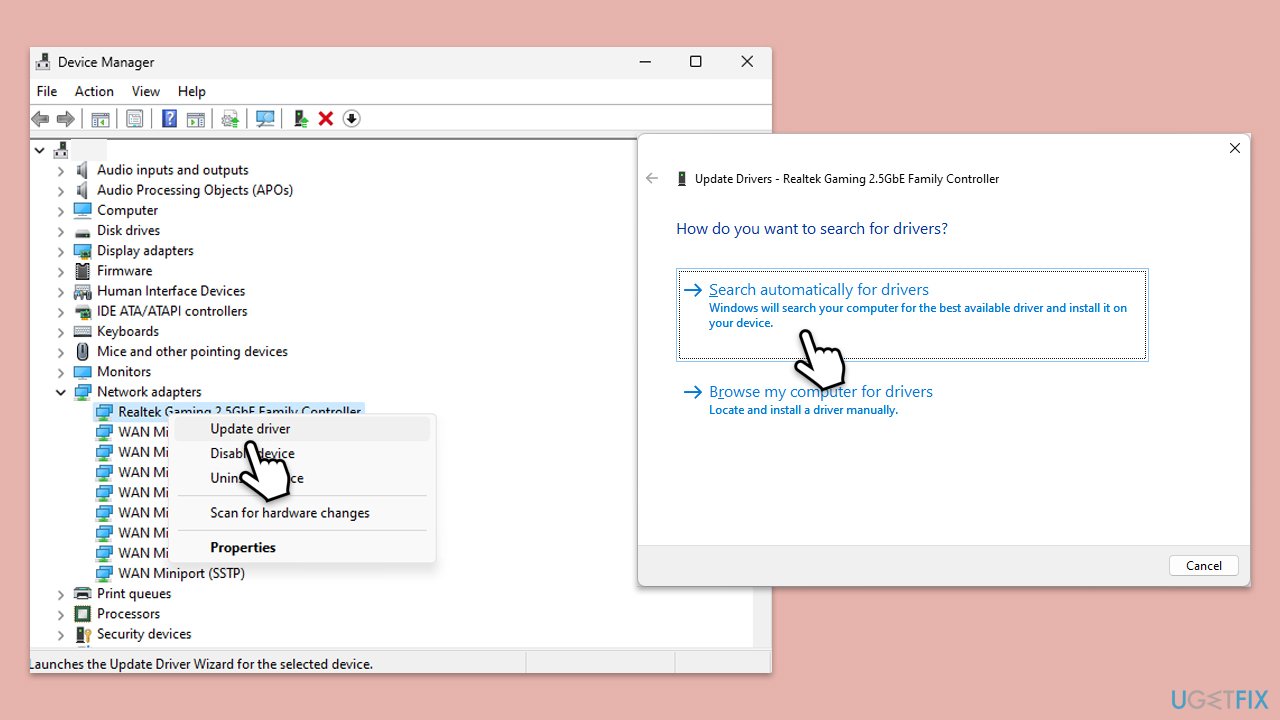
Your connection to VAC servers may be interrupted by outdated or malfunctioning network drivers. If a recent update caused the problem, rolling back the drivers may be helpful in restoring proper connectivity.
- Right-click on the Start menu and select Device Manager.
- Expand the Network adapters section.
- Right-click on your network adapter and choose Update driver.
- Select Search automatically driver.
- Follow the prompts to complete the driver update.
- If the latest drivers are installed, choose Rollback driver if available.
- Restart your computer and check Steam.
Fix 7. Reinstall Steam
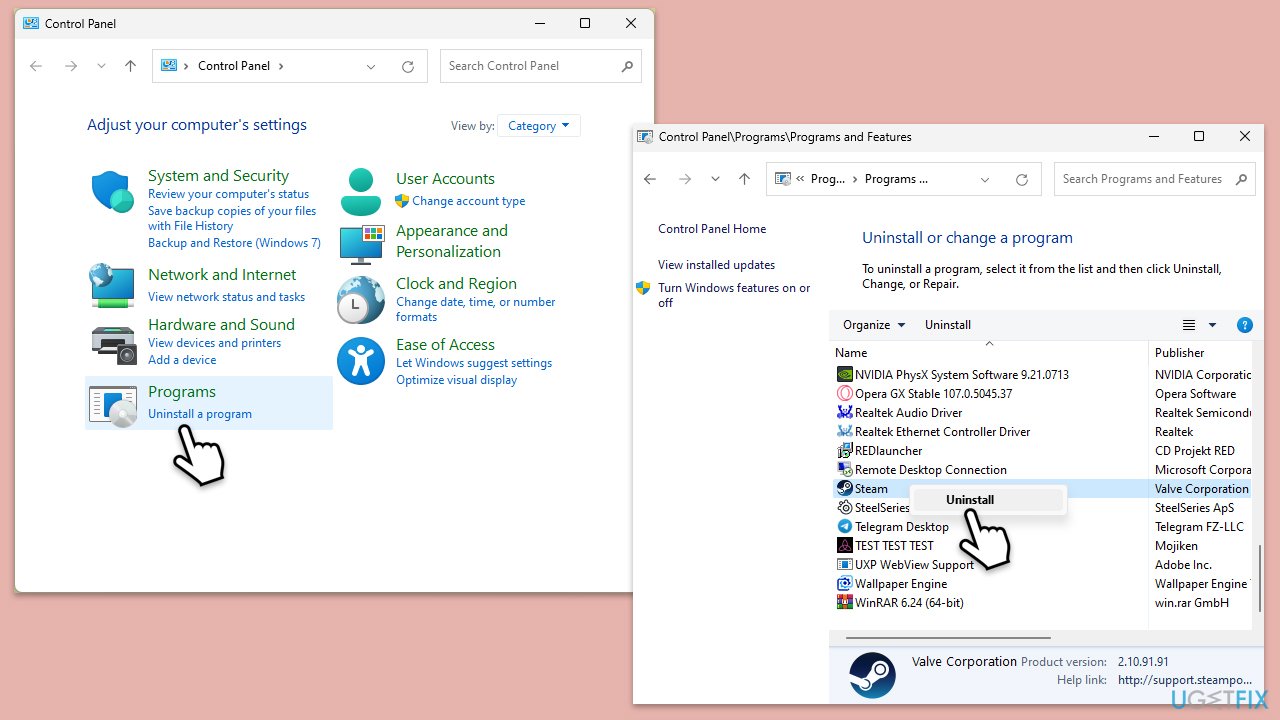
In cases where Steam files are corrupted or conflicting with system configurations, reinstalling the platform can resolve the issue by providing a fresh setup.
- Type Control Panel in Windows search and press Enter.
- Go to Programs > Uninstall a program.
- Find Steam, right-click, and select Uninstall.
- Follow the prompts to remove the app.
- Reboot your PC and then reinstall Steam from the official website.
Bottom line
To fix the "A connection to the Steam VAC servers could not be made" error, you can try restarting your router and computer, checking your antivirus or firewall settings, or reinstalling Steam. If these solutions do not resolve the issue, consider using a trusted PC repair tool to address deeper system problems.
Frequently asked questions
This error can occur due to network issues, firewall settings blocking Steam, or corrupted game files. It's important to check your internet connection and ensure Steam is allowed through your firewall.
To reset your network settings in Windows 11, go to Settings > Network & internet > Advanced network settings, and select Network reset. This will reinstall your network adapters and reset networking components.
Yes, verifying the integrity of game files can resolve issues caused by corrupted files that may lead to the Steam VAC error. You can do this by right-clicking the game in your Steam Library, selecting Properties, and then clicking on Verify integrity of game files.




Report an issue
What's wrong with this guide? We review every report and update or remove content.
Report received — thank you. We'll review and fix it.
You need a free account to submit a report.
Be the first to comment