How to fix
Windows activation error 0x80010105
on Windows
Fix Windows activation error 0x80010105 quickly and easily with our expert-tested solutions for Windows 10 and 11. Get back up and running in minutes!


What causes How to fix Windows activation error 0x80010105?
- Network trouble
- Wrong settings
- Broken activation files
- Incorrect product key
- Unrecognized product key
Repairs Windows system files, removes malware, and restores a clean OS state — without reinstalling.
I had to deal with a great number of issues on my Windows 11 PC - apps were crashing, I couldn't change various settings, the internet would randomly disappear, etc. So I decided to reinstall Windows as a last resort and now my activation is failing, despite having legal purchase of software. I tried running activation troubleshooter and I got an error code 0x80010105. When can I use my PC normally again?!
Windows activation checks if your copy of Windows is real and has a legal license. After installing or upgrading the system, activating Windows helps it work fully. This process allows updates, personalized settings, and full security. Users either connect to the internet or enter a product key from Microsoft. Sometimes, reactivation is needed, like when a computer's hardware is changed or the license moves to another device.
Problems may show up during activation. One common error is 0x80010105, which often happens when using the troubleshooter to solve activation issues. This error usually points to a problem between your PC and Microsoft's servers - maybe from network trouble or wrong settings, or possibly because of broken activation files.
Error 0x80010105 is especially annoying because it leaves people stuck in a loop. The troubleshooter can't fix the problem, meaning Windows may not activate, leading to limited system use.
But other ways exist to solve activation issues. Users could double-check the product key, reset activation settings, or activate Windows through phone support. These steps might work when automatic tools aren't helping.
For those feeling lost about what steps to take, an optimization and repair tool may be useful. It can find hidden system problems that could block activation, helping your computer run very smoothly.

Method 1. Re-enter your product key
Sometimes the product key might not be entered correctly, or it may not be recognized by Windows. Re-entering your key ensures that the correct information is used during the activation process.
- Right-click on Start and pick Settings.
- Select Update & Security > Activation on Windows 10 or System > Activation on Windows 11.
- Here you will see the error (click on the Activation State on Win 11).
- Click on Change Product Key.
- Enter your valid Windows product key.
- Click Next and follow the prompts to complete the process.
Method 2. Run the Windows Activation troubleshooter again
Although the error may appear when using the troubleshooter, running it again after checking your internet connection or resetting your system settings can help resolve the issue.
- Right-click on Start and pick Settings.
- Select Update & Security > Activation on Windows 10 or System > Activation on Windows 11.
- Here you will see the error (click on the Activation State on Win 11).
- Click on Troubleshoot.
- Follow the on-screen instructions.
- Restart your device as required.

Method 3. Check your internet connection
A poor or unstable internet connection can cause activation failures. Ensure that your system is connected to a stable network before trying to activate Windows again.
Windows 11
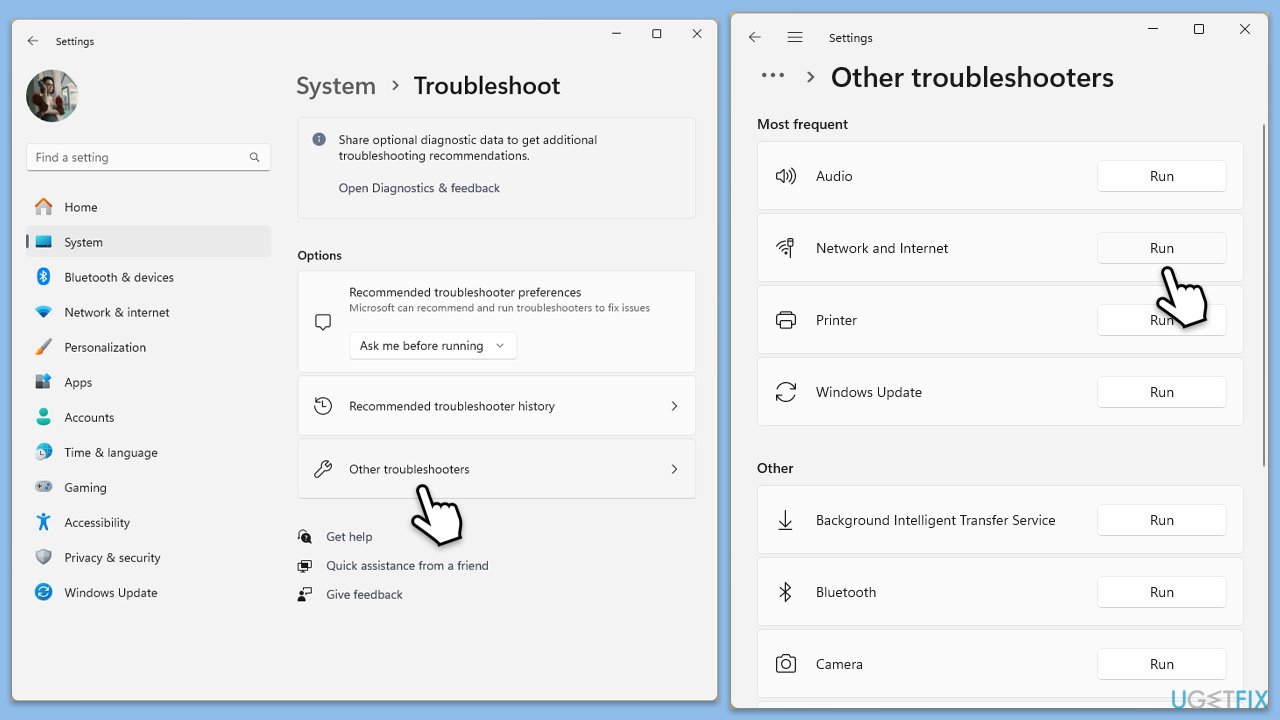
- Type Troubleshoot in Windows search and hit Enter.
- Select Other troubleshooters.
- Find Network & Internet from the list and select Run.
- Wait till the scan is finished - you will be provided with potential causes so you can proceed with fixes.
Windows 10
- Right-click on Start and pick Settings.
- Go to the Network & Internet section.
- On the right side, find the Advanced network settings section.
- Click Network troubleshooter and wait.
- The fixes will be automatically applied.
Method 4. Activate via Command Prompt
Digital license:
- Type cmd in Windows search.
- Right-click on Command Prompt and pick Run as administrator.
- User Account Control window will show up - click Yes when prompted.
- Once Command Prompt opens, copy and paste the following command:
slmgr /xpr - Press Enter and click OK.

Product key:
- Open Command Prompt as administrator and use the following command:
wmic path softwarelicensingservice get OA3xOriginalProductKey - Paste the slmgr.vbs.ipk <product key> into the window, and press Enter
- Finally, use slmgr.vbs/ato command and hit Enter
- Restart your PC and see if the problem persists.
Method 5. Activate Windows via phone
If online activation doesn’t work, Microsoft offers phone-based activation, which allows you to complete the process through an automated phone system or with the help of a representative.
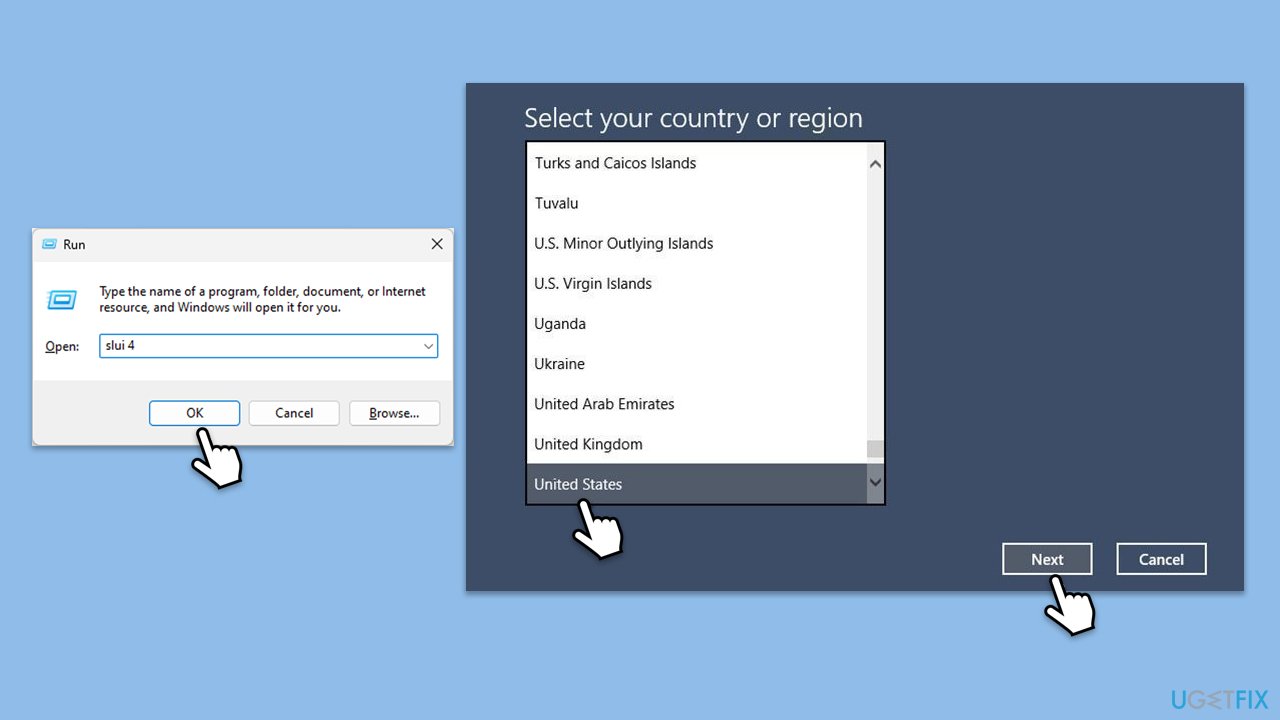
- Press Win + R on your keyboard and type slui 4, then press Enter.
- Select your country and click Next.
- Call the toll-free number provided.
- Follow the automated instructions or speak to a representative. Make sure you have your Windows product key/digital license number ready.
Method 6. Reset the Software Licensing Service
Software Licensing Service manages activation and licensing information. Restarting this service may resolve issues like error 0x80010105.
- Press Win+ R, type services.msc, and press Enter.
- Scroll down to Software Protection, right-click it, and select Restart.
- Try activating Windows again after restarting the service.
Method 7. Update Windows
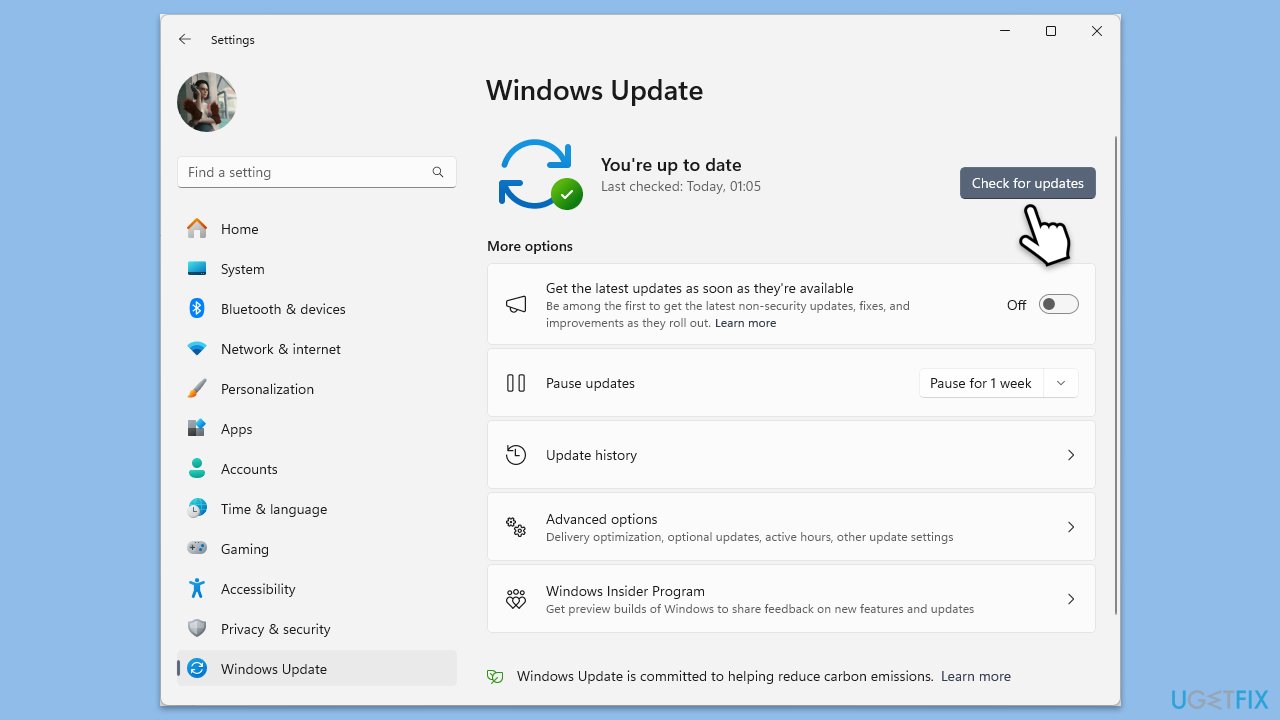
- Right-click on Start and select Settings.
- Go to Update & Security/Windows Update (depending on Windows version).
- If updates are pending, click Install updates.
- Otherwise, click Check for updates and wait.
- If there are optional updates available, install them as well.
- Restart your system to implement the changes.
Method 8. Rebuild the activation-related files
Corrupted activation-related files can cause errors during the activation process. Rebuilding these files may resolve the issue.
- Open Command Prompt administrator.
- Copy and paste the following command, pressing Enter after:
sfc /scannow - Wait till the scan is finished. If Windows finds system file integrity violations, it will attempt to fix them. After this, use the set of the following commands, pressing Enter each time:
DISM /Online /Cleanup-Image /CheckHealth
DISM /Online /Cleanup-Image /ScanHealth
DISM /Online /Cleanup-Image /RestoreHealth - (Note: if you get an error executing this last command, add /Source:C:\RepairSource\Windows /LimitAccess to it and try again).
- Close down the Command Prompt and restart your system.

Bottom line
To fix the Windows activation error 0x80010105, you can re-enter your product key, reset activation settings, or activate Windows through phone support. If these methods do not resolve the issue, consider using an optimization and repair tool to identify hidden system problems.
Frequently asked questions
First, try running the Windows Activation Troubleshooter by going to Settings > Update & Security > Activation, then click on 'Troubleshoot' to automatically detect and fix the issue.
Yes, you can resolve error 0x80010105 by using the Command Prompt to reset the Windows Activation service and executing the command 'slmgr.vbs /ato'.
After addressing the error, check your activation status by going to Settings > Update & Security > Activation; it should indicate that Windows is activated.




Report an issue
What's wrong with this guide? We review every report and update or remove content.
Report received — thank you. We'll review and fix it.
You need a free account to submit a report.
Be the first to comment