How to fix
Steam error “No download source”
on Windows
Resolve the Steam "No download source" error on Windows 10 and 11 effortlessly. Follow our expert-tested solutions for a smooth gaming experience today!


What causes How to fix Steam error “No download source” in Windows?
- Connection issues with your internet
- Steam server issues
- Misconfigured settings within Steam
- Cache issues
- Interference from antivirus software
Repairs Windows system files, removes malware, and restores a clean OS state — without reinstalling.
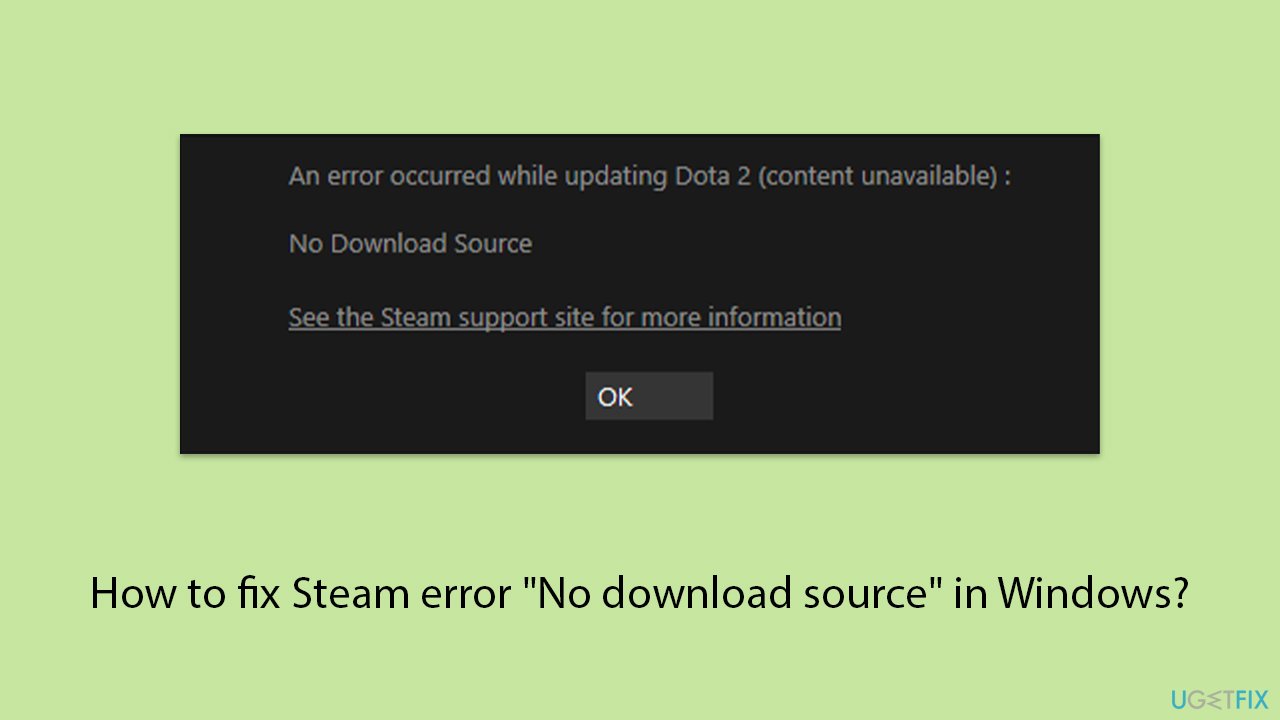
I was trying to launch DOTA 2 and I got an error with the error message "No download source." What is this and how can I fix it? I can't play the game anymore.
The "No download source" error on Steam stops people from downloading or updating games. A message usually appears indicating that no download source is available, which halts any game installations or updates. As a result, certain games, such as Counter-Strike: Global Offensive or Dota 2, may stop working, leaving players stuck and unable to continue.
The "No download source" error often arises due to connection issues, either with your internet or Steam’s servers. In some cases, misconfigured settings within Steam can also cause this problem, while cache issues or interference from antivirus software might block downloads. Many users report that Steam servers occasionally become unreachable, triggering this error and preventing the client from accessing the necessary game downloads.
A good way to fix the "No download source" error is by changing the download region in your Steam settings. Steam has content servers spread across various regions globally, but sometimes, the server closest to your location may perform poorly. In such cases, switching to another nearby region in Steam's "Download" settings can often resolve the issue, and many users have successfully fixed the problem this way.
Changing the download region does not help everyone. Other things to try include clearing the download cache restarting Steam or seeing if a firewall or antivirus is stopping Steam from reaching the internet.
If these easy steps don’t help, more complex steps may be required. Deleting Steam’s cache folders or reinstalling Steam are some of the other options. Another way could be using a good PC repair tool such as [d1], which helps by finding and fixing Windows problems that might not be that apparent.
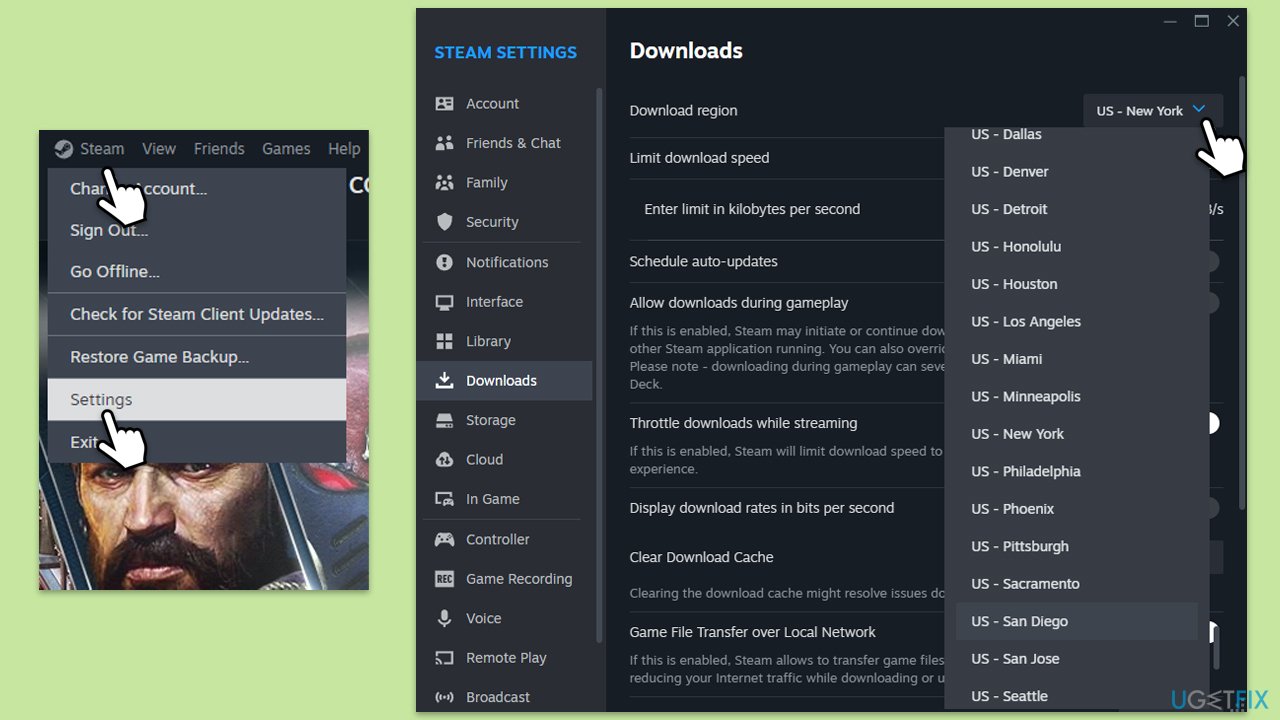
Fix 1. Change the download region
Sometimes the content server closest to you can experience performance issues or downtime. Changing to a different, nearby region can help reroute downloads to a better server.
- Open Steam and click on Steam in the top left corner.
- Navigate to Settings.
- Click on Downloads.
- Under Download Region, select a different location from the dropdown menu.
- Click OK and restart Steam.
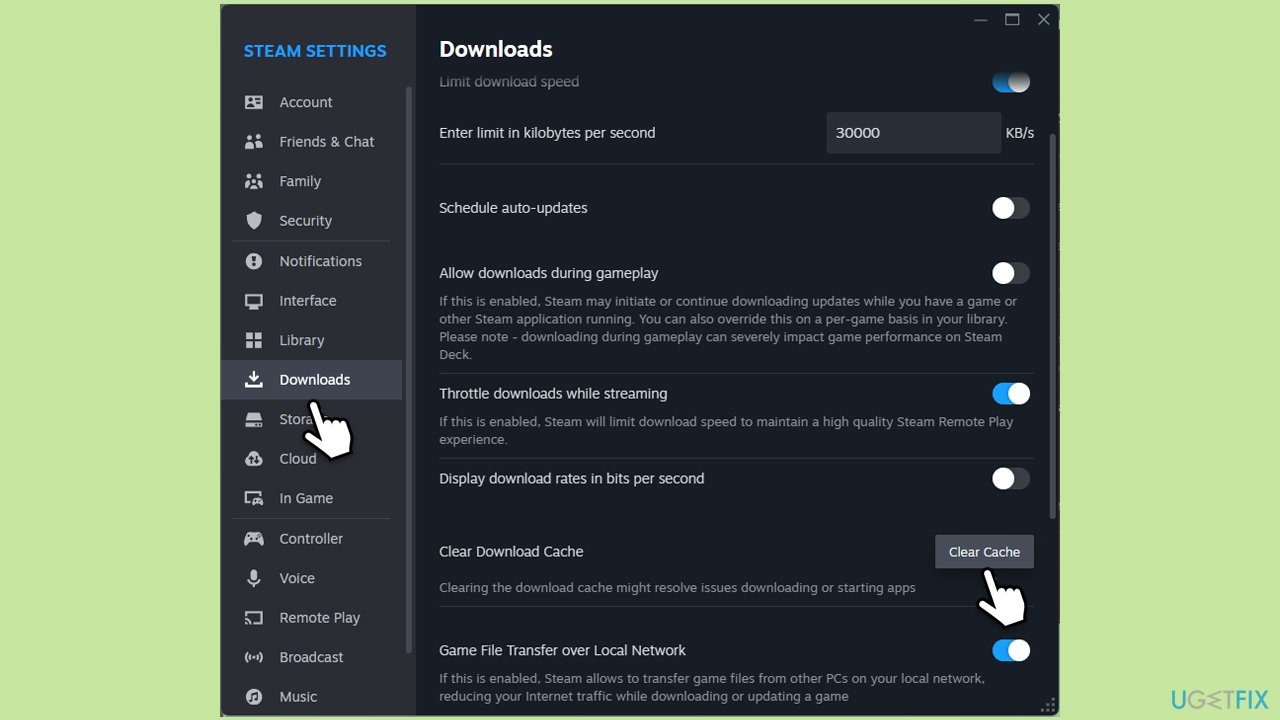
Fix 2. Clear Steam cache files
Steam’s download cache can accumulate corrupted or outdated files that cause issues with downloads. Clearing the cache can resolve these conflicts.
- Open the Steam app.
- Go to Steam > Settings.
- Select the Downloads section on the left.
- Scroll down to the Clear Download cache section.
- Click Clear Cache.
- Next, go to the In Game section on the left.
- Under Delete web browser data, click on Delete.
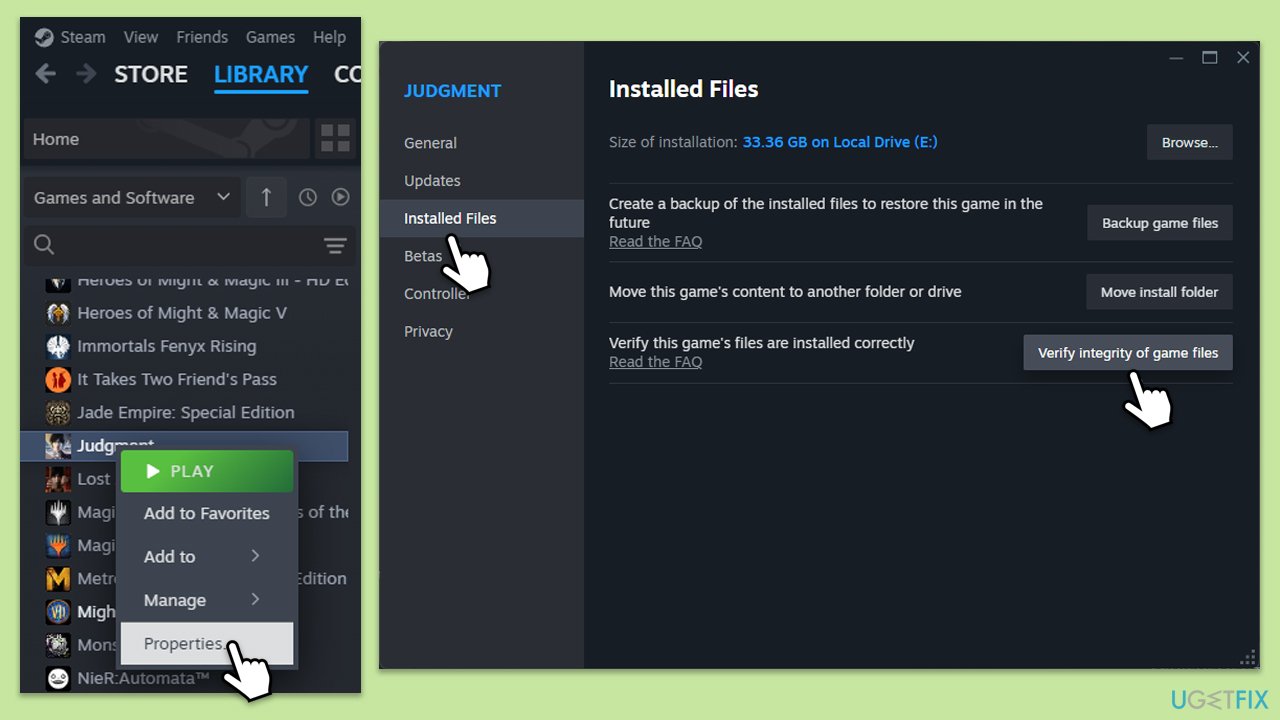
Fix 3. Verify the integrity of game files
Sometimes game files may become corrupted or missing, preventing updates or downloads. Verifying the integrity of the game files can restore or repair these files.
- Open Steam and go to your Library.
- Right-click on the problematic game and pick Properties.
- Go to Installed Files and click Verify integrity of game files.
- Wait till the scan is finished and attempt to launch the game again.
Fix 4. Reinstall the game
If a particular game is experiencing issues with downloads, reinstalling it can ensure you have a fresh and functional version of the game files.
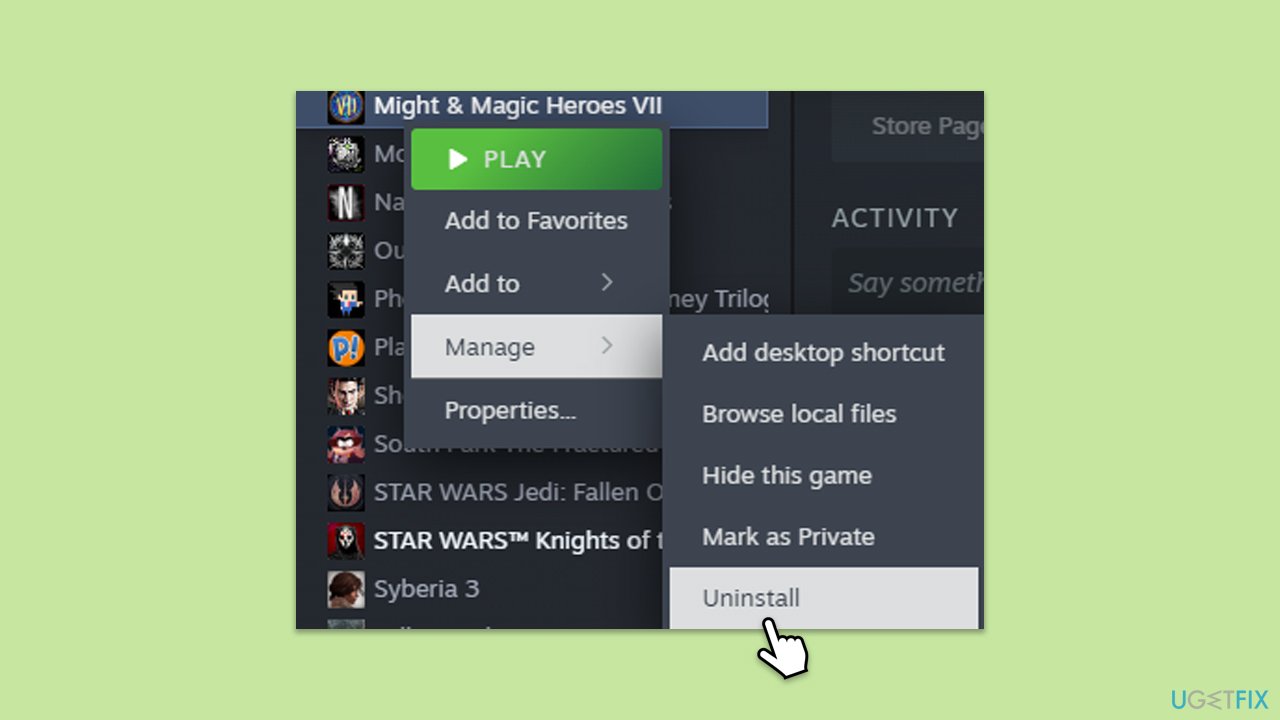
- Open Steam and go to your Library.
- Right-click on the game you are having trouble with.
- Select Manage > Uninstall.
- Once done, re-download the game and try launching it again.
Fix 5. Reinstall Steam
When Steam itself is experiencing issues, reinstalling the application can clear corrupted files and resolve broader problems that affect all games.
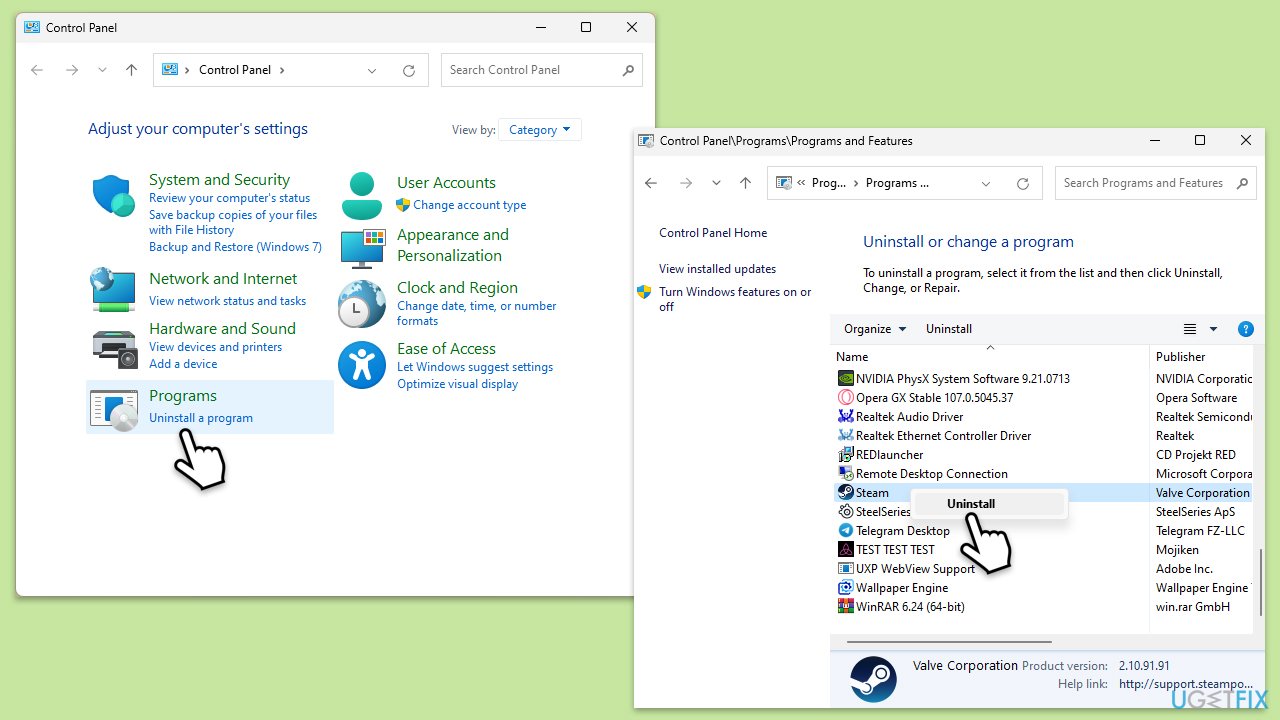
- Go to the Control Panel.
- Select Programs > Uninstall a program.
- Find Steam in the list and select Uninstall.
- Follow the prompts to remove Steam from your system.
- After uninstallation, restart your computer.
- Download the latest version of Steam from the official website.
- Run the installer and follow the instructions to install Steam.
Fix 6. Use Google’s DNS
Sometimes, using a different DNS service like Google’s can improve connection stability and help with download issues.
Windows 11
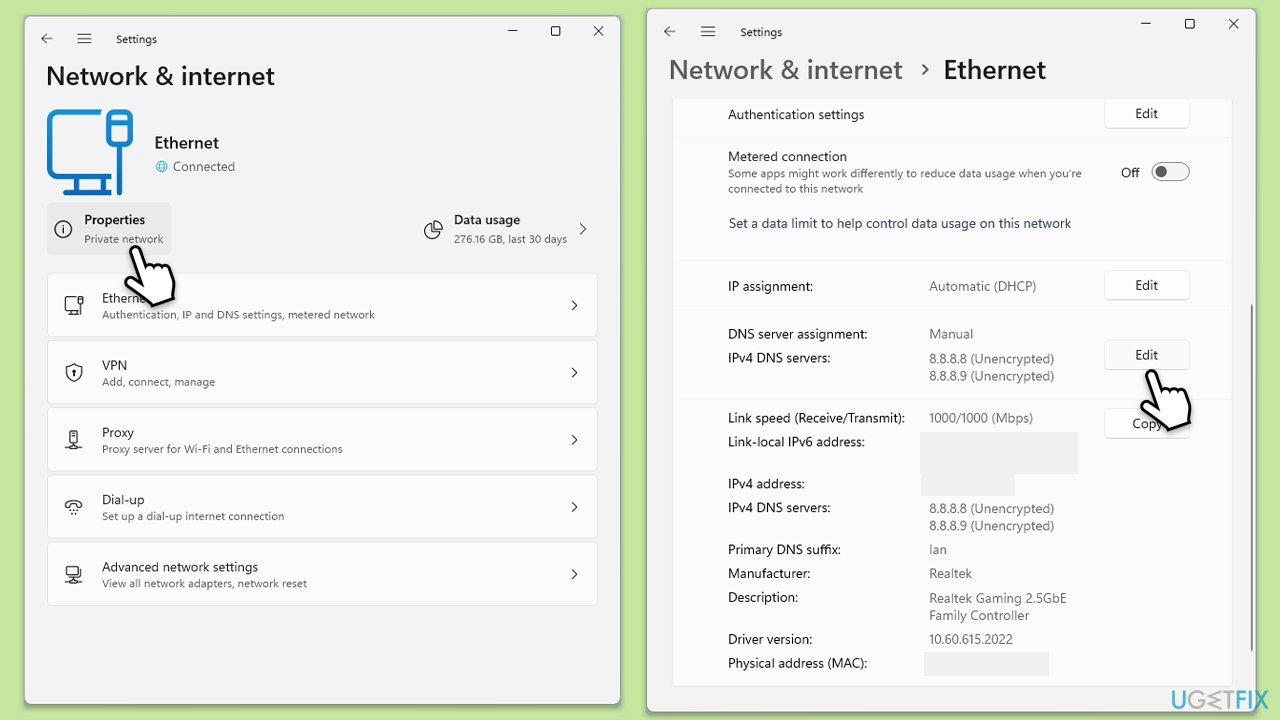
- Right-click on Start and select Network connections.
- Under your connection, click Properties.
- Find the DNS server assignment section and click Edit.
- Set your DNS to Google's:
Preferred DNS: 8.8.8.8
Alternate DNS: 8.8.4.4 - Click Save.
Windows 10
- Right-click on Start and select Settings.
- Go to Network and Internet section.
- Click on Change adapter options.
- Right-click on your internet connection and pick Properties.
- Select Internet Protocol Version 4 (TCP/IPv4) once and go to Properties or select Edit next to the DNS settings.
- Select Use the following DNS server addresses option and set your DNS to Google's:
Preferred DNS server: 8.8.8.8
Alternate DNS server: 8.8.4.4 - Click OK.
Bottom line
To fix the 'No download source' error, try changing the download region in Steam settings, clearing the download cache, or checking if a firewall or antivirus is blocking Steam. If these steps do not resolve the issue, consider deleting Steam’s cache folders or reinstalling Steam.
Frequently asked questions
You can try restarting Steam, checking your internet connection, and ensuring that your download region is set correctly in Steam's settings.
In Windows 11, clear the download cache by going to Steam settings, selecting 'Downloads', and clicking 'Clear Download Cache'.
Yes, you can try updating your network drivers, resetting your internet connection, or temporarily disabling your firewall to see if it resolves the issue.




Report an issue
What's wrong with this guide? We review every report and update or remove content.
Report received — thank you. We'll review and fix it.
You need a free account to submit a report.
Be the first to comment