How to fix
Mouse double-clicking on a single click
on Windows
Resolve mouse double-clicking issues on Windows 10 or 11 effortlessly. Get expert-tested solutions that fix the problem in minutes for smooth operation!

What causes How to fix mouse double-clicking on a single click?
- Double-click speed setting is too slow
- Old or broken mouse buttons
- Outdated or malfunctioning mouse drivers
- Signal problems from other devices for wireless mice
- Dead batteries in wireless mice
- Malware or viruses interfering with mouse functionality
Repairs Windows system files, removes malware, and restores a clean OS state — without reinstalling.
Every time I click the right mouse button, it double clicks instead. The same happens when I use my touchpad mouse clicks, so I don't think it's related to hardware. Any tips on how to fix it?
Sometimes users have trouble with a mouse that double-clicks when they just press it once in Windows. This happens pretty often and really annoys people trying to do easy tasks like opening files or looking at websites. The problem usually arises when one click is mistakenly perceived as a double-click, resulting in unexpected actions such as opening several tabs or applications simultaneously.
This problem happens for different reasons. Often the double-click speed setting might be too slow which leads Windows to count two clicks as a double-click. Old or broken mouse buttons also often cause unwanted double-clicks. Sometimes mouse drivers that are out of date or not working well could lead to this. Owners of wireless mice might notice this issue more because of signal problems from other devices or dead batteries.
Fixing a mouse that double-clicks in Windows involves several steps. Start by adjusting the double-click speed in the settings, as this can resolve misinterpretation of clicks. Updating the mouse drivers might also help if outdated drivers are causing the issue.
If there's no improvement, consider replacing the mouse itself, as hardware defects can lead to this behavior. Additionally, it's worth considering whether malware or a virus is interfering with the mouse’s functionality; running a full system scan could reveal if this is the underlying problem.
For users seeking a more automated approach to fix system-related issues that might be causing the mouse malfunction, using a trusted [d1] repair tool can help ensure that underlying problems are addressed effectively. This can help restore normal mouse functionality and improve overall system performance.

Fix 1. Adjust the mouse double-click speed
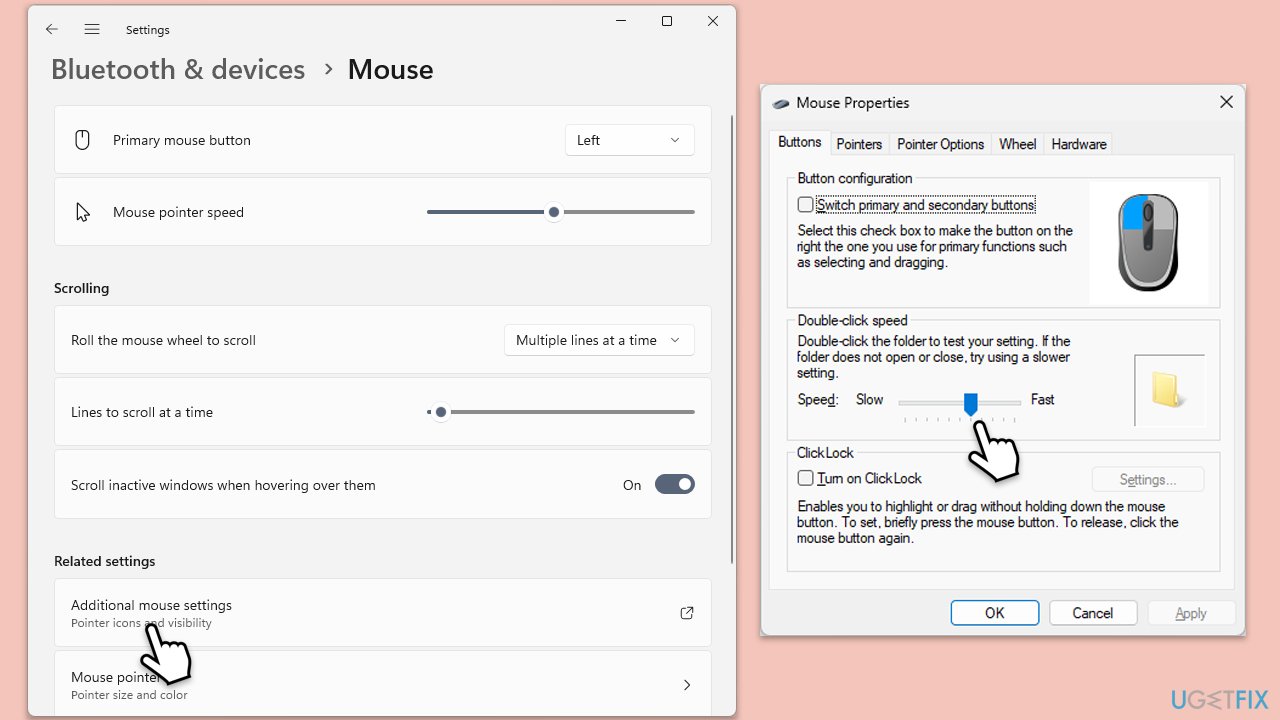
A common cause of double-clicking on a single click is the double-click speed being set too low. Adjusting the speed can help resolve the issue by ensuring Windows correctly registers each click.
- Press Win + I to open Settings.
- Select Bluetooth & Devices, then go to Mouse.
- Click on Additional mouse settings.
- Under the Buttons tab, adjust the Double-click speed by moving the slider toward the Fast side.
- Click OK to save the changes.
Fix 2. Clean the mouse hardware
Physical wear and tear on the mouse buttons or internal dust buildup can lead to unintended double-clicking. Cleaning or gently squeezing the buttons may help restore proper function.
- Unplug your mouse.
- Gently clean around the buttons using compressed air or a soft brush.
- If necessary, gently squeeze the buttons for 10 seconds and shake the mouse to dislodge any internal debris.
Fix 3. Update mouse/USB drivers
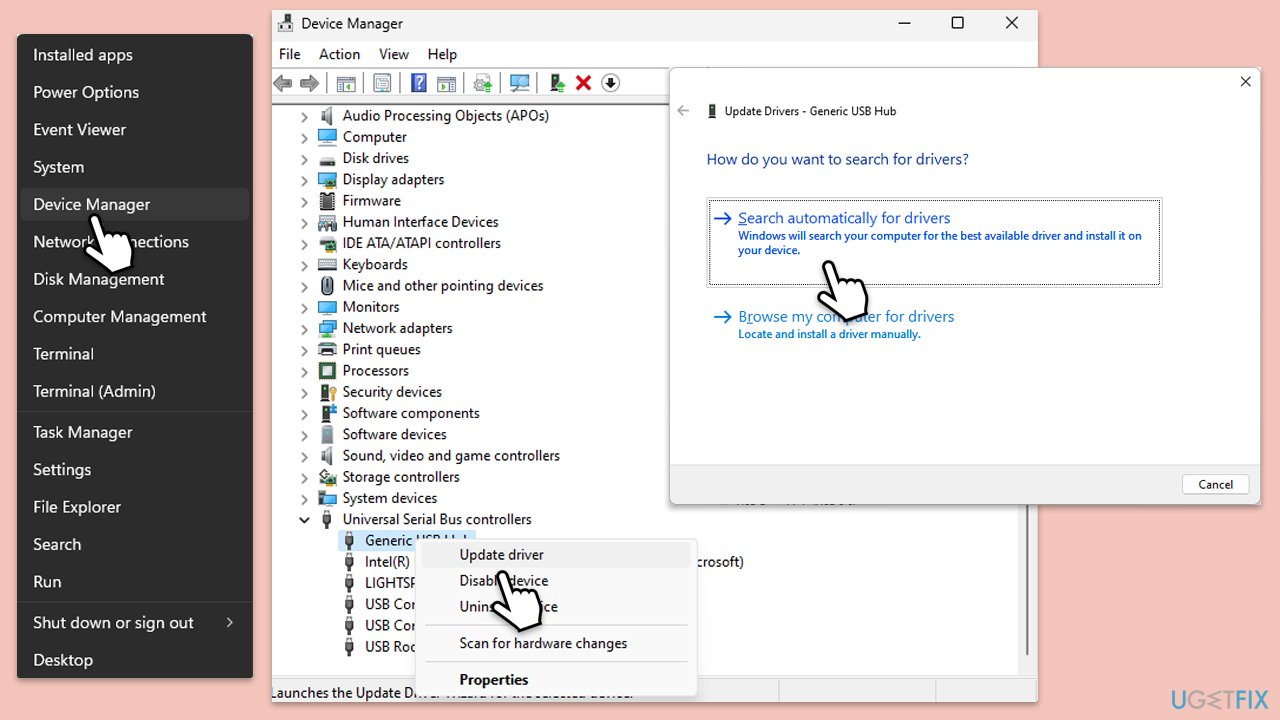
- Right-click on the Start button and select Device Manager.
- Expand the Universal Serial Bus controllers section.
- Right-click each USB device and select Update driver.
- Choose Search automatically for drivers.
- Follow the on-screen instructions to complete the update.
- Repeat with mouse drivers.
- Restart your PC.
Fix 4. Disable enhanced pointer precision
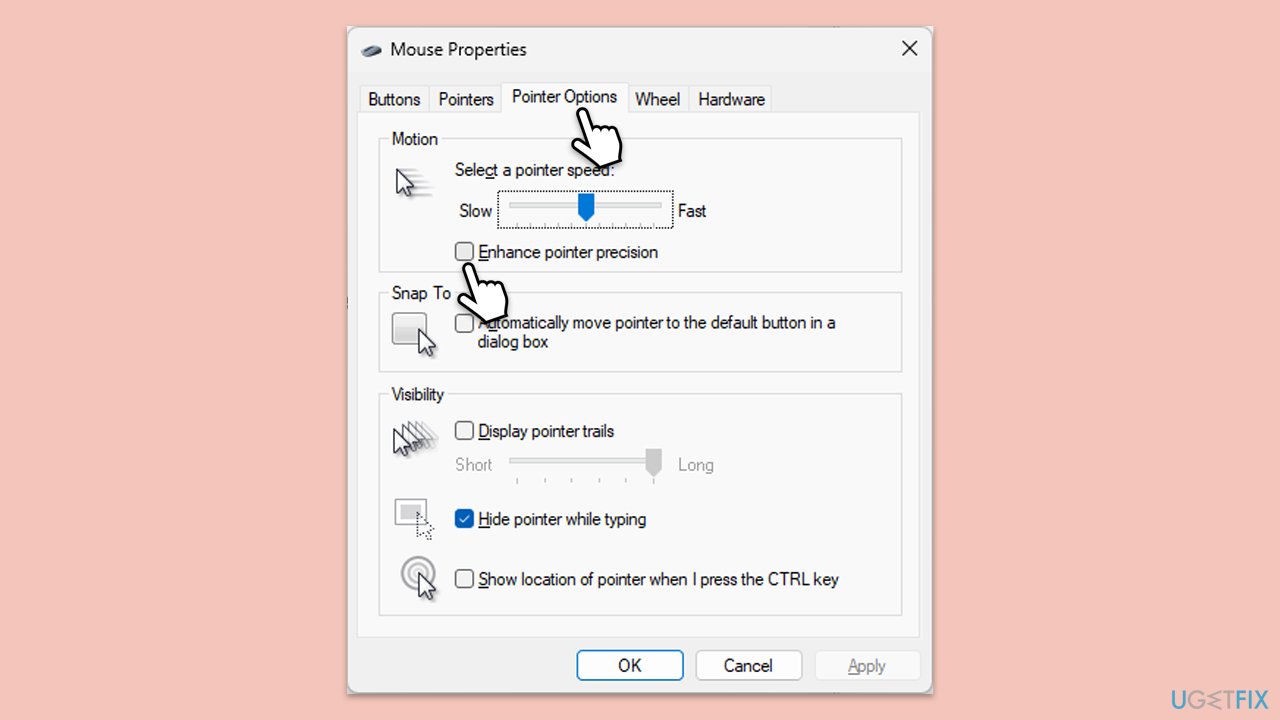
The enhanced pointer precision feature can sometimes make the mouse overly sensitive, leading to accidental double-clicks. Disabling this feature may fix the problem.
- Open Settings.
- Select Bluetooth & Devices, then go to Mouse.
- Click on Additional mouse settings.
- Select Additional mouse options and go to the Pointer Options tab.
- Uncheck the box next to Enhance pointer precision.
- Click Apply, then OK.
Fix 5. Replace mouse batteries (for wireless mice)
Low battery levels in wireless mice can cause inconsistent signals, leading to misinterpretation of clicks. Replacing the batteries can resolve this.
- Replace the batteries with new ones.
- If your mouse is rechargeable, ensure it is fully charged before testing again.
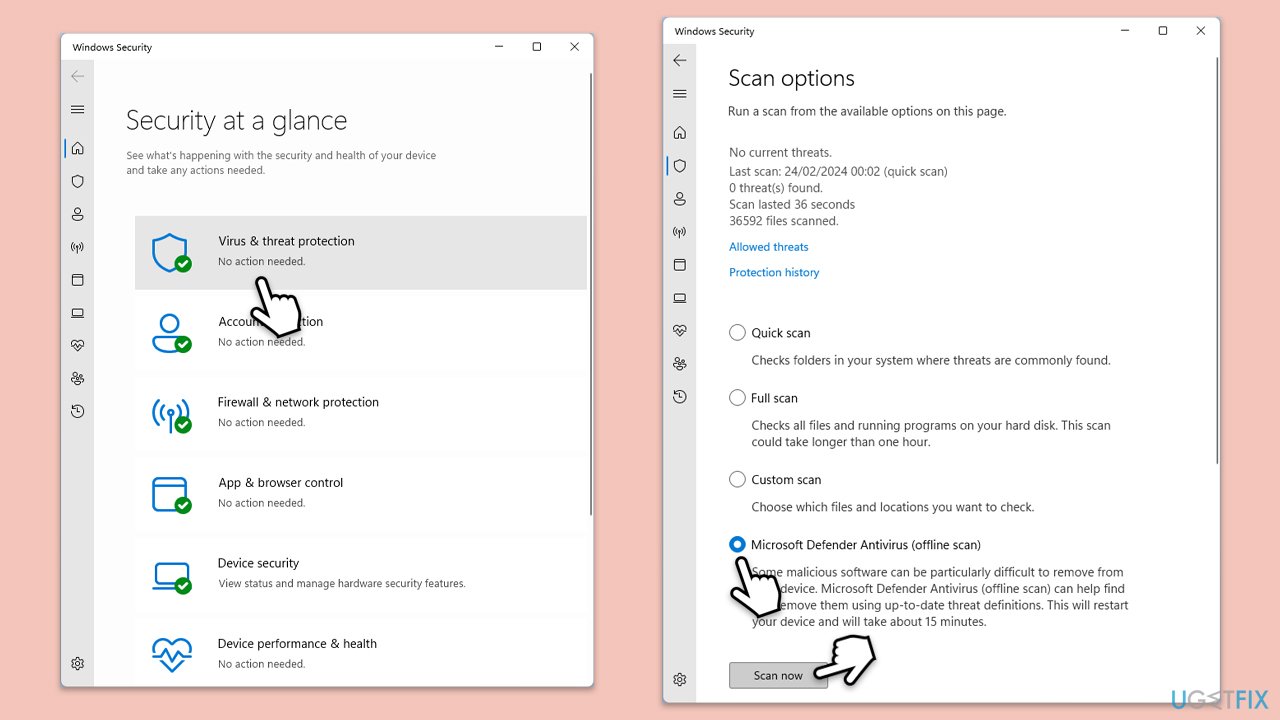
Fix 6. Perform a malware scan
You can use any reliable third-party security software, employ Microsoft Security Scanner, or simply Windows Defender:
- Type Windows Security in the Windows search bar and hit Enter.
- Select Virus & threat protection.
- Pick Scan options.
- Choose Microsoft Defender Offline scan and click Scan now.
- Your computer will immediately reboot and begin a deep scan.
Fix 7. Perform System Restore
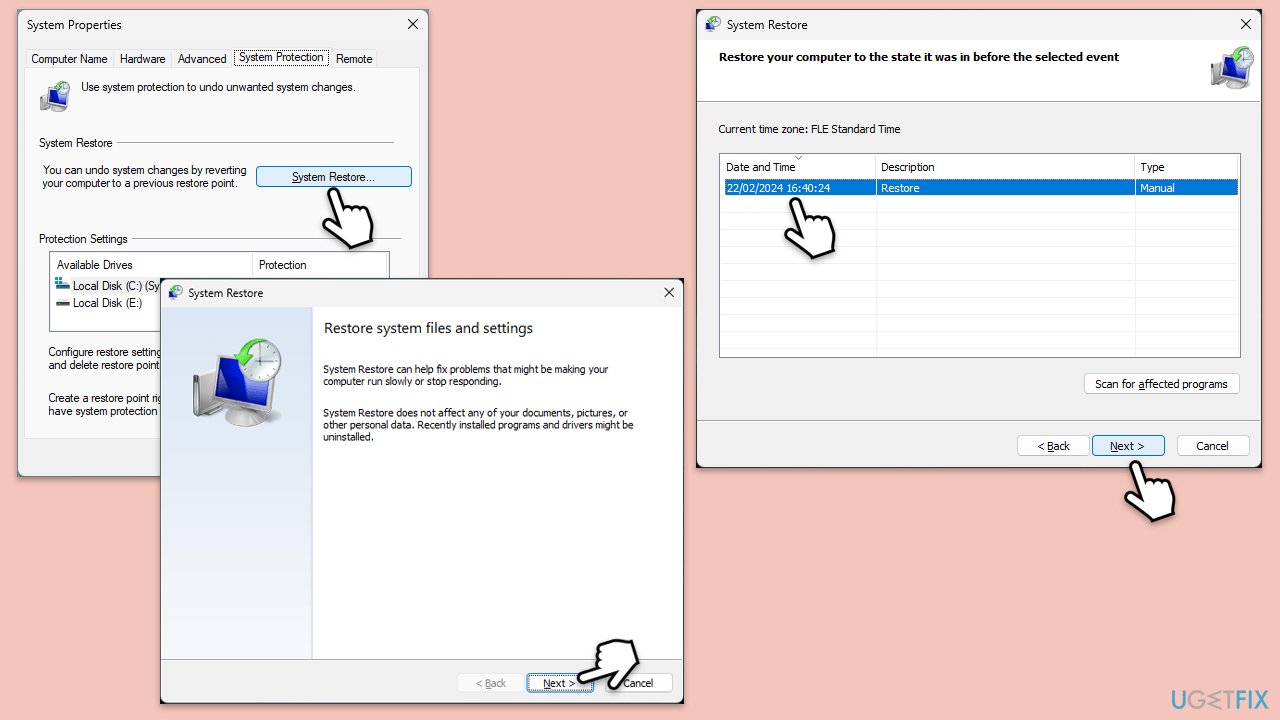
System Restore can bring your machine back to a date when everything worked properly. If it is related to drivers or other software, System Restore should take care of it.
- Type Create a restore point in the Windows search bar and press Enter.
- In the System Properties window, click System Restore.
- Choose a restore point from before the issue started occurring.
- Click Next and follow the on-screen instructions to complete the system restore.
- Restart your computer after the process is finished.
Bottom line
To fix the mouse double-clicking issue, start by adjusting the double-click speed in the settings and updating the mouse drivers. If these steps do not resolve the problem, consider replacing the mouse or running a full system scan to check for malware.
Frequently asked questions
This issue can occur due to a faulty mouse, incorrect settings, or software conflicts. Try adjusting the double-click speed in the Mouse Properties settings or test with a different mouse to diagnose the problem.
You can resolve this by checking the mouse settings, updating drivers, or performing a clean boot to eliminate software interference. If the problem persists, consider replacing the mouse.
Yes, you can adjust the double-click speed in the mouse settings under Control Panel or Settings. Additionally, ensure that your mouse drivers are up to date to avoid any compatibility issues.




Report an issue
What's wrong with this guide? We review every report and update or remove content.
Report received — thank you. We'll review and fix it.
You need a free account to submit a report.
Be the first to comment