How to fix
Game Bar recording error 0x82323619
on Windows
Resolve Game Bar recording error 0x82323619 on Windows 10 or 11 effortlessly with our expert-tested guide. Fix it in minutes!


What causes How to fix Game Bar recording error 0x82323619 in Windows?
- Low storage in the default recording folder
- Corrupted Game Bar settings
- Issues due to Windows updates
- Incorrect system settings
- Permission problems of the running Xbox services
Repairs Windows system files, removes malware, and restores a clean OS state — without reinstalling.
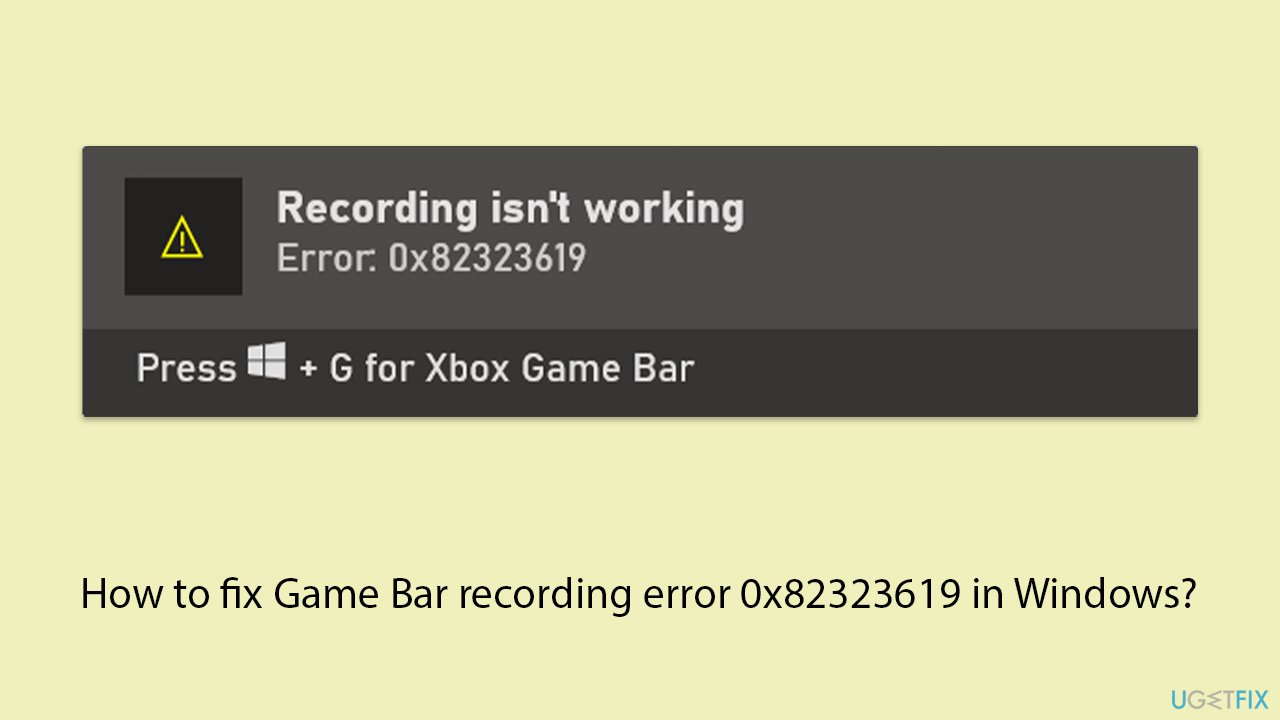
I can't record anything with Game Bar - I keep getting the 0x82323619 error code instead. What can I do to fix this?
The 0x82323619 error appears in the Xbox Game Bar when users try to record gameplay, and it keeps failing so that recording clips aren't possible. People have reported this error striking out of nowhere, even if the Game Bar has been working just fine up until now.
Generally known causes include low storage in the default recording folder or corrupted Game Bar settings. In some cases, this issue may be the result of some Windows updates or updates to the Game Bar service, which sometimes causes the wrong recording management.
The 0x82323619 error is related to issues with recording storage. When the folder storing recordings, called "Captures," is full, becomes unreachable, or is corrupt, that would prevent the Game Bar from recording new clips due to this error.
Moreover, incomplete or older versions of updating Windows could also interfere in functionality with the Game Bar. Other users report success by moving their recordings folder to another drive with more free space or resetting the Game Bar settings to resolve the problem.
In some instances, the 0x82323619 error may also be related to incorrect system settings, permission problems of the running Xbox services, or temporary glitches of the system itself, which might need a more deep process of resetting or even reinstalling the Game Bar.
Fixing error 0x82323619 normally requires users to free up storage, update Windows, or reset the Game Bar settings. Searching for a quicker fix with the help of automation, running a trusted [d1] repair tool will find and correct the deep-seated system issues causing this error.
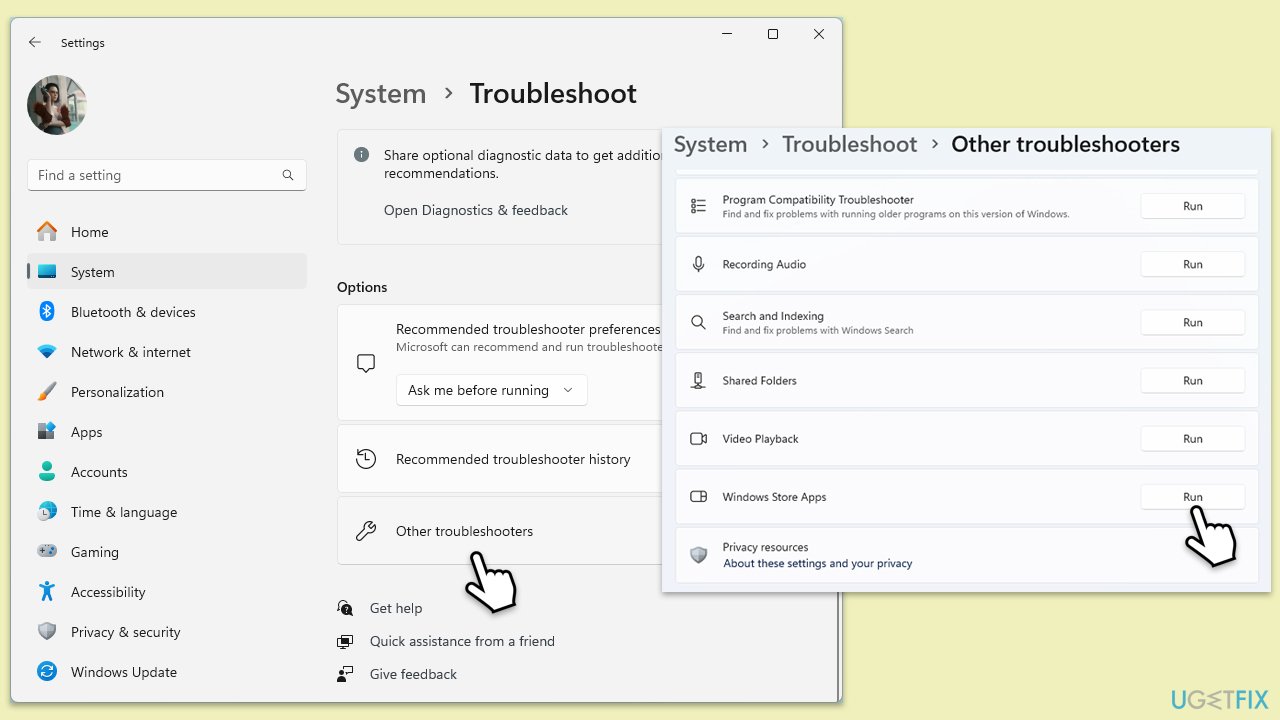
Fix 1. Run the Windows Store Apps Troubleshooter
Running this troubleshooter can help resolve issues related to the Xbox Game Bar.
- Type Troubleshoot in Windows search and hit Enter.
- Click Additional troubleshooters/Other troubleshooters.
- Scroll down to find Windows store apps and select it.
- Click Run the troubleshooter/Run.
- Wait till the process is finished and apply the fixes.
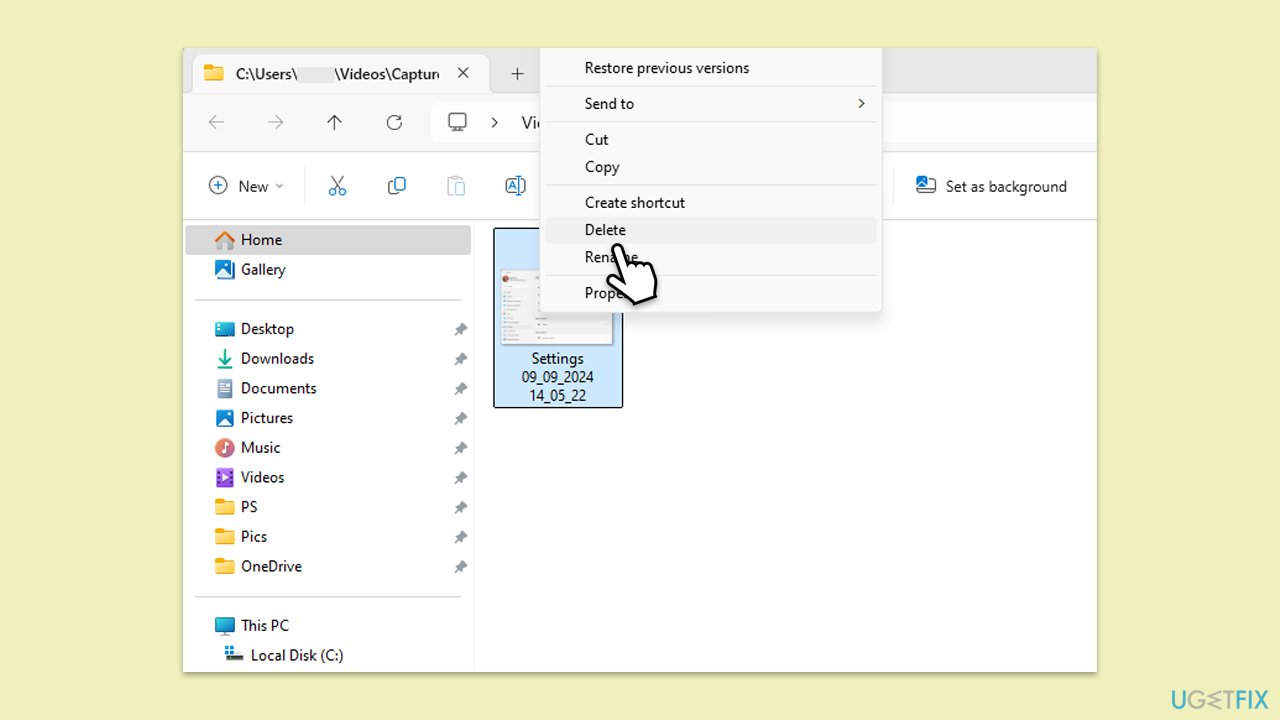
Fix 2. Check available storage
Insufficient storage space in the "Captures" folder can cause the 0x82323619 error. Freeing up space ensures the Game Bar can save new recordings.
- Press Win + E to open File Explorer and go to the drive where the Captures folder is stored (by default, it should be in C:\Users\USERNAME\Videos\Captures).
- Check for available space and delete unnecessary files if needed.
- Restart Game Bar and try recording again.
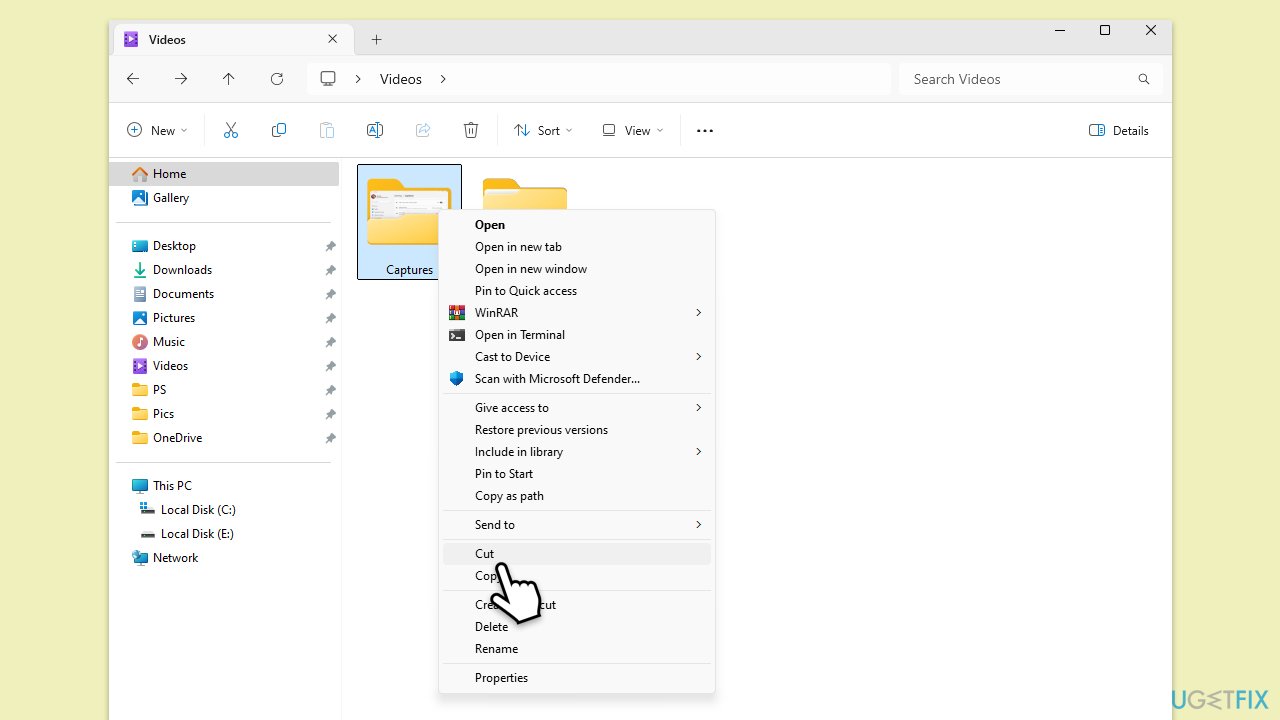
Fix 3. Move the Captures folder to a different drive
If the current drive is too full or inaccessible, moving the Captures folder can resolve the issue.
- Open Xbox Game Bar settings (Win + I, then select Gaming).
- Click Captures - the location where captures are stored will open.
- Go back one step, right-click on the Captures folder, and select Cut.
- Choose a different drive with more space, then right-click and pick Paste.
Fix 4. Repair or reset Xbox Game Bar
Resetting or repairing the Game Bar can resolve issues with corrupted settings that might be causing the error.
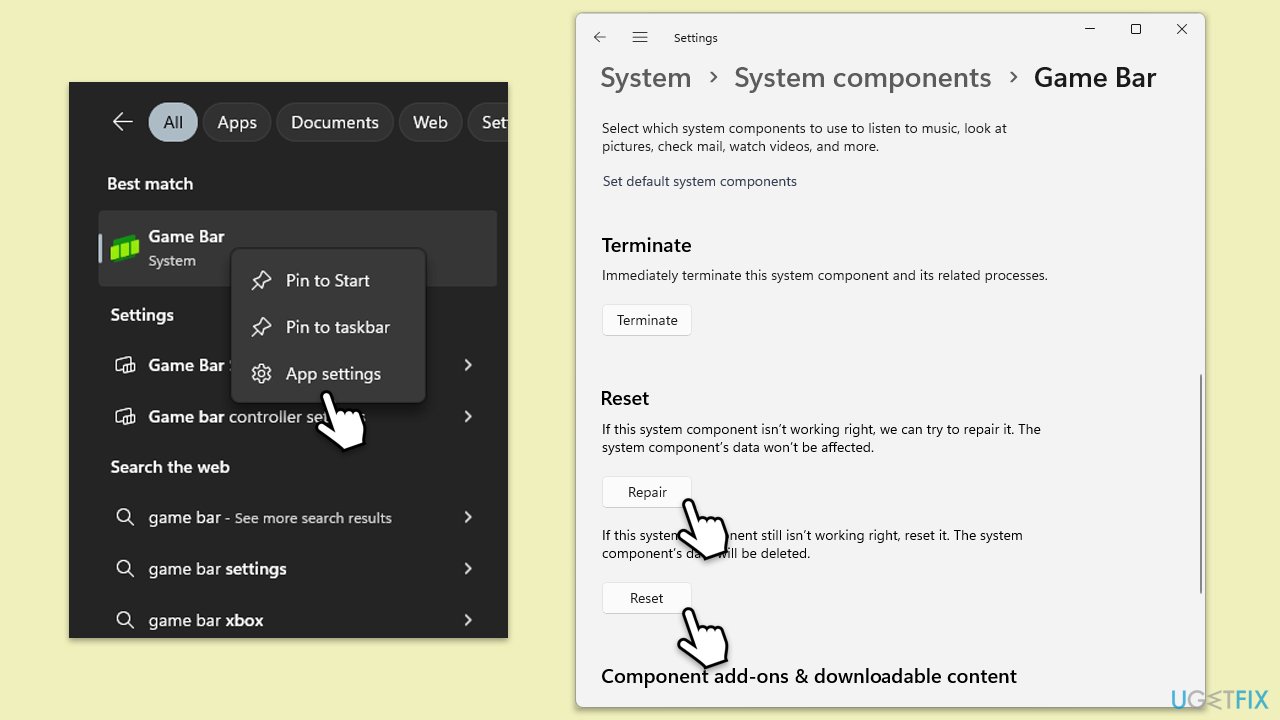
- Type Game Bar in Windows search.
- Right-click on Game Bar and select Settings.
- Locate the Game Bar and click (three dots) Advanced options.
- Click Terminate and Repair.
- If that does not help, try the Reset option instead.
- Repeat the same with the Gaming Services.
Fix 5. Update Xbox Game Bar and Windows
Outdated Game Bar or Windows versions can cause recording issues. Keeping both up to date ensures compatibility.
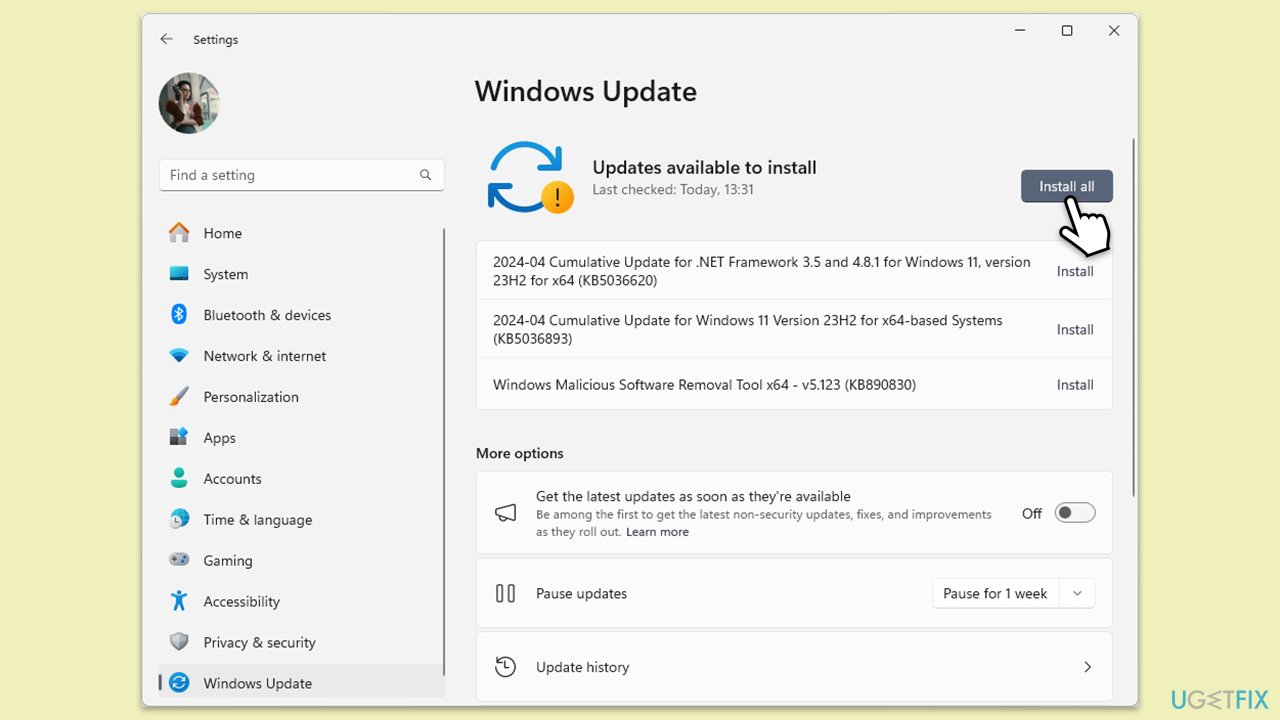
- Type Updates in Windows search and press Enter.
- When the new window opens, click Check for updates (or Install all if pending) and wait.
- If there are optional updates available, install them as well.
- After updating, restart your computer.
- Open Microsoft Store and update Game Bar from there.
Fix 6. Reinstall Xbox Game Bar
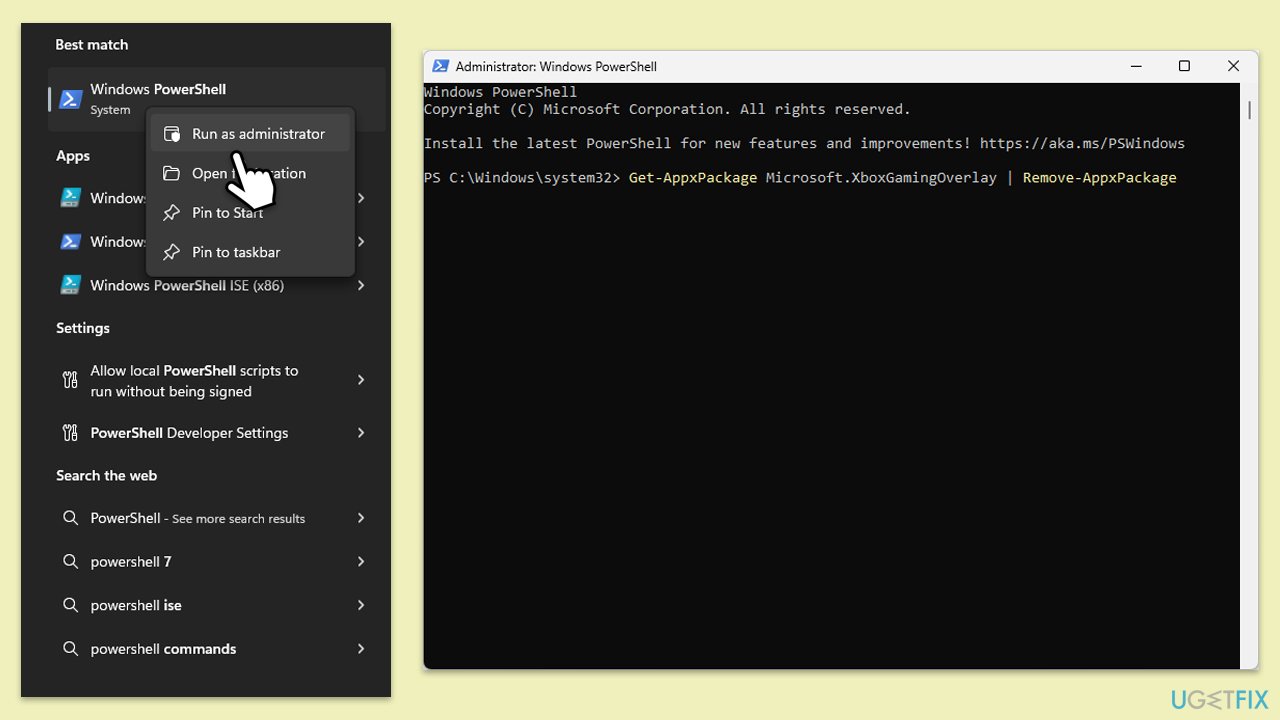
- Type PowerShell in Windows search.
- Right-click on the result and select Run as administrator.
- When UAC shows up, click Yes.
- Type the following command and press Enter:
Get-AppxPackage Microsoft.XboxGamingOverlay | Remove-AppxPackage - Restart your PC.
- After a reboot, download and install Game Bar from the MS Store.
Fix 7. Check Game Bar permissions
Incorrect permissions for recording can lead to the 0x82323619 error.
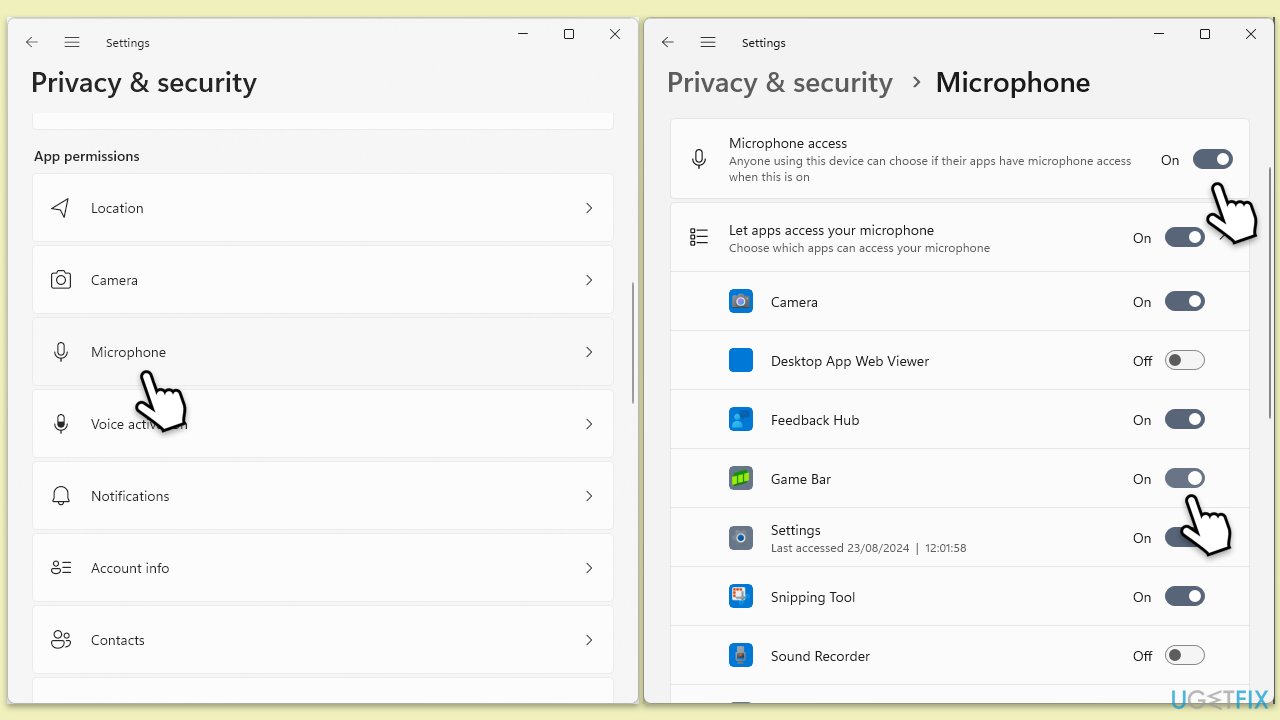
- Open Settings (Win + I), then go to Privacy & Security > Microphone.
- Ensure Xbox Game Bar has permission to access your microphone and camera.
Fix 8. Disable third-party screen recording tools
Other screen recording programs may conflict with the Game Bar. Disabling or uninstalling them may resolve the error.
- Press Ctrl + Shift + Esc to open Task Manager.
- Look for other recording software, right-click it, and choose End Task.
- Try recording again with Game Bar
Bottom line
To fix the Game Bar recording error 0x82323619, users can free up storage, update Windows, or reset the Game Bar settings. Running the Windows Store Apps Troubleshooter may also help resolve related issues. If these solutions do not work, consider using a trusted repair tool or reinstalling the Game Bar.
Frequently asked questions
The error 0x82323619 typically occurs due to issues with the Game Bar settings, outdated graphics drivers, or conflicts with other software. Ensuring that your system meets the requirements and that all drivers are updated can help resolve the issue.
To update your graphics drivers in Windows 10 or Windows 11, go to Device Manager, expand the Display adapters section, right-click your graphics card, and select 'Update driver'. You can also visit the manufacturer's website for the latest drivers.
Yes, ensure that the Game Bar is enabled by going to Settings > Gaming > Xbox Game Bar and toggling the switch on. Additionally, check the Game Mode settings in the same menu to ensure it's properly configured.




Report an issue
What's wrong with this guide? We review every report and update or remove content.
Report received — thank you. We'll review and fix it.
You need a free account to submit a report.
Be the first to comment