How to fix
“Reinstall your current version of Windows to repair system files and components” error
on Windows
Resolve the "Reinstall your current version of Windows" error on Windows 10 or 11 easily. Expert-tested methods to fix system files and components in mi…

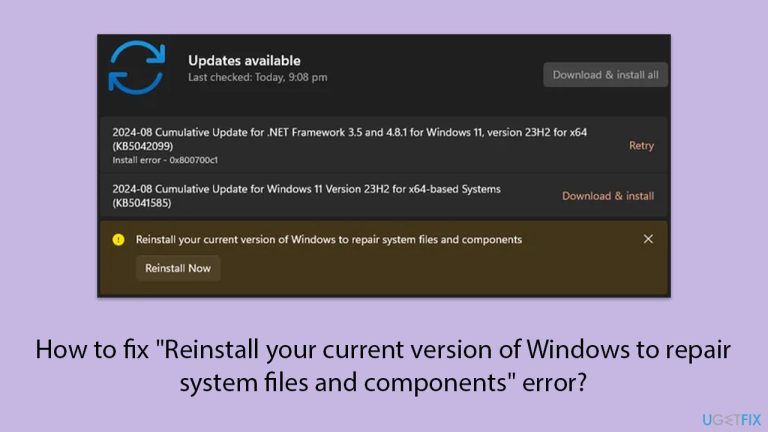
What causes How to fix “Reinstall your current version of Windows to repair system files and components” error?
- Incomplete updates
- System crashes
- Malware infections
- Failed updates
- Hardware changes
Repairs Windows system files, removes malware, and restores a clean OS state — without reinstalling.
Hello, so I have recently migrated my operating system (Windows OS) from an HDD to an SSD on my PC, and from that time, I can no longer apply the updates. I receive the error which says: "Reinstall your current version of Windows to repair system files and components." Can you help?
The "Reinstall your current version of Windows to repair system files and components" message typically appears in the Windows Update settings when there is significant corruption of system files or components on your computer.
This issue often arises due to incomplete updates, system crashes, or malware infections. When the system detects that key components have been damaged, it suggests reinstalling the current version of Windows to restore these files.
Sometimes, it is also called a repair installation or in-place upgrade. It is not a clean install that erases all of your data, but rather it installs the newest edition of Windows along with all of your files, installed programs, and settings intact.
In an in-depth system scan, it replaces corrupted or missing files with fresh copies from Microsoft servers. Although this method is generally safe, it still makes sense to back up your important data in case something goes wrong during the process of reinstalling it.
The "Reinstall your current version of Windows to repair system files and components" error can prevent you from downloading and installing future updates, as the system requires stable components to continue functioning properly. Some users report the issue after failed updates or hardware changes, such as migrating the operating system to a new drive without copying all necessary partitions.
The solution involves performing a repair install through Windows Update, but if that doesn't work, alternatives include using tools like SFC and DISM to manually repair corrupted files or resorting to downloading the latest Windows version from the Microsoft Update Catalog.
For those facing repeated issues with system components or file corruption, using a PC repair tool like [d1] can help resolve deeper system problems and maintain overall system stability. This tool can automatically detect issues like registry errors and corrupted system files, making it easier to restore your system to full functionality without manual troubleshooting.

Fix 1. Use the reinstall now option
When Windows detects significant system file corruption, it offers the option to reinstall the current version of the OS. This method replaces damaged system files without deleting personal files or programs, ensuring system stability.
- Press Win + I to open Settings.
- Go to System and select Recovery.
- Click the Reinstall now button under the Fix problems using Windows Update section.
- Follow the on-screen instructions to reinstall Windows while keeping your files intact.
- Restart your computer after the reinstallation completes.

Fix 2. Run SFC and DISM
Corrupted or missing system files often cause performance issues and update errors.
- Type cmd in Windows search.
- Right-click on Command Prompt and pick Run as administrator.
- User Account Control (UAC) will ask whether you want to allow changes - click Yes.
- Use the following command lines, pressing Enter after each:
sfc /scannow
DISM /Online /Cleanup-Image /CheckHealth
DISM /Online /Cleanup-Image /ScanHealth
DISM /Online /Cleanup-Image /RestoreHealth
(Note: if you get an error executing this last command, add /Source:C:\RepairSource\Windows /LimitAccess to it and try again). - Restart your computer.

Fix 4. Reset your PC while keeping files
This option lets you reset Windows to its default settings while keeping personal files. It reinstalls the operating system and repairs corrupted components, improving performance.
- Right-click on Start and pick Settings.
- Go to Windows Update/Update & Security.
- Select Advanced options.
- Under Additional options, select Recovery.
- Under Recovery options, click Reset PC.
- Select the option to Keep your files and then press Cloud download.
- Follow on-screen instructions to finish the process.

Fix 5. Manually download updates from Microsoft Update Catalog
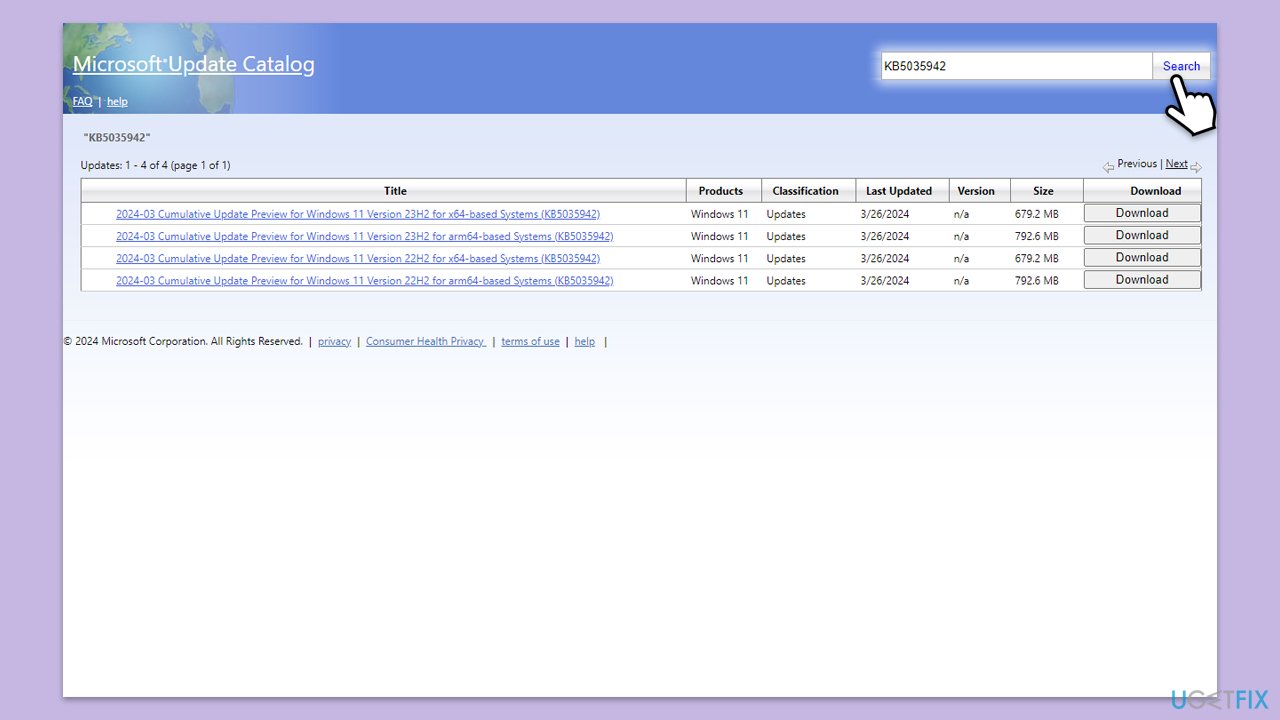
If Windows Update fails to repair the system, manually downloading and installing the update can bypass errors caused by corrupted update components.
- Open your browser and go to Microsoft Update Catalog.
- Within the search bar, type in the KB number you want to install and click Search.
- Find the correct version of the update for your operating system (to check this, right-click on Start and pick System. Under Device specifications and check the System type) and click Download.
- Use on-screen guidelines to finish the installation process and restart your system.
Fix 6. Perform a clean boot
A clean boot starts Windows with minimal drivers and startup programs, preventing third-party software from interfering with the reinstall process.
- Type msconfig in the Windows search box and press Enter.
- Pick the Services tab.
- Mark Hide all Microsoft services and select Disable all.
- Select the Startup tab and click Open Task Manager.
- In the Task Manager, right-click on each of the items and select Disable, then close the Task Manager.
- Go to the Boot tab, mark the Safe Boot option, then click Apply and OK.
- On the System Configuration window, click OK.
- Restart your computer and retry the reinstall process.

Fix 7. Use the Media Creation tool
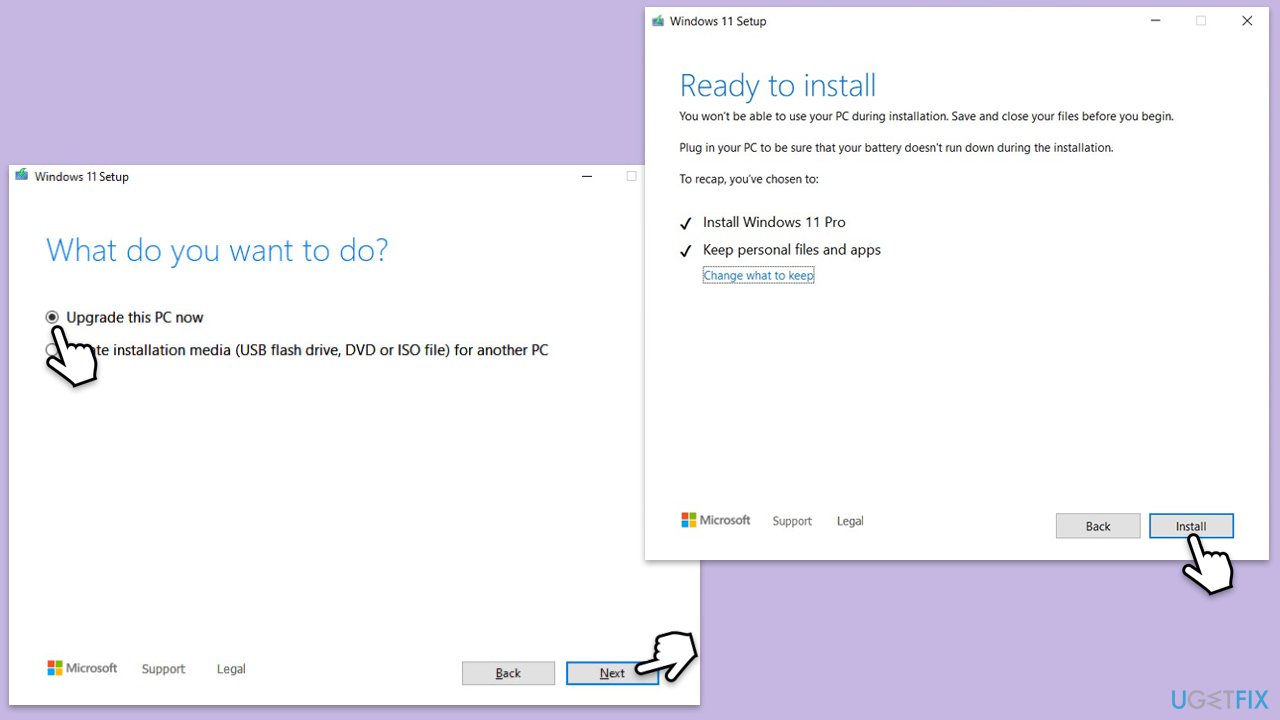
You can repair-install Windows with the help of Media Creation Tool.
- Visit the official Microsoft website and download Windows 10 installation media (Windows 11 version).
- Double-click the installer, select Yes when UAC shows up, and agree to the terms.
- Select Upgrade this PC now and click Next.
- Windows will start downloading the needed files.
- Agree to the terms once again and click Next.
- Before installing, make sure that you are happy with your choices (otherwise, you can click Change what to keep option).
- Finally, click Install to begin the upgrade process.
Bottom line
To fix the error, you can perform a repair install through Windows Update, use tools like SFC and DISM to manually repair corrupted files, or download the latest Windows version from the Microsoft Update Catalog. If these solutions do not work, consider using a PC repair tool to resolve deeper system problems.
Frequently asked questions
Start by running the System File Checker tool by opening Command Prompt as an administrator and typing 'sfc /scannow'. This will scan and attempt to repair any corrupted system files.
Yes, you can use the DISM tool by running 'DISM /Online /Cleanup-Image /RestoreHealth' in an elevated Command Prompt, which can fix issues without a complete reinstall.
While it's always a good practice to back up your data before making system changes, running repair tools like SFC and DISM typically does not affect personal files on Windows 10 or Windows 11.




Report an issue
What's wrong with this guide? We review every report and update or remove content.
Report received — thank you. We'll review and fix it.
You need a free account to submit a report.
Be the first to comment