How to fix
Microsoft Office installation error 0-2060
on Windows
Resolve Microsoft Office installation error 0-2060 in Windows 10 or 11 effortlessly. Get expert-tested solutions to fix it in minutes, with screenshots.


What causes How to fix Microsoft Office installation error 0-2060 in Windows?
- Improper internet connectivity
- Interference from security settings
- Residuals of previously installed Office versions
- Lack of available disk space
- Proxy settings or VPN blocking communication
Repairs Windows system files, removes malware, and restores a clean OS state — without reinstalling.
So I was trying to install Office 2021 on my new PC and I got an installation error code 0-2060. How can I fix it? I'm using the latest version of Windows 11.
Office error code 0-2060 occurs during Microsoft Office setup and, in general, is invoked to take place by a combination of factors that include either network connectivity, available disk space, or conflicts created by previously installed Offices.
When this error happens, that is when the setup stops or will not allow a person to go through with the set up of the Office applications. Error 0-2060, in most instances, occurs when the installation is unable to download some critical files due to improper internet connectivity or interference from security settings.
This code 0-2060 is also associated with the residuals of previously installed versions of Office on the system. For example, in situations where previous Office versions were not uninstalled properly, there is a likelihood that some invalid or corrupted files interfere with the new installation. Also, users who are on proxy settings or VPN may receive this error due to the fact that such settings may block communication with Microsoft's servers during the installation.
In addition, even Office error 0-2060 may be created because of a lack of available disk space. The majority of installations require at least 4 GB free, and if your hard drive is full, it will not install. Make sure your device has room for it, and clear off files if you need to.
To resolve the error code 0-2060, one has to check the network connection and make sure the proxy settings are turned off. Also, there should be sufficient disk space. Users may have to uninstall previous versions of Office or disable the antivirus until installation is complete as it may interfere with installation.
Other options include downloading the office offline installer. By doing this, it helps users in avoiding issues concerning connectivity since the setup files are downloaded separately.
People with ongoing troubles because of errors could most likely use a good PC repair tool such as [d1]. This app automatically fixes system problems like registry errors or broken files.

Fix 1. Run the troubleshooters
- Type troubleshoot in Windows search and press Enter.
- Click on Troubleshoot settings from the search results.
- Go to Additional troubleshooters/Other troubleshooters.
- Scroll down and click on Windows Store Apps.
- Click on Run the troubleshooter/Run and wait for the process to complete.
- Repeat with Network and Internet troubleshooter.

Fix 2. Free up disk space
Insufficient disk space can block the installation of Office, triggering error 0-2060. Ensuring your system has enough free space allows the installation to proceed without errors.
- Type Disk Cleanup in Windows search and hit Enter.
- If your Windows is installed on drive C, pick it from the list (it should be by default) and press OK.
- Click Clean up system files.
- Select your main disk again and click OK.
- Here, select the largest portions of the data used - these typically include Temporary Internet Files, Windows Update, Temporary Files, Recycle Bin, Delivery Optimization Files, and others.
- Click OK - the process should be finished shortly.

Fix 3. Uninstall previous Office versions
Having an older version of Office installed can create conflicts during the new installation, leading to error 0-2060. Removing the older version helps avoid these conflicts.
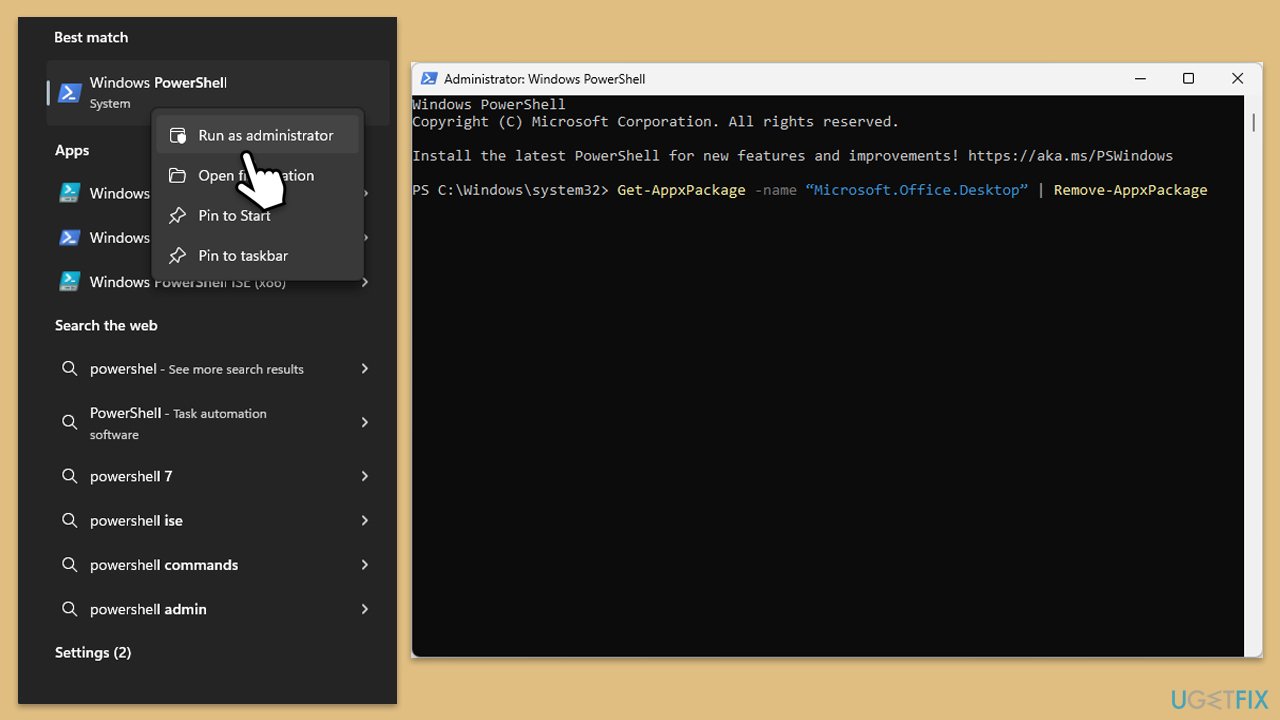
- Type PowerShell in Windows search.
- Right-click on the result and pick Run as administrator.
- When UAC shows up, click Yes.
- In the new window copy and paste the following command, pressing Enter after:
Get-AppxPackage -name “Microsoft.Office.Desktop” | Remove-AppxPackage - Restart your system.
- Go to Microsoft Store and download the newest version of MS Office.
Fix 4. Disable proxy settings
- Right-click on Start and pick Network connections.
- Navigate to the VPN section and disable it if it's connected.
- Then back and select Proxy.
- Here, disable Proxy if it's enabled.

Fix 5. Temporarily disable antivirus or firewall
Sometimes, antivirus software or firewall settings block Office installations, resulting in error 0-2060. Temporarily disabling these protections can resolve the issue.
- Right-click your antivirus program in the taskbar and select Disable.
- Type Firewall & network protection in the search bar, then open the app.
- Turn off the firewall for Domain, Private, and Public networks.
- Attempt the Office installation and re-enable antivirus/firewall after completion.
Fix 6. Use the Office offline installer
Switching to the offline installer bypasses internet-related issues, such as slow connections or proxy settings, which can trigger Office error 0-2060.
- Go to office.com and sign in with your account (ensure it's the same account used for subscription purchases).
- Select Install Office, then choose Install Office again on the Installs page.
- In the Download and Install window, click on Other options.
- Check the box to download the offline installer and select your preferred language. Click Download.
- Save the installation file to a drive with sufficient storage space; it will create a virtual drive.
- Double-click the downloaded file, which will appear in File Explorer.
- Click on the virtual disk, then double-click either Setup32.exe or Setup64.exe to initiate the installation.

Fix 7. Clear cache
- In Windows search, type %localappdata%\Microsoft\Office\16.0\OfficeFileCache and press Enter to navigate to the OfficeFileCache folder.
- Delete all files within the OfficeFileCache folder - press Shift + Del for quick action.
- After clearing the cache, restart your computer and attempt the Office installation again.

Fix 8. Perform a clean boot
Third-party applications and services can interfere with the Office installation, leading to error 0-2060. Performing a clean boot prevents unnecessary programs from running during installation.
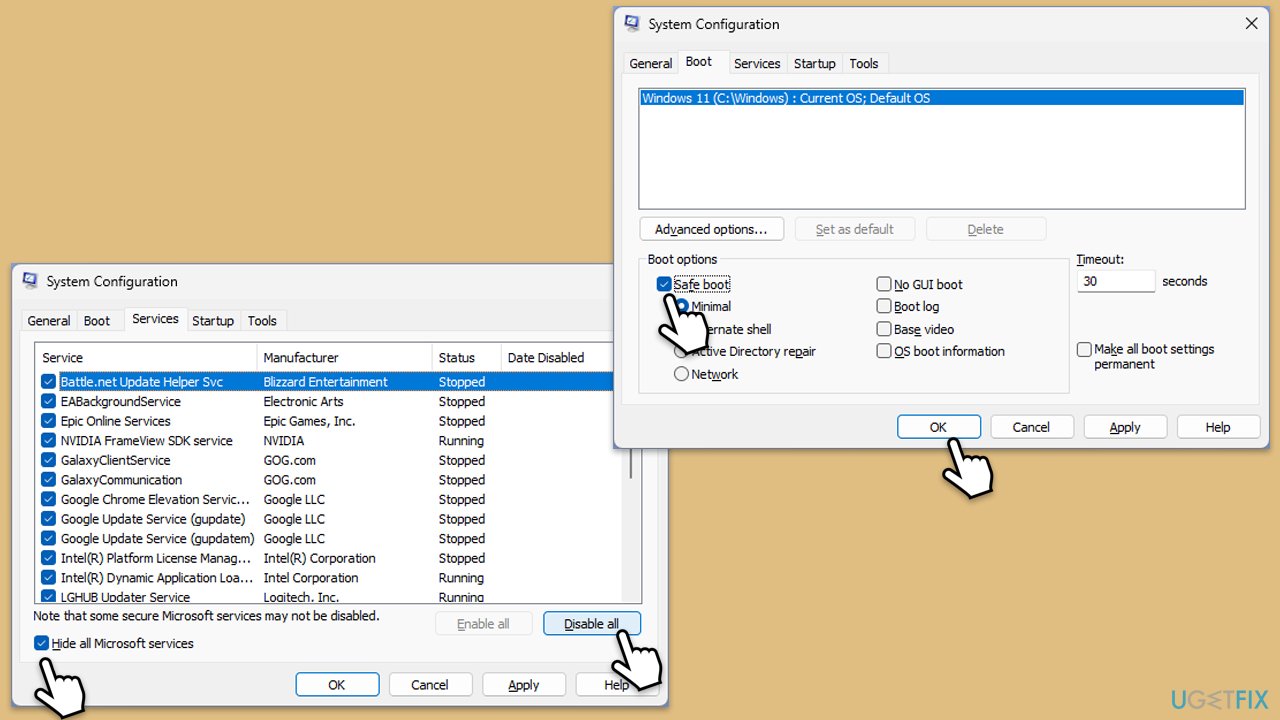
- Type msconfig in the Windows search box and press Enter.
- Pick the Services tab.
- Mark Hide all Microsoft services and select Disable all.
- Select the Startup tab and click Open Task Manager.
- In the Task Manager, right-click on each of the items and select Disable, then close the Task Manager.
- Go to the Boot tab, mark the Safe Boot option, then click Apply and OK.
- On the System Configuration window, click OK.
- Attempt the Office installation and return to normal boot after installation completes.
Bottom line
To resolve error code 0-2060, check your network connection and ensure proxy settings are turned off. Make sure there is sufficient disk space, uninstall previous versions of Office, or disable antivirus temporarily. If these solutions do not work, consider using a good PC repair tool or downloading the offline installer.
Frequently asked questions
The error 0-2060 typically occurs due to corrupted installation files or conflicts with existing Office installations on Windows 10.
To fix error 0-2060 on Windows 11, try running the Microsoft Support and Recovery Assistant, or perform a clean uninstall of any previous Office versions before reinstalling.
If the error persists, ensure that your Windows 11 is fully updated, and consider using the 'Repair' option in the Apps & features settings for Microsoft Office.




Report an issue
What's wrong with this guide? We review every report and update or remove content.
Report received — thank you. We'll review and fix it.
You need a free account to submit a report.
Be the first to comment