How to fix
0xc000014c BSOD
on Windows
Resolve the 0xc000014c BSOD error on Windows 10 quickly with our expert-tested solutions. Get back to smooth operation in minutes, guaranteed!


What causes How to Fix 0xc000014c BSOD on Windows 10?
- Incompatible device driver
- RAM corruption
- Disk damage
- Corrupted system files
Repairs Windows system files, removes malware, and restores a clean OS state — without reinstalling.
Hello, all. Recently I upgraded my Dell Inspiration 14 to Windows 10 from Windows 7. The system worked perfectly for a couple of weeks, but yesterday when I tried to boot up the laptop, I received a BSOD with an error code 0xc000014c. It showed up before the sign-in page, so I’m currently locked out of my PC. Could someone please help?
Error Code 0xc000014c is one of the Boot Configuration Data bugs, which may occur due to a variety of hardware, driver, firmware, or software problems. In most of the cases, the culprit is incompatible device driver, RAM[ref en-3] corruption, some type of disk damage or corrupted system files. We have made a little investigation process on this error code and discovered that a big number of Windows users have been dealing with this particular problem and searching for help.[ref en-1]
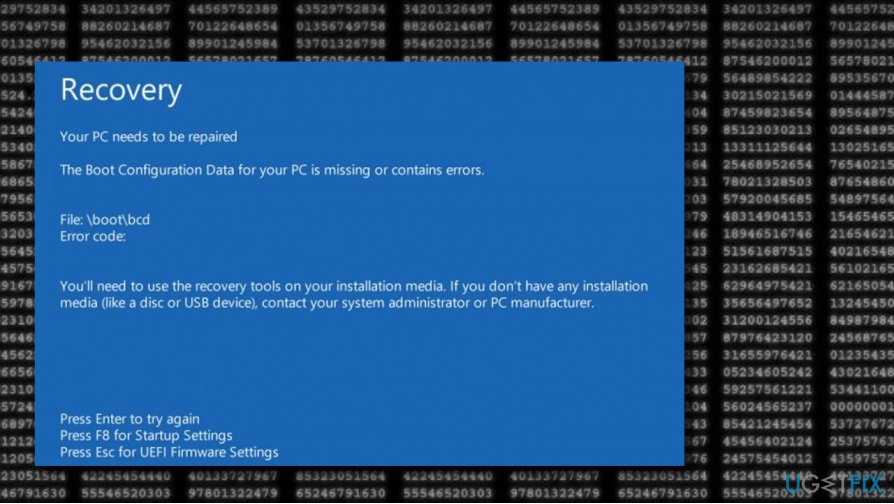
The 0xc000014c BSOD[ref en-2] shows up before the Windows Sign-In screen during the boot phase. The message says: “Your PC/Device needs to be repaired. The Boot Configuration Data for your PC is missing or contains errors. File: \\Boot\\BCD.” This problem completely locks the system and will not allow booting it unless fixed. Such activity can interfere with the user's ability to work with the computer properly, launch various apps, services, and processes.
Usually, people fix the 0xc000014c stop error by recovering Windows using bootrex.exe. Anyway, to recover the system, you will necessarily need a bootable Windows 10 installation media, so if you do not have it, please prepare it in advance. For that, you will have to use another PC running Windows OS. Once you are ready, take a look at the following steps. Below we have provided multiple fixing methods that are likely to help the users to fix the computer from the 0xc000014c error.
How to Fix 0xc000014c BSOD on Windows 10?
Method 1. Use Windows 10 installation media
- Plug-in Windows 10 installation media.
- Reboot the PC.
- Press any key to boot from the installation media.
- Select language, time, currency, and keyboard/input method and press Next.
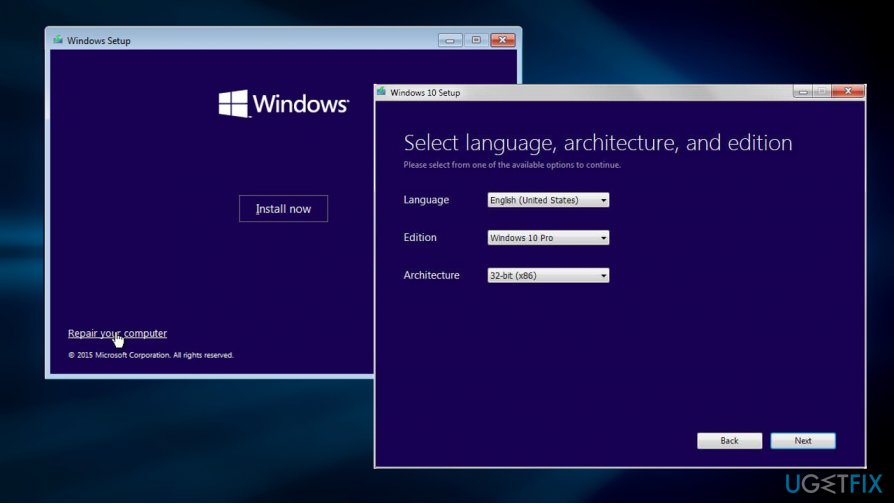
- Click Repair your computer (NOT Install Windows) and select the type of OS you want to repair.
- Click Troubleshoot.
- Select Advanced and click Automatic Repair or Startup Repair.
- When the system detects the OS, select the version that is currently running on the device.
- Finally, unplug the USB or remove DVD bootable media and try to boot the system up.
Method 2. Use Command Prompt and run specific commands
- Click the Power button and try to boot your PC.
- Press the F8 key repeatedly at boot and select Repair your computer.
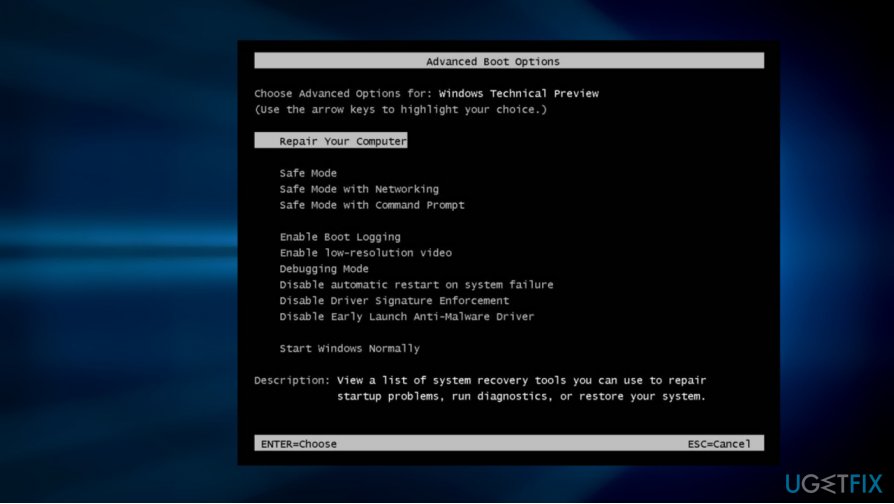
- Select Command Prompt and type the following commands (press Enter after each one). NOTE: space before / is necessary:
bootrec /fixMBR
bootrec /fixBoot
bootrec /rebuildB
Method 3. Use an external device
- Take a USB drive or DVD device and plug/put it in your computer.
- If you are approached with a message claiming "Press any key to boot from DVD or USB", click on any button on your keyboard.
- Afterward, the Install Windows page should appear. Here, select the Repair your computer option.
- Then, the Windows recovery environment will be enabled. Here, opt for Choose an option > Troubleshoot.
Method 4. Perform an SFC scan
- Connect the device with the Windows installation media to your computer system.
- Afterward, when a window appears, click on Repair your computer.
- Then, choose Troubleshoot and go for the Advanced options.
- Opt for the Command Prompt service.
- Afterward, type sfc /scannow after the blinking cursor and hit the Enter key.
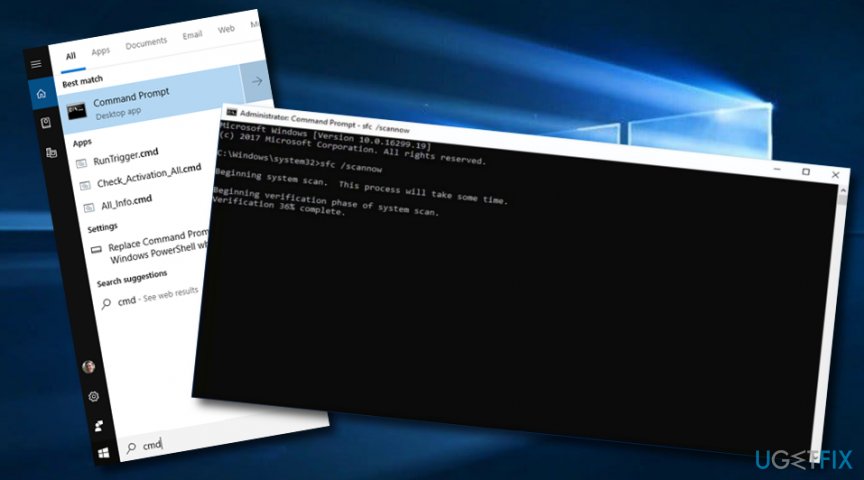
Perform an sfc scan - Wait for the command to finish and reboot your computer system.
Method 5. Check the disk for possible corruption
- Connect the device that includes the Windows installation media.
- Click on the option that says "Repair your computer".
- Afterward, select the Troubleshoot option and go for Advanced.
- Then click to run the Command Prompt service.
- Afterward, type chkdsk C: /f /x /r after the blinking cursor.
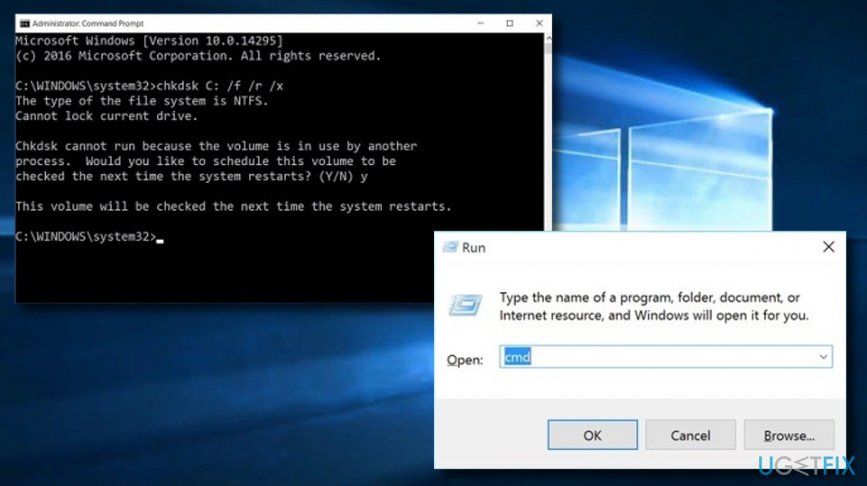
Perform a disk checkup process - Hit the Enter key and wait for the command to execute.
- Then, restart your computer.
Method 6. Restore the BSD files
- Take a bootable Windows 10 external drive and connect it to the computer.
- Wait for the Welcome Screen to appear and opt for Next and Repair your computer.
- Then, select the Troubleshoot button and continue with Advanced options.
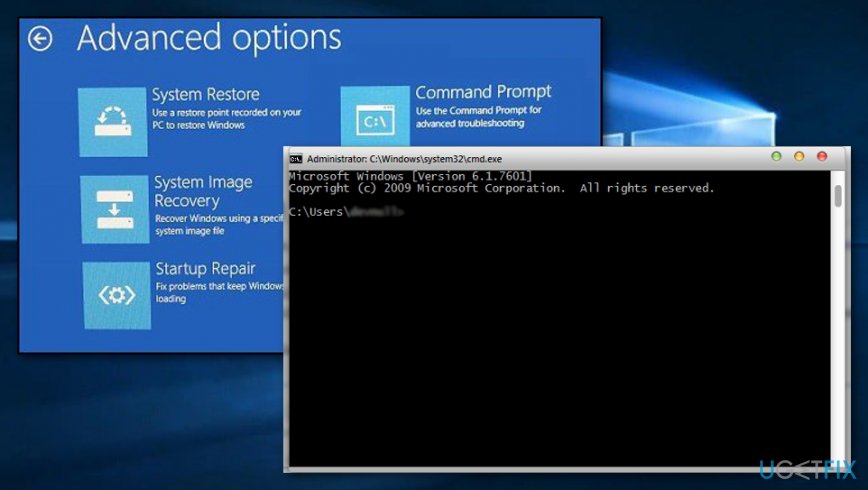
Restore the bcd files - Afterward, choose Command Prompt and type these commands one after the other: bootrec /FixMbr, bootrec/FixBoot, bootrec /ScanOS, bootrec /RebuildBcd.
- Hit Enter after each command. Wait for all processes to finish.
- Reboot your Windows computer system.
Bottom line
To fix the 0xc000014c BSOD, you can use Windows 10 installation media to repair your computer. If the issue persists after attempting the recovery methods, consider seeking further technical assistance or exploring additional troubleshooting options.
Frequently asked questions
The 0xc000014c BSOD error indicates a problem with the boot configuration data, which can prevent Windows 10 from starting properly. This error often points to issues with the hard drive or corrupted system files.
You can repair the boot configuration data by using the Windows Recovery Environment and running the 'bootrec /rebuildbcd' command in the Command Prompt. This process will help rebuild the boot configuration data and potentially resolve the BSOD issue.
Yes, you can often fix the 0xc000014c error without reinstalling Windows 10 by using startup repair or checking the disk for errors using the Command Prompt. Running these tools can help identify and fix issues that are causing the BSOD.




Report an issue
What's wrong with this guide? We review every report and update or remove content.
Report received — thank you. We'll review and fix it.
You need a free account to submit a report.
Be the first to comment