How to fix
Final Fantasy 16 low FPS, stuttering or crashing on PC
on Windows
Solve Final Fantasy 16 low FPS, stuttering, or crashing issues on Windows 10 and 11 with our expert-tested solutions. Fixed in minutes!


What causes How to fix Final Fantasy 16 low FPS, stuttering or crashing on PC?
- Game crashes during cutscenes
- Game crashes while walking
- Stuttering
- Low FPS
- Issues related to being a PlayStation port
Repairs Windows system files, removes malware, and restores a clean OS state — without reinstalling.
I was looking forward to playing Final Fantasy XVI that got finally released on PC, but I keep getting game crashes. I wouldn't say they are super consistent... sometimes the game crashes during the cutscene while, in other cases, while I'm simply walking. Do you have any tips for me?
Square Enix is known for the decades-long Final Fantasy franchise, which is currently on its sixteenth installment. Initially only available on PlayStation 5 for over a year, PC players were happy to dig into the critically acclaimed Final Fantasy XVI on September 17, 2024.
Unfortunately, the game did not get universal acclaim on this platform, and a vast majority of the complaints were related to the port's performance. Many users on Steam noted that the game itself is great and they would like to have fun with it, but many were forced to leave a negative review.
Although the most common issues are related to stuttering and low FPS, some people also reported crashes, such as "The operation was completed successfully" after enabling the DLSS Frame Generation feature - just one of the examples.
Most players are likely to play Final Fantasy 16 technical issues with it being a PlayStation port, as we have seen countless examples with massive games like Elden Ring or Jedi Survivor. However, this is not always the case, and you might find out that there are things you could do to fix Final Fantasy 16 low FPS, stuttering or crashing on PC.
While you could simply wait for Square Enix to release a patch, you should instead try several things that could rid you of some problems, such as ensuring that you have the newest game-ready video drivers installed, your overlays are disabled, and you could also try tweaking in-game settings.
Below you will find detailed instructions on how to stop FF16 crashes, low FPS, and stuttering, so follow the instructions carefully. If you are a more hands-off person, we highly recommend you try using a powerful PC repair app [d1], which can eliminate underlying Windows issues that could be contributing to your negative gaming experience.

Fix 1. Update your GPU drivers
Some users are unaware of how newly released game's performance can be significantly improved by just installing game-ready drivers. If you still haven't done so, you should update your GPU drivers immediately: you can use official websites from Nvidia or AMD, employ automatic tools such as [rev id="DriverFix"], or rely on the built-in Device Manager.
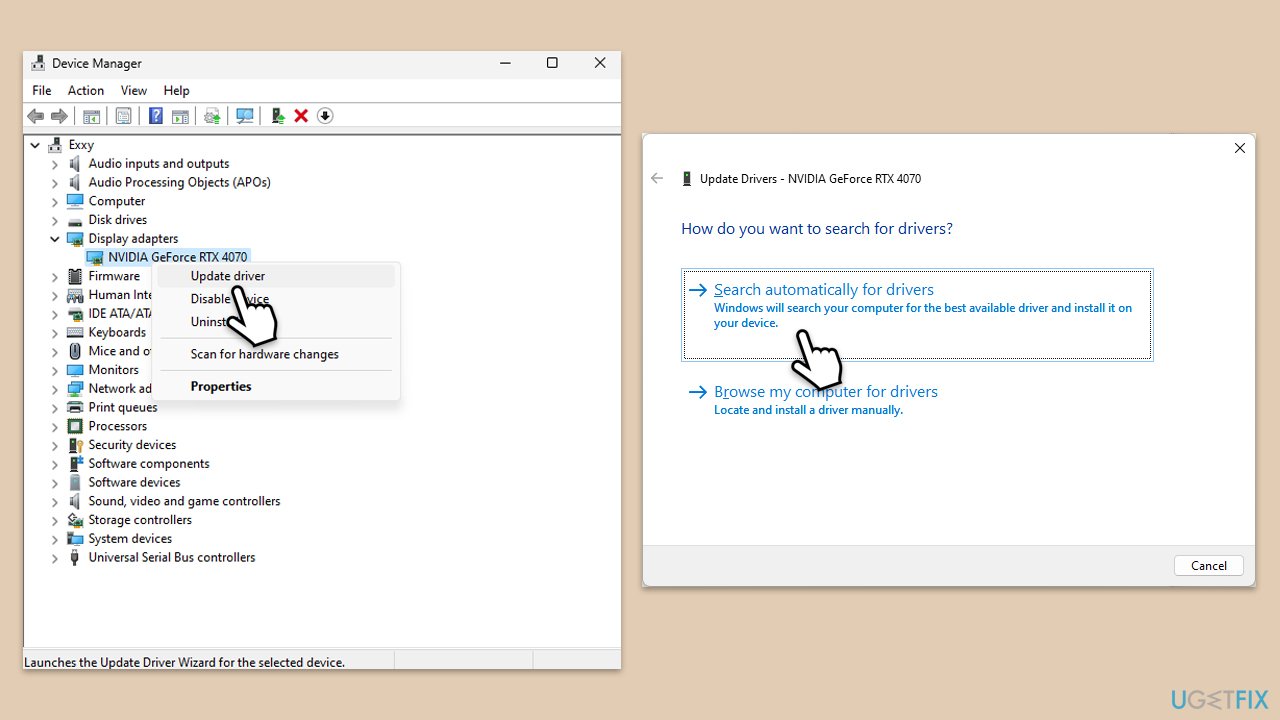
- Right-click on the Start button and select Device Manager from the menu.
- Expand the Display adapters section.
- Right-click on your graphics card and select Update driver.
- Pick Search automatically for drivers.
- If updates are found, allow them to install.
- Restart your computer after updating all necessary drivers.
Fix 2. Disable DLSS Frame Generation
If you are facing the "The operation was completed successfully" error, you should disable DLSS (as for now). It seems like Square Enix needs to ship a patch for this one to be resolved, which is quite frustrating considering that people have low FPS across the board.
- Open Settings and go to Graphics Settings.
- From the menu, select Super Resolution.
- On the right side, click Disabled.

Note: you should also try disabling or enabling V-Sync.
Fix 3. Enable or disable Hardware-accelerated GPU scheduling
Hardware-acceleration might be a good feature to enable when having problems with certain games. On the flip side, some users found that it only made everything worse - so try and see which option fits you.
- Right-click on Start and pick Settings.
- Select System and then go to Display.
- Scroll down to Related settings and click Graphics.
- Under Default settings, click Change default graphics settings.
- Enable or disable Hardware-accelerated GPU scheduling.
- Restart your device to make changes.

Fix 4. Disable fullscreen optimizations and run the game as admin
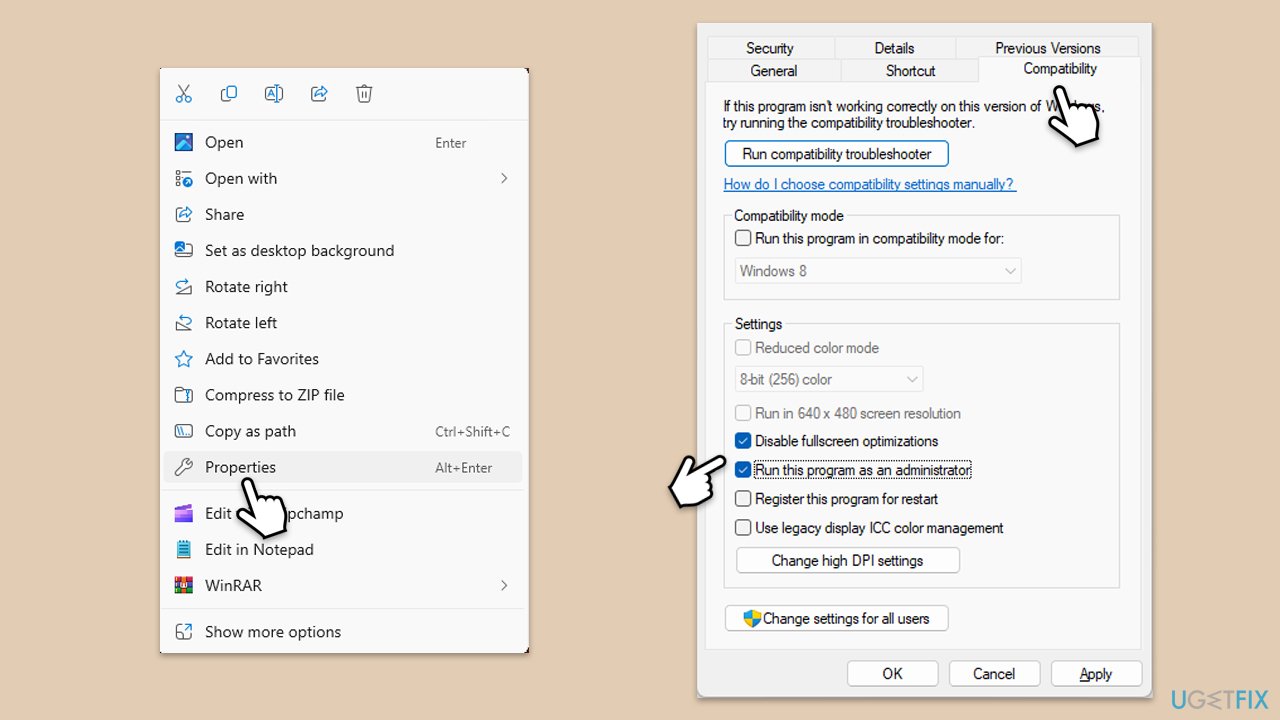
- Right-click the FF16 shortcut or executable file.
- Select Properties.
- Go to the Compatibility tab.
- Check the box next to Disable fullscreen optimizations.
- Also, mark the Run this program as an administrator checkbox.
- Click Apply, then OK.
- Try playing the game again.
Fix 5. Verify game files
Steam
- Open Steam and go to your Library.
- Right-click on the Final Fantasy XVI and select Properties.
- Go to the Local Files section on the left.
- Here, click Verify integrity of game files and wait till the process is complete.
- Try launching the problematic game again.
Epic Store
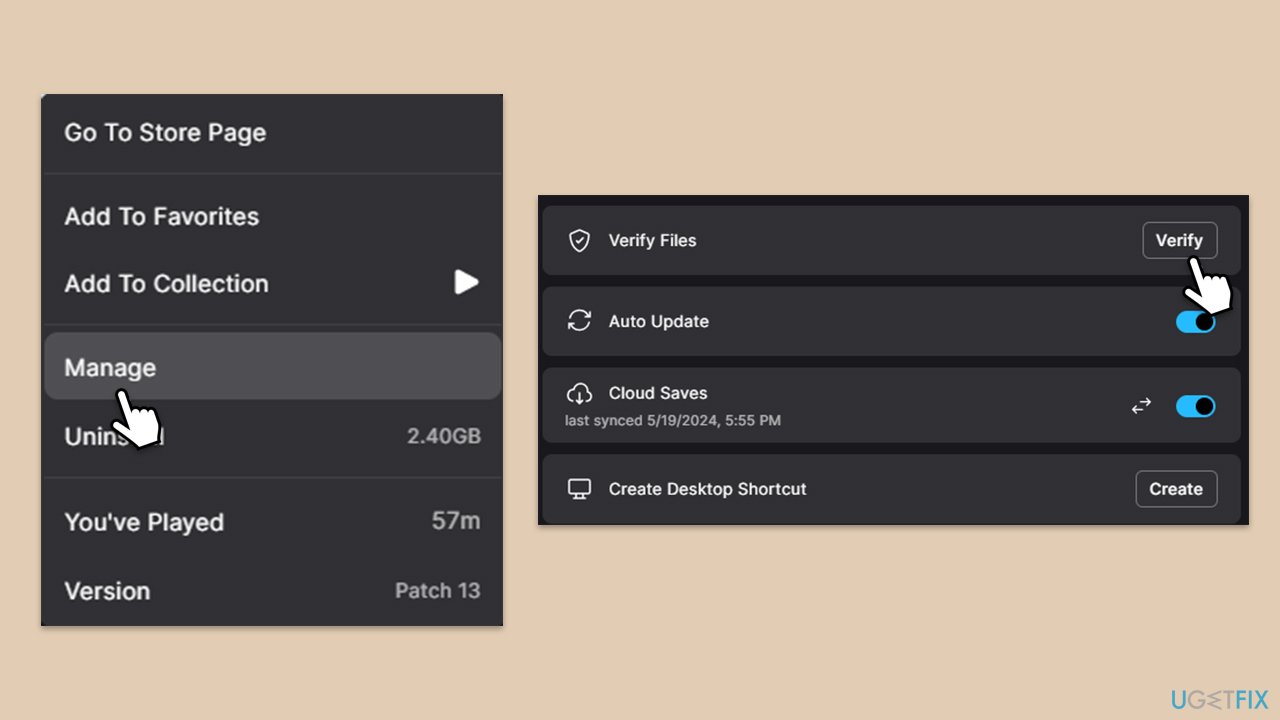
- Open Epic Games and go to your Library.
- Locate Final Fantasy XVI.
- Right-click on the game and select Manage.
- At the top, click Verify and wait.
- Try playing the game again.
Fix 6. Disable overlay
Steam
- Open your Steam client.
- Go to your game library and right-click on FF16.
- Select Properties.
- Disable the Enable the Steam Overlay while in-game option location in General settings.

Discord
- Open Discord and click on the gear icon next to your username.
- Scroll down to the Activity Settings section and click on Game Overlay.
- Toggle off the switch next to Enable in-game overlay.
- Restart Discord to ensure the changes take effect.
Game Bar
- Right-click on Start and select Settings.
- Go to Gaming.
- Under Xbox Game Bar, toggle off Enable Xbox Game Bar for things like recording game clips, chatting with friends, and receiving game invites.
- Restart your computer to ensure the overlay is completely disabled.
Bottom line
To address the issues of low FPS, stuttering, and crashing in Final Fantasy 16, ensure that you have the newest game-ready video drivers installed, disable overlays, and tweak in-game settings. If these solutions do not resolve the problems, consider waiting for a patch from Square Enix or using a powerful PC repair app to fix underlying Windows issues.
Frequently asked questions
To run Final Fantasy 16 smoothly, ensure your PC meets the minimum requirements, including a compatible GPU, sufficient RAM, and adequate storage space. Check the official specifications to confirm compatibility with your Windows version.
Lower the graphics settings within the game menu, such as reducing resolution and disabling V-Sync, to enhance FPS. Additionally, make sure your Windows 10 or Windows 11 drivers are up to date for optimal performance.
If the game is crashing, try verifying the game files through your platform's launcher and ensure Windows is fully updated. Additionally, consider disabling background applications that may interfere with the game's performance.




Report an issue
What's wrong with this guide? We review every report and update or remove content.
Report received — thank you. We'll review and fix it.
You need a free account to submit a report.
Be the first to comment