How to fix
Msctfui.dll missing error
on Windows
Resolve the msctfui.dll missing error in Windows 10 or 11 effortlessly. Get back to a smooth experience with expert-tested solutions. Fixed in minutes!


What causes How to fix msctfui.dll missing error in Windows?
- Accidental deletion of DLL files by the user
- Corruption of vital system files by malware or viruses
- Problems in the Visual C++ Redistributable packages
- Registry error caused by wrong shutdown of systems
- Conflicts caused by other installed software
Repairs Windows system files, removes malware, and restores a clean OS state — without reinstalling.
When I boot into my Windows, I constantly see a message saying "msctfui.dll is missing." I don't think this is normal at all.
The msctfui.dll missing error is a pretty rare issue that few Windows users experience. As the name would suggest, this error generally occurs because of a missing or corrupt msctfui.dll file included in the Microsoft Text Services Framework. This is a very important DLL that provides input methods and other text-related services for Windows applications.
DLL file error reveals itself with the statements of the following type: "msctfui.dll is missing" or "The code execution cannot proceed because msctfui.dll was not found." It may appear right in the moment when some programs, especially those using input services, are opened, or when the system boots. In other cases, the inability to find this critical DLL file can lead to crashes or application failures.
These may be caused by the following scenarios:
- Accidental deletion of DLL files by the user or conflicts caused by other installed software.
- Corruption of vital system files, such as msctfui.dll, by malware or viruses.
- There can be a problem in the Visual C++ Redistributable packages, which require, from time to time, an addition of some files and their management appropriately.
- Registry error caused by wrong shutdown of systems or incorrect software installation.
When the msctfui.dll file is missing or corrupted, users may experience various system issues:
- Frequent application crashes.
- The inability to start programs that rely on text input services.
- Error messages pointing to missing DLL files during startup or while using certain software.
- In extreme cases, system instability and performance degradation.
The msctfui.dll error can be induced by several issues: system corruption, malware, or dependency. Fortunately, often it can be resolved with updates of system files, drivers, or the repair of packages related to Visual C++. In such cases, specific utilities, like [d1] repair, may significantly contribute by automatically scanning and repairing system file errors, DLL issues, and other problems that may prevent correct functionality of your system.

Fix 1. Run SFC and DISM scans
Corrupted or missing system files often lead to the msctfui.dll error. To address this, follow the steps below:
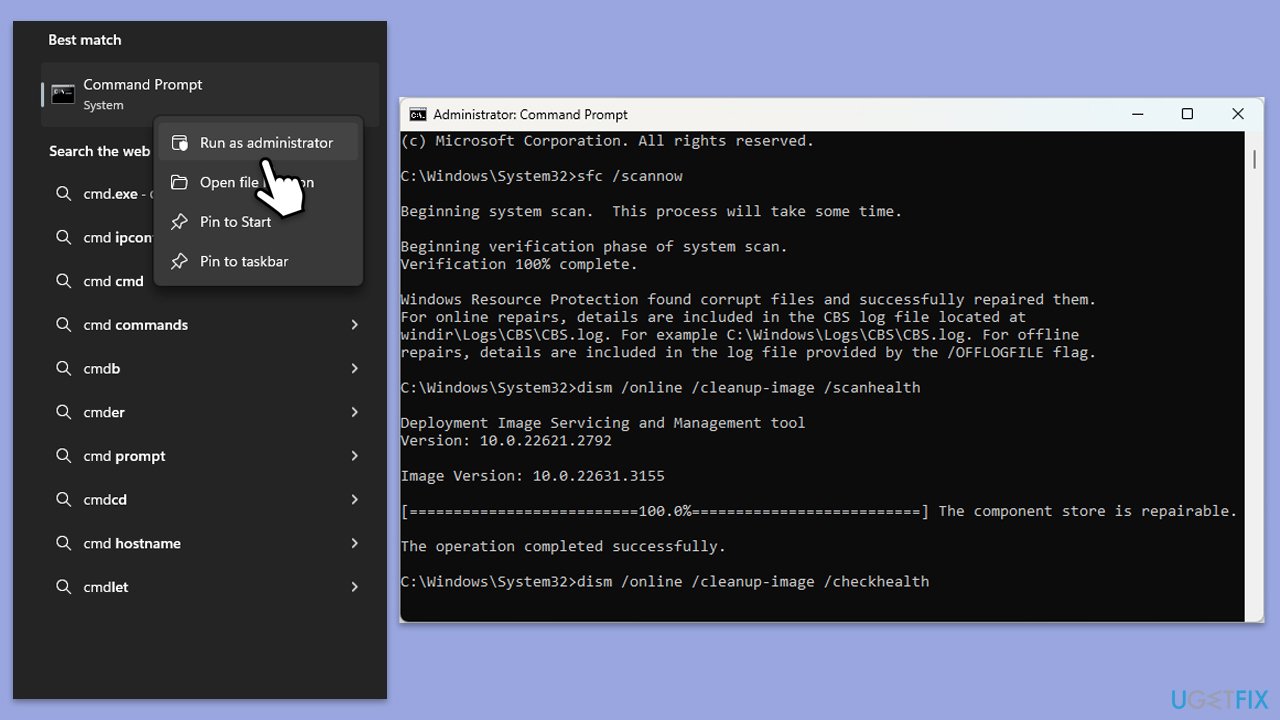
- Type cmd in Windows search.
- Right-click on Command Prompt and pick Run as administrator.
- User Account Control window will show up - click Yes when prompted.
- Then, copy and paste the following command, pressing Enter after:
sfc /scannow - Wait till the scan is finished. If Windows finds system file integrity violations, it will attempt to fix them. After this, use the set of the following commands, pressing Enter each time:
DISM /Online /Cleanup-Image /CheckHealth
DISM /Online /Cleanup-Image /ScanHealth
DISM /Online /Cleanup-Image /RestoreHealth - Close down the Command Prompt and restart your system.
Fix 2. Update or reinstall Visual C++ Redistributable
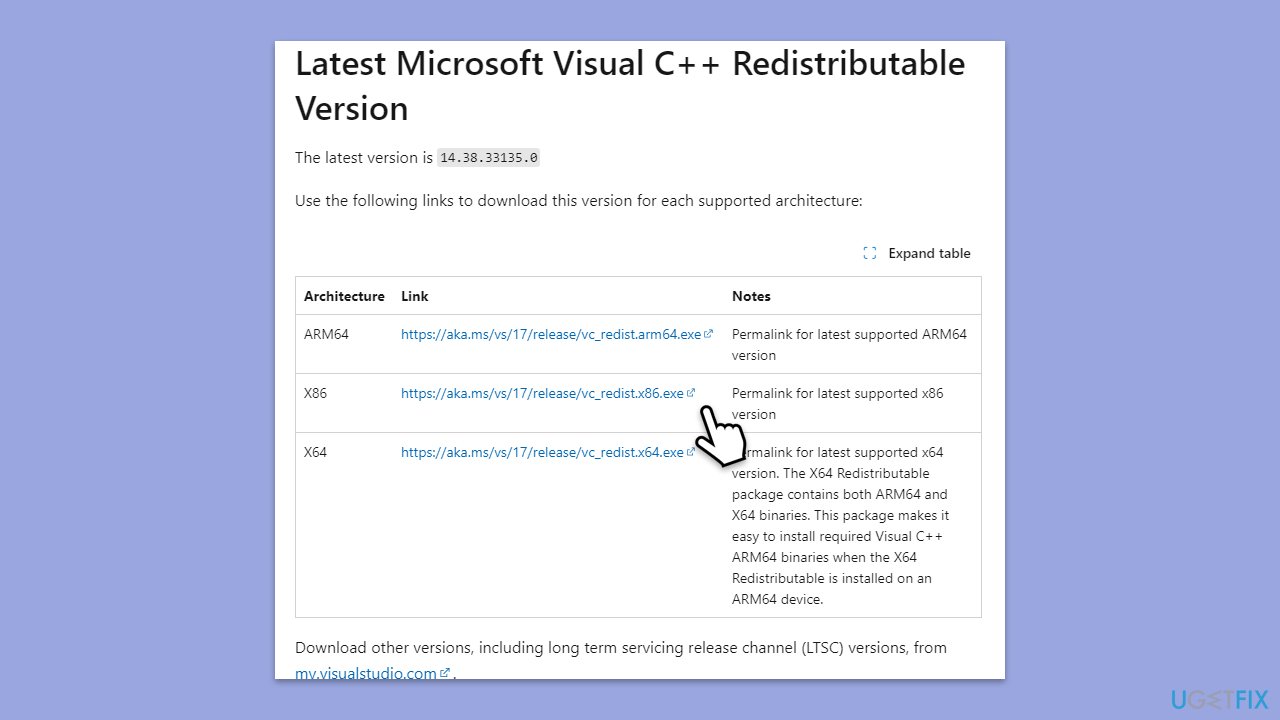
Msctfui.dll is often associated with Visual C++ Redistributable packages. Updates or reinstallation of the packages may resolve the problem of missing DLL.
- Launch the Control Panel and open Programs > Uninstall a program.
Here, scroll down and check the list of installed versions of Visual C++.
Open any browser and head over to the official Microsoft Visual C++ download page. - Download and install all the missing versions of Visual Studio (note: if you are using a 64-bit system, install both x86.exe and x64.exe files)
- Restart your PC and check whether the problem is resolved.
- If not, try reinstalling each of the following components:
Microsoft Visual C++ 2010 Redistributable Package (x86)
Visual C++ Redistributable for Visual Studio 2012
Visual C++ Redistributable Packages for Visual Studio 2013
Visual C++ Redistributable Packages for Visual Studio 2015, 2017, 2019, and 2022. - Restart your PC when done.
Fix 3. Check for Windows updates
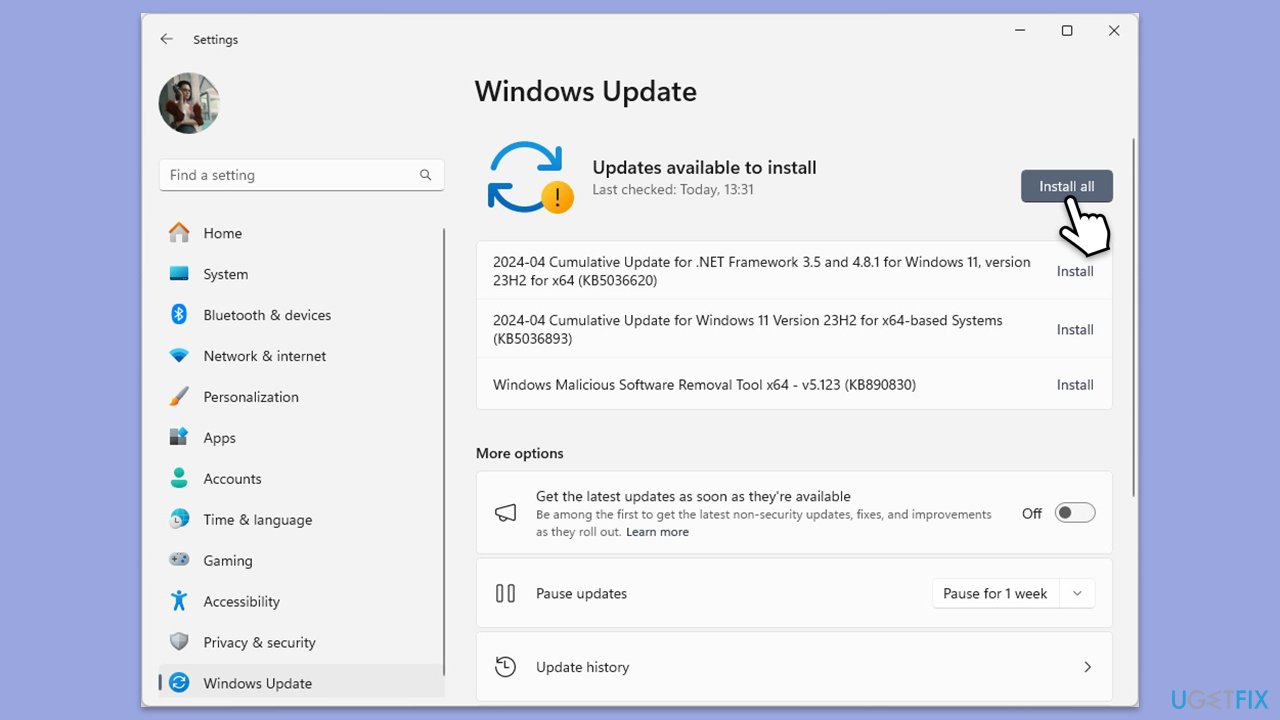
- Type Updates in Windows search and hit Enter.
- If updates are available, click Install updates.
- Otherwise, click Check for updates.
- If optional updates are available, install them as well.
- When all the update processes are complete, restart your system.
Fix 4. Scan for malware
To check the system for infections, you can use a reliable third-party security app, Microsoft Safety Scanner or the built-in Microsoft Defender:
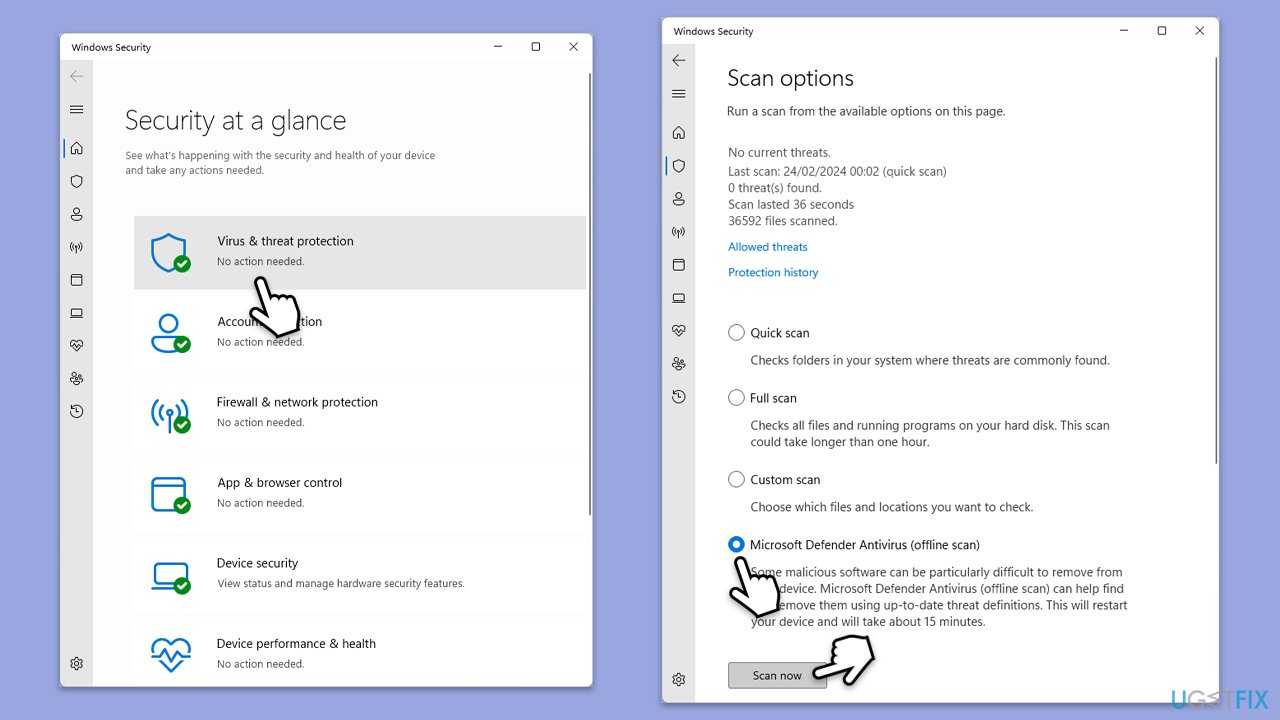
- Type Windows Security in the Windows search bar and hit Enter.
- Select Virus & threat protection.
- Pick Scan options.
- Choose Microsoft Defender Offline scan and click Scan now.
- Your computer will immediately reboot and begin a deep scan.
Fix 5. Re-register the msctfui.dll file
Re-registering the missing or corrupt msctfui.dll file can sometimes fix the error.
- Open Command Prompt as administrator.
- In the prompt, type in the following command and press Enter:
regsvr32 /u msctfui.dll - After that, type the next command and hit Enter:
regsvr32 /i msctfui.dll - Restart your device to apply the changes.
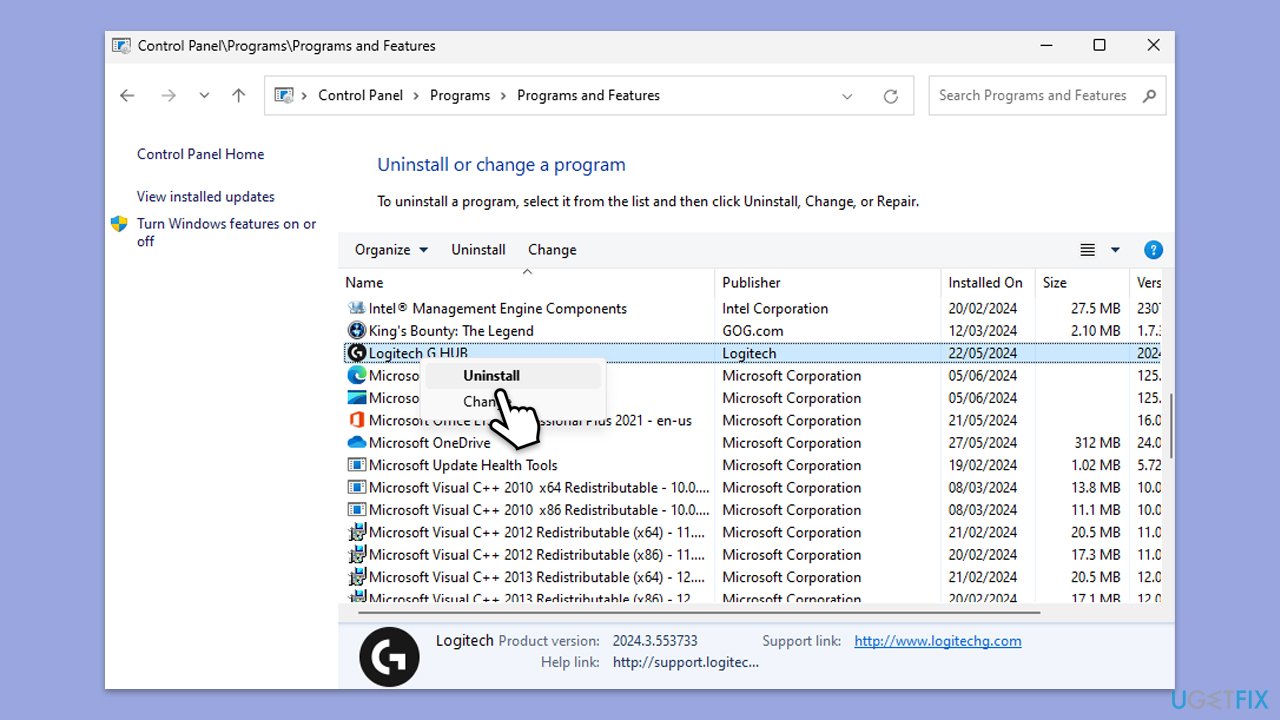
Fix 6. Reinstall the affected program
If the msctfui.dll error appears when using a specific program, reinstalling that program might resolve the issue.
- Type Control Panel in Windows search and hit Enter.
- Go to Programs > Uninstall a program.
- Locate the app that is mentioned in the error message, right-click and select Uninstall, then follow the prompts.
- Restart your PC.
- Download the latest version from the official website.
- Install the program and check if the error is resolved.
Fix 7. Perform a System Restore
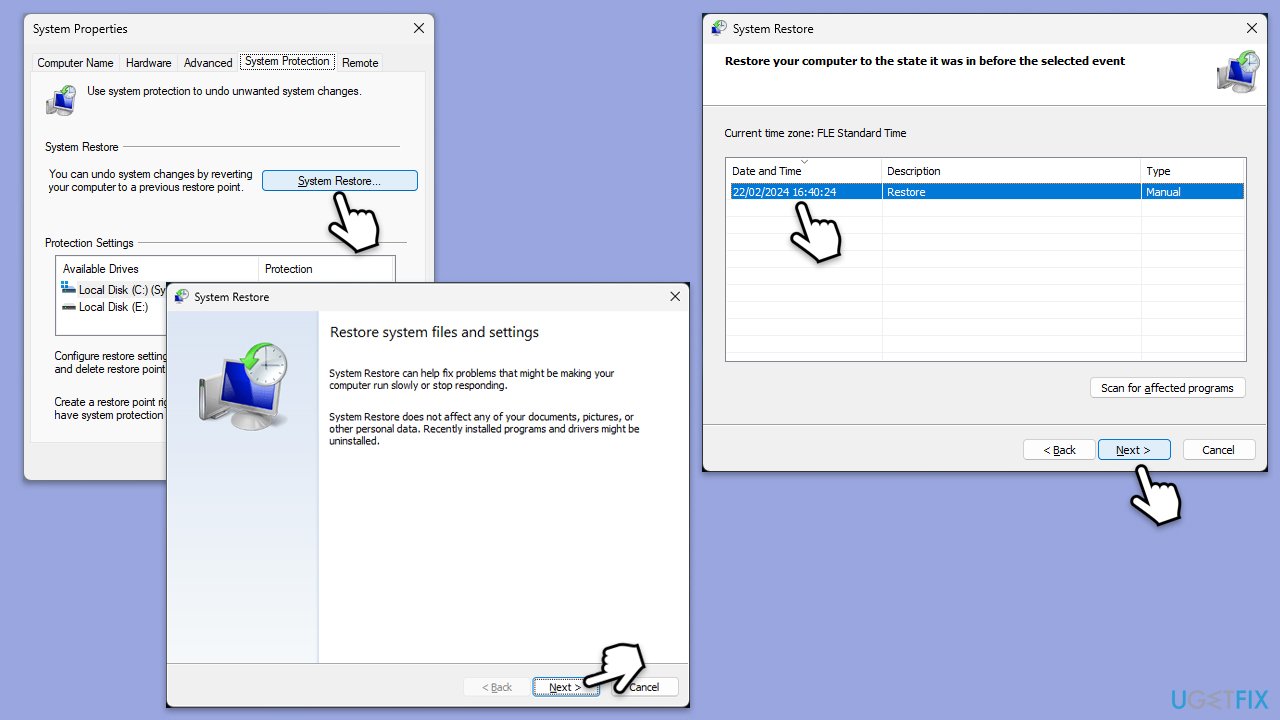
If the problem began after something new was implemented, try System Restore to put your system back to how it used to be before.
- Type in Create a Restore point in Windows search and hit Enter.
- Go to the System Protection tab and pick System Restore.
- Click Next.
- Click Show more restore points (if available).
- Pick the time before the problem occurred and click Next.
- Follow the prompts to finish the process.
Bottom line
To fix the msctfui.dll missing error, users can run the System File Checker (SFC) and Deployment Imaging Service and Management Tool (DISM) to repair system files. If these methods do not resolve the issue, consider updating system files, drivers, or using specific utilities for automatic scanning and repair.
Frequently asked questions
The msctfui.dll missing error is typically caused by a corrupted or deleted DLL file, often due to malware infections or incomplete software installations.
You can restore the msctfui.dll file by running the System File Checker tool with the command 'sfc /scannow' in the Command Prompt.
It is not recommended to download msctfui.dll from third-party websites, as this can expose your system to malware; instead, use built-in Windows tools to repair or restore the file.




Report an issue
What's wrong with this guide? We review every report and update or remove content.
Report received — thank you. We'll review and fix it.
You need a free account to submit a report.
Be the first to comment