How to fix
Teams error “Doh! Something went wrong”
on Windows
Resolve the "Doh! Something went wrong" error in Teams on Windows 10 or 11 quickly. Expert-tested solutions with screenshots for easy troubleshooting.


What causes How to fix Teams error “Doh! Something went wrong” in Windows?
- Issues with the Windows Credential Manager
- Corrupted login credentials
- Unstable or weak internet connection
- Intermittent drops in network signal
- Corrupted app files
Repairs Windows system files, removes malware, and restores a clean OS state — without reinstalling.
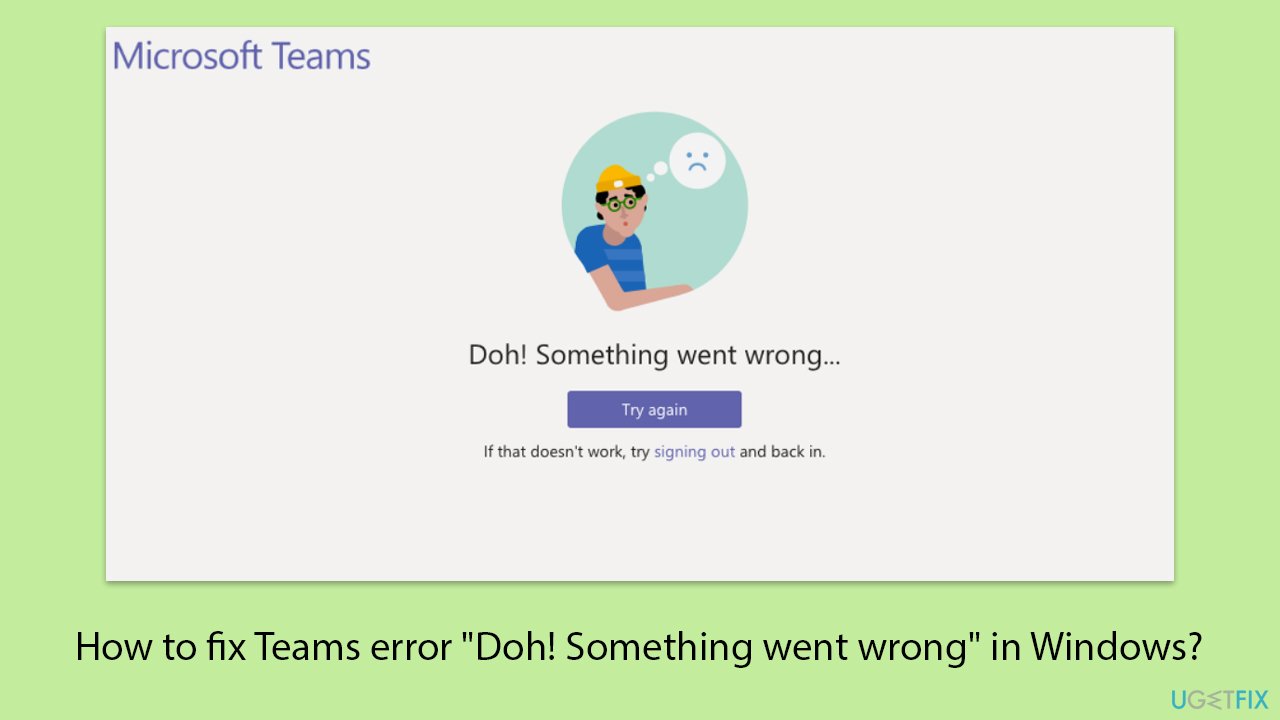
When I try to access Teams, I keep getting "Doh! Something went wrong" error. There are no error codes or anything like that, so I don't know what this "Something" is. Any idea how to fix this?
This means that the "Doh! Something went wrong" error in Microsoft Teams usually arises out of either an issue of connectivity or log in with the application. These kinds of errors are very irritating at times, because they come in the way of accessing Teams accounts or attending meetings. Many of the users face this error while opening teams, which often happens because of incomplete or corrupted login credentials and issues in network connectivity.
"Doh! Something went wrong" error is usually brought about by a number of the most frequent causes: issues with the Windows Credential Manager, where credentials for an application like Teams are stored. If those credentials are wrong or corrupted, then Teams won't be able to sign in and may show up with this error.
The other very common cause is when the internet connection becomes unstable or weak; hence, at the time of opening this application, its capability regarding the checking of login credentials is interfered with. This has been pointed out to occur with both wired and wireless, most especially in the instance of intermittent drops in network signal.
Users also resolve the "Doh! Something went wrong" error by clearing the Teams credentials from the Windows Credential Manager to ensure that fresh credentials are input upon the next attempt to log in. This error may be corrected based on a transition toward more stable networks.
Another thing one could try is to reset the network settings. If these do not work, one would then clean the app's cache or perform a fresh installation of Teams to eliminate the corrupted files causing the problem.
Moreover, other than manual changes, one feasible alternative could be making use of a trusted [d1] repair tool to automatically detect and fix system or network configuration issues that may lead to this error.
Fix 1. Clear Microsoft Teams credentials from Credential Manager
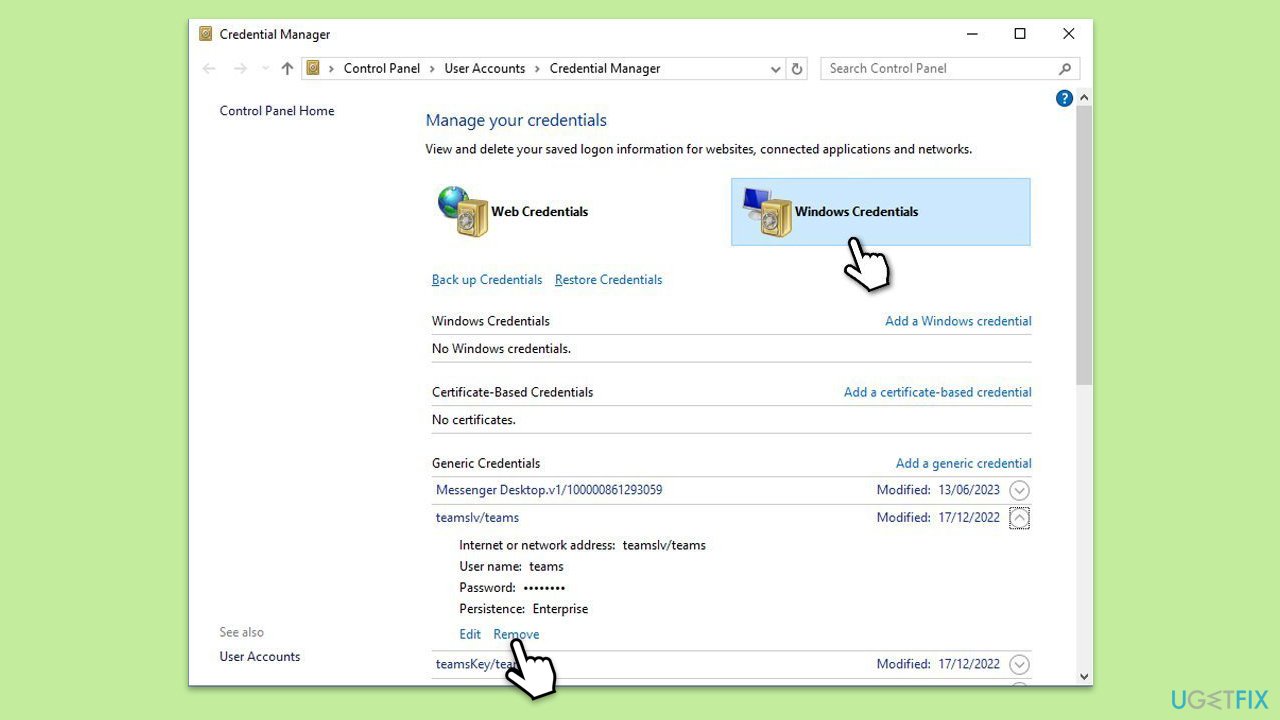
Incorrect or corrupt credentials stored in Windows Credential Manager often cause the "Doh! Something went wrong" error. Clearing them allows you to re-enter fresh login details.
- Lof off from Microsoft Teams.
- Type Credential Manager in Windows search and press Enter.
- Select Windows Credentials.
- Locate and remove any stored credentials related to Microsoft Teams.
- Restart Teams and re-enter your login details.
Fix 2. Clear Teams cache
Cached data that becomes outdated or corrupt can disrupt app functionality, leading to login issues like this error.
- Close down Microsoft Teams.
- Press Win + E to open File Explorer.
- Ensure Hidden files are visible.
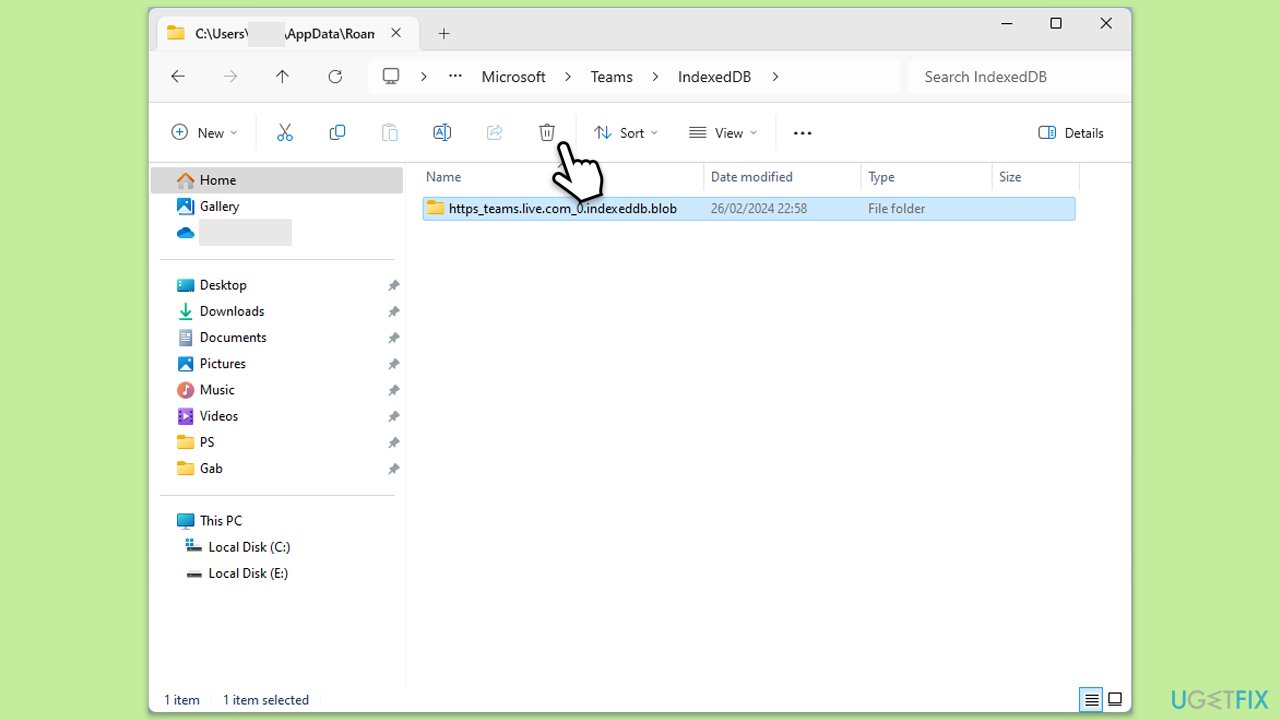
- In the address bar, type in %appdata%\Microsoft\teams and press Enter.
- Delete the contents of the following folders:
%appdata%\Microsoft\teams\application cache\cache
%appdata%\Microsoft\teams\blob_storage
%appdata%\Microsoft\teams\Cache
%appdata%\Microsoft\teams\databases
%appdata%\Microsoft\teams\GPUcache
%appdata%\Microsoft\teams\IndexedDB
%appdata%\Microsoft\teams\Local Storage %appdata%\Microsoft\teams\tmp - Make sure you empty the Recycle Bin (or use Shift + Del combination to delete these files).
- Restart your computer.
Fix 3. Sign out and sign back in
Logging out and back in resets any temporary login issues in Teams and refreshes your session.
- On the error screen, click Sign out.
- Once signed out, re-enter your credentials to log back into Teams.
- Check if the issue is resolved.
Fix 4. Update Microsoft Teams
Using an outdated version of Teams can cause errors due to compatibility issues. Ensure you are running the latest version of the app.
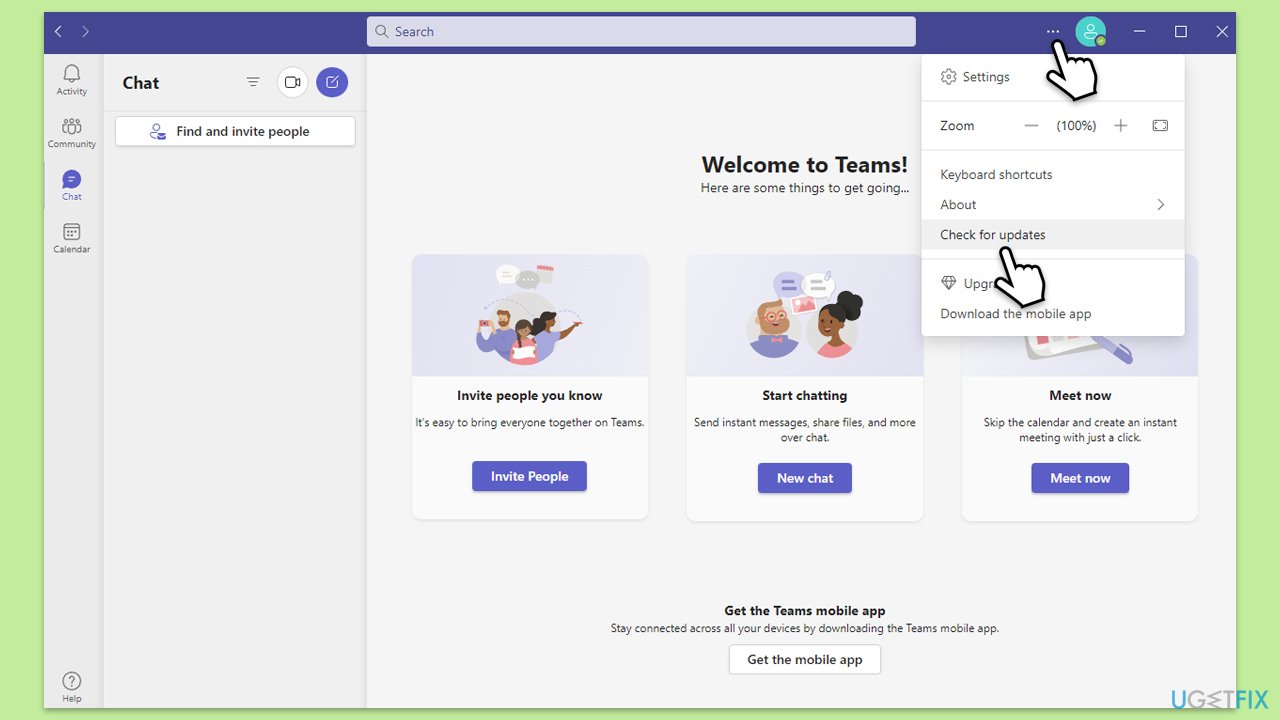
- Open Microsoft Teams.
- Click on the Settings and more button at the top-right corner.
- Select Check for updates.
- Teams will automatically download and install any available updates.
- Restart Teams after the update is completed.
Fix 5. Repair or reset the Teams app
Repairing or resetting the app via Windows Settings can resolve issues caused by app data corruption.
- Click on Start and pick Settings.
- Go to the Apps section.
- Locate Microsoft Teams from the list.
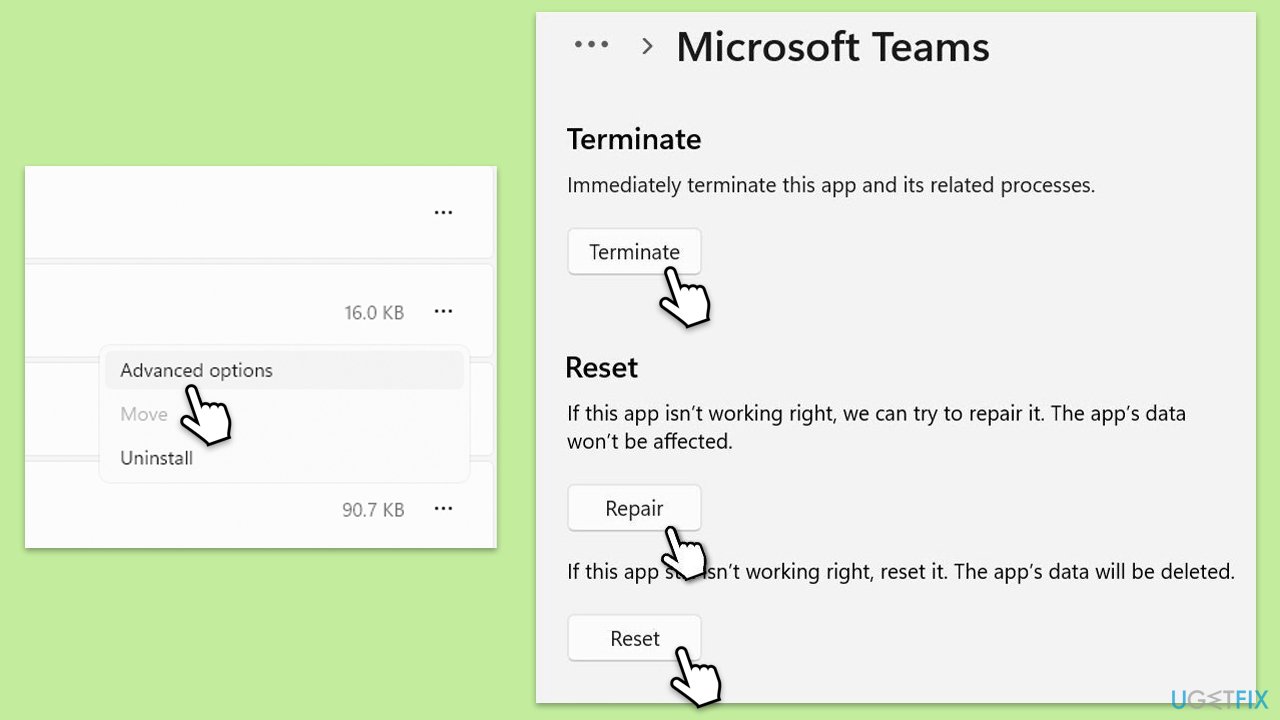
- Click on the three vertical dots and pick Advanced options.
- Click Terminate to ensure that the app is not running.
- Under the Reset section, click Repair and see if that solved your issue.
- If not, then try the Reset option.
Fix 6. Reinstall Microsoft Teams
Reinstalling the app can fix any deeply embedded issues or corrupted installation files.
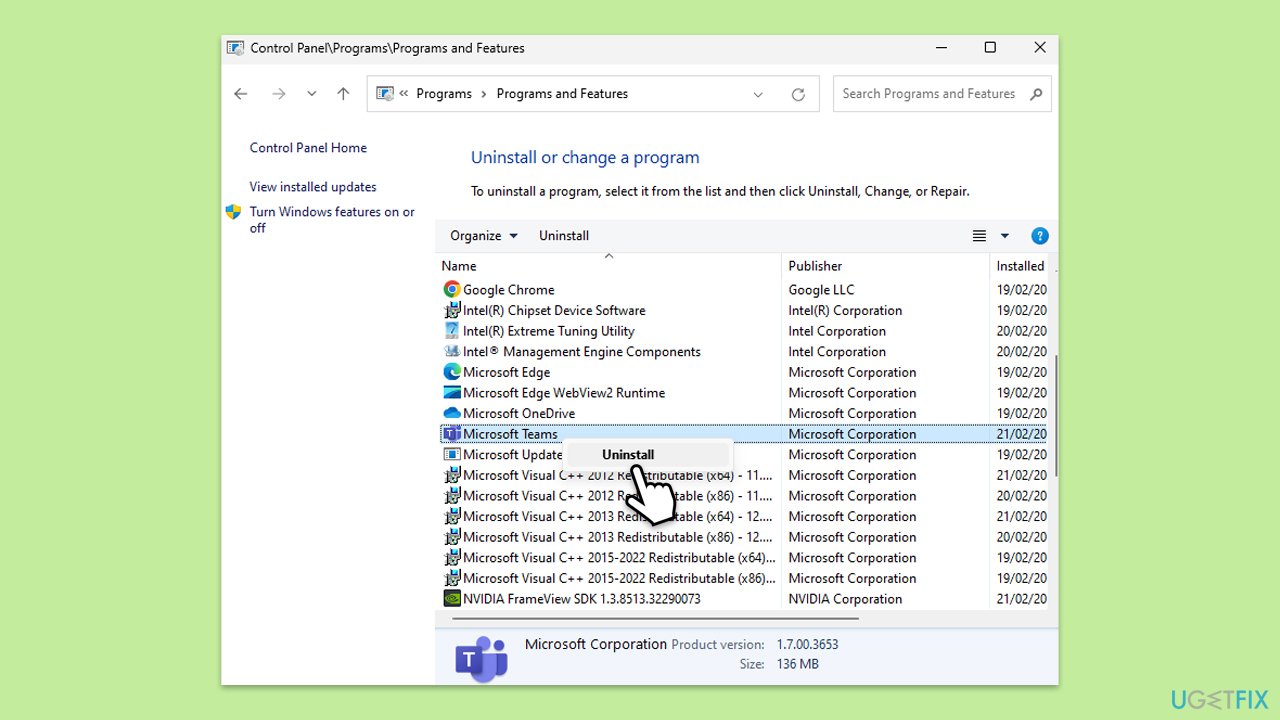
- Type Control Panel in Windows search and press Enter.
- Go to Programs > Uninstall a program.
- Find Microsoft Teams, right-click, and select Uninstall.
- Follow the prompts to remove the app.
- Once done, press Win + E to open File Explorer.
- In the View tab at the top of the window, enable Hidden Files.
- Go to C:\Program Files\WindowsApps location.
- Scroll down to find the Microsoft Teams folder and delete it (alternatively, you can rename it).
- Now type %AppData% in Windows search and press Enter.
- Delete the Teams folder.
- Finally, restart your device and reinstall the app.
Bottom line
To fix the 'Doh! Something went wrong' error in Teams, users can clear the Teams credentials from the Windows Credential Manager, reset network settings, clean the app's cache, or perform a fresh installation of Teams. If these solutions do not resolve the issue, consider using a trusted repair tool to automatically detect and fix system or network configuration problems.
Frequently asked questions
First, try clearing the Teams cache by navigating to %appdata%\Microsoft\Teams and deleting the contents of the Cache folder. If the issue persists, consider reinstalling Microsoft Teams to ensure all files are properly set up.
Yes, you can resolve this error on Windows 11 by checking for updates in the Microsoft Store and ensuring that Teams is up to date. Additionally, resetting the application through Settings > Apps > Apps & features can help.
Make sure your internet connection is stable and that Teams has permission to access the network through your firewall or antivirus settings. You can also try using a different network to see if the issue is related to your current connection.




Report an issue
What's wrong with this guide? We review every report and update or remove content.
Report received — thank you. We'll review and fix it.
You need a free account to submit a report.
Be the first to comment