How to fix
System Restore error 0x80070301
on Windows
Resolve System Restore error 0x80070301 in Windows 10 or 11 quickly and effectively with our expert-tested solutions. Fixed in minutes!

What causes How to fix System Restore error 0x80070301 in Windows?
- Conflicting files
- Corrupted files
- Antivirus interference
- Disk errors
Repairs Windows system files, removes malware, and restores a clean OS state — without reinstalling.
I had many problems with the Start menu and other issues. I tried doing a System Restore. It didn't work, and I got an error saying, "An unexpected error occurred during System Restore (0x80070301)." Is a fresh Windows install necessary, or is this fixable?
System Restore is one of the handiest options in Windows, as it may revert your system back to every previously set state. It is pretty useful when one is trying to recover from malfunctioning systems or having problems with software. Sometimes this operation goes wrong due to some issue during restoration and results in an error code 0x80070301.
What is error 0x80070301?
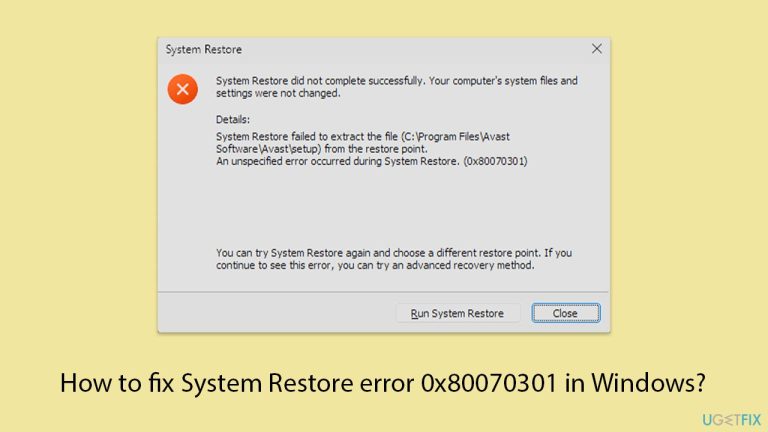
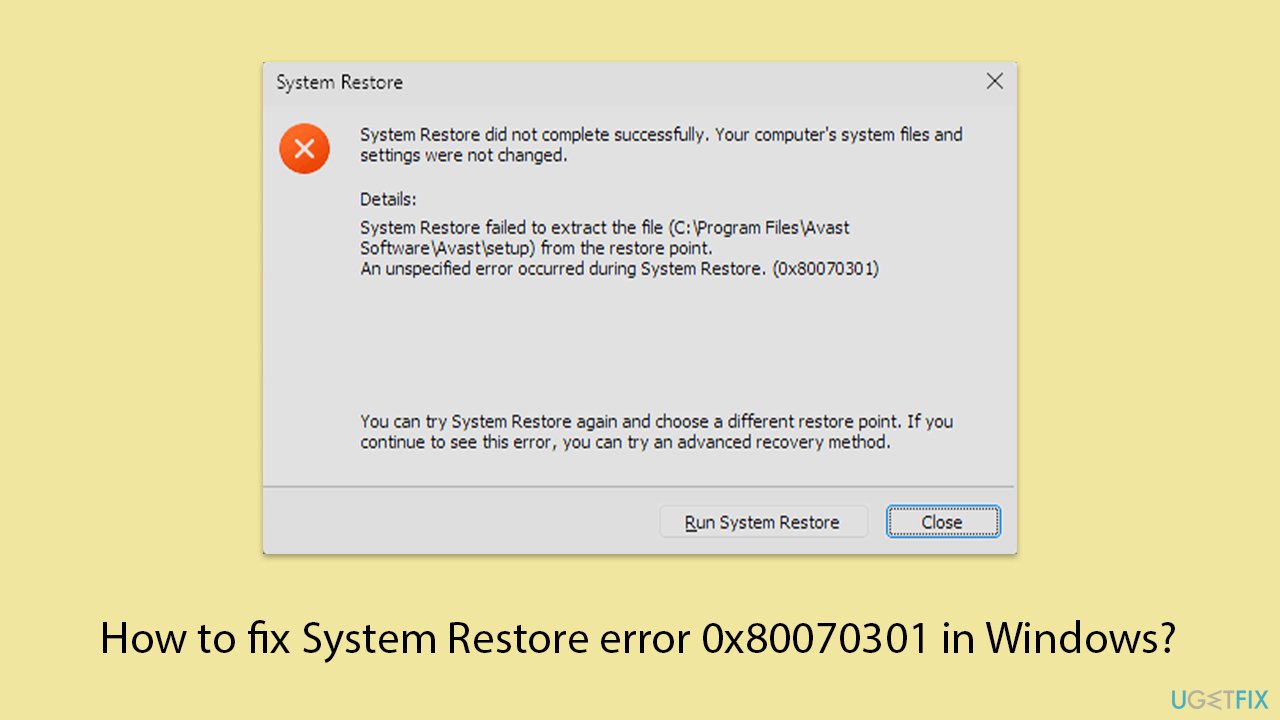
The error code 0x80070301 typically appears with the message:
An unexpected error occurred during System Restore (0x80070301).
This error suggests that the System Restore process cannot proceed because it cannot create a file that already exists. Essentially, there's a file conflict preventing the restoration.
Causes of error 0x80070301
Several factors can contribute to this error:
- Conflicting files. Duplicate or conflicting system files block new ones from being created.
Corrupted files. Broken or missing system files stop the recovery process. - Antivirus interference. Security software might block System Restore from modifying system files.
- Disk errors. Issues with the hard drive can prevent files from being accessed or modified.
Alternatively, you can try to use the application [d1] PC Repair, which is an all-in-one kind of utility meant for fixing different system-related issues, performance optimization, and ensuring that your Windows system works in a smooth manner. It may detect and replace corrupted files, repair registry entries among others, and it might fix the System Restore error you are getting.
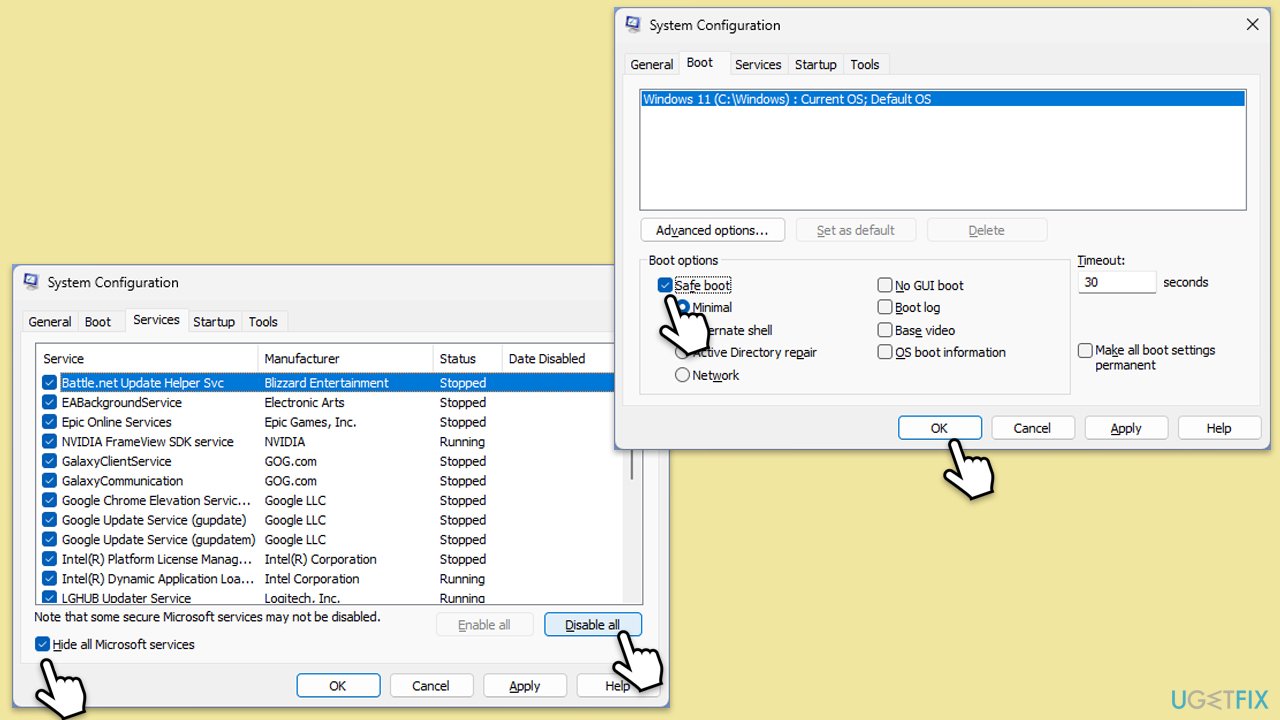
Fix 1. Run System Restore in Safe Mode
Starting in Safe Mode loads Windows with only essential drivers and services.
- Press Wind + R, type, and press Enter.
- In the System Configuration window, go to the Boot tab.
- Check Safe boot and select Minimal.
- Click OK and restart your computer.
- Once in Safe Mode, try running System Restore again.
- After completion, repeat steps 1-3 and uncheck Safe boot to return to normal mode.
Fix 2. Temporarily disable antivirus software
Your antivirus could be stopping System Restore.
- Locate your antivirus icon in the system tray.
- Right-click and select Disable or Pause protection.
- Specify the duration as needed.
- Attempt the System Restore again.
- Re-enable your antivirus after the process.
Fix 3. Repair corrupted system files with SFC and DISM
These built-in utilities can repair corrupted system files.
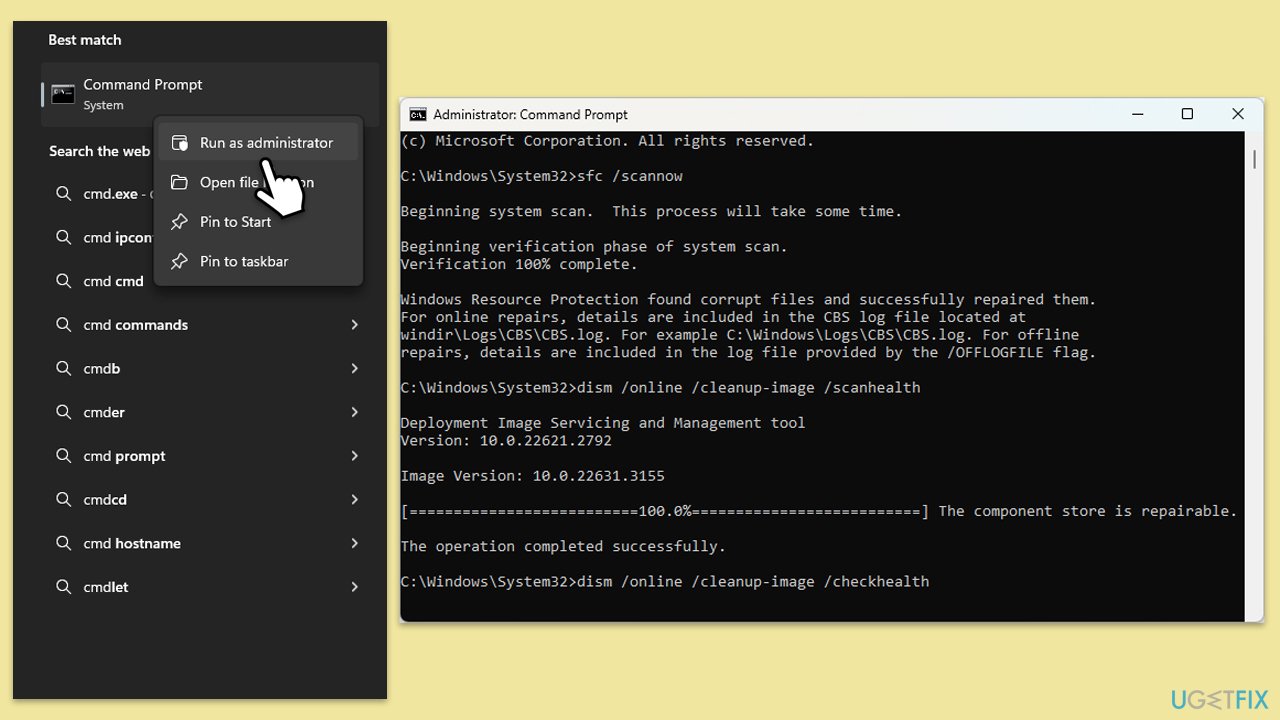
- Type cmd in Windows search.
- Right-click on Command Prompt and pick Run as administrator.
- The User Account Control window will ask whether you want to allow changes - click Yes.
- In the Command Prompt window, paste the following command and hit Enter:
sfc /scannow - Once the scan is complete, use the following commands and press Enter after each:
Dism /Online /Cleanup-Image /CheckHealth
Dism /Online /Cleanup-Image /ScanHealth
Dism /Online /Cleanup-Image /RestoreHealth - (Note: if you get an error executing this last command, add /Source:C:\RepairSource\Windows /LimitAccess to it and try again).
- Restart your system.
Fix 4. Check and repair Disk errors
Use the Check Disk utility to find and fix disk errors.
- Open Command Prompt as administrator.
- In the new window, type in the following command and press Enter after:
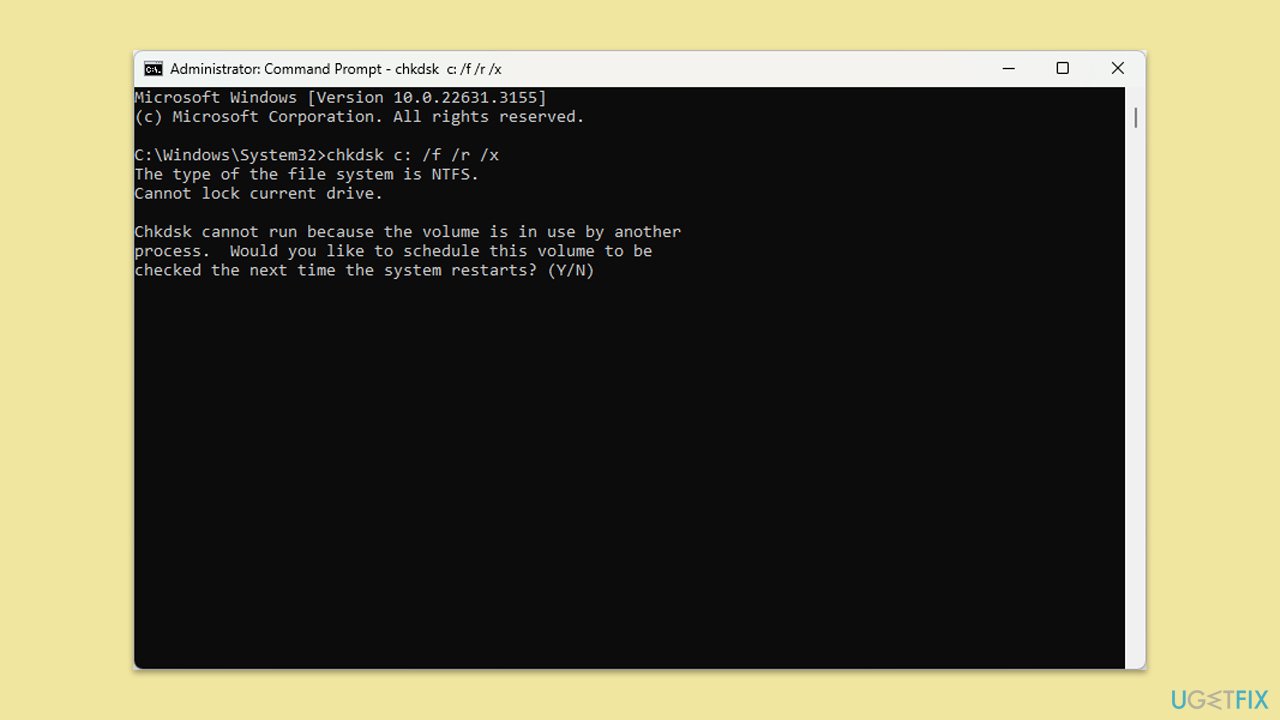
chkdsk c: /f
(Note: use chkdsk c: /f /r /x command if you are using SSD as your primary partition. Also, replace c: with another drive letter if you are not using default) - If you receive an error, type in Y, close down Command Prompt, and restart your system.
- Wait till the scan is finished.
Fix 5. Rename the WindowsApps folder
Sometimes, the WindowsApps folder can cause conflicts.
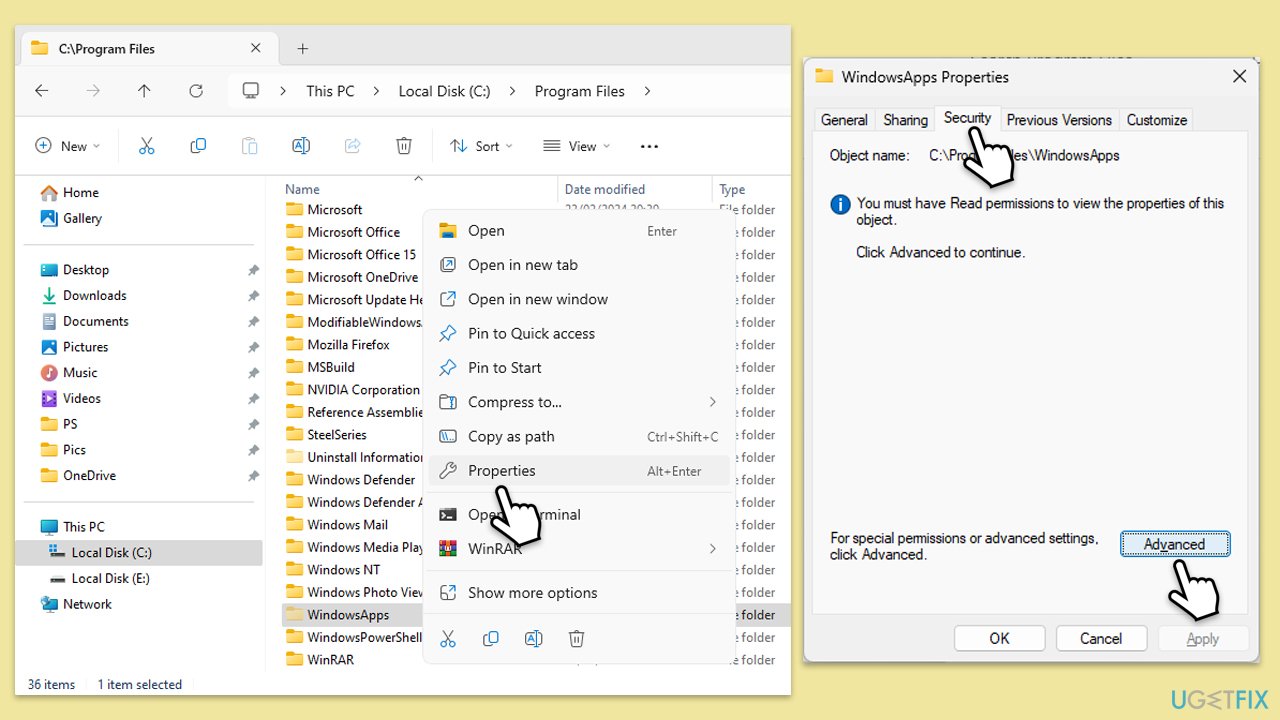
- Open File Explorer, click on the View tab, and check Hidden items to reveal hidden files and folders.
- Navigate to C:\Program Files and locate the WindowsApps folder.
- Right-click on WindowsApps and select Properties.
- Go to the Security tab and click Advanced.
- In the Advanced Security Settings, click Change next to the current owner's name.
- Enter your username in the field provided, click Check Names to verify, then click OK.
- Back in the Advanced Security Settings, check Replace owner on subcontainers and objects, then click Apply and OK.
- In the Properties window, click Edit under the Security tab.
- Select your user account, check Full control under Allow, and click Apply and OK.
- Right-click the WindowsApps folder, select Rename, and change the name to WindowsApps.old.
- Confirm any prompts by clicking Continue.
- Attempt to run System Restore again.
Bottom line
To fix the System Restore error 0x80070301, you can start by running System Restore in Safe Mode, which loads only essential drivers and services. Additionally, consider using the PC Repair application to detect and replace corrupted files. If these solutions do not resolve the issue, a fresh Windows install may be necessary.
Frequently asked questions
The System Restore error 0x80070301 typically occurs due to corrupted system files or issues with the System Restore configuration. It may also arise from insufficient disk space or conflicts with third-party software.
To resolve error 0x80070301 on Windows 11, you can run the System File Checker tool by executing 'sfc /scannow' in the Command Prompt with administrative privileges. Additionally, ensure that your restore points are configured correctly and that there is enough disk space available.
Yes, you can attempt to fix the error without losing data by using the 'System Restore' feature in Safe Mode, or by performing a repair install of Windows 10, which keeps your files intact while repairing system files.




Report an issue
What's wrong with this guide? We review every report and update or remove content.
Report received — thank you. We'll review and fix it.
You need a free account to submit a report.
Be the first to comment