How to fix
“Make sure your face is centered in the frame” issue when setting up facial recognition
on Windows
Resolve the "Make sure your face is centered in the frame" error in Windows 10 and 11 quickly. Expert-tested solutions for seamless facial recognition s…

What causes How to fix “Make sure your face is centered in the frame” issue when setting up facial recognition in Windows?
- Outdated versions of Windows
- Camera's privacy settings issues
- Need to update camera drivers
- Misconfigurations in facial recognition settings
Repairs Windows system files, removes malware, and restores a clean OS state — without reinstalling.
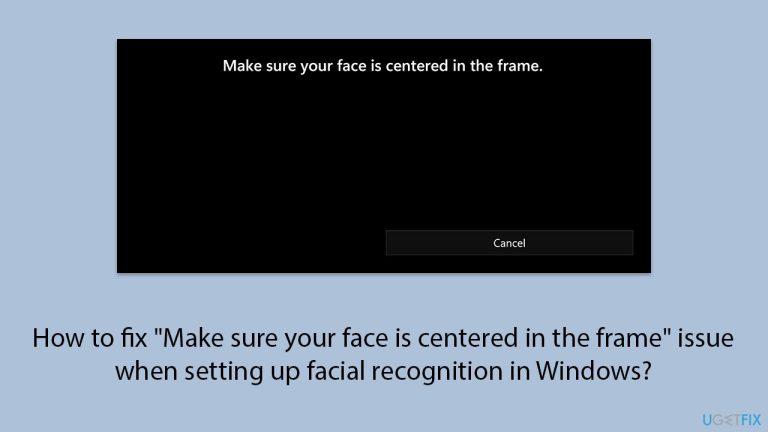
I tried to set up facial recognition on Windows and it does not work. I reach the "Make sure your face is centered in the frame" phase and there is nothing but a cancel button available. How do I fix this?
Facial Recognition in Windows effortlessly and securely accesses your device by using the built-in camera to scan for your face. This feature implements advanced biometric technology, where specific facial features will be identified and compared to the stored profile in order to grant access only to authorized users. However, some users encounter an issue during the setup process where the message "Make sure your face is centered in the frame" appears.
While this message may suggest that the problem lies in improper positioning or poor lighting, this is often not the actual cause. Those who have faced this error report that, at this stage of the setup, the only button seemingly enabled was the "Cancel" option. Although some may argue that it could be true where poor lighting largely exists, coupled with a poor camera view or a lot of stuff around in the background, can partially help the effect; these are not really the cause of the error.
In many cases, the underlying causes may involve technical settings or configurations within the system. This could include outdated versions of Windows, issues with the camera’s privacy settings, or even the need to update camera drivers. Additionally, the facial recognition feature itself may require a reset to clear any misconfigurations that prevent it from working correctly.
Utilizing [d1], a PC repair tool, may also assist in automatically addressing these underlying Windows issues, ensuring that the facial recognition setup process runs smoothly.
Fix 1. Reset facial recognition settings
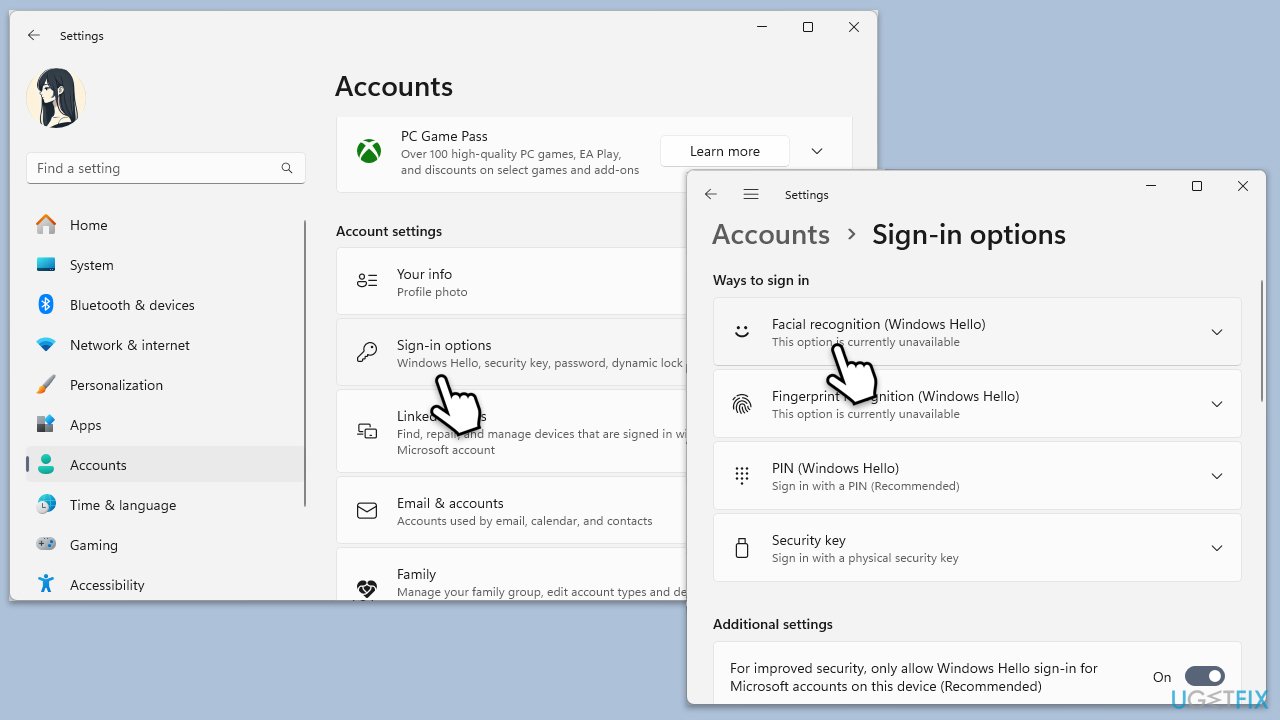
If it does not work correctly, then a reset of facial recognition settings may come in handy. Removing the stored facial data and reconfiguring will involve actually recalibrating the system to get rid of the errors that may have been set up.
- Right-click on Start and click Settings.
- Go to Accounts, then select Sign-in options.
- Find Facial Recognition (Windows Hello) and click on Remove.
- Restart your device and return to the same menu to set up facial recognition again.
Fix 2. Update or reinstall camera drivers
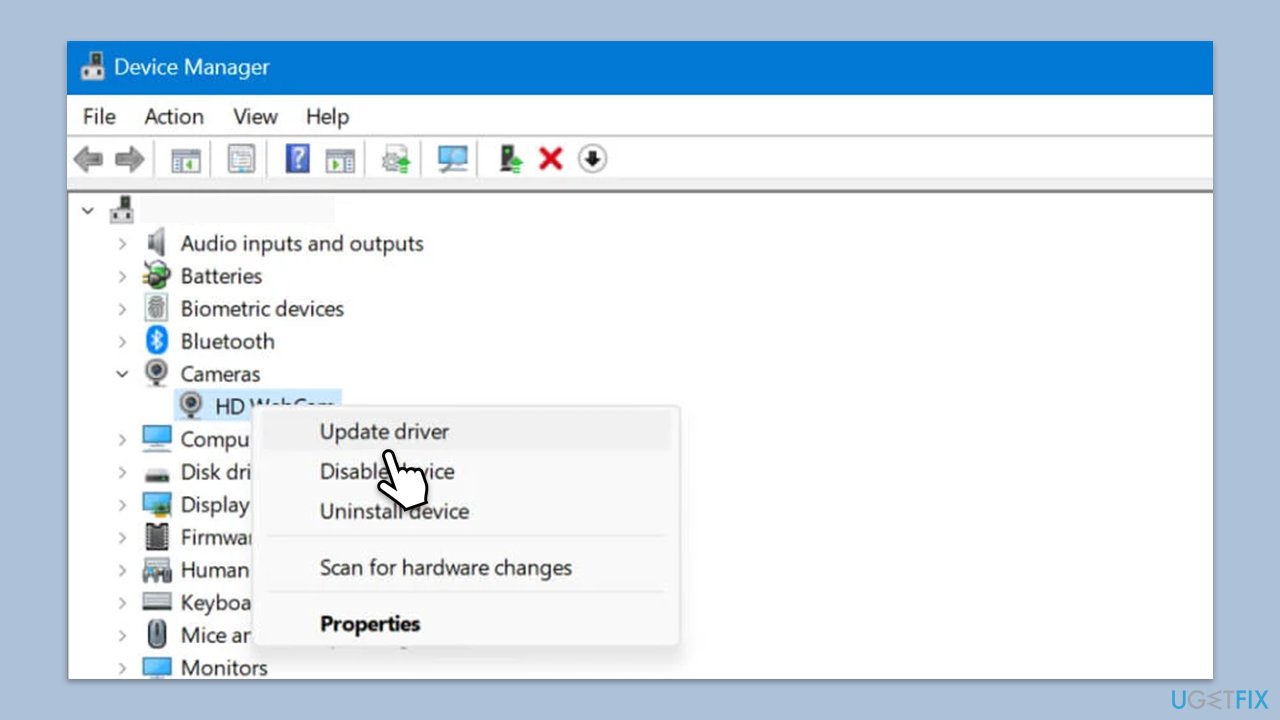
Facial recognition can go out of order because of outdated or incompatible camera drivers. Check the Device Manager to see if there are any updates on your camera drivers. Often, updating the drivers to the most recent ones resolves recognition issues.
Update camera drivers
- Right-click on Start and pick Device Manager.
- Locate your camera: expand Imaging devices, Cameras, or Camera, Sound, video and game controllers section (the location depends on your Windows version).
- Right-click on your camera and select Update driver.
- Then, pick Search automatically for drivers.
- Once done, reboot your system.
Reinstall camera drivers
- Open Device Manager and locate your camera.
- Right-click on your camera and pick Properties.
- Go to the Driver tab and pick the Uninstall Device option at the bottom.
- When prompted, mark the Delete the driver software for this device checkbox and click Uninstall.
- Restart your computer.
- Then, use one of the methods to download and install the latest camera drivers:
- Use automatic app like [rev id="DriverFix"].
- Download and install the latest drivers from your camera maker's website.
- Use Device Manager as explained above.
Fix 3. Check Privacy settings
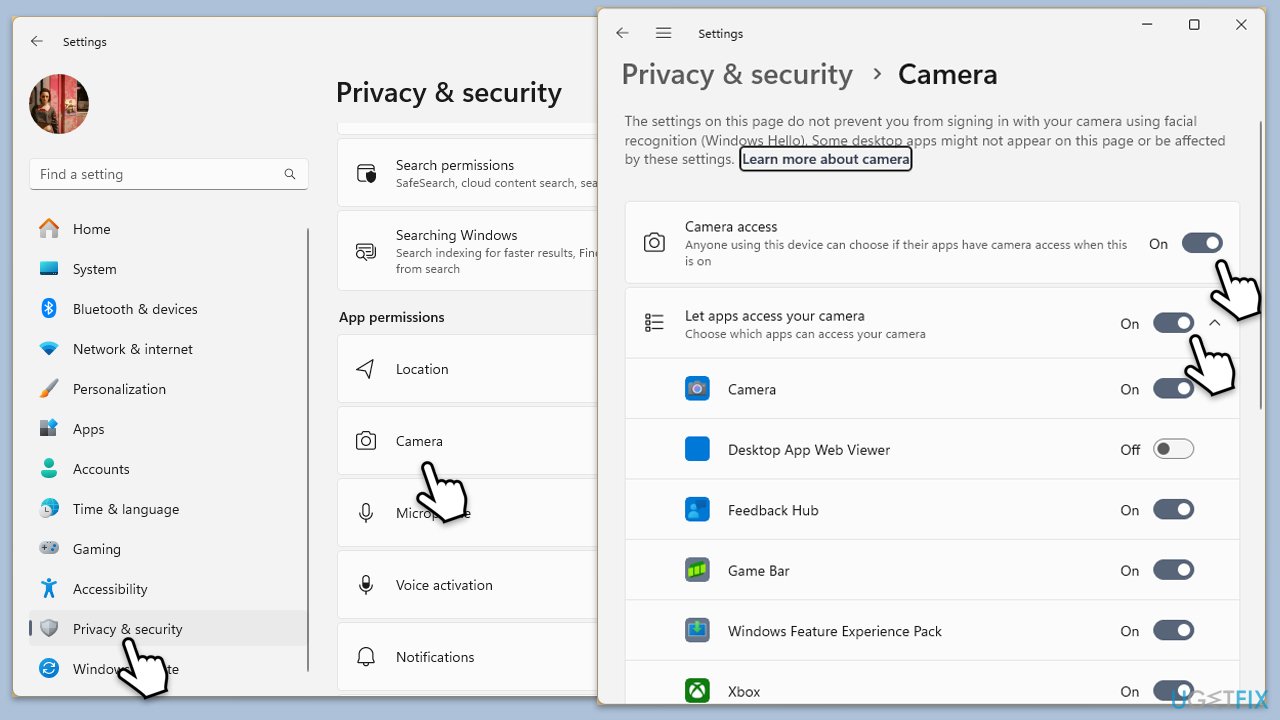
Windows' privacy settings are preventing the Camera from accessing permissions necessary to support the Face Recognition feature. Make sure the Settings for your operating system's Privacy allow such permissions to the Camera and to the application that uses Face Recognition.
- Right-click on Start and pick Settings.
- Select Privacy & security/Privacy section.
- Scroll down to the App permissions section and click on Camera or pick Camera on the right on Windows 10.
- Make sure the option Let apps access your camera is turned on.
- Check the list of apps below and ensure the necessary apps have permission to use the camera.
Fix 4. Adjust camera position and angle
It could be, though less common, that it is simply an improperly positioned camera. Ensure the camera is angled correctly and at eye level to optimize the performance of face recognition.
Fix 5. Test in different lighting
Though this isn't generally the cause, checking the setup in a bright environment for facial recognition will clear the air on lighting. Ensure there aren't any strong backlight or shadows impeding the camera from accurately capturing your face.
Fix 6. Repair or reset Camera app
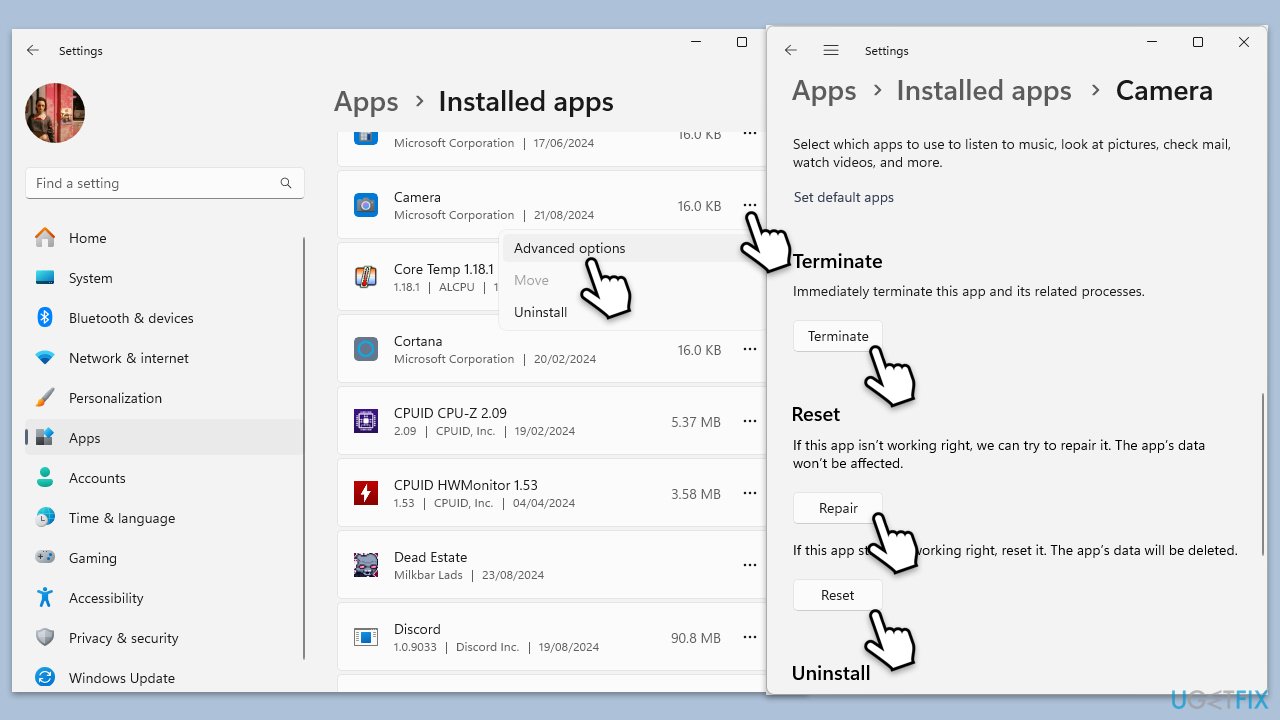
- Right-click on Start and pick Apps and Features/Installed apps.
- Scroll down to find the Camera app.
- Click on it once and pick Advanced options.
- Scroll down until you find the Terminate button - click it.
- Click Repair first.
- If that doesn't help, use Reset.
Bottom line
To resolve the 'Make sure your face is centered in the frame' issue, you can reset the facial recognition settings, remove stored facial data, and reconfigure the system. Additionally, ensure that your Windows version is up to date and check the camera's privacy settings. If none of these solutions work, consider using a PC repair tool to address underlying Windows issues.
Frequently asked questions
Ensure that your face is well-lit and clearly visible to the camera, and try adjusting your position to be directly in front of the camera.
Yes, access the camera settings in Windows 11 and make sure that the camera privacy settings allow the facial recognition app to use the camera.
Try updating your camera drivers through Device Manager, as outdated drivers can affect the performance of facial recognition features.




Report an issue
What's wrong with this guide? We review every report and update or remove content.
Report received — thank you. We'll review and fix it.
You need a free account to submit a report.
Be the first to comment