How to fix
Microsoft Teams error “We’ve run into an issue”
on Windows
Resolve the "We've run into an issue" error in Microsoft Teams on Windows 10 or 11 easily. Quick, expert-tested solutions ensure seamless communication.


What causes How to fix Microsoft Teams error “We’ve run into an issue” in Windows?
- Corrupted cache files within the Teams app
- Outdated credentials stored in Windows Credential Manager
- Internet connection problems
- Disabled TLS options in Windows settings
- VPNs or network filters blocking communication
Repairs Windows system files, removes malware, and restores a clean OS state — without reinstalling.
I can't access Microsoft Teams for several days now. Every time I try, I get an error "We've run into an issue" and there's nothing more detailed. My Windows version is Windows 11 Home.
The Microsoft Teams error "We've run into an issue" commonly affects users trying to access the desktop application on Windows systems. This error often prevents users from signing in or using the app, leading to disruptions in daily work tasks. It typically appears without a specific error code, making it harder for users to diagnose the root cause immediately.
Users report encountering this issue during login attempts, especially when switching accounts or after app updates. The error may also appear if there are connectivity issues, corrupted cache files, or conflicts with the Teams app configuration. Sometimes, incorrect or outdated credentials stored in Windows Credential Manager can trigger this problem, causing repeated login failures.
There are several reasons why the "We've run into an issue" error might occur. Corrupt cache files within the Teams app, outdated credentials, or internet connection problems are common culprits. In some cases, issues with Windows settings, like disabled TLS options or incorrect Internet Options settings, may interfere with how Teams communicates with its servers. Additionally, VPNs or network filters can block the necessary communication pathways, leading to this error.
To resolve this problem, users often need to clear the Teams cache, re-enter credentials, or reset network and internet settings. Restarting Teams or running it in compatibility mode can also help, especially if the app experiences compatibility issues with the current version of Windows. In severe cases, reinstalling Microsoft Teams or using the web version might be the best temporary solution while diagnosing the issue.
When multiple troubleshooting steps fail to fix the "We've run into an issue" error, using the [d1] repair utility can be particularly helpful. This tool can repair system components, such as corrupted files or broken registries, which might be causing the issue. It’s beneficial for tackling problems where the underlying cause is difficult to pinpoint, ensuring the system functions smoothly again.

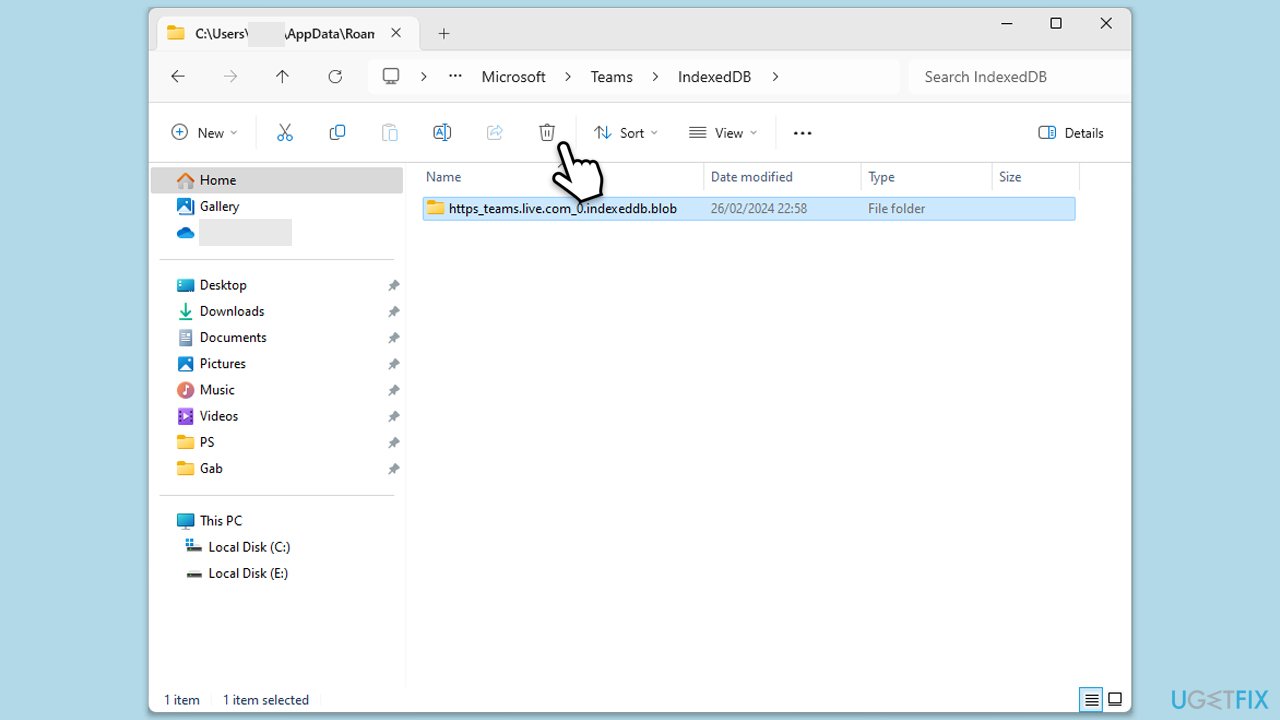
Solution 1. Clear Microsoft Teams cache
Corrupted or outdated cache files can cause Teams to malfunction. Clearing the cache removes these files and forces Teams to generate fresh data, which often resolves login and connectivity issues.
- Close down Microsoft Teams.
- Press Win + E to open File Explorer.
- Ensure Hidden files are visible.
- In the address bar, type in %appdata%\Microsoft\teams and press Enter.
- Delete the contents of the following folders:
%appdata%\Microsoft\teams\application cache\cache
%appdata%\Microsoft\teams\blob_storage
%appdata%\Microsoft\teams\Cache
%appdata%\Microsoft\teams\databases
%appdata%\Microsoft\teams\GPUcache
%appdata%\Microsoft\teams\IndexedDB
%appdata%\Microsoft\teams\Local Storage %appdata%\Microsoft\teams\tmp - Make sure you empty the Recycle Bin (or use Shift + Del combination to delete these files).
- Restart your computer.
Solution 2. Remove credentials in Credential Manager
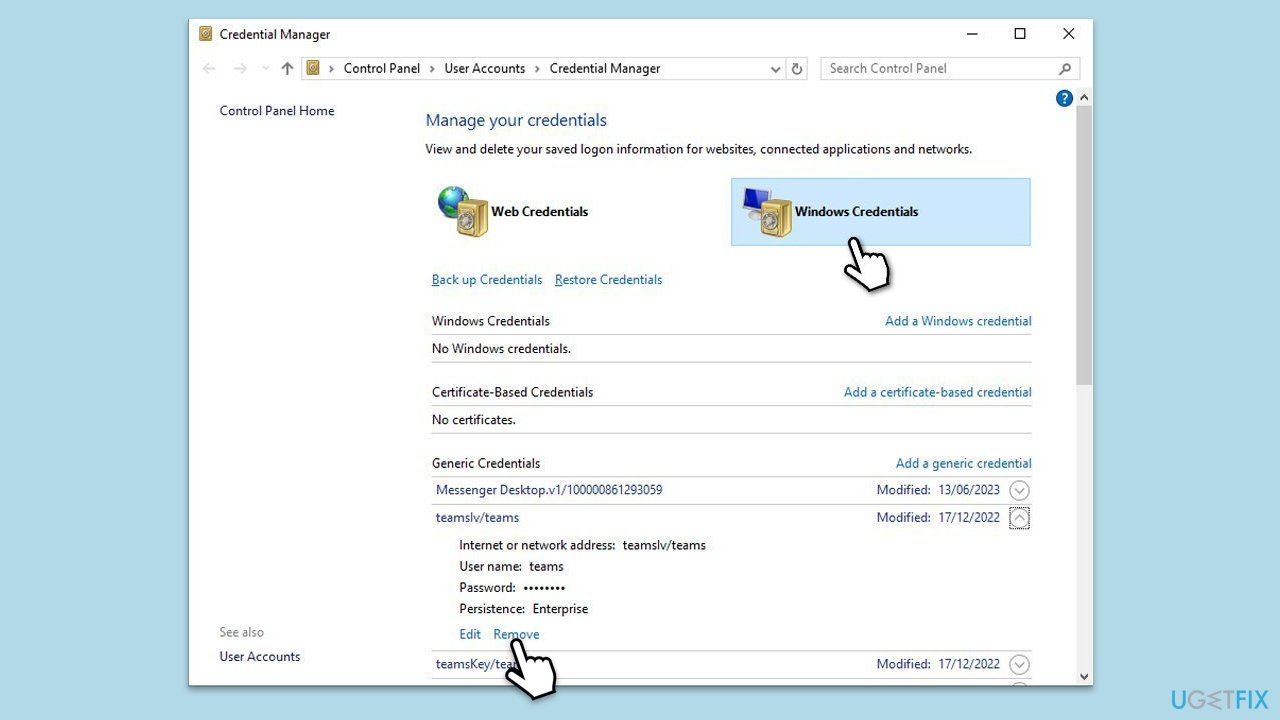
Incorrect or outdated login information saved in Credential Manager can lead to authentication errors. Removing and re-entering the credentials can fix these issues.
- Lof off from Microsoft Teams.
- Type Credential Manager in Windows search and press Enter.
- Select Windows Credentials.
- Locate and remove any stored credentials related to Microsoft Teams.
- Restart Teams and re-enter your login details.
Solution 3. Run Teams in Compatibility Mode
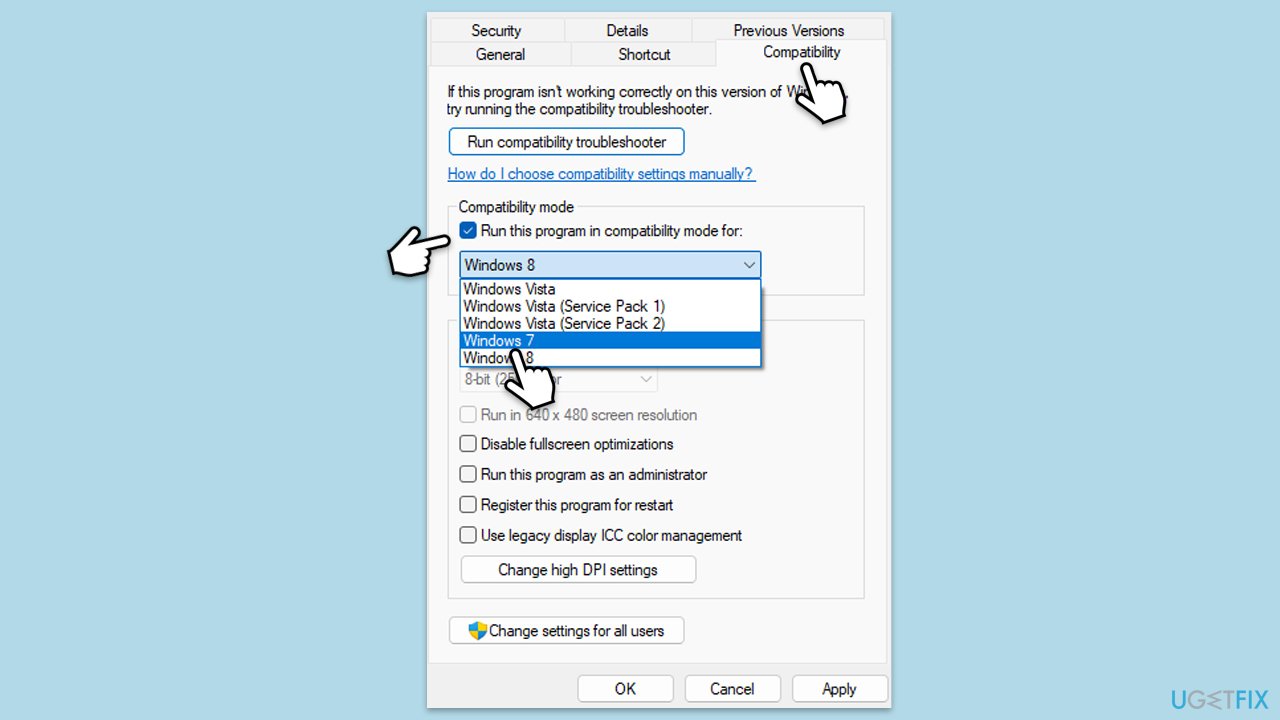
Sometimes, Microsoft Teams may not work properly due to compatibility issues with the Windows version. Running the app in compatibility mode can solve these conflicts.
- Right-click the Teams shortcut or executable file.
- Select Properties.
- Go to the Compatibility tab.
- Check the box for Run this program in compatibility mode for.
- Choose another Windows version from the dropdown menu.
- Click Apply, then OK.
Solution 4. Disable VPN or Proxy
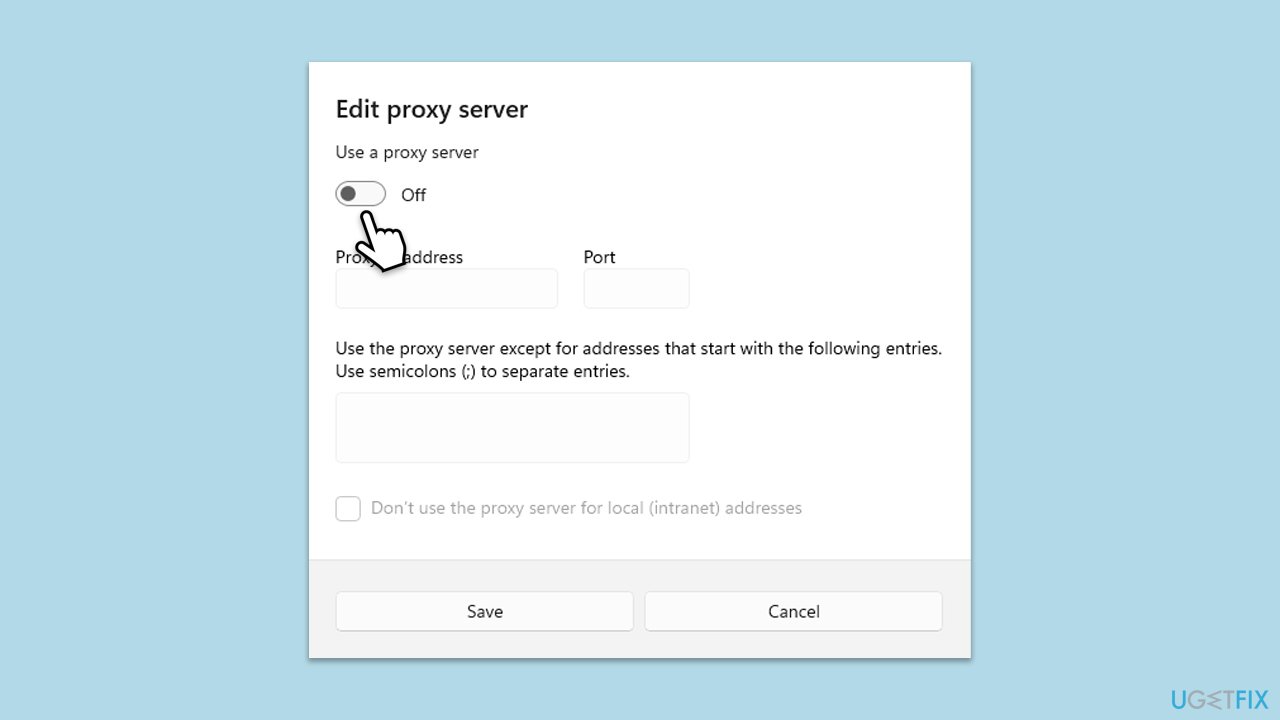
VPNs and proxies can interfere with Microsoft Teams’ connection to its servers. Disabling these temporarily allows Teams to connect without restrictions.
- Right-click on Start and pick Network connections.
- Navigate to the VPN section and disable it if it's connected.
- Then back and select Proxy.
- Here, disable Proxy if it's enabled.
Solution 5. Update Microsoft Teams
An outdated Teams application may not be compatible with the current system environment. Updating ensures you have the latest patches and fixes.
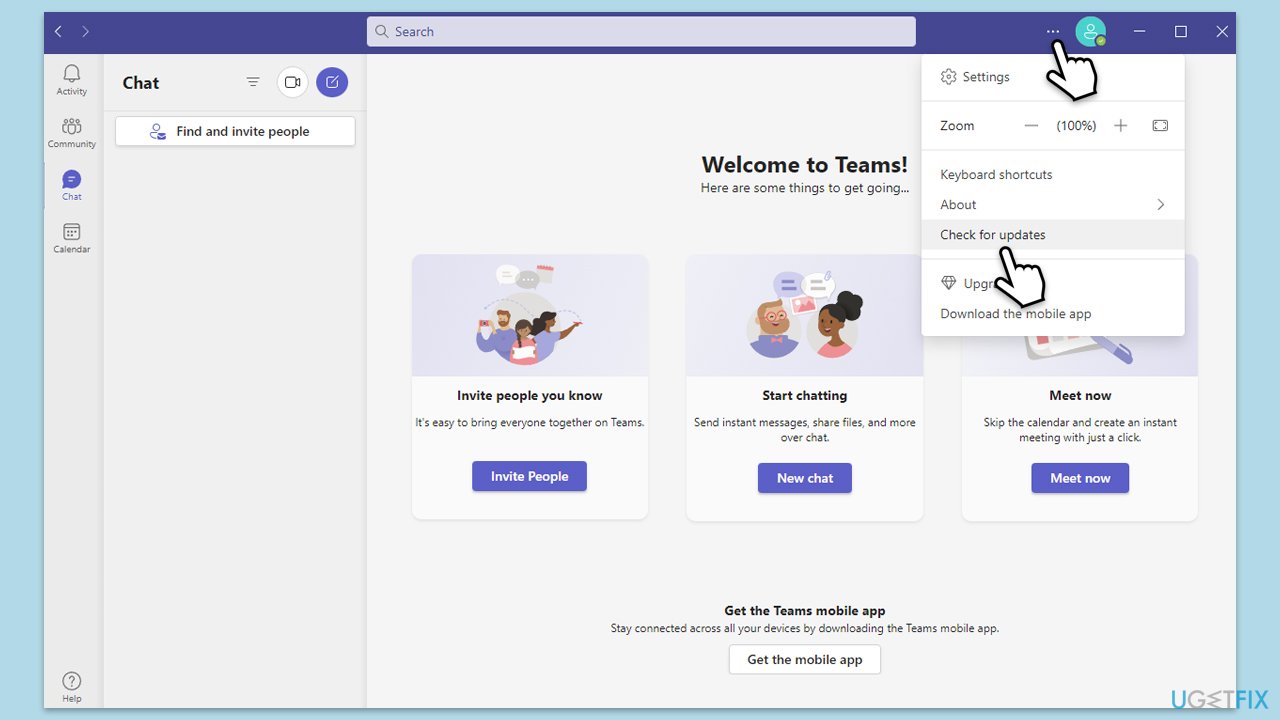
- Open Microsoft Teams.
- Click on the Settings and more button at the top-right corner.
- Select Check for updates.
- Teams will automatically download and install any available updates.
- Restart Teams after the update is completed.
Solution 6. Reset internet options
Incorrect internet settings can block Teams from connecting properly. Resetting these options can restore the necessary configuration for Teams to operate.
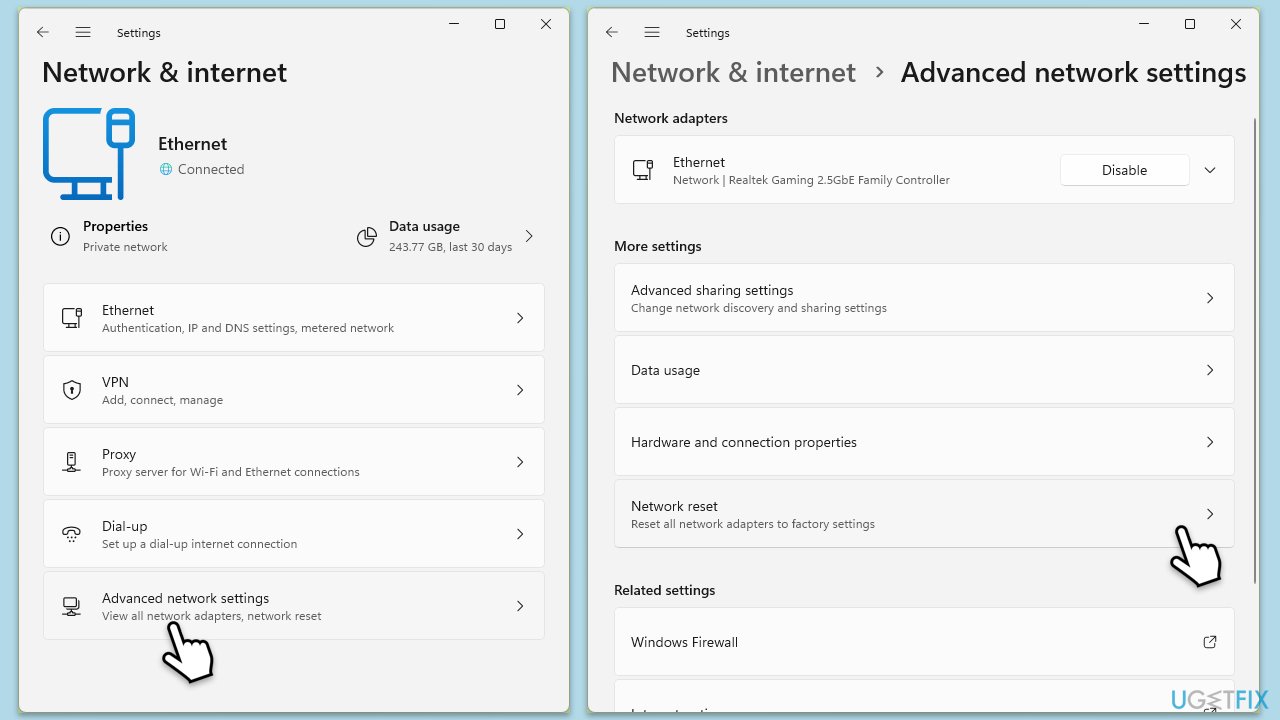
- Right-click on Start and pick Settings.
- Go to Network & Internet.
- Under Advanced network settings, click Network reset.
- Click Reset Now.
- Confirm the action and then restart your computer.
Solution 7. Reinstall Microsoft Teams
If Teams continues to show errors, reinstalling the app ensures that corrupted or misconfigured files are replaced.
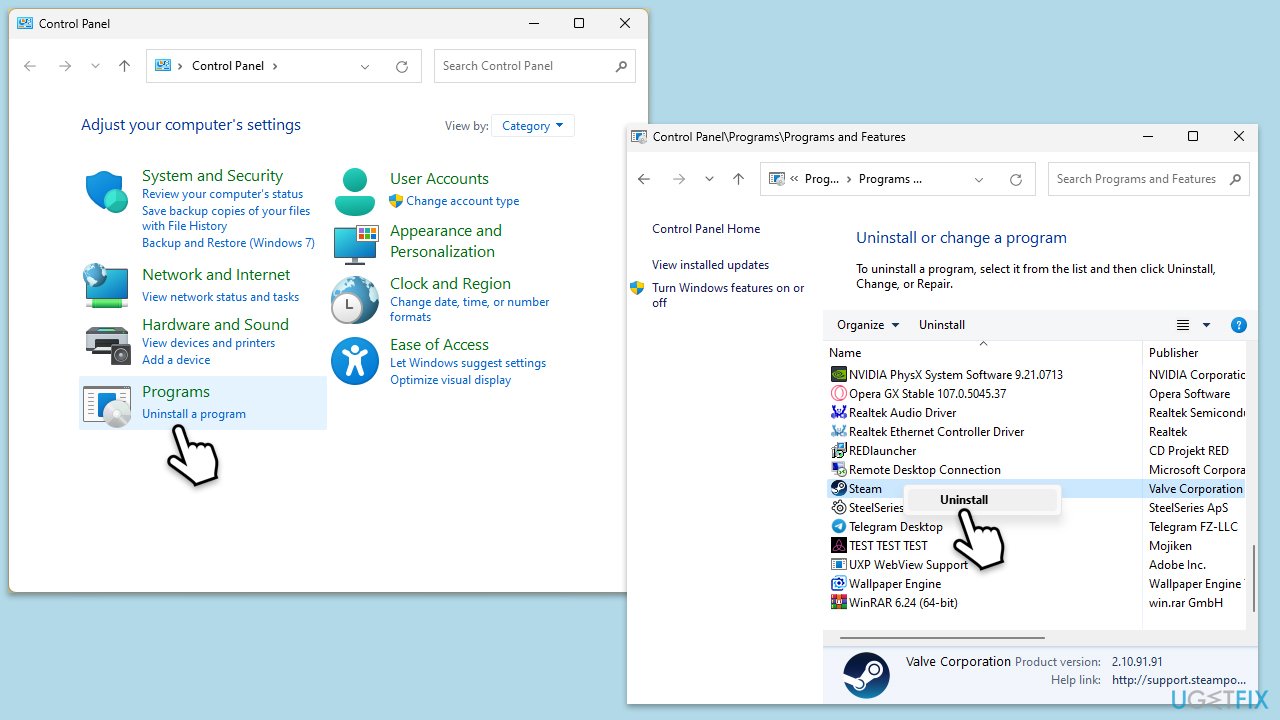
- Type Control Panel in Windows search and press Enter.
- Go to Programs > Uninstall a program.
- Find Microsoft Teams, right-click, and select Uninstall.
- Follow the prompts to remove the app.
- Once done, press Win + E to open File Explorer.
- In the View tab at the top of the window, enable Hidden Files.
- Go to C:\Program Files\WindowsApps location.
- Scroll down to find the Microsoft Teams folder and delete it (alternatively, you can rename it).
- Now type %AppData% in Windows search and press Enter.
- Delete the Teams folder here.
- Finally, restart your system and reinstall the app.
Bottom line
To resolve the Microsoft Teams error "We've run into an issue," users can clear the Teams cache, re-enter their credentials, or reset network and internet settings. Restarting Teams or running it in compatibility mode may also help. If these steps do not resolve the issue, consider reinstalling Microsoft Teams or using the web version as a temporary solution.
Frequently asked questions
Try clearing the Microsoft Teams cache by navigating to %appdata%\Microsoft\Teams and deleting the contents of the Cache folder, then restart the app.
Ensure that your Windows 11 is fully updated and consider uninstalling and reinstalling Microsoft Teams to resolve any corrupted files.
Yes, check your network settings and ensure that your firewall or antivirus isn't blocking Microsoft Teams, as this can lead to connectivity issues.




Report an issue
What's wrong with this guide? We review every report and update or remove content.
Report received — thank you. We'll review and fix it.
You need a free account to submit a report.
Be the first to comment